Archive for the ‘Howtos’ Category

Tech Trend 2013 – Why laser printers are better than inkjet printers

Tuesday, March 5th, 2013

With the prices of laser printers becoming more affordable, many home and small offices are choosing to buy laser printers to enjoy the more economical print per page costs, faster speed and professional document print quality.

I reviewed an S-LED printer (DocuPrint M255 z) from Fuji Xerox last week and was curious how S-LED technology worked. Both LED and Laser involve Page Printing, utilising similar technology – electrophotography.

I reviewed an S-LED printer (DocuPrint M255 z) from Fuji Xerox last week and was curious how its S-LED technology worked. Both LED and Laser involve Page Printing, utilising similar technology – electrophotography.

Laser printers are the workhorse of the office where large numbers of prints are made. This is because they are fast, produce professional print quality for documents, and most importantly – print per page is much cheaper than the inkjet printer at home.

LED printers are also known as laser-class printers. S-LED print head technology keeps the advantages of conventional LED's mechanical reliability and compact design while improving print quality and reliability.

LED printers are also known as laser-class printers. S-LED print head technology keeps the advantages of conventional LED’s mechanical reliability and compact design while improving print quality and reliability.

Only problem is – they used to be bulky and were much more expensive than inkjets. So home and small offices who are budget conscious tend to use inkjets instead, especially if the quantity of prints is small.

Xerox developed the industry’s first laser printer in 1977, offering a lower cost, reliable, and high print quality printer.

Today, laser technology is a sophisticated printing technology, providing fast printing, quality finishing and easy operation advantages.

Fuji Xerox was voted on HardwareZone as the Best LED Printer Brand 2013 – Readers Choice, and Best SOHO Multi-Function Printer (Editors Choice) DocuPrint M355 df. I asked the company how the laser printer compares with an inkjet printer today.

Pros and cons of a laser printer and inkjet printer.

Pros and cons of a laser printer and inkjet printer. Click to enlarge.

The above is their qualitative comparison against a generic inkjet printer. What everybody already knows, of course, is that the laser printer trounces the inkjet for printing large volumes at very fast speed.

36,000 pages over 3 years. *Warranty period of 4 years – 2-year standard (labour+parts) + 2-year limited (parts only) warranty including replacement of drum cartridge.

36,000 pages over 3 years. *Warranty period of 4 years – 2-year standard (labour+parts) + 2-year limited (parts only) warranty including replacement of drum cartridge. Click to enlarge.

In terms of Total Cost of Ownership (TCO), above is comparison chart for a high usage rate of 1,000 pages per month over 3 years, as well as a relatively low usage rate of 50 pages per month below.

Even for a low throughput of only 50 pages per month over 3 years, a laser could be more economical than an inkjet.

Even for a low throughput of only 50 pages per month over 3 years, a laser could be more economical than an inkjet. Click to enlarge.

In both cases, Fuji Xerox believes laser printers incur a lower TCO than inkjets.

Summing up the charts, there are savings of over 60%, even with low scale of printing of only 50 pages a month over a period of 3 years. The savings increases with the volume of printing as seen in chart 2 of over 36,000 pages in 3 years.

You can enjoy these savings too, by using a laser printer.

Laser versus Inkjet technologyInkjet printing creates a digital image by dropping spots of ink onto paper; laser printers produce digital images by scanning a laser beam across photoreceptors.

Laser printers work in a dramatically different manner. A laser projects the image of a document onto the printing drum, which is electrically charged. This image is then sprayed with dry ink, or toner, which sticks to the charged areas. The drum is then rolled onto paper and the ink is fused to the paper by a heat source.

This printing process differs dramatically from inkjets because the entire document is loaded into the printer, rather than in a continuous stream, as is the case with inkjets. This difference makes the laser printer ideal for entirely different printing needs than the inkjet.

3 Online mobile device security tips from Norton by Symantec

Saturday, February 23rd, 2013

The Norton Cybercrime Report 2012 showed an increase in new forms of cybercrime, such as those found on social networks and mobile devices, as cybercriminals focused their efforts on these increasingly popular platforms.

New forms of Cybercrime are targeting online activities accessed via notebooks, tablets and smartphones.

New forms of Cybercrime are targeting online activities accessed via notebooks, tablets and smartphones.

It is no surprise that 2013 promises to be the same – with mobile adware, or “madware”, with can expose location details and contact information, increasing by a significant number.

Such madware, which sneaks onto a user’s device when they download an app, has increased by 210 percent over the past nine months, a clear sign that cybercriminals are attempting to exploit the many mobile devices that consumers are using to access the Internet.

To protect ourselves from online mobile threats, here are three best practices to ensure that our personal details and information do not fall into the hands of those that might misuse them.

(more…)

Top 10 tips for a safer Internet – for our children and for us

Tuesday, February 5th, 2013

Today is the Safer Internet Day, a global campaign that promotes for everyone a healthier Internet. Started in 2004, this year marks the 10th anniversary of the annual campaign that is held on the second day of the second week of February since 2004.

Effendy Ibrahim, Norton Internet Safety Advocate and Director for Asia, Norton by Symantec, has provided a list of top 10 tips for parents and caregivers for ensuring young people remain protected online. Click to view/download enlarged PDF version.

Effendy Ibrahim, Norton Internet Safety Advocate and Director for Asia, Norton by Symantec, has provided a list of top 10 tips for parents and caregivers for ensuring young people remain protected online. Click to view/download enlarged PDF version.

Safer Internet Day is organised by Insafe and co-founded by the European Union, in order to encourage safer and more responsible use of online technologies and services.

(more…)

Attacking COMEX 2012

Friday, August 31st, 2012

A bit of planning can save you much meandering in the ocean of exhibitors at COMEX 2012. Here are three simple steps to make your bargain-hunting a breeze.

Do you find yourself zig-zagging acrros the hall and shuttling to-and-fro between floors?

Do you find yourself zig-zagging acrros the hall and shuttling to-and-fro between floors?

The weekend is here and many will be jam-packing Levels 3, 4 and 6 of Suntec Singapore to take advantage of promotions at COMEX 2012 – one of four major annual IT shows in Singapore.

Follow these three simple steps to make your bargain-hunting a breeze.

Step 1 – Online browsing of promotions

Check out the offers online. Even before hitting the venue, browse through the e-brochures and e-flyers to check out the discounts and freebies offered by exhibitors.

Click on this button to display ALL articles and promotions for COMEX 2012.

Click on this button to display ALL articles and promotions for COMEX 2012.

Check the list of promotions I have consolidated on tech4tea.com here.

You can click on the COMEX 2012 button at the top of the side-bar to the right of every page of tech4tea.com – it will show you all the articles related to COMEX 2012.

If you have specific gadgets you want to buy, you can do some targeted browsing/search.

Notice the buttons the main COMEX 2012 button? Pressing these buttons will lead you to a compilation of the relevant flyers/promotions for the category of gadgets that you’re looking for.

Drowning in a sea of irrelevant brochures? Do some targeted browsing instead.

Drowning in a sea of irrelevant brochures? Do some targeted browsing instead.

These include computers (desktops, all-in-ones, notebooks, ultrabooks, netbooks, tablets etc), printers (laser printers, inkjets, photo and label printers etc), cameras, audio products and accessories.

Hopefully, this will rescue you from drowning in the sea of brochures and flyers flying around the Web.

Step 2 – Plan your route

Based on the shopping list, tally with the floor plan for the show, and plan an expeditious route through the booths.

This will save you from having to zig-zag across the halls or between floors.

You may want to plan a route that includes competing exhibitors just to check whether they have revised their prices on-site to something better than what you’ve already decided based on online browsing.

Step 3 – Put on your blinkers or shop-till-you-drop

With your shopping list and route in hand, put on your blinkers and FOLLOW the plan. You should be able to get in and out and get what you want pretty quickly.

Of course, if you prefer to spend the entire day and empty your wallets, you can just go the free-and-easy way, and meander through the crowd as and where your fancy takes you.

Below are some useful resources for planning your COMEX 2012 shopping trip.

(more…)

Happy Father’s Day

Sunday, June 17th, 2012

Yay, it’s Father’s Day today! To all fellow fathers out there – Happy Father’s Day!

DIY ice-cream for Father’s Day. Photo taken with Panasonic Lumix DMC-GF5 using “Cute Dessert” Scene Mode.

DIY ice-cream for Father’s Day. Photo taken with Panasonic Lumix DMC-GF5 using “Cute Dessert” Scene Mode.

And for those looking to do something different for your father or the father of your children, here’s something you can try – especially if he’s allergic to dairy products or diabetic.

Delicious & healthy! No post-processing on the photo except cropping and resizing. I’m impressed with the sharp focus (despite being hand-held) and vibrant colours.

Delicious & healthy! No post-processing on the photo except cropping and resizing. I’m impressed with the sharp focus (despite being hand-held) and vibrant colours.

Thankfully I’m neither of these but it was fabulous to be served with a big dollop of this home-made ice-cream first thing in the morning of Father’s Day.

So here’s the how-to, courtesy of mamatimes.wordpress.com.

Keep a couple of bananas until the skin turns slightly black cos some netizens say they have to be really ripe. Slice them up and put them in the freezer.

You can add other fruits, like strawberries. Just toss them into the freezer. Once frozen, throw the lot into a food processor and you’re done.

What’s left is the dressing up and topping. You can add rainbow candies, grounded peanut or chocolate chips or powder. Enjoy!

Seven tips for laptop batteries

Saturday, March 31st, 2012

How do you maximise your battery life? Should you constantly charge your battery? Should you keep your battery installed even when your laptop is plugged in? When should you replace your battery?

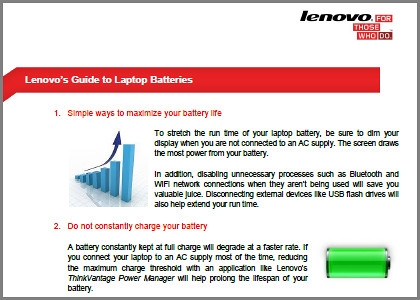
Check out Lenovo's Guide to Laptop Batteries.

Check out Lenovo's Guide to Laptop Batteries.

Here are the answers to these and other frequently asked questions, courtesy of “Lenovo’s Guide to Laptop Batteries”.

1. Maximise your battery life

  • Dim the display when not connected to an AC supply
  • Disable Bluetooth and Wi-Fi when not in use
  • Disconnect unnecessary external devices such as USB flash drives

2. Keep your battery installed even when your laptop is plugged into a power source.

3. Do not constantly charge your battery. Reduce the maximum charge threshold if you connect your laptop to an AC supply most of the time.

4. When storing your extra battery, ensure there is at least 50% charge level, and store in a cool environment.

5. Keep your battery cool when in use to slow degradation.

6. Modern Li-ion batteries do not need to be fully charged and discharged because they do not suffer from memory effects.

7. A little obvious here – replace the battery when it can no longer hold a full charge, or when its actual run time falls significantly below its original run time.

Read or download “Lenovo’s Guide to Laptop Batteries” below:

(more…)

Setting up and using the Seagate GoFlex Home storage system

Monday, September 26th, 2011

GoFlex Home is a consumer network attached storage (NAS) hard drive for the home. Easy to set up and use, it allows the access, sharing, streaming, and backup of files and media for computers, network TVs, media players and game consoles connected to the home wireless network.

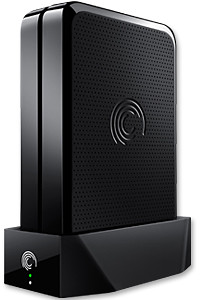
The Seagate GoFlex Home comprises a drive dock and a hard drive.

The Seagate GoFlex Home comprises a drive dock and a hard drive.

Secure access can also be opened to computers and iOS/Android tablets and smartphones over the Internet.

Over the weekend, I helped my friend set up an NAS drive for his desktop, netbook, two laptops, iPhone and Android tablet. He had bought the Seagate GoFlex Home 3 TB storage drive during the recent COMEX 2011 but hadn’t had the time to set it up yet.

I helped by using eye-power because he decided to give it a go himself and actually got the thing working in less than 15 minutes. That was the reason why I recommended the drive in the first place, it works with most consumer home Wi-Fi routers with little set-up or configuration needed.

The GoFlex Home comes with two cables and an software installation CD. The following steps were all that was needed to get the personal storage cloud going:

1. Connect the GoFlex Home drive dock to the Wi-Fi router by using the provided Ethernet cable.

2. Pop the GoFlex hard drive into the GoFlex drive dock and plug the power supply into the drive dock and the wall outlet. Switch on the GoFlex Home by pressing the Power button on the drive dock.

3. Pop the CD (or download from Seagate’s website) into the computer (can be a Mac or Windows PC) to install the software needed to access the hard drive. Simply select a language, key in the product information found on the drive, give the drive a name and register it. The name has to be unique globally since it will be used to identify the drive should you access it from the Internet.

4. Install the software on other computers that require access to the shared drive. Up to 5 people/computers on the home network can access the GoFlex Home. By paying to subscribe to the Seagate Share Pro, you get access for an unlimited number of people/computers to the GoFlex Home.

There are three ways to access the drive. One is to use the installed Seagate Dashboard software (on Windows PCs), which allows all features of the drive to be configured and managed. You can add computers and user accounts, backup, access and share files as well.

Use Seagate Dashboard software to configure and manage GoFelx Home

Use Seagate Dashboard software to configure and manage GoFelx Home

The other way is to use a browser-based Seagate Share either for a computer in the home network or out in the Internet.

Seagate GoFlexAccess App

Free iOS/Android app

Both are easy to use with a simple interface, using drag-and-drop or standard dialog boxes we’re familar with.

The third method is via the appropriate free app on a iOS/Android smartphone or tablet, also over the Internet.

The GoFlex Home comes with a USB port which is very useful. You can connect an additional external hard drive to expand the capacity of the original GoFlex hard drive. You can also connect a USB hub for connecting more than one USB device.

In my friend’s case, he connected his printer to the USB port and all his computers on the Wi-Fi network got to share that printer. USB port on the drive dock for a HDD, printer or USB hubNo more plugging/unplugging the old printer from one computer to another.

The included backup software allows up to three connected computers to be automatically backed up to the GoFlex Home. Upgrade to Premium Backup ($49.95) to back up an unlimited Seagate GoFlex Home home network attached storagenumber of computers on the GoFlex Home network. You can upgrade at the Application Store that can be accessed through the Seagate Dashboard software.
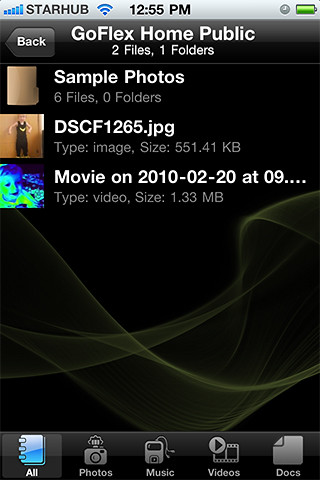
For each user account set up on the GoFlex Home, three folders are created – a Public, Personal, and Backup folder. The Public folder holds files that can be stored and accessed by everyone on your home network. The Personal and Backup folders can only be accessed by the the user.

What I like about the sharing is the granular control available for the files shared. You can specify who you want to share files with, choose to share just certain files or entire folders, set passwords, and set expiry dates for the shares. Administration is intuitive and easy to pick up. You can send a URL of a shared file via email.

Stream media to other computers and media players on the network.

Stream media to other computers and media players on the home wireless network.


Music, photos and video can also be shared and streamed to media players, game consoles or network TVs that support UPnP-AV, DLNA or Windows Media Connect. A wide range of file types are supported.

The GoFlex Home is available in 1TB (S$179), 2TB (S$239) and 3TB (S$339) capacities.

Setting up a home shared network hard drive

Sunday, September 25th, 2011

Over time, as we get new computers and leave the old still-functional computer as a second or third machine, and we still utilise the different machines, the files we create and work on can get distributed amidst the hard disk drives of the various computers.

A shared network hard drive can bring order back to an increasingly chaotic situation.

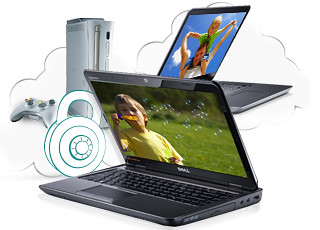
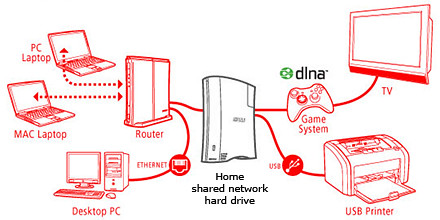
A network attached external hard drive can share files and media amongst computers and media players in the home

A network attached external hard drive can share files and media (illustration modified from www.buffalotech.com)

The above scenario was what happened to some of my friends and me. Computers and laptops today can last for a long time (if you look after them well) and most often then not, they’re still perfectly functionable when we get a new machine so it seems quite a waste to get rid of the old machine, especially since it can serve as a back up.

And if a member of the family is on the new laptop, others can use the spare computer. So over time, working files, photos, music and video can get distributed over a few computers. At first, it’s easy to remember and keep track of which file is in which computer and do the occasional transfer using an USB thumbdrive.

But over time, as the number of files grow, things can get out of hand – the convenience of being able to work on a few computers turns into a bane.

Now that cloud computing is catching on and we can save files and media on the Internet, this mess can be ameliorated. But those personal and confidential files and humongous video files are still best kept in local storage.

The NAS solution

Schematic of an NAS solution

Schematic of an NAS solution

So over the weekend, I helped my friend rig a similar solution that I use at home – set up a simple external hard drive that can be shared and accessed by a few different computers at home over a local Wi-Fi network.

Those files that are stored on the network attached storage (NAS) drive can then remain accessible no matter which computer you’re working on. It can be used to back up the computers connected.

Some NAS drives allow you to stream media to TVs, media players and game consoles connected to the home network.

In fact, some even enable access to be opened out to the Internet, so that when you’re outstation – in the office, on the road, or overseas – you can still securely access the files stored in the hard drive. This can be done via a browser on a laptop connected to the Internet, or via an app on a smartphone or tablet.

It’s like setting up your personal cloud storage. There are many consumer NAS drives in the market from makers such as Seagate, Western Digital and Buffalo.

They’re all designed to be easily set up by the layman who does not have a PhD in computer science. These NAS drives are connected directly to the router rather than a specific computer acting as a file server.

Any computer connected to the network via the router can access the NAS drive at any time.

Because these NAS drives are more intelligent than the regular dumb external hard drive, they do cost a slight premium over the latter. The NAS drives can manage network access by computers on the network and implement security, access and rights control as well.

Seagate GoFlex Home comes in capacities of 1TB, 2TB and 3TB

Seagate GoFlex Home comes in capacities of 1TB, 2TB and 3TB

Since I’m familiar with the Seagate GoFlex Home, that was what I recommended my friend, who brought home a 3 TB version from the recent COMEX 2011 for S$299.

Tomorrow we’ll see how he managed to tame his growing diaspora of media and files.

Getting to the first hotel in Weinheim

Friday, June 10th, 2011

Upon arrival at Frankfurt, we’d picked up the rental car and driven the 64km from the airport to Weinheim in slightly less than an hour. Thanks to the GPS, finding the hotel was a breeze.

This is the first time I’m using a TomTom GPS and so far so good. The GO 750 is easy to use and the turn by turn navigation for the dedicated GPS device is clear and timely.

NH Hotel Weinheim

NH Hotel Weinheim, a good base to explore Mannheim, Schwetzingen, Heidelberg and the surrounding region. Photo from www.nh-hotels.com

I remember the first time I’d used a GPS years ago, the voice instructions came so late I frequently missed turnings.

What does one look for in a navigational GPS device? Here are some things I look out for from my own experience.

  • Good database so that the hotel or sight you’re looking for is in the map data. Good road database also helps in planning a good route from start point to destination. I had this GPS in the past that repeatedly tried to direct me to enter an expressway by driving into a one-way EXIT from the expressway. I had to take things into my own hads and figure out how to get onto that expressway in France.
  • Good user interface so you can find that hotel or sight and select it for navigation. The “point of interest” (POI) is only useful only if you can dig it out from the map data. I’ve used devices in the past where I tore my hair out just to locate a specific hotel to get to but can’t find it – only to discover later that it was in the database after all. I couldn’t find it because I didn’t have the exact address down to the door number. Then again, in Japan you can just key in the phone number of that establishment, and the GPS gives you the location and route to that specific hotel or sight.
  • Intelligent route planning to give you the shortest or fastest or least congested (based on live traffic data) route, with quick adjustment of the route should you make a wrong turn. Again the GPS that came with the rental car in Japan was exemplary, it was dead accurate on estimating time of arrival – after taking into account the traffic congestions along the way.
Nice spacious rooms with plenty of power outlets.

Nice spacious rooms with plenty of power outlets. www.nh-hotels.com

Pre-planning

While still on the flight, I keyed in the six hotels that we are going to stay in for this vacation and saved them as my personal “Favourites”. It was a breeze on the GO 750. By simply keying in the postal code, the menu gave a list of streets to choose from. You can then type in the house number if you had it.

TomTom GO 750 dedicated turn-by-turn navigational GPS

TomTom GO 750 dedicated turn-by-turn navigational GPS

It helped that I had consolidated all the full addresses of the hotels in a summary sheet, so that I didn’t have to rifle through reams of booking vouchers to find the addresses of the hotels.

By the way, in that summary, I find it useful to include other pertinent information like prices, phone numbers, check-in dates and time.

Having stored the hotel as a POI, I could set it as the destination the moment I got into the car and drive off. Rather than start fiddling with the GPS in the confines of the car park.

Turn your action sequence shots into a film strip

Sunday, May 29th, 2011

Use GIMP to turn photos into film slides and then join them together into a film strip.

That's the future Usain Bolt doing the 100m sprint

That's the future Usain Bolt doing the 100m sprint

The most straightforward way of conveying recording motion is to shoot video. However, photos can also be used to convey a sense of motion.

One way is to use a fast shuttle speed to freeze motion. Usually the posture of a sprinting man or the midair position of a mountain bike tells a story someone or something in motion frozen in that split second of exposure.

The other way is to do a panning shot. The photographer uses a relatively slower shuttle speed and moves camera such that the moving subject is kept at within the same location in the viewfinder. This is much trickier but the results can be dramatic. Only the moving subject is in focus while the surrounding background is blurred in motion blur. This effect can sometimes be simulated using a photo editor.

Yet another way is to shoot a sequence of photos of the moving subject. The photos in the sequence show the moving subject at various stages of movement. Many compact cameras today feature a burst mode for shooting action. Once the camera is focused on the moving subject, press down the shuttle release button and hold it down. The camera shoots in rapid succession a series of shots of the moving subject.

Combining the sequence into a film strip

Last week, we saw how the Slide filter in GIMP can modify a digital photo to make it look as if it is mounted onto a film slide.

To make a film strip, simply apply the Slide filter separately to each photo in the sequence, and then join them together into a single film strip. Photos in landscape orientation will result in a horizontal film strip while photos in portrait orientation will result in a vertical film strip.

Use the Slide filter in GIMP to turn each photo into a film slide Use the Slide filter in GIMP to turn each photo into a film slide Use the Slide filter in GIMP to turn each photo into a film slide

Use the Slide filter in GIMP to turn each photo into a film slide

Below are a few points to note while combining the slides into a strip:

All the photos in the sequence should be of the same size, so that they can be joined together seamlessly.

When the Slide filter is applied to a photo, the resulting photo that with the slide frame comprises three layers: the original photo (cropped to 3:2 aspect ratio), the slide frame  (with the sprocket holes and the text labels), and a coloured background (which shows through the, the sprocket holes of the slide frame).

Sequence of photos taken in burst mode using a Sony SLT-A55V

Sequence of photos taken in burst mode using a Sony SLT-A55V

Use the Image > Flatten Image command from the main menu to flatten the layers into a single layer to make it easier to drag and transfer it to another image window.

After each of the film slides have been flattened, drag and drop each of them the image window containing one of the film slides. This will become the workspace for joining the separate film slides into a single film strip.

Select the  Image > Canvas Size command from the main menu. A “Set Image Canvas Size” dialog box pops up.  First click the chain link between the Width and Height text fields so that one value can be changed independently of the other. If the film strip is to be horizontal, increase the Width, if the film strip is to be vertical, increase the Height.

To save the trouble of doing manual calculations, change the units in the dropdown box from “pixels” to “percent”. Then change the Width or Height field to the appropriate multiple: if there are to be two photos in the film strip, increase from 100 to 200 percent; if there are to be three photos, increase to 300 percent. Press the “Resize” button to confirm the change.

The image window shows only one of the film slides, the others are hidden directly below it. Select the Move Tool in the Toolbox. Drag the top film slide to move it. Hold down the Ctrl key on the keyboard while dragging to constrain the movement of the film slide to strictly horizontal or vertical movements.

Drag the film slides until they are positioned end-to-end with each other, and forms a horizontal or vertical film strip.

You can use the arrow keys on the keyboard to nudge the film slides so that the edges are seamless and doesn’t show any gaps in between.

Save the file and you have your film strip.