Archive for the ‘GIMP Quick Tips’ Category

Turn your action sequence shots into a film strip

Sunday, May 29th, 2011

Use GIMP to turn photos into film slides and then join them together into a film strip.
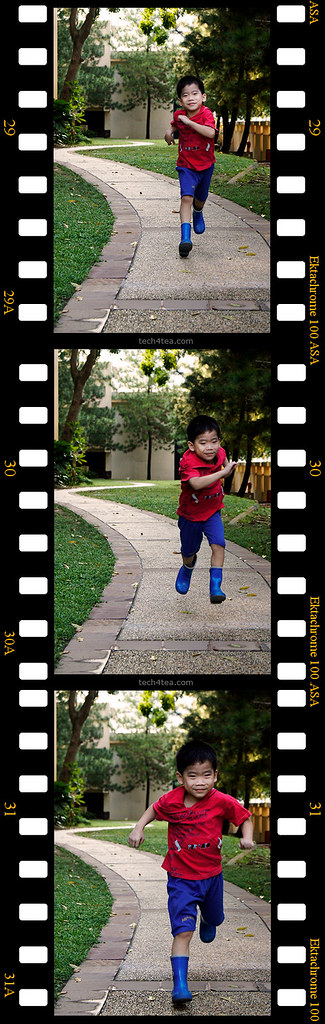
That's the future Usain Bolt doing the 100m sprint

That's the future Usain Bolt doing the 100m sprint

The most straightforward way of conveying recording motion is to shoot video. However, photos can also be used to convey a sense of motion.

One way is to use a fast shuttle speed to freeze motion. Usually the posture of a sprinting man or the midair position of a mountain bike tells a story someone or something in motion frozen in that split second of exposure.

The other way is to do a panning shot. The photographer uses a relatively slower shuttle speed and moves camera such that the moving subject is kept at within the same location in the viewfinder. This is much trickier but the results can be dramatic. Only the moving subject is in focus while the surrounding background is blurred in motion blur. This effect can sometimes be simulated using a photo editor.

Yet another way is to shoot a sequence of photos of the moving subject. The photos in the sequence show the moving subject at various stages of movement. Many compact cameras today feature a burst mode for shooting action. Once the camera is focused on the moving subject, press down the shuttle release button and hold it down. The camera shoots in rapid succession a series of shots of the moving subject.

Combining the sequence into a film strip

Last week, we saw how the Slide filter in GIMP can modify a digital photo to make it look as if it is mounted onto a film slide.

To make a film strip, simply apply the Slide filter separately to each photo in the sequence, and then join them together into a single film strip. Photos in landscape orientation will result in a horizontal film strip while photos in portrait orientation will result in a vertical film strip.

Use the Slide filter in GIMP to turn each photo into a film slide Use the Slide filter in GIMP to turn each photo into a film slide Use the Slide filter in GIMP to turn each photo into a film slide

Use the Slide filter in GIMP to turn each photo into a film slide

Below are a few points to note while combining the slides into a strip:

All the photos in the sequence should be of the same size, so that they can be joined together seamlessly.

When the Slide filter is applied to a photo, the resulting photo that with the slide frame comprises three layers: the original photo (cropped to 3:2 aspect ratio), the slide frame  (with the sprocket holes and the text labels), and a coloured background (which shows through the, the sprocket holes of the slide frame).

Sequence of photos taken in burst mode using a Sony SLT-A55V

Sequence of photos taken in burst mode using a Sony SLT-A55V

Use the Image > Flatten Image command from the main menu to flatten the layers into a single layer to make it easier to drag and transfer it to another image window.

After each of the film slides have been flattened, drag and drop each of them the image window containing one of the film slides. This will become the workspace for joining the separate film slides into a single film strip.

Select the  Image > Canvas Size command from the main menu. A “Set Image Canvas Size” dialog box pops up.  First click the chain link between the Width and Height text fields so that one value can be changed independently of the other. If the film strip is to be horizontal, increase the Width, if the film strip is to be vertical, increase the Height.

To save the trouble of doing manual calculations, change the units in the dropdown box from “pixels” to “percent”. Then change the Width or Height field to the appropriate multiple: if there are to be two photos in the film strip, increase from 100 to 200 percent; if there are to be three photos, increase to 300 percent. Press the “Resize” button to confirm the change.

The image window shows only one of the film slides, the others are hidden directly below it. Select the Move Tool in the Toolbox. Drag the top film slide to move it. Hold down the Ctrl key on the keyboard while dragging to constrain the movement of the film slide to strictly horizontal or vertical movements.

Drag the film slides until they are positioned end-to-end with each other, and forms a horizontal or vertical film strip.

You can use the arrow keys on the keyboard to nudge the film slides so that the edges are seamless and doesn’t show any gaps in between.

Save the file and you have your film strip.

Turn your photo into a film slide

Sunday, May 22nd, 2011

Tired of simple white borders for your digital photos? GIMP has a simple filter that adds a frame around the photo to make it look like it is a film slide – complete with black frame, sprocket holes, and labels.

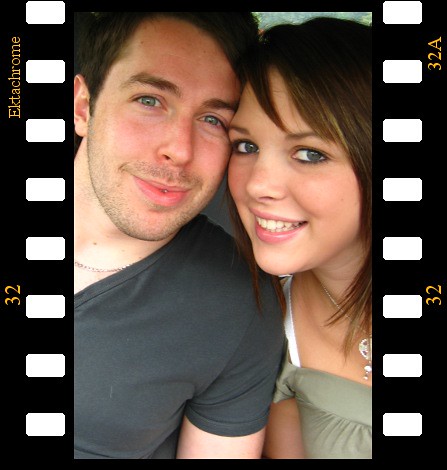
Turn your digital photo into a film slide using the Slide filter in GIMP.

Turn your digital photo into a film slide using the Slide filter in GIMP.

Adding a border around a digital photo adds visual interest to make it look more interesting, and can focus the viewer’s attention on the main subject as well. If you’re feeling fanciful, you can easily add a decorative border around your photo to turn it into a film slide. Here’s how.

The original photo in landscape orientation. Photo from morguefile.com.

The original photo in landscape orientation. Photo from morguefile.com.

With your photo open in GIMP, select the Filters > Decor > Slide command from the main menu.

The pop-up dialog box for the Slide filter.

The pop-up dialog box for the Slide filter.

The “Slide” dialog box for the filter pops up with various options to customise the appearance of the slide.

The original photo in portrait orientationTurned into film slide

The Slide filter can also be applied to a photo in portrait orientation.

Filter options

The “Text” option allows you to enter a label for the slide. You can use it to caption your photo. Or you could type in “Kodak” to emulate a real slide. For “Number”, type a number from 1 to 37.

The “Font” and “Font color” options lets you specify the font face and colour of the text and numbers adorning the slides of the slide. Leaving them to the default values produces the most realistic results.

Leave the “Work on copy” option checked so that a duplicate copy of the photo will be used for the slide effect and the original is left unchanged. Press the “OK” button and GIMP churns out your slide as a new image which you can save as a JPEG file under a different name.

Points to note

If the original photo is in landscape orientation, the black frames with sprocket holes and labels will be added to the top and bottom sides of the photo. If the original photo is in portrait orientation, the frames will be added to the left and right sides.

Original photo is too close-cropped

The colour of the sprocket holes will be based on the current background colour in the colour swatches in the Toolbox. So if you want the holes to be white, remember to reset the background colour to white by pressing “D” on the keyboard, before applying the filter.

If the aspect ratio of the photo is anything other than 3:2, it will be cropped into that ratio. If you want to control exactly how the photo is to be cropped, crop it yourself to 3:2 first before applying the filter. This will ensure you don’t end up with half a face being cropped out of the photo.

Letting the filter crop to 3:2 aspect ratio may have a blinding effect

Letting the filter crop to 3:2 aspect ratio may have a blinding effect.

Use the crop tool to do your own cropping to crop it exactly the way you want it.

Use the crop tool to do your own cropping to crop it exactly the way you want it.

Going down nostalgia lane

Tuesday, May 17th, 2011
Did you see the front page of The Sunday Times on 15 May? The portraits of MM Lee and SM Lee were splashed across half the front page in sepia – that faded brown tint that adds a sense of nostalgia to photos because of the association of that toning effect with photographic print techniques from a bygone era.

Lee Kuan Yew (photo from BBC) Lee Kuan Yew - in sepia tone

Old Photo filter in GIMP applied with Defocus and Sepia options selected but without Mottle nor faded border effect.

Minister Mentor Lee Kuan Yew and Senior Minister Goh Chok Tong are two former Prime Ministers of Singapore who had tendered their resignations on Saturday, May 14 to quit the Cabinet – in order to make way for a clean slate for the current Prime Minister Lee Hsien Loong to reform the ruling PAP government.

Goh Chok Tong (photo from BBC) Goh Chok Tong - in sepia tone

Old Photo filter in GIMP applied with Defocus, Sepia and Mottle options selected together with faded border effect.

The first and second Prime Ministers of the island nation, both brought Singapore from a fledgling, newly-independent, former-colonial state barely able to survive – to the modern nation it is today. Despite handing over their Prime Ministership to their successors, both had been actively involved in the government.

So it was surprising to see, so soon and suddenly, both their portraits published in sepia – suggesting they have become part of a bygone era.

Sepia toning


Select the Filters > Decor > Old Photo command from the main menu

Select the Filters > Decor > Old Photo command from the main menu

“Beginning in the 1880s, sepia was produced by adding a pigment, called sepia, made from the Sepia officinalis cuttlefish found in the English channel,to the positive print of a photograph,” according to Wikipedia. The specialized treatment gave the photograph a warmer tone and enhanced the archival qualities of the prints.

Simulating a sepia effect in GIMP

It is easy to simulate a sepia effect to a digital photo using photo-editing software.

In GIMP, open the digital photo to be modified and select the Filters > Decor > Old Photo command from the main menu. The “Old Photo” dialog box pops up with options to control how the photo is to be “aged”.

The Old Photo filter comes with options to age the look of a photo.

The Old Photo filter comes with options to age the look of a photo.

You can “Defocus” the photo to make it slightly blur, add a faded white border, apply a “Sepia” tone, or “Mottle” the photo to simulate the blobs of pigment you see in old photos. Checking the “Sepia” checkbox will tell GIMP to desaturate the image, reduce brightness and contrast, and modify the color balance to apply the sepia effect.

Once you click “OK”, GIMP gets to work on the photo.

If you just want to get a black-and-white version of the photo, or tint in a different colour from sepia, or want more control over how the final result looks like, check out the  “Black-and-white and Sepia” tutorial that was part of the 14-part Basic GIMP Series of tutorials.