Archive for March, 2011

Replacing the background of a person or an object in a photo (Part 6 of 14)

Saturday, March 12th, 2011

Select the person or object easily in Quick Mask mode so that he can be isolated from an ugly or distracting background, and then replace the background altogether with another photo.
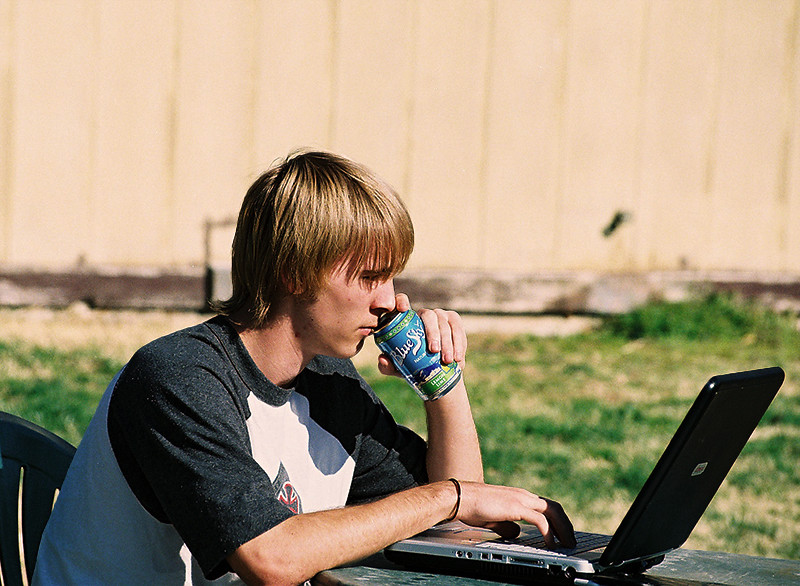
Before: Youth against a mundane background.

Before: Youth against a mundane background. Photo from morguefile.com.

After: Background changed to something more refreshing.

After: The refreshing green fields and blue sky matches the drink he is sipping.

The many selection tools in GIMP provide different ways to make and modify selections of people or objects in photos. The selected people or object can then be tweaked and adjusted without affecting pixels outside the selection. For example, the pixels within the selection could be darkened or lightened or the colour could be made more vivid.

Sometimes, none of the selection tools we’ve covered can quite select an object properly – parts that should be selected are not selected, while pixels that should NOT be selected are selected instead.

For example, in the photo of the youth working on his laptop, we want to isolate him from the mundane background and replace the background with something refreshing. But his outline is highly irregular and complicated so the Rectangle and Ellipse Select Tools are out – unless he is a rectangular or oval android.
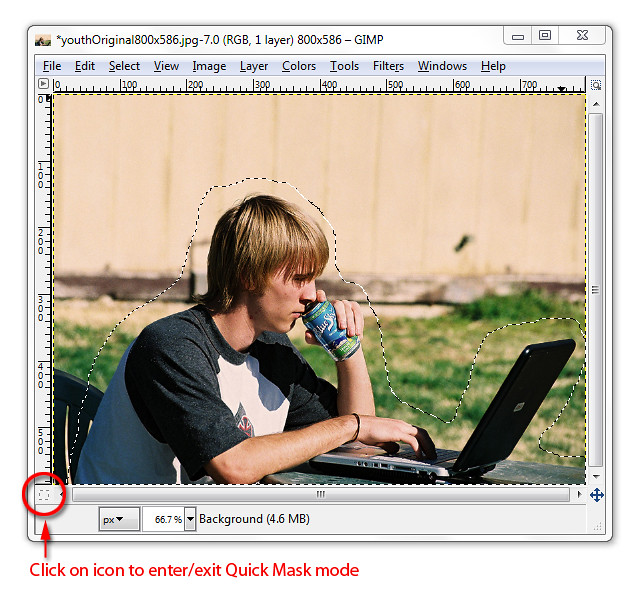
Make a rough selection first using the Free Select Tool.

Make a rough selection first using the Free Select Tool.

The Fuzzy Select, Select by Color, and Foreground Select Tools are also out of their depths here because there is not enough contrast between the youth and the colours making up the background.

In this case, we start by using one of the usual selection tools to make a rough first-cut selection first, and then modify and perfect the selection by entering the Quick Mask mode.

Here, I used the Free Select Tool to encircle the youth, his laptop and the table – including a small area just outside of the outline. You will see the “marching ants” indicating where the selection boundary is.

Entering the Quick Mask mode
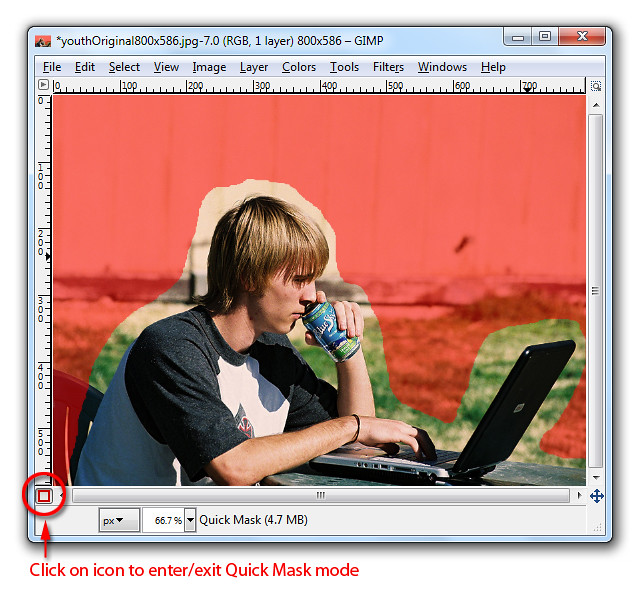
Quick Mask mode overlays unselected areas with a translucent pink.

Quick Mask mode overlays unselected areas with a translucent pink.

To enter Quick Mask mode, click on the Quick Mask icon (the small dashed rectangle icon at the bottom left corner of the image window), or press Shift-Q on the keyboard.

A translucent red tint is overlaid onto the photo showing the areas that are NOT selected.

This translucent pink overlay is called the selection mask. It works like masking tape in a physical paint job. You stick masking tape over areas where you don’t want the paint to get into, so that only the unmasked areas will be painted.

The selected areas – the youth, his laptop and the table – will be free from the red tint. Everything else that is not selected, like the grass, the chair and the wooden walls in the background are tinted temporarily with the translucent red.

Modifying and perfecting the Quick Mask

Do two things before going any further:

1. Press “D” on the keyboard to reset the colour swatches to black and white.
2. Activate the Paintbrush Tool in the Toolbox.

Zoom into the boundary area between the youth and the background to work on the details (“+” key to zoom in and Spacebar to pan). The default Foreground colour is black.

Reducing the selection

Paint on those areas on the photo that are NOT supposed to be selected but are selected – they are supposed to be overlaid by the translucent pink but are not.

As you paint, those areas will be overlaid with the translucent pink (although the Foreground colour is set to black) to indicate they have been unselected. Press the square bracket (“]” and “[“) keys to increase or decrease the size of the brush.

Adding to the selection

If you accidentally paint into the areas which is supposed to be selected, don’t worry. Click “X” on the keyboard to swap the colour swatches so that white is now the Foreground colour.
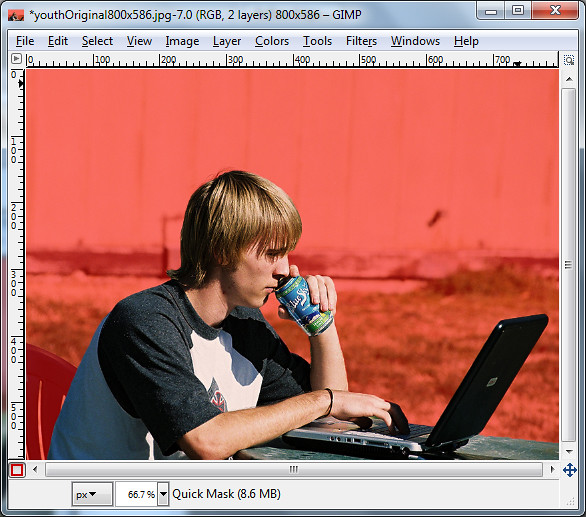
Paint on the quick mask until only the youth, his laptop and the table is not pink.

Paint on the quick mask until only the youth, his laptop and the table is not pink.

Paint over those areas that are supposed to be selected but are not – these areas are overlaid in translucent pink even though they are not supposed to be.

Instead of adding white, you will see the translucent pink erased from those areas painted, indicating that those areas are now selected.

In this way, finetune the mask, especially in the border region around the outlines, until only the youth is free from the translucent pink. Zoom in to inspect and work on the details.

You can switch between black and white for the Foreground colour by pressing X on the keyboard.

Confirming the selection
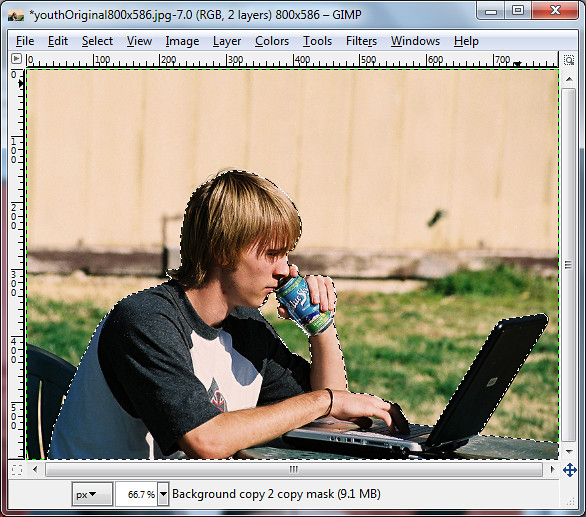
Check the marching ants selection boundary.

Check the marching ants selection boundary.

Press Shift-Q or the click on the Quick Mask icon to get out of Quick Mask mode. You will see the marching ants again indicating the selection boundaries.

The youth, his laptop and the table is now precisely selected while the background is not.

If you find the selection boundaries are still not perfect, enter Quick Mask mode again to modify the mask and get back out to check the selection boundaries. You can keep shuttling in and out of Quick Mask mode until the mask/selection is perfect.

Now any command you make within GIMP will apply only to the pixels within the selection.

Switching the background

Once you are happy with the selection, press Ctrl-C or Edit > Copy to put the selected pixels into the Clipboard.
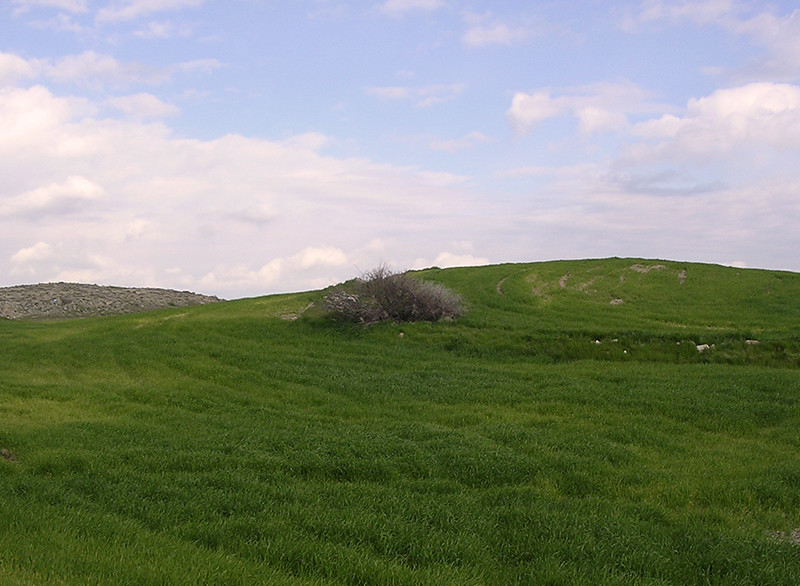
Green fields and blue skies.

Green fields and blue skies. Photo from morguefile.com

Open the new photo that will serve as the new background. Press Ctrl-V or Edit > Paste to paste the youth onto the new photo.

The pasted pixels will be added as a new temporary layer called “floating selection” that floats above all other layers in the image. In the Layers dialog, double-click the label of the floating layer type in a meaningful name and press Enter. The floating layer will be converted into a separate and permanent regular layer.

After: Background changed to something more refreshing.

After: The refreshing green fields and blue sky matches the drink he is sipping.

Activating the Move Tool from the Toolbox, you can drag the pasted layer to re-position it to the right place. You may need to resize either the new background photo or the pasted layer in order to match the sizes.

The edge of the youth may look too sharp and artificial at the moment, but we’ll address that in tomorrow’s tutorial.

RIM’s Playbook displayed in Singapore for the first time

Friday, March 11th, 2011
Two units of the beta-release Playbook were specially flown into Singapore as part of the Adobe Refresh Roadshow.

True multi-tasking using SMP for the dual-core processor.

True multi-tasking using SMP for the dual-core processor.

The beta version of the BlackBerry Playbook was first unveiled during the Adobe Max 2010 developer conference in October last year. Two units were brought in by Sarim Aziz, Senior Application Development Consultant at RIM, to make its first appearance in Singapore.

Aziz showed how the Playbook was able to mult-itask various memory/CPU intensive applications simultaneously without missing a beat.

He explained that the both of the processors in the dual-core Playbook were allowed to work simultaneously to enable true multi-tasking using Symmetric Multi-Processing – apps continue to run at full tilt even in the background without being paused.

I had the chance to play with the 0.9 lbs (425g) Playbook and here are some snapshots. Check out the details at the Playbook’s website. Essentially, it is about 9mm thick, sports front/rear cameras (3 and 5 megapixels respectively, both capable of HD video), a 1 GHz dual-core processor with 1 GB RAM.

The operating system is from QNX, which RIM acquired in Apr 2010. Both Flash and HTML5 are supported.

BlackBerry Playbook from RIM - shown for the first time in Singapore.

BlackBerry Playbook from RIM - shown for the first time in Singapore.

In terms of interface, something interesting is that the 1” black border around the 7” 1024×600 pixel screen is also touch-capable. Swipe down from the top border brings in the operating system’s menu, like the Start button in Windows – not sure if this will stay in the final product.

Tapping the lower left corner activates the soft keyboard onscreen, and swiping upwards from the bottom border displays the thumbnails of apps currently running so that you can switch to another app.

Even with 8-10 apps running, Quake was going at 60 fps without dropping frames. Apparently, should the RAM maxed out, the operating system will quietly shut down the least used App to free up memory space. Quietly – as in it won’t even ask the user.

Price-wise, we’re probably looking in the region of US$500 with launch in late March to early April for N America followed by the rest of the world.

Snapshots of IT Show 2011

Friday, March 11th, 2011

An hour into the IT Show 2011, and the exhibition halls are jam packed as anticipated. I jumped in and got what I wanted and jumped out again. Here are a few snapshots during the foray.

View from Level 6 of Suntec Singapore at the IT Show 2011Looking down from Level 6 of Suntec Singapore, you can see the sea of people going up or down the escalators and milling around. It’ll probably get much more jam-packed later in the day when people knock off from work and come visiting. The weekends will be even more crowded.

Many creased furrows can be seen as visitors pore over reams of brochures and price lists to sniff out the best deals. Many can be seen on the phone, checking prices elsewhere, or asking friends whether they needed something that’s been offered at an irresistible promotion.

The motley crowd at the IT Show 2011 at Suntec Singapore
Some early birds have already bought what they wanted, and I can see some buyers who are not waiting till they get home to unbox – some are whipping out their purchases and powering them up there and then – right outside the exhibition halls.
Standing talking advertisement for iPhone accessories
Perhaps if you find you’ve bought a lemon, you can immediately pop back in for a replacement or a refund. But the security was not as sympathetic – shortly after this snapshot, the guard was seen going around evacuating them from where they’d been squatting. 

Prior to this, I’d only seen walking, talking placards on the streets of London. But right here in Singapore, we have our very own standing, talking advertisement selling iPhone accessories hanging down his neck. Bravo!

Adobe Refresh Roadshow in Singapore

Thursday, March 10th, 2011
Two product “evangelists” and the Product Manager of Flash Professional show designers and attendees how to design once but deploy to different hardware and software platforms and screen sizes.

Instead of designing for the standard desktop monitor at standard screen resolutions, end-users are accessing web content using a whole range of devices with different screen sizes/resolutions, and on different hardware and software platforms.

Adobe Refresh Roadshow on 10 Mar 2011 in SingaporeThese devices range from the traditional PC to the whole range of smartphones and more recently the tablets and web TVs.

Richard Galvan, Product Manager - Flash ProfessionalFlash Professional Product Manager, Richard Galvan, went through the trends of the day and predicted that the number of people surfing the Internet using smartphones and tablets will surpass the number using PCs by 2013 – maybe earlier.

He demonstrated how the existing and upcoming versions of Adobe’s Flash Professional and Flex application development platform facilitates the ability to develope apps only once but deploy to devices running different operating systems such as Google’s Android, Apple’s iOS and RIM’s BlackBerry.

Paul Burnett, APAC Evangelist - Adobe Systems IncMichael Stoddart, APAC Evangelist - Adobe Systems IncThe product “evangelists” Paul Burnett and Michael Stoddart also illustrated how the software assisted coders by providing features such as code hints, code completion and code snippets – so much so that even designers could have a go at the coding.

RIM's BlackBerry Playbook  displayed in Singapore for the first time.Some of the sneak peeks of features being explored for future products were also presented. Some of these were first shown in Adobe Max 2010 developer conference in October last year.

The beta version of the BlackBerry Playbook, which made its first appearance during Adobe Max, was also displayed for the first time in Singapore.

Photoshop on a tablet?

Photoshop on a tablet?

Galvan also gave a demo on the recently released Wallaby – an experimental piece of software for converting Flash files into HTML5.

The simple animation he converted were identical before and after conversion – handy for banner ads without audio, video, or ActionScript.

Multi-touch interface for a future version of Photoshop?

Multi-touch interface for a future version of Photoshop?

Galvan believed that Flash and HTML5 were complementary instead of being mutually exclusive. He emphasised that Flash and HTML5 will continue to complement each other into the future, with Flash providing additional features and capabilities to HTML5 based content.

The roadshow was held at the NTUC auditorium at One Marina Boulevard from 8.30am to 5.30pm.

Singapore IT Show 2011

Thursday, March 10th, 2011

The first of 4 IT exhibitions in Singapore is here. The IT Show 2011 will run from 10 – 13 March (Thursday to Sunday) at Suntec City (Levels 1, 2, 3, 4 and 6) from 12 pm to 9 pm daily.
IT Show 2011, 10-13 Mar, Suntec Singapore (Levels 1,2,3,4,6) There will be more than 830 exhibitors in the 350,000 square feet of space distributed over five levels of Suntec Singapore. Sales are expected to increase to more than S$70 million, from S$67.5 million last year. 830,000 visitors are expected this time round, up from 807,000 last year, revealed Mr Melvin Koh, general manager of Exhibits Inc.

The four major IT exhibitions in Singapore are:

Exhibition Dates Venue
IT Show 2011 10-13 Mar Suntec Singapore
PC Show 2011 9-12 Jun Suntec Singapore
COMEX 2011 1-4 Sep Suntec Singapore
SITEX 2011 24-27 Nov Singapore Expo

Flash-to-HTML5 conversion tool from Adobe

Wednesday, March 9th, 2011
At long last, Adobe has released an experimental piece of software codenamed Wallaby that can convert Flash files into HTML5. It’ll be interesting to see how the Flash vs HTML5 rivalry pens out.

HTML5 logoThis tool was first demo-ed at Adobe Max 2010 developer conference in October last year. The cross-platform AIR app is available for free download as a technology preview for developers.

Wallaby allows Flash developers to deployFlash content on Apple iOS devices like iPads and iPhones, which has banned Flash on Steve Jobs’ accusations that it is vulnerable to exploits, battery draining, and prone to frequent crashes.

Flash logoFLA files from Flash can be instantly converted to HTML5 by a simple drag-and-drop. The HTML can then be edited in Dreamweaver or any HTML authoring tool.

Tom Barclay, senior product manager for Flash pointed out that not all elements from Flash files will make it into HTML5. Although the overall look and feel can be ported, much will be discarded in the migration.

The Wallaby Release Notes describe what features are supported, what differences we have already discovered between the various browsers, what device variations have been found, and any currently known issues.
Adobe logo What is thrashed: audio, video, ActionScript, as well as blend modes and filters (apart from simple alpha), dynamic masks, some Text Layout Framework text, and 3D tweens and transforms.

What is supported: vector art and images, classic text, keyframes, MovieClips and graphics, classic motion and shape tweens, rollover buttons, and instance names.

Immediate application of the tool would mainly be for making basic banner ads and animations, especially if the FLA files have already been developed.

iAds ProducerApple had released iAd Producer in December last year. It is a free tool “for online advertisers to create content for Apple’s iAd platform, helping the company to establish HTML5 as a viable alternative to Adobe Flash technology on mobile devices,” wrote Daniel Ionescu of PCWorld.

iAd Producer is a visual HTML5 authoring tool, available to Apple developers for producing advertisements for iOS devices, using a combination of HTML5, Javascript and CSS3.

Adobe launches PDF Guild.

Tuesday, March 8th, 2011

In a bid to drum up interest in a staid workhorse product, and get consumers to look beyond its ubiquitous role as a document reader, Adobe has embarked upon an innovative campaign to convince people that Acrobat X is more than just a reader, or a document archiver.

Acrobat X contains a complete suite of modules to facilitate “sharing and collaboration of digital documents amongst co-worders”.

What is Acrobat?

To the man in the street, Acrobat brings immediately to mind Acrobat Reader, the ubiquitous free browser plug-in that enables the opening and viewing of documents saved in the equally ubiquitous PDF format.

Nothing exciting. In fact, many third party software publishe PDF reading software that promises to be smaller and faster than the original.

The other half of Acrobat comprises other modules that facilitate document archival via conversion of documents from proprietary formats to the universal PDF format. It enhances document collaboration by tracking and managing comments and amendments that co-workers can add – even simultaneously – and then reconcile into a neatly compiled working document.

Have you tried circulating minutes to members of a meeting and manually compiling spurious comments that come in from those members suggesting amendments? An Acrobat-based workflow can alleviate much of those grunt work and save everybody’s time and effort.

The price of such rigorous sharing is security, and this is implemented via document encryption and password-based access and rights.

Another form of document collaboration involves the interaction between the publishers and readers, and this is managed by the form authoring and editing module in Acrobat.

As for content, in addition to just plain text documents, Acrobat can add sound, video and graphics to the text. The latest PDF Portfolio module assembles the source files of multi-media elements together into a single multi-document portfolio packaged in slick Flash-based presentations (Unfortunately, there’s no HTML5 versions available – pity!).

Users don’t have to track multiple files manually to put them together outside of Acrobat.

Adobe PDF Guild

No wonder the folks at Adobe believe they have a product that does magic. They are aware, however, that general awareness of Acrobat’s full capabilities beyond that of the Reader is sorely lacking.

That’s why Adobe has launched the PDF Guild. Based on a metaphor of magic and wizardry, the PDF Guild seeks to build a community of Acrobat users that shares the knowledge and expertise of its members in the software rigorously with each other.

For starters, Adobe has built a simple self-paced computer-based learning package in the guise of a simple RPG (role-playing game) “adventure” to entice people to try out Acrobat and experience for themselves how easy to accomplish the tasks that Acrobat boasts it can achieve.

Five “quests” challenge the curious who signs up to complete assignments and quiz questions on “Document Conversion”, “Document Collaboration”, “Document Security”, “Dynamic Forms” and “Rich Documents”.

I’ve cleared all five quests and found that the hands-on experience did provide a clearer understanding how to do stuff in Acrobat.

To participate, visit www.adobepdfguild.com. Participants who don’t yet own a copy of Acrobat X can download and install a 30-day trial version. You’ll need a Facebook account too to participate.

Everything you need to complete the assigned tasks are provided, right down to working documents that you can download, work with in Acrobat and then save. The result is than uploaded from within www.adobepdfguild.com. Stumped along the way? Hints are available to make the road a little less difficult.

The magic? You start out as an the sorcerer’s apprentice and as you accomplish points, you get promoted to high ranks of wizardry, like Sorcerer, Mage and ultimately Wizard.

Goodies? The points earned can be used to redeem stuff from Adobe, from notepads and thumbdrives to free copies of Adobe Photoshop Elements 9 and Adobe Premiere Elements 9. Additional ways of earning points include introducing friends via email or Facebook, and participating in discussions at the Guild’s Facebook page.

Olympus announces 3 new digital compact cameras.

Monday, March 7th, 2011
Olympus has unveiled 3 new digital compacts. This continues its 2011 trend of releasing new cameras at the beginning of every month.
16M backlit CMOS, 12.5x, 24 - 300 mm

Olympus SZ-20

altText

Olympus SZ-30MR

14M CCD, 5x, 28 - 140 mm

Olympus TG-810


Having launched seven cameras on 6 January and four on 8 February, Olympus has announced another 3 new models on 2 March. The three models are: TG-810, SZ-20, SZ-30MR.

The TG-810 will be available in Singapore in March but availability of the two new SZ series models have yet to be ascertained.

The three models and their main highlights are listed below:

Model
Date available
Estimated price
Colours
Highlights
TG-810
March 2011
S$540 

Colours:
Black
Silver
Blue
Red
– 14 megapixels CCD.
– 5x optical zoom from 28 to 140 mm (35mm equiv).
– 3” 920k dots TFT LCD display.
– HD movie (MPEG-4 AVC/H.264) at 1280 x 720 pixels with dedicated REC button. 

Battle-hardened for the rugged adventurer, this jock is:

– waterproof to a depth of 10m
– shockproof against falls from 2m
– crushproof against loads of up to 100kgf
– dustproof, freezeproof; basically abuse-proof.
– equipped with GPS and electronic compass

SZ-20
Avail: TBD
Price: TBD 

Colours:
Black
Silver

– 16 megapixels backlit CMOS.
– 12.5x optical zoom from 24 to 300 mm (35mm equiv).
– 3” 460k dots LCD display.
– HD movie (MPEG-4 AVC/H.264) at 1920 x 1080 pixels with dedicated REC button. 

For the avid traveller and sports fan, this compact has large zoom, high sensitivity sensor and good for high-speed continuous shooting. Additional features include:

– Hand-held starlight mode combines 4 exposures to eliminate blur and noise in low light.
– Smart Panorama captures up to 360-degrees.
– High-speed continuous shooting of 7 (full-size) or 15 (5 megapixels) photos per second.

SZ-30MR
Avail: TBD
Price: TBD 

Colours:
Black
Silver

– 16 megapixels backlit CMOS.
– 24x optical zoom lens from wide angle of 25 to 600 mm (35mm equiv).
– 3” 460k dots LCD display.
– HD movie (MPEG-4 AVC/H.264) at 1920 x 1080 pixels with dedicated REC button. 

Has everything the SZ-20 has, and more. Zooms twice as far. Multi recording shoots 1080p HD movies and full resolution photos simultaneously.

Common features Features that the 3 new cameras share (and together with many other recent Olympus models) include: 

– 8 Magic Filters for in-camera special effects for stills.
– 6 of them available in movie recording.
– 3D photo shooting.
– Multi Picture format for 3D photos.
– Pet mode for auto-detecting dogs and cats.
– Auto Release when dog/cat faces the camera.
– Eye-Fi card compatible.

Photo scrapbook using GIMP Layers (Part 5b of 14)

Sunday, March 6th, 2011

Yesterday, we put several photos into a single scrapbook page and positioned them. In the second half of the tutorial today, we add text titles and captions to the scrapbook page/cover, complete with outlines.

Adding titles and captions

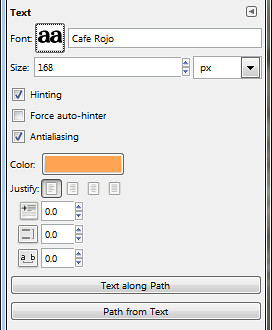
Pict 8: Options for the Text Tool

Pict 8: Options for the Text Tool

To add a title to the page, activate the Text Tool in the Toolbox. In the Tool Options, select the Font, size and colour to be used for the title of the scrapbook page. Click the square icon beside the Font label to display a list of installed fonts. Here, I used the Cafe Rojo font.

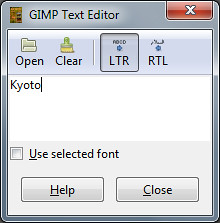
Click near the top left corner of the image to place the title. The GIMP Text Editor dialog box appears. I typed in the title “Kyoto” and pressed the Close button. A new and separate text layer is added in the Layers dialog.

Pict 9: GIMP Text Editor

Pict 9: GIMP Text Editor

To edit the text in the title, click on it in the image window with the Text Tool. The Text Editor pops up again for you to edit the text.

To reposition the title, click on it in the image window and drag. For fine adjustments of position, use the Arrow keys on the keyboard.

Repeat the same process to add the “Koyo” caption, the year “2010”, and the labels for the two thumbnails.

Adding outlines
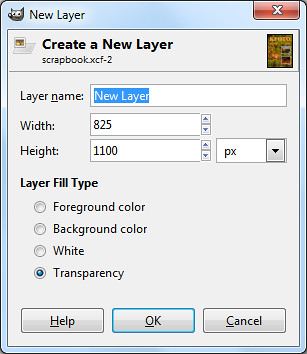
Pict 10: New blank layer for the outlines

Pict 10: New blank layer for the outlines

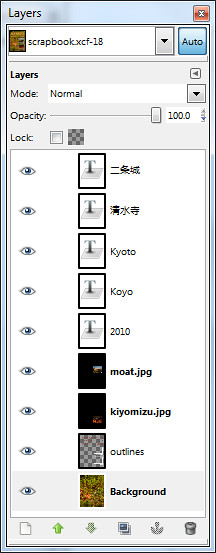
To add an EXTERNAL outline around the text and the thumbnails, first create a new transparent layer just above the Background layer and name it “Outlines”.

Select the Background layer in the Layers dialog and click the bottom left icon in the Layers dialog. Select the Transparency radio button in the New Layer pop-up dialog box.

Make sure all the elements are already in their final positions before adding the outlines, since this method adds the outlines on a separate layer. Moving an element later on will leave its outline behind in the original position.

Follow the steps below for each of the elements:

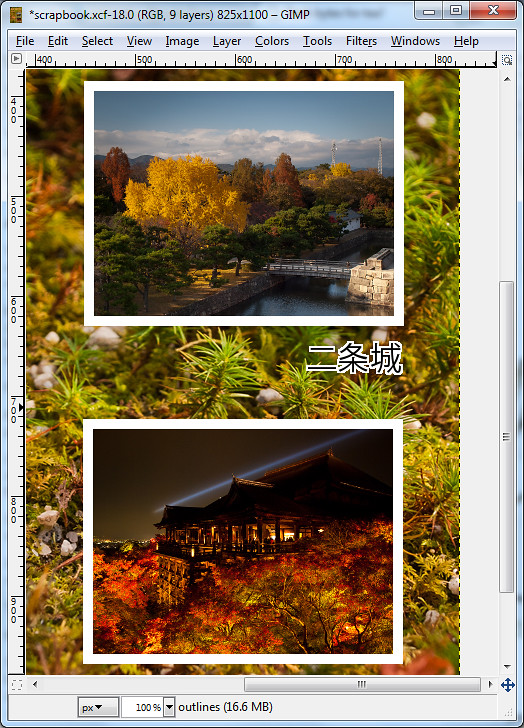
Pict 11: Add outlines or borders

Pict 11: Add outlines or borders. Here the thumbnails show koyo scenes at Nijojo Castle and Kiyomizu Temple at night in Kyoto.

Right-click the layer and select Alpha to Selection command from the pop-up menu.

Click the Foreground Color swatch in the Toolbox and select the desired outline colour from the Change Foreground Color dialog box that pops up.

Select the Outlines layer in the Layers dialog and from the main menu, select Edit > Stroke Selection.

In the pop-up Stroke Selection dialog box, enter the width of the outline and press the Stroke button. If it it too thick or thin, press Ctrl-X to undo and try again. Experiment with the width setting until the outline looks right to you.

This adds an external outline around the thumbnail or text caption.

Note: There are many methods of adding borders/outlines to elements within GIMP – none of which are very convenient. Through experience, I find this method produces the most crisp outline for text captions.

A more convenient approach is to add the outline directly to the thumbnail or text layer itself, so that moving the thumbnail/text would move the outline as well. But I find the quality rather jagged for text layers.

Saving as source files

Pict 12: Preserve the layers in .xcf file

Pict 12: Preserve layers in an .xcf file

The completed scrapbook design now comprises several different layers which can be independently adjusted and moved without affecting other layers. Save this as a “source” file in the GIMP’s native .xcf format.

Use the File > Save As command and in the pop-up Save Image dialog box, type in the name of the file followed by .xcf.

The layers are preserved so that when you open the file in GIMP in the future, you can still manipulate the layers independently – perhaps you may decide to edit the captions, or move the two thumbnails further to the left.

Unfortunately, the .xcf file format is not a commonly accepted file format since it is only for use within GIMP. You can print it with your desktop printer but the print shop will probably not accept it.

For printing at a shop, save an additional copy of the file in JPEG, since this is a ubiquitous file format that all graphics/printing software accepts.

Use the File > Save As command and this time save the file with a .jpg extension instead of the previous .xcf extension.

Photo scrapbook using GIMP Layers (Part 5a of 14)

Saturday, March 5th, 2011
Make a photo scrapbook design by combining several photos and text captions on the same page.

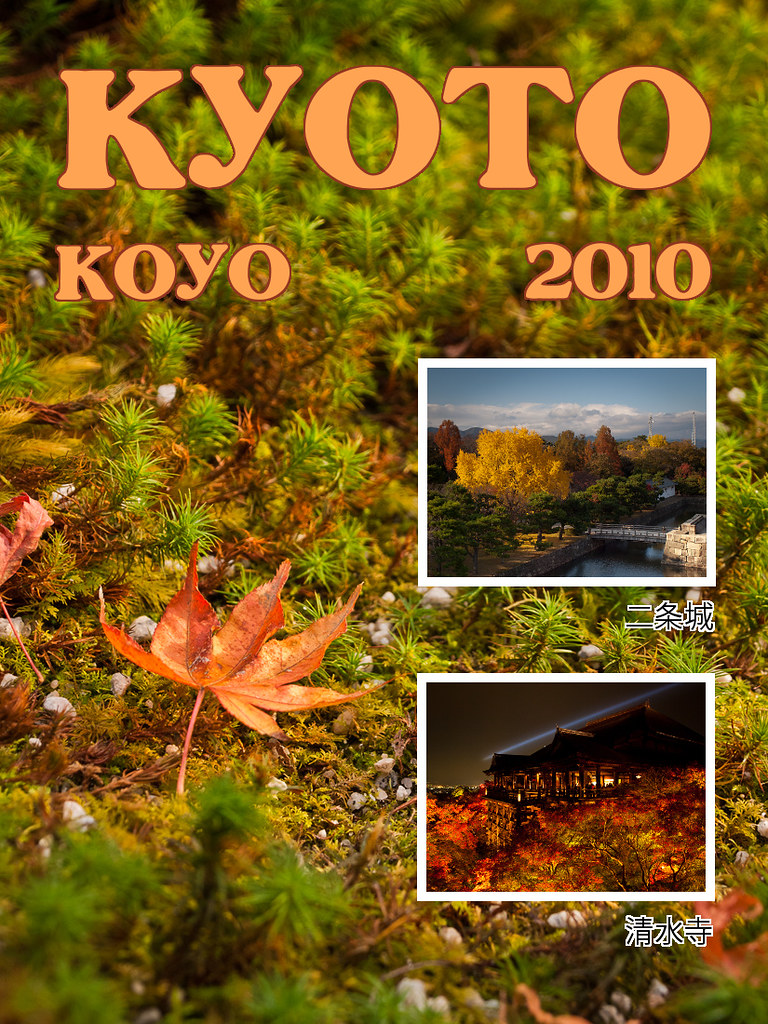
Scrapbook design using layers in GIMP

Pict 1: Scrapbook cover/page

There seems to be renewed interest amongst my friends to use their holiday photos to make photo scrapbooks.

They share their photos online even while they’re still overseas on holiday, but nothing beats a physical coffee-table scrapbook for family and close friends to thumb through and pore over.

In the first half of this tutorial today, we’ll use a photo as a background for a scrapbook cover/page and bring in additional photos. We’ll resize them as thumbnails and position them on the page.

In the second half tomorrow, we’ll add text titles and captions, and add outlines to them, as well as the thumbnails.

Including additional photos as layers

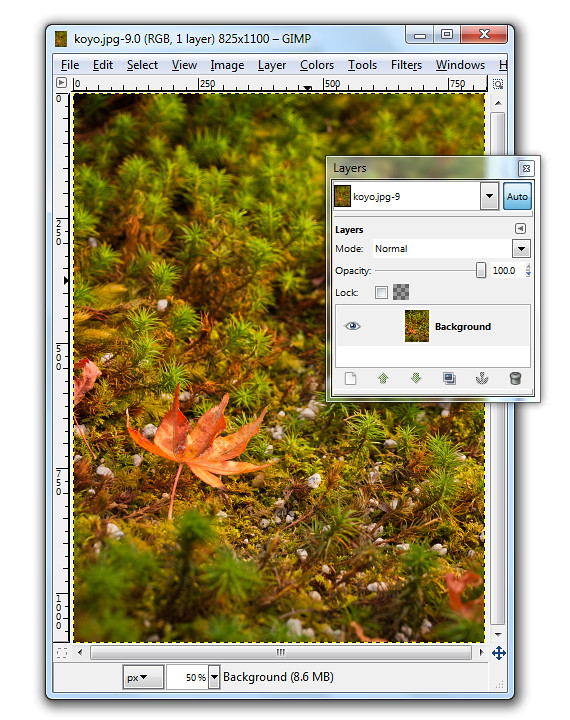
Pict 2: Single Background layer when photo is first opened.

Pict 2: Single Background layer when photo is first opened. This lonesome koyo was languishing on the grounds of the Ginkakuji in Kyoto.

When a photo file is first opened in GIMP, it resides on the single Background layer.

In our example, the photo file comprises the macro shot of the lone koyo (red maple leaf in Japanese) in the Background layer. We want to bring in two additional photos of koyo scenes as thumbnails.

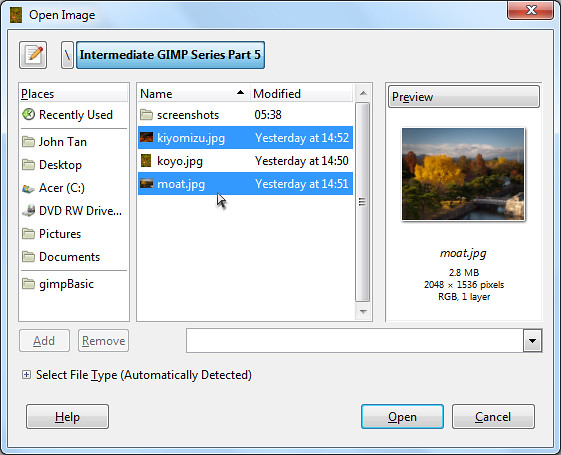
Pict 3: Bring in additional photos

Pict 3: Additional photos

To bring in additional photos into the file, use the File > Open as Layers command from the main menu. You can bring in multiple photos all at once by selecting more than one photo in the Open Image dialog box that pops up.
Pict 4: Additional photos as layers

Pict 4: Additional photos as layers

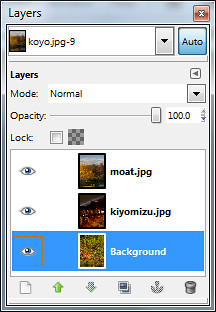
The two photos will be brought in as additional layers – one photo on each layer. For a quick introduction into layers and various ways of manipulating them, read Part 5 of the Basic GIMP series on “Correcting exposure using layers”.

You can see the different layers in the file inside the Layers dialog.

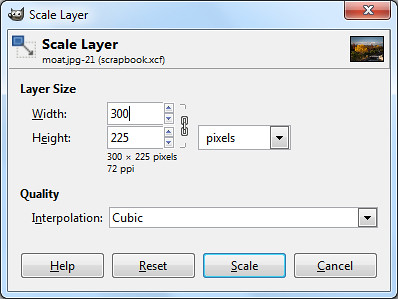
To reduce the size of the moat photo to a thumbnail, click on its name in the Layers dialog to select it and then use the Layer > Scale Layer command from the main menu. As a shortcut, simply right-click on the moat layer in the Layers dialog and select the Scale Layer command from the pop-up menu.

Pict 5: Scale layer down to thumbnail size

Pict 5: Scale layer down to thumbnail size

In the Scale Layer dialog box that pops up, I typed in 300 in the Width field. The Height field was automatically updated to 225 to keep the aspect ratio of the layer unchanged to avoid distortions. Both the default Interpolation setting of Cubic or Sinc (Lanczos3) will do the resizing with good quality.

Press the Scale button to complete the resizing.

Repeat the same process to resize the other photo into thumbnail size.

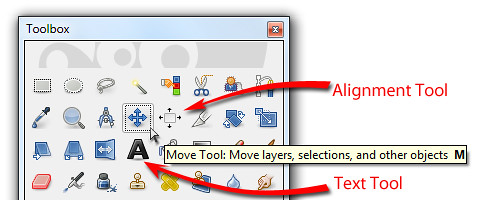
Pict 6: Move, Alignment and Text tools in the Toolbox

Pict 6: Move, Alignment and Text tools in the Toolbox

Positioning the thumbnails

To move and position the thumbnails, activate the Move Tool from the Toolbox. Now you can just click and drag any layer you see in the image window.

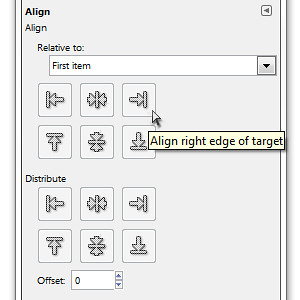
Pict 7: Options for the Alignment Tool

Pict 7: Options for the Alignment Tool

To align the two thumbnails, activate the Alignment Tool in the Toolbox. Click the first thumbnail and shift-click the second thumbnail to select both. You can also drag a rectangle that encloses both thumbnails to select both at the same time.

In the Tool Options, click one of the icons to align either the left or right edges of the thumbnails.

Tomorrow, we’ll add text captions and outlines to the elements in the scrapbook cover/page.