Yesterday, we put several photos into a single scrapbook page and positioned them. In the second half of the tutorial today, we add text titles and captions to the scrapbook page/cover, complete with outlines.
Adding titles and captions
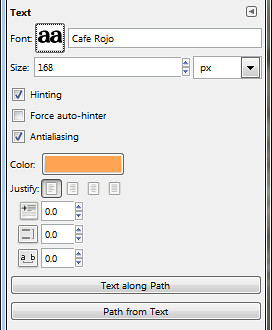
Pict 8: Options for the Text Tool
To add a title to the page, activate the Text Tool in the Toolbox. In the Tool Options, select the Font, size and colour to be used for the title of the scrapbook page. Click the square icon beside the Font label to display a list of installed fonts. Here, I used the Cafe Rojo font.
Click near the top left corner of the image to place the title. The GIMP Text Editor dialog box appears. I typed in the title “Kyoto” and pressed the Close button. A new and separate text layer is added in the Layers dialog.
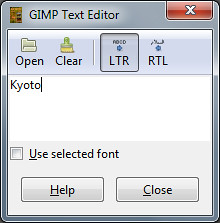
Pict 9: GIMP Text Editor
To edit the text in the title, click on it in the image window with the Text Tool. The Text Editor pops up again for you to edit the text.
To reposition the title, click on it in the image window and drag. For fine adjustments of position, use the Arrow keys on the keyboard.
Repeat the same process to add the “Koyo” caption, the year “2010”, and the labels for the two thumbnails.
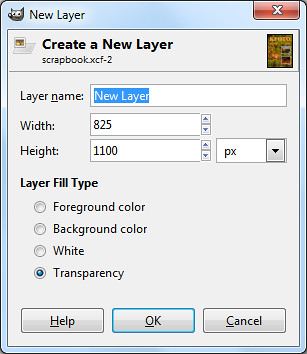
Pict 10: New blank layer for the outlines
To add an EXTERNAL outline around the text and the thumbnails, first create a new transparent layer just above the Background layer and name it “Outlines”.
Select the Background layer in the Layers dialog and click the bottom left icon in the Layers dialog. Select the Transparency radio button in the New Layer pop-up dialog box.
Make sure all the elements are already in their final positions before adding the outlines, since this method adds the outlines on a separate layer. Moving an element later on will leave its outline behind in the original position.
Follow the steps below for each of the elements:
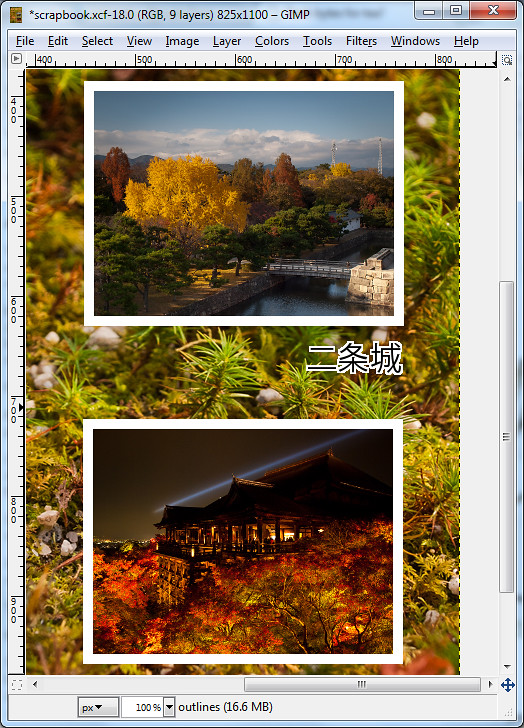
Pict 11: Add outlines or borders. Here the thumbnails show koyo scenes at Nijojo Castle and Kiyomizu Temple at night in Kyoto.
Right-click the layer and select Alpha to Selection command from the pop-up menu.
Click the Foreground Color swatch in the Toolbox and select the desired outline colour from the Change Foreground Color dialog box that pops up.
Select the Outlines layer in the Layers dialog and from the main menu, select Edit > Stroke Selection.
In the pop-up Stroke Selection dialog box, enter the width of the outline and press the Stroke button. If it it too thick or thin, press Ctrl-X to undo and try again. Experiment with the width setting until the outline looks right to you.
This adds an external outline around the thumbnail or text caption.
Note: There are many methods of adding borders/outlines to elements within GIMP – none of which are very convenient. Through experience, I find this method produces the most crisp outline for text captions.
A more convenient approach is to add the outline directly to the thumbnail or text layer itself, so that moving the thumbnail/text would move the outline as well. But I find the quality rather jagged for text layers.
Saving as source files
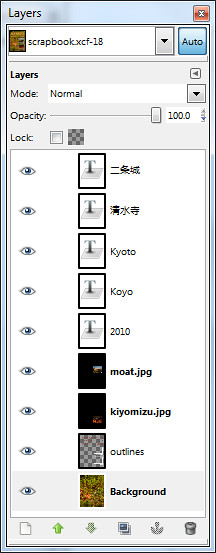
Pict 12: Preserve layers in an .xcf file
The completed scrapbook design now comprises several different layers which can be independently adjusted and moved without affecting other layers. Save this as a “source” file in the GIMP’s native .xcf format.
Use the File > Save As command and in the pop-up Save Image dialog box, type in the name of the file followed by .xcf.
The layers are preserved so that when you open the file in GIMP in the future, you can still manipulate the layers independently – perhaps you may decide to edit the captions, or move the two thumbnails further to the left.
Unfortunately, the .xcf file format is not a commonly accepted file format since it is only for use within GIMP. You can print it with your desktop printer but the print shop will probably not accept it.
For printing at a shop, save an additional copy of the file in JPEG, since this is a ubiquitous file format that all graphics/printing software accepts.
Use the File > Save As command and this time save the file with a .jpg extension instead of the previous .xcf extension.
Tags: GIMP, image editor, photo editor, tips