Archive for March, 2011

Japan disaster fallout: Supply chains affected by factory closures

Wednesday, March 23rd, 2011

Parts shortages has severely disrupted the supply chain in Japan and for major IT manufacturers around the world. The magnitude-9 earthquake, followed by the Tsunami and accident at the nuclear plant, has led to closures of factories around Japan.

Bloomberg reports that Sony has shut five more plants while Toyota Motor has extended production halts, 11 days after the worst earthquake in Japan on record.

Sony shuts five more plantsSony is Japan’s biggest exporter of consumer electronics. The five plants in the central and southern regions will stop work until March 31.It said that the plants produce LCD TVs, broadcasting equipment, headphones, camcorders, cameras, and mobile phones. Sony now has 12 plants where operations have been halted. The factories halted earlier manufacture products like Blu-ray discs and semiconductor lasers.It said that some production may be shifted overseas if the parts and materials shortage continue.
Toyota extends production halts
Toyota is the world’s biggest carmaker. All of its domestic car assembly will halt until March 26. It has lost production of 140,000 thousand vehicles, because of the shortage of electronic parts, plastics and rubber, the spokeswoman for Toyota said.

Honda has also extended the closure of three of its plants until at least March 27.

Canon has closed a factory in Nagasaki, some 680 miles from Fukushima until tomorrow, citing component shortage. It is the largest camera maker in the world.

Toshiba said that a factory makig small LCD panels may remain closed for a month. It has shut two plants so far.

Some Panasonic plants have been halted because of the disastersSome Hitachi factories have been halted because of the disastersOther manufacturers whose plants have been halted include Fujitsu, Panasonic, Hitachi, Hino Motors, Isuzu Motors, Mitsubishi Motors, Japan Tobacco and Kikkoman. None of them have decided when they will resume full production at the factories affected by the disaster.

Reopening of factories

On a brighter note, some factories that have been halted earlier due to the disaster are being reopened.

Nissan Motor, Japan’s second-largest carmaker said that operations at six factories are restarting while some vehicle assembly will also resume.

Canon resumes partial production at three northern Japan factoriesCanon resumed partial production at three factories in northern Japan, while Denso said that all of its plants has partially resumed. It is Japan’s largest auto-parts maker.

Sony has also restarted partial operations at a battery factory in Tochigi prefecture. It is the company’s third to resume production after the disasters.

Japan disaster fallout: Adobe tempers forecast

Tuesday, March 22nd, 2011

Lower sales in Japan due to the Mar 11 disasters. Adobe forecasts second-quarter profit that missed analysts’ estimates because of earthquake and tsunami impact on sales.

Adobe forecast affected by Japan disastersAdobe Systems Inc. is the largest maker of graphic design software in the world. It has reduced its sales forecast by $50 million because of the disasters in Japan – its second largest market after the U.S. According to analysts, Japan accounts for 10 – 15 percent of Adobe’s revenue each quarter.

Profit for the current quarter is expected to be 47 – 54 cents. This compares with a 56 cents average based on analysts’ projections compiled by Bloomberg.

“We saw a noticeable drop in our revenue,”Aaron Ricadela from Businessweek quotes  Mark Garrett, Adobe’s Chief Financial Officer.

Launch of Mozilla FireFox 4

Monday, March 21st, 2011

The next major release for the popular browser from Mozilla will be launched tomorrow.

Firefox 4 from MozillaBased on the final beta – Release Candidate 2 – that became available only three days ago on 18 March, Mozilla has announced that this will be the last update where the delta from the previous release is a large one.

Future releases will be more frequent and involve smaller changes. This is in line with other browsers which releases minor updates on a more frequent basis.

The main enhancements involve better standards support, improvements in performance, and a face-lifted user interface.

The current version is at 3.6.

Local adjustments using Layer Masks in GIMP (Part 8 of 14)

Saturday, March 19th, 2011
Use a combination of layers and layer masks to make localised adjustments to specific parts of a photo. This installment shows how to use them to paint with light.

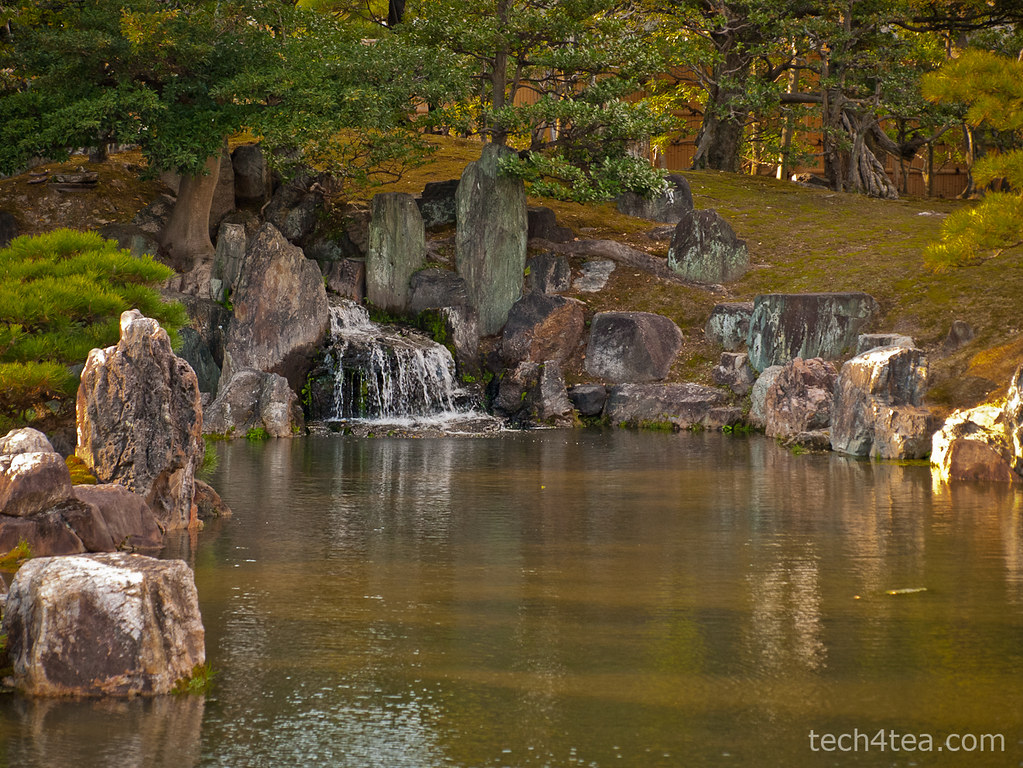
In the photo of the landscape waterfall, the rocks around the artificial waterfall are too dark because they are lying in the shadows of the surrounding trees. I want to lighten the rock features. Download the before photo and follow along.

This tranquil landscaped lake was shot in the Nijojo Castle in Kyoto, Japan.

This tranquil landscaped lake was shot in the Nijojo Castle in Kyoto, Japan.

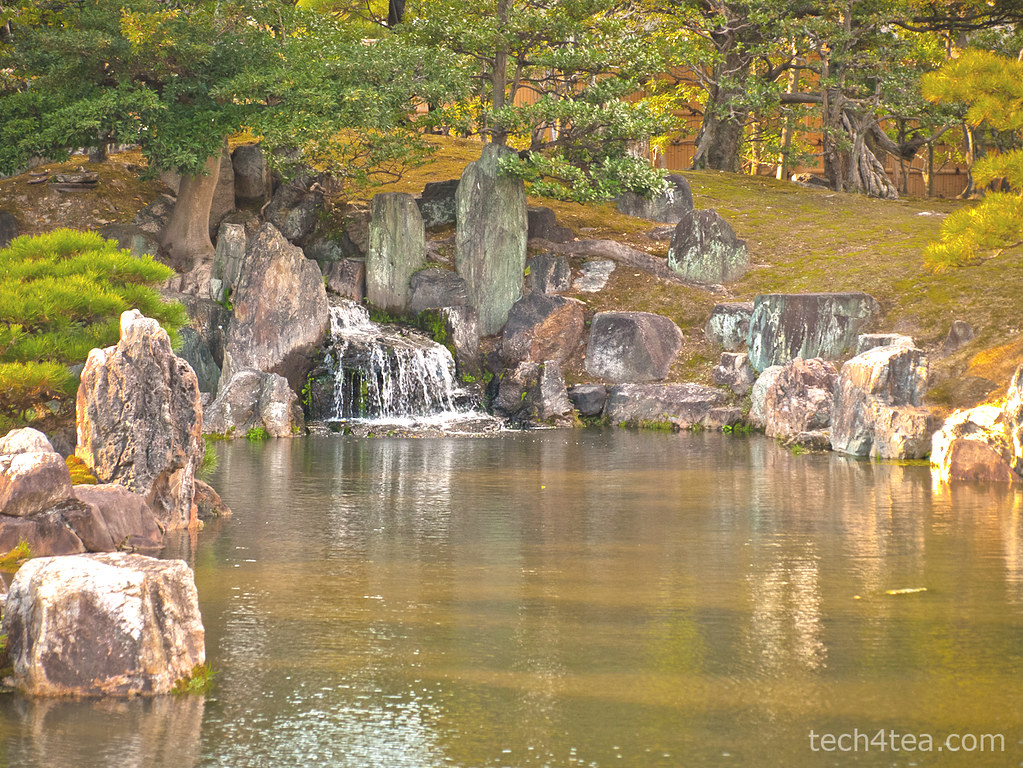
I want to lighten only the rocks around the waterfall without affecting the trees.

I want to lighten only the rocks around the waterfall without affecting the trees.

Creating a lighter duplicate layer

First duplicate the background layer by clicking on the fourth icon at the bottom of the Layers dialog.

Lightening the rocks has lightened everything else as well, making the photo too harsh.

Lightening the rocks has lightened everything else as well, making the photo too harsh.

Brighten the duplicated copy by using Colors > Brightness-Contrast command from the main menu. You can see that in addition to the rocks, the other parts of the photo are lightened as well. That is the problem with global adjustments – when you lighten the shadows, the highlights get blown out.

For the moment, just concentrate on getting the brightness of the rocks right. Ignore what happens to the rest of the photo. I used a Brightness setting of 75 and Contrast setting of 45.

The duplicated layer has become lighter overall and more contrasty. It’s actually not bad overall but it gives the impression of a hot and harsh sunny day at the park. I prefer to convey the shadiness of the trees in the background and the tranquil ambience of the lake.

Adding a layer mask

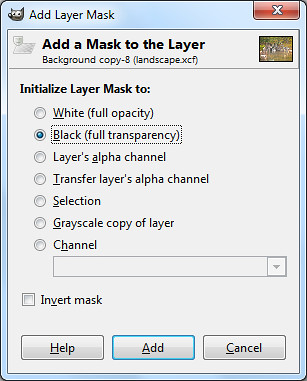
Select the Black (full transparency) radio button.

Select the Black (full transparency) radio button.

Right-click on the name of the duplicated layer in the Layers dialog and select “Add Layer Mask” from the pop-up menu.

An “Add Layer Mask” dialog box pops up. Click the “Black (full transparency)” radio button and press the Add button.

In the image window, the duplicated layer disappears from view and you see the original darker photo in the Background layer.

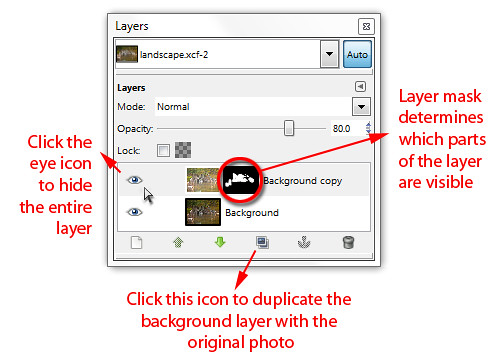
In the Layers dialog, note that in the duplicated layer,  a small rectangle thumbnail has been added to the right of the layers thumbnail. It is a mask that determines which part of the layer is visible.

A Layer Mask is added to the duplicated layer in the Layers dialog.

A Layer Mask is added to the duplicated layer in the Layers dialog.

Black areas in the mask make the corresponding areas in the layer transparent/invisible while white areas make the layer opaque/visible. Grey areas make the corresponding areas in the layer translucent or partially visible.

At the moment, the mask is totally black, so the entire layer is hidden from view.

Painting with light
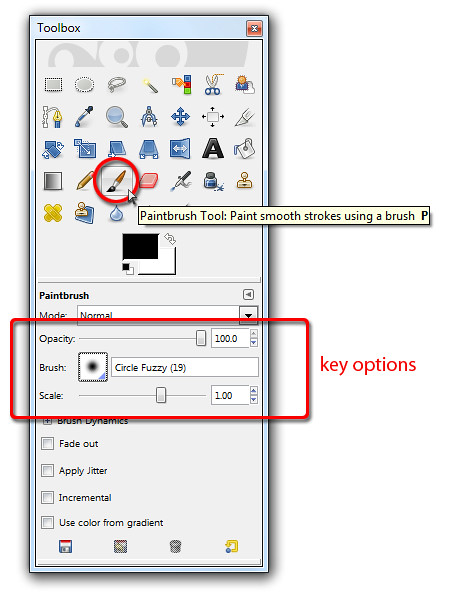
Activate the Paintbrush Tool to paint on the Layer Mask for the duplicate layer.

Activate the Paintbrush Tool to paint on the Layer Mask for the duplicate layer.

Select the Paintbrush Tool from the Toolbox. From the options below the Toolbox, select a Circle Fuzzy brush. Set the Foreground colour swatch to white. You can press “D” followed by “X” on the keyboard as a shortcut.

Now move the cursor over the rocks in the photo to be lightened and start painting. Because the layer mask is active, the painting actually occurs on the layer mask instead of the pixels in the layer.

And because the Foreground colour is white, painting on the layer mask reveals the corresponding pixels in the layer itself so that they become visible.

You can see the rocks lightening as you paint over them because pixels in the lightened layer is revealed as you paint white into the layer mask. You can also see the white areas appear in the layer mask thumbnail in the Layers dialog as you paint.

Adjust the size of the brush by pressing the “]” and “[” keys on the keyboard to increase or decrease respectively.

Painting back the mask

If you paint into the areas where you do not want to be lightened – like the leaves – and want to reverse the lightening, simply press “X” on the keyboard to toggle the Foreground colour to black. Painting on the layer mask now will hide the lighter pixels, so that the areas painted appears darker again.

If you find that painting on an area lightens or darkens it too much, lower the opacity of the Paintbrush Tool by dragging the Opacity slider in the Options below the Toolbox.

Alt-click on the Layer Mask thumbnail in the Layers dialog to show the mask in the image window.

Alt-click on the Layer Mask thumbnail in the Layers dialog to show the mask in the image window.

As you are painting, you can toggle the eye icon of the duplicated layer in the Layers dialog to compare how the photo looks before and after the adjustments. You can also disable the layer mask by Ctrl-clicking on it to see how the layer looks without the layer mask. Alt-clicking on the layer mask will show black-and-white layer mask in the image window itself.

Once you’ve completed the painting and lightened the rocks, you can still fine-tune the results by varying the layer opacity of the duplicated layer. Simply drag the Opacity slider near the top of the Layers dialog. This will reduce the overall intensity of all the lightening that you have done.

Maximum flexibility

This method of doing local adjustment provides plenty of control and flexibility. You don’t have to make a selection before making the adjustments. You can “paint” in the adjustments on the fly and reverse when you overdo an effect. You can tone down the opacity of the Paintbrush Tool to reduce the intensity and when the painting is completed, you can still control the overall intensity of the adjustments by varying the opacity of the duplicated layer.

What’s more, if you save the file in GIMP’s native .xcf file format, you can re-open the .xcf file at a later date and adjust the layer mask if you want change the adjustment.

Naturally, you can use this method for any type of adjustments – darkening, colour saturation, black and white toning etc. Just apply whatever effect you want to the duplicate layer and then use a layer mask to control how much of the effect shows through.

IE9 downloads vs the rest of the world

Friday, March 18th, 2011
Microsoft has claimed that Internet Explorer 9 has been downloaded 2.35 million times in the first 24 hours since its official release on Monday night. This ranks it behind Firefox and Opera but ahead of Safari.

Mozilla Firefox 3 was fastest off the block when it clocked 8 million downloads in the first 24 hours after its launch in June 2008. Next was Opera 11 with 6.7 million downloads in the first day after launch in December 2010.

Both browsers were ahead of Internet Explorer 9 in terms of number of downloads in the first 24 hours.

Following behind was Apple’s Safari which reached 6 million downloads but only after three days. Data for Chrome were unavailable.

The above statistics were compiled by Gavin Clarke of The Register and based on claims by the companies themselves without any means of external verification.

I have summarised the compilation below. Also included are downloads statistics for Angry Birds, the Mac App Store, Nokia Ovi store and the all-time-favourite – Adobe Flash Player.

Browser/
App/
Plug-in
Claimed downloads Time period Launch Date
Mozilla Firefox 3.0 8 million 1 day Jun 2008
Opera 11 6.7 million 1 day Dec 2010
IE 9 2.35 million 1 day 14 Mar 2011
Apple Safari 4.0 6 million 3 days Jun 2009
IE9 beta 2 million 2 days Sep 2010
IE8 beta 1.3 million 5 days Aug 2008
Angry Birds 5 million 1 month Dec 2010
Mac App Store 1 million 1 day Jan 2011
Nokia Ovi 3 million Daily Ongoing
Adobe Flash Player 8 million Daily Ongoing

Adobe launches Photoshop Express 2.0 for iOS

Thursday, March 17th, 2011

Adobe has announced the release of the free Photoshop Express 2.0 for iOS devices, as well as a new $3.99 Adobe Camera Pack that you can purchase from within Photoshop Express.

Photoshop Express 2.0 (free) and Adobe Camera Pack ($3.99) Adobe Photoshop Express has more than 20 million subscribers on iOS and Android devices. It provides easy-to-use features for capturing, organising, editing and sharing of photos on popular social networks like Facebook, giving users on the road the ability to work on their digital photos on smartphones and tablets.

Adobe Photoshop Express 2.0 for iOS devices can be downloaded free on the Apple iTunes Store. From within the app, you can purchase the new Adobe Camera Pack which includes the following features.

Reduce Noise: Removes and smooths out grain and speckling from photos to improve them.

Self Timer: Set a camera timer to three or 10 seconds to control when a photo is to be recorded.

Auto Review: Provides a quick look at photos taken before saving or deleting it.

Photoshop Express 2.0 requires iOS 4.2 or later. To use the Adobe Camera Pack, customers must have an iPhone 3Gs, iPhone 4, iPod Touch (3rd or 4th generation), or an iPad or iPad 2 (note that Photoshop Express does not include support for the iPad 2 camera at this time).

Ransom for a kidnapped phone – $148

Wednesday, March 16th, 2011

With the stress and inconvenience of losing one’s mobile phone, half of those who had lost one were willing to pay an average of S$148 to get their phone back, a survey of mobile phone owners in Singapore found.

Average ransom people are willing to pay for their lost phone.That is assuming that the finder or thief offers the owner the chance to redeem their lost or stolen mobile phone. Most of the time, it’s “finders keepers” and the owners are laden with the inconvenience of reconstructing lost contact lists and worried over their private information falling into wrong hands.

Victims who have become celebrities overnight because the saucy secrets from their mobile phones have been splashed all over the Internet can attest to the stress involved.

In Singapore, where each person owns – on average – more than one mobile phone, about half (52%) of Singaporeans have lost their phones before. Despite that, only slightly more than a third (37%) currently have a password protecting their devices. These are some of the findings found by a survey commissioned by Symantec Corporation in January 2011.

With smartphones being so capable, people are relying more on them to communicate, work and play. Almost ninety percent of “Singaporeans never leave home without their mobile phones and nearly half cannot live without their phones” [Synovate 2009].

Norton Mobile Survey commissioned by SymantecThe  Norton Mobile Survey found “a whopping 89 percent of victims noting that they could neither remotely lock nor wipe the phone’s memory after the device was stolen or lost.”

“As smartphones become more pervasive in our lives, there is a greater need to protect the data on such devices.  This is one of the reasons why Norton is taking security beyond the PC to develop solutions that protect consumers, regardless of the device they use,” says Effendy Ibrahim, Internet Safety Advocate and Consumer Business Head, Asia, Symantec.

On the whole, a significant number of Singaporeans consider security factors before making a mobile phone purchase, with 72 percent noting that they are more likely to make a purchase if their mobile device or software is able to be locked remotely and has the ability to erase all the data on their device remotely.

Protection

So what does Symantec have to counter cybercriminals cashing in on increasing prevalence and reliance on smartphones? Norton Mobile Security has been introduced as part of the Norton Everywhere three-part initiative, which will address some of today’s most common issues for smartphones, including device loss and data protection.

Norton Mobile Security will allow users to locate and remotely wipe or lock their lost or stolen Android phones with a quick text message.  Consumers can currently download a free limited-trial beta version directly from the Android Market.

Go to work dressed as Lady Gaga for a week?

Tuesday, March 15th, 2011

This is what 17% of Singaporeans would rather do than to lose their mobile phones, a survey of mobile phone owners in Singapore found.

Other noxious things that these 17% of mobile phone owners were willing to put themselves through – rather than lose their mobile phones – include getting a root canal and eating rotten eggs.

In fact, “32 percent of Singaporeans would rather lose their childhood photographs than lose their mobile phones,” the Norton Mobile Survey found.

The Norton Mobile Survey is based on research conducted in January 2011 by The Leading Edge, an independent market research firm, on behalf of Symantec Corporation. The Leading Edge conducted an online survey among 500 adults, between the ages 18 and 54, within each of the following six markets: Singapore, India, Australia, Taiwan, China and Japan.

The Singapore sample size comprised the following:

Gender Percentage of 500 respondents
Female 51%
Male 49%
Age Group
45 to 54 years old 26%
35 to 44 years old 34%
25 to 34 years old 27%
18 to 24 years old 13%
Phone Type
Standard mobile phones 42%
Smartphones 58%
Apps on Smartphones
Average free Apps 23
Average paid Apps 3

Free BlackBerry 6 upgrade available now

Monday, March 14th, 2011

BlackBerry 6, the latest BlackBerry smartphone operating system from Research In Motion (RIM), is now available to existing owners and new customers of BlackBerry® Curve™ 3G and BlackBerry® Bold™ 9700 smartphones for free.

The new BlackBerry 6 operating system includes an intuitive user interface, enhanced web browsing experience, universal search, social feeds and an engaging multimedia experience.

BlackBerry 6 OS available for upgrade

To upgrade, existing owners of the BlackBerry Curve 3G and BlackBerry Bold 9700 can connect their smartphone to their computer and go to ap.blackberry.com/blackberry6 to download the update.

You will find detailed instructions and additional information at the website as well.

More about selection masks in GIMP (Part 7 of 14)

Sunday, March 13th, 2011

The ability to make selections in photo-editing software is one of the most important aspects of these software, because it allows the user to restrict adjustments to specific parts of a photo. Understanding how selections are represented in GIMP is essential to get the most out of GIMP.

Yesterday, we selected a youth, his laptop and table using a quick mask and transferred him via copy-and-paste into another photo background.
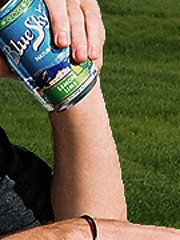
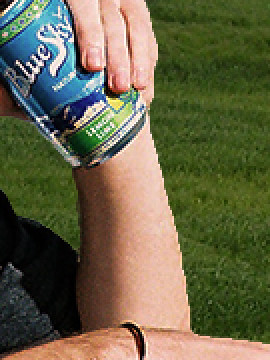
Abrupt seam because of sharp edge of the selection.

Abrupt seam because of sharp selection edge.

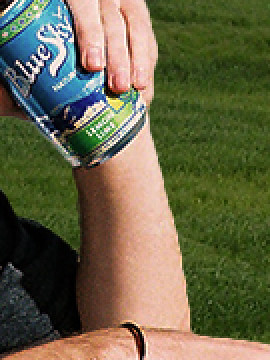
More seamless transition with the new background.

More seamless transition with the new background.

You might have noticed, on close inspection, that the edges looked a bit abrupt and jarring against the new background, especially where the colour of the new background was very different from that in the original background.

To make the foreground objects gel more seamlessly with the new background, you can soften the transition between the foreground objects and the background.

Feathering the selection
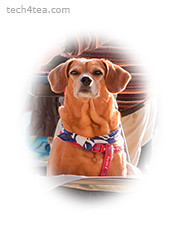
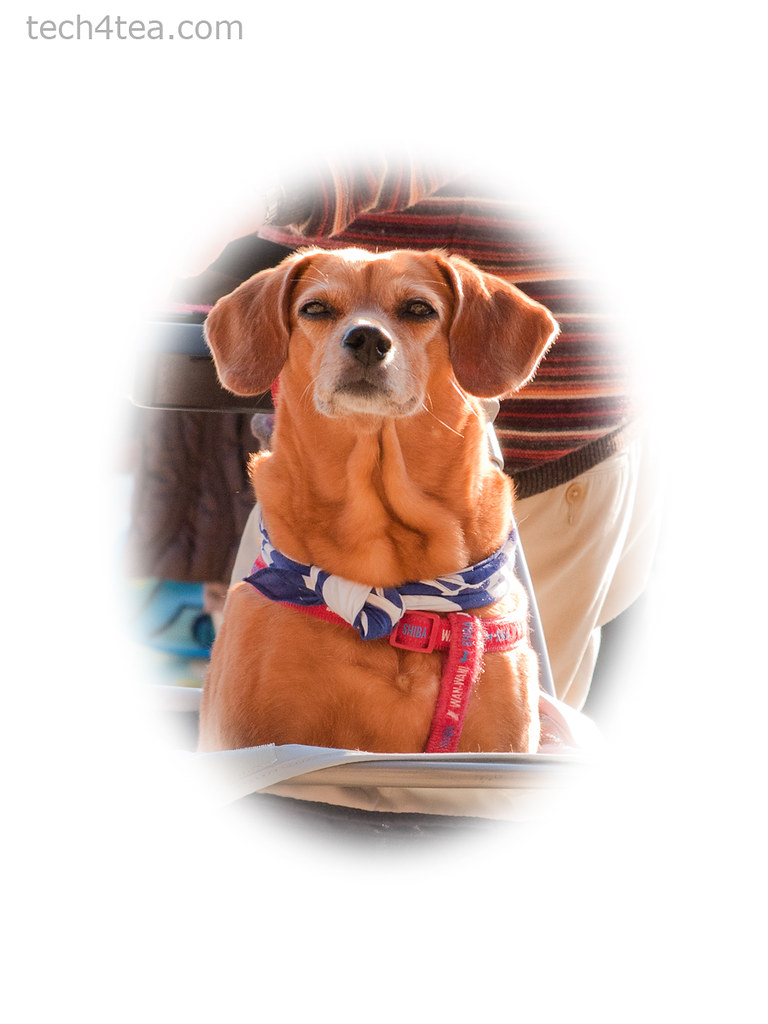
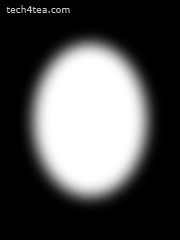
A large feather setting creates a vignette.

A large feather setting creates a vignette.

In normal selection mode, we can use the Select > Feather command to “feather” a selection before we do the copy-and-paste. This means that at the edge of the selection, the pixels go from fully visible inside the selection – to being translucent immediately on either side of the edge – to becoming totally invisible outside the selection.

How thick the translucent transition region is on either side of the selection edge depends on the feather setting used.

For yesterday’s example, the default feather amount of 5 pixels would have made the transition between the youth and the new background more natural and seamless. The transition also helps to mitigate imperfections when making the selection.

A large feather setting is used to create a vignette with a blurred edge.

Blurring a selection mask
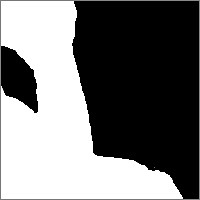
The mask edge is sharp and abrupt.

The mask edge is sharp and abrupt.

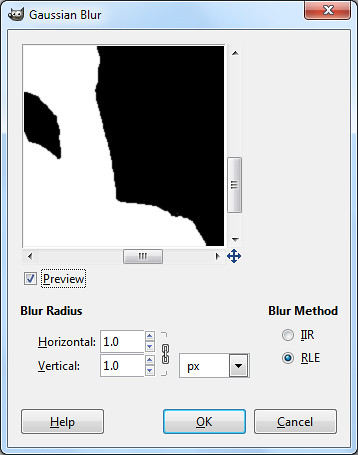
Another way of feathering a selection edge is to apply a blur filter (Filters > Blur > Gaussian Blur at 1 to 2 pixels) to the selection mask while in Quick Mask mode. While in Quick Mask mode, the filter is applied to the mask instead of the image itself – so the mask is blurred.

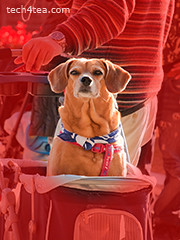
We’ve seen that in Quick Mask mode, the areas with translucent pink overlay means that the pixels within are not selected, whereas the areas with no pink overlay means that the pixels inside are selected.

What if we paint some areas when the Foreground colour is set to gray? A lighter shade of translucent pink will be added as an overlay but this will be lighter than the pink added when the Foreground colour is set to black. In this case the pixels in those areas will only be partially selected.
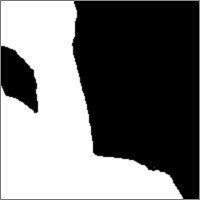
The mask edge is blurred and smoothened.

The mask edge is blurred and smoothened.

Any effects/adjustments applied to pixels that are only partially selected will only be applied partially. For example, if a region in a photo is only 30% selected, and the selected area is subsequently darkened, those pixels will only be darkened up to 30% of whatever the darkening setting would have been.

Blurring the selection mask in Quick Mask mode will blur the edges pink selection mask, so that instead of an abrupt jump from fully masked to fully unmasked, a partially masked transition region is introduced. The partially masked transition region translates to a partially selected region.

Selection masks in photo-editing software

In fact, in GIMP and other photo-editing software, selections are represented as a grayscale image called a selection mask.

The white areas represent pixels that are fully selected, the black areas represent pixels that are totally not selected, while the gray areas represent pixels that are partially selected – with the darkness of the gray representing to what extent the pixel is partially selected (between 0 and 100%).
The selection mask is in grayscale.
The selection mask is in grayscale.

The Quick Mask shows which parts of a photo is selected.

The Quick Mask shows which parts of a photo is selected.

The pink overlay in Quick Mask mode is a means of showing the mask, while keeping the original photo visible at the same time, so that you can tell which parts of the photo is selected and to what extent.

Saving selections for future reuse or modification

As we saw in the photo of the youth, a selection can take a lot of time and effort to create. The selection is forgotten once we make another selection. What if we need to make the same selection in the future?

A selection can be saved as a channel in the Channels dialog for future use or manipulation. If the file is then saved in GIMP’s native .xcf format, the channel is saved as part of the file. And you can save many different selections as separate channels in the file.
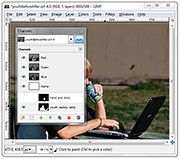
Paint on the selection mask in the image window to modify it.

Paint on the selection mask in the image window to modify it.

To save a selection for future use, first make the selection, and then click the Select > Save to Channel command from the main menu. If you look in the Channels dialog, you will see a new channel at the bottom of the dialog. The selection has been saved as a grayscale selection mask in a new channel. Double-click on the name to rename it with something more meaningful.

To modify the selection, click the eye icon to display the selection mask. Click the channel containing the mask to select it.

Any changes or painting will now be applied to the mask rather than to the image. It’s like in Quick Mask mode, except the overlay is a translucent gray by default instead of pink. Paint on the mask (in the image window) with black, white or gray as the Foreground colour to modify the mask.

To get back to editing the photo instead of the mask, remember to hide the mask by clicking the eye icon against its channel in the Channels dialog. Then go to Layers dialog and select the layer that you want to edit.
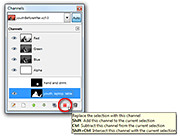
Click on the pink icon to load the mask as a selection.

Click on the pink icon to load the mask as a selection.

To load a selection, click on the selection’s channel in the Channels dialog to select it and click the pink icon to the bottom right of the Channels dialog. This will load the selection mask in that channel as a selection in the photo.

Entire books have been written just to explain how to create, manipulate and use selections, masks and channels. A good understanding of how selections, masks and channels work will open doors to harnessing GIMP’s full capabilities and start doing things that other simpler photo-editing software cannot do.