Archive for 2011

Sony aims for 15% market share for interchangeable lens cameras

Wednesday, February 23rd, 2011
Sony wants to increase its market share from 11% of global SLR camera sales in 2009, to at least 15% market share by March 2011.

Sony aims to increase its market share for Interchangeable Lens Cameras

Sony may control about 15 percent of the global market for single-lens-reflex cameras by the end of March, Masashi Imamura, president of the Personal Imaging & Sound Business Group told Bloomberg in an interview in Tokyo yesterday.

Interchangeable lens cameras is the fastest growing segment of digital imaging devices last year. Sales of SLR cameras increased 30% in the past year, more than twice the 13% growth by compact cameras, according to the Camera & Imaging Products Association, a Tokyo-based industry group.

In a report from research company IDC in April last year, leading the race was Canon which sold 45% of the world’s SLR cameras, followed by Nikon which sold 34%. Sony was in third place, accounting for 11% of the 9.77 million units sold in 2009. In the previous four years that it has been in the segment, Sony has garnered about 10% of the market share.

It bought the high-end camera business of Konica Minolta Holdings in 2006 when Konica ended its 130-year-old camera business to focus on printers.

Sony, which also manufactures the Cyber-shot compact cameras, has been aggressively introducing new models in its pursuit to grab market share from the two leaders.

The maker of alpha-series DSLR cameras introduced its NEX cameras (NEX-3 and NEX-5) in June 2010. These cameras feature the large sensors of traditional DSLRs, do away with the use of the reflex mirror and optical viewfinder, while allowing the camera lens to be changeable.

Like the Micro Four Thirds mirrorless cameras from Olympus and Panasonic, the NEX cameras offer the image quality of traditional DSLRs, the flexibility of using different lens for different shooting situations, yet enjoy a reduced bulk.

Sony also launched a slew of new models in its existing Alpha line in September. These include the SLT A55 and A33, which replace the traditional reflex mirror between the lens and the sensor with a stationary translucent mirror. This also makes the camera smaller and improves the auto-focus performance of the camera.

Solution to maths problem on number series

Wednesday, February 23rd, 2011

Yesterday, I posted the first three numbers of a number series and left the next three numbers blank. Here’s the answer to yesterday’s teaser.

The completed sequence is:

3, 7, -4, -30, -71, -127

Do the numbers seem unrelated to each other? The formula linking these numbers is:
“ y = -15x2 + 53x – 32 ”

Try it, substitute x=1, 2 and 3 in the above equation and you should get the first three numbers (3, 7, -4) provided in the original question. Put x=4, 5 and 6 to get the next three numbers (-30, -71, -127) in the “sequence”.

Graph of the number sequenceIf you plot the numbers on a graph, you’ll get a standard U-shaped curve (upside down in this instance) governed by the above quardratic equation.

How does one derive the equation from the first three numbers?

Here are the details for those maths geeks out there:
(more…)

A little maths problem for tea?

Tuesday, February 22nd, 2011

Can’t figure out the next few numbers to fill in to continue a number sequence? Here’s how to continue a number sequence given any numbers in the sequence.

Fill in the blanks in the following sequence:

“3, 7, 11, _ , _ , _”

My 10-year-old came back from school one day and proclaimed that one could use an Excel spreadsheet to complete an arithmetic progression like the one above. That’s an interesting application for a spreadsheet program, I thought.

Maths number sequenceBut it also reminded me of my own school days when we were wrestling with our own number progressions.

There was among our group of secondary school boys this fellow by the name of “The Maths Genius” who devoured complex maths problems for tea.

I recall one day we were poring over some maths test papers that we’d just gotten back from the teacher and were screaming bloody murder over how many of our answers for the completion of number sequences were marked wrong. You see, the relationship between consecutive numbers in those sequences weren’t as straightforward as adding the same number to the previous number.

Along came Mr Maths Genius, calmly pointing out that we should’ve gotten full marks for those questions, since theoretically, one could make a number sequence from a list of ANY numbers! Hrrmmph!

He proceeded to throw us a starting sequence of 2, -5 and 7, from which to extrapolate the next three numbers.

No way could that be part of a number sequence, we howled. But he assured us that there was a maths formula for which if you plug in 1, 2, 3 (X-values representing the position of the number in the sequence), you will get the values 2, -5 and 7 as the numbers occupying positions 1, 2 and 3 of the sequence.

That formula could then be used to continue the sequence by plugging in 4, 5, 6 etc as X-values into the formula.

A simple sequence “2, 4, 6, 8, …” would have a formula “y=2x”.
The earlier sequence “3, 7, 11, …” would have a formula “y=4x-1”.
A more complex sequence “1, 4, 9, …” would have a formula “y=x2“.

When he saw our look of disbelief, he told us the formula for this sequence happened to be “y=19x2-71x+56″. So we plugged 1, 2 and 3 into the formula and guess what? We got ourselves the starting sequence of 2, -5 and 7! It was a matter of plugging 4, 5 and 6 into that same formula to get 38, 88 and 157 as the next three numbers in that sequence.

Maths Genius then informed us that starting from any 3 or more numbers, one could derive a formula similar to the above that allowed the sequence to be continued by plugging in the subsequent X-values.

Here’s the cheeky bit, it also means that given any three starting numbers, we can throw in any three arbitrary numbers for the next three blanks and then justify our answers by using all six numbers to derive the corresponding formula. So much for those IQ tests.

Let’s try one for tea.

Fill in the blanks in the following sequence:

“3, 7, -4, _ , _ , _” (no, that’s not a typo)

Answers will be provided tomorrow.

Print sizes and resolutions for photographs

Monday, February 21st, 2011
One of the most frequent questions I get asked is what resolutions to use when printing out photos. Here are some suggestions that I usually provide as a guide.

First decide what size the photos are to be printed out and crop them based on the corresponding aspect ratio.There are a number of standard sizes that photo shops print in. I have tabulated below some of the traditional sizes together with their physical dimensions in millimetres and inches.

For each of the standard sizes, some shops print variants of the standard dimensions to cater to varying aspect ratios. For example, although traditional 4R has an aspect ratio of 3:2, some shops give the option of printing similarly sized prints at 4:3 aspect ratio.

The resolution of a photo is the number of pixels per inch (ppi). To work out the number of pixels a photo should have, multiply the physical dimension in inches by the desired image resolution.

For example, a 5R print is 5 x 7 inches. Multiply by 300 ppi and your image should, therefore, be 1,500 x 2,100 pixels.

For optimal quality, use an image resolution of 300 ppi. For printing on a personal printer, 150 ppi is usually good enough, although some studios accept resolutions down to 100 ppi. Since all my prints are 4R in size, all my images are at 300ppi. This way, they are optimal for 4R and still good enough if I want to print up to A4 size.

Note that studios usually crop a small margin of up to 3%  around the photo. The cropped margin could be bigger on one side compared to the other. This is usually unnoticeable for most photos. Unless the subject is really tightly framed, in which case part of the anatomy, say a ear or finger-tip could be cut off the edge.

However, if your photo has a decorative frame or border that you’d added using a photo-editor, it will turn out uneven. Choose a studio that can crop the photo evenly all round. I find it easier to show the studio a sketch to illustrate when explaining.

Likewise, when using your own printer, it pays to do a few test prints to determine the right settings for even borders.

Standard print sizes, aspect ratios and optimum/minimum image resolution for printing.
Print Size Size

(inches)

Size

(mm)

Aspect ratio Optimum Resolution

(300 ppi)

Minimum Resolution

(150 ppi)

3R 3.5 x 5 89 x 127 7:10 1050 x 1500 525 x 750
4R 4×6 102 x 152 2:3 1200 x 1800 600 x 900
5R 5×7 127 x 178 5:7 1500 x 2100 750 x 1050
6R 6×8 152 x 203 3:4 1800 x 2400 900 x 1200
8R 8 x 10 203 x 254 4:5 2400 x 3000 1200 x 1500
S8R 8 x 12 203 x 305 2:3 2400 x 3600 1200 x 1800
10R 10 x 12 254 x 305 5:6 3000 x 3600 1500 x 1800
S10R 10 x 15 254 x 381 2:3 3000 x 4500 1500 x 2250
11R 11 x 14 279 x 356 11:14 3300 x 4200 1650 x 2100
S11R 11 x 17 279 x 432 11:17 3300 x 5100 1650 x 2550
12R 12 x 15 305 x 381 4:5 3600 x 4500 1800 x 2250
S12R 12 x 18 305 x 465 2:3 3600 x 5400 1800 x 2700

Freehand selection in GIMP (Part 2 of 14)

Sunday, February 20th, 2011
Select irregularly shaped objects in photos using the Free Select Tool in GIMP.

In the Basic GIMP series, we used the rudimentary Rectangle and Ellipse Select tools to create simple selections in a photo.

What if we want to select an object in a photo that has an irregular outline? Check out the Free Select Tool.

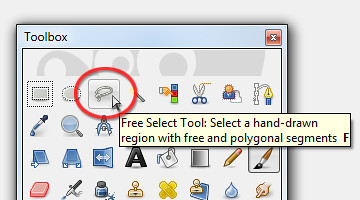
As with the other selection tools in GIMP, the Free Select Tool can be found at the top of the Toolbox.

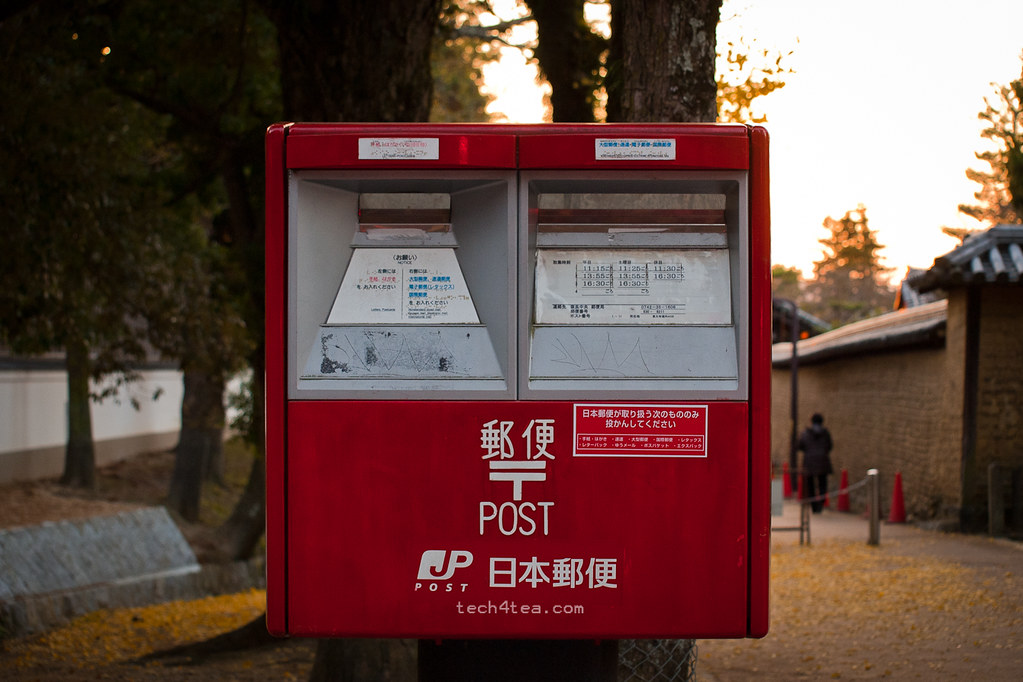
Little red Japanese postbox

The red traffic cones and receding pedestrian are a tad distracting behind the postbox.

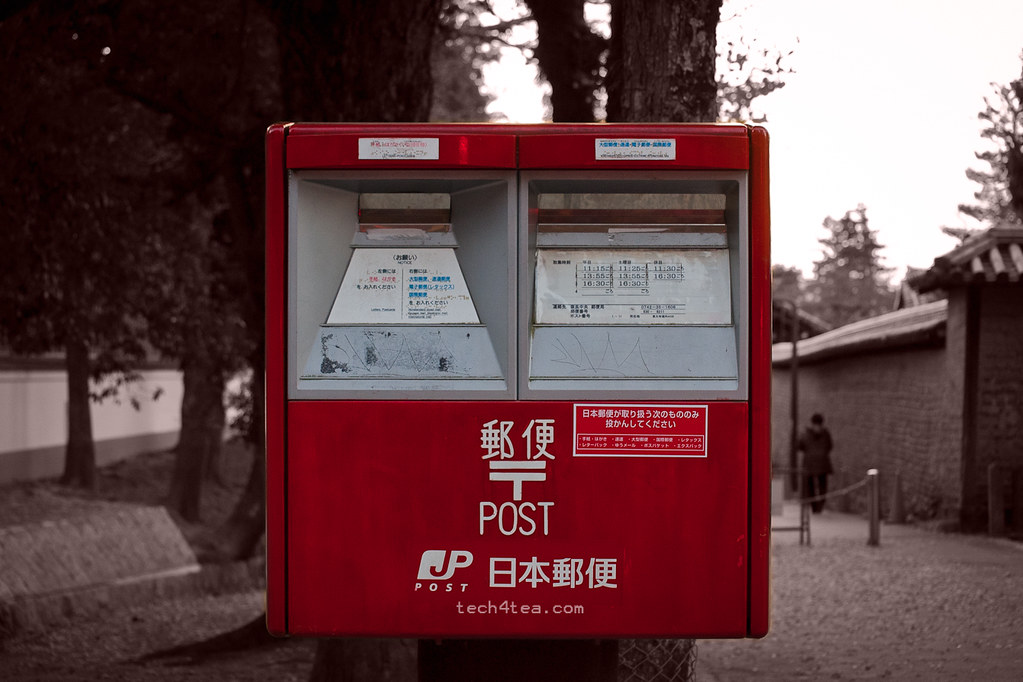
Arty interpretation of a postbox in Japan

Toning down the background focuses the viewer's attention on the main subject.

In the photo I snapped in Nara – Japan on a cool evening last autumn, I made the red postbox stand out by removing colour from its distracting surroundings and tinted the surroundings with a light reddish shade.

This is usually done to bring put the emphasis on a main subject by toning down the background, especially if the background is brightly coloured or distracting.

It is also a popular technique to turn a mundane snapshot into something arty.

Download the Before photo and follow along.

GIMP's Toolbox

Activate the Free Select Tool at the top of the Toolbox

Using the Free Select Tool

In the Toolbox, activate the Free Select Tool. Click (and let go of the mouse button) anywhere on the edge of the postbox. Move the cursor to the next point on the edge of the postbox and click again.

GIMP joins the two mouse clicks with a straight line to indicate the edge of the selection you are making. An anchor point is also created at each end of the edge to indicate where the mouse was clicked.

Around the corners of the postbox, the edges are rounded. Zoom in (press “+” on the keyboard) to get a better view to make a more precise selection.

Where the curved edge begins, click but hold down the mouse button and drag the cursor along the curved edge. You can see selection boundary trace around the curved edge.

At the end of of the curved edge, release the mouse button. To continue selecting straight edges, simply click at the next point.

Repeat the above techniques around the edge of the postbox until you are back to the starting point. This completes the selection process.

Along the way, if you click at the wrong place or make a botched tracing around a curved edge, press the Backspace key on the keyboard. GIMP will remove the previous anchor point and line segment. Press the Backspace key once to remove each previous anchor point and segment.

Decolourizing and adding the tint

Once the postbox has been selected, press Ctrl-I to invert the selection. Drain the colour from the selected surroundings and tint it a pale red by using the Colors > Colorize command from the main menu.

In the Colorize dialog box, set Hue to zero and Saturation to 15 by dragging the corresponding sliders.

Size matters – resizing and reshaping a photo in GIMP (Intermediate series: Part 1 of 14)

Saturday, February 19th, 2011

Starting off the 14-part Intermediate Photo Editing series for GIMP this weekend, this warm-up tutorial looks at resizing and reshaping a photo.
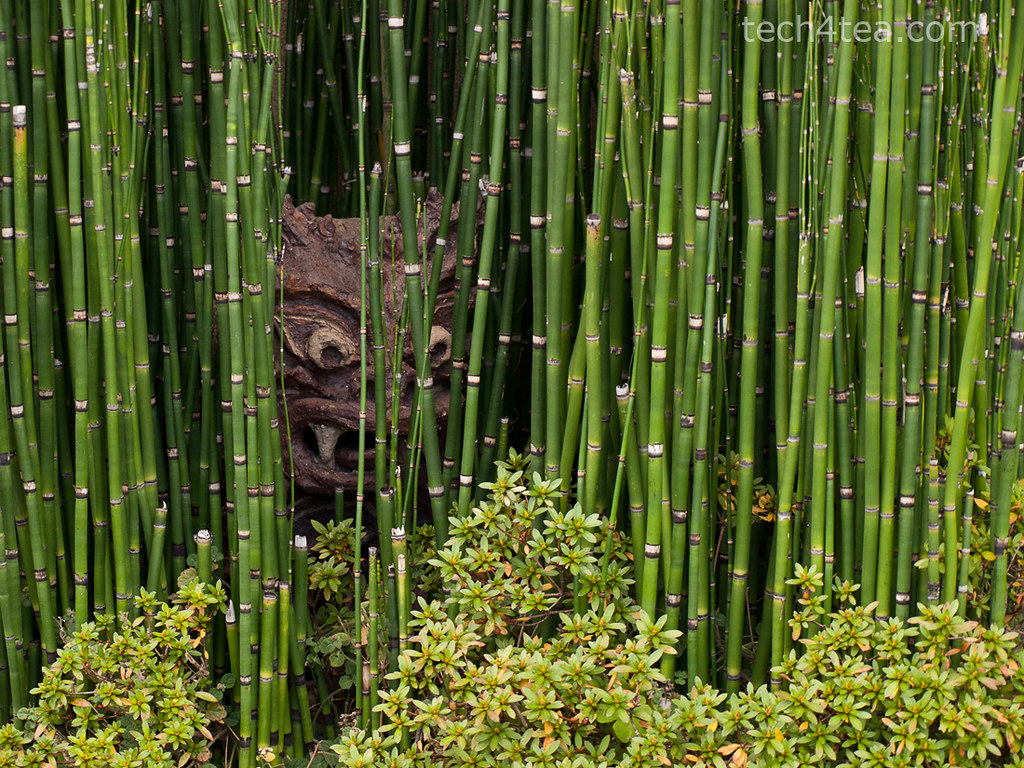
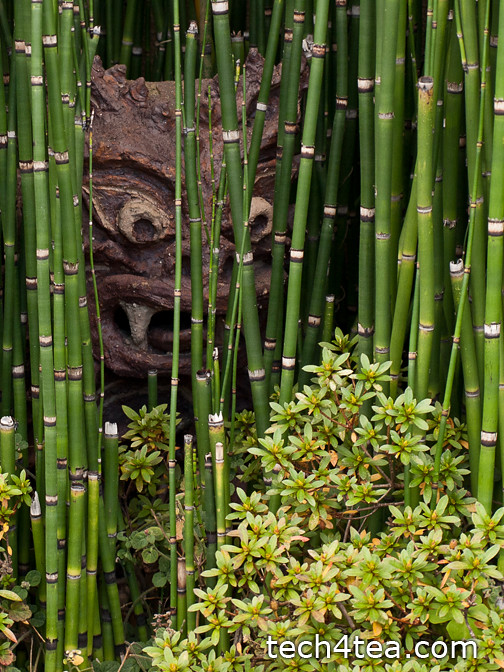
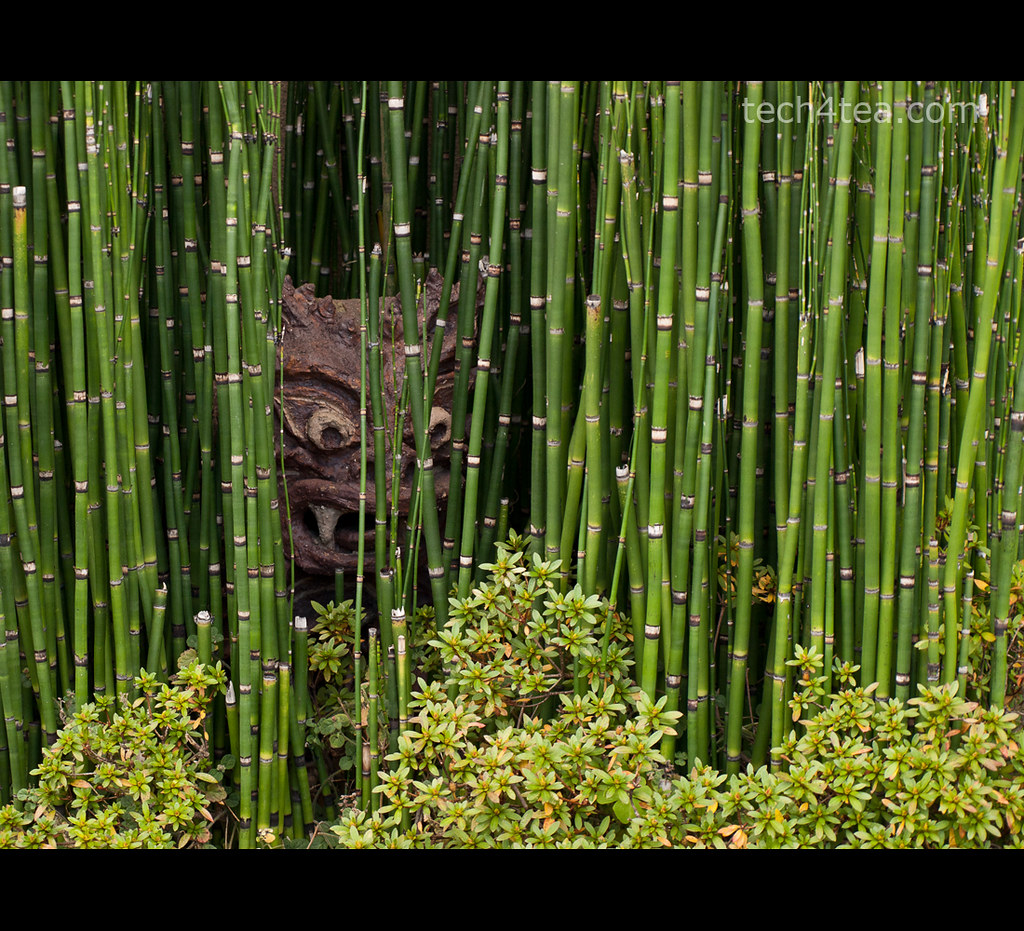
Ambush

Pict 1: This gruesome troll was laying in ambush amidst a bamboo grove by the roadside in Kyoto as I walked past towards the train station.

With cameras offering more and more megapixels, we frequently need to reduce the size of photos for emailing to friends or sharing online – to reduce upload and download time. Sometimes, we need to change the aspect ratio (between the width and height of the photo) of the photo, perhaps to use it as part of a web page design.

Scaling a photo
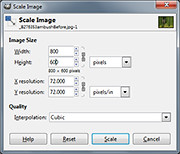
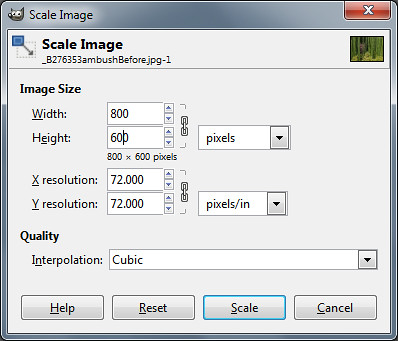
Scale Image dialog box in GIMP

Pict 2: Change the Width and Height pixel settings to resize the photo.

To reduce the size of a photo in GIMP, use the Image > Scale Image command from the main menu. A “Scale Image” dialog box pops up.

Change the Width and Height fields to the desired dimensions. Make sure the unit of measure for the Width and Height is in pixels (the default).

The chain link between the two fields locks the aspect ratio of the photo. Hence, you only need to adjust the pixel dimension of either the Width or the Height field and GIMP will calculate the corresponding pixel dimension for the other field so that the aspect ratio is kept constant.

Caution: Clicking on the chain icon will change it into a broken chain. The width and height can then be changed independently without preserving the original aspect ratio. Doing this for photos will cause distortions – people, trees and things in the photo become either tall and thin, or short and squat.

Leave the interpolation method to the default setting of “Cubic”. There is no need to adjust to adjust the resolution fields.

Press the “Resize” button and the pixels in the photo will be resampled.

Caution: Scale Image can be used to increase the size of photos but avoid that because the up-sampling will reduce the quality of the photos and make it appear blurry.

Reshaping a photo

To change the aspect ratio of a photo without causing any distortions, use either of the two following methods.

Portrait version of Japanese troll

Pict 3: The photo was cropped to a portrait orientation to zoom into the Japanese troll.

Use the Crop tool in the Toolbox to select the area in the photo to be retained. Use the Tool Options below the Toolbox to help select the area better. Check the “Fixed” checkbox to set a specific aspect ratio, width, height or size. Even after dragging out the selection, you can move the selection boundary or resize/reshape it before pressing “Enter” key to execute the crop.

Now that the photo is of the right aspect ration, use “Image Scale” to resize it if necessary.

What if the photo is so tightly framed that you don’t want to crop the forehead or an ear of the subject out of the photo? You’ll have to add pixels to the sides to make the photo fatter, or to the top and/or bottom to make the photo taller.
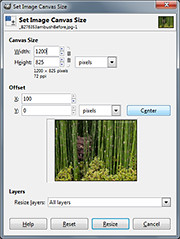
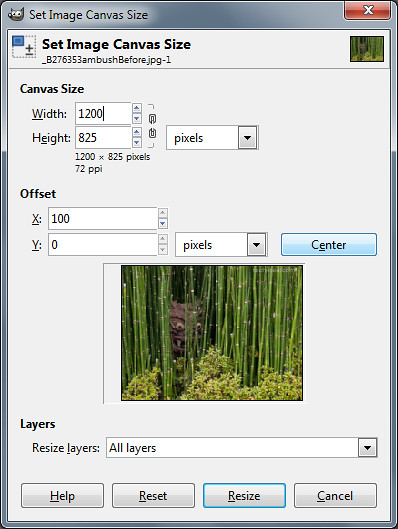
Dialog box for Canvas Size command in GIMP

Pict 4: Click the Center button to centre add new pixels equally between opposite sides.

Use the Image > Canvas Size to do this. A “Set Image Canvas Size” dialog box pops up.

Type the desired dimensions in pixels in the Width and Height fields under Canvas Size. Click the chain icon joining the two fields to de-couple them so as to specify a canvas with a different aspect ratio from the original photo.

Set the “Resize layers” dropdown box to “All layers”. Press the “Center” button to centre the photo.
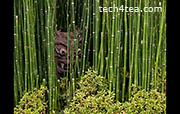
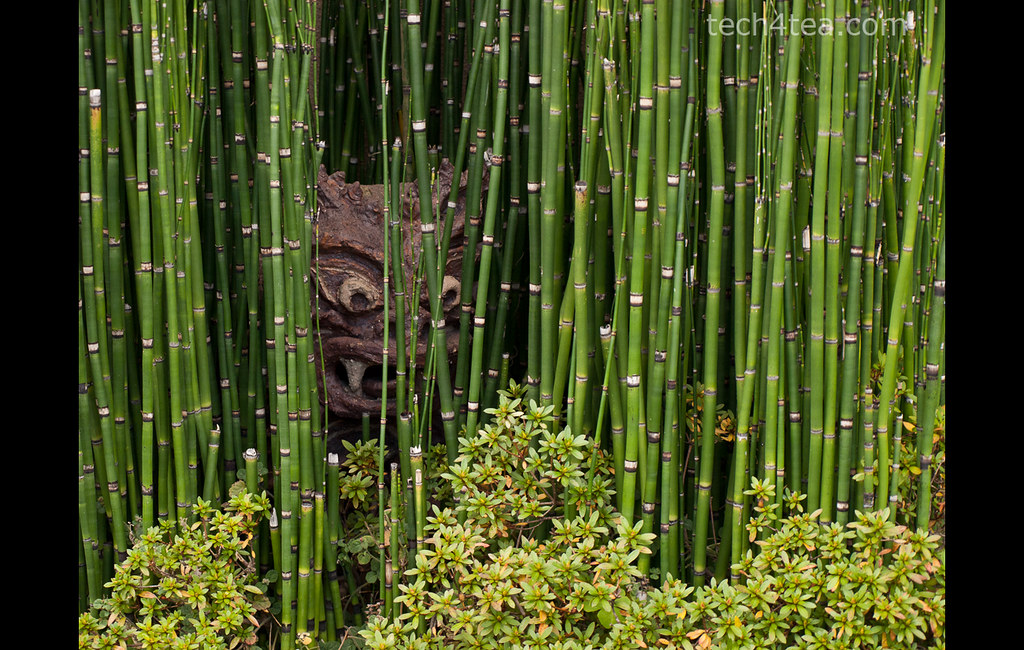
A fatter image

Pict 5: New pixels have been added to the sides of the photo.

When you press the Resize button, additional pixels will be added either to both sides or to the top/bottom of the photo. Unlike the Scale Image command, the original pixels remain untouched.

Use “Image Scale” to resize the photo if necessary.

Caution: If the Width or Height dimensions are reduced, the photo will be cropped instead.

Fine-tuning and trouble-shooting
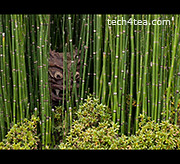
A taller image

Pict 6: New pixels have been added to the top and bottom.

If the photo was the Background layer before activating the Canvas Size command, the new pixels will take on the colour of the Background Color swatch in the Toolbox.

So in order to specify the colour of the new pixels, click on the Background Color swatch to select the desired colour – BEFORE activating the Canvas Size command.

If the photo was not the Background layer, activate the Image > Flatten Image command from the main menu before the Canvas Size command as well.

Adding a coloured border/frame

Sometimes, even though the photo is of the desired aspect ratio, we may want to add a coloured margin around it, either a white border to make it look like a traditional photo print, or a coloured frame for decoration.

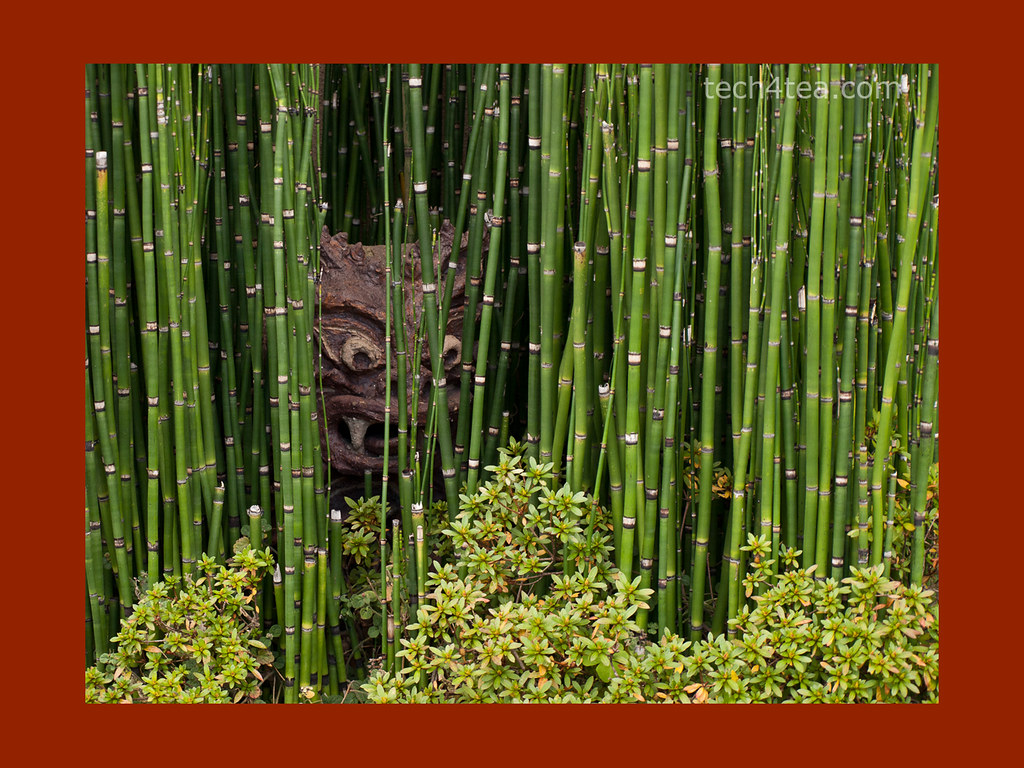
A coloured photo frame or border

Pict 7: A solid-coloured photo frame/border has been added.

In this case, use the Canvas Size, and in the “Set Image Canvas Size” dialog box, increase the Width or Height setting while leaving the chain icon connected. Click the Center button to center the photo and set “Resize layers” dropdown box to “All layers” as before.

You can look at the preview thumbnail in the dialog box to see how thick the margin is with respect to the photo before pressing the “Resize” button.

Apple Subscriptions versus Google One Pass

Friday, February 18th, 2011

Here’s a quick view of how the two newly announced subscription platforms from Apple and Google stack up against each other. Either way, it’s a good thing for consumers in terms of both choice and convenience.

Platform Apple Subscriptions Google One Pass
Viewable on Web browsers: smartphones, tablets, computers.

iOS: iPad, iPhone, iPod Touch

Commission Apple keeps 30% Google keeps 10%
Billing system Apple App Store Google Checkout
Link to website subscription outside App Not allowed Yes
Share customer info with publishers Opt-in by subscribers Opt-out by subscribers
Subscribe from Almost global US, UK, Canada, Germany, France, Spain for customers,
Publish from Almost global Wherever Google Checkout is available
Content Magazines, newspapers, video, music etc. Magazines, newspapers.

Intermediate GIMP Series on photo or image-editing

Friday, February 18th, 2011

I will commence the Intermediate GIMP Series this weekend. It will run every weekend on Saturday and Sunday. That way, readers have more time to try out the tutorials and play with their vacation photos outside of work.

Due to positive comments and feedback from readers and friends on the 14-part Basic GIMP series in January, I’ve decided to run a follow-up series on GIMP, this time at intermediate level.
GIMP's splash logo for v2.2

v2.2 logo by Bill Luhtala

There will be 14 parts and should take us through March to the beginning of April.

Don’t expect anything too complex as I’ll try to keep explanations simple for the layman. The topics are based on suggestions from readers and I’ve arranged them to be useful and applicable in daily life and work.

There’ll still be some fairly basic stuff but we’ll also look at some more powerful controls for adjusting images, such as Levels and Curves.

If you have any comments, feel free to email me at johntan@tech4tea.com or simply comment in the pertinent posting.

Unveiled Google One Pass to rival and undercut Apple Subscriptions

Thursday, February 17th, 2011
A day after Apple unveiled its new Subscriptions billing system for content-based apps, Google announced its One Pass service for publishers to sell their content.

Google One passGoogle takes 10% off the bill and lets publishers keep 90% of the subscription. This undercuts the 30% that Apple demands from publishers participating in Apple’s subscription platform.

Payment will use Google Checkout which will cover publishers’ e-commerce and payment processing requirements, removing any need to build a third-party payment system into publishers sites.

Google One Pass is currently intended for periodicals, such as news and magazines, but can be used for other types of content, according to its FAQ on the One Pass website.

Publishers decide the price and terms of the content they choose to sell through Google One Pass. They determine the duration and extent of access to their content. For instance, this may include setting a one-week or 30-day limit on the accessibility of a given article. Partners control what content is accessed through Google One Pass and what content is free to users.

Google One Pass will enable users to access content on connected, browser-enabled devices and from mobile apps where the mobile OS terms permit publishers to access the web via the app for Google One Pass transaction or authentication services.

Content purchased through One Pass will be accessible on smartphones, tablets and computers that are browser-enabled and connected to the Internet. Syncing between devices, will be via Google One Pass transaction or authentication services.

Publishers who have committed to One Pass include Axel Springer AG, Focus Online (Tomorrow Focus), Stern.de, Media General, NouvelObs, Bonnier’s Popular Science, Prisa and Rust Communications.

Google CheckoutOne Pass is currently available in Canada, France, Germany, Spain, the U.K. and the United States.

However, publishers in any country where Google Checkout is available can implement Google One Pass.

Apple’s new subscription service for content-based apps.

Wednesday, February 16th, 2011

Subscriptions for content-based apps – magazines, newspapers, video, music etc – can be purchased from within Apple’s App Store using the same billing system that has thus far been used for normal apps and In-app purchases.

Apple will get 30% of the subscription for purchases through its App Store – the same share that it charges today for other In-App Purchases.

Apple launches subscriptions in App StoreThe billing model is the same as the digital subscription billing service that Apple recently launched with News Corp.’s “The Daily” app.



Publishers set the price and length of subscription (weekly, monthly, bi-monthly, quarterly, bi-yearly or yearly). Customers pick the length of subscription and are automatically charged based on their chosen length of commitment.

Customers can review and manage all of their subscriptions from their personal account page, including canceling the automatic renewal of a subscription.

“Our philosophy is simple—when Apple brings a new subscriber to the app, Apple earns a 30 percent share; when the publisher brings an existing or new subscriber to the app, the publisher keeps 100 percent and Apple earns nothing,” said Steve Jobs, Apple’s CEO.

“All we require is that, if a publisher is making a subscription offer outside of the app, the same (or better) offer be made inside the app, so that customers can easily subscribe with one-click right in the app.”

Publishers who use Apple’s subscription service in their app can also leverage other methods for acquiring digital subscribers outside of the app.

For example, publishers can sell digital subscriptions on their web sites, or can choose to provide free access to existing subscribers. Since Apple is not involved in these transactions, there is no revenue sharing or exchange of customer information with Apple. Publishers must provide their own authentication process inside the app for subscribers that have signed up outside of the app.

However, Apple does require that if a publisher chooses to sell a digital subscription separately outside of the app, that same subscription offer must be made available, at the same price or less, to customers who wish to subscribe from within the app.

In addition, publishers may no longer provide links in their apps (to a web site, for example) which allow the customer to purchase content or subscriptions outside of the app.