
Pict 1: Scrapbook cover/page
They share their photos online even while they’re still overseas on holiday, but nothing beats a physical coffee-table scrapbook for family and close friends to thumb through and pore over.
In the first half of this tutorial today, we’ll use a photo as a background for a scrapbook cover/page and bring in additional photos. We’ll resize them as thumbnails and position them on the page.
In the second half tomorrow, we’ll add text titles and captions, and add outlines to them, as well as the thumbnails.
Including additional photos as layers
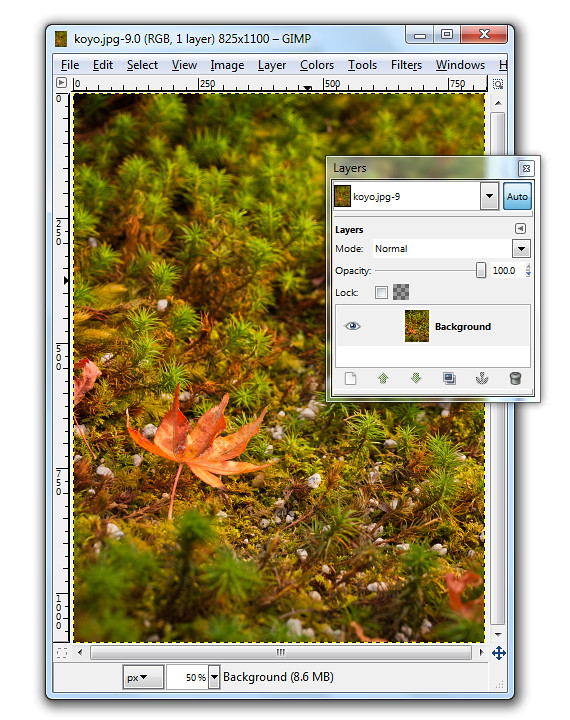
Pict 2: Single Background layer when photo is first opened. This lonesome koyo was languishing on the grounds of the Ginkakuji in Kyoto.
When a photo file is first opened in GIMP, it resides on the single Background layer.
In our example, the photo file comprises the macro shot of the lone koyo (red maple leaf in Japanese) in the Background layer. We want to bring in two additional photos of koyo scenes as thumbnails.
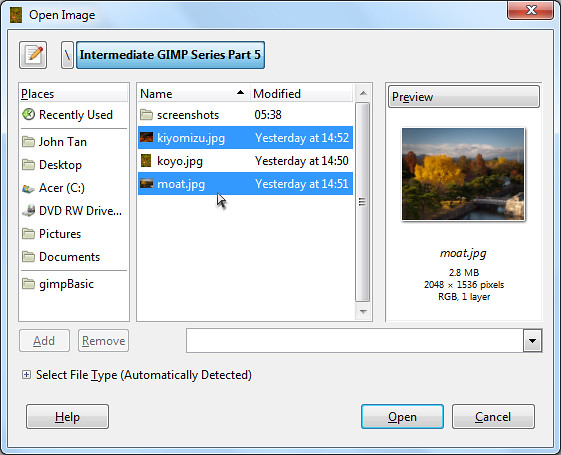
Pict 3: Additional photos
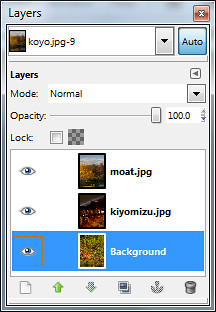
Pict 4: Additional photos as layers
The two photos will be brought in as additional layers – one photo on each layer. For a quick introduction into layers and various ways of manipulating them, read Part 5 of the Basic GIMP series on “Correcting exposure using layers”.
You can see the different layers in the file inside the Layers dialog.
To reduce the size of the moat photo to a thumbnail, click on its name in the Layers dialog to select it and then use the Layer > Scale Layer command from the main menu. As a shortcut, simply right-click on the moat layer in the Layers dialog and select the Scale Layer command from the pop-up menu.
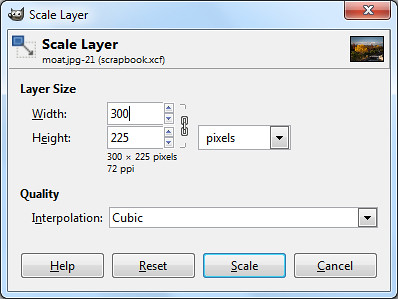
Pict 5: Scale layer down to thumbnail size
In the Scale Layer dialog box that pops up, I typed in 300 in the Width field. The Height field was automatically updated to 225 to keep the aspect ratio of the layer unchanged to avoid distortions. Both the default Interpolation setting of Cubic or Sinc (Lanczos3) will do the resizing with good quality.
Press the Scale button to complete the resizing.
Repeat the same process to resize the other photo into thumbnail size.
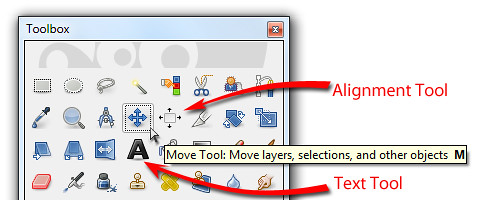
Pict 6: Move, Alignment and Text tools in the Toolbox
Positioning the thumbnails
To move and position the thumbnails, activate the Move Tool from the Toolbox. Now you can just click and drag any layer you see in the image window.
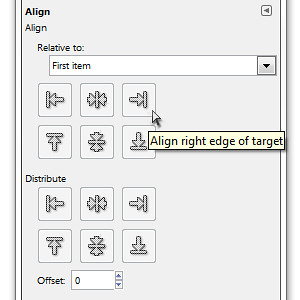
Pict 7: Options for the Alignment Tool
To align the two thumbnails, activate the Alignment Tool in the Toolbox. Click the first thumbnail and shift-click the second thumbnail to select both. You can also drag a rectangle that encloses both thumbnails to select both at the same time.
In the Tool Options, click one of the icons to align either the left or right edges of the thumbnails.
Tomorrow, we’ll add text captions and outlines to the elements in the scrapbook cover/page.
 The iPad 2 was unveiled as anticipated on 2 Mar at the Yerba Buena Center for the Arts in San Francisco. Specifications were in line with virulent speculations prior to the event. What was more uncertain was whether Steve Jobs would helm the launch.
 With 350,000 apps on the Apps Store, with 65,000 dedicated to the iPad 2, the tablet will hit US shelves on 11 March and ship internationally on 25 March. The $499 starting price is the same as the original iPad when it was first launched in Apr 2010.
 1. Wi-Fi only versions:
 The XZ-1 is a 10-megapixel high-end compact with 4x optical zoom from 28mm to 112mm (35mm equivalent). It records HD movies, has a 610k dots OLED display and features 6 Art Filters that can be applied to movies recorded. The camera comes in black or white and retails at S$748 (incl GST).
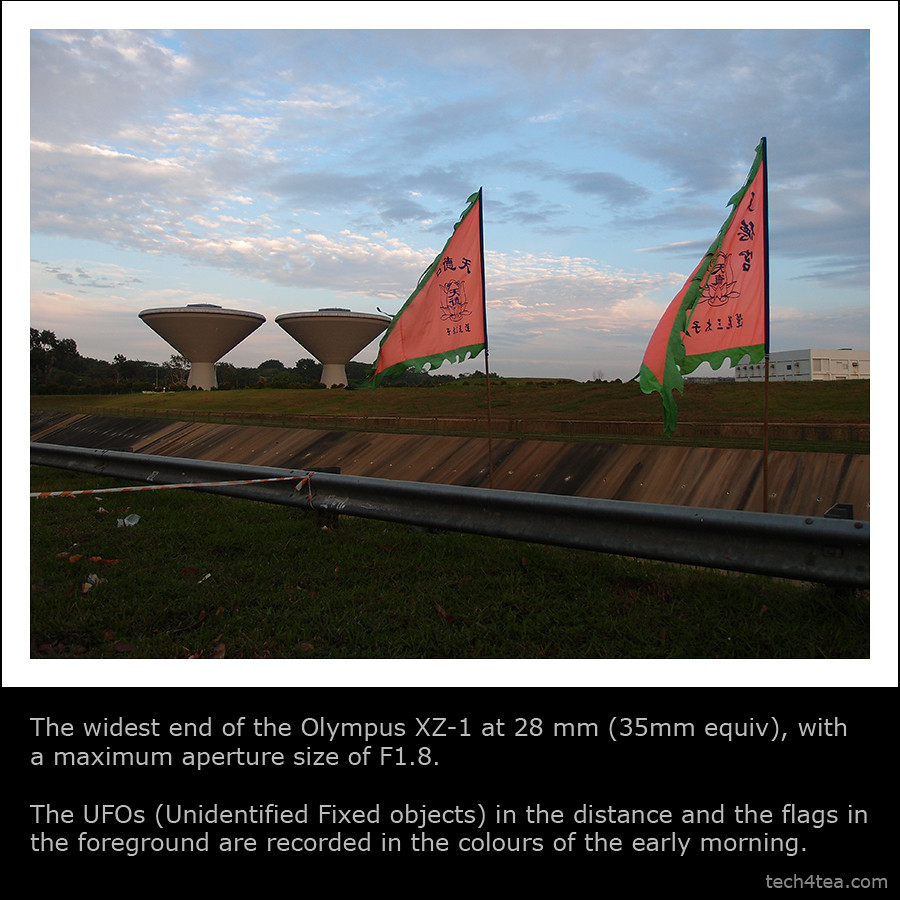
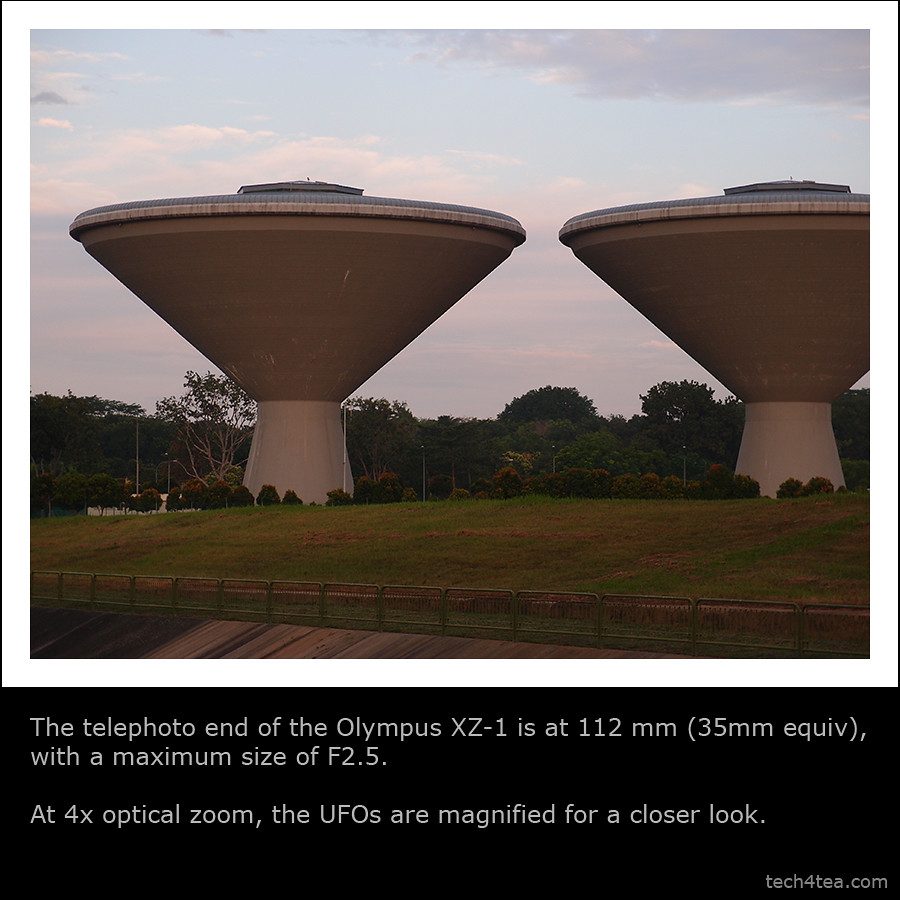

 For complete beginners, there is the usual everything-automatic mode (iAuto) that takes care of all shooting settings for you. There are also 18 scene modes with pre-canned settings catered for specific photographic situations from the usual portrait and landscape modes to more unusual modes like e-Portrait, Underwater (Macro or Wide), Multi-Exposure, Cuisine, Pet etc.
 Together with its relatively large 1/1.63” sensor, it provides image quality and depth of field that I found comparable to some entry-level DSLRs that I’ve used in the past. The image processing engine – TruePic V – is the same one used in the Pen series of cameras.
 Shooting HD video is a cinch with a dedicated record button. No need to fumble through complicated on-screen menus. Recording movies using Diorama mode is pretty cool, like a video on fast-forward.
 The control ring around the lens is a pleasure to use. It is tactile and responsive and provides immediate adjustments to the main setting for each shooting mode (eg. aperture setting in Aperture Priority mode).
 Areas to improve? I wished there is a more direct way to access ISO and White Balance settings, rather than using the menu. I also found the wheel controller (around the arrow navigation keys on the rear panel) too slow when making large adjustments, say of the shutter speed. But this is highly subjective and I suspect it’s because I’m spoilt by the more tactile lens ring.


 The 13-inch MacBook Pro is available in two configurations: one with a 2.3 GHz Dual-Core Intel Core i5 and 320GB hard drive starting at S$1,648 ; and one with a 2.7 GHz Dual-Core Intel Core i5 and 500GB hard drive starting at S$2,048.
 According to data from
 Indulging in my own bit of speculation, both schools of thought may not be untrue. We might actuallly see an iPad announcement on March 2 followed by the taking of orders, with deliveries only materialising in June, probably staged out based on country.


