GoFlex Home is a consumer network attached storage (NAS) hard drive for the home. Easy to set up and use, it allows the access, sharing, streaming, and backup of files and media for computers, network TVs, media players and game consoles connected to the home wireless network.
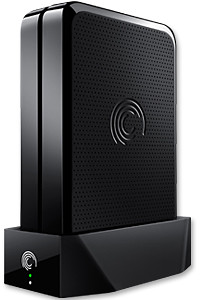
The Seagate GoFlex Home comprises a drive dock and a hard drive.
Secure access can also be opened to computers and iOS/Android tablets and smartphones over the Internet.
Over the weekend, I helped my friend set up an NAS drive for his desktop, netbook, two laptops, iPhone and Android tablet. He had bought the Seagate GoFlex Home 3 TB storage drive during the recent COMEX 2011 but hadn’t had the time to set it up yet.
I helped by using eye-power because he decided to give it a go himself and actually got the thing working in less than 15 minutes. That was the reason why I recommended the drive in the first place, it works with most consumer home Wi-Fi routers with little set-up or configuration needed.
The GoFlex Home comes with two cables and an software installation CD. The following steps were all that was needed to get the personal storage cloud going:
1. Connect the GoFlex Home drive dock to the Wi-Fi router by using the provided Ethernet cable.
2. Pop the GoFlex hard drive into the GoFlex drive dock and plug the power supply into the drive dock and the wall outlet. Switch on the GoFlex Home by pressing the Power button on the drive dock.
3. Pop the CD (or download from Seagate’s website) into the computer (can be a Mac or Windows PC) to install the software needed to access the hard drive. Simply select a language, key in the product information found on the drive, give the drive a name and register it. The name has to be unique globally since it will be used to identify the drive should you access it from the Internet.
4. Install the software on other computers that require access to the shared drive. Up to 5 people/computers on the home network can access the GoFlex Home. By paying to subscribe to the Seagate Share Pro, you get access for an unlimited number of people/computers to the GoFlex Home.
There are three ways to access the drive. One is to use the installed Seagate Dashboard software (on Windows PCs), which allows all features of the drive to be configured and managed. You can add computers and user accounts, backup, access and share files as well.

Use Seagate Dashboard software to configure and manage GoFelx Home
The other way is to use a browser-based Seagate Share either for a computer in the home network or out in the Internet.
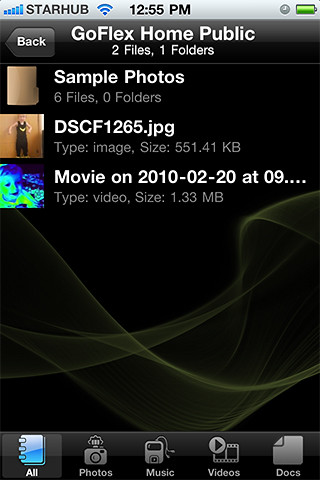
Free iOS/Android app
Both are easy to use with a simple interface, using drag-and-drop or standard dialog boxes we’re familar with.
The third method is via the appropriate free app on a iOS/Android smartphone or tablet, also over the Internet.
The GoFlex Home comes with a USB port which is very useful. You can connect an additional external hard drive to expand the capacity of the original GoFlex hard drive. You can also connect a USB hub for connecting more than one USB device.
In my friend’s case, he connected his printer to the USB port and all his computers on the Wi-Fi network got to share that printer.  No more plugging/unplugging the old printer from one computer to another.
The included backup software allows up to three connected computers to be automatically backed up to the GoFlex Home. Upgrade to Premium Backup ($49.95) to back up an unlimited  number of computers on the GoFlex Home network. You can upgrade at the Application Store that can be accessed through the Seagate Dashboard software.
For each user account set up on the GoFlex Home, three folders are created – a Public, Personal, and Backup folder. The Public folder holds files that can be stored and accessed by everyone on your home network. The Personal and Backup folders can only be accessed by the the user.
What I like about the sharing is the granular control available for the files shared. You can specify who you want to share files with, choose to share just certain files or entire folders, set passwords, and set expiry dates for the shares. Administration is intuitive and easy to pick up. You can send a URL of a shared file via email.
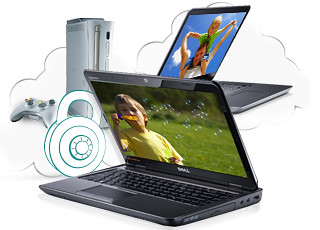
Stream media to other computers and media players on the home wireless network.
Music, photos and video can also be shared and streamed to media players, game consoles or network TVs that support UPnP-AV, DLNA or Windows Media Connect. A wide range of file types are supported.
The GoFlex Home is available in 1TB (S$179), 2TB (S$239) and 3TB (S$339) capacities.



