Posts Tagged ‘tips’

Travel Tip #2: Bringing along a Dual-SIM phone overseas

Sunday, December 14th, 2014

A dual-SIM phone allows you to stay contactable to your regular contacts yet enables you to take advantage of more affordable local data/voice rates to avoid expensive overseas roaming charges – without having to carry two separate mobile phones.

The Motorola Moto G (2nd Generation) is one of the increasing number of smartphones that support a dual-SIM capability.

The Motorola Moto G (2nd Generation) is one of the increasing number of smartphones that support a dual-SIM capability.

Nowadays, it is increasingly easy to get a local SIM card when one travels overseas for work or leisure.

The local SIM allows you to make/receive calls at affordable local rates and more significantly, to stay connected via mobile broadband – without chalking out a huge bill.

But most mobile phones allow only one SIM card to be installed – so if you put in the local SIM card, you’ll have to remove your regular SIM card and become uncontactable to those who call you on your regular number, unless you forward those calls to your local number.

Otherwise, you’d carry a second single-SIM card phone, which is a hassle.

I brought along a Motorola Moto G (2nd Generation) dual-SIM card phone during my short break to Thailand and it was such a blessing.

There are two micro-SIM card slots so I could keep my regular SIM card in one slot and plug in the prepaid local SIM card that I bought at Suvarnabhumi Airport in the other.

The guy at the True Move counter did all the set up for me.

So after five minutes of queueing and five minutes of installation and payment, I was as connected in Thailand as I was at home back in Singapore.

I could receive roaming calls on my regular number from my friends back in Singapore and other parts of the world, while at the same stay connected on email and social media platforms such as Facebook, Twitter and Instagram via the mobile broadband on the local SIM card.

(more…)

Travel Tip #1: Get a pre-paid SIM card in Thailand

Saturday, December 13th, 2014

First thing I did when I exited the gates in the Arrival Hall in Suvarnabhumi Airport in Bangkok was to get myself a pre-paid SIM card that gave me a local number for voice calls and seven days of mobile data broadband at 299 THB.

The truemove shop is one of the first things you come across when you exit the gates at the Arrival Hall at Suvarnabhumi Airport in Bangkok, Thailand.

The truemove shop is one of the first things you come across when you exit the gates at the Arrival Hall at Suvarnabhumi Airport in Bangkok, Thailand.

Immediately after exiting the gates in the Arrival Hall, you’ll come upon this telco shop that sells pre-paid SIM cards, as well as other mobile plans.

The 7-day prepaid SIM card offered by True Move is one of a few pre-paid mobile plans available in Thailand. This package bundles 7 days of unlimited data, free call credits of 100 THB and incoming call, your own local number, attractive international call rates - all for 299 THB or approximately S$12.

The 7-day prepaid SIM card offered by True Move is one of a few pre-paid mobile plans available in Thailand. This package bundles 7 days of unlimited data, free call credits of 100 THB and incoming call, your own local number, attractive international call rates – all for 299 THB or approximately S$12.

Here’s where you can grab an affordable and convenient pre-paid SIM card that gives you mobile broad band as well as voice calls, and a local number.

I’m here for seven days, so I was delighted to grab the 7-day SIM card that costs 299 THB, or S$12.

You get seven days of free broadband mobile data as well as 100 THB of free call credits, which gives you 100min of local talk time at 1 THB/minute.

The seven days are calendar days and includes the day you bought the card, ending at 2359hrs on the seventh day.

What I found useful was not only the free call credits but having a local number that you can give out for others to contact you via local calls.

My wife can now call me at local rates, through her autoroam.

Otherwise, she would have to make an overseas call just to get me on my Singapore mobile number – you know sometimes we get separated in crowded places, or we deliberately split up to visit different shops etc.

(more…)

Tips: Google’s seven top tips for Safer Internet Day

Tuesday, February 11th, 2014

Since today is “Safer Internet Day”, here are seven “Don’t” tips from Google that can help you stay safe on the Internet.

Are you ready for a Safer Internet?

Are you ready for a Safer Internet?

Here are seven tips from Google of things you need to start doing right away to stay safe online.

  1. Don’t use the same password for everything: It’s like handing your house keys (and every other key) to everyone you meet.
  2. Don’t have an “easy” password: If your password contains the word ‘password’ or numbers in sequence, think again. One way to create (and remember) a complex password is to think of a phrase or sentence (perhaps the lyrics to a song you like?) and use the first letter of each word to create the password. Or think of places you’ve lived, and spell them backwards. Something, anything!

  3. Don’t rely solely on a password: It’s so yesterday to have only a password for your most important accounts. Turn on two-factor authentication. Like your bank’s OTP, an SMS code or mobile app that gives you a second code when you’re accessing your account from an unfamiliar computer will give you extra peace of mind.
  4. (more…)

Photography tips and experiences from pro Scott A. Woodward

Saturday, July 20th, 2013

Scott A. Woodward is a SanDisk Extreme Team member, a Nikon Professional Photographer and a Getty Images Global Assignments photographer. He shares his experiences and photography tips in a Q&A below.

Scott A. Woodward at one of four sessions of Nikon's

Scott A. Woodward at one of four sessions of Nikon’s “I am a Fashionista” photography workshop in Singapore.

Woodward shared three tips for beginners who are starting out: Be inspired, Play with light, Experiment.

1. Be inspired

Do a little research about the who or what you will be shooting ahead of time. The more you know about what or who you will be shooting, the better prepared you can be.

Try to have some ideas for the types of photographs you want to create beforehand. There is no shame in looking at other photographers’ interpretations of a location or scene.

Use others’ work – there is an endless stream of imagery from photographers across the globe on Instagram and Flickr and Twitter – to be inspired and help get your creative juices flowing so you can create your own unique photography.

2. Play with light

(more…)

Seven cyber security myth busters from Symantec and Norton

Friday, May 17th, 2013

Based on data from the recent annual 2013 Internet Security Threat Report, Volume 18, Symantec debunks seven of the most commonly held myths around cybersecurity.

Infographic from Symantec and Norton to debunk the top 7 cybersecurity myths. Click to view enlarged version.

Infographic from Symantec and Norton to debunk the top 7 cybersecurity myths. Click to view enlarged version.

Contrary to the popular belief that staying away from risky sites will is enough to protect your computer – did you know that 61% of malicious sites are actually legitimate websites that have been compromised and infected with malicious codes?

At the same time, do be extra careful when accessing your social networks – be on the lookout for scams involving fake gift cards and surveys as these comprise 56% of attacks on social media.

(more…)

Setting up a home shared network hard drive

Sunday, September 25th, 2011

Over time, as we get new computers and leave the old still-functional computer as a second or third machine, and we still utilise the different machines, the files we create and work on can get distributed amidst the hard disk drives of the various computers.

A shared network hard drive can bring order back to an increasingly chaotic situation.

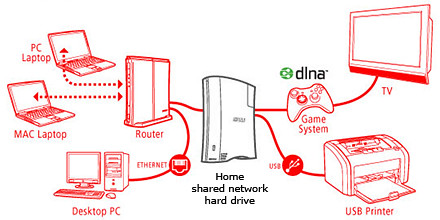
A network attached external hard drive can share files and media amongst computers and media players in the home

A network attached external hard drive can share files and media (illustration modified from www.buffalotech.com)

The above scenario was what happened to some of my friends and me. Computers and laptops today can last for a long time (if you look after them well) and most often then not, they’re still perfectly functionable when we get a new machine so it seems quite a waste to get rid of the old machine, especially since it can serve as a back up.

And if a member of the family is on the new laptop, others can use the spare computer. So over time, working files, photos, music and video can get distributed over a few computers. At first, it’s easy to remember and keep track of which file is in which computer and do the occasional transfer using an USB thumbdrive.

But over time, as the number of files grow, things can get out of hand – the convenience of being able to work on a few computers turns into a bane.

Now that cloud computing is catching on and we can save files and media on the Internet, this mess can be ameliorated. But those personal and confidential files and humongous video files are still best kept in local storage.

The NAS solution

Schematic of an NAS solution

Schematic of an NAS solution

So over the weekend, I helped my friend rig a similar solution that I use at home – set up a simple external hard drive that can be shared and accessed by a few different computers at home over a local Wi-Fi network.

Those files that are stored on the network attached storage (NAS) drive can then remain accessible no matter which computer you’re working on. It can be used to back up the computers connected.

Some NAS drives allow you to stream media to TVs, media players and game consoles connected to the home network.

In fact, some even enable access to be opened out to the Internet, so that when you’re outstation – in the office, on the road, or overseas – you can still securely access the files stored in the hard drive. This can be done via a browser on a laptop connected to the Internet, or via an app on a smartphone or tablet.

It’s like setting up your personal cloud storage. There are many consumer NAS drives in the market from makers such as Seagate, Western Digital and Buffalo.

They’re all designed to be easily set up by the layman who does not have a PhD in computer science. These NAS drives are connected directly to the router rather than a specific computer acting as a file server.

Any computer connected to the network via the router can access the NAS drive at any time.

Because these NAS drives are more intelligent than the regular dumb external hard drive, they do cost a slight premium over the latter. The NAS drives can manage network access by computers on the network and implement security, access and rights control as well.

Seagate GoFlex Home comes in capacities of 1TB, 2TB and 3TB

Seagate GoFlex Home comes in capacities of 1TB, 2TB and 3TB

Since I’m familiar with the Seagate GoFlex Home, that was what I recommended my friend, who brought home a 3 TB version from the recent COMEX 2011 for S$299.

Tomorrow we’ll see how he managed to tame his growing diaspora of media and files.

Turn your action sequence shots into a film strip

Sunday, May 29th, 2011

Use GIMP to turn photos into film slides and then join them together into a film strip.

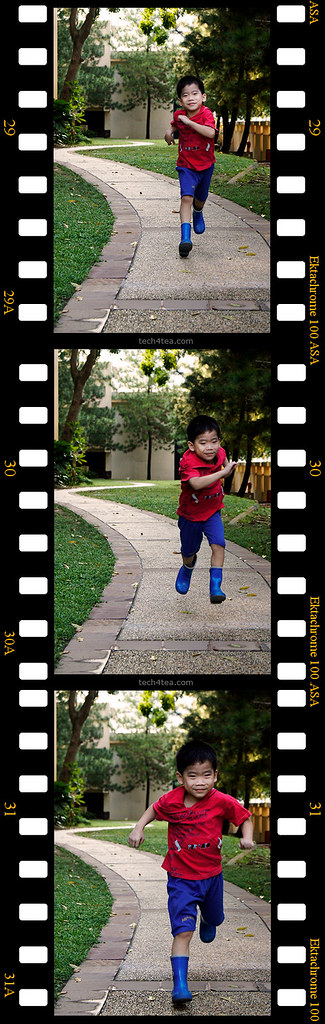
That's the future Usain Bolt doing the 100m sprint

That's the future Usain Bolt doing the 100m sprint

The most straightforward way of conveying recording motion is to shoot video. However, photos can also be used to convey a sense of motion.

One way is to use a fast shuttle speed to freeze motion. Usually the posture of a sprinting man or the midair position of a mountain bike tells a story someone or something in motion frozen in that split second of exposure.

The other way is to do a panning shot. The photographer uses a relatively slower shuttle speed and moves camera such that the moving subject is kept at within the same location in the viewfinder. This is much trickier but the results can be dramatic. Only the moving subject is in focus while the surrounding background is blurred in motion blur. This effect can sometimes be simulated using a photo editor.

Yet another way is to shoot a sequence of photos of the moving subject. The photos in the sequence show the moving subject at various stages of movement. Many compact cameras today feature a burst mode for shooting action. Once the camera is focused on the moving subject, press down the shuttle release button and hold it down. The camera shoots in rapid succession a series of shots of the moving subject.

Combining the sequence into a film strip

Last week, we saw how the Slide filter in GIMP can modify a digital photo to make it look as if it is mounted onto a film slide.

To make a film strip, simply apply the Slide filter separately to each photo in the sequence, and then join them together into a single film strip. Photos in landscape orientation will result in a horizontal film strip while photos in portrait orientation will result in a vertical film strip.

Use the Slide filter in GIMP to turn each photo into a film slide Use the Slide filter in GIMP to turn each photo into a film slide Use the Slide filter in GIMP to turn each photo into a film slide

Use the Slide filter in GIMP to turn each photo into a film slide

Below are a few points to note while combining the slides into a strip:

All the photos in the sequence should be of the same size, so that they can be joined together seamlessly.

When the Slide filter is applied to a photo, the resulting photo that with the slide frame comprises three layers: the original photo (cropped to 3:2 aspect ratio), the slide frame  (with the sprocket holes and the text labels), and a coloured background (which shows through the, the sprocket holes of the slide frame).

Sequence of photos taken in burst mode using a Sony SLT-A55V

Sequence of photos taken in burst mode using a Sony SLT-A55V

Use the Image > Flatten Image command from the main menu to flatten the layers into a single layer to make it easier to drag and transfer it to another image window.

After each of the film slides have been flattened, drag and drop each of them the image window containing one of the film slides. This will become the workspace for joining the separate film slides into a single film strip.

Select the  Image > Canvas Size command from the main menu. A “Set Image Canvas Size” dialog box pops up.  First click the chain link between the Width and Height text fields so that one value can be changed independently of the other. If the film strip is to be horizontal, increase the Width, if the film strip is to be vertical, increase the Height.

To save the trouble of doing manual calculations, change the units in the dropdown box from “pixels” to “percent”. Then change the Width or Height field to the appropriate multiple: if there are to be two photos in the film strip, increase from 100 to 200 percent; if there are to be three photos, increase to 300 percent. Press the “Resize” button to confirm the change.

The image window shows only one of the film slides, the others are hidden directly below it. Select the Move Tool in the Toolbox. Drag the top film slide to move it. Hold down the Ctrl key on the keyboard while dragging to constrain the movement of the film slide to strictly horizontal or vertical movements.

Drag the film slides until they are positioned end-to-end with each other, and forms a horizontal or vertical film strip.

You can use the arrow keys on the keyboard to nudge the film slides so that the edges are seamless and doesn’t show any gaps in between.

Save the file and you have your film strip.

Turn your photo into a film slide

Sunday, May 22nd, 2011

Tired of simple white borders for your digital photos? GIMP has a simple filter that adds a frame around the photo to make it look like it is a film slide – complete with black frame, sprocket holes, and labels.

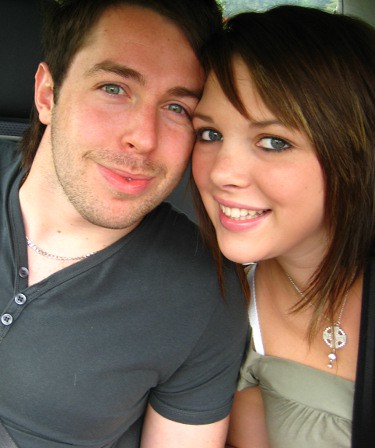
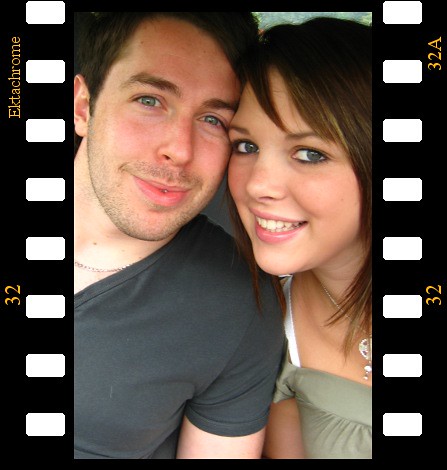
Turn your digital photo into a film slide using the Slide filter in GIMP.

Turn your digital photo into a film slide using the Slide filter in GIMP.

Adding a border around a digital photo adds visual interest to make it look more interesting, and can focus the viewer’s attention on the main subject as well. If you’re feeling fanciful, you can easily add a decorative border around your photo to turn it into a film slide. Here’s how.

The original photo in landscape orientation. Photo from morguefile.com.

The original photo in landscape orientation. Photo from morguefile.com.

With your photo open in GIMP, select the Filters > Decor > Slide command from the main menu.

The pop-up dialog box for the Slide filter.

The pop-up dialog box for the Slide filter.

The “Slide” dialog box for the filter pops up with various options to customise the appearance of the slide.

The original photo in portrait orientationTurned into film slide

The Slide filter can also be applied to a photo in portrait orientation.

Filter options

The “Text” option allows you to enter a label for the slide. You can use it to caption your photo. Or you could type in “Kodak” to emulate a real slide. For “Number”, type a number from 1 to 37.

The “Font” and “Font color” options lets you specify the font face and colour of the text and numbers adorning the slides of the slide. Leaving them to the default values produces the most realistic results.

Leave the “Work on copy” option checked so that a duplicate copy of the photo will be used for the slide effect and the original is left unchanged. Press the “OK” button and GIMP churns out your slide as a new image which you can save as a JPEG file under a different name.

Points to note

If the original photo is in landscape orientation, the black frames with sprocket holes and labels will be added to the top and bottom sides of the photo. If the original photo is in portrait orientation, the frames will be added to the left and right sides.

Original photo is too close-cropped

The colour of the sprocket holes will be based on the current background colour in the colour swatches in the Toolbox. So if you want the holes to be white, remember to reset the background colour to white by pressing “D” on the keyboard, before applying the filter.

If the aspect ratio of the photo is anything other than 3:2, it will be cropped into that ratio. If you want to control exactly how the photo is to be cropped, crop it yourself to 3:2 first before applying the filter. This will ensure you don’t end up with half a face being cropped out of the photo.

Letting the filter crop to 3:2 aspect ratio may have a blinding effect

Letting the filter crop to 3:2 aspect ratio may have a blinding effect.

Use the crop tool to do your own cropping to crop it exactly the way you want it.

Use the crop tool to do your own cropping to crop it exactly the way you want it.

Going down nostalgia lane

Tuesday, May 17th, 2011
Did you see the front page of The Sunday Times on 15 May? The portraits of MM Lee and SM Lee were splashed across half the front page in sepia – that faded brown tint that adds a sense of nostalgia to photos because of the association of that toning effect with photographic print techniques from a bygone era.

Lee Kuan Yew (photo from BBC) Lee Kuan Yew - in sepia tone

Old Photo filter in GIMP applied with Defocus and Sepia options selected but without Mottle nor faded border effect.

Minister Mentor Lee Kuan Yew and Senior Minister Goh Chok Tong are two former Prime Ministers of Singapore who had tendered their resignations on Saturday, May 14 to quit the Cabinet – in order to make way for a clean slate for the current Prime Minister Lee Hsien Loong to reform the ruling PAP government.

Goh Chok Tong (photo from BBC) Goh Chok Tong - in sepia tone

Old Photo filter in GIMP applied with Defocus, Sepia and Mottle options selected together with faded border effect.

The first and second Prime Ministers of the island nation, both brought Singapore from a fledgling, newly-independent, former-colonial state barely able to survive – to the modern nation it is today. Despite handing over their Prime Ministership to their successors, both had been actively involved in the government.

So it was surprising to see, so soon and suddenly, both their portraits published in sepia – suggesting they have become part of a bygone era.

Sepia toning


Select the Filters > Decor > Old Photo command from the main menu

Select the Filters > Decor > Old Photo command from the main menu

“Beginning in the 1880s, sepia was produced by adding a pigment, called sepia, made from the Sepia officinalis cuttlefish found in the English channel,to the positive print of a photograph,” according to Wikipedia. The specialized treatment gave the photograph a warmer tone and enhanced the archival qualities of the prints.

Simulating a sepia effect in GIMP

It is easy to simulate a sepia effect to a digital photo using photo-editing software.

In GIMP, open the digital photo to be modified and select the Filters > Decor > Old Photo command from the main menu. The “Old Photo” dialog box pops up with options to control how the photo is to be “aged”.

The Old Photo filter comes with options to age the look of a photo.

The Old Photo filter comes with options to age the look of a photo.

You can “Defocus” the photo to make it slightly blur, add a faded white border, apply a “Sepia” tone, or “Mottle” the photo to simulate the blobs of pigment you see in old photos. Checking the “Sepia” checkbox will tell GIMP to desaturate the image, reduce brightness and contrast, and modify the color balance to apply the sepia effect.

Once you click “OK”, GIMP gets to work on the photo.

If you just want to get a black-and-white version of the photo, or tint in a different colour from sepia, or want more control over how the final result looks like, check out the  “Black-and-white and Sepia” tutorial that was part of the 14-part Basic GIMP Series of tutorials.

Using Curves to enhance brightness and contrast in GIMP (Final Part 14 of 14)

Sunday, May 15th, 2011
Both the rudimentary Brightness-Contrast command and the handy Levels command allows you to enhance the tonal balance of a photo and for correcting colour balance. But the Curves command gives you ultimate control over how specific tones are to be tweaked in your digital photo.

The Levels command allows the user to adjust the three main tonal ranges of a photo – the shadows, midtones and highlights. The Curves tool, however, allows you to target any tone or tonal range in the photo to tweak their brightness and contrast.

Using the Curves command

With the photo open in GIMP, choose the Colors > Curves command (or Tools > Color Tools > Curves)  from the main menu. An “Adjust Color Curves” dialog box pops up showing a square grid with a straight diagonal line. The histogram of the photo can be seen in the background of the grid for reference.

As for the Levels command, an understanding and analysis of the histogram of the photo is the basis for using the Curves command.

The horizontal X-axis of the grid represents the initial brightness values – from zero (black) to 255 (white) – of the pixels in the photo before the Curves command is applied. The vertical Y-axis represents the brightness values that each pixel is to be mapped into after the adjustments have been applied. It also ranges from zero to 255.

The lower left corner of the grid represents the black point (for pixels with brightness value zero) while the upper right corner represents the white point (for pixels with the maximum brightness value of 255).

Adjusting brightness

To begin adjusting the photo, click anywhere on the diagonal line in the grid. An anchor point is added to the line. You can drag the anchor point around with the mouse.

Drag the point downwards to make the photo darker. The straight diagonal line turns into a curve passing through the anchor point and the black and white points. A faint straight diagonal line is still visible in the grid – it serves as reference for an unadjusted photo.

When the cursor is inside the grid, you can see the X (input) and Y (output) values of the cursor at the top left hand corner of the grid. Mouse-over the anchor point that you’ve just dragged. In the example, you can see that the brightness of any pixel with original value 128 (X-value) will be reduced to 160 (Y-value). Pixels with brightness close to 128 will also be darkened. You can eyeball the effects of the adjustments by looking at the photo itself in the image window.

To lighten the photo, drag the anchor point down below the faint diagonal guide. Now pixels with brightness 128 will be darkened to 90, while the pixels of similar brightness will be darkened as well.

To remove an anchor point, simply drag it off the side of the grid. You can add as many as 14 anchor points (excluding the original black and white points) to the curve. This allows you to target up to 16 specific brightness values in the photo for brightening or darkening. However, you seldom need more than a handful anchor points to get the job done.

Adjusting contrast

If the histogram is bunched up the towards the middle, drag the black or points inwards horizontally to where the histogram begins and ends respectively. This is similar to dragging the black and white points of the Levels command inwards to maximise the tonal range of the photo.

The steeper gradient of the line indicates that the contrast of the photo is increased.

A typical Curves adjustment that can be applied to most photos is the “S-Curve”. This curve tends to enhance most photos by increasing the overall contrast and making the photo “pop” with vivid shadows and highlights.

To apply an “S-Curve” adjustment, add two points on the Curve – the first to lower the brightness of pixels of brightness 64, the second to increase the brightness of pixels of brightness 192. The above numbers are just guides – drag the adjustment points around with the mouse while eyeballing the photo.

The S-Curve suppresses the shadows and highlights while increasing the contrast of the mid-tones, where the main subject usually is. Add a third point with brightness of roughly 128 to increase or decrease the brightness of the midtones.

In addition to these adjustment points, you can add additional adjustment points to tweak specific tones in the photo – such as skin tones.

With some practice, you will be able to control and enhance any particular tone that appears in your photo.