Posts Tagged ‘image editor’

New Adobe Software Development Kit for Photoshop CS5

Sunday, April 10th, 2011

The Photoshop Touch SDK and a new scripting engine in Photoshop CS5 open the door for Android, BlackBerry Tablet OS and iOS apps to drive and interact with Photoshop on the desktop.

Adobe has announced the Photoshop Touch Software Development Kit (SDK) inviting developers worldwide to create mobile and tablet applications that interact with Adobe Photoshop CS5 and Photoshop CS5 Extended software, uniting the fun and interactive experience of touch devices with the power and precision of Photoshop.

Using the Touch SDK, Adobe has developed three initial Photoshop CS5 companion apps for Apple iPad: Adobe Color Lava for Photoshop, Adobe Eazel for Photoshop and Adobe Nav for Photoshop. The apps are designed to enable users to create custom color swatches, paint and drive popular Photoshop tools from tablet devices.

Adobe Color Lava will allow creative professionals to use their fingertips to mix colors on the iPad, creating custom color swatches and themes to transfer back into Photoshop.

Adobe Eazel takes advantage of cutting-edge painting technology to let digital artists create rich realistic paintings with their fingertips and introduces a new kind of interaction between “wet” and “dry” paints. These paintings can then be sent directly to Photoshop CS5 for compositing or for taking the artwork further.

Lastly, Adobe Nav increases workflow efficiency by letting users select and control Photoshop tools using the iPad as the input surface, customize the toolbar, browse and zoom in on up to 200 open Photoshop files or easily create new files.

All three applications take advantage of the iPad tablet’s touch screen for a truly immersive, tactile, on-the-go experience.

Although the first applications available are for the Apple iPad and the iOS, the Photoshop Touch SDK makes development possible on other devices, including Android and BlackBerry PlayBook.

Utilizing the Touch SDK, developers will have wide access to Photoshop functionality with the freedom to innovate and create new apps or add capabilities to existing ones. Adobe has already engaged with a number of developers across the industry to incorporate tablets and other devices into creative workflows that empower Photoshop users in new and groundbreaking ways.

For more detailed information about features, OS support, upgrade policies, pricing and international versions, visit: www.adobe.com/go/photoshop.

Compositing your photos in GIMP (Part 10 of 14)

Saturday, April 9th, 2011
Composite various photos into a collage by making them merge seamlessly together – using Layers and Layer Masks in GIMP. Today, we’ll try a simple fading effect and merge two photos int0 each other.
Composite two photos seamlessly together using GIMP.

Composite two photos seamlessly together using GIMP.

Now that you have learnt about Layers and Layer Masks, there are many tasks and effects that you can do using them. I had some questions from readers about how to apply certain effects to their photos so that they can use them in their websites.

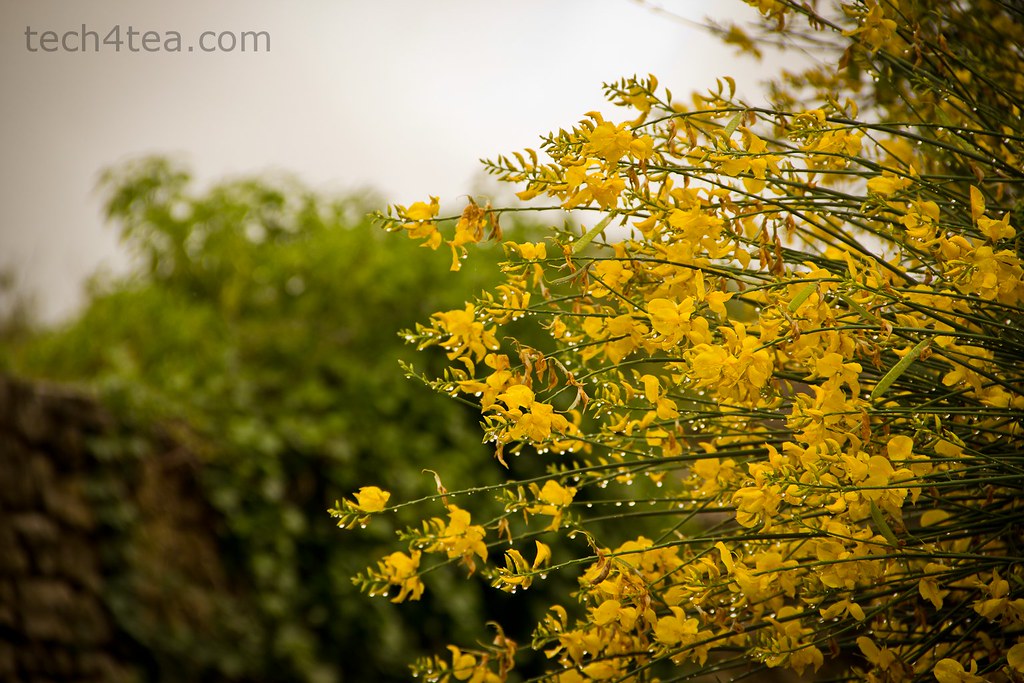
Morning dew on flowers at our hotel in Provence, France

Morning dew on flowers outside our hotel in Provence, France

Fading to white allows captions to be added.

Fading to white allows captions to be added.

They’d seen these simple effects being done on other websites and would like to find out how they’re accomplished. In these two parts, we’ll try some that involve compositing a few photos together.

Fading a photo to white (or any other colour)

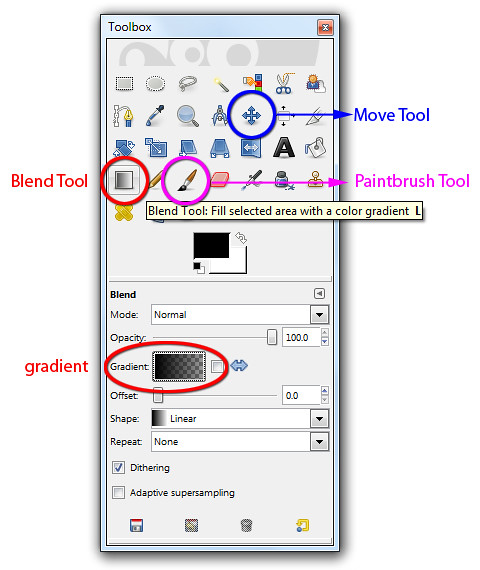
This is easy. After opening the photo in GIMP, activate the BlendTool in the Toolbox.

The Blend, Move and Paintbrush tools are in the Toolbox.

The Blend, Move and Paintbrush tools are in the Toolbox.

In the Tool Options below the Toolbox, click on the rectangle beside the “Gradient” label and from the dropdown list of options, select “FG to Transparent” gradient.

Click on the Foreground Swatch in the Toolbox and select white from the “Change Foreground Color” dialog box that pops up. If you want the photo to fade to black, red or any other colour instead of white, simply select that colour and set that as the Foreground colour.

Now move the cursor to the image window and drag it from the left side of the photo to the right. A gradient going from pure white to nothing is overlaid onto the photo so that it appears as if the photo is fading into white. If you are not satisfied with the fading, press Ctrl-Z to undo and try dragging again. Trial and error is the best way to get your ideal fading effect.

To fade in more gradually, drag further. You can of course drag from right to left or drag vertically or diagonally – depending on how you want the fading effect to appear.

The disadvantage of this quick-and-dirty method is that the gradient is added directly onto the photo. Once you’ve saved and closed the file, you can’t adjust the fading effect to reveal more of the original photo anymore.

Applying the gradient on a separate layer

Here’s a non-destructive approach that allows the fading effect to be tweaked six months down the line.

Instead of applying the gradient directly to the photo in the Background layer, apply it to a new empty layer above the Background layer. This way, none of the pixels in the original photo in the Background layer is changed or “destroyed”. The fading effect can be changed anytime in the future by replacing or modifying the colour and gradient in the upper layer.

Here are the steps.

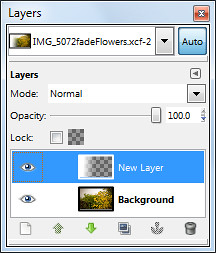
Apply the gradient to an empty layer above the photo.

Apply the gradient to an empty layer above the photo.

Add a new layer by clicking the icon at the bottom left corner of the Layers dialog. In the “New Layer” dialog box that pops up, select the radio button for “Transparency” option under Layer Fill Type and press the OK button.

A new empty layer is added above the original photo in the Background layer.

Use the Blend Tool to add the gradient to the new empty layer.

The result is that the photo appears to fade into white. You can further finetune the overall effect by using the Move Tool from the Toolbox to move either the photo in the Background layer or the gradient in the upper layer.

Simply activate the Move Tool from the Toolbox, click to select the layer you want to move in the Layers dialog, and drag in the image layer to make the move. You may find it easier to first change the default option of the Move Tool to “Move the active layer” to better control which layer you want to move.

Merging two photos into each other (non-destructively)

Little house on the prairie? More like ruins in a field of lavender.

Little house on the prairie? More like ruins in a field of lavender.

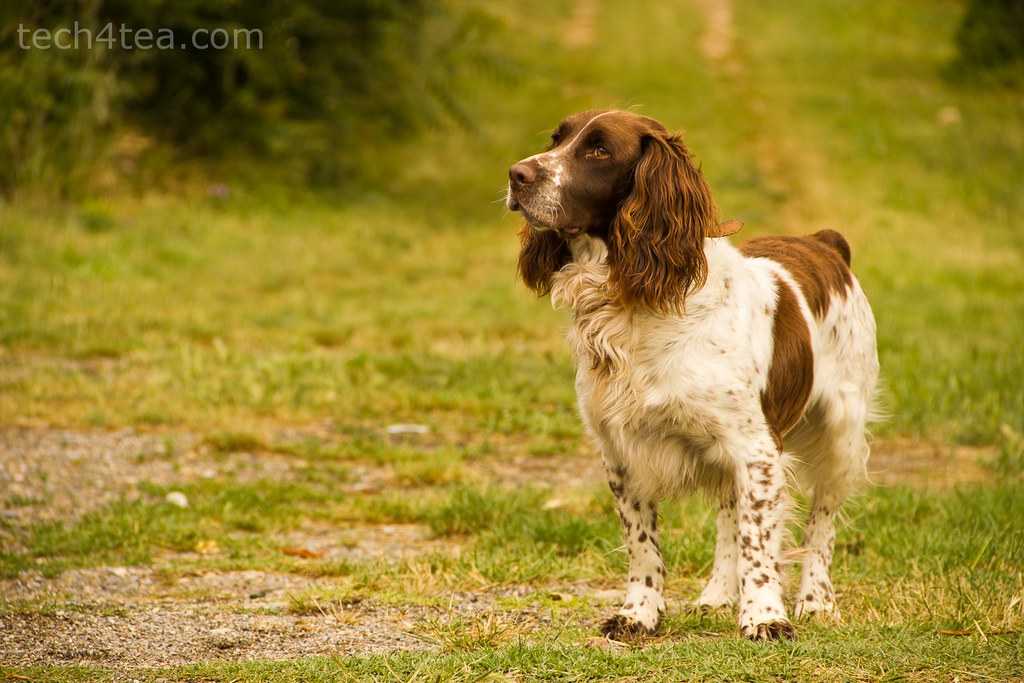
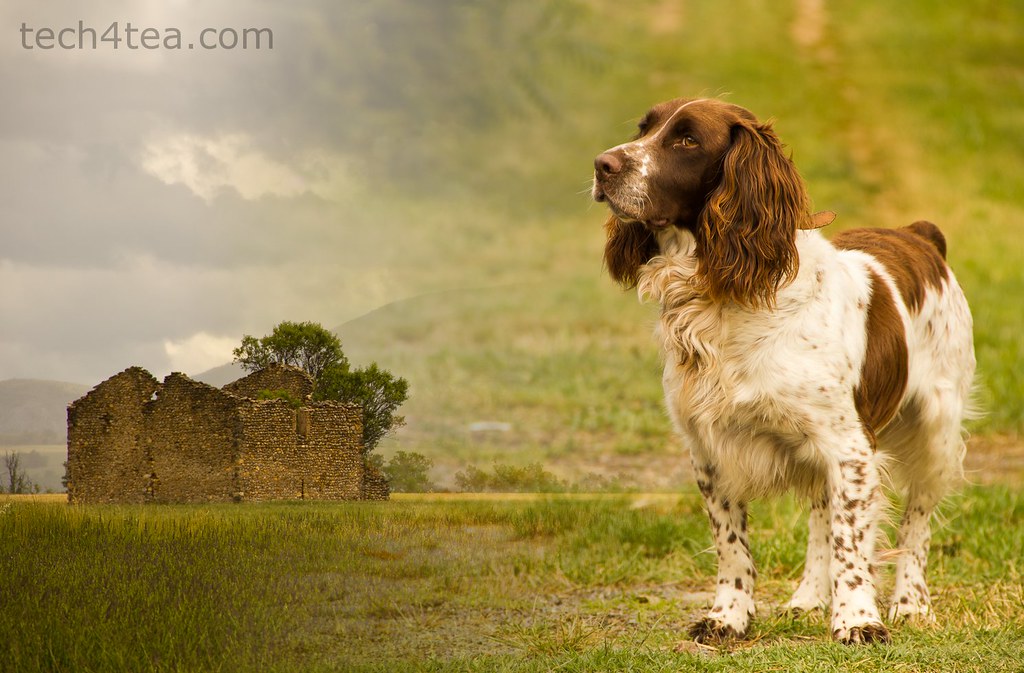
This intelligent Spaniel named Bugis lives on the lavender fields of the Valensole plateau.

This intelligent Spaniel named Bugis lives on the lavender fields of the Valensole plateau.

Pleasant memories from our drive through Valensole in Provence

Pleasant memories from our drive through Valensole in Provence

To merge two photos into each other, simply place one photo as a layer above the other photo. Add a layer mask to the upper layer and use the Blend Tool to apply a gradient to the layer mask. The two photos will appear to blend into each other.

Here are the steps.

Open the first photo in GIMP. The photo resides in the Background layer which is the only layer in the Layers dialog for the moment. Bring in the second photo as a new and separate layer by using the “File > Open as Layers” command from the main menu. The new layer sits above the first photo in the Background layer.

Right-click the image thumbnail for the upper layer in the Layers dialog. In the pop-up menu, select “Add Layer Mask”. In the Add Layer Mask dialog box that pops up, press the Add button – any of the options in the dialog box for initialising the layer mask is fine since we will be modifying the layer mask immediately after creating it.

Press “D” on the keyboard to reset the foreground and background colours to black and white respectively.

Activate the Blend Tool from the Toolbox using any of the three “FG to BG” gradients in the Tool Options. Because the layer mask is active, dragging the Blend Tool in the image window will add the gradient to the layer mask instead of the white layer itself. The layer mask hides part of the photo in the upper layer based on the gradient in the layer mask. The result is that the two photos appear to fade into each other.

Again, none of the pixels in the two photos are altered or “destroyed”. The fading effect can be changed anytime in the future by modifying the gradient in the layer mask of the top layer.

I've modified the layer mask by painting with the Paintbrush Tool.

I've modified the layer mask by painting with the Paintbrush Tool.

You can further modify the blending by using the Paintbrush Tool from the Toolbox to paint either black or white into the layer mask. Remember – white reveals the pixels in the upper layer while black hides. Shades of gray makes the pixels in the upper layer translucent.

As before, you can also use the Move Tool to move either of the photos around.

Digitally apply a graduated ND filter to your landscape photos using GIMP (Part 9 of 14)

Sunday, April 3rd, 2011

Instead of paying to buy a graduated neutral density filter and go through the hassle of carrying it around and fitting and unfitting it everytime you use it, simulate the effect using layers and layer masks in GIMP.

When taking photos of sceneries where the bright sky occupies the upper half and the foreground occupies the lower half, it can be difficult to capture the entire range of brightness levels to show the details clearly.

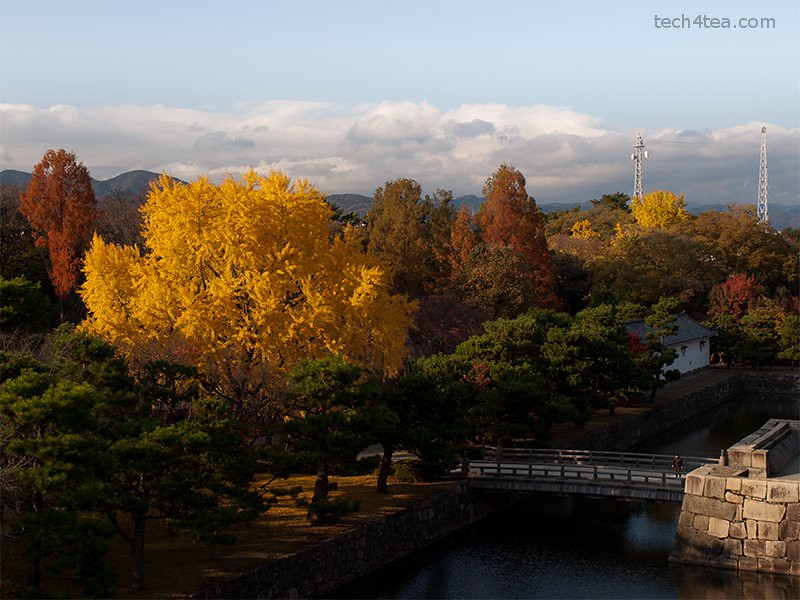
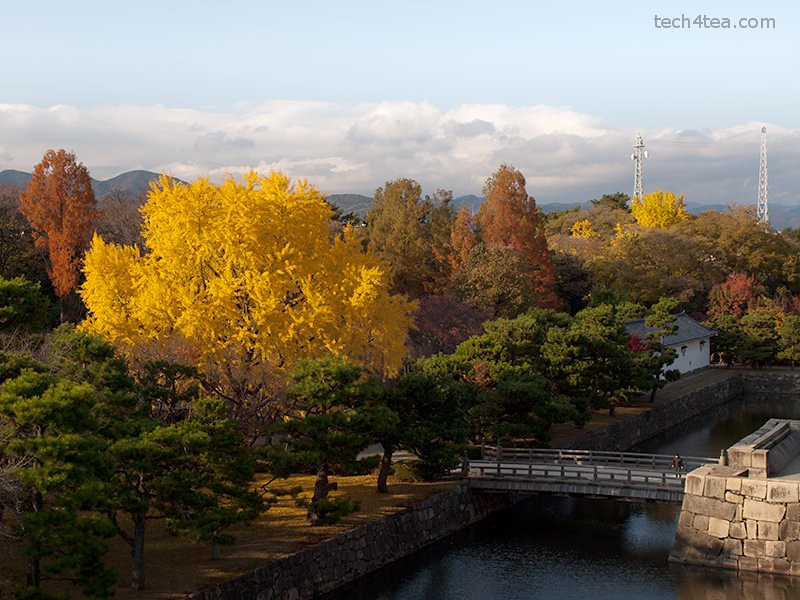
The park within the grounds of Nijojo Castle in Kyoto.

The park within the grounds of Nijojo Castle in Kyoto in autumn.

The sky has been darkened and the foreground lightened.

The sky has been darkened and the foreground lightened in GIMP.

The clouds and the sky can be too bright; while the mountains, trees and houses in the foreground may be too dark. This is made worse under the harsh sunlight of the midday sun when contrast in the photo will be at the highest.

The traditional way to get around this, is to avoid the midday sun, or to buy a graduated neutral density (ND) filter – if you own an SLR that allows filters to be attached to the lens.

The graduated ND filter darkens the upper portion of a photo so that the sky will not be overexposed while a brighter exposure can be used for the whole photo such that the foreground will not be too dark.

What if you use a compact camera, on which typically you can’t attach any filters? Or you find it a hassle to attach and unattach filters between snapshots? Or you simply don’t want to pay for another camera accessory that you have to carry around?

Using layers and layer masks in GIMP, you can pretty much simulate the effect of a graduated ND filter on the computer.

Simulate a graduated ND filter digitally using GIMP

I snapped the autumn colours of the park within Nijojo Castle in Kyoto from the top of the castle keep. The clear blue sky was rather bright while trees along the moat in the foreground of the photo were too dark.

Darkening the photo to darken the sky would make the foreground too dark. Brightening the photo to brighten up the foreground would overexpose the sky.

Duplicate two copies of the original photo in the Layers dialog.

Duplicate two copies of the original photo in the Layers dialog.

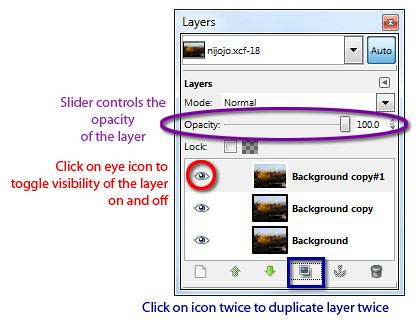
To control which areas to darken and brighten, first duplicate the original background layer twice by clicking twice on the Duplicate icon at the bottom of the Layers dialog.

Two new layers containing copies of the original photo are now created above the background layer. We will darken the upper copy and lighten the lower copy and then use a layer mask to merge the two layers so that only the darkened sky and the brightened foreground is visible.

Brightening the foreground

First hide the upper copy by clicking the eye icon to the left of its thumbnail in the Layers dialog.

Drag the middle slider directly below the histogram.

Drag the middle slider directly below the histogram.

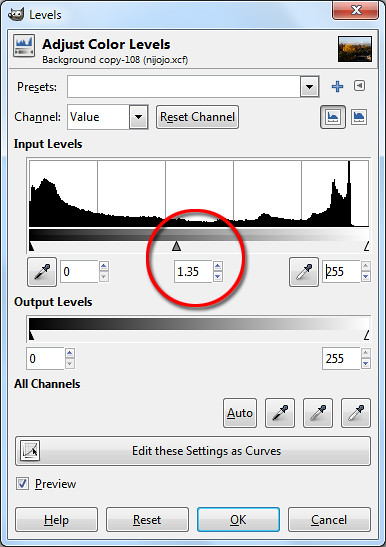
Now click on the lower copy by clicking on it in the Layers dialog. Brighten the lower copy. You can use Colors > Brightness-Contrast I generally prefer the Colors > Levels command. I will cover this command in more detail later in the series.

In the Levels dialog box that pops up, look below the Input Levels histogram and drag the middle slider to the left until the foreground is suitably lightened. You can see the entire photo lighten as you drag the slider.

Pay attention to the foreground and ignore the sky which will become excessively bright. You can see the numeric value of the middle slider in the centre text box just below the histogram. I used a setting of 1.35

Darkening the sky

Select the upper copy in the Layers dialog by clicking on it. Turn its visibility back on by clicking on the where eye icon previously was.

The lower duplicate copy is lightened with the Levels command.

The lower duplicate copy is lightened with the Levels command.

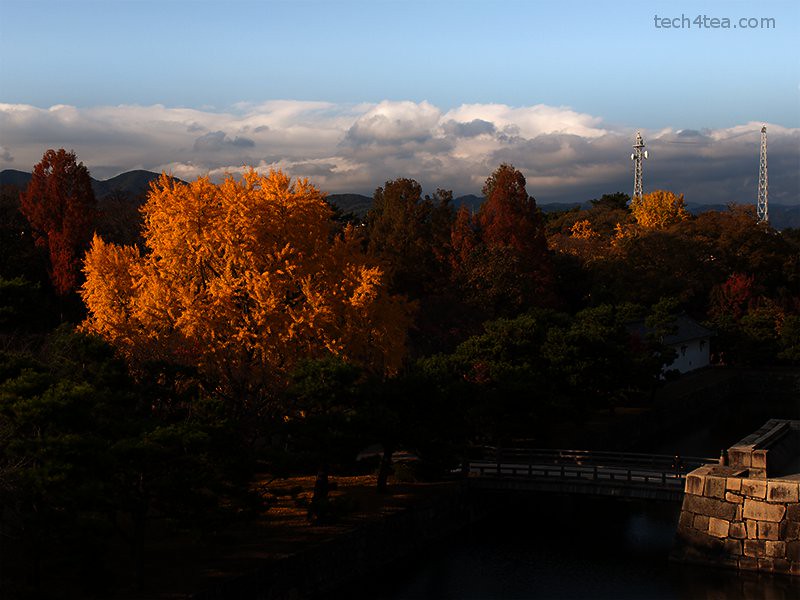
The upper duplicate copy is darkened to make the sky more dramatic.

The upper duplicate copy is darkened to make the sky more dramatic.

Darken this layer using the Colors > Levels command.

In the Levels dialog box that pops up, drag the middle slider to the right until the sky is suitably darkened. Again, pay attention to the sky and ignore the foreground which will become excessively dark. I used a setting of 0.45.

Blending the two copies using a layer mask

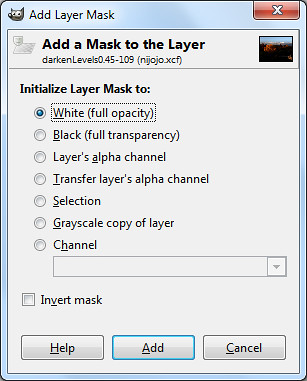
Select the White (full opacity) option.

Select the White (full opacity) option.

Right-click the upper copy and choose Add Layer Mask command from the pop-up menu. Click the radio button for “White (full opacity)” option and click on the Add button.

A layer mask is now added to the upper copy. In the Layers dialog, you can see the thumbnail for the layer mask to the right of the image thumbnail in the layer containing the upper copy.

Activate the Blend Tool from the Toolbox. Reset the colour swatches in the Toolbox by pressing “D” on the keyboard. In the tool options below the Toolbox, make sure the “FG to BG” Gradient is selected.

Activate the Blend Tool from the Toolbox.

Activate the Blend Tool from the Toolbox.

Here’s the magic, click the cursor somewhere near the top of the yellow tree and drag the mouse vertically upwards until the cursor is just above the clouds in the sky before releasing the mouse button.

A black to white gradient is painted into the layer mask for the upper copy. The white parts represents the parts where the upper copy will be visible and the black areas represents the parts where the upper copy will be hidden. Grey areas represents areas where the upper copy is partially visible.

Where the upper copy is hidden or translucent, the lower copy will show through. The result is that the darkened sky of the upper copy will be visible while the lightened foreground of the lower copy will show through.

The layer mask shows the darkened sky and the lightened foreground.

The layer mask shows the darkened sky and the lightened foreground.

By painting in the layer mask with the Paintbrush Tool with black or white, you can further finetune exactly which parts of the darkened upper copy to remain visible and which parts of the lower lightened copy to show through.

You can further tweak the final result by adjusting the opacity of the two copies by dragging the layer opacity sliders for each of the layers. The layer opacity slider is found at the top of the Layers dialog.

You now have a pseudo-HDR (High Dynamic Range) photo which captures both the lightest tones in the sky and the darkest details in the foreground in a single photo.

Hiatus in the Intermediate GIMP Series this weekend

Saturday, March 26th, 2011
I’m dedicating this weekend to a photo tribute to Japan and a remembrance of the March 11 earthquake and tsunami.

The GIMP Intermediate Series takes a break today and tomorrow. The series will resume next weekend.

Local adjustments using Layer Masks in GIMP (Part 8 of 14)

Saturday, March 19th, 2011
Use a combination of layers and layer masks to make localised adjustments to specific parts of a photo. This installment shows how to use them to paint with light.

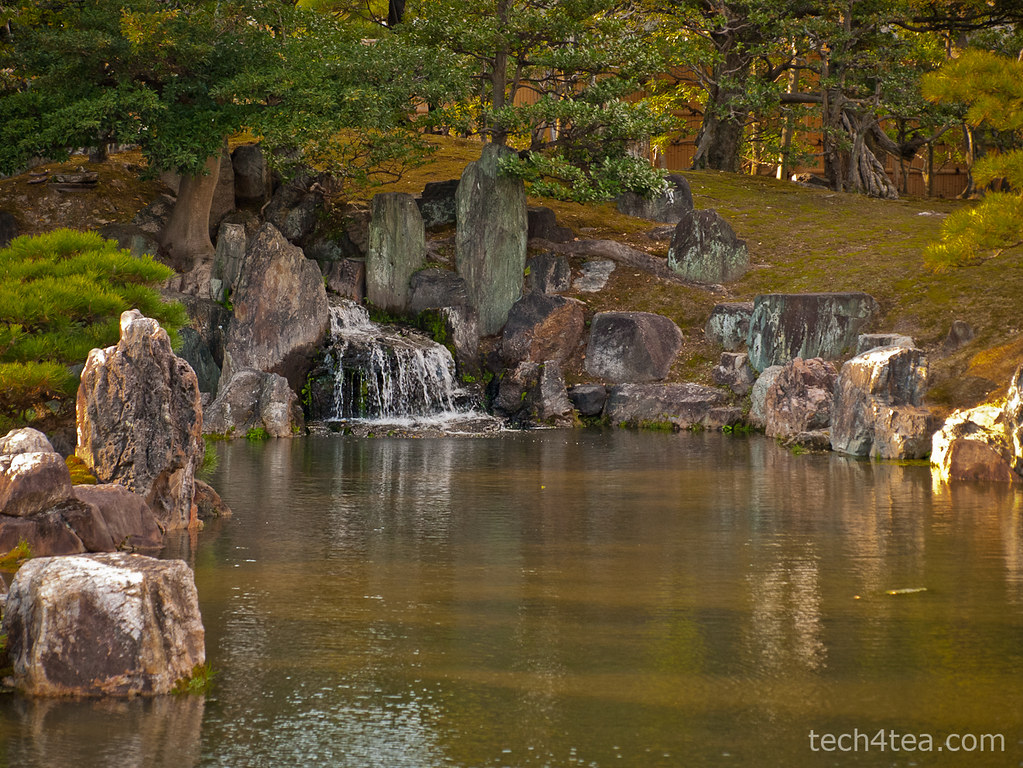
In the photo of the landscape waterfall, the rocks around the artificial waterfall are too dark because they are lying in the shadows of the surrounding trees. I want to lighten the rock features. Download the before photo and follow along.

This tranquil landscaped lake was shot in the Nijojo Castle in Kyoto, Japan.

This tranquil landscaped lake was shot in the Nijojo Castle in Kyoto, Japan.

I want to lighten only the rocks around the waterfall without affecting the trees.

I want to lighten only the rocks around the waterfall without affecting the trees.

Creating a lighter duplicate layer

First duplicate the background layer by clicking on the fourth icon at the bottom of the Layers dialog.

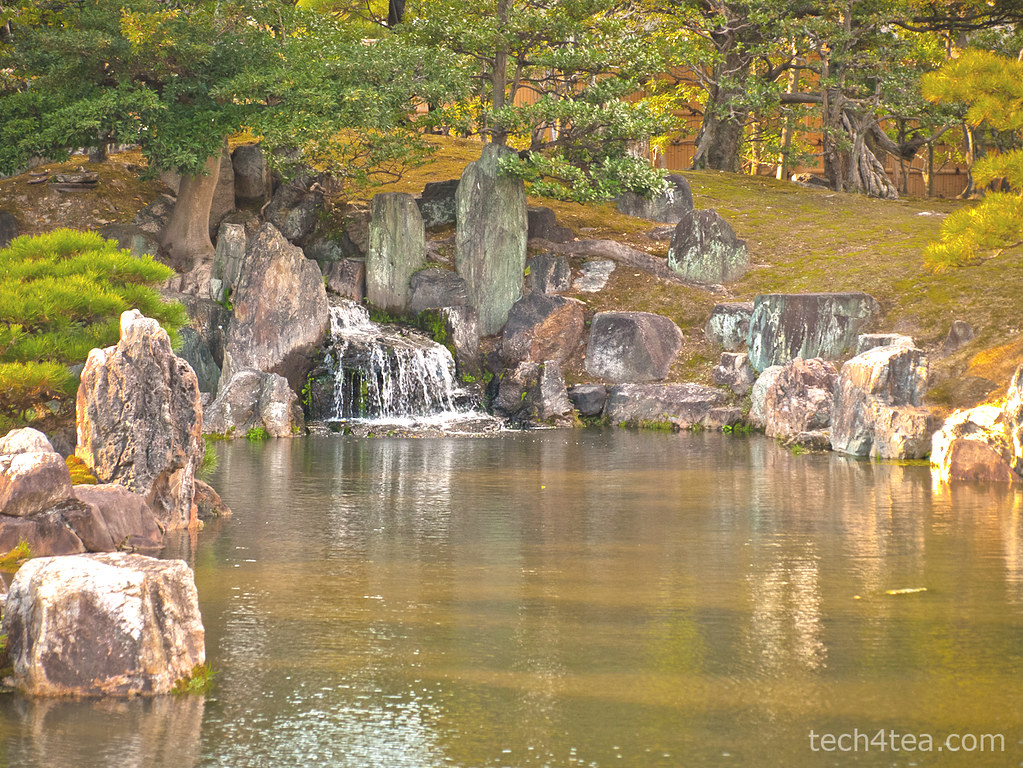
Lightening the rocks has lightened everything else as well, making the photo too harsh.

Lightening the rocks has lightened everything else as well, making the photo too harsh.

Brighten the duplicated copy by using Colors > Brightness-Contrast command from the main menu. You can see that in addition to the rocks, the other parts of the photo are lightened as well. That is the problem with global adjustments – when you lighten the shadows, the highlights get blown out.

For the moment, just concentrate on getting the brightness of the rocks right. Ignore what happens to the rest of the photo. I used a Brightness setting of 75 and Contrast setting of 45.

The duplicated layer has become lighter overall and more contrasty. It’s actually not bad overall but it gives the impression of a hot and harsh sunny day at the park. I prefer to convey the shadiness of the trees in the background and the tranquil ambience of the lake.

Adding a layer mask

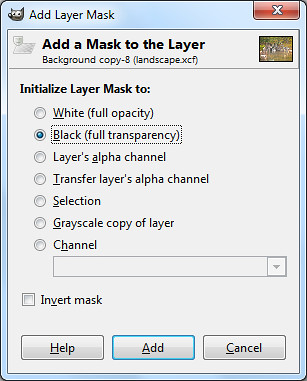
Select the Black (full transparency) radio button.

Select the Black (full transparency) radio button.

Right-click on the name of the duplicated layer in the Layers dialog and select “Add Layer Mask” from the pop-up menu.

An “Add Layer Mask” dialog box pops up. Click the “Black (full transparency)” radio button and press the Add button.

In the image window, the duplicated layer disappears from view and you see the original darker photo in the Background layer.

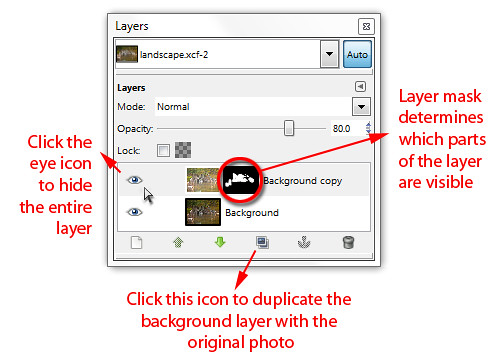
In the Layers dialog, note that in the duplicated layer,  a small rectangle thumbnail has been added to the right of the layers thumbnail. It is a mask that determines which part of the layer is visible.

A Layer Mask is added to the duplicated layer in the Layers dialog.

A Layer Mask is added to the duplicated layer in the Layers dialog.

Black areas in the mask make the corresponding areas in the layer transparent/invisible while white areas make the layer opaque/visible. Grey areas make the corresponding areas in the layer translucent or partially visible.

At the moment, the mask is totally black, so the entire layer is hidden from view.

Painting with light
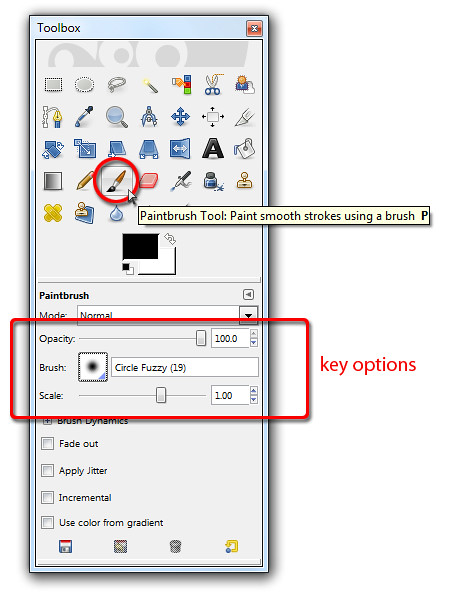
Activate the Paintbrush Tool to paint on the Layer Mask for the duplicate layer.

Activate the Paintbrush Tool to paint on the Layer Mask for the duplicate layer.

Select the Paintbrush Tool from the Toolbox. From the options below the Toolbox, select a Circle Fuzzy brush. Set the Foreground colour swatch to white. You can press “D” followed by “X” on the keyboard as a shortcut.

Now move the cursor over the rocks in the photo to be lightened and start painting. Because the layer mask is active, the painting actually occurs on the layer mask instead of the pixels in the layer.

And because the Foreground colour is white, painting on the layer mask reveals the corresponding pixels in the layer itself so that they become visible.

You can see the rocks lightening as you paint over them because pixels in the lightened layer is revealed as you paint white into the layer mask. You can also see the white areas appear in the layer mask thumbnail in the Layers dialog as you paint.

Adjust the size of the brush by pressing the “]” and “[” keys on the keyboard to increase or decrease respectively.

Painting back the mask

If you paint into the areas where you do not want to be lightened – like the leaves – and want to reverse the lightening, simply press “X” on the keyboard to toggle the Foreground colour to black. Painting on the layer mask now will hide the lighter pixels, so that the areas painted appears darker again.

If you find that painting on an area lightens or darkens it too much, lower the opacity of the Paintbrush Tool by dragging the Opacity slider in the Options below the Toolbox.

Alt-click on the Layer Mask thumbnail in the Layers dialog to show the mask in the image window.

Alt-click on the Layer Mask thumbnail in the Layers dialog to show the mask in the image window.

As you are painting, you can toggle the eye icon of the duplicated layer in the Layers dialog to compare how the photo looks before and after the adjustments. You can also disable the layer mask by Ctrl-clicking on it to see how the layer looks without the layer mask. Alt-clicking on the layer mask will show black-and-white layer mask in the image window itself.

Once you’ve completed the painting and lightened the rocks, you can still fine-tune the results by varying the layer opacity of the duplicated layer. Simply drag the Opacity slider near the top of the Layers dialog. This will reduce the overall intensity of all the lightening that you have done.

Maximum flexibility

This method of doing local adjustment provides plenty of control and flexibility. You don’t have to make a selection before making the adjustments. You can “paint” in the adjustments on the fly and reverse when you overdo an effect. You can tone down the opacity of the Paintbrush Tool to reduce the intensity and when the painting is completed, you can still control the overall intensity of the adjustments by varying the opacity of the duplicated layer.

What’s more, if you save the file in GIMP’s native .xcf file format, you can re-open the .xcf file at a later date and adjust the layer mask if you want change the adjustment.

Naturally, you can use this method for any type of adjustments – darkening, colour saturation, black and white toning etc. Just apply whatever effect you want to the duplicate layer and then use a layer mask to control how much of the effect shows through.

Adobe launches Photoshop Express 2.0 for iOS

Thursday, March 17th, 2011

Adobe has announced the release of the free Photoshop Express 2.0 for iOS devices, as well as a new $3.99 Adobe Camera Pack that you can purchase from within Photoshop Express.

Photoshop Express 2.0 (free) and Adobe Camera Pack ($3.99) Adobe Photoshop Express has more than 20 million subscribers on iOS and Android devices. It provides easy-to-use features for capturing, organising, editing and sharing of photos on popular social networks like Facebook, giving users on the road the ability to work on their digital photos on smartphones and tablets.

Adobe Photoshop Express 2.0 for iOS devices can be downloaded free on the Apple iTunes Store. From within the app, you can purchase the new Adobe Camera Pack which includes the following features.

Reduce Noise: Removes and smooths out grain and speckling from photos to improve them.

Self Timer: Set a camera timer to three or 10 seconds to control when a photo is to be recorded.

Auto Review: Provides a quick look at photos taken before saving or deleting it.

Photoshop Express 2.0 requires iOS 4.2 or later. To use the Adobe Camera Pack, customers must have an iPhone 3Gs, iPhone 4, iPod Touch (3rd or 4th generation), or an iPad or iPad 2 (note that Photoshop Express does not include support for the iPad 2 camera at this time).

More about selection masks in GIMP (Part 7 of 14)

Sunday, March 13th, 2011

The ability to make selections in photo-editing software is one of the most important aspects of these software, because it allows the user to restrict adjustments to specific parts of a photo. Understanding how selections are represented in GIMP is essential to get the most out of GIMP.

Yesterday, we selected a youth, his laptop and table using a quick mask and transferred him via copy-and-paste into another photo background.
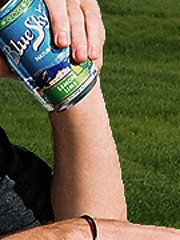
Abrupt seam because of sharp edge of the selection.

Abrupt seam because of sharp selection edge.

More seamless transition with the new background.

More seamless transition with the new background.

You might have noticed, on close inspection, that the edges looked a bit abrupt and jarring against the new background, especially where the colour of the new background was very different from that in the original background.

To make the foreground objects gel more seamlessly with the new background, you can soften the transition between the foreground objects and the background.

Feathering the selection
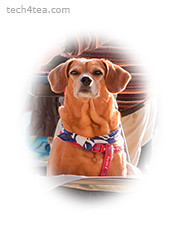
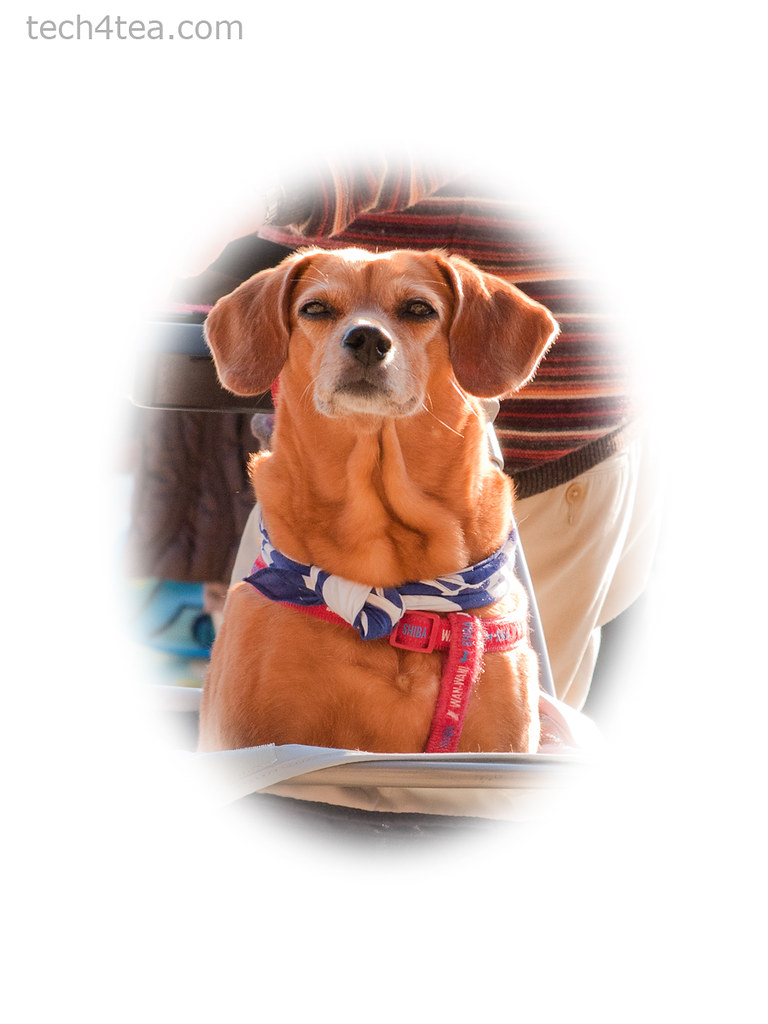
A large feather setting creates a vignette.

A large feather setting creates a vignette.

In normal selection mode, we can use the Select > Feather command to “feather” a selection before we do the copy-and-paste. This means that at the edge of the selection, the pixels go from fully visible inside the selection – to being translucent immediately on either side of the edge – to becoming totally invisible outside the selection.

How thick the translucent transition region is on either side of the selection edge depends on the feather setting used.

For yesterday’s example, the default feather amount of 5 pixels would have made the transition between the youth and the new background more natural and seamless. The transition also helps to mitigate imperfections when making the selection.

A large feather setting is used to create a vignette with a blurred edge.

Blurring a selection mask
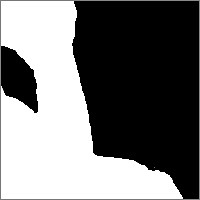
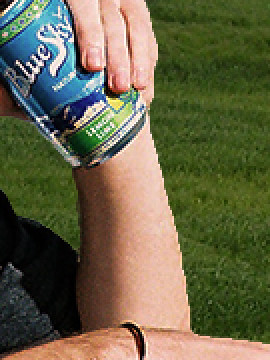
The mask edge is sharp and abrupt.

The mask edge is sharp and abrupt.

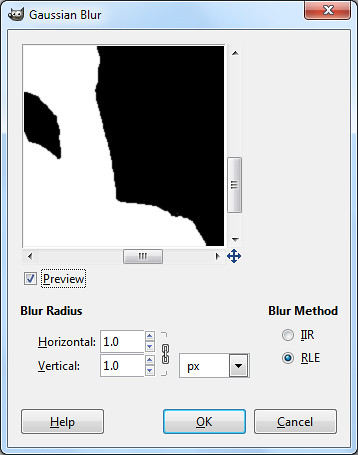
Another way of feathering a selection edge is to apply a blur filter (Filters > Blur > Gaussian Blur at 1 to 2 pixels) to the selection mask while in Quick Mask mode. While in Quick Mask mode, the filter is applied to the mask instead of the image itself – so the mask is blurred.

We’ve seen that in Quick Mask mode, the areas with translucent pink overlay means that the pixels within are not selected, whereas the areas with no pink overlay means that the pixels inside are selected.

What if we paint some areas when the Foreground colour is set to gray? A lighter shade of translucent pink will be added as an overlay but this will be lighter than the pink added when the Foreground colour is set to black. In this case the pixels in those areas will only be partially selected.
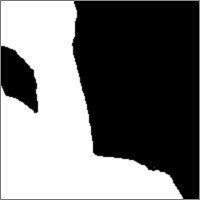
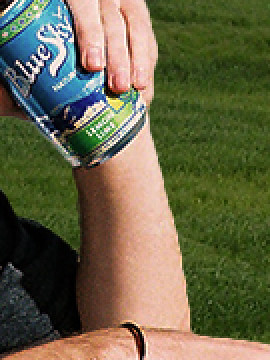
The mask edge is blurred and smoothened.

The mask edge is blurred and smoothened.

Any effects/adjustments applied to pixels that are only partially selected will only be applied partially. For example, if a region in a photo is only 30% selected, and the selected area is subsequently darkened, those pixels will only be darkened up to 30% of whatever the darkening setting would have been.

Blurring the selection mask in Quick Mask mode will blur the edges pink selection mask, so that instead of an abrupt jump from fully masked to fully unmasked, a partially masked transition region is introduced. The partially masked transition region translates to a partially selected region.

Selection masks in photo-editing software

In fact, in GIMP and other photo-editing software, selections are represented as a grayscale image called a selection mask.

The white areas represent pixels that are fully selected, the black areas represent pixels that are totally not selected, while the gray areas represent pixels that are partially selected – with the darkness of the gray representing to what extent the pixel is partially selected (between 0 and 100%).
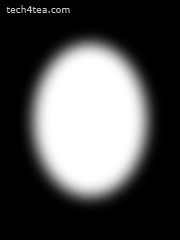
The selection mask is in grayscale.
The selection mask is in grayscale.

The Quick Mask shows which parts of a photo is selected.

The Quick Mask shows which parts of a photo is selected.

The pink overlay in Quick Mask mode is a means of showing the mask, while keeping the original photo visible at the same time, so that you can tell which parts of the photo is selected and to what extent.

Saving selections for future reuse or modification

As we saw in the photo of the youth, a selection can take a lot of time and effort to create. The selection is forgotten once we make another selection. What if we need to make the same selection in the future?

A selection can be saved as a channel in the Channels dialog for future use or manipulation. If the file is then saved in GIMP’s native .xcf format, the channel is saved as part of the file. And you can save many different selections as separate channels in the file.
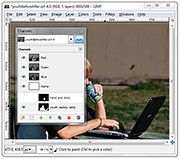
Paint on the selection mask in the image window to modify it.

Paint on the selection mask in the image window to modify it.

To save a selection for future use, first make the selection, and then click the Select > Save to Channel command from the main menu. If you look in the Channels dialog, you will see a new channel at the bottom of the dialog. The selection has been saved as a grayscale selection mask in a new channel. Double-click on the name to rename it with something more meaningful.

To modify the selection, click the eye icon to display the selection mask. Click the channel containing the mask to select it.

Any changes or painting will now be applied to the mask rather than to the image. It’s like in Quick Mask mode, except the overlay is a translucent gray by default instead of pink. Paint on the mask (in the image window) with black, white or gray as the Foreground colour to modify the mask.

To get back to editing the photo instead of the mask, remember to hide the mask by clicking the eye icon against its channel in the Channels dialog. Then go to Layers dialog and select the layer that you want to edit.
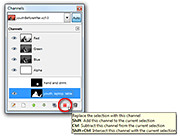
Click on the pink icon to load the mask as a selection.

Click on the pink icon to load the mask as a selection.

To load a selection, click on the selection’s channel in the Channels dialog to select it and click the pink icon to the bottom right of the Channels dialog. This will load the selection mask in that channel as a selection in the photo.

Entire books have been written just to explain how to create, manipulate and use selections, masks and channels. A good understanding of how selections, masks and channels work will open doors to harnessing GIMP’s full capabilities and start doing things that other simpler photo-editing software cannot do.
Replacing the background of a person or an object in a photo (Part 6 of 14)

Saturday, March 12th, 2011

Select the person or object easily in Quick Mask mode so that he can be isolated from an ugly or distracting background, and then replace the background altogether with another photo.
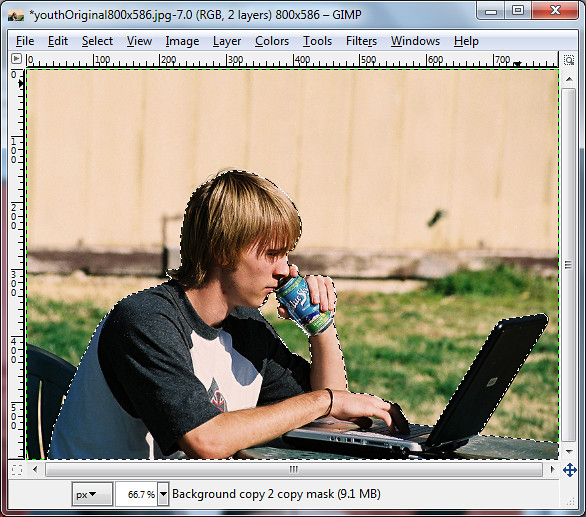
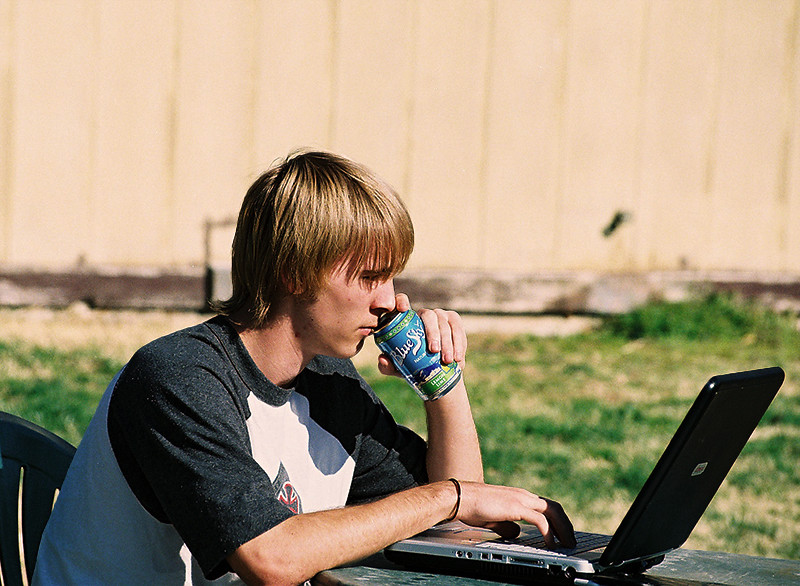
Before: Youth against a mundane background.
Before: Youth against a mundane background. Photo from morguefile.com.

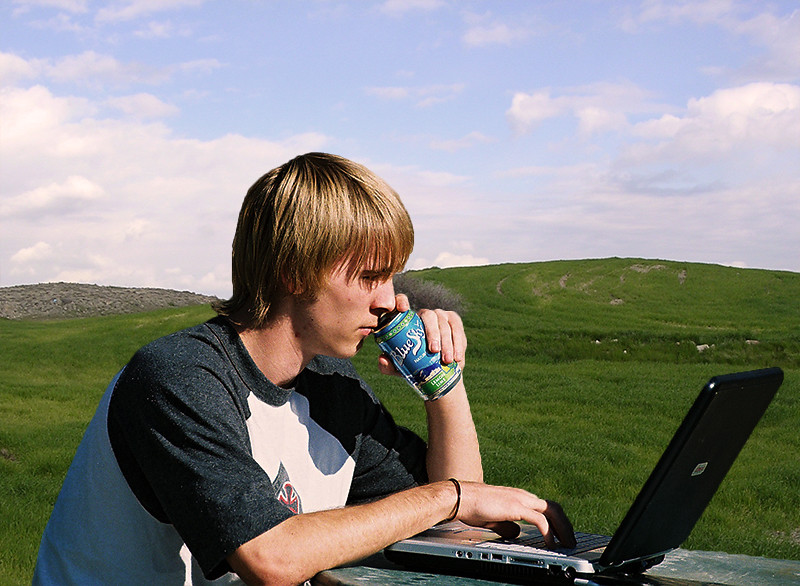
After: Background changed to something more refreshing.

After: The refreshing green fields and blue sky matches the drink he is sipping.

The many selection tools in GIMP provide different ways to make and modify selections of people or objects in photos. The selected people or object can then be tweaked and adjusted without affecting pixels outside the selection. For example, the pixels within the selection could be darkened or lightened or the colour could be made more vivid.

Sometimes, none of the selection tools we’ve covered can quite select an object properly – parts that should be selected are not selected, while pixels that should NOT be selected are selected instead.

For example, in the photo of the youth working on his laptop, we want to isolate him from the mundane background and replace the background with something refreshing. But his outline is highly irregular and complicated so the Rectangle and Ellipse Select Tools are out – unless he is a rectangular or oval android.

Make a rough selection first using the Free Select Tool.

Make a rough selection first using the Free Select Tool.

The Fuzzy Select, Select by Color, and Foreground Select Tools are also out of their depths here because there is not enough contrast between the youth and the colours making up the background.

In this case, we start by using one of the usual selection tools to make a rough first-cut selection first, and then modify and perfect the selection by entering the Quick Mask mode.

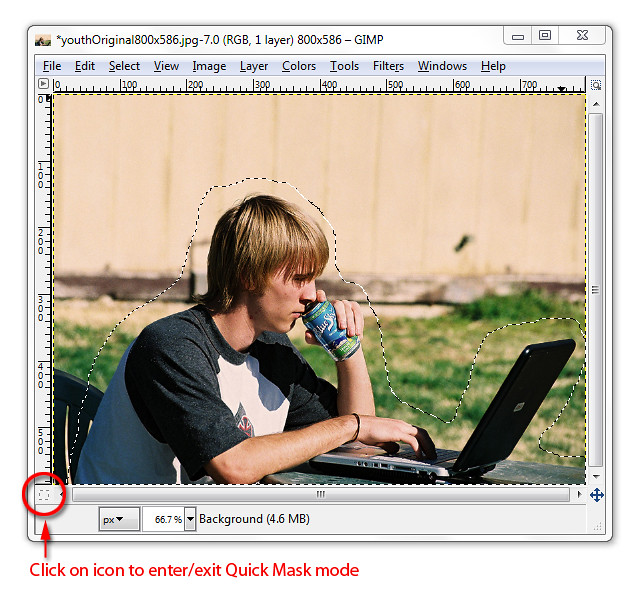
Here, I used the Free Select Tool to encircle the youth, his laptop and the table – including a small area just outside of the outline. You will see the “marching ants” indicating where the selection boundary is.

Entering the Quick Mask mode

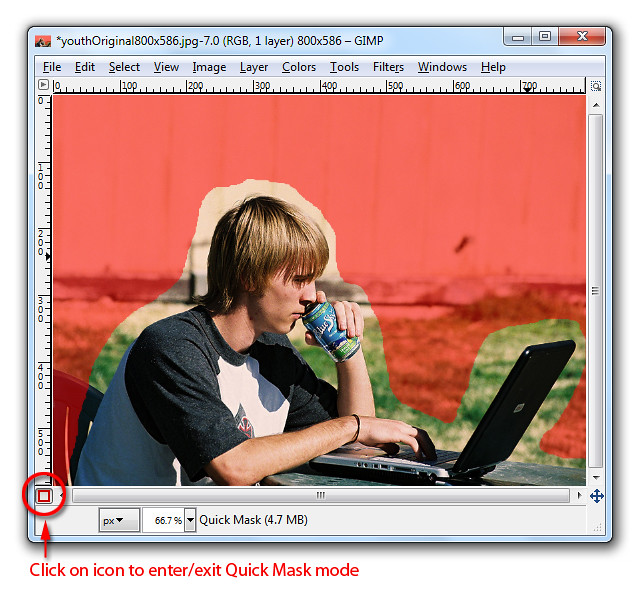
Quick Mask mode overlays unselected areas with a translucent pink.

Quick Mask mode overlays unselected areas with a translucent pink.

To enter Quick Mask mode, click on the Quick Mask icon (the small dashed rectangle icon at the bottom left corner of the image window), or press Shift-Q on the keyboard.

A translucent red tint is overlaid onto the photo showing the areas that are NOT selected.

This translucent pink overlay is called the selection mask. It works like masking tape in a physical paint job. You stick masking tape over areas where you don’t want the paint to get into, so that only the unmasked areas will be painted.

The selected areas – the youth, his laptop and the table – will be free from the red tint. Everything else that is not selected, like the grass, the chair and the wooden walls in the background are tinted temporarily with the translucent red.

Modifying and perfecting the Quick Mask

Do two things before going any further:

1. Press “D” on the keyboard to reset the colour swatches to black and white.
2. Activate the Paintbrush Tool in the Toolbox.

Zoom into the boundary area between the youth and the background to work on the details (“+” key to zoom in and Spacebar to pan). The default Foreground colour is black.

Reducing the selection

Paint on those areas on the photo that are NOT supposed to be selected but are selected – they are supposed to be overlaid by the translucent pink but are not.

As you paint, those areas will be overlaid with the translucent pink (although the Foreground colour is set to black) to indicate they have been unselected. Press the square bracket (“]” and “[“) keys to increase or decrease the size of the brush.

Adding to the selection

If you accidentally paint into the areas which is supposed to be selected, don’t worry. Click “X” on the keyboard to swap the colour swatches so that white is now the Foreground colour.

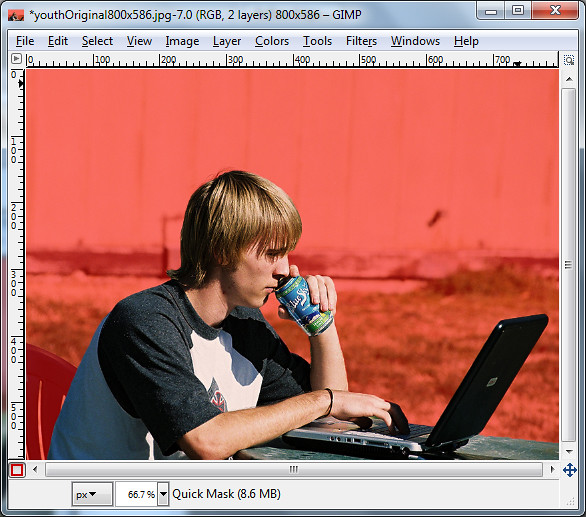
Paint on the quick mask until only the youth, his laptop and the table is not pink.

Paint on the quick mask until only the youth, his laptop and the table is not pink.

Paint over those areas that are supposed to be selected but are not – these areas are overlaid in translucent pink even though they are not supposed to be.

Instead of adding white, you will see the translucent pink erased from those areas painted, indicating that those areas are now selected.

In this way, finetune the mask, especially in the border region around the outlines, until only the youth is free from the translucent pink. Zoom in to inspect and work on the details.

You can switch between black and white for the Foreground colour by pressing X on the keyboard.

Confirming the selection

Check the marching ants selection boundary.

Check the marching ants selection boundary.

Press Shift-Q or the click on the Quick Mask icon to get out of Quick Mask mode. You will see the marching ants again indicating the selection boundaries.

The youth, his laptop and the table is now precisely selected while the background is not.

If you find the selection boundaries are still not perfect, enter Quick Mask mode again to modify the mask and get back out to check the selection boundaries. You can keep shuttling in and out of Quick Mask mode until the mask/selection is perfect.

Now any command you make within GIMP will apply only to the pixels within the selection.

Switching the background

Once you are happy with the selection, press Ctrl-C or Edit > Copy to put the selected pixels into the Clipboard.

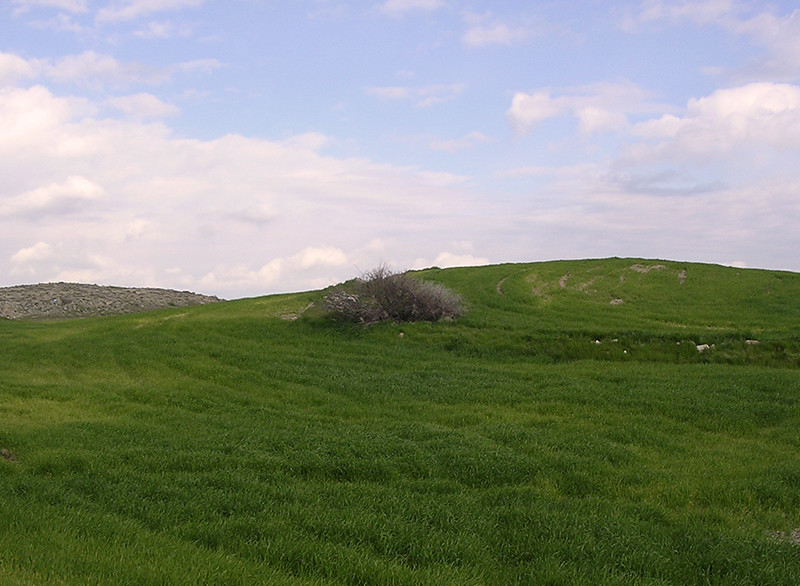
Green fields and blue skies.

Green fields and blue skies. Photo from morguefile.com

Open the new photo that will serve as the new background. Press Ctrl-V or Edit > Paste to paste the youth onto the new photo.

The pasted pixels will be added as a new temporary layer called “floating selection” that floats above all other layers in the image. In the Layers dialog, double-click the label of the floating layer type in a meaningful name and press Enter. The floating layer will be converted into a separate and permanent regular layer.

After: Background changed to something more refreshing.

After: The refreshing green fields and blue sky matches the drink he is sipping.

Activating the Move Tool from the Toolbox, you can drag the pasted layer to re-position it to the right place. You may need to resize either the new background photo or the pasted layer in order to match the sizes.

The edge of the youth may look too sharp and artificial at the moment, but we’ll address that in tomorrow’s tutorial.

Photo scrapbook using GIMP Layers (Part 5b of 14)

Sunday, March 6th, 2011

Yesterday, we put several photos into a single scrapbook page and positioned them. In the second half of the tutorial today, we add text titles and captions to the scrapbook page/cover, complete with outlines.

Adding titles and captions

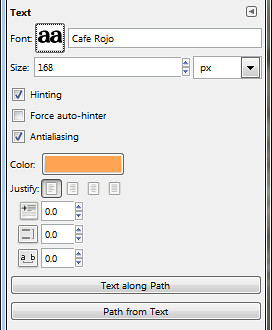
Pict 8: Options for the Text Tool

Pict 8: Options for the Text Tool

To add a title to the page, activate the Text Tool in the Toolbox. In the Tool Options, select the Font, size and colour to be used for the title of the scrapbook page. Click the square icon beside the Font label to display a list of installed fonts. Here, I used the Cafe Rojo font.

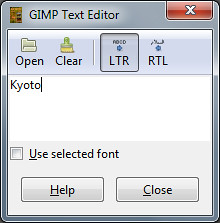
Click near the top left corner of the image to place the title. The GIMP Text Editor dialog box appears. I typed in the title “Kyoto” and pressed the Close button. A new and separate text layer is added in the Layers dialog.

Pict 9: GIMP Text Editor

Pict 9: GIMP Text Editor

To edit the text in the title, click on it in the image window with the Text Tool. The Text Editor pops up again for you to edit the text.

To reposition the title, click on it in the image window and drag. For fine adjustments of position, use the Arrow keys on the keyboard.

Repeat the same process to add the “Koyo” caption, the year “2010”, and the labels for the two thumbnails.

Adding outlines
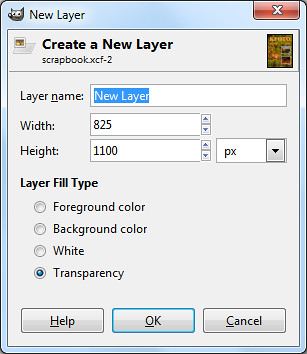
Pict 10: New blank layer for the outlines

Pict 10: New blank layer for the outlines

To add an EXTERNAL outline around the text and the thumbnails, first create a new transparent layer just above the Background layer and name it “Outlines”.

Select the Background layer in the Layers dialog and click the bottom left icon in the Layers dialog. Select the Transparency radio button in the New Layer pop-up dialog box.

Make sure all the elements are already in their final positions before adding the outlines, since this method adds the outlines on a separate layer. Moving an element later on will leave its outline behind in the original position.

Follow the steps below for each of the elements:

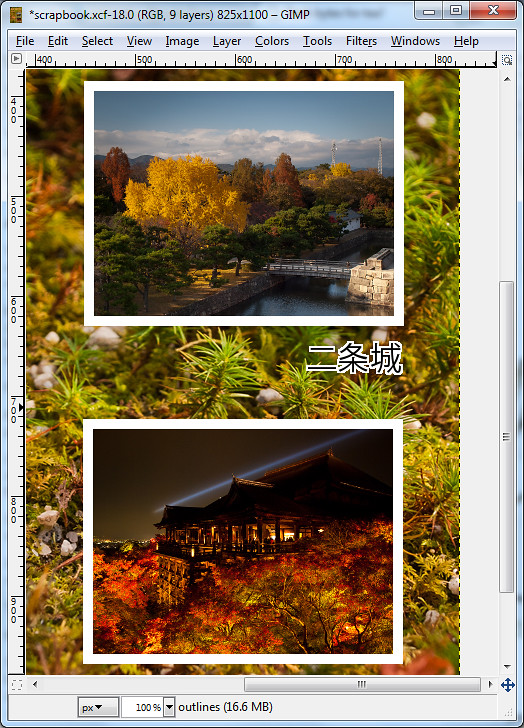
Pict 11: Add outlines or borders

Pict 11: Add outlines or borders. Here the thumbnails show koyo scenes at Nijojo Castle and Kiyomizu Temple at night in Kyoto.

Right-click the layer and select Alpha to Selection command from the pop-up menu.

Click the Foreground Color swatch in the Toolbox and select the desired outline colour from the Change Foreground Color dialog box that pops up.

Select the Outlines layer in the Layers dialog and from the main menu, select Edit > Stroke Selection.

In the pop-up Stroke Selection dialog box, enter the width of the outline and press the Stroke button. If it it too thick or thin, press Ctrl-X to undo and try again. Experiment with the width setting until the outline looks right to you.

This adds an external outline around the thumbnail or text caption.

Note: There are many methods of adding borders/outlines to elements within GIMP – none of which are very convenient. Through experience, I find this method produces the most crisp outline for text captions.

A more convenient approach is to add the outline directly to the thumbnail or text layer itself, so that moving the thumbnail/text would move the outline as well. But I find the quality rather jagged for text layers.

Saving as source files

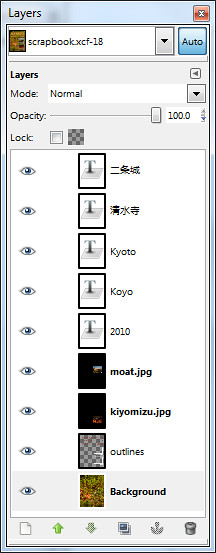
Pict 12: Preserve the layers in .xcf file

Pict 12: Preserve layers in an .xcf file

The completed scrapbook design now comprises several different layers which can be independently adjusted and moved without affecting other layers. Save this as a “source” file in the GIMP’s native .xcf format.

Use the File > Save As command and in the pop-up Save Image dialog box, type in the name of the file followed by .xcf.

The layers are preserved so that when you open the file in GIMP in the future, you can still manipulate the layers independently – perhaps you may decide to edit the captions, or move the two thumbnails further to the left.

Unfortunately, the .xcf file format is not a commonly accepted file format since it is only for use within GIMP. You can print it with your desktop printer but the print shop will probably not accept it.

For printing at a shop, save an additional copy of the file in JPEG, since this is a ubiquitous file format that all graphics/printing software accepts.

Use the File > Save As command and this time save the file with a .jpg extension instead of the previous .xcf extension.

Photo scrapbook using GIMP Layers (Part 5a of 14)

Saturday, March 5th, 2011
Make a photo scrapbook design by combining several photos and text captions on the same page.

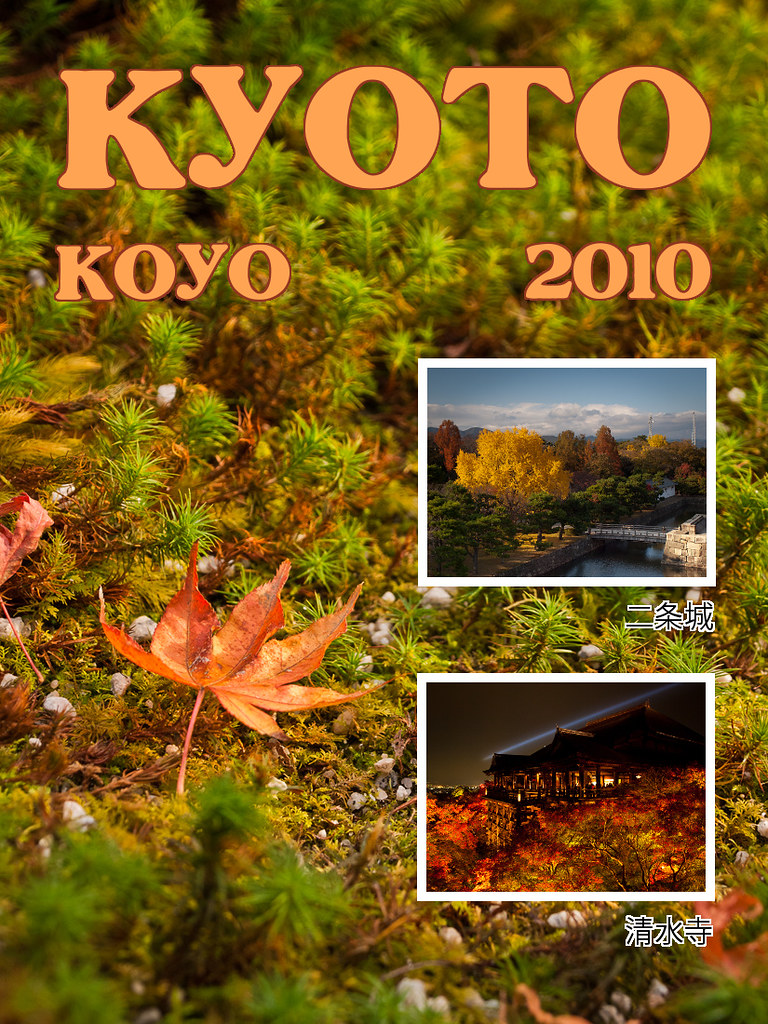
Scrapbook design using layers in GIMP

Pict 1: Scrapbook cover/page

There seems to be renewed interest amongst my friends to use their holiday photos to make photo scrapbooks.

They share their photos online even while they’re still overseas on holiday, but nothing beats a physical coffee-table scrapbook for family and close friends to thumb through and pore over.

In the first half of this tutorial today, we’ll use a photo as a background for a scrapbook cover/page and bring in additional photos. We’ll resize them as thumbnails and position them on the page.

In the second half tomorrow, we’ll add text titles and captions, and add outlines to them, as well as the thumbnails.

Including additional photos as layers

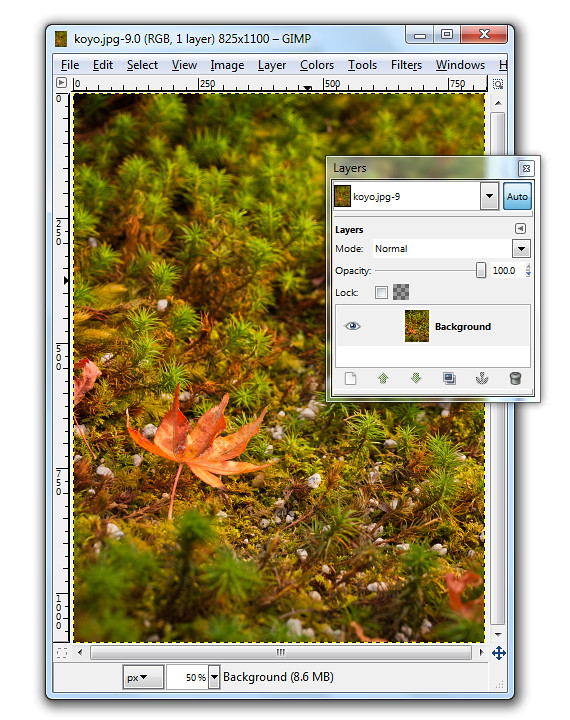
Pict 2: Single Background layer when photo is first opened.

Pict 2: Single Background layer when photo is first opened. This lonesome koyo was languishing on the grounds of the Ginkakuji in Kyoto.

When a photo file is first opened in GIMP, it resides on the single Background layer.

In our example, the photo file comprises the macro shot of the lone koyo (red maple leaf in Japanese) in the Background layer. We want to bring in two additional photos of koyo scenes as thumbnails.

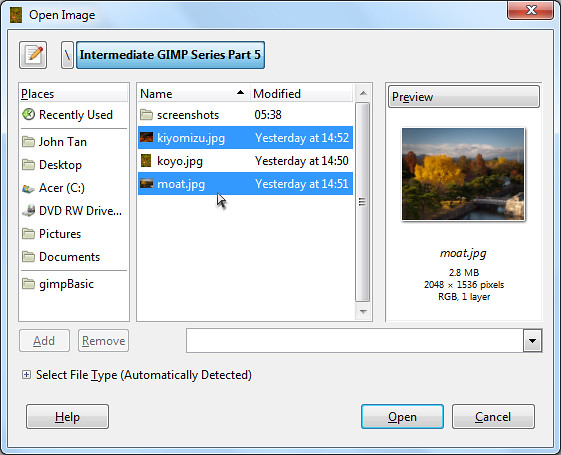
Pict 3: Bring in additional photos

Pict 3: Additional photos

To bring in additional photos into the file, use the File > Open as Layers command from the main menu. You can bring in multiple photos all at once by selecting more than one photo in the Open Image dialog box that pops up.
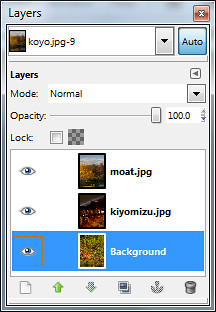
Pict 4: Additional photos as layers

Pict 4: Additional photos as layers

The two photos will be brought in as additional layers – one photo on each layer. For a quick introduction into layers and various ways of manipulating them, read Part 5 of the Basic GIMP series on “Correcting exposure using layers”.

You can see the different layers in the file inside the Layers dialog.

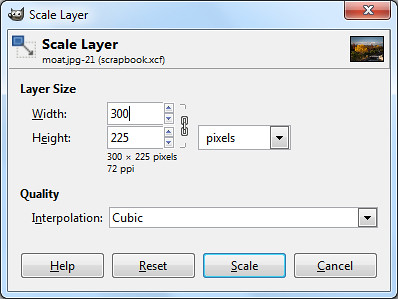
To reduce the size of the moat photo to a thumbnail, click on its name in the Layers dialog to select it and then use the Layer > Scale Layer command from the main menu. As a shortcut, simply right-click on the moat layer in the Layers dialog and select the Scale Layer command from the pop-up menu.

Pict 5: Scale layer down to thumbnail size

Pict 5: Scale layer down to thumbnail size

In the Scale Layer dialog box that pops up, I typed in 300 in the Width field. The Height field was automatically updated to 225 to keep the aspect ratio of the layer unchanged to avoid distortions. Both the default Interpolation setting of Cubic or Sinc (Lanczos3) will do the resizing with good quality.

Press the Scale button to complete the resizing.

Repeat the same process to resize the other photo into thumbnail size.

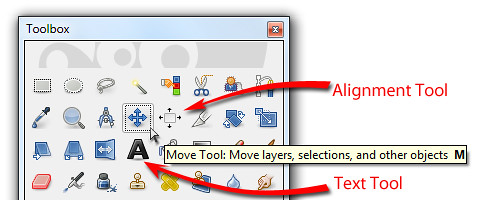
Pict 6: Move, Alignment and Text tools in the Toolbox

Pict 6: Move, Alignment and Text tools in the Toolbox

Positioning the thumbnails

To move and position the thumbnails, activate the Move Tool from the Toolbox. Now you can just click and drag any layer you see in the image window.

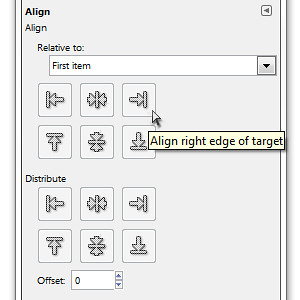
Pict 7: Options for the Alignment Tool

Pict 7: Options for the Alignment Tool

To align the two thumbnails, activate the Alignment Tool in the Toolbox. Click the first thumbnail and shift-click the second thumbnail to select both. You can also drag a rectangle that encloses both thumbnails to select both at the same time.

In the Tool Options, click one of the icons to align either the left or right edges of the thumbnails.

Tomorrow, we’ll add text captions and outlines to the elements in the scrapbook cover/page.