Posts Tagged ‘image editor’

Select by Color or Foreground Select Tools in GIMP (Part 4 of 14)

Sunday, February 27th, 2011

These less frequently used selection tools can be real time-savers if you know when they are the most suitable tools for the job.

The Fuzzy Select Tool works wonders for selecting large contiguous areas of a photo with relatively uniform colour even if the outline is complicated.

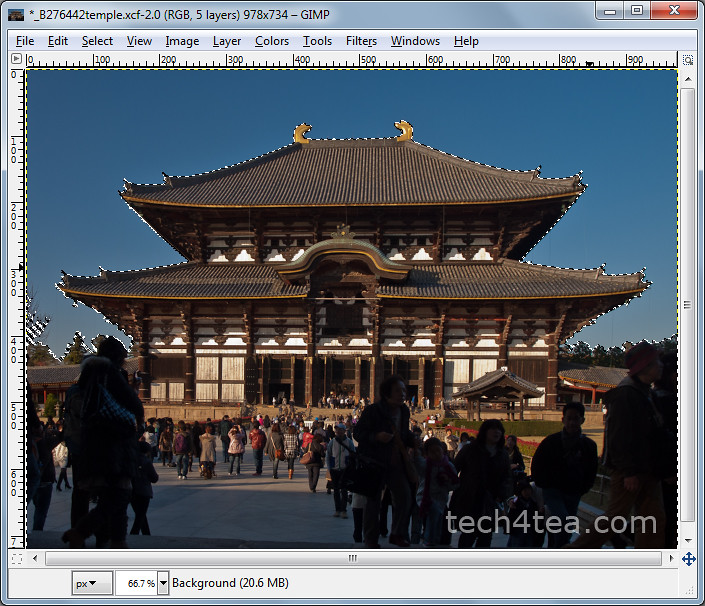
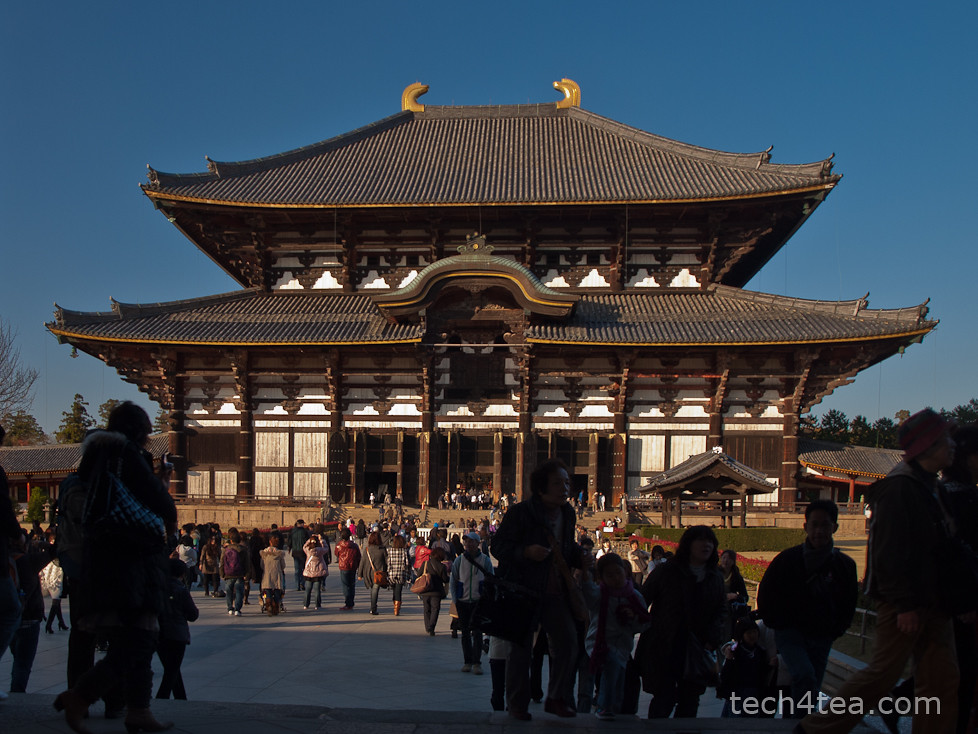
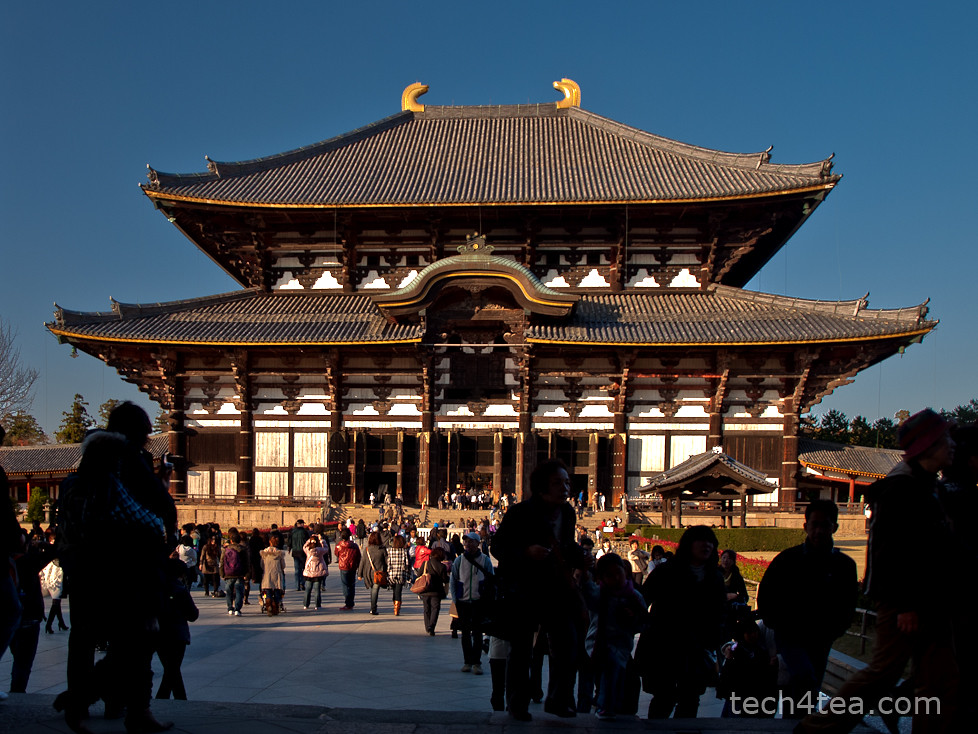
In yesterday’s case, clicking on the blue sky around the temple in the photo selected all the blue pixels “connected” to the clicked pixel by other selected pixels.

Select by Color Tool

If, say there is a window in the temple showing a bit of blue sky through it, those blue pixels won’t be selected when the Fuzzy Select Tool is clicked outside the outline of the temple.

Similarly, if the cursor is clicked inside the window showing the blue, the blue sky around the temple won’t be selected.

To add such segregated areas to the main selection, hold down the Shift key on the keyboard and click on those areas with the Fuzzy Select Tool.

For more control, I tend to prefer using the Fuzzy Select Tool together with the Shift key.
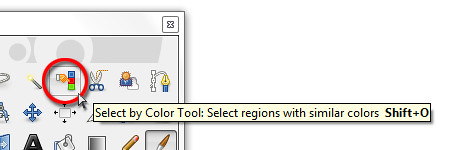
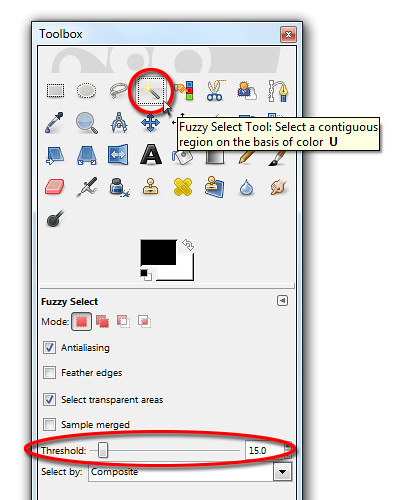
Select by Color Tool in the GIMP Toolbox

But if there are many isolated areas to be selected, a more suitable tool is the Select by Color Tool.

The Select by Color Tool works exactly like the Fuzzy Select Tool except that pixels from the ENTIRE photo that are similar in colour to the clicked pixel are selected – whether contiguous or segregated.
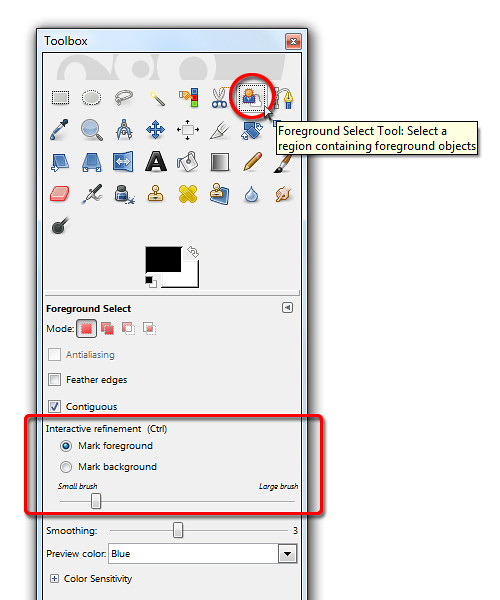
Foreground Select Tool in the GIMP Toolbox

Foreground Select Tool in the GIMP Toolbox

Again, the Threshold value determines how similar a pixel should be in order to be selected.

So if the temple had many windows showing blue skies, clicking a blue pixel in any one of the windows would select all the blues pixels in the sky.

Unfortunately, any of the tourists wearing blue will also have their blue clothes selected. That’s why I tend to prefer the Fuzzy Select Tool because it allows me to control exactly what I want to select.

Foreground Select Tool

Another selection tool that can occasionally work wonders is the Foreground Select Tool. It is used to select an object in a photo against a background, preferably with contrasting colours (see above Picture).
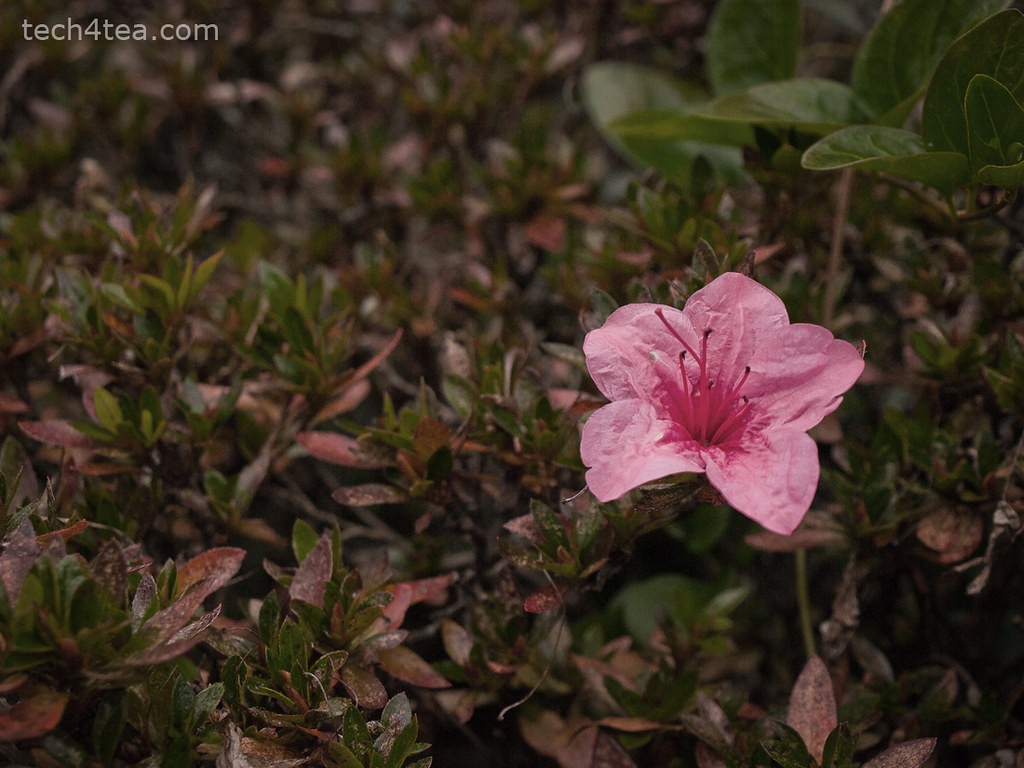
Wild pink flower in Magome, Japan

This wild flower looks a tad pale and dull on an overcast day.
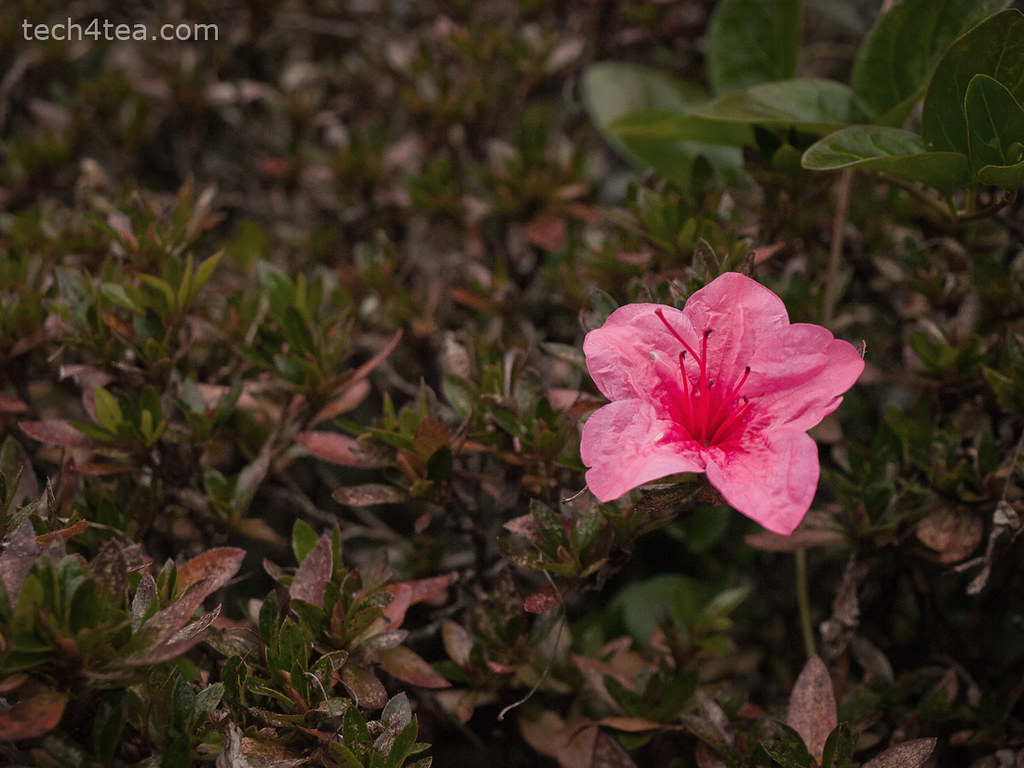
Pink flower made more vivid

The pink flower now stands out against the pale background.

In the photo of a wild flower I snapped in Magome, Japan, Iet’s select the flower in order to make the pink more vivid against the surrounding grass. Download the Before photo to follow along.

Activate the Foreground Select Tool from the Toolbox.

The cursor turns into a lasso. Use the cursor to drag an outline outside but around the flower. For selecting the outline, the tool behaves like the Free Select Tool. Select close to the outline of the flower but do not stray inside the flower.
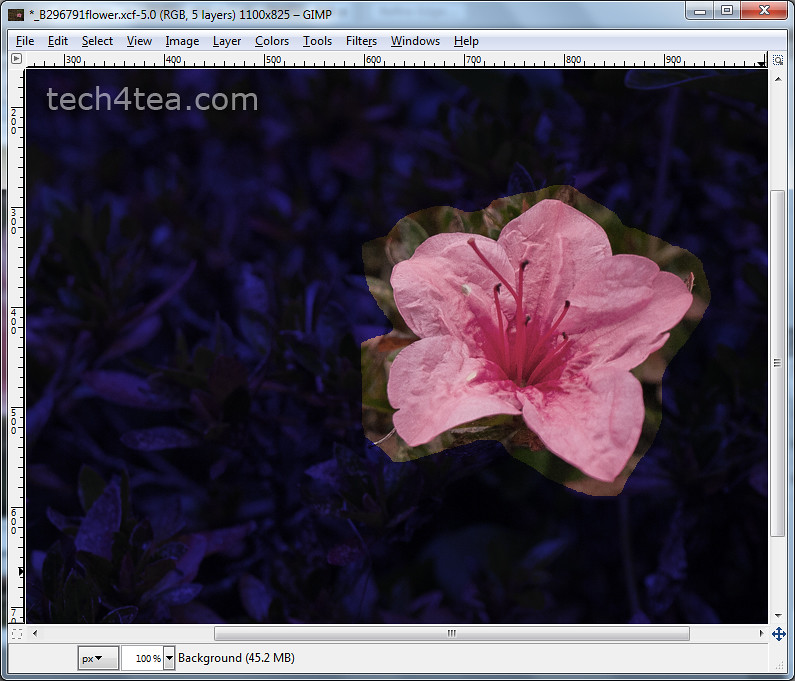
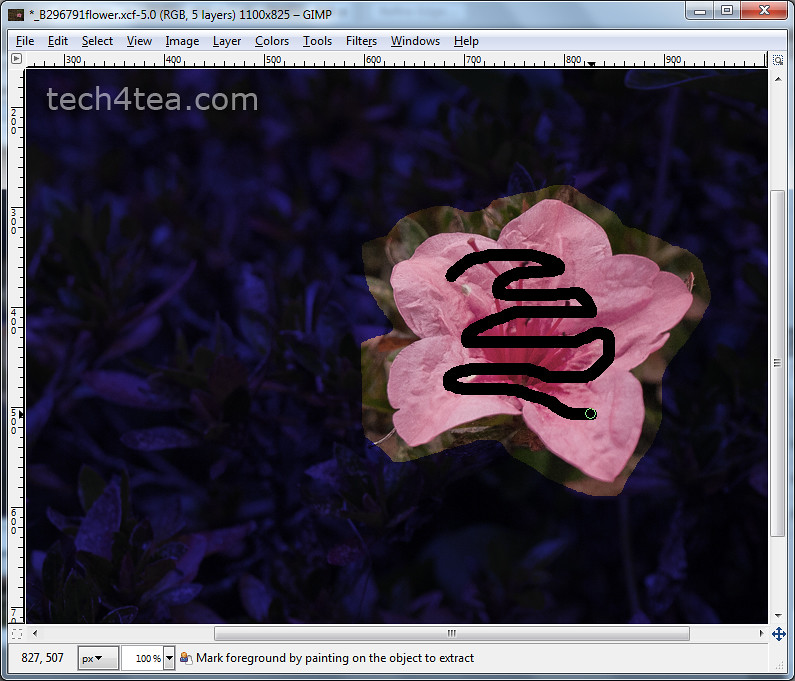
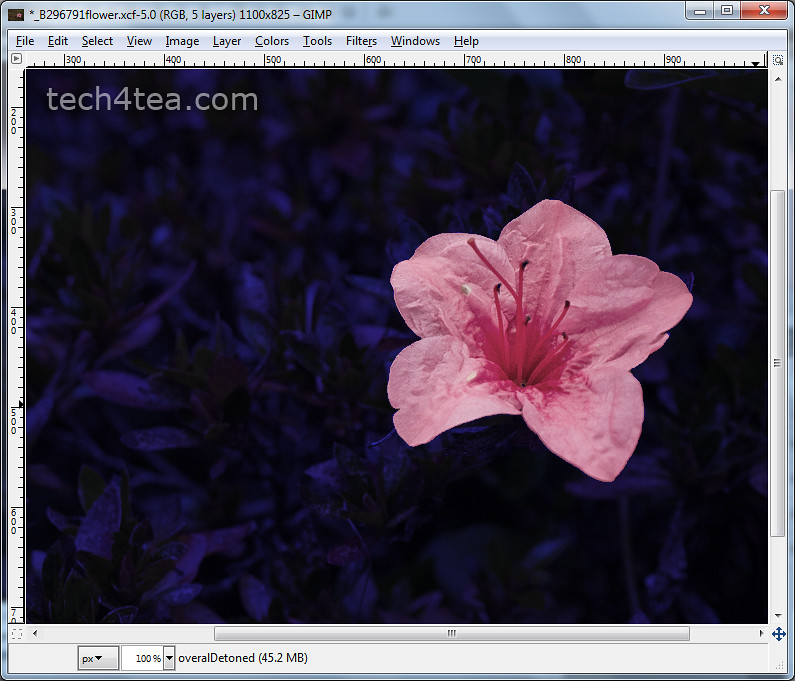
The initial mask when the flower is first outlined

Paint inside the flower to define what colours to keep

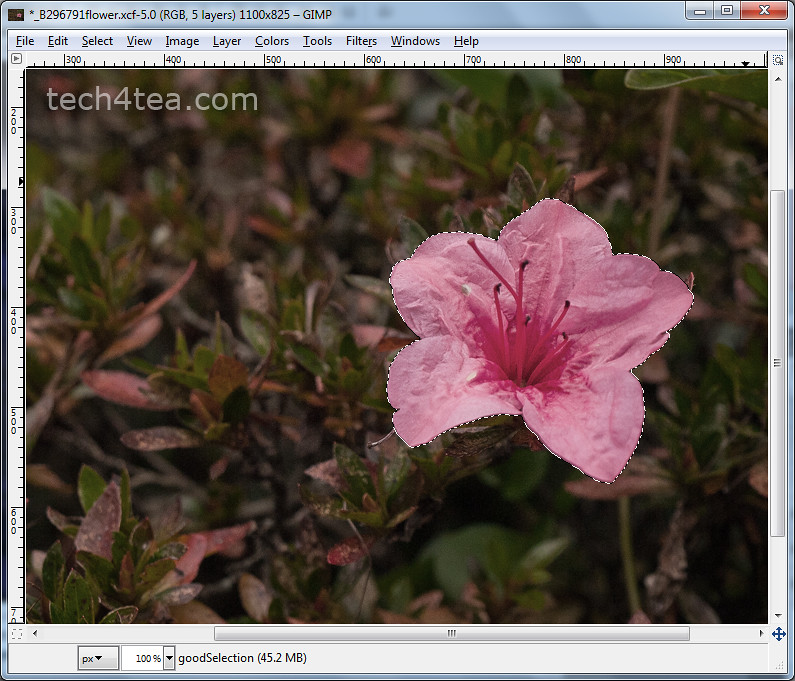
GIMP adjusts the mask to the flower's borders

Pressing Enter converts the mask into a selectionVarious stages of using the Foreground Select Tool. Click each thumbnail to open enlarged photo.

Once the outline is complete, GIMP overlays the area outside the outline with a dark blue translucent mask, while the appearance of the flower and its immediate surrounding inside the outline remains unchanged.

The cursor now changes into a paintbrush. Paint inside the flower.

There is no need to paint the entire flower. If the flower contains different colours, try to paint over the different colours to tell GIMP they are part of the flower. Avoid painting outside the flower.

After the initial painting, the dark blue mask closes in so that only the flower remains visible. The clearly visible areas indicate the areas that will be selected. In this case, GIMP did a perfect job.

You can still modify the mask if the flower had not been perfectly masked.

In the Tool Options are two radio buttons that determines the effect of painting on the photo.

By default, the “Mark foreground” option is selected. If there are parts of the flower that are covered by the blue mask, paint on those areas to unmask them.

If there are areas outside the flower that are not masked in dark blue, select the “Mark background” option in the Tool Options and paint on those areas to mask them.

To work the details, zoom in and vary the brush size by dragging the slider in the Tool Options.

Once the mask has been finetuned so that only the flower is clear and the surroundings are masked by the translucent dark blue, press Enter on the keyboard to convert the mask into a selection.

You can now make the flower stand out by dialing up the vividness using Colors > Hue/Saturation command from the main menu.

Caution: While outlining the flower or painting to define the area to be included or excluded, Ctrl-Z or the Edit > Undo command does not work. To restart the selection process, select some other tool in the Toolbox and then select the Foreground Select Tool again.
Do magic with Fuzzy Select in GIMP (Part 3 of 14)

Saturday, February 26th, 2011

Select objects with uniformly coloured backgrounds easily even if the objects have complicated outlines.

Previously, we have made simple rectangular and elliptical selections in photos using GIMP’s Rectangle and Ellipse Select tool. We’ve also used the Free Select Tool to select objects with irregular outlines.

Todaiji Temple in Nara, Japan - a UNESCO World Heritage Site

Pict 1: The Todaiji temple as seen against a clear blue sky.

These selections allow us to do local adjustments – whatever adjustments we make are confined to only the pixels within the selection boundaries.

Sometimes, the object we want to select in the photo is against a background with uniform colour, such as the sky, where the colour comprises a narrow range of tones of the same colour (see Picture 1).

In these cases, it is easier to select the uniform background using the Fuzzy Select Tool and then invert the selection rather than try to select the object itself – especially if the object has a complicated outline.

Temple after brightness and contrast increased

Pict 2: The temple has been lightened up and contrast increased.

The tool works best when the background colour is markedly different from the object to be selected.

In the photo of Todaiji in Nara, the temple is slightly underexposed and flat against the bright sky. I want to lighten up the temple without whitening out the nice blue sky. So I need to select the temple and the foreground scene before applying the lightening (see Pict 2).

Fuzzy Select Tool

Activate the Fuzzy Select Tool from the Toolbox.

Activating the Fuzzy Select Tool from the Toolbox

It is known more commonly in other photo-editing programs as the Magic Wand tool because of its ability to make a complex selection seem so easy – where large welts of relatively uniform colour are involved. In fact, the symbol and cursor for the tool in GIMP comes in the form of a magic wand.

Click on any part of the blue sky. Large parts of the blue sky are selected as indicated by the marching ants showing the complex boundary of the areas selected. What has happened is that the Fuzzy Select Tool has selected all pixels of similar colour to the pixel that was clicked by the tool.

How similar must a pixel be to the clicked pixel for it to be selected? This is determined by the Threshold slider in the Tool Options.

Changing the default value from 15 to zero means that only pixels whose colour is exactly the same as the clicked pixel is selected. Using the maximum value of 255 means all pixels in the photo will be selected.

The selection process

There is a shortcut to varying the Threshold value while using the Fuzzy Select Tool. When you first click in the area to be selected, don’t release the button just yet.

Drag the mouse to the right or downwards and the Threshold value will be increased. You can see the selected areas grow as you drag the mouse cursor. You can also see the Threshold slider in the Tool Options moving to the right.

Conversely, drag the mouse to the left or upwards to decrease the Threshold value. You will see the selected areas shrink as you drag the mouse cursor. The Threshold slider also moves to the left.

Fuzzy Select Tool in action

Pict 3: The bright blue sky is selected by the Fuzzy Select Tool.

Stop or drag the mouse cursor in the opposite direction when you see the selection spilling into the temple itself. Release the mouse button to confirm the selection (see Picture 3).

If there are areas in the sky, that are not selected, hold down the Shift key on the keyboard and click in those areas to add them to the existing selection.

If the photo includes many isolated areas of the colour to be selected, use the Select by Color Tool instead.

Lighten up the temple

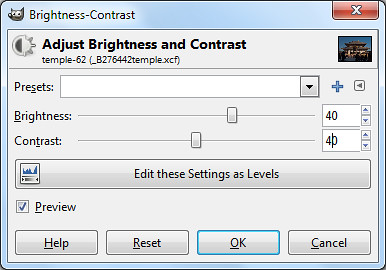
The Brightness and Contrast sliders were increased to 40 to liven up the temple.

For the moment, the blue sky is selected while the temple and the foreground are not.

To invert the selection, press Ctrl-I or Select > Invert from the main menu. The temple and the foreground are now selected while the blue sky is unselected.

The temple and the foreground can now be lightened (for instance, with the Colors > Brightness-Contrast command) without blowing out the sky.

Print sizes and resolutions for photographs

Monday, February 21st, 2011
One of the most frequent questions I get asked is what resolutions to use when printing out photos. Here are some suggestions that I usually provide as a guide.

First decide what size the photos are to be printed out and crop them based on the corresponding aspect ratio.There are a number of standard sizes that photo shops print in. I have tabulated below some of the traditional sizes together with their physical dimensions in millimetres and inches.

For each of the standard sizes, some shops print variants of the standard dimensions to cater to varying aspect ratios. For example, although traditional 4R has an aspect ratio of 3:2, some shops give the option of printing similarly sized prints at 4:3 aspect ratio.

The resolution of a photo is the number of pixels per inch (ppi). To work out the number of pixels a photo should have, multiply the physical dimension in inches by the desired image resolution.

For example, a 5R print is 5 x 7 inches. Multiply by 300 ppi and your image should, therefore, be 1,500 x 2,100 pixels.

For optimal quality, use an image resolution of 300 ppi. For printing on a personal printer, 150 ppi is usually good enough, although some studios accept resolutions down to 100 ppi. Since all my prints are 4R in size, all my images are at 300ppi. This way, they are optimal for 4R and still good enough if I want to print up to A4 size.

Note that studios usually crop a small margin of up to 3%  around the photo. The cropped margin could be bigger on one side compared to the other. This is usually unnoticeable for most photos. Unless the subject is really tightly framed, in which case part of the anatomy, say a ear or finger-tip could be cut off the edge.

However, if your photo has a decorative frame or border that you’d added using a photo-editor, it will turn out uneven. Choose a studio that can crop the photo evenly all round. I find it easier to show the studio a sketch to illustrate when explaining.

Likewise, when using your own printer, it pays to do a few test prints to determine the right settings for even borders.

Standard print sizes, aspect ratios and optimum/minimum image resolution for printing.
Print Size Size

(inches)

Size

(mm)

Aspect ratio Optimum Resolution

(300 ppi)

Minimum Resolution

(150 ppi)

3R 3.5 x 5 89 x 127 7:10 1050 x 1500 525 x 750
4R 4×6 102 x 152 2:3 1200 x 1800 600 x 900
5R 5×7 127 x 178 5:7 1500 x 2100 750 x 1050
6R 6×8 152 x 203 3:4 1800 x 2400 900 x 1200
8R 8 x 10 203 x 254 4:5 2400 x 3000 1200 x 1500
S8R 8 x 12 203 x 305 2:3 2400 x 3600 1200 x 1800
10R 10 x 12 254 x 305 5:6 3000 x 3600 1500 x 1800
S10R 10 x 15 254 x 381 2:3 3000 x 4500 1500 x 2250
11R 11 x 14 279 x 356 11:14 3300 x 4200 1650 x 2100
S11R 11 x 17 279 x 432 11:17 3300 x 5100 1650 x 2550
12R 12 x 15 305 x 381 4:5 3600 x 4500 1800 x 2250
S12R 12 x 18 305 x 465 2:3 3600 x 5400 1800 x 2700

Freehand selection in GIMP (Part 2 of 14)

Sunday, February 20th, 2011
Select irregularly shaped objects in photos using the Free Select Tool in GIMP.

In the Basic GIMP series, we used the rudimentary Rectangle and Ellipse Select tools to create simple selections in a photo.

What if we want to select an object in a photo that has an irregular outline? Check out the Free Select Tool.

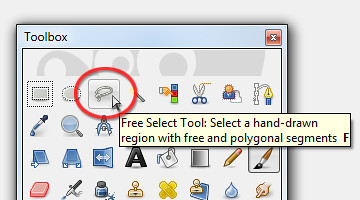
As with the other selection tools in GIMP, the Free Select Tool can be found at the top of the Toolbox.

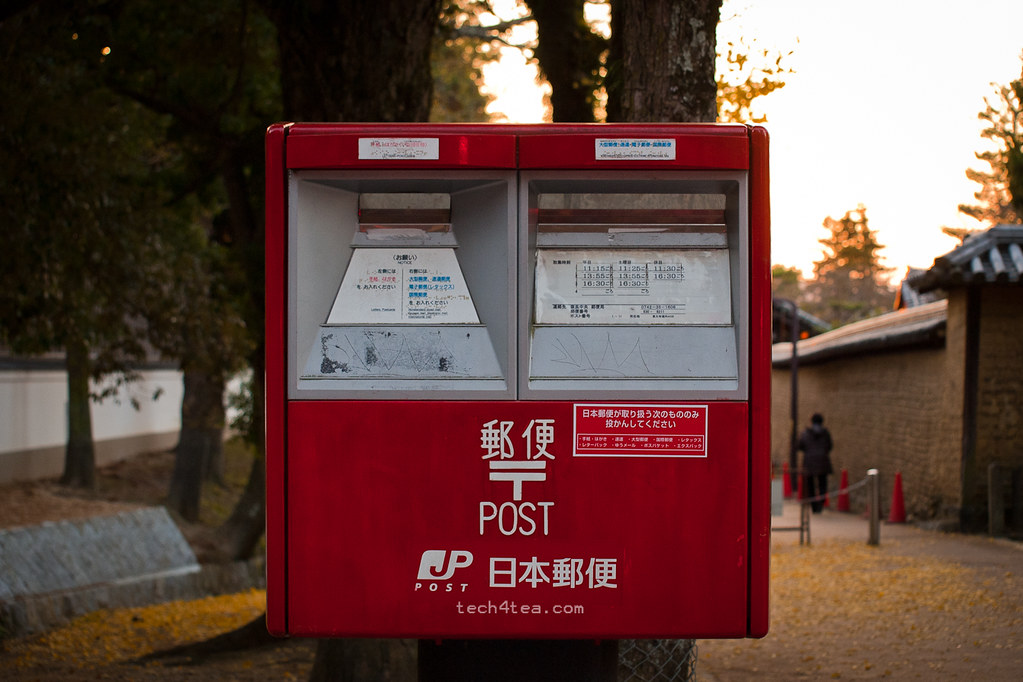
Little red Japanese postbox

The red traffic cones and receding pedestrian are a tad distracting behind the postbox.

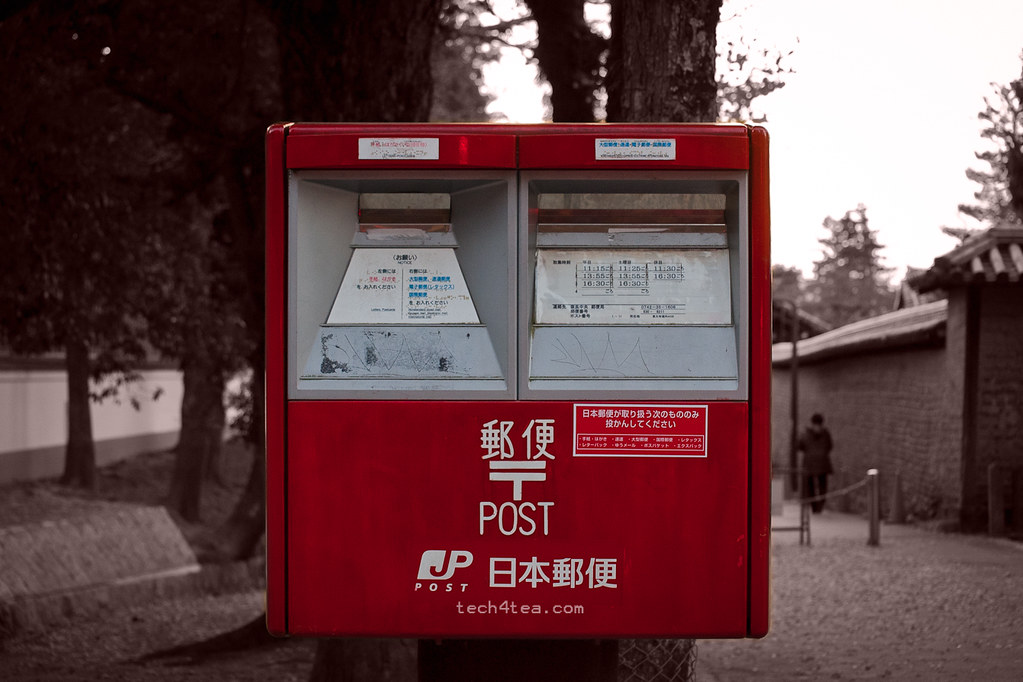
Arty interpretation of a postbox in Japan

Toning down the background focuses the viewer's attention on the main subject.

In the photo I snapped in Nara – Japan on a cool evening last autumn, I made the red postbox stand out by removing colour from its distracting surroundings and tinted the surroundings with a light reddish shade.

This is usually done to bring put the emphasis on a main subject by toning down the background, especially if the background is brightly coloured or distracting.

It is also a popular technique to turn a mundane snapshot into something arty.

Download the Before photo and follow along.

GIMP's Toolbox

Activate the Free Select Tool at the top of the Toolbox

Using the Free Select Tool

In the Toolbox, activate the Free Select Tool. Click (and let go of the mouse button) anywhere on the edge of the postbox. Move the cursor to the next point on the edge of the postbox and click again.

GIMP joins the two mouse clicks with a straight line to indicate the edge of the selection you are making. An anchor point is also created at each end of the edge to indicate where the mouse was clicked.

Around the corners of the postbox, the edges are rounded. Zoom in (press “+” on the keyboard) to get a better view to make a more precise selection.

Where the curved edge begins, click but hold down the mouse button and drag the cursor along the curved edge. You can see selection boundary trace around the curved edge.

At the end of of the curved edge, release the mouse button. To continue selecting straight edges, simply click at the next point.

Repeat the above techniques around the edge of the postbox until you are back to the starting point. This completes the selection process.

Along the way, if you click at the wrong place or make a botched tracing around a curved edge, press the Backspace key on the keyboard. GIMP will remove the previous anchor point and line segment. Press the Backspace key once to remove each previous anchor point and segment.

Decolourizing and adding the tint

Once the postbox has been selected, press Ctrl-I to invert the selection. Drain the colour from the selected surroundings and tint it a pale red by using the Colors > Colorize command from the main menu.

In the Colorize dialog box, set Hue to zero and Saturation to 15 by dragging the corresponding sliders.

Size matters – resizing and reshaping a photo in GIMP (Intermediate series: Part 1 of 14)

Saturday, February 19th, 2011

Starting off the 14-part Intermediate Photo Editing series for GIMP this weekend, this warm-up tutorial looks at resizing and reshaping a photo.

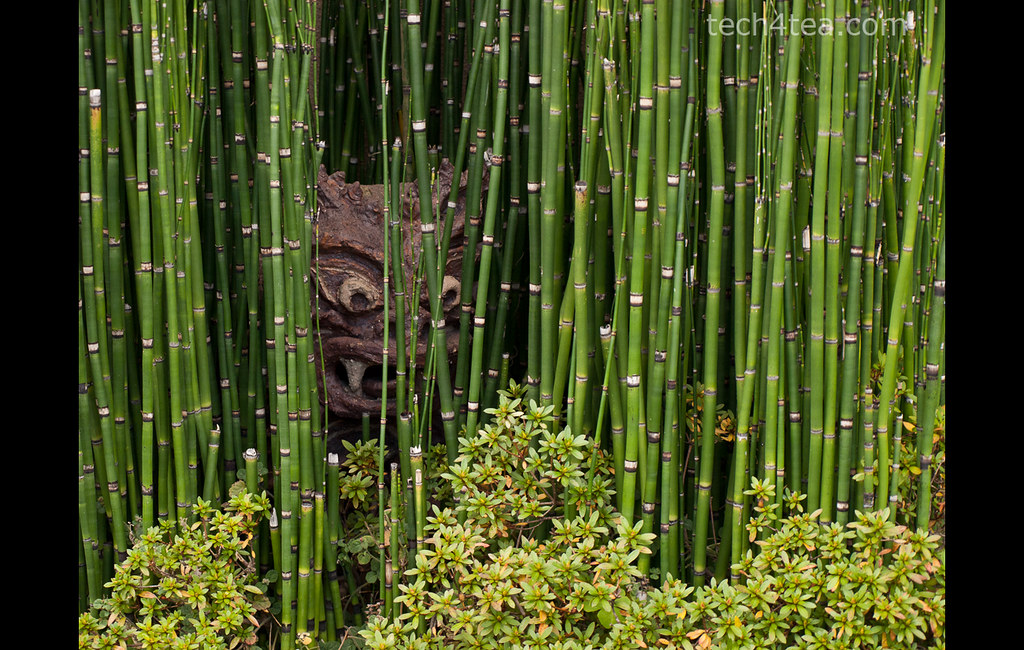
Ambush

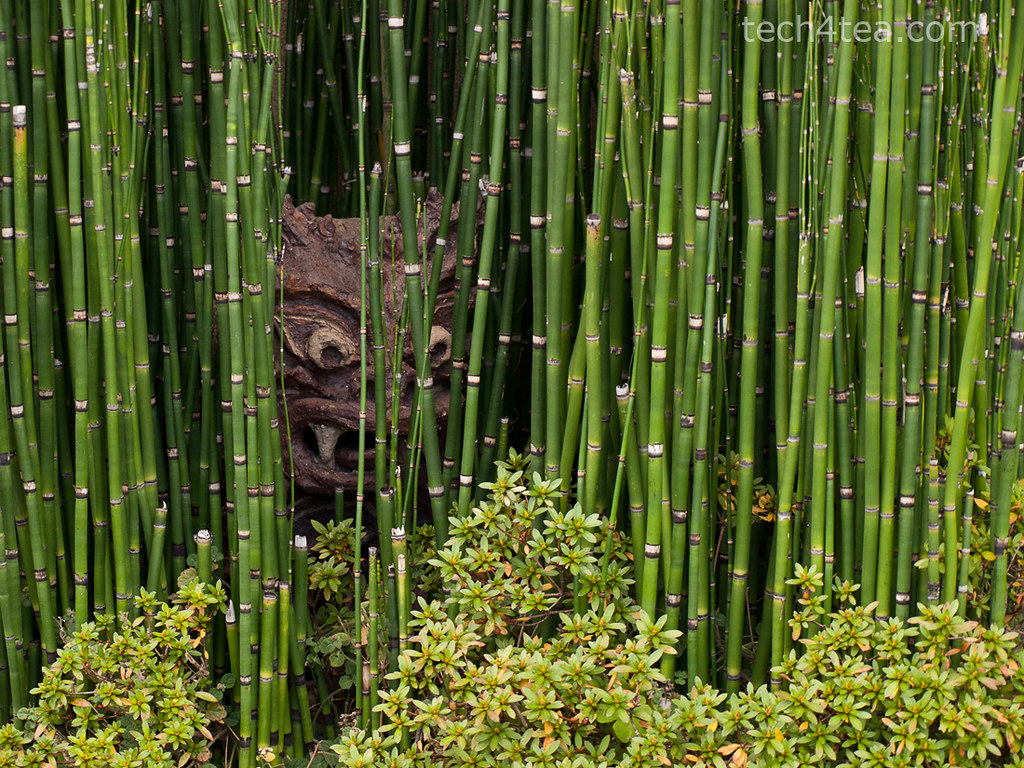
Pict 1: This gruesome troll was laying in ambush amidst a bamboo grove by the roadside in Kyoto as I walked past towards the train station.

With cameras offering more and more megapixels, we frequently need to reduce the size of photos for emailing to friends or sharing online – to reduce upload and download time. Sometimes, we need to change the aspect ratio (between the width and height of the photo) of the photo, perhaps to use it as part of a web page design.

Scaling a photo
Scale Image dialog box in GIMP

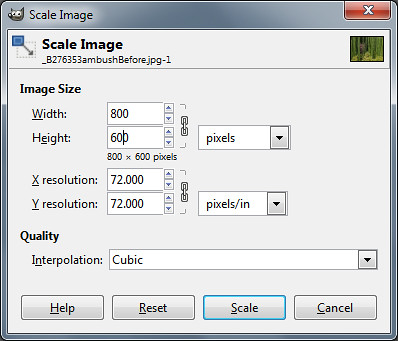
Pict 2: Change the Width and Height pixel settings to resize the photo.

To reduce the size of a photo in GIMP, use the Image > Scale Image command from the main menu. A “Scale Image” dialog box pops up.

Change the Width and Height fields to the desired dimensions. Make sure the unit of measure for the Width and Height is in pixels (the default).

The chain link between the two fields locks the aspect ratio of the photo. Hence, you only need to adjust the pixel dimension of either the Width or the Height field and GIMP will calculate the corresponding pixel dimension for the other field so that the aspect ratio is kept constant.

Caution: Clicking on the chain icon will change it into a broken chain. The width and height can then be changed independently without preserving the original aspect ratio. Doing this for photos will cause distortions – people, trees and things in the photo become either tall and thin, or short and squat.

Leave the interpolation method to the default setting of “Cubic”. There is no need to adjust to adjust the resolution fields.

Press the “Resize” button and the pixels in the photo will be resampled.

Caution: Scale Image can be used to increase the size of photos but avoid that because the up-sampling will reduce the quality of the photos and make it appear blurry.

Reshaping a photo

To change the aspect ratio of a photo without causing any distortions, use either of the two following methods.

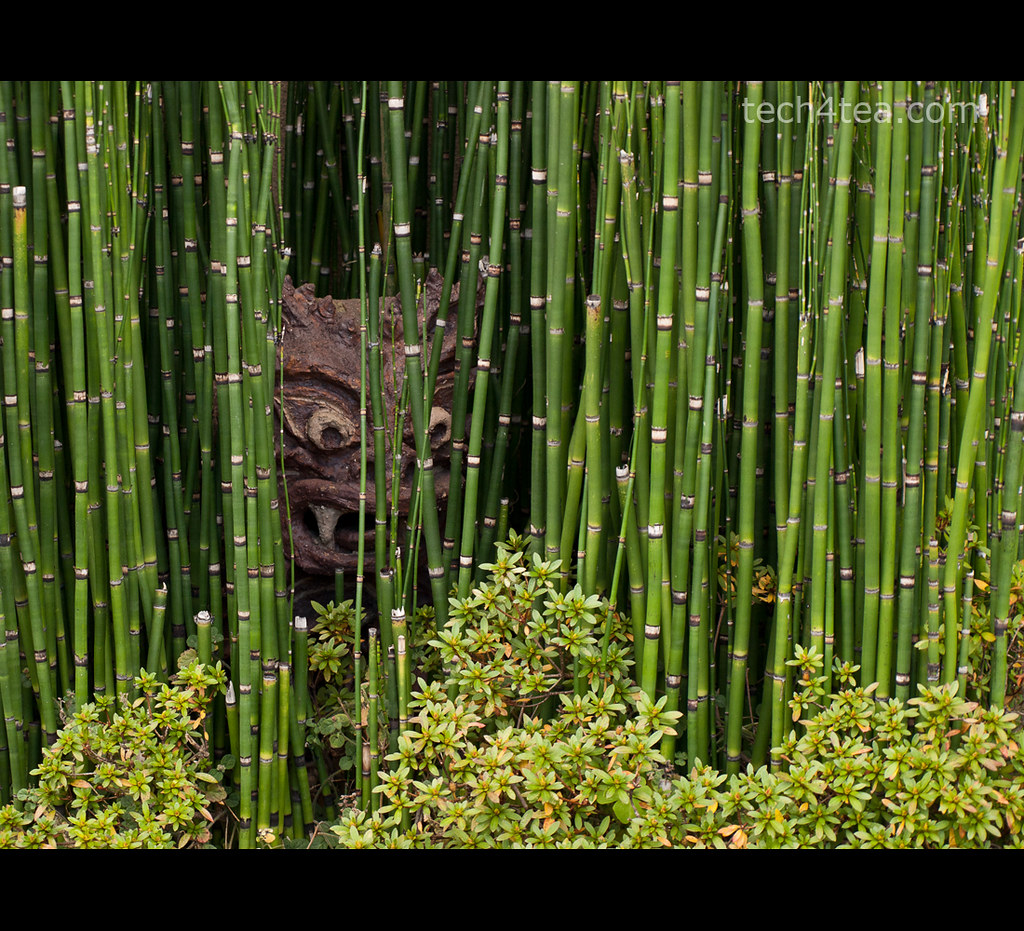
Portrait version of Japanese troll

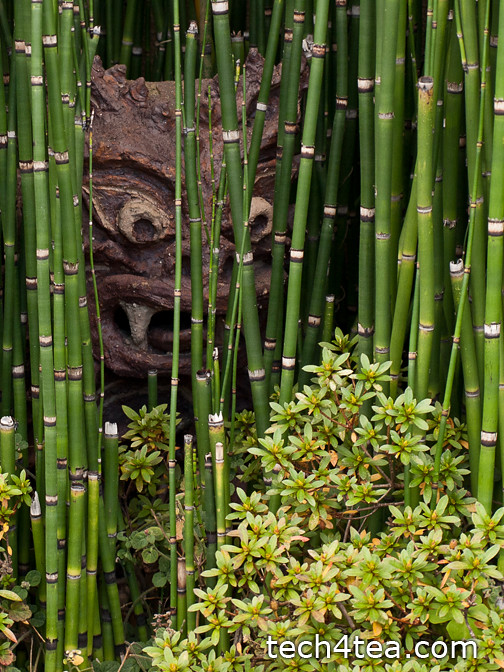
Pict 3: The photo was cropped to a portrait orientation to zoom into the Japanese troll.

Use the Crop tool in the Toolbox to select the area in the photo to be retained. Use the Tool Options below the Toolbox to help select the area better. Check the “Fixed” checkbox to set a specific aspect ratio, width, height or size. Even after dragging out the selection, you can move the selection boundary or resize/reshape it before pressing “Enter” key to execute the crop.

Now that the photo is of the right aspect ration, use “Image Scale” to resize it if necessary.

What if the photo is so tightly framed that you don’t want to crop the forehead or an ear of the subject out of the photo? You’ll have to add pixels to the sides to make the photo fatter, or to the top and/or bottom to make the photo taller.

Dialog box for Canvas Size command in GIMP

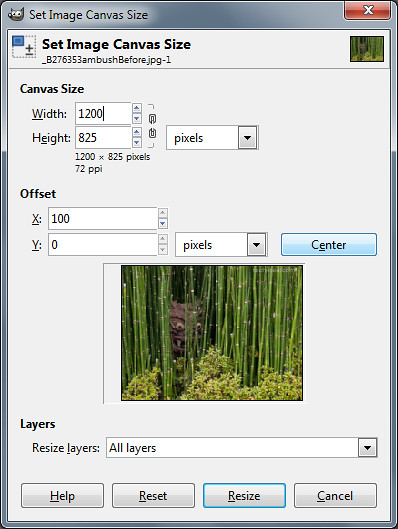
Pict 4: Click the Center button to centre add new pixels equally between opposite sides.

Use the Image > Canvas Size to do this. A “Set Image Canvas Size” dialog box pops up.

Type the desired dimensions in pixels in the Width and Height fields under Canvas Size. Click the chain icon joining the two fields to de-couple them so as to specify a canvas with a different aspect ratio from the original photo.

Set the “Resize layers” dropdown box to “All layers”. Press the “Center” button to centre the photo.

A fatter image

Pict 5: New pixels have been added to the sides of the photo.

When you press the Resize button, additional pixels will be added either to both sides or to the top/bottom of the photo. Unlike the Scale Image command, the original pixels remain untouched.

Use “Image Scale” to resize the photo if necessary.

Caution: If the Width or Height dimensions are reduced, the photo will be cropped instead.

Fine-tuning and trouble-shooting

A taller image

Pict 6: New pixels have been added to the top and bottom.

If the photo was the Background layer before activating the Canvas Size command, the new pixels will take on the colour of the Background Color swatch in the Toolbox.

So in order to specify the colour of the new pixels, click on the Background Color swatch to select the desired colour – BEFORE activating the Canvas Size command.

If the photo was not the Background layer, activate the Image > Flatten Image command from the main menu before the Canvas Size command as well.

Adding a coloured border/frame

Sometimes, even though the photo is of the desired aspect ratio, we may want to add a coloured margin around it, either a white border to make it look like a traditional photo print, or a coloured frame for decoration.

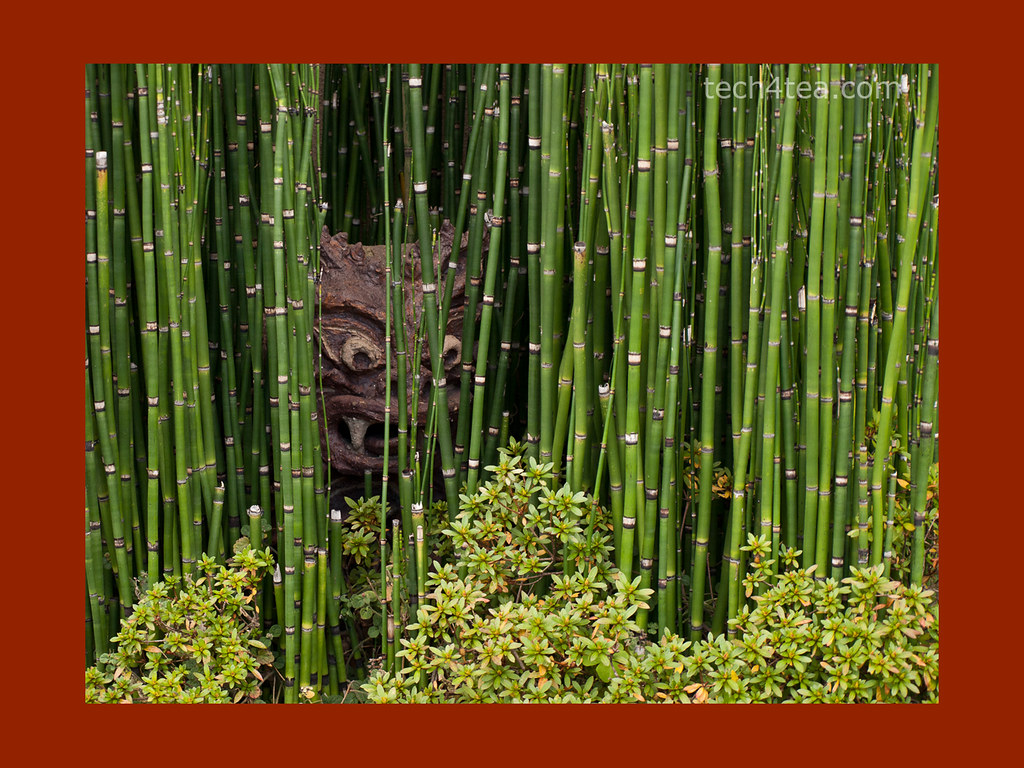
A coloured photo frame or border

Pict 7: A solid-coloured photo frame/border has been added.

In this case, use the Canvas Size, and in the “Set Image Canvas Size” dialog box, increase the Width or Height setting while leaving the chain icon connected. Click the Center button to center the photo and set “Resize layers” dropdown box to “All layers” as before.

You can look at the preview thumbnail in the dialog box to see how thick the margin is with respect to the photo before pressing the “Resize” button.

Intermediate GIMP Series on photo or image-editing

Friday, February 18th, 2011

I will commence the Intermediate GIMP Series this weekend. It will run every weekend on Saturday and Sunday. That way, readers have more time to try out the tutorials and play with their vacation photos outside of work.

Due to positive comments and feedback from readers and friends on the 14-part Basic GIMP series in January, I’ve decided to run a follow-up series on GIMP, this time at intermediate level.
GIMP's splash logo for v2.2

v2.2 logo by Bill Luhtala

There will be 14 parts and should take us through March to the beginning of April.

Don’t expect anything too complex as I’ll try to keep explanations simple for the layman. The topics are based on suggestions from readers and I’ve arranged them to be useful and applicable in daily life and work.

There’ll still be some fairly basic stuff but we’ll also look at some more powerful controls for adjusting images, such as Levels and Curves.

If you have any comments, feel free to email me at johntan@tech4tea.com or simply comment in the pertinent posting.

New features for upcoming GIMP 2.8

Tuesday, January 18th, 2011
Numerous enhancements … but my most longed for feature – non-destructive editing – will only be in the version after that. Still I’m looking forward to v2.8.

The recent announcement on GIMP’s official website gave a teaser on some of the new features and future thrusts for the next stable release of GIMP and beyond. 

First off, the GIMP development team are now in the final stages of developing the next stable release of GIMP – version 2.8. Enhancements include “layer groups, improved brush dynamics, a new unique transformation tool, optional single-window mode and more”.

According to the notice, the focus of development after the release of v2.8 will shift to deep integration of GEGL – the new non-destructive image processing core. Non-destructive image editing is one of the areas where GIMP lags behind Photoshop. This thrust will “enable many features considered critical for use of GIMP in (a) professional environment.

GIMP's splash logo for v1

v1 Logo by Jens Lautenbacher

GIMP started life as a semester project at University of California, Berkeley in 1995 and was first released to the public in 1996. The current stable release is v2.6 which was released in 2008. The latest bugfix is v2.6.11 dated Oct 2010.

Some useful links for GIMP users

Sunday, January 16th, 2011

Here’s a short list of links for GIMP users. Feel free to contribute additional links you feel are relevant and useful.

GIMP's splash logo for v2.4

v2.4 Logo by Paul Davey

Forums and discussions boards that contains tutorials and answers questions about GIMP techniques and problems.

Series on using GIMP for photo-editing

Saturday, January 15th, 2011

We have come to the end of the Basic GIMP series. I’ve tried to cover the most basic and commonly needed tasks a photographer needs to correct or enhance his/her photos.

GIMP's splash logo for v2.6

v2.6 Logo by Alexia Death

For an exhaustive descriptive of every feature in GIMP, you may find the user manual useful.

Hopefully, you’ve enjoyed the articles as much as I’ve enjoyed writing them.

If you have any queries or comments on any of the techniques or steps described in the tutorials, please feel free to email me.

Intermediate series on GIMP in Feb 2011

Some readers and friends have encouraged me to continue with the series. As such, I will be commencing an intermediate series on using GIMP in February 2011. This will cover more complex photo correction and enhancement techniques.

If there are any photo-editing techniques or tasks that you want me to cover, email me at johntan@tech4tea.com.

Feel free to let me know if you want to contribute some of your own favourite techniques.

Use GIMP to create vignettes and digital photo frames (Final Part 14 of 14)

Friday, January 14th, 2011
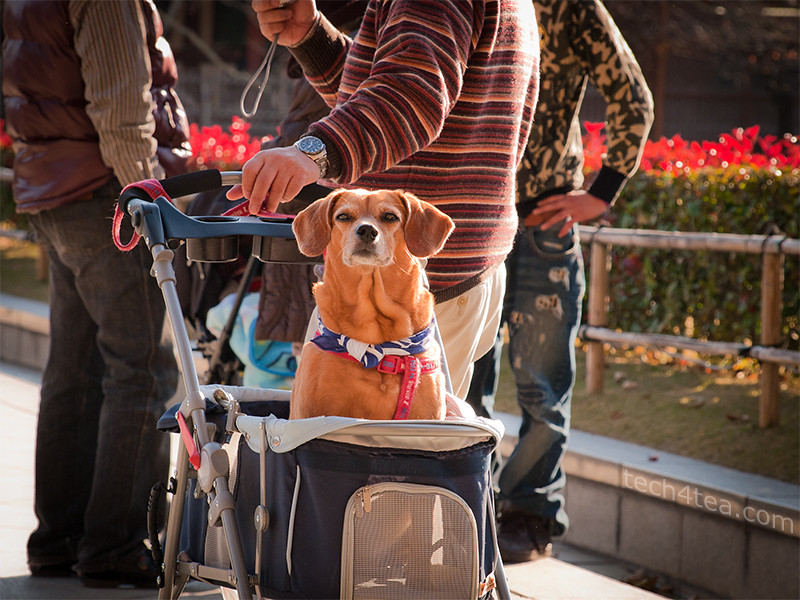
Dog in a pram

Pict 1: This dog's eyes caught mine outside the Todaiji - a UNESCO World Heritage Site in Nara, Japan.

Create simple vignettes or digital photo frames for those special photos.

Yesterday, we used the rudimentary Rectangle Select Tool in GIMP to create a selection for making local adjustments to specific parts of a photo.

Today we check out the Ellipse Select Tool and use it to make simple vignettes and photo frames for digital photos.This is also the most common request that I receive from readers.

Ellipse Select Tool
Selecting the foreground colour in GIMP

Pict 2: The same colour picker is used whenever selecting colour in GIMP.

The Ellipse Select Tool works in the same way as the Rectangle Select Tool.

In Picture 1 above, I want to add an oval photo frame around the dog. This will exclude the clutter and distractions in the vicinity of the dog and put the focus on the dog itself. Download the photo of the dog and follow along.

Since the photoframe around the dog will be an upright oval, crop the original photo from a broad landscape orientation to a tall portrait orientation.

Cropped photo of dog with oval mat

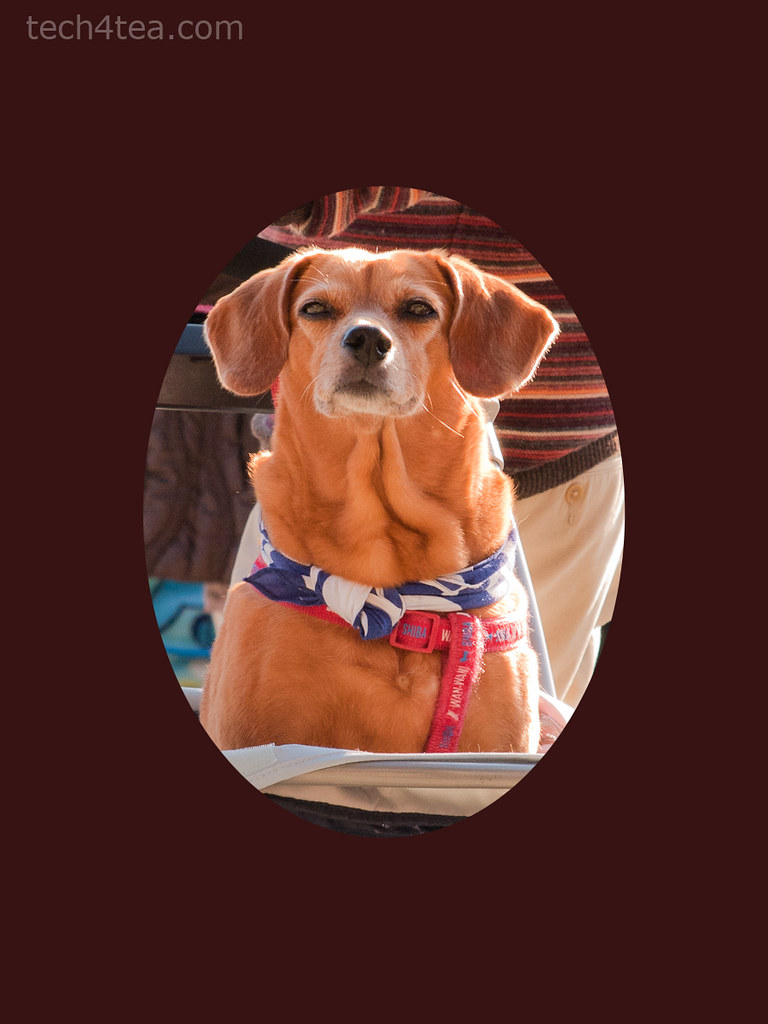
Pict 3: Crop the original photo and add the inner mat of the "photo frame" to exclude the distracting surroundings.

Using the Ellipse Select Tool, drag the cursor around the dog to form a tight oval selection around it (I have no idea whether it’s male or female). Now all the pixels inside the oval selection boundary is selected.

To create the inner mat for the photoframe, we want to fill the area OUTSIDE the oval with dark brown. Click on the Select > Invert command from the main menu to invert the selection. You can also press Ctrl-I on the keyboard as a shortcut. The area outside the original selection is now selected, while the original selection is now omitted.

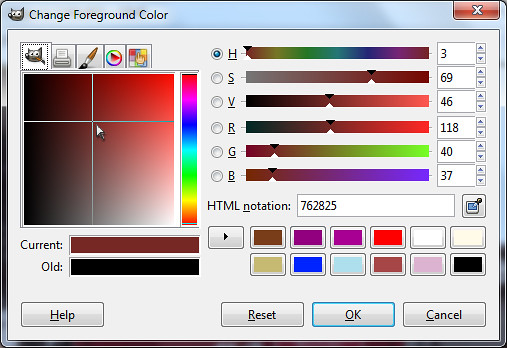
Click on the foreground colour swatch in the Toolbox and select a dark brown colour from the “Change Foreground Color” dialog box that pops up (see Picture 2 above).

Dog in a "photo frame"

Pict 4: The dog is now in a simple "photo frame" with inner matting.

To select a colour, first click in the thin vertical strip of colour to pick the colour family. The big square colour swatch shows the different tones of the selected colour family. Click within this big square to select the foreground colour.

From the main menu, select the Edit > Fill with FG command to fill the mat with dark brown (see Picture 3).

If you simply want a simple oval photoframe, you can stop here and crop the photo closer to the oval frame.

For a photoframe with an inner mat, you need to add the outer frame. Repeat the above steps but make a slightly bigger oval selection and fill it with orange (see Picture 4). Don’t forget to press Ctrl-I to invert the selection before filling it with orange.

Vignette Effect
Dog in a vignette

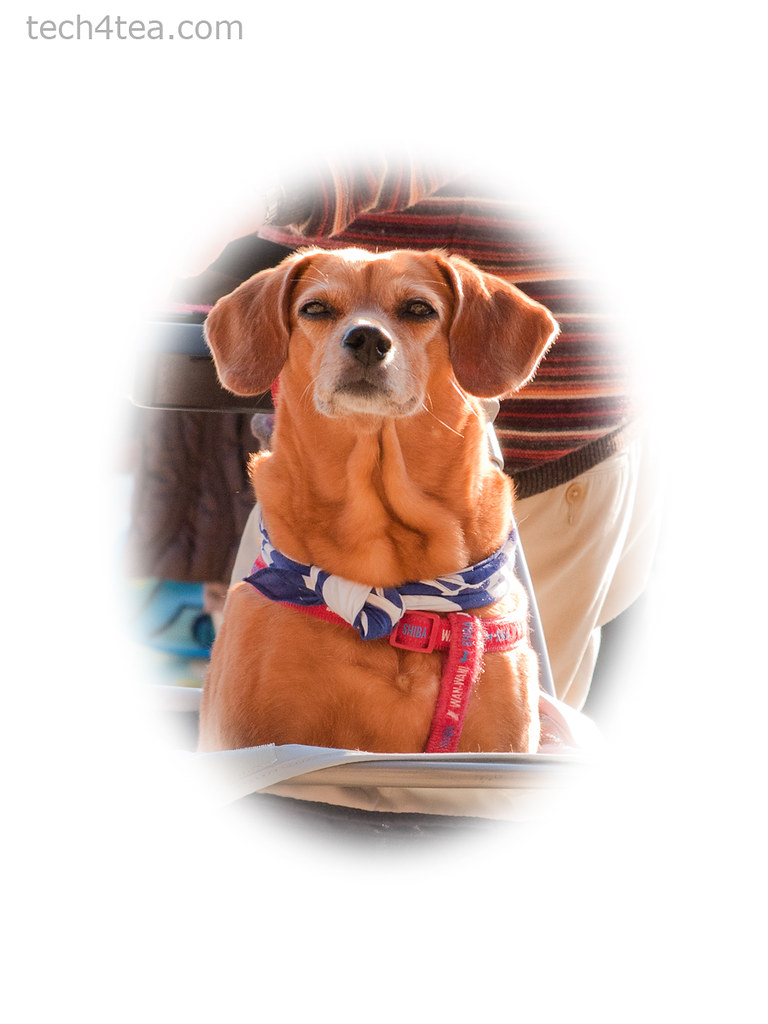
Pict 5: The dog is now nicely vignetted.

A vignette is a frame with blurred edges, usually oval in shape – although you can ceate a vignette of any shape you want.

Activate the Ellipse Select Tool from the Toolbox. For a rectangular vignette, use the Rectangle Select Tool instead.

In the tool options below the Toolbox, click the “Feather edges” checkbox . A Radius slider appears that determines the thickness of the blurred region at the edge of the selection. Set the Radius setting to the maximum of 100.

Drag an oval selection around the subject. Press Ctrl-I to invert the selection and fill it with white or any colour you want. A quick shortcut to set the Foreground colour to white is to press “D” followed by “X” on the keyboard.