Posts Tagged ‘GIMP’

Size matters – resizing and reshaping a photo in GIMP (Intermediate series: Part 1 of 14)

Saturday, February 19th, 2011

Starting off the 14-part Intermediate Photo Editing series for GIMP this weekend, this warm-up tutorial looks at resizing and reshaping a photo.
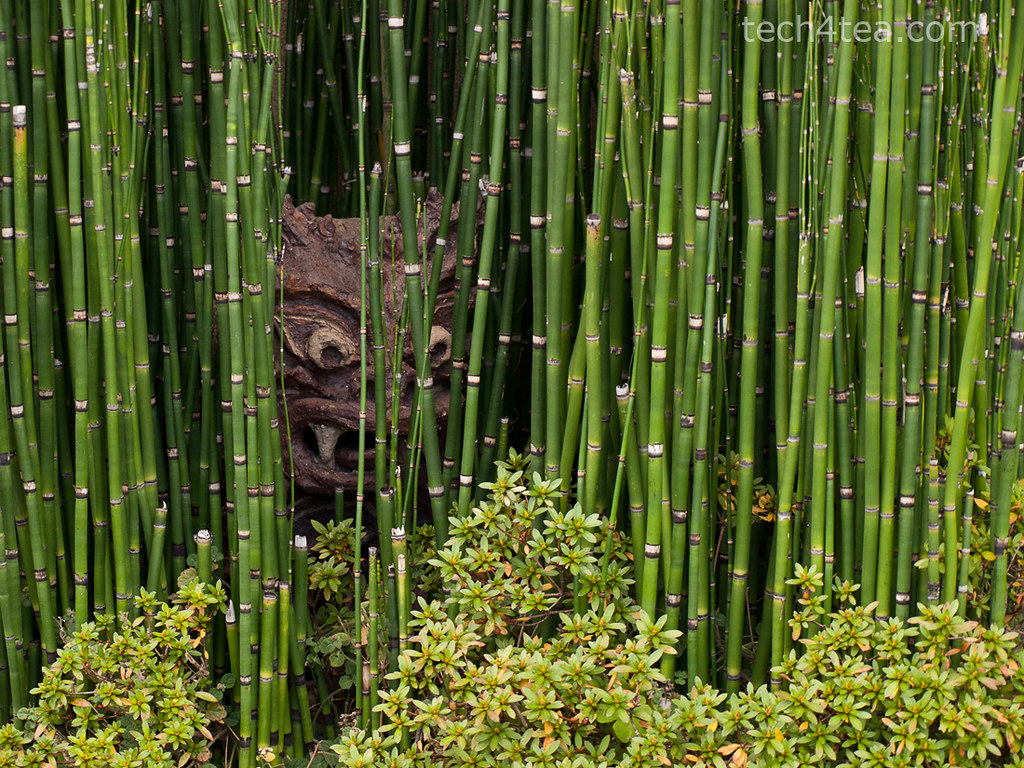
Ambush

Pict 1: This gruesome troll was laying in ambush amidst a bamboo grove by the roadside in Kyoto as I walked past towards the train station.

With cameras offering more and more megapixels, we frequently need to reduce the size of photos for emailing to friends or sharing online – to reduce upload and download time. Sometimes, we need to change the aspect ratio (between the width and height of the photo) of the photo, perhaps to use it as part of a web page design.
Scaling a photo
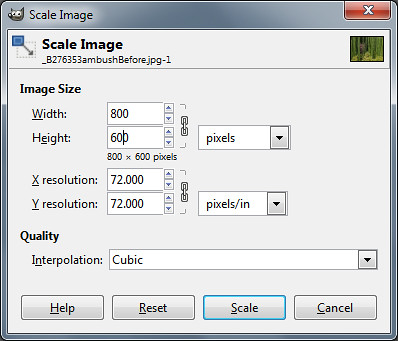
Scale Image dialog box in GIMP

Pict 2: Change the Width and Height pixel settings to resize the photo.

To reduce the size of a photo in GIMP, use the Image > Scale Image command from the main menu. A “Scale Image” dialog box pops up.

Change the Width and Height fields to the desired dimensions. Make sure the unit of measure for the Width and Height is in pixels (the default).

The chain link between the two fields locks the aspect ratio of the photo. Hence, you only need to adjust the pixel dimension of either the Width or the Height field and GIMP will calculate the corresponding pixel dimension for the other field so that the aspect ratio is kept constant.

Caution: Clicking on the chain icon will change it into a broken chain. The width and height can then be changed independently without preserving the original aspect ratio. Doing this for photos will cause distortions – people, trees and things in the photo become either tall and thin, or short and squat.

Leave the interpolation method to the default setting of “Cubic”. There is no need to adjust to adjust the resolution fields.

Press the “Resize” button and the pixels in the photo will be resampled.

Caution: Scale Image can be used to increase the size of photos but avoid that because the up-sampling will reduce the quality of the photos and make it appear blurry.

Reshaping a photo

To change the aspect ratio of a photo without causing any distortions, use either of the two following methods.
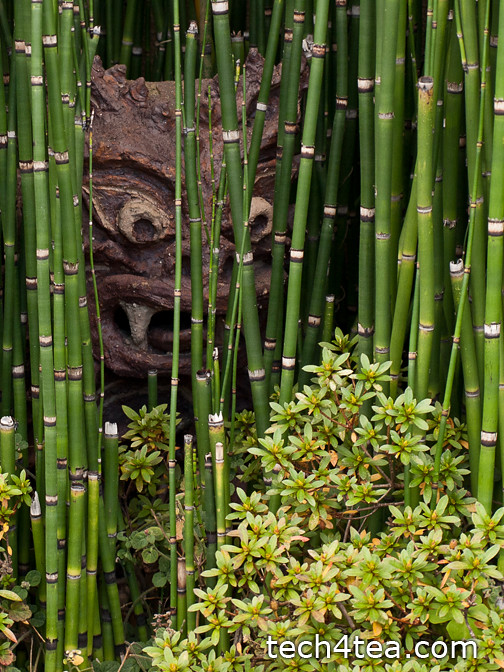
Portrait version of Japanese troll

Pict 3: The photo was cropped to a portrait orientation to zoom into the Japanese troll.

Use the Crop tool in the Toolbox to select the area in the photo to be retained. Use the Tool Options below the Toolbox to help select the area better. Check the “Fixed” checkbox to set a specific aspect ratio, width, height or size. Even after dragging out the selection, you can move the selection boundary or resize/reshape it before pressing “Enter” key to execute the crop.

Now that the photo is of the right aspect ration, use “Image Scale” to resize it if necessary.

What if the photo is so tightly framed that you don’t want to crop the forehead or an ear of the subject out of the photo? You’ll have to add pixels to the sides to make the photo fatter, or to the top and/or bottom to make the photo taller.
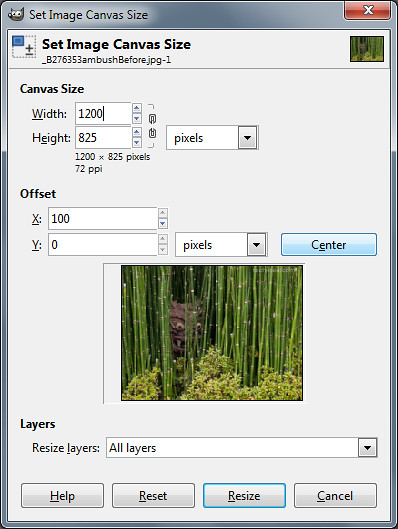
Dialog box for Canvas Size command in GIMP

Pict 4: Click the Center button to centre add new pixels equally between opposite sides.

Use the Image > Canvas Size to do this. A “Set Image Canvas Size” dialog box pops up.

Type the desired dimensions in pixels in the Width and Height fields under Canvas Size. Click the chain icon joining the two fields to de-couple them so as to specify a canvas with a different aspect ratio from the original photo.

Set the “Resize layers” dropdown box to “All layers”. Press the “Center” button to centre the photo.
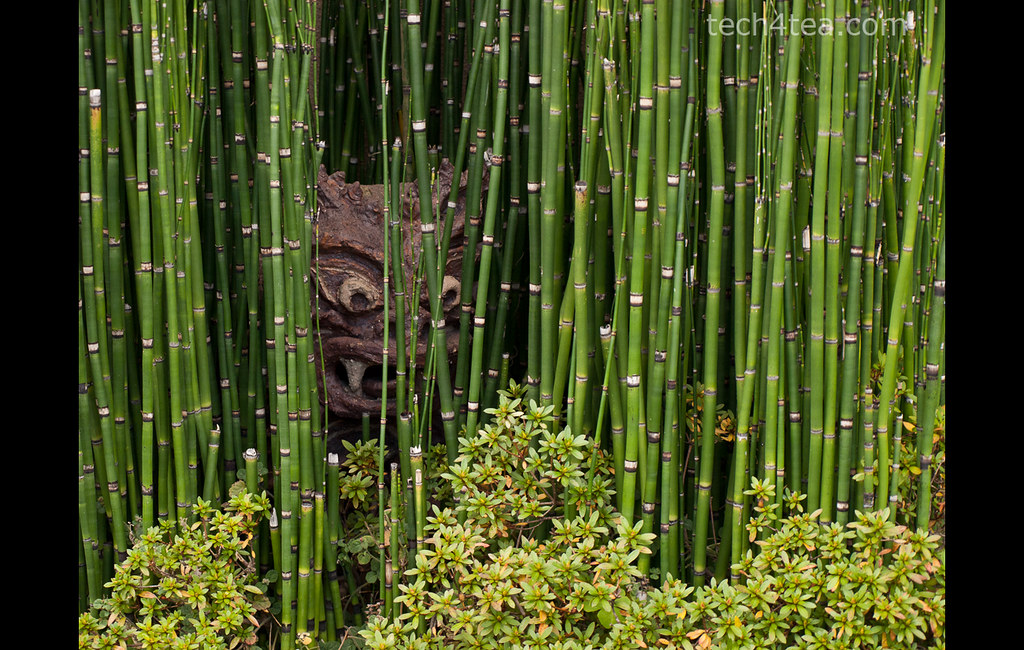
A fatter image

Pict 5: New pixels have been added to the sides of the photo.

When you press the Resize button, additional pixels will be added either to both sides or to the top/bottom of the photo. Unlike the Scale Image command, the original pixels remain untouched.

Use “Image Scale” to resize the photo if necessary.

Caution: If the Width or Height dimensions are reduced, the photo will be cropped instead.

Fine-tuning and trouble-shooting
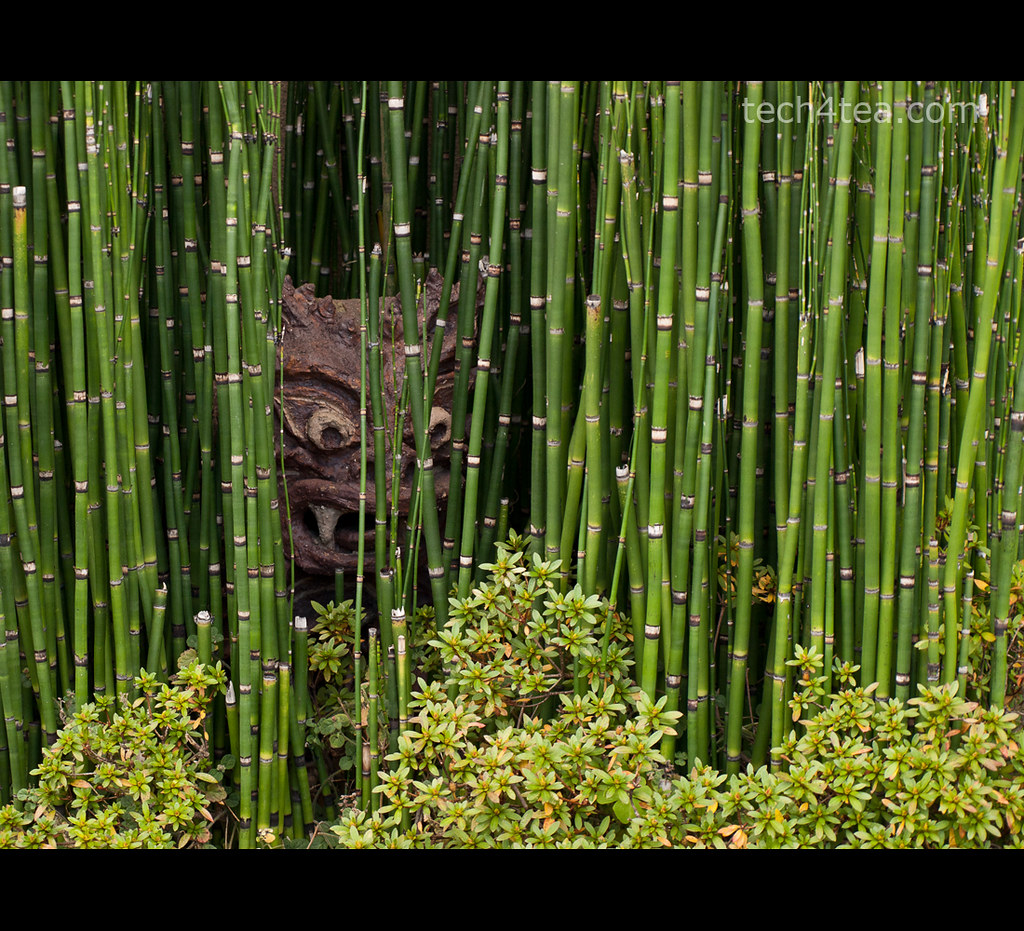
A taller image

Pict 6: New pixels have been added to the top and bottom.

If the photo was the Background layer before activating the Canvas Size command, the new pixels will take on the colour of the Background Color swatch in the Toolbox.

So in order to specify the colour of the new pixels, click on the Background Color swatch to select the desired colour – BEFORE activating the Canvas Size command.

If the photo was not the Background layer, activate the Image > Flatten Image command from the main menu before the Canvas Size command as well.

Adding a coloured border/frame

Sometimes, even though the photo is of the desired aspect ratio, we may want to add a coloured margin around it, either a white border to make it look like a traditional photo print, or a coloured frame for decoration.
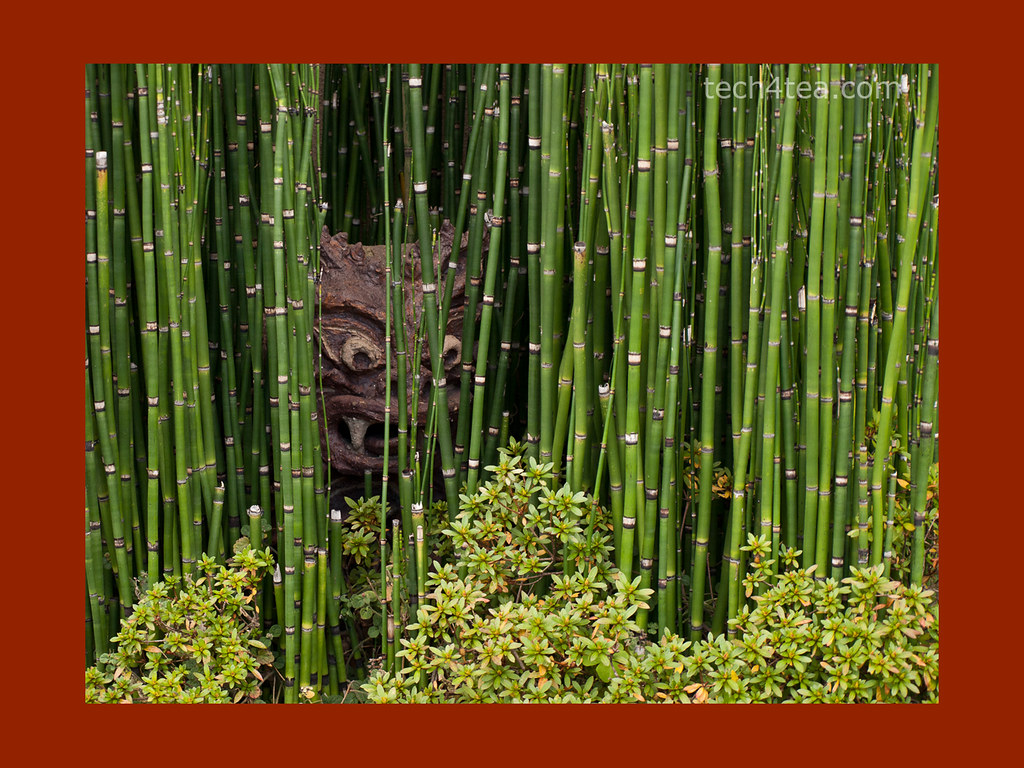
A coloured photo frame or border

Pict 7: A solid-coloured photo frame/border has been added.

In this case, use the Canvas Size, and in the “Set Image Canvas Size” dialog box, increase the Width or Height setting while leaving the chain icon connected. Click the Center button to center the photo and set “Resize layers” dropdown box to “All layers” as before.

You can look at the preview thumbnail in the dialog box to see how thick the margin is with respect to the photo before pressing the “Resize” button.
Intermediate GIMP Series on photo or image-editing

Friday, February 18th, 2011

I will commence the Intermediate GIMP Series this weekend. It will run every weekend on Saturday and Sunday. That way, readers have more time to try out the tutorials and play with their vacation photos outside of work.

Due to positive comments and feedback from readers and friends on the 14-part Basic GIMP series in January, I’ve decided to run a follow-up series on GIMP, this time at intermediate level.
GIMP's splash logo for v2.2

v2.2 logo by Bill Luhtala

There will be 14 parts and should take us through March to the beginning of April.

Don’t expect anything too complex as I’ll try to keep explanations simple for the layman. The topics are based on suggestions from readers and I’ve arranged them to be useful and applicable in daily life and work.

There’ll still be some fairly basic stuff but we’ll also look at some more powerful controls for adjusting images, such as Levels and Curves.

If you have any comments, feel free to email me at johntan@tech4tea.com or simply comment in the pertinent posting.

New features for upcoming GIMP 2.8

Tuesday, January 18th, 2011
Numerous enhancements … but my most longed for feature – non-destructive editing – will only be in the version after that. Still I’m looking forward to v2.8.

The recent announcement on GIMP’s official website gave a teaser on some of the new features and future thrusts for the next stable release of GIMP and beyond. 

First off, the GIMP development team are now in the final stages of developing the next stable release of GIMP – version 2.8. Enhancements include “layer groups, improved brush dynamics, a new unique transformation tool, optional single-window mode and more”.

According to the notice, the focus of development after the release of v2.8 will shift to deep integration of GEGL – the new non-destructive image processing core. Non-destructive image editing is one of the areas where GIMP lags behind Photoshop. This thrust will “enable many features considered critical for use of GIMP in (a) professional environment.

GIMP's splash logo for v1

v1 Logo by Jens Lautenbacher

GIMP started life as a semester project at University of California, Berkeley in 1995 and was first released to the public in 1996. The current stable release is v2.6 which was released in 2008. The latest bugfix is v2.6.11 dated Oct 2010.

Some useful links for GIMP users

Sunday, January 16th, 2011

Here’s a short list of links for GIMP users. Feel free to contribute additional links you feel are relevant and useful.

GIMP's splash logo for v2.4

v2.4 Logo by Paul Davey

Forums and discussions boards that contains tutorials and answers questions about GIMP techniques and problems.

Series on using GIMP for photo-editing

Saturday, January 15th, 2011

We have come to the end of the Basic GIMP series. I’ve tried to cover the most basic and commonly needed tasks a photographer needs to correct or enhance his/her photos.

GIMP's splash logo for v2.6

v2.6 Logo by Alexia Death

For an exhaustive descriptive of every feature in GIMP, you may find the user manual useful.

Hopefully, you’ve enjoyed the articles as much as I’ve enjoyed writing them.

If you have any queries or comments on any of the techniques or steps described in the tutorials, please feel free to email me.

Intermediate series on GIMP in Feb 2011

Some readers and friends have encouraged me to continue with the series. As such, I will be commencing an intermediate series on using GIMP in February 2011. This will cover more complex photo correction and enhancement techniques.

If there are any photo-editing techniques or tasks that you want me to cover, email me at johntan@tech4tea.com.

Feel free to let me know if you want to contribute some of your own favourite techniques.

Use GIMP to create vignettes and digital photo frames (Final Part 14 of 14)

Friday, January 14th, 2011
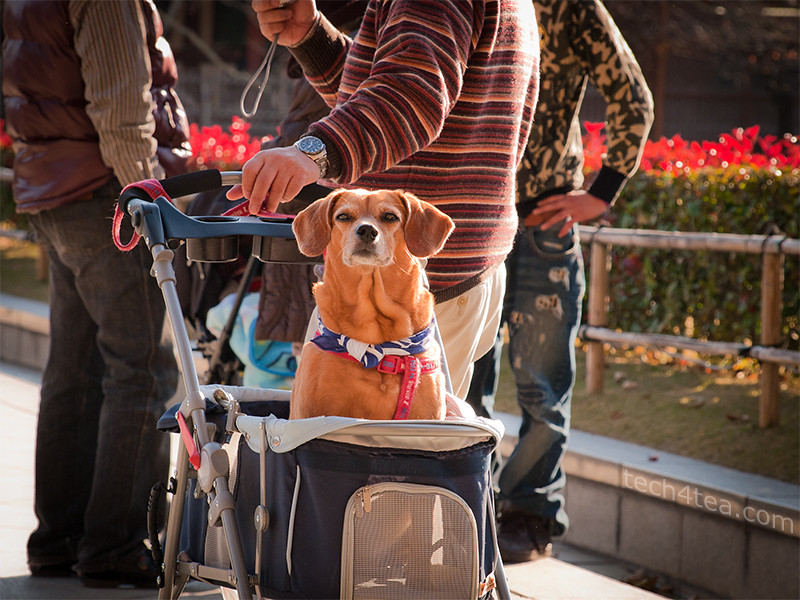
Dog in a pram

Pict 1: This dog's eyes caught mine outside the Todaiji - a UNESCO World Heritage Site in Nara, Japan.

Create simple vignettes or digital photo frames for those special photos.

Yesterday, we used the rudimentary Rectangle Select Tool in GIMP to create a selection for making local adjustments to specific parts of a photo.

Today we check out the Ellipse Select Tool and use it to make simple vignettes and photo frames for digital photos.This is also the most common request that I receive from readers.

Ellipse Select Tool
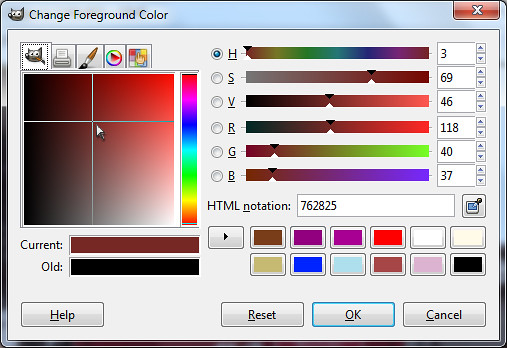
Selecting the foreground colour in GIMP

Pict 2: The same colour picker is used whenever selecting colour in GIMP.

The Ellipse Select Tool works in the same way as the Rectangle Select Tool.

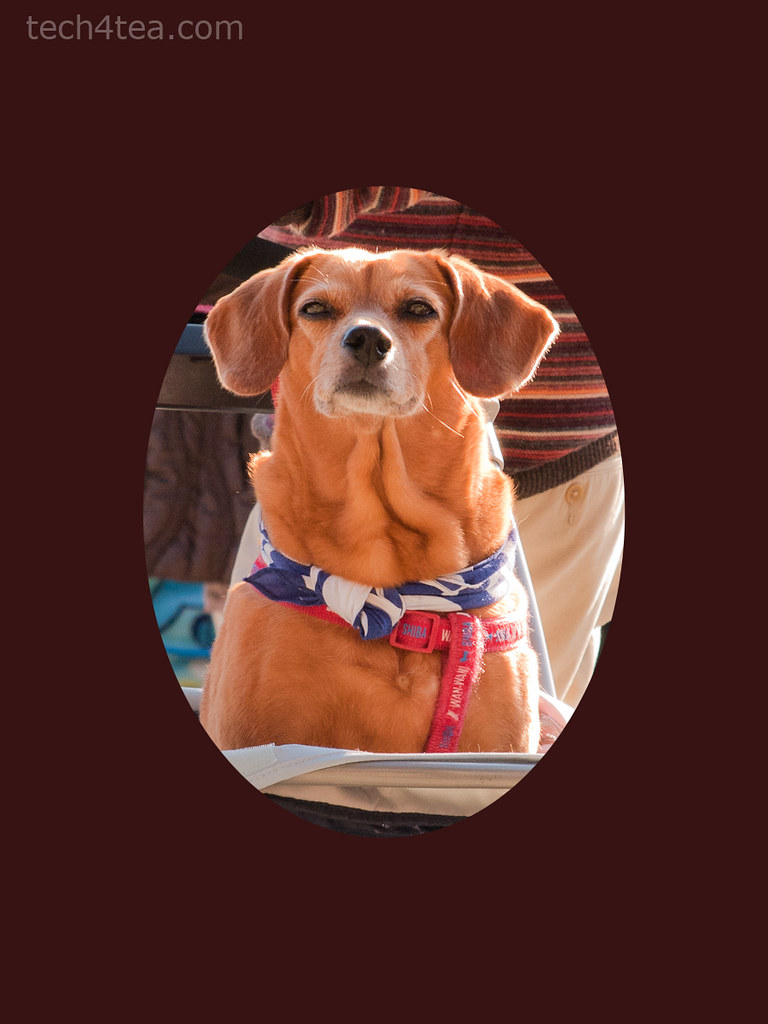
In Picture 1 above, I want to add an oval photo frame around the dog. This will exclude the clutter and distractions in the vicinity of the dog and put the focus on the dog itself. Download the photo of the dog and follow along.

Since the photoframe around the dog will be an upright oval, crop the original photo from a broad landscape orientation to a tall portrait orientation.

Cropped photo of dog with oval mat

Pict 3: Crop the original photo and add the inner mat of the "photo frame" to exclude the distracting surroundings.

Using the Ellipse Select Tool, drag the cursor around the dog to form a tight oval selection around it (I have no idea whether it’s male or female). Now all the pixels inside the oval selection boundary is selected.

To create the inner mat for the photoframe, we want to fill the area OUTSIDE the oval with dark brown. Click on the Select > Invert command from the main menu to invert the selection. You can also press Ctrl-I on the keyboard as a shortcut. The area outside the original selection is now selected, while the original selection is now omitted.

Click on the foreground colour swatch in the Toolbox and select a dark brown colour from the “Change Foreground Color” dialog box that pops up (see Picture 2 above).

Dog in a "photo frame"

Pict 4: The dog is now in a simple "photo frame" with inner matting.

To select a colour, first click in the thin vertical strip of colour to pick the colour family. The big square colour swatch shows the different tones of the selected colour family. Click within this big square to select the foreground colour.

From the main menu, select the Edit > Fill with FG command to fill the mat with dark brown (see Picture 3).

If you simply want a simple oval photoframe, you can stop here and crop the photo closer to the oval frame.

For a photoframe with an inner mat, you need to add the outer frame. Repeat the above steps but make a slightly bigger oval selection and fill it with orange (see Picture 4). Don’t forget to press Ctrl-I to invert the selection before filling it with orange.

Vignette Effect
Dog in a vignette

Pict 5: The dog is now nicely vignetted.

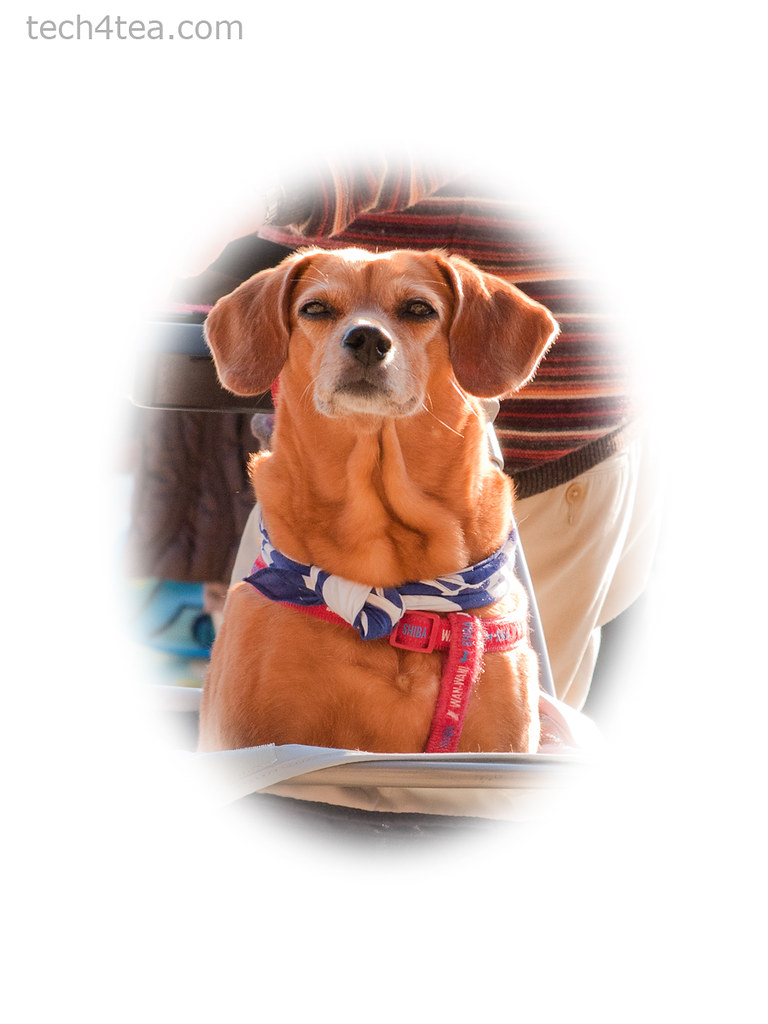
A vignette is a frame with blurred edges, usually oval in shape – although you can ceate a vignette of any shape you want.

Activate the Ellipse Select Tool from the Toolbox. For a rectangular vignette, use the Rectangle Select Tool instead.

In the tool options below the Toolbox, click the “Feather edges” checkbox . A Radius slider appears that determines the thickness of the blurred region at the edge of the selection. Set the Radius setting to the maximum of 100.

Drag an oval selection around the subject. Press Ctrl-I to invert the selection and fill it with white or any colour you want. A quick shortcut to set the Foreground colour to white is to press “D” followed by “X” on the keyboard.

Selecting specific portions of a photo for editing (Part 13 of 14)

Thursday, January 13th, 2011
Selecting certain areas in a photo allows only those specific areas to be targeted for editing. Any adjustments and tweaks applied will be limited to only the pixels within those selections.

Following my 6-part series in Digital Life (The Straits Times)  on basic photo-editing using GIMP, I received encouraging feedback and requests from readers and friends to cover more topics.

One of these was about the various ways of creating selections and vignettes in GIMP. A follow-up article was run on DL after the series. I cover these today and tomorrow for those who had missed it.

Selections for local adjustments

So far, most of the adjustments we’ve learnt have been applied to the entire photo. For example, removing a colour cast or darkening and overexposed snapshot. Such adjustments that are applied to the entire photo are known as “global adjustments”.

GIMP's selection tools and tool options

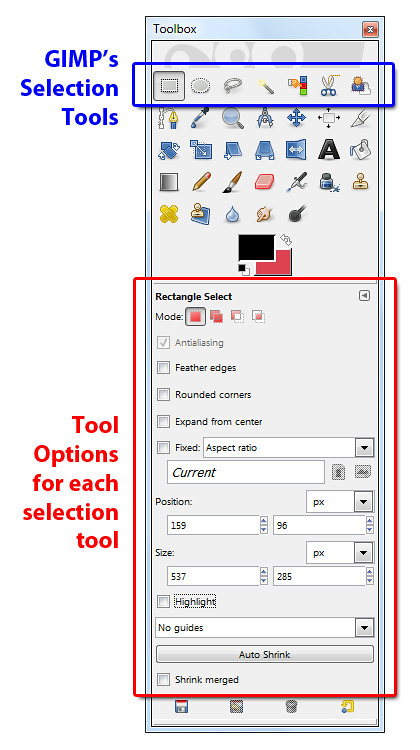
Pict 1: GIMP's selection tools are at the top of the Toolbox while the tool options are below.

What if we want to adjust only a small portion of a photo? For instance, we want to lighten only the face of a person standing in the shadows. Lightening the entire photo just to lighten up one face in the shadows could lead to the faces of other people standing in the sun to become overly bright instead.

In these cases, select only the areas in the photo that needs to be adjusted. While those areas are selected, any adjustments applied will be limited to the pixels within those selections. Such adjustments where edits are done only on a specific part of a photo are called “local adjustments”.

As a workflow, global adjustments to the whole photo should be largely completed before commencing on local adjustments on specific areas of the photo.

In GIMP, the tools for making selections are located right at the top of the Toolbox (see Picture 1 and the sidebar on “GIMP’s selection tool options”). Today we try out the most basic selection tool – the Rectangle Select Tool.

Rectangle Select Tool

With the Rectangle Select Tool, simply click in the photo and drag the cursor to form a rectangular selection.

You should see a moving black-and-white dashed line (resembling a single file of marching ants) marking the outline of the selection. The pixels inside the boundary are now selected and whatever adjustments applied will affect only the selected pixels.

Adjusting the selection boundary (and not the pixels inside)

After you have made the initial selection, you can resize the selection to select a bigger or smaller area.

Move the cursor near the sides or corners of the rectangular selection until the cursor turns into a white triangle. Drag the corner to resize the selection boundary.

Deer chewing on an iron chain

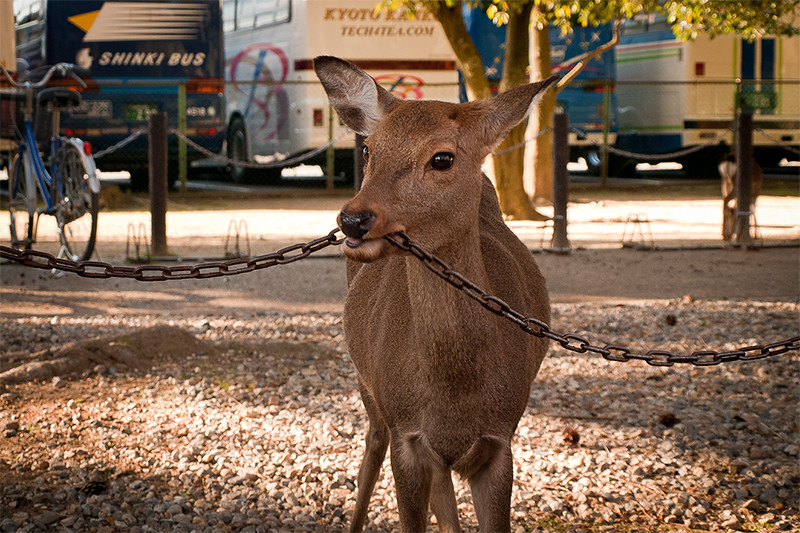
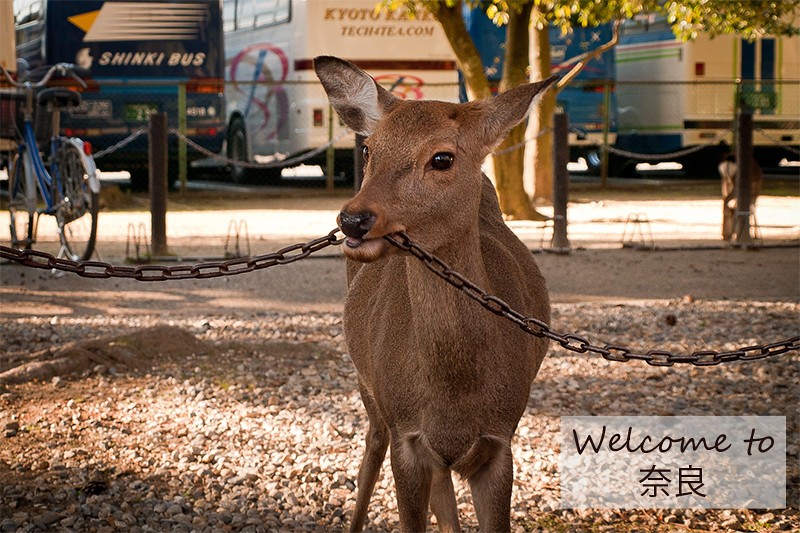
Pict 2: This demure deer was chewing on an iron chain for tea when I visited in Nara - Japan's ancient capital.

To move the entire selection boundary, move the cursor near the centre of the selection. When the cursor appears as two criss-crossing double-headed arrows, click and drag to move the selection boundary.

Once you have adjusted the selection boundary until it is where you want it to be and of the right size, you can edit the pixels within the selection.

Adjusting the selected pixels
Putting text captions on a photo

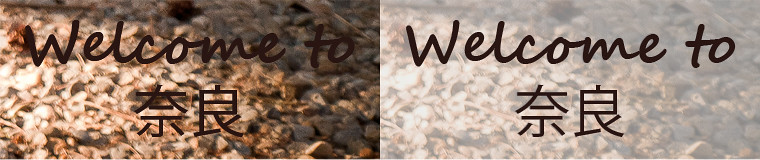
Pict 3: Captions on the photo is illegible unless its background is made lighter for more contrast against the dark text.

In Picture 2, I wanted to place a caption to label where the deer hails from. You can see that any text placed in the photo would be rather difficult to make out against the distracting background (see Picture 3).

Layers dialog in GIMP

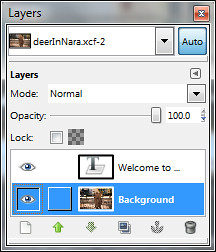
Pict 4: The captions reside in its own layer above the photo. Select the background layer first before increasing the brightness.

You can use the Text Tool to add captions. Any captions added will reside on its own layer above the background layer containing the photo.

Using the Rectangle Select Tool, I made a rectangular selection around the captions. Making sure the background layer with the photo (and not the text layer containing the caption) is selected (see Picture 4), I activated the Colors > Brightness-Contrast command from the main menu.

In the Brightness-Contrast dialog box, I increased the brightness of its the selected area in the photo by dragging the Brightness slider

Iron chewing deer with captions

Pict 5: This iron chewing deer awaits you should you visit the Deer Park in Nara.

At about 100, the dark caption became more legible (see Picture 5).

In the final episode of this series tomorrow, we’ll use the Ellipse Select Tool to create simple digital photo frames, as well as vignettes with blurred edges.

GIMP’s selection tool options

Thursday, January 13th, 2011
In GIMP, the tools for making selections are located right at the top of the Toolbox.

GIMP's selection tools and tool options

GIMP's selection tools are at the top of the Toolbox while the tool options are below.

The tool options below the Toolbox contains options that affect how the selection tools work, such as fuzzy edges and rounded corners for rectangular selections. It also displays the size and position of the selection in the photo.

The “Expand from center” checkbox allows the selection to be made by dragging from the centre of the rectangle or ellipse (instead of starting from a corner).

To make a selection of specific dimensions or aspect ratio, tick the “Fixed” checkbox. For instance, Type 1:1 in the text box to select a perfect square or circle.

To view the selected area better, click the “Highlight” checkbox so that the unselected areas are darkened slightly. The options in the guides dropdown box allows useful guides such as centre-lines, golden sections or the rule-of-thirds grid to be shown within the selection.

Digital makeover using GIMP (Part 12 of 14)

Wednesday, January 12th, 2011

Why stop at removing those red eyes. Use GIMP to remove moles, pimples, scars and wrinkles. Whiten the teeth and eyes, add a twinkle to the pupils and redden those lips. Finally top it off with the soft-focus glam effect from yesterday’s tutorial.

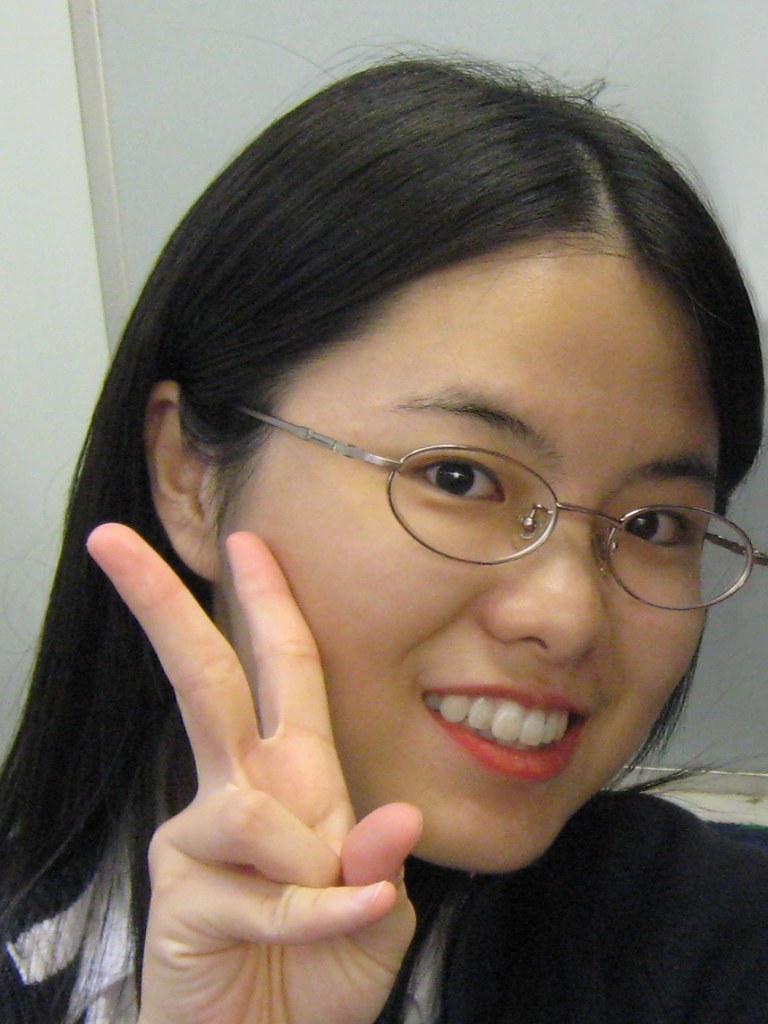
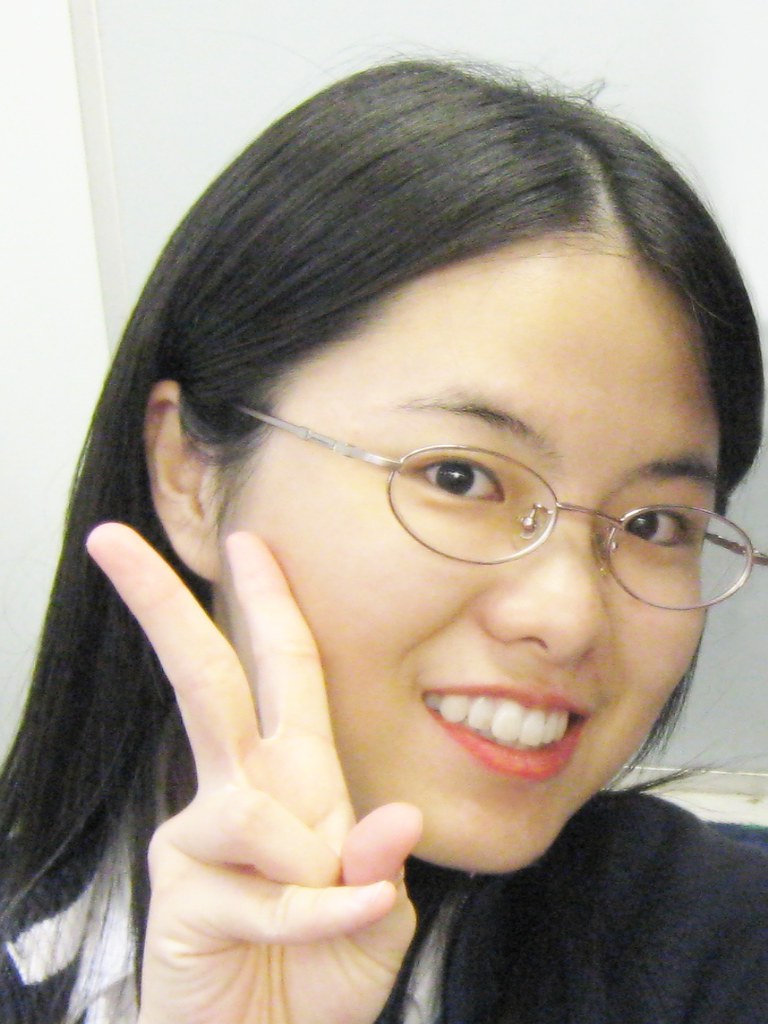
Portrait snapshot of a young lady

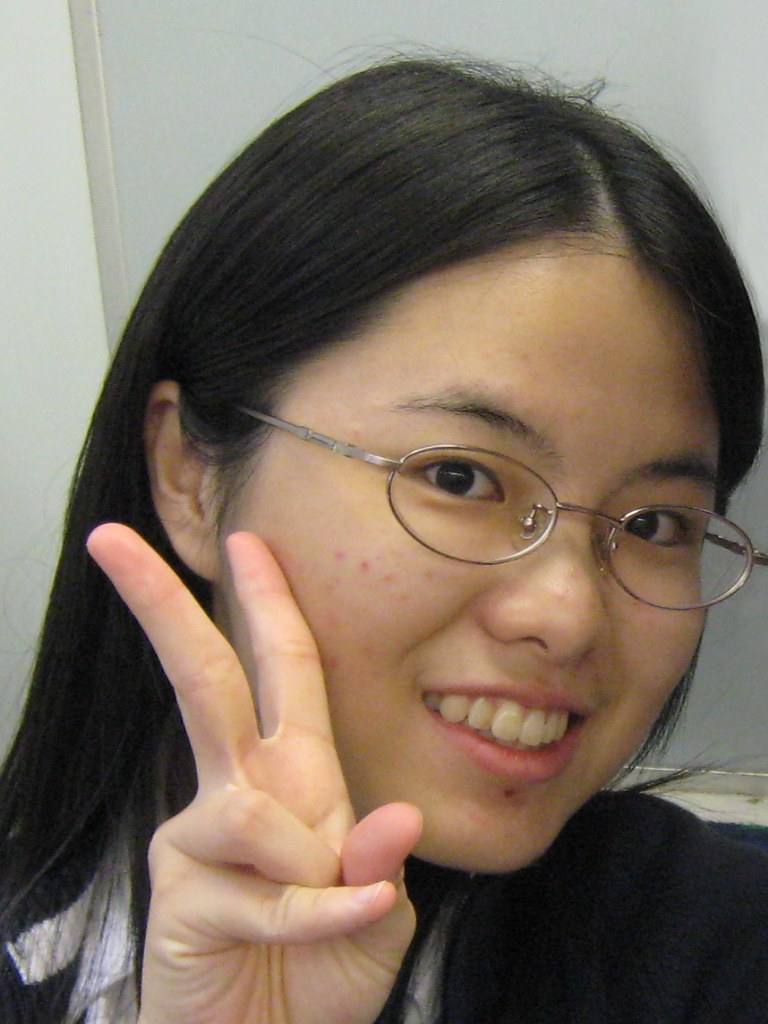
Pict 1: A typical portrait snapshot (in an office cubicle?). Photo from morguefile.com.

After a digital makeover

Pict 2: It doesn't take a lot of time to do a digital makeover in GIMP - and it's free!

Yesterday, we added a soft-focus effect to glam up portraits shots, today we go further to give the subject a digital makeover (see Pictures 1 and 2). Refer to previous tutorials for details how to execute some of the steps involved.

Exorcise red eyes

First select the iris of the red eye. Activate the Ellipse Select Tool from the Toolbox and drag diagonally from one side of the red area to the other. Activate the Filters > Enhance > Red Eye Removal command from the main menu.

A Red Eye Removal dialog box pops up with a Threshold slider to control how much of the red to remove. Usually the default value of 50 for the threshold slider is adequate for removing red eyes. Watch the thumbnail preview as you drag the slider to check that the red has been completely removed.

Note that if you forget to select the red eye first, the filter will remove any traces of red from the entire photo!

Remove moles/pimples/scars/wrinkles and hot spots from camera flash

Activate the Healing Tool from the Toolbox (click on the band-aid icon). Set the size of the brush such that it is slightly larger than the mole or pimple to be removed. Ctrl-click on a clear patch of skin to designate that as the clone source from which to copy pixels.

Click on the mole/pimple. GIMP copies pixels from the clone source but blends the new pixels into the surrounding pixels seamlessly.

For wrinkles and scars, paint along the wrinkles or scars to replace them with smooth skin from the clone source.

Use the same techniques to replace hot spots on the skin resulting from reflections from camera flash.

Whiten teeth and eyes

To remove yellowish/brownish tints from the teeth, activate the Paintbrush Tool from the Toolbox. Press “D” on the keyboard to reset the foreground and background colours to black and white. In the Tool Options, set the mode to Saturation.

Select a Circle Fuzzy brush and set the size of the brush such that it is smaller than the height of the teeth. Dragging the Opacity slider to reduce the opacity of the brush to 50. Paint over the teeth to remove any yellowish/brownish tints from the teeth. Be careful not to remove the colour from the pink gums.

To brighten up the teeth, activate the Dodge/Burn Tool from the Toolbox. Select the Dodge radio button in the Tool Options and then paint over the teeth to brighten them.

To whiten the white parts of the eyes, simply repeat the above steps.

Lipstick magic (see Pictures 3 to 5)

To darken the colour of the lips, use the Dodge/Burn Tool from the Toolbox. Select the Burn radio button in the Tool Options and then paint over the lips to darken them.

Instead of darkening the lips, you can intensify the colour of the lips by increasing the saturation of the lip colours.

Lips and teeth before makeover

Pict 3: Before the makeover, the lips are pale while the teeth are off-white, as do all of us mortals.

Activate the Paintbrush Tool from the Tool box and set the Mode to Saturation. Click on the Foreground colour swatch in the Toolbox. In the Change Foreground Color dialog box that pops up, click the top right corner of the large square colour palette to choose any bright saturated colour and press OK.

Lips reddened and teeth whitened

Pict 4: The teeth have been whitened and the lips reddened after the makeover.

Set the opacity to 50 and a brush size that is smaller than the thickness of the lips. Paint on the lips to saturate the lip colour. Avoid painting over the white teeth otherwise the brush will add a garish colour to the teeth.

Lipstick colour changed to mauve

Pict 5: Feeling whimsical? Change the lipstick colour to an entirely different colour!

If you’re feeling whimsical, change the colour of the lipstick altogether. Create a new empty layer by choosing Layer > New Layer. Change the Layer Mode of the new layer to “Color”. Activate the Paintbrush Tool from the Toolbox.

Click on the Foreground colour swatch and select a new lipstick colour. Paint over the lips. To reduce the intensity of the new “lipstick”, drag the Opacity slider in the Layers dialog to reduce the opacity of the layer.

Twinkle in the eyes

The eyes are the windows to our soul. To add that twinkle to the pupils, select the Paintbrush Tool from the Toolbox. Set white as the foreground colour by pressing the letter “D” followed by “X” on the keyboard. Click inside the pupils to add the catch-lights.

Apply soft focus

To add to the cream to the cake, apply a soft focus effect to the photo. Refer to the steps described in yesterday’s tutorial (see Pictures 6 and 7).

Portrait snapshot of a young lady

Pict 1: Here's the "Before" shot prior to the makeover.

Glam soft focus effect added to the makeover

Pict 7: Apply a soft focus effect to glam up the final makeover.

Tomorrow, we’ll look at how to make selections to limit adjustments to specific areas of the photos.

Soft-focus glamourous celebrity portraits using GIMP (Part 11 of 14)

Tuesday, January 11th, 2011
Want to emulate those soft-focus glamourous portraits of Hollywood celebrities? Do it easily with GIMP.
Yesterday, we enhanced digital photos by sharpening them before printout. Today, we do the opposite and introduce a soft-focus effect on portraits to glam up even the most mundane snapshots.

For photos with people in them – especially those with close-up shots – sharpening can emphasize the texture and blemishes on the skin and face. Instead, try simulating a soft focus effect.

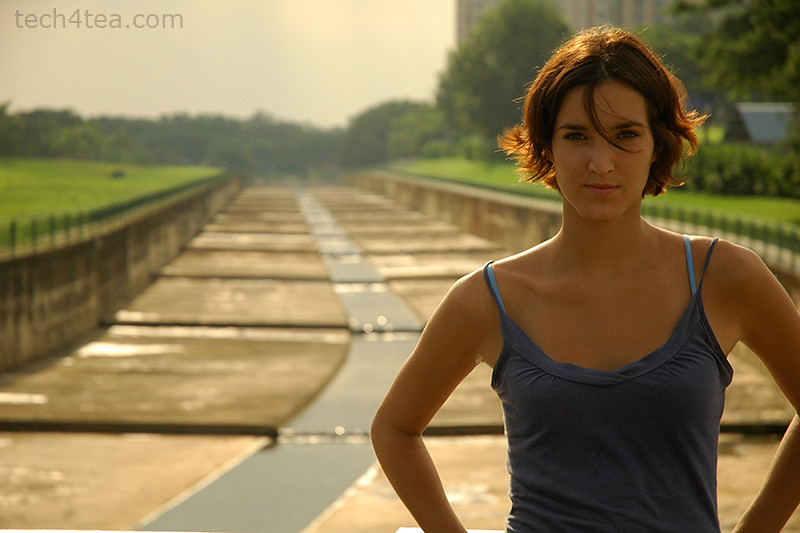
Portrait of young lady

Pict 1: This photo of a beautiful young lady is from morguefile.com.

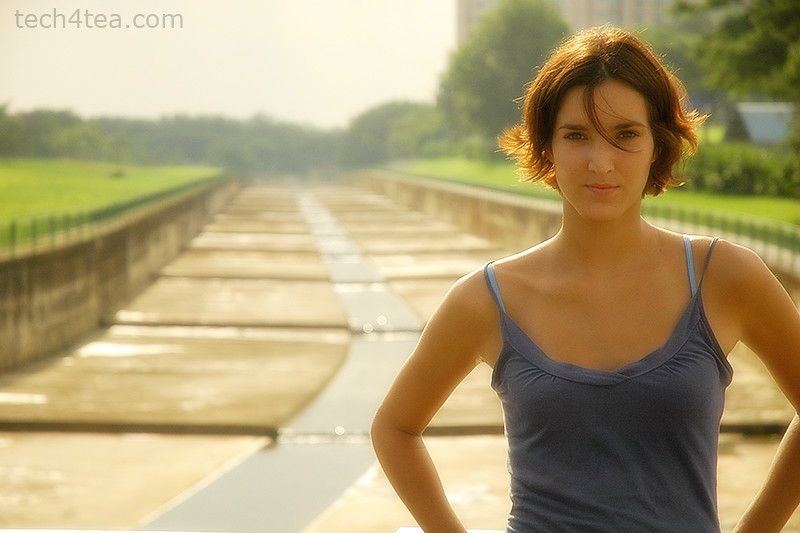
Soft focus effect for the photo

Pict 2: The soft focus effect was added in less than a minute to glam up the shot.

The hazy effect smoothens out skin complexion and lends a dreamy and glamourous touch to portraits (see Pictures 1 and 2).

To achieve this effect, photographers in the past used to attach special lens filters or even fit stockings over the camera lens. You can, however, emulate this effect easily in GIMP.

Duplicate the background layer

In GIMP, duplicate a copy of the photo by selecting Layer > Duplicate Layer command from the main menu. Change the Layer Mode for the duplicated layer to “Screen”. You can do this by clicking the dropdown box at the top of the Layers dialog and selecting Screen from the list. The photo is brightened up but still in sharp focus.

Layers dialog showing the pertinent settings

Pict 3: Duplicate the photo, blur it and set the Layer Mode to "Screen".

The duplicate copy sits above the original photo (see Picture 3). Apply Filters > Blur > Gaussian Blur command to the duplicate copy. Start with the default setting of five and press OK. Don’t worry if the preview thumbnail shows the image in the duplicated copy to be excessively blurred (see Picture 4). The combination of the two layers via the screen layer mode results in a dreamy glow to the photo.

If the effect is not strong enough, apply the Gaussian Blur filter a second time to the duplicated layer. If the effect is way too strong, press Ctrl-Z to undo and then reapply the filter with a smaller setting.

To finetune and reduce the intensity of the effect, reduce the opacity of the duplicated layer. Simply drag the Opacity slider at the top of the Layers dialog. I usually use an opacity of between 60 and 80.

Gaussian Blur dialog box in GIMP

Pict 4: Apply the Gaussian Blur filter on the duplicate layer.

This effect can also be applied to non-portrait photos to add a dreamy atmosphere to the photo.

Adding a sharpened layer

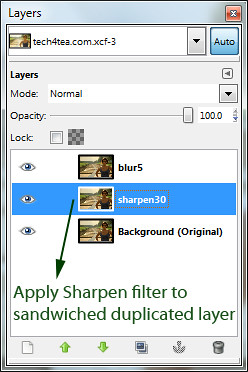
Layers dialog showing the sharpened duplicate layer

Pict 5: The sharpened duplicate layer should be just above the background layer.

If the features of the portrait (such as the eyes or the lips) becomes too blurred as a result of the effect, duplicate an additional copy of the original photo in the background layer. Select the background layer before activating the Layer > Duplicate Layer command from the main menu

Apply the Filters > Enhance > Sharpen filter to this new duplicate copy. This layer should sit above the background layer but below the other layers created earlier (see Picture 5).

The sharpened layer will add back some sharpness to the edges in the final outcome.

Tomorrow, we’ll use GIMP give portraits a digital makeover.