I’m dedicating this weekend to a photo tribute to Japan and a remembrance of the March 11 earthquake and tsunami.
The GIMP Intermediate Series takes a break today and tomorrow. The series will resume next weekend.
The GIMP Intermediate Series takes a break today and tomorrow. The series will resume next weekend.
In the photo of the landscape waterfall, the rocks around the artificial waterfall are too dark because they are lying in the shadows of the surrounding trees. I want to lighten the rock features. Download the before photo and follow along.
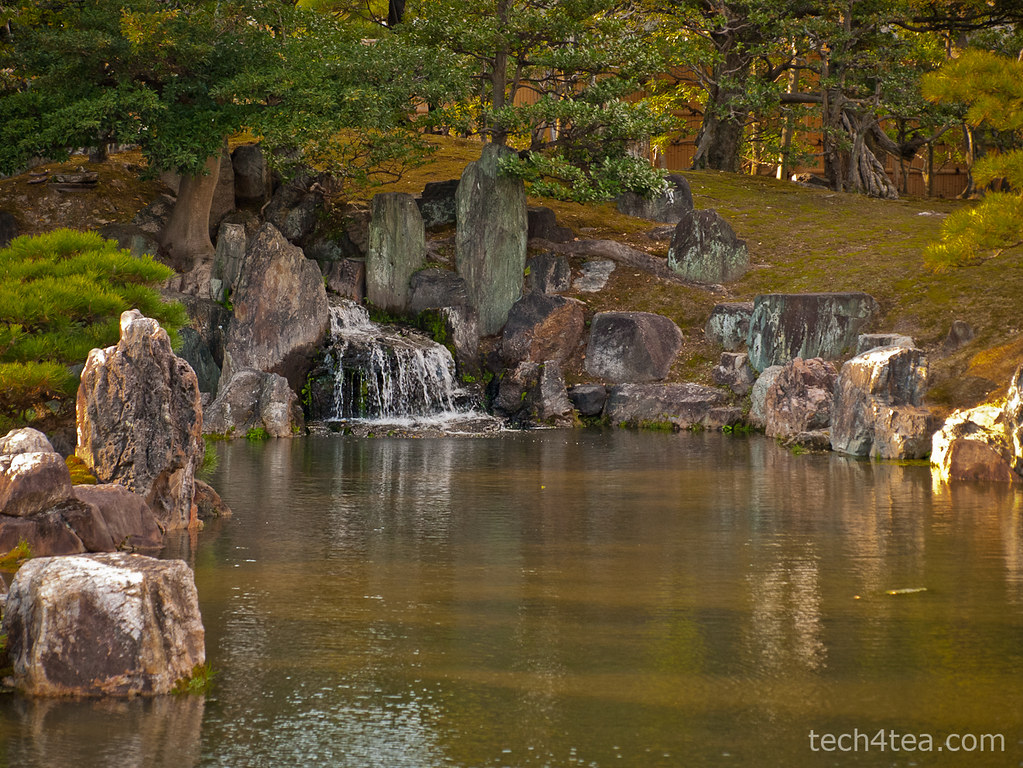
This tranquil landscaped lake was shot in the Nijojo Castle in Kyoto, Japan.

I want to lighten only the rocks around the waterfall without affecting the trees.
Creating a lighter duplicate layer
First duplicate the background layer by clicking on the fourth icon at the bottom of the Layers dialog.
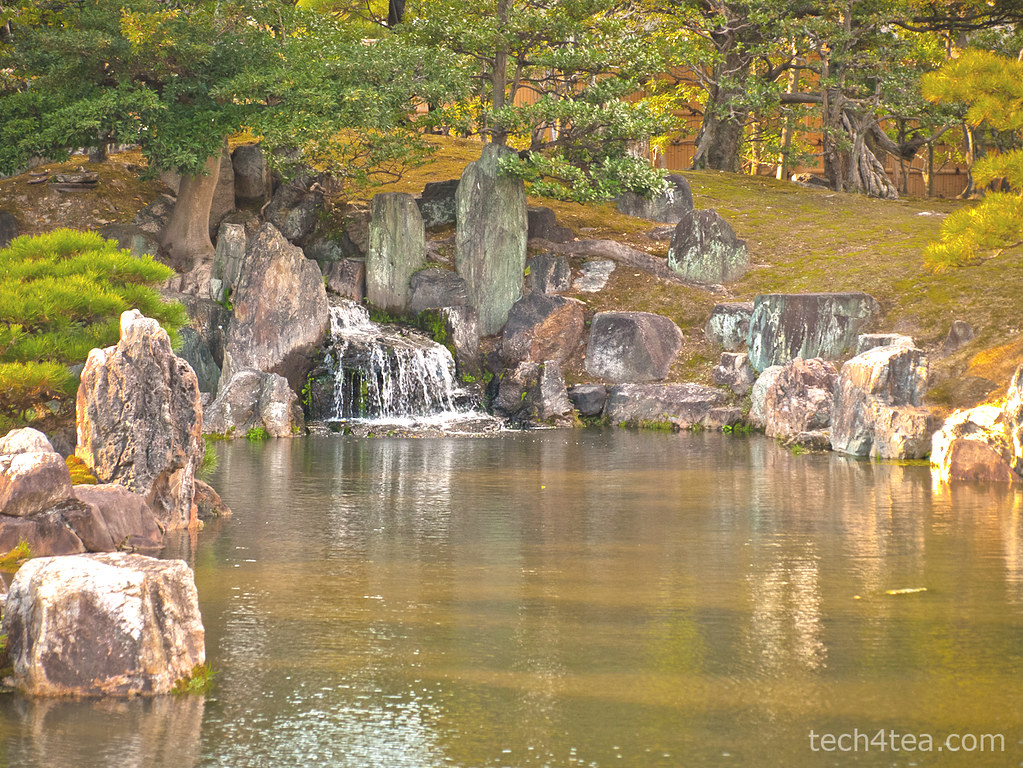
Lightening the rocks has lightened everything else as well, making the photo too harsh.
Brighten the duplicated copy by using Colors > Brightness-Contrast command from the main menu. You can see that in addition to the rocks, the other parts of the photo are lightened as well. That is the problem with global adjustments – when you lighten the shadows, the highlights get blown out.
For the moment, just concentrate on getting the brightness of the rocks right. Ignore what happens to the rest of the photo. I used a Brightness setting of 75 and Contrast setting of 45.
The duplicated layer has become lighter overall and more contrasty. It’s actually not bad overall but it gives the impression of a hot and harsh sunny day at the park. I prefer to convey the shadiness of the trees in the background and the tranquil ambience of the lake.
Adding a layer mask
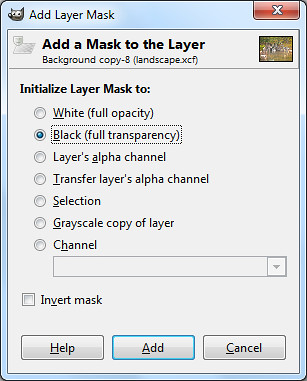
Select the Black (full transparency) radio button.
Right-click on the name of the duplicated layer in the Layers dialog and select “Add Layer Mask” from the pop-up menu.
An “Add Layer Mask” dialog box pops up. Click the “Black (full transparency)” radio button and press the Add button.
In the image window, the duplicated layer disappears from view and you see the original darker photo in the Background layer.
In the Layers dialog, note that in the duplicated layer, a small rectangle thumbnail has been added to the right of the layers thumbnail. It is a mask that determines which part of the layer is visible.
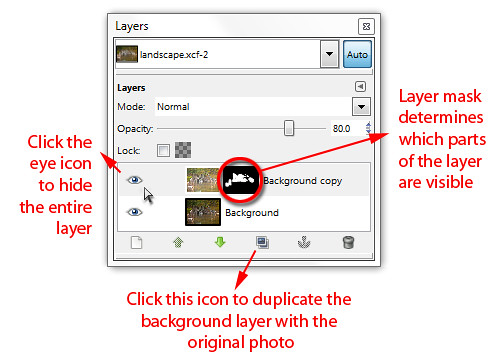
A Layer Mask is added to the duplicated layer in the Layers dialog.
Black areas in the mask make the corresponding areas in the layer transparent/invisible while white areas make the layer opaque/visible. Grey areas make the corresponding areas in the layer translucent or partially visible.
At the moment, the mask is totally black, so the entire layer is hidden from view.
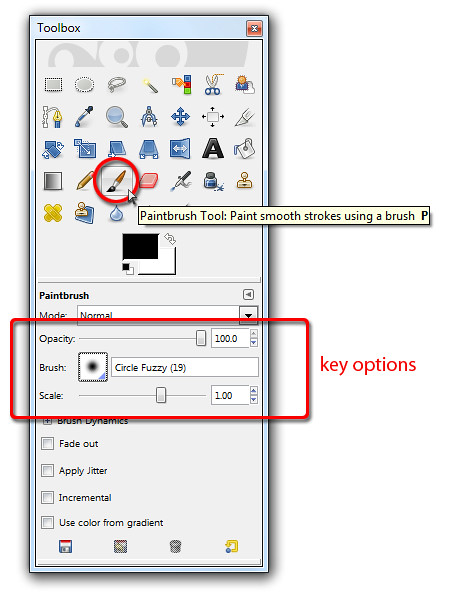
Activate the Paintbrush Tool to paint on the Layer Mask for the duplicate layer.
Select the Paintbrush Tool from the Toolbox. From the options below the Toolbox, select a Circle Fuzzy brush. Set the Foreground colour swatch to white. You can press “D” followed by “X” on the keyboard as a shortcut.
Now move the cursor over the rocks in the photo to be lightened and start painting. Because the layer mask is active, the painting actually occurs on the layer mask instead of the pixels in the layer.
And because the Foreground colour is white, painting on the layer mask reveals the corresponding pixels in the layer itself so that they become visible.
You can see the rocks lightening as you paint over them because pixels in the lightened layer is revealed as you paint white into the layer mask. You can also see the white areas appear in the layer mask thumbnail in the Layers dialog as you paint.
Adjust the size of the brush by pressing the “]” and “[” keys on the keyboard to increase or decrease respectively.
Painting back the mask
If you paint into the areas where you do not want to be lightened – like the leaves – and want to reverse the lightening, simply press “X” on the keyboard to toggle the Foreground colour to black. Painting on the layer mask now will hide the lighter pixels, so that the areas painted appears darker again.
If you find that painting on an area lightens or darkens it too much, lower the opacity of the Paintbrush Tool by dragging the Opacity slider in the Options below the Toolbox.

Alt-click on the Layer Mask thumbnail in the Layers dialog to show the mask in the image window.
As you are painting, you can toggle the eye icon of the duplicated layer in the Layers dialog to compare how the photo looks before and after the adjustments. You can also disable the layer mask by Ctrl-clicking on it to see how the layer looks without the layer mask. Alt-clicking on the layer mask will show black-and-white layer mask in the image window itself.
Once you’ve completed the painting and lightened the rocks, you can still fine-tune the results by varying the layer opacity of the duplicated layer. Simply drag the Opacity slider near the top of the Layers dialog. This will reduce the overall intensity of all the lightening that you have done.
Maximum flexibility
This method of doing local adjustment provides plenty of control and flexibility. You don’t have to make a selection before making the adjustments. You can “paint” in the adjustments on the fly and reverse when you overdo an effect. You can tone down the opacity of the Paintbrush Tool to reduce the intensity and when the painting is completed, you can still control the overall intensity of the adjustments by varying the opacity of the duplicated layer.
What’s more, if you save the file in GIMP’s native .xcf file format, you can re-open the .xcf file at a later date and adjust the layer mask if you want change the adjustment.
Naturally, you can use this method for any type of adjustments – darkening, colour saturation, black and white toning etc. Just apply whatever effect you want to the duplicate layer and then use a layer mask to control how much of the effect shows through.
The ability to make selections in photo-editing software is one of the most important aspects of these software, because it allows the user to restrict adjustments to specific parts of a photo. Understanding how selections are represented in GIMP is essential to get the most out of GIMP.
Yesterday, we selected a youth, his laptop and table using a quick mask and transferred him via copy-and-paste into another photo background.
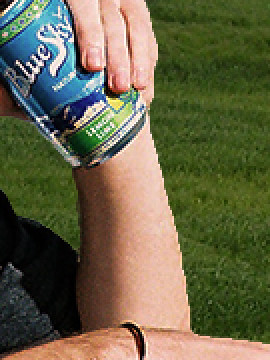
Abrupt seam because of sharp selection edge.
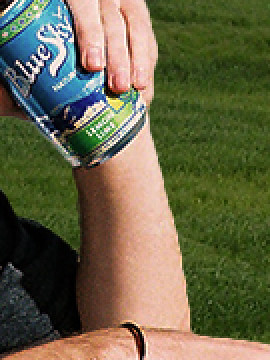
More seamless transition with the new background.
To make the foreground objects gel more seamlessly with the new background, you can soften the transition between the foreground objects and the background.
Feathering the selection
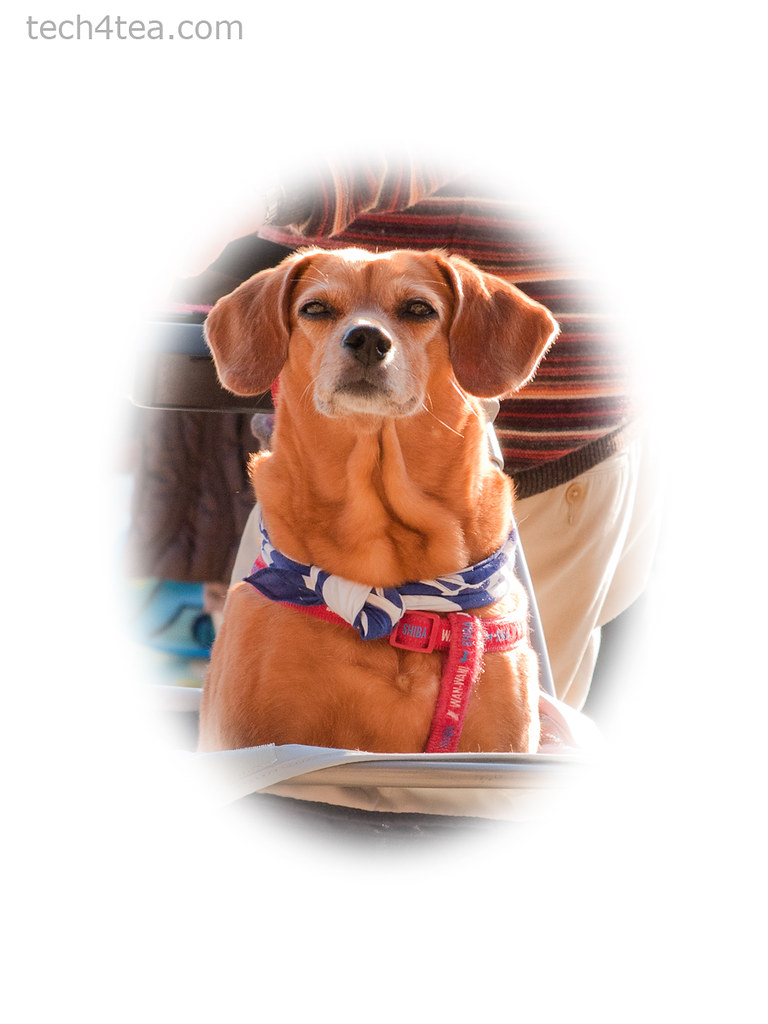
A large feather setting creates a vignette.
In normal selection mode, we can use the Select > Feather command to “feather” a selection before we do the copy-and-paste. This means that at the edge of the selection, the pixels go from fully visible inside the selection – to being translucent immediately on either side of the edge – to becoming totally invisible outside the selection.
How thick the translucent transition region is on either side of the selection edge depends on the feather setting used.
For yesterday’s example, the default feather amount of 5 pixels would have made the transition between the youth and the new background more natural and seamless. The transition also helps to mitigate imperfections when making the selection.
A large feather setting is used to create a vignette with a blurred edge.
Blurring a selection mask

The mask edge is sharp and abrupt.
Another way of feathering a selection edge is to apply a blur filter (Filters > Blur > Gaussian Blur at 1 to 2 pixels) to the selection mask while in Quick Mask mode. While in Quick Mask mode, the filter is applied to the mask instead of the image itself – so the mask is blurred.
We’ve seen that in Quick Mask mode, the areas with translucent pink overlay means that the pixels within are not selected, whereas the areas with no pink overlay means that the pixels inside are selected.
What if we paint some areas when the Foreground colour is set to gray? A lighter shade of translucent pink will be added as an overlay but this will be lighter than the pink added when the Foreground colour is set to black. In this case the pixels in those areas will only be partially selected.
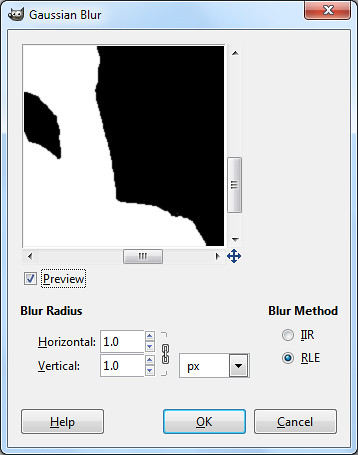
The mask edge is blurred and smoothened.
Any effects/adjustments applied to pixels that are only partially selected will only be applied partially. For example, if a region in a photo is only 30% selected, and the selected area is subsequently darkened, those pixels will only be darkened up to 30% of whatever the darkening setting would have been.
Blurring the selection mask in Quick Mask mode will blur the edges pink selection mask, so that instead of an abrupt jump from fully masked to fully unmasked, a partially masked transition region is introduced. The partially masked transition region translates to a partially selected region.
Selection masks in photo-editing software
In fact, in GIMP and other photo-editing software, selections are represented as a grayscale image called a selection mask.
The white areas represent pixels that are fully selected, the black areas represent pixels that are totally not selected, while the gray areas represent pixels that are partially selected – with the darkness of the gray representing to what extent the pixel is partially selected (between 0 and 100%).
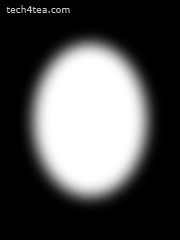
The selection mask is in grayscale.
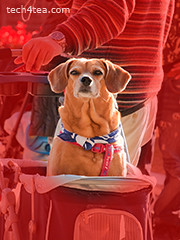
The Quick Mask shows which parts of a photo is selected.
Saving selections for future reuse or modification
As we saw in the photo of the youth, a selection can take a lot of time and effort to create. The selection is forgotten once we make another selection. What if we need to make the same selection in the future?
A selection can be saved as a channel in the Channels dialog for future use or manipulation. If the file is then saved in GIMP’s native .xcf format, the channel is saved as part of the file. And you can save many different selections as separate channels in the file.

Paint on the selection mask in the image window to modify it.
To save a selection for future use, first make the selection, and then click the Select > Save to Channel command from the main menu. If you look in the Channels dialog, you will see a new channel at the bottom of the dialog. The selection has been saved as a grayscale selection mask in a new channel. Double-click on the name to rename it with something more meaningful.
To modify the selection, click the eye icon to display the selection mask. Click the channel containing the mask to select it.
Any changes or painting will now be applied to the mask rather than to the image. It’s like in Quick Mask mode, except the overlay is a translucent gray by default instead of pink. Paint on the mask (in the image window) with black, white or gray as the Foreground colour to modify the mask.
To get back to editing the photo instead of the mask, remember to hide the mask by clicking the eye icon against its channel in the Channels dialog. Then go to Layers dialog and select the layer that you want to edit.

Click on the pink icon to load the mask as a selection.
To load a selection, click on the selection’s channel in the Channels dialog to select it and click the pink icon to the bottom right of the Channels dialog. This will load the selection mask in that channel as a selection in the photo.
Entire books have been written just to explain how to create, manipulate and use selections, masks and channels. A good understanding of how selections, masks and channels work will open doors to harnessing GIMP’s full capabilities and start doing things that other simpler photo-editing software cannot do.
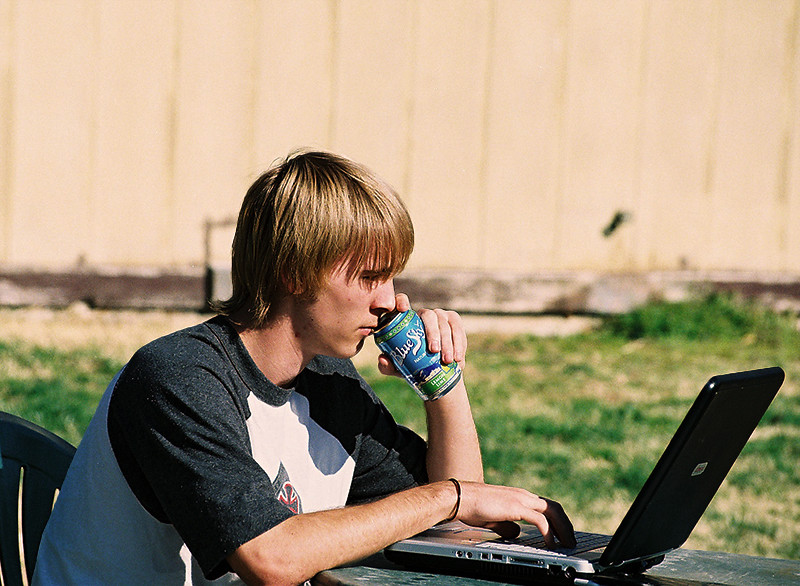
Before: Youth against a mundane background. Photo from morguefile.com.
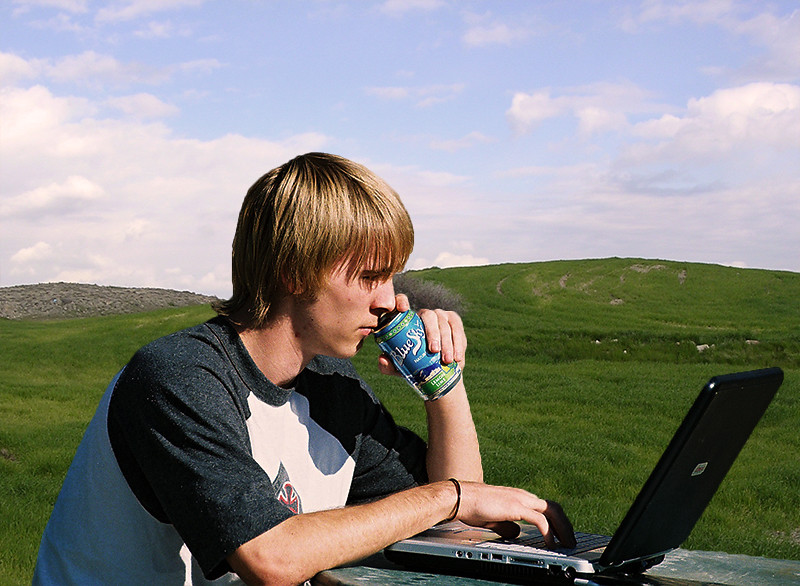
After: The refreshing green fields and blue sky matches the drink he is sipping.
The many selection tools in GIMP provide different ways to make and modify selections of people or objects in photos. The selected people or object can then be tweaked and adjusted without affecting pixels outside the selection. For example, the pixels within the selection could be darkened or lightened or the colour could be made more vivid.
Sometimes, none of the selection tools we’ve covered can quite select an object properly – parts that should be selected are not selected, while pixels that should NOT be selected are selected instead.
For example, in the photo of the youth working on his laptop, we want to isolate him from the mundane background and replace the background with something refreshing. But his outline is highly irregular and complicated so the Rectangle and Ellipse Select Tools are out – unless he is a rectangular or oval android.
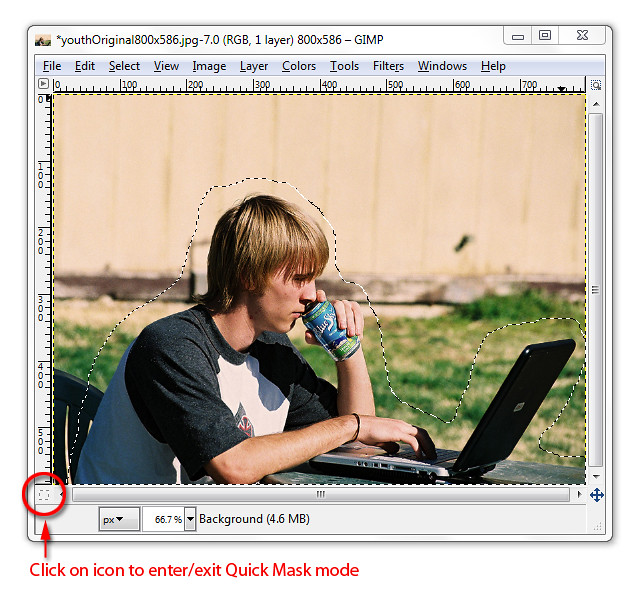
Make a rough selection first using the Free Select Tool.
The Fuzzy Select, Select by Color, and Foreground Select Tools are also out of their depths here because there is not enough contrast between the youth and the colours making up the background.
In this case, we start by using one of the usual selection tools to make a rough first-cut selection first, and then modify and perfect the selection by entering the Quick Mask mode.
Here, I used the Free Select Tool to encircle the youth, his laptop and the table – including a small area just outside of the outline. You will see the “marching ants” indicating where the selection boundary is.
Entering the Quick Mask mode
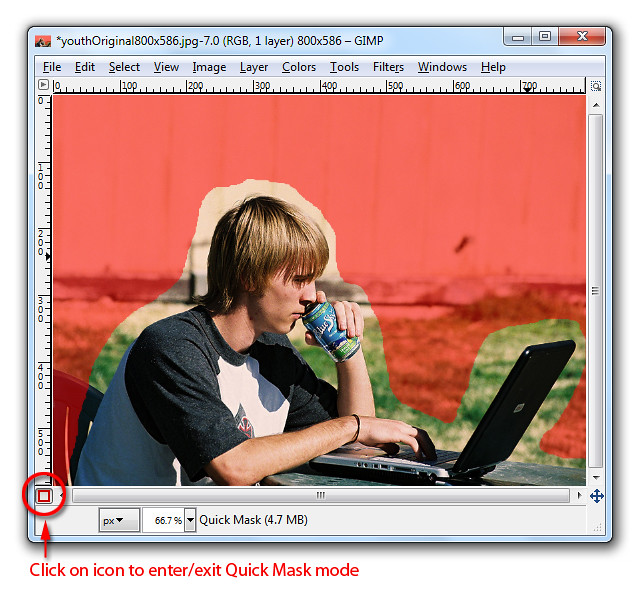
Quick Mask mode overlays unselected areas with a translucent pink.
To enter Quick Mask mode, click on the Quick Mask icon (the small dashed rectangle icon at the bottom left corner of the image window), or press Shift-Q on the keyboard.
A translucent red tint is overlaid onto the photo showing the areas that are NOT selected.
This translucent pink overlay is called the selection mask. It works like masking tape in a physical paint job. You stick masking tape over areas where you don’t want the paint to get into, so that only the unmasked areas will be painted.
The selected areas – the youth, his laptop and the table – will be free from the red tint. Everything else that is not selected, like the grass, the chair and the wooden walls in the background are tinted temporarily with the translucent red.
Modifying and perfecting the Quick Mask
Do two things before going any further:
1. Press “D” on the keyboard to reset the colour swatches to black and white.
2. Activate the Paintbrush Tool in the Toolbox.
Zoom into the boundary area between the youth and the background to work on the details (“+” key to zoom in and Spacebar to pan). The default Foreground colour is black.
Reducing the selection
Paint on those areas on the photo that are NOT supposed to be selected but are selected – they are supposed to be overlaid by the translucent pink but are not.
As you paint, those areas will be overlaid with the translucent pink (although the Foreground colour is set to black) to indicate they have been unselected. Press the square bracket (“]” and “[“) keys to increase or decrease the size of the brush.
Adding to the selection
If you accidentally paint into the areas which is supposed to be selected, don’t worry. Click “X” on the keyboard to swap the colour swatches so that white is now the Foreground colour.
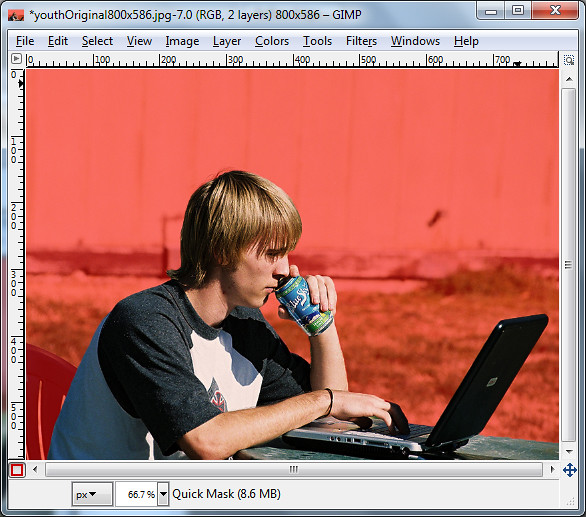
Paint on the quick mask until only the youth, his laptop and the table is not pink.
Paint over those areas that are supposed to be selected but are not – these areas are overlaid in translucent pink even though they are not supposed to be.
Instead of adding white, you will see the translucent pink erased from those areas painted, indicating that those areas are now selected.
In this way, finetune the mask, especially in the border region around the outlines, until only the youth is free from the translucent pink. Zoom in to inspect and work on the details.
You can switch between black and white for the Foreground colour by pressing X on the keyboard.
Confirming the selection
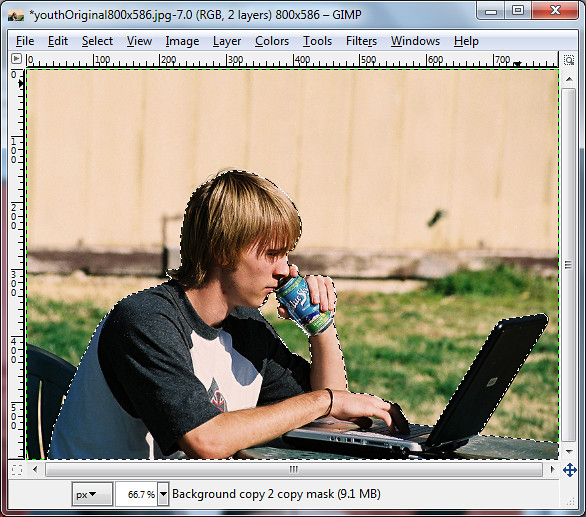
Check the marching ants selection boundary.
Press Shift-Q or the click on the Quick Mask icon to get out of Quick Mask mode. You will see the marching ants again indicating the selection boundaries.
The youth, his laptop and the table is now precisely selected while the background is not.
If you find the selection boundaries are still not perfect, enter Quick Mask mode again to modify the mask and get back out to check the selection boundaries. You can keep shuttling in and out of Quick Mask mode until the mask/selection is perfect.
Now any command you make within GIMP will apply only to the pixels within the selection.
Switching the background
Once you are happy with the selection, press Ctrl-C or Edit > Copy to put the selected pixels into the Clipboard.
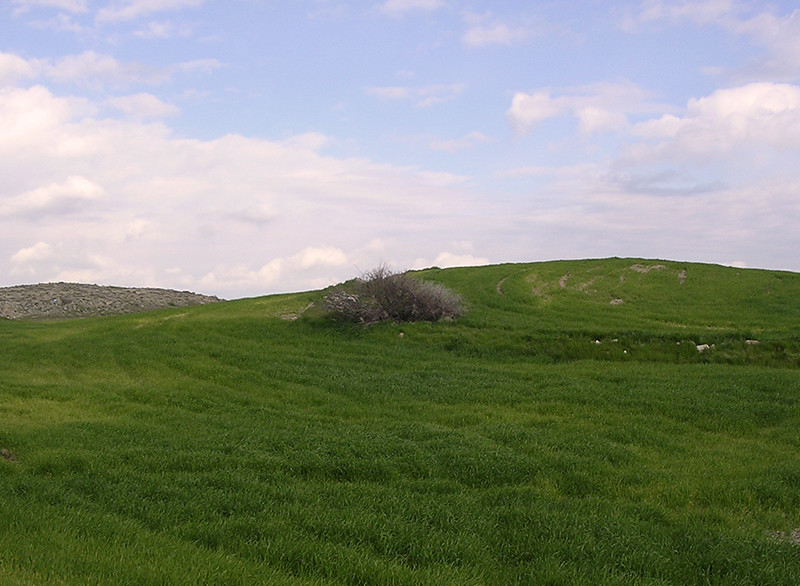
Green fields and blue skies. Photo from morguefile.com
Open the new photo that will serve as the new background. Press Ctrl-V or Edit > Paste to paste the youth onto the new photo.
The pasted pixels will be added as a new temporary layer called “floating selection” that floats above all other layers in the image. In the Layers dialog, double-click the label of the floating layer type in a meaningful name and press Enter. The floating layer will be converted into a separate and permanent regular layer.
After: The refreshing green fields and blue sky matches the drink he is sipping.
Activating the Move Tool from the Toolbox, you can drag the pasted layer to re-position it to the right place. You may need to resize either the new background photo or the pasted layer in order to match the sizes.
The edge of the youth may look too sharp and artificial at the moment, but we’ll address that in tomorrow’s tutorial.
Yesterday, we put several photos into a single scrapbook page and positioned them. In the second half of the tutorial today, we add text titles and captions to the scrapbook page/cover, complete with outlines.
Adding titles and captions
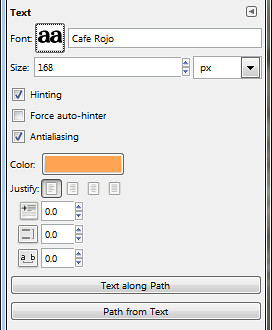
Pict 8: Options for the Text Tool
To add a title to the page, activate the Text Tool in the Toolbox. In the Tool Options, select the Font, size and colour to be used for the title of the scrapbook page. Click the square icon beside the Font label to display a list of installed fonts. Here, I used the Cafe Rojo font.
Click near the top left corner of the image to place the title. The GIMP Text Editor dialog box appears. I typed in the title “Kyoto” and pressed the Close button. A new and separate text layer is added in the Layers dialog.
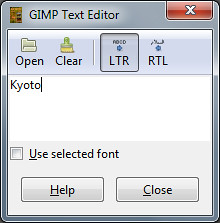
Pict 9: GIMP Text Editor
To edit the text in the title, click on it in the image window with the Text Tool. The Text Editor pops up again for you to edit the text.
To reposition the title, click on it in the image window and drag. For fine adjustments of position, use the Arrow keys on the keyboard.
Repeat the same process to add the “Koyo” caption, the year “2010”, and the labels for the two thumbnails.
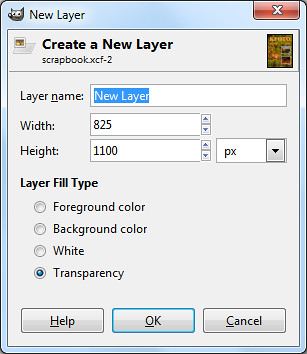
Pict 10: New blank layer for the outlines
To add an EXTERNAL outline around the text and the thumbnails, first create a new transparent layer just above the Background layer and name it “Outlines”.
Select the Background layer in the Layers dialog and click the bottom left icon in the Layers dialog. Select the Transparency radio button in the New Layer pop-up dialog box.
Make sure all the elements are already in their final positions before adding the outlines, since this method adds the outlines on a separate layer. Moving an element later on will leave its outline behind in the original position.
Follow the steps below for each of the elements:
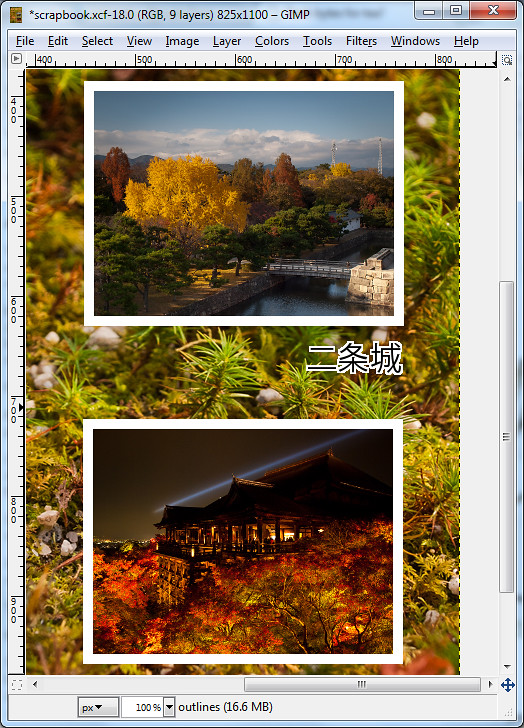
Pict 11: Add outlines or borders. Here the thumbnails show koyo scenes at Nijojo Castle and Kiyomizu Temple at night in Kyoto.
Right-click the layer and select Alpha to Selection command from the pop-up menu.
Click the Foreground Color swatch in the Toolbox and select the desired outline colour from the Change Foreground Color dialog box that pops up.
Select the Outlines layer in the Layers dialog and from the main menu, select Edit > Stroke Selection.
In the pop-up Stroke Selection dialog box, enter the width of the outline and press the Stroke button. If it it too thick or thin, press Ctrl-X to undo and try again. Experiment with the width setting until the outline looks right to you.
This adds an external outline around the thumbnail or text caption.
Note: There are many methods of adding borders/outlines to elements within GIMP – none of which are very convenient. Through experience, I find this method produces the most crisp outline for text captions.
A more convenient approach is to add the outline directly to the thumbnail or text layer itself, so that moving the thumbnail/text would move the outline as well. But I find the quality rather jagged for text layers.
Saving as source files
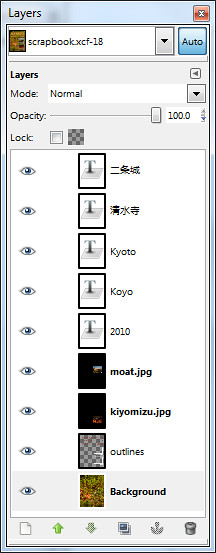
Pict 12: Preserve layers in an .xcf file
The completed scrapbook design now comprises several different layers which can be independently adjusted and moved without affecting other layers. Save this as a “source” file in the GIMP’s native .xcf format.
Use the File > Save As command and in the pop-up Save Image dialog box, type in the name of the file followed by .xcf.
The layers are preserved so that when you open the file in GIMP in the future, you can still manipulate the layers independently – perhaps you may decide to edit the captions, or move the two thumbnails further to the left.
Unfortunately, the .xcf file format is not a commonly accepted file format since it is only for use within GIMP. You can print it with your desktop printer but the print shop will probably not accept it.
For printing at a shop, save an additional copy of the file in JPEG, since this is a ubiquitous file format that all graphics/printing software accepts.
Use the File > Save As command and this time save the file with a .jpg extension instead of the previous .xcf extension.
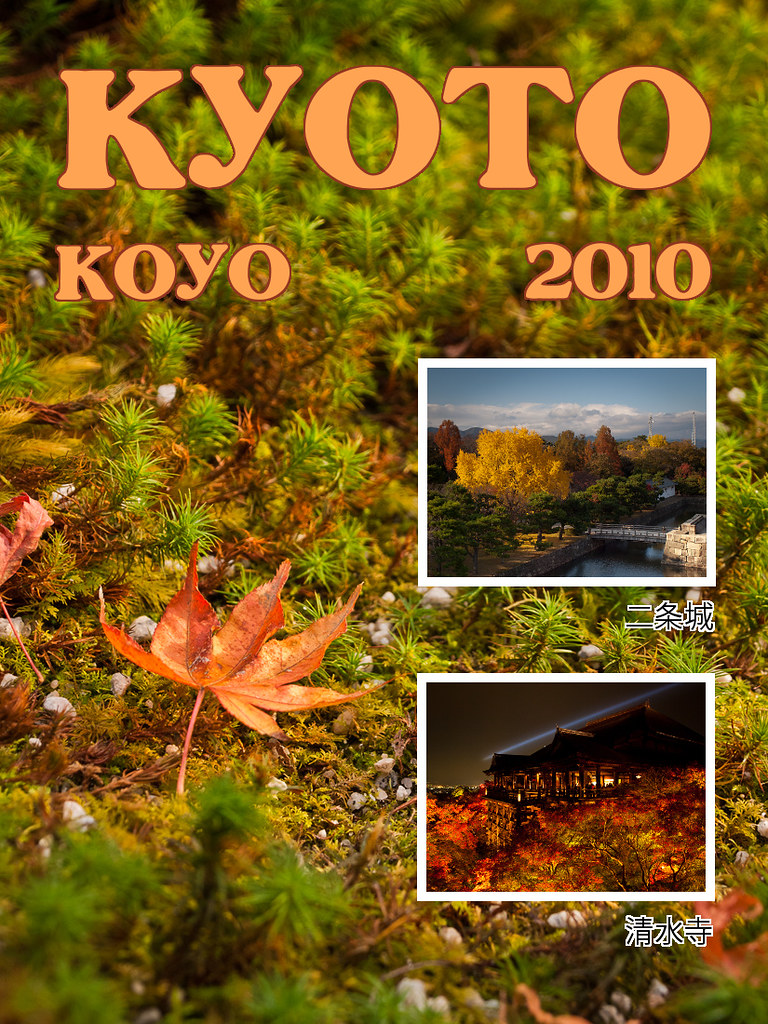
Pict 1: Scrapbook cover/page
They share their photos online even while they’re still overseas on holiday, but nothing beats a physical coffee-table scrapbook for family and close friends to thumb through and pore over.
In the first half of this tutorial today, we’ll use a photo as a background for a scrapbook cover/page and bring in additional photos. We’ll resize them as thumbnails and position them on the page.
In the second half tomorrow, we’ll add text titles and captions, and add outlines to them, as well as the thumbnails.
Including additional photos as layers
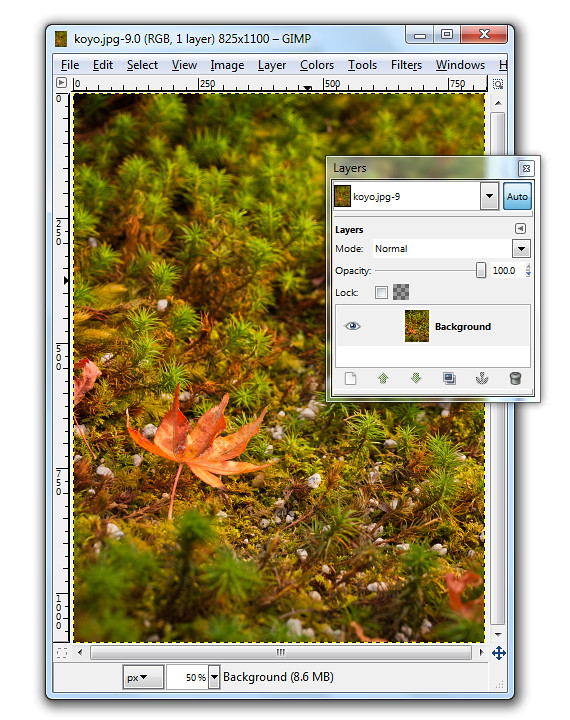
Pict 2: Single Background layer when photo is first opened. This lonesome koyo was languishing on the grounds of the Ginkakuji in Kyoto.
When a photo file is first opened in GIMP, it resides on the single Background layer.
In our example, the photo file comprises the macro shot of the lone koyo (red maple leaf in Japanese) in the Background layer. We want to bring in two additional photos of koyo scenes as thumbnails.
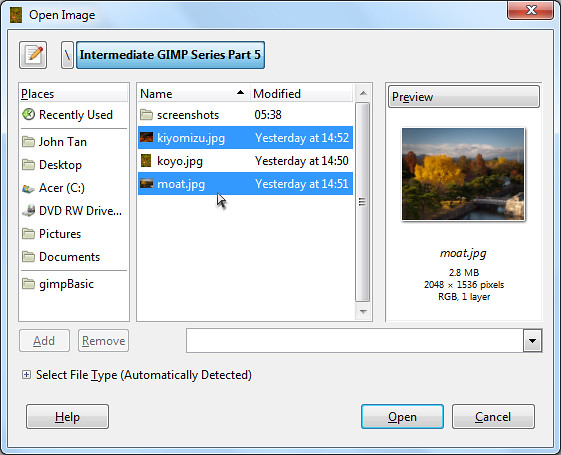
Pict 3: Additional photos
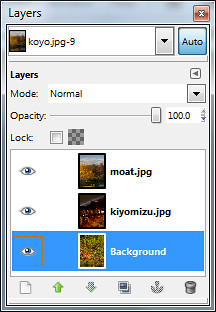
Pict 4: Additional photos as layers
The two photos will be brought in as additional layers – one photo on each layer. For a quick introduction into layers and various ways of manipulating them, read Part 5 of the Basic GIMP series on “Correcting exposure using layers”.
You can see the different layers in the file inside the Layers dialog.
To reduce the size of the moat photo to a thumbnail, click on its name in the Layers dialog to select it and then use the Layer > Scale Layer command from the main menu. As a shortcut, simply right-click on the moat layer in the Layers dialog and select the Scale Layer command from the pop-up menu.
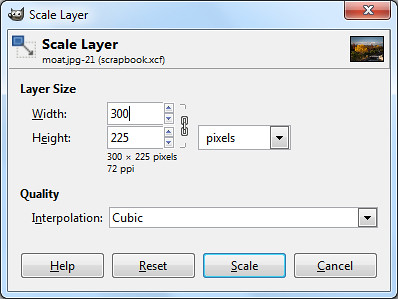
Pict 5: Scale layer down to thumbnail size
In the Scale Layer dialog box that pops up, I typed in 300 in the Width field. The Height field was automatically updated to 225 to keep the aspect ratio of the layer unchanged to avoid distortions. Both the default Interpolation setting of Cubic or Sinc (Lanczos3) will do the resizing with good quality.
Press the Scale button to complete the resizing.
Repeat the same process to resize the other photo into thumbnail size.
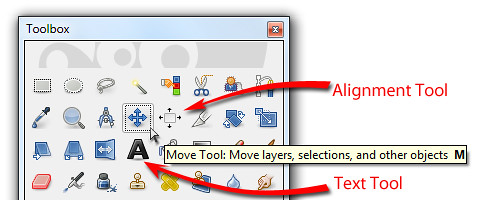
Pict 6: Move, Alignment and Text tools in the Toolbox
Positioning the thumbnails
To move and position the thumbnails, activate the Move Tool from the Toolbox. Now you can just click and drag any layer you see in the image window.
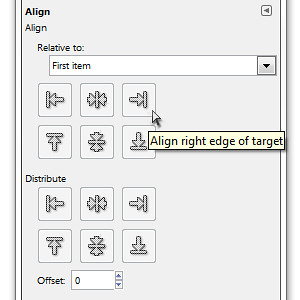
Pict 7: Options for the Alignment Tool
To align the two thumbnails, activate the Alignment Tool in the Toolbox. Click the first thumbnail and shift-click the second thumbnail to select both. You can also drag a rectangle that encloses both thumbnails to select both at the same time.
In the Tool Options, click one of the icons to align either the left or right edges of the thumbnails.
Tomorrow, we’ll add text captions and outlines to the elements in the scrapbook cover/page.
In yesterday’s case, clicking on the blue sky around the temple in the photo selected all the blue pixels “connected” to the clicked pixel by other selected pixels.
Select by Color Tool
If, say there is a window in the temple showing a bit of blue sky through it, those blue pixels won’t be selected when the Fuzzy Select Tool is clicked outside the outline of the temple.
Similarly, if the cursor is clicked inside the window showing the blue, the blue sky around the temple won’t be selected.
To add such segregated areas to the main selection, hold down the Shift key on the keyboard and click on those areas with the Fuzzy Select Tool.
For more control, I tend to prefer using the Fuzzy Select Tool together with the Shift key.
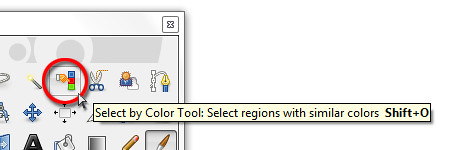
But if there are many isolated areas to be selected, a more suitable tool is the Select by Color Tool.
The Select by Color Tool works exactly like the Fuzzy Select Tool except that pixels from the ENTIRE photo that are similar in colour to the clicked pixel are selected – whether contiguous or segregated.
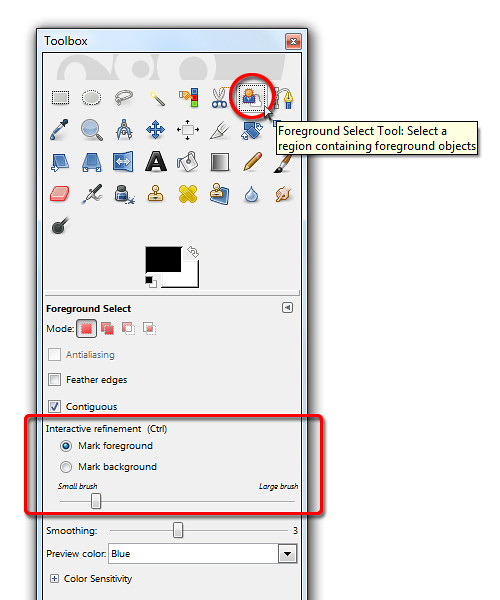
Foreground Select Tool in the GIMP Toolbox
Again, the Threshold value determines how similar a pixel should be in order to be selected.
So if the temple had many windows showing blue skies, clicking a blue pixel in any one of the windows would select all the blues pixels in the sky.
Unfortunately, any of the tourists wearing blue will also have their blue clothes selected. That’s why I tend to prefer the Fuzzy Select Tool because it allows me to control exactly what I want to select.
Foreground Select Tool
Another selection tool that can occasionally work wonders is the Foreground Select Tool. It is used to select an object in a photo against a background, preferably with contrasting colours (see above Picture).
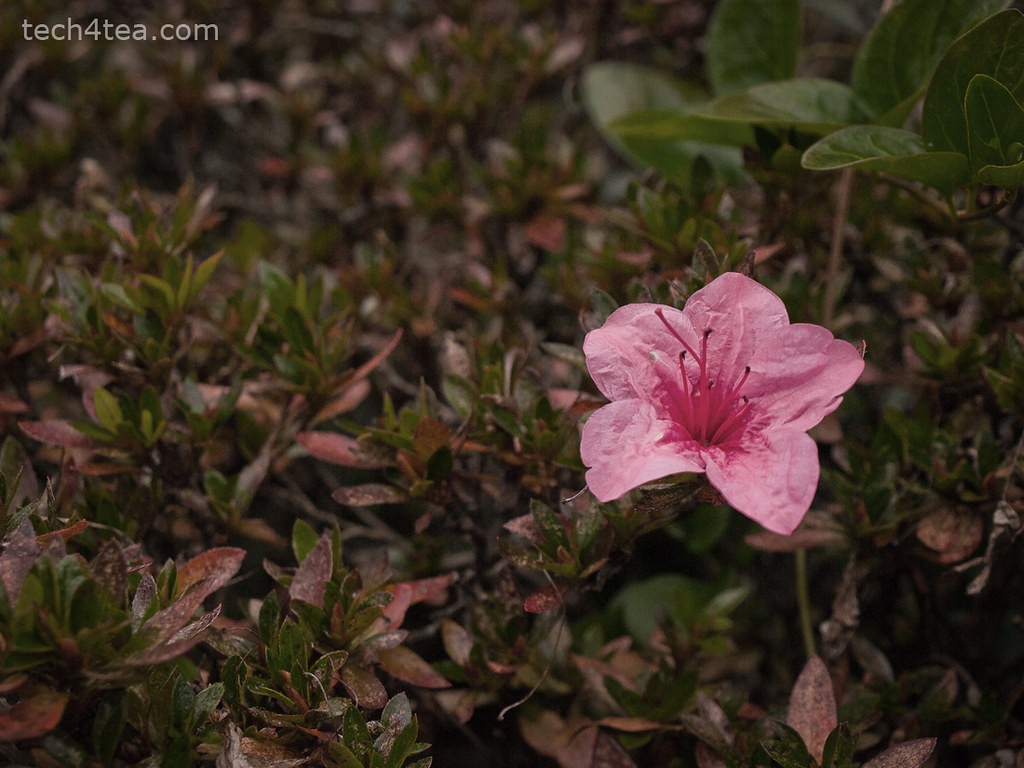
This wild flower looks a tad pale and dull on an overcast day.
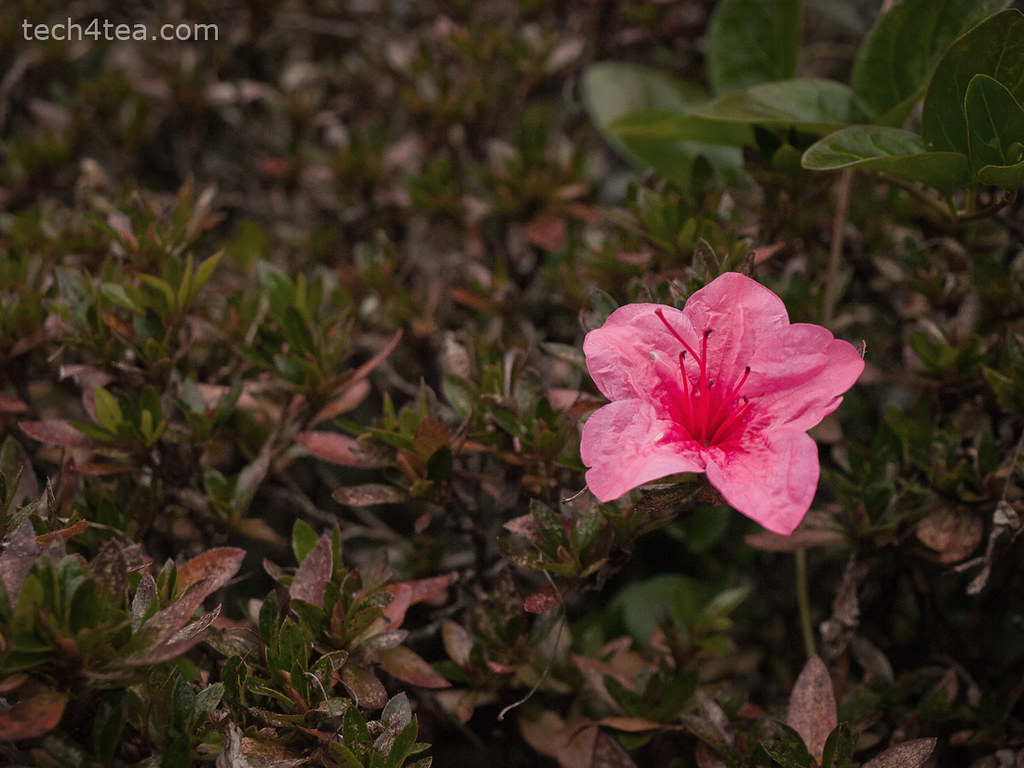
The pink flower now stands out against the pale background.
Activate the Foreground Select Tool from the Toolbox.
The cursor turns into a lasso. Use the cursor to drag an outline outside but around the flower. For selecting the outline, the tool behaves like the Free Select Tool. Select close to the outline of the flower but do not stray inside the flower.
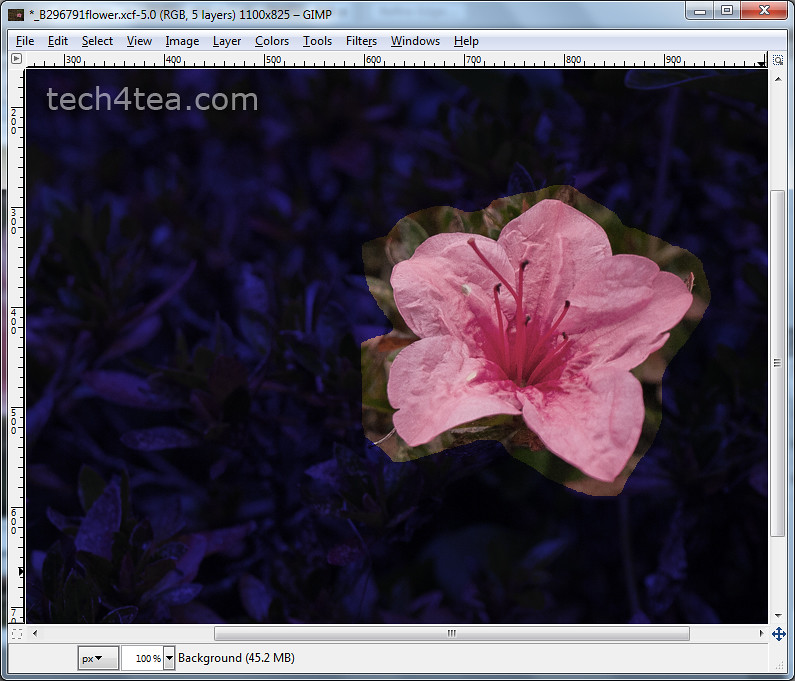
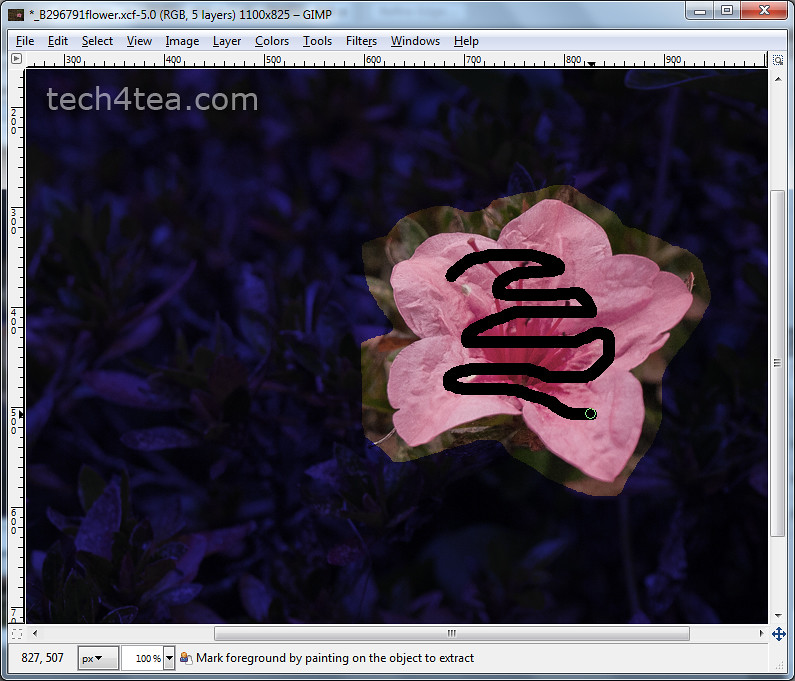
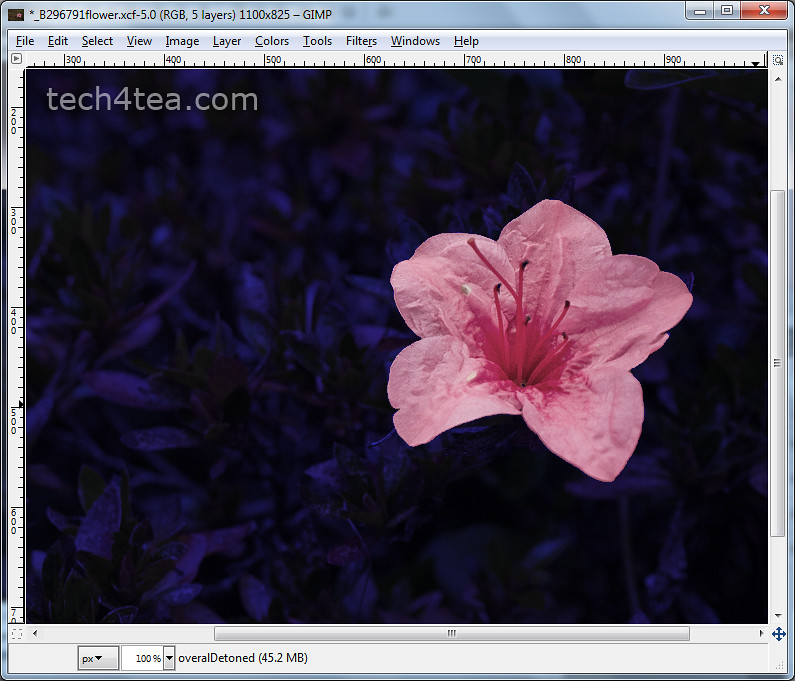
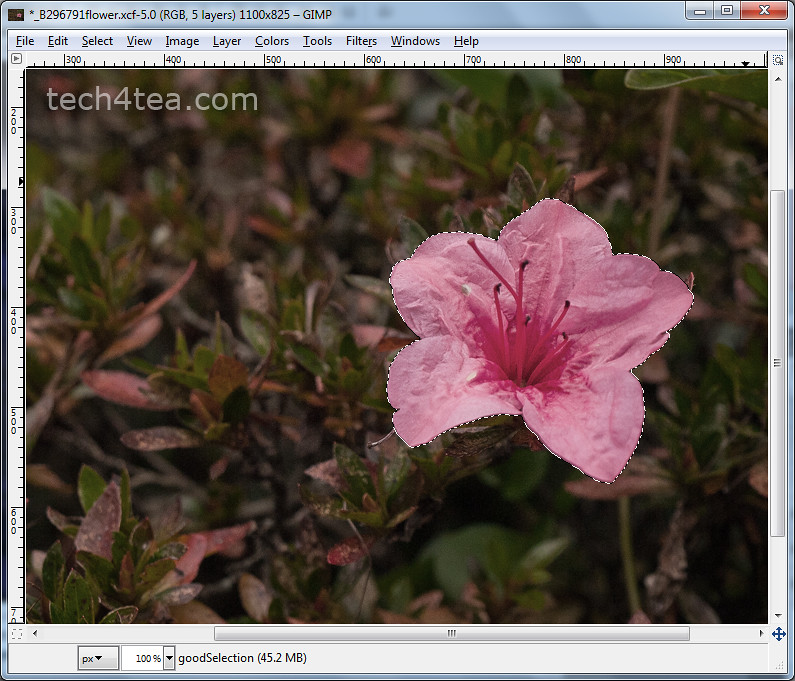 Various stages of using the Foreground Select Tool. Click each thumbnail to open enlarged photo.
Once the outline is complete, GIMP overlays the area outside the outline with a dark blue translucent mask, while the appearance of the flower and its immediate surrounding inside the outline remains unchanged.
The cursor now changes into a paintbrush. Paint inside the flower.
There is no need to paint the entire flower. If the flower contains different colours, try to paint over the different colours to tell GIMP they are part of the flower. Avoid painting outside the flower.
After the initial painting, the dark blue mask closes in so that only the flower remains visible. The clearly visible areas indicate the areas that will be selected. In this case, GIMP did a perfect job.
You can still modify the mask if the flower had not been perfectly masked.
In the Tool Options are two radio buttons that determines the effect of painting on the photo.
By default, the “Mark foreground” option is selected. If there are parts of the flower that are covered by the blue mask, paint on those areas to unmask them.
If there are areas outside the flower that are not masked in dark blue, select the “Mark background” option in the Tool Options and paint on those areas to mask them.
To work the details, zoom in and vary the brush size by dragging the slider in the Tool Options.
Once the mask has been finetuned so that only the flower is clear and the surroundings are masked by the translucent dark blue, press Enter on the keyboard to convert the mask into a selection.
You can now make the flower stand out by dialing up the vividness using Colors > Hue/Saturation command from the main menu.
Caution: While outlining the flower or painting to define the area to be included or excluded, Ctrl-Z or the Edit > Undo command does not work. To restart the selection process, select some other tool in the Toolbox and then select the Foreground Select Tool again.
Select objects with uniformly coloured backgrounds easily even if the objects have complicated outlines.
Previously, we have made simple rectangular and elliptical selections in photos using GIMP’s Rectangle and Ellipse Select tool. We’ve also used the Free Select Tool to select objects with irregular outlines.
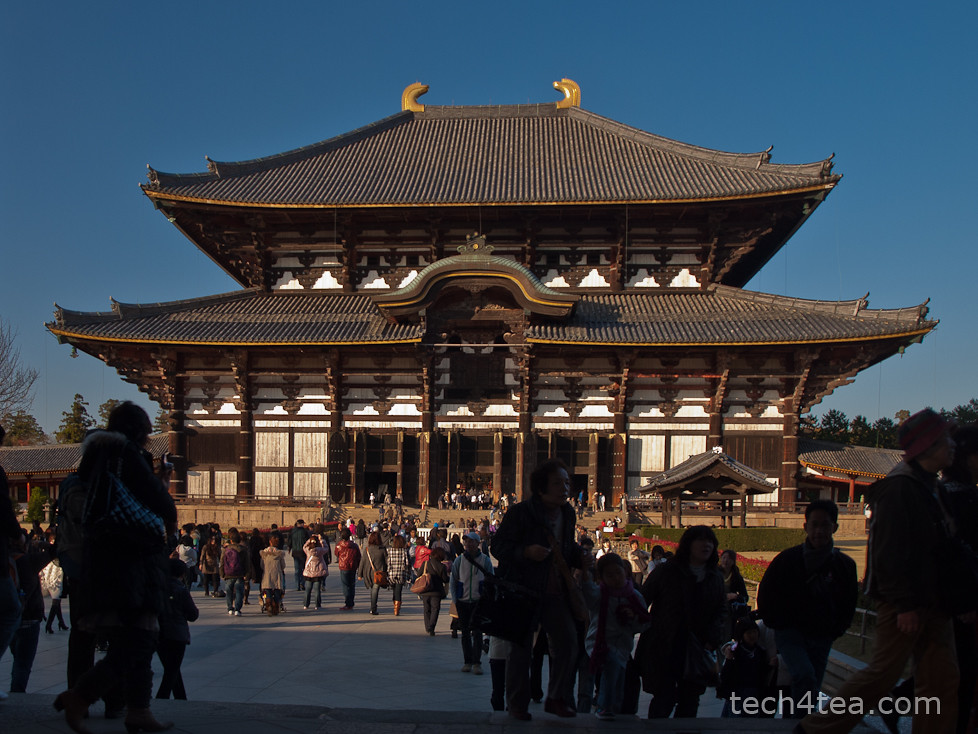
Pict 1: The Todaiji temple as seen against a clear blue sky.
These selections allow us to do local adjustments – whatever adjustments we make are confined to only the pixels within the selection boundaries.
Sometimes, the object we want to select in the photo is against a background with uniform colour, such as the sky, where the colour comprises a narrow range of tones of the same colour (see Picture 1).
In these cases, it is easier to select the uniform background using the Fuzzy Select Tool and then invert the selection rather than try to select the object itself – especially if the object has a complicated outline.
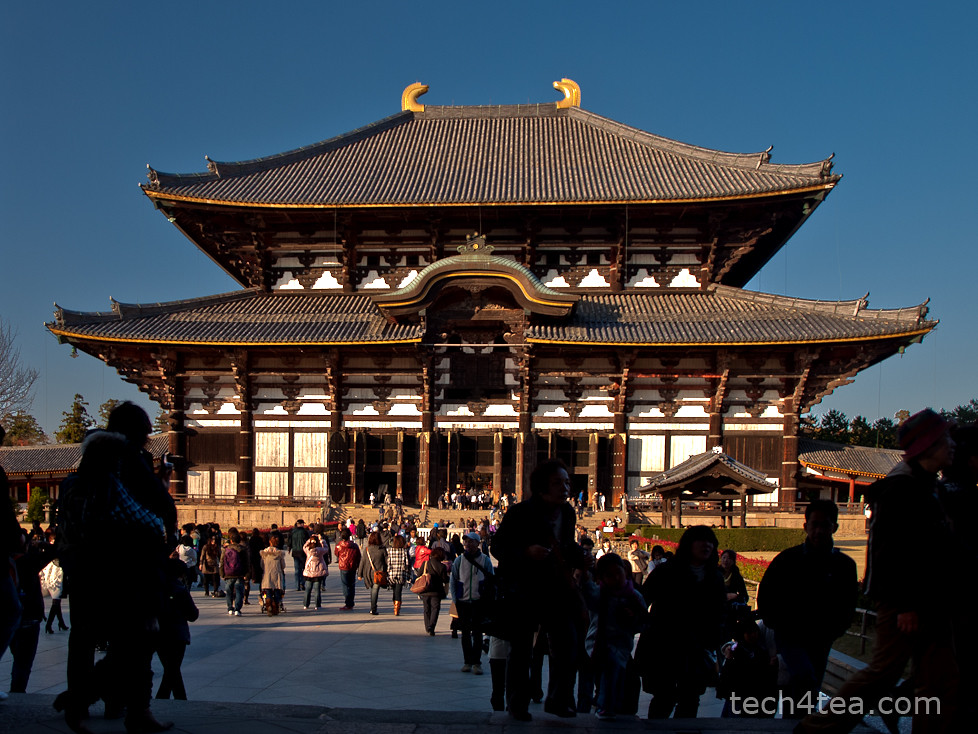
Pict 2: The temple has been lightened up and contrast increased.
The tool works best when the background colour is markedly different from the object to be selected.
In the photo of Todaiji in Nara, the temple is slightly underexposed and flat against the bright sky. I want to lighten up the temple without whitening out the nice blue sky. So I need to select the temple and the foreground scene before applying the lightening (see Pict 2).
Fuzzy Select Tool
Activate the Fuzzy Select Tool from the Toolbox.
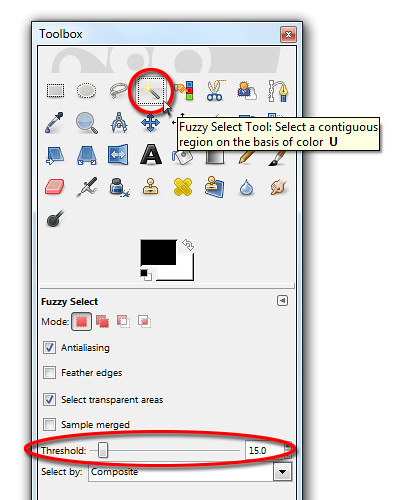
It is known more commonly in other photo-editing programs as the Magic Wand tool because of its ability to make a complex selection seem so easy – where large welts of relatively uniform colour are involved. In fact, the symbol and cursor for the tool in GIMP comes in the form of a magic wand.
Click on any part of the blue sky. Large parts of the blue sky are selected as indicated by the marching ants showing the complex boundary of the areas selected. What has happened is that the Fuzzy Select Tool has selected all pixels of similar colour to the pixel that was clicked by the tool.
How similar must a pixel be to the clicked pixel for it to be selected? This is determined by the Threshold slider in the Tool Options.
Changing the default value from 15 to zero means that only pixels whose colour is exactly the same as the clicked pixel is selected. Using the maximum value of 255 means all pixels in the photo will be selected.
The selection process
There is a shortcut to varying the Threshold value while using the Fuzzy Select Tool. When you first click in the area to be selected, don’t release the button just yet.
Drag the mouse to the right or downwards and the Threshold value will be increased. You can see the selected areas grow as you drag the mouse cursor. You can also see the Threshold slider in the Tool Options moving to the right.
Conversely, drag the mouse to the left or upwards to decrease the Threshold value. You will see the selected areas shrink as you drag the mouse cursor. The Threshold slider also moves to the left.
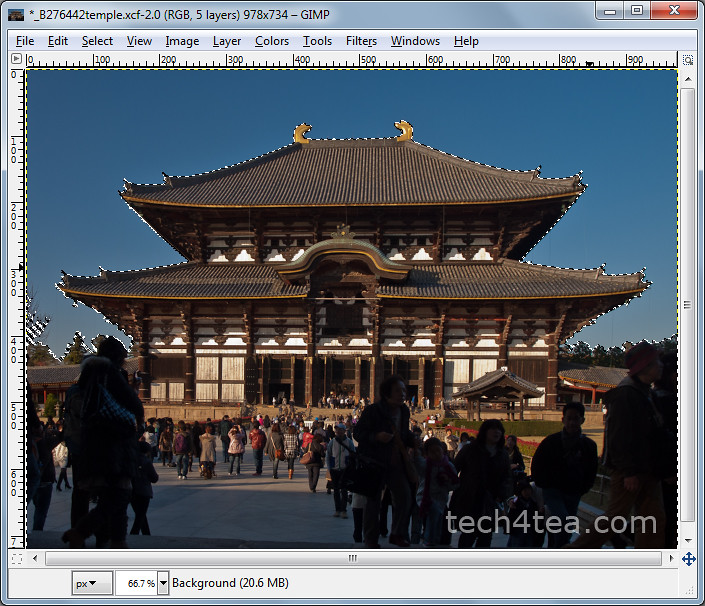
Pict 3: The bright blue sky is selected by the Fuzzy Select Tool.
Stop or drag the mouse cursor in the opposite direction when you see the selection spilling into the temple itself. Release the mouse button to confirm the selection (see Picture 3).
If there are areas in the sky, that are not selected, hold down the Shift key on the keyboard and click in those areas to add them to the existing selection.
Lighten up the temple
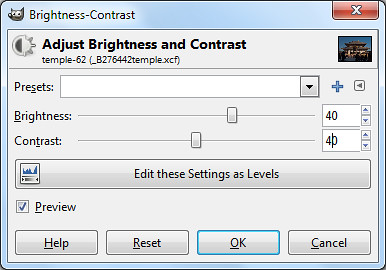
For the moment, the blue sky is selected while the temple and the foreground are not.
To invert the selection, press Ctrl-I or Select > Invert from the main menu. The temple and the foreground are now selected while the blue sky is unselected.
The temple and the foreground can now be lightened (for instance, with the Colors > Brightness-Contrast command) without blowing out the sky.
For each of the standard sizes, some shops print variants of the standard dimensions to cater to varying aspect ratios. For example, although traditional 4R has an aspect ratio of 3:2, some shops give the option of printing similarly sized prints at 4:3 aspect ratio.
The resolution of a photo is the number of pixels per inch (ppi). To work out the number of pixels a photo should have, multiply the physical dimension in inches by the desired image resolution.
For example, a 5R print is 5 x 7 inches. Multiply by 300 ppi and your image should, therefore, be 1,500 x 2,100 pixels.
For optimal quality, use an image resolution of 300 ppi. For printing on a personal printer, 150 ppi is usually good enough, although some studios accept resolutions down to 100 ppi. Since all my prints are 4R in size, all my images are at 300ppi. This way, they are optimal for 4R and still good enough if I want to print up to A4 size.
Note that studios usually crop a small margin of up to 3% around the photo. The cropped margin could be bigger on one side compared to the other. This is usually unnoticeable for most photos. Unless the subject is really tightly framed, in which case part of the anatomy, say a ear or finger-tip could be cut off the edge.
However, if your photo has a decorative frame or border that you’d added using a photo-editor, it will turn out uneven. Choose a studio that can crop the photo evenly all round. I find it easier to show the studio a sketch to illustrate when explaining.
Likewise, when using your own printer, it pays to do a few test prints to determine the right settings for even borders.
| Print Size | Size
(inches) |
Size
(mm) |
Aspect ratio | Optimum Resolution
(300 ppi) |
Minimum Resolution
(150 ppi) |
|---|---|---|---|---|---|
| 3R | 3.5 x 5 | 89 x 127 | 7:10 | 1050 x 1500 | 525 x 750 |
| 4R | 4×6 | 102 x 152 | 2:3 | 1200 x 1800 | 600 x 900 |
| 5R | 5×7 | 127 x 178 | 5:7 | 1500 x 2100 | 750 x 1050 |
| 6R | 6×8 | 152 x 203 | 3:4 | 1800 x 2400 | 900 x 1200 |
| 8R | 8 x 10 | 203 x 254 | 4:5 | 2400 x 3000 | 1200 x 1500 |
| S8R | 8 x 12 | 203 x 305 | 2:3 | 2400 x 3600 | 1200 x 1800 |
| 10R | 10 x 12 | 254 x 305 | 5:6 | 3000 x 3600 | 1500 x 1800 |
| S10R | 10 x 15 | 254 x 381 | 2:3 | 3000 x 4500 | 1500 x 2250 |
| 11R | 11 x 14 | 279 x 356 | 11:14 | 3300 x 4200 | 1650 x 2100 |
| S11R | 11 x 17 | 279 x 432 | 11:17 | 3300 x 5100 | 1650 x 2550 |
| 12R | 12 x 15 | 305 x 381 | 4:5 | 3600 x 4500 | 1800 x 2250 |
| S12R | 12 x 18 | 305 x 465 | 2:3 | 3600 x 5400 | 1800 x 2700 |
In the Basic GIMP series, we used the rudimentary Rectangle and Ellipse Select tools to create simple selections in a photo.
What if we want to select an object in a photo that has an irregular outline? Check out the Free Select Tool.
As with the other selection tools in GIMP, the Free Select Tool can be found at the top of the Toolbox.
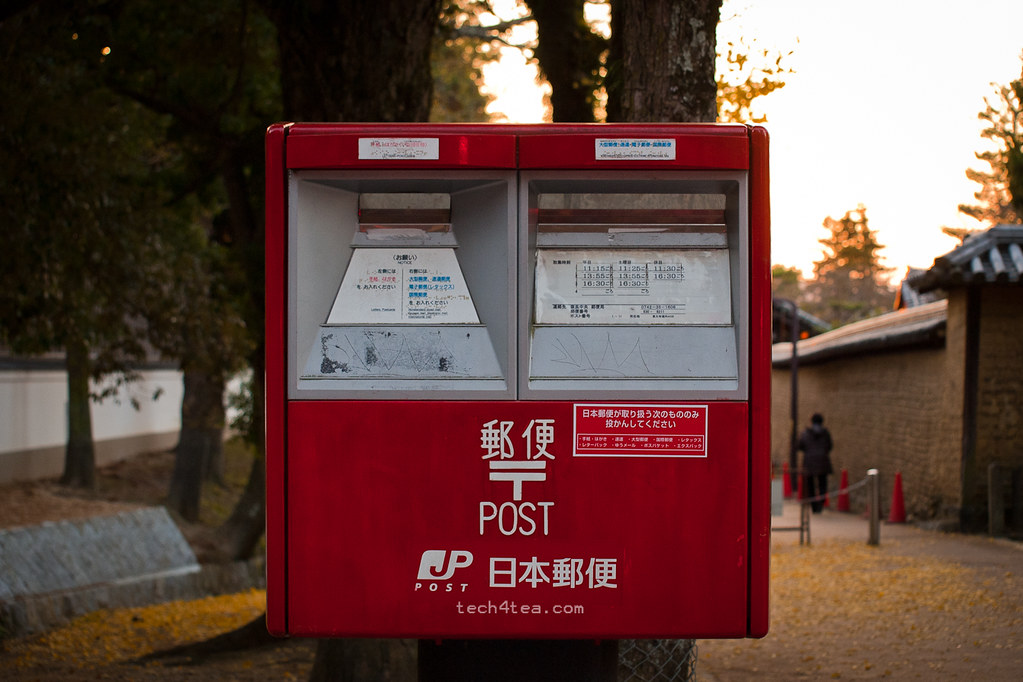
The red traffic cones and receding pedestrian are a tad distracting behind the postbox.
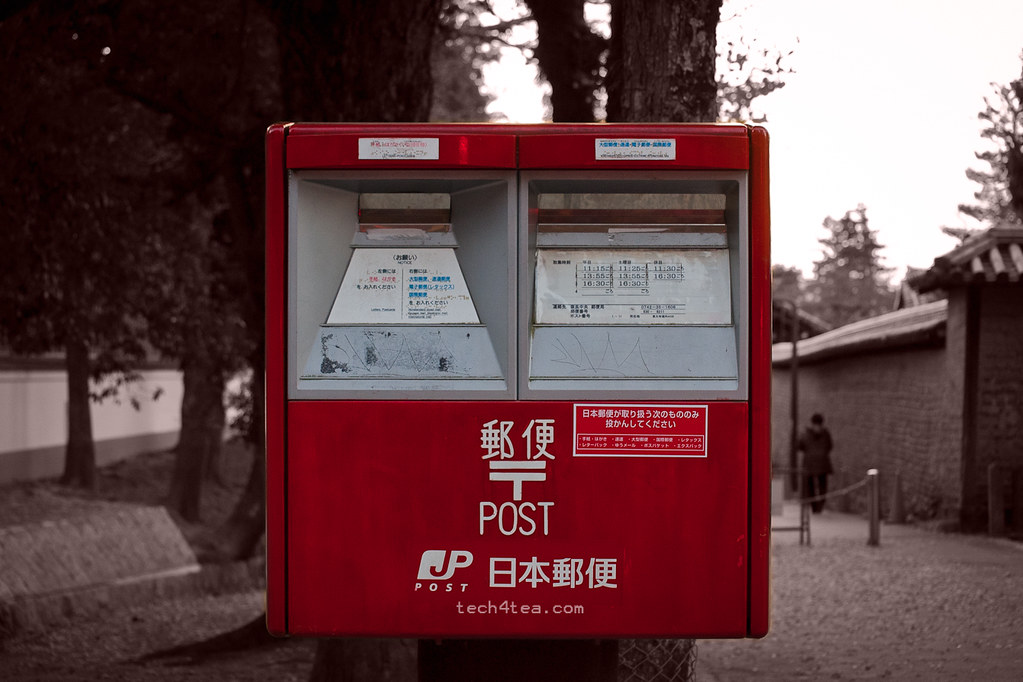
Toning down the background focuses the viewer's attention on the main subject.
This is usually done to bring put the emphasis on a main subject by toning down the background, especially if the background is brightly coloured or distracting.
It is also a popular technique to turn a mundane snapshot into something arty.
Download the Before photo and follow along.
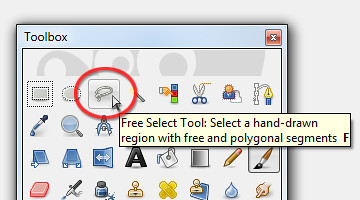
Activate the Free Select Tool at the top of the Toolbox
Using the Free Select Tool
In the Toolbox, activate the Free Select Tool. Click (and let go of the mouse button) anywhere on the edge of the postbox. Move the cursor to the next point on the edge of the postbox and click again.
GIMP joins the two mouse clicks with a straight line to indicate the edge of the selection you are making. An anchor point is also created at each end of the edge to indicate where the mouse was clicked.
Around the corners of the postbox, the edges are rounded. Zoom in (press “+” on the keyboard) to get a better view to make a more precise selection.
Where the curved edge begins, click but hold down the mouse button and drag the cursor along the curved edge. You can see selection boundary trace around the curved edge.
At the end of of the curved edge, release the mouse button. To continue selecting straight edges, simply click at the next point.
Repeat the above techniques around the edge of the postbox until you are back to the starting point. This completes the selection process.
Along the way, if you click at the wrong place or make a botched tracing around a curved edge, press the Backspace key on the keyboard. GIMP will remove the previous anchor point and line segment. Press the Backspace key once to remove each previous anchor point and segment.
Decolourizing and adding the tint
Once the postbox has been selected, press Ctrl-I to invert the selection. Drain the colour from the selected surroundings and tint it a pale red by using the Colors > Colorize command from the main menu.
In the Colorize dialog box, set Hue to zero and Saturation to 15 by dragging the corresponding sliders.



