Archive for January, 2011

Apple stocks drop on Jobs’ absence

Wednesday, January 19th, 2011
As expected, Apple’s stocks dropped 6.15% at 327.05 USD (from last Friday’s close at 348.48 USD) when it opened in the US on Tuesday after the announcement on Sunday of his impending absence. Prices recovered somewhat to close down 2.25% at 340.65 USD.

Steve Jobs last went on extended medical leave from January to June 2009. From the time he began exhibiting signs of weight loss in June 2008 till his return to work in June the following year, Apple shares were down 23.3%.

Apple stocks drop on 18 Jan 2009

Apple stocks drop 6.15% on opening and closed down 2.25%.

Apple's stocks during Steve Jobs' previous medical leave in 2009

Apple's stocks initially dropped before recovering when Jobs returned

Perhaps as an indication of the confidence that Tim Cook gained when he oversaw the day-to-day operations in Jobs’ absence, the shares actually gained some 70% from the time Jobs announced his absence on 14 January 2009 till his return on 29 June that year.

Perhaps there is a slight difference in the two situations. In his memo in 2009, there was an expected date of return – six months down the line – which was fulfilled. This time round, there is no hint on how long the medical leave is expected to be.

In the immediate term, any decline in Apple’s value may be cushioned by the expected positive earnings result to be announced today from the bumper quarter reported on. The strong outlook from the launch of the iPhone with Verizon is likely to provide further support.

Even the clogs for the next versions of iPhone and iPad would have been set in motion by now. The question will therefore be on when Steve Jobs returns and whether an Apple without him would be able to continue on the steam roller of innovation that it has been on in recent years.

New features for upcoming GIMP 2.8

Tuesday, January 18th, 2011
Numerous enhancements … but my most longed for feature – non-destructive editing – will only be in the version after that. Still I’m looking forward to v2.8.

The recent announcement on GIMP’s official website gave a teaser on some of the new features and future thrusts for the next stable release of GIMP and beyond. 

First off, the GIMP development team are now in the final stages of developing the next stable release of GIMP – version 2.8. Enhancements include “layer groups, improved brush dynamics, a new unique transformation tool, optional single-window mode and more”.

According to the notice, the focus of development after the release of v2.8 will shift to deep integration of GEGL – the new non-destructive image processing core. Non-destructive image editing is one of the areas where GIMP lags behind Photoshop. This thrust will “enable many features considered critical for use of GIMP in (a) professional environment.

GIMP's splash logo for v1

v1 Logo by Jens Lautenbacher

GIMP started life as a semester project at University of California, Berkeley in 1995 and was first released to the public in 1996. The current stable release is v2.6 which was released in 2008. The latest bugfix is v2.6.11 dated Oct 2010.

Apple Steve Jobs on medical leave

Monday, January 17th, 2011

In a memo from Steve Jobs to all Apple employees today, he divulged that he will be on medical leave to focus on his health.

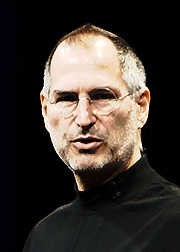
Apple CEO Steve Jobs

Apple CEO Steve Jobs

55-year-old Steve Jobs will remain as CEO and be involved in major strategic decisions for the company, while COO Tim Cook will drive day to day operations. The same arrangements were made when Steve Jobs took 6 months off from January to June in 2009 also on medical grounds.

There is no mention how long the medical leave of absence will last, nor whether it was related to the liver transplant in May 2009 or his earlier victory over pancreatic cancer in 2004.

US Markets are closed for Martin Luther King Day. Apple shares on Wall Street may suffer when it reopens on Tuesday. Between June 6, 2008 and June 26, 2009, when Mr. Jobs began exhibiting weight loss and then went on leave, Apple shares were down 23.3%.

Update: Apple stocks slumped in Europe as its shares fell 6.2% to 244.05 Euro (326.41 USD) at its closing in the Frankfurt stock exchange in Germany.

Apple COO Tim Cook

COO Tim Cook

50-year-old Tim Cook was invited to join Apple as senior vice president of operations from PC maker Compaq in 1998. Unlike Steve Jobs, who is well-known for his slick presentation and showmanship, Tim Cook is quiet, soft-spoken and low-key (wired.com), but adept at keeping a tight ship on operations.

Cook  first stepped up to stand in for Jobs as the latter recuperated from surgery for the tumor in his pancreas. Cook then held the fort during Jobs’ absence in 2009.

Perhaps as an indication of the confidence Cook gained during that period, Apple’s shares actually gained some 70 percent from the time Jobs announced his absence on 14 January 2009 till his return on 29 June that year.

Looking ahead, major items on Cook’s palette will include the rollout of the iPhone on Verizon and the widely rumoured launch of the iPad 2 and iPhone 5.

Hailing from Alabama, Cook graduated from Auburn University and enjoys the outdoors and cycling.

Steve Jobs’ email:

Team,

At my request, the board of directors has granted me a medical leave of absence so I can focus on my health. I will continue as CEO and be involved in major strategic decisions for the company.

I have asked Tim Cook to be responsible for all of Apple’s day to day operations. I have great confidence that Tim and the rest of the executive management team will do a terrific job executing the exciting plans we have in place for 2011.

I love Apple so much and hope to be back as soon as I can. In the meantime, my family and I would deeply appreciate respect for our privacy.

Steve

Some useful links for GIMP users

Sunday, January 16th, 2011

Here’s a short list of links for GIMP users. Feel free to contribute additional links you feel are relevant and useful.

GIMP's splash logo for v2.4

v2.4 Logo by Paul Davey

Forums and discussions boards that contains tutorials and answers questions about GIMP techniques and problems.

Series on using GIMP for photo-editing

Saturday, January 15th, 2011

We have come to the end of the Basic GIMP series. I’ve tried to cover the most basic and commonly needed tasks a photographer needs to correct or enhance his/her photos.

GIMP's splash logo for v2.6

v2.6 Logo by Alexia Death

For an exhaustive descriptive of every feature in GIMP, you may find the user manual useful.

Hopefully, you’ve enjoyed the articles as much as I’ve enjoyed writing them.

If you have any queries or comments on any of the techniques or steps described in the tutorials, please feel free to email me.

Intermediate series on GIMP in Feb 2011

Some readers and friends have encouraged me to continue with the series. As such, I will be commencing an intermediate series on using GIMP in February 2011. This will cover more complex photo correction and enhancement techniques.

If there are any photo-editing techniques or tasks that you want me to cover, email me at johntan@tech4tea.com.

Feel free to let me know if you want to contribute some of your own favourite techniques.

Use GIMP to create vignettes and digital photo frames (Final Part 14 of 14)

Friday, January 14th, 2011
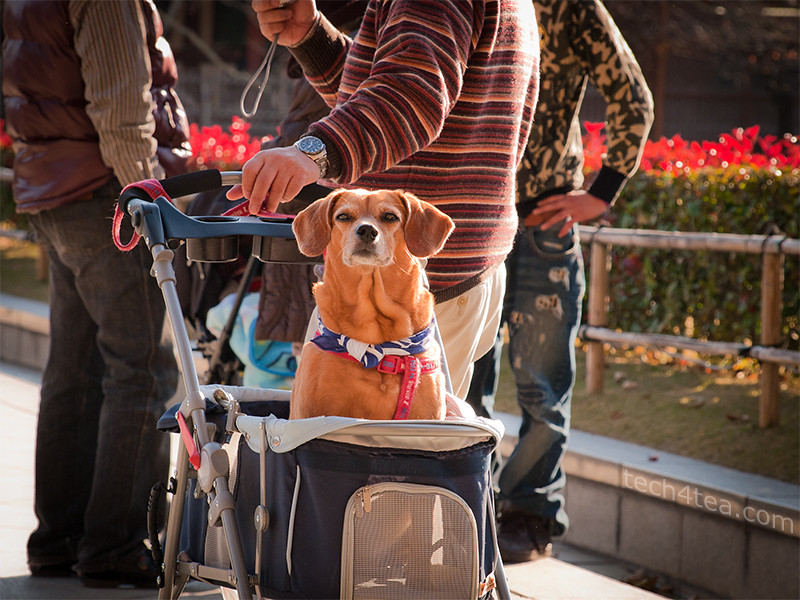
Dog in a pram

Pict 1: This dog's eyes caught mine outside the Todaiji - a UNESCO World Heritage Site in Nara, Japan.

Create simple vignettes or digital photo frames for those special photos.

Yesterday, we used the rudimentary Rectangle Select Tool in GIMP to create a selection for making local adjustments to specific parts of a photo.

Today we check out the Ellipse Select Tool and use it to make simple vignettes and photo frames for digital photos.This is also the most common request that I receive from readers.

Ellipse Select Tool
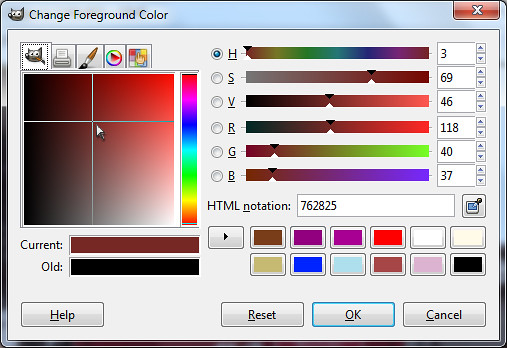
Selecting the foreground colour in GIMP

Pict 2: The same colour picker is used whenever selecting colour in GIMP.

The Ellipse Select Tool works in the same way as the Rectangle Select Tool.

In Picture 1 above, I want to add an oval photo frame around the dog. This will exclude the clutter and distractions in the vicinity of the dog and put the focus on the dog itself. Download the photo of the dog and follow along.

Since the photoframe around the dog will be an upright oval, crop the original photo from a broad landscape orientation to a tall portrait orientation.

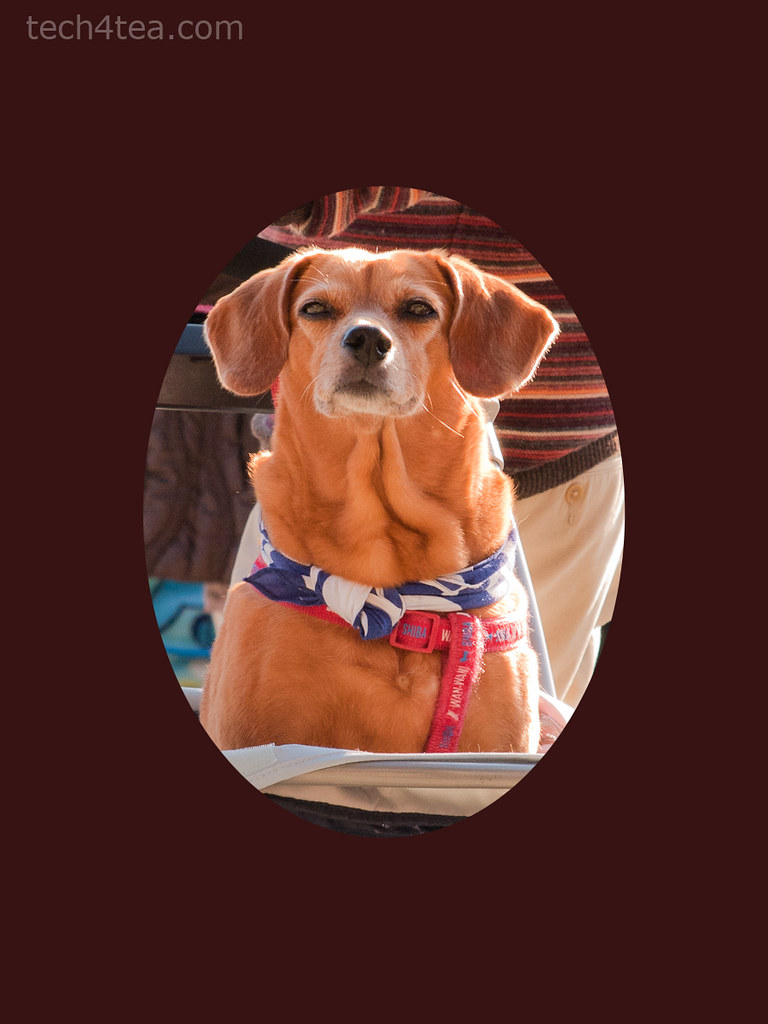
Cropped photo of dog with oval mat

Pict 3: Crop the original photo and add the inner mat of the "photo frame" to exclude the distracting surroundings.

Using the Ellipse Select Tool, drag the cursor around the dog to form a tight oval selection around it (I have no idea whether it’s male or female). Now all the pixels inside the oval selection boundary is selected.

To create the inner mat for the photoframe, we want to fill the area OUTSIDE the oval with dark brown. Click on the Select > Invert command from the main menu to invert the selection. You can also press Ctrl-I on the keyboard as a shortcut. The area outside the original selection is now selected, while the original selection is now omitted.

Click on the foreground colour swatch in the Toolbox and select a dark brown colour from the “Change Foreground Color” dialog box that pops up (see Picture 2 above).

Dog in a "photo frame"

Pict 4: The dog is now in a simple "photo frame" with inner matting.

To select a colour, first click in the thin vertical strip of colour to pick the colour family. The big square colour swatch shows the different tones of the selected colour family. Click within this big square to select the foreground colour.

From the main menu, select the Edit > Fill with FG command to fill the mat with dark brown (see Picture 3).

If you simply want a simple oval photoframe, you can stop here and crop the photo closer to the oval frame.

For a photoframe with an inner mat, you need to add the outer frame. Repeat the above steps but make a slightly bigger oval selection and fill it with orange (see Picture 4). Don’t forget to press Ctrl-I to invert the selection before filling it with orange.

Vignette Effect
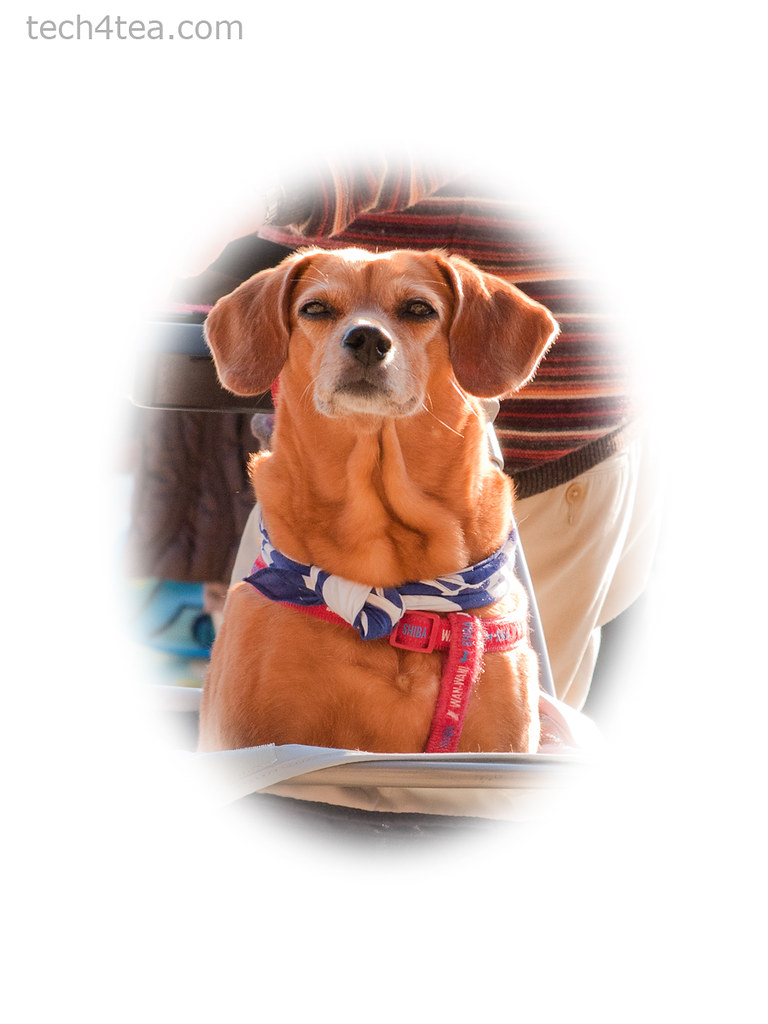
Dog in a vignette

Pict 5: The dog is now nicely vignetted.

A vignette is a frame with blurred edges, usually oval in shape – although you can ceate a vignette of any shape you want.

Activate the Ellipse Select Tool from the Toolbox. For a rectangular vignette, use the Rectangle Select Tool instead.

In the tool options below the Toolbox, click the “Feather edges” checkbox . A Radius slider appears that determines the thickness of the blurred region at the edge of the selection. Set the Radius setting to the maximum of 100.

Drag an oval selection around the subject. Press Ctrl-I to invert the selection and fill it with white or any colour you want. A quick shortcut to set the Foreground colour to white is to press “D” followed by “X” on the keyboard.

Apple’s one-day sale

Friday, January 14th, 2011

For those thinking of buying Apple’s stuff, there’s a one-day sale on its online store today.

Apple's one day online store sale on 14 Jan 2011

Selecting specific portions of a photo for editing (Part 13 of 14)

Thursday, January 13th, 2011
Selecting certain areas in a photo allows only those specific areas to be targeted for editing. Any adjustments and tweaks applied will be limited to only the pixels within those selections.

Following my 6-part series in Digital Life (The Straits Times)  on basic photo-editing using GIMP, I received encouraging feedback and requests from readers and friends to cover more topics.

One of these was about the various ways of creating selections and vignettes in GIMP. A follow-up article was run on DL after the series. I cover these today and tomorrow for those who had missed it.

Selections for local adjustments

So far, most of the adjustments we’ve learnt have been applied to the entire photo. For example, removing a colour cast or darkening and overexposed snapshot. Such adjustments that are applied to the entire photo are known as “global adjustments”.

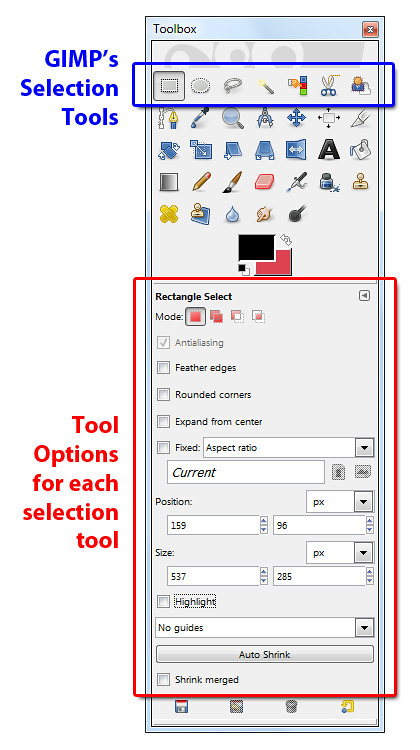
GIMP's selection tools and tool options

Pict 1: GIMP's selection tools are at the top of the Toolbox while the tool options are below.

What if we want to adjust only a small portion of a photo? For instance, we want to lighten only the face of a person standing in the shadows. Lightening the entire photo just to lighten up one face in the shadows could lead to the faces of other people standing in the sun to become overly bright instead.

In these cases, select only the areas in the photo that needs to be adjusted. While those areas are selected, any adjustments applied will be limited to the pixels within those selections. Such adjustments where edits are done only on a specific part of a photo are called “local adjustments”.

As a workflow, global adjustments to the whole photo should be largely completed before commencing on local adjustments on specific areas of the photo.

In GIMP, the tools for making selections are located right at the top of the Toolbox (see Picture 1 and the sidebar on “GIMP’s selection tool options”). Today we try out the most basic selection tool – the Rectangle Select Tool.

Rectangle Select Tool

With the Rectangle Select Tool, simply click in the photo and drag the cursor to form a rectangular selection.

You should see a moving black-and-white dashed line (resembling a single file of marching ants) marking the outline of the selection. The pixels inside the boundary are now selected and whatever adjustments applied will affect only the selected pixels.

Adjusting the selection boundary (and not the pixels inside)

After you have made the initial selection, you can resize the selection to select a bigger or smaller area.

Move the cursor near the sides or corners of the rectangular selection until the cursor turns into a white triangle. Drag the corner to resize the selection boundary.

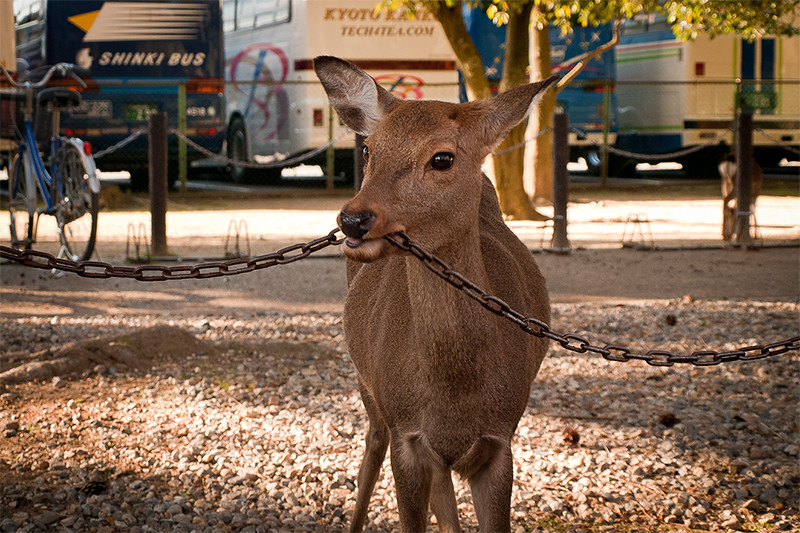
Deer chewing on an iron chain

Pict 2: This demure deer was chewing on an iron chain for tea when I visited in Nara - Japan's ancient capital.

To move the entire selection boundary, move the cursor near the centre of the selection. When the cursor appears as two criss-crossing double-headed arrows, click and drag to move the selection boundary.

Once you have adjusted the selection boundary until it is where you want it to be and of the right size, you can edit the pixels within the selection.

Adjusting the selected pixels
Putting text captions on a photo

Pict 3: Captions on the photo is illegible unless its background is made lighter for more contrast against the dark text.

In Picture 2, I wanted to place a caption to label where the deer hails from. You can see that any text placed in the photo would be rather difficult to make out against the distracting background (see Picture 3).

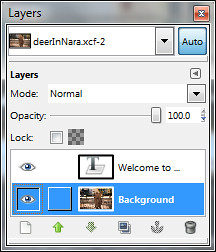
Layers dialog in GIMP

Pict 4: The captions reside in its own layer above the photo. Select the background layer first before increasing the brightness.

You can use the Text Tool to add captions. Any captions added will reside on its own layer above the background layer containing the photo.

Using the Rectangle Select Tool, I made a rectangular selection around the captions. Making sure the background layer with the photo (and not the text layer containing the caption) is selected (see Picture 4), I activated the Colors > Brightness-Contrast command from the main menu.

In the Brightness-Contrast dialog box, I increased the brightness of its the selected area in the photo by dragging the Brightness slider

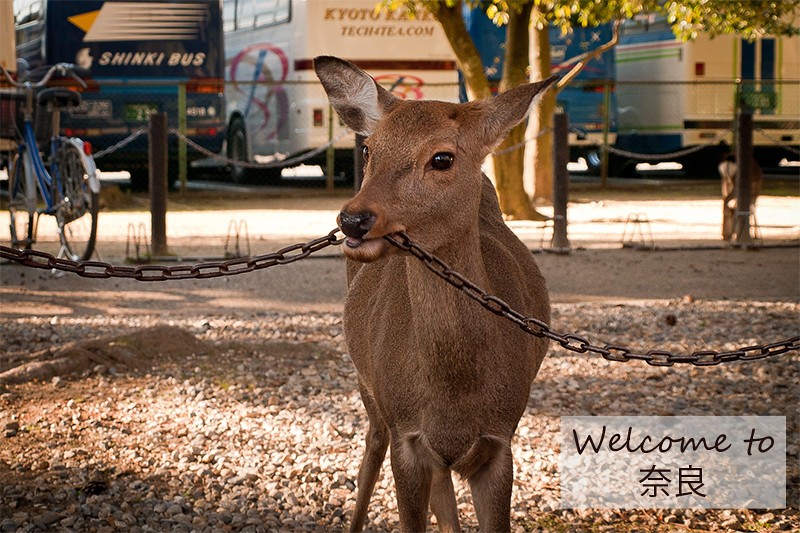
Iron chewing deer with captions

Pict 5: This iron chewing deer awaits you should you visit the Deer Park in Nara.

At about 100, the dark caption became more legible (see Picture 5).

In the final episode of this series tomorrow, we’ll use the Ellipse Select Tool to create simple digital photo frames, as well as vignettes with blurred edges.

GIMP’s selection tool options

Thursday, January 13th, 2011
In GIMP, the tools for making selections are located right at the top of the Toolbox.

GIMP's selection tools and tool options

GIMP's selection tools are at the top of the Toolbox while the tool options are below.

The tool options below the Toolbox contains options that affect how the selection tools work, such as fuzzy edges and rounded corners for rectangular selections. It also displays the size and position of the selection in the photo.

The “Expand from center” checkbox allows the selection to be made by dragging from the centre of the rectangle or ellipse (instead of starting from a corner).

To make a selection of specific dimensions or aspect ratio, tick the “Fixed” checkbox. For instance, Type 1:1 in the text box to select a perfect square or circle.

To view the selected area better, click the “Highlight” checkbox so that the unselected areas are darkened slightly. The options in the guides dropdown box allows useful guides such as centre-lines, golden sections or the rule-of-thirds grid to be shown within the selection.

Digital makeover using GIMP (Part 12 of 14)

Wednesday, January 12th, 2011

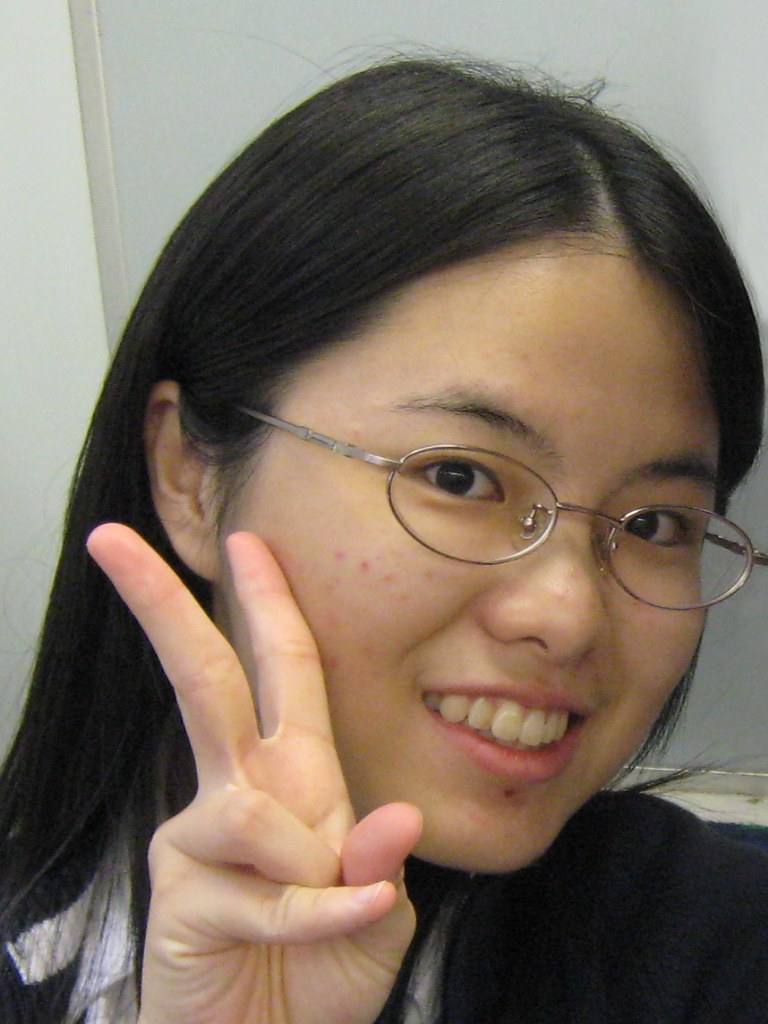
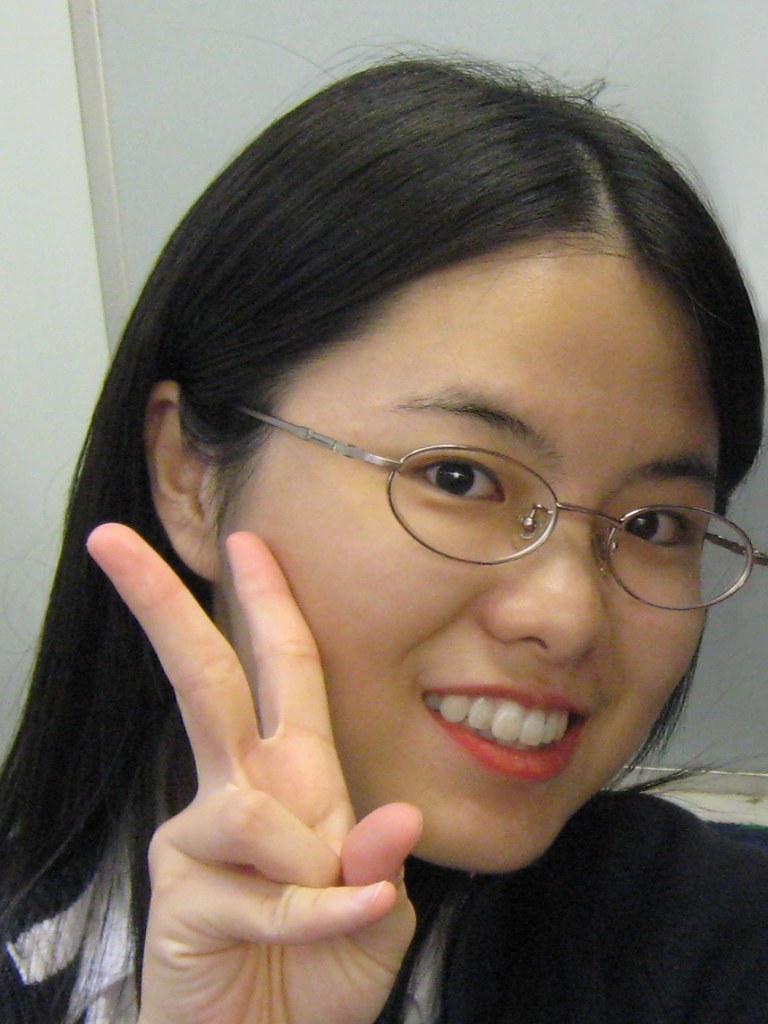
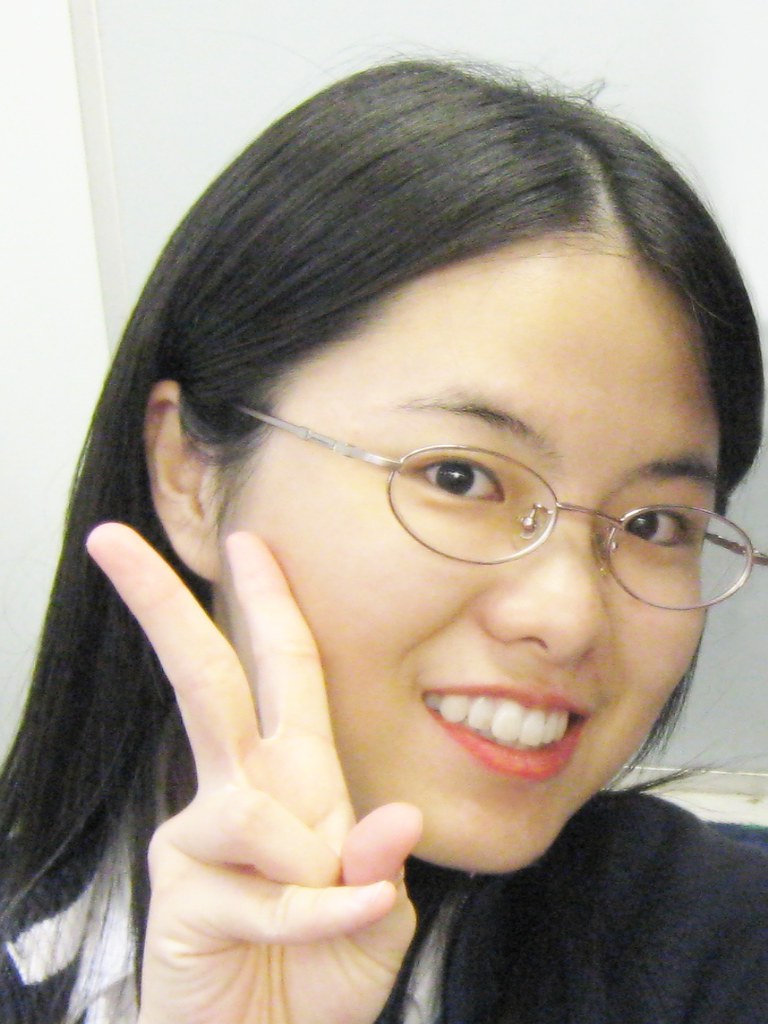
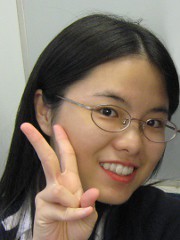
Why stop at removing those red eyes. Use GIMP to remove moles, pimples, scars and wrinkles. Whiten the teeth and eyes, add a twinkle to the pupils and redden those lips. Finally top it off with the soft-focus glam effect from yesterday’s tutorial.
Portrait snapshot of a young lady

Pict 1: A typical portrait snapshot (in an office cubicle?). Photo from morguefile.com.
After a digital makeover

Pict 2: It doesn't take a lot of time to do a digital makeover in GIMP - and it's free!

Yesterday, we added a soft-focus effect to glam up portraits shots, today we go further to give the subject a digital makeover (see Pictures 1 and 2). Refer to previous tutorials for details how to execute some of the steps involved.

Exorcise red eyes

First select the iris of the red eye. Activate the Ellipse Select Tool from the Toolbox and drag diagonally from one side of the red area to the other. Activate the Filters > Enhance > Red Eye Removal command from the main menu.

A Red Eye Removal dialog box pops up with a Threshold slider to control how much of the red to remove. Usually the default value of 50 for the threshold slider is adequate for removing red eyes. Watch the thumbnail preview as you drag the slider to check that the red has been completely removed.

Note that if you forget to select the red eye first, the filter will remove any traces of red from the entire photo!

Remove moles/pimples/scars/wrinkles and hot spots from camera flash

Activate the Healing Tool from the Toolbox (click on the band-aid icon). Set the size of the brush such that it is slightly larger than the mole or pimple to be removed. Ctrl-click on a clear patch of skin to designate that as the clone source from which to copy pixels.

Click on the mole/pimple. GIMP copies pixels from the clone source but blends the new pixels into the surrounding pixels seamlessly.

For wrinkles and scars, paint along the wrinkles or scars to replace them with smooth skin from the clone source.

Use the same techniques to replace hot spots on the skin resulting from reflections from camera flash.

Whiten teeth and eyes

To remove yellowish/brownish tints from the teeth, activate the Paintbrush Tool from the Toolbox. Press “D” on the keyboard to reset the foreground and background colours to black and white. In the Tool Options, set the mode to Saturation.

Select a Circle Fuzzy brush and set the size of the brush such that it is smaller than the height of the teeth. Dragging the Opacity slider to reduce the opacity of the brush to 50. Paint over the teeth to remove any yellowish/brownish tints from the teeth. Be careful not to remove the colour from the pink gums.

To brighten up the teeth, activate the Dodge/Burn Tool from the Toolbox. Select the Dodge radio button in the Tool Options and then paint over the teeth to brighten them.

To whiten the white parts of the eyes, simply repeat the above steps.

Lipstick magic (see Pictures 3 to 5)

To darken the colour of the lips, use the Dodge/Burn Tool from the Toolbox. Select the Burn radio button in the Tool Options and then paint over the lips to darken them.

Instead of darkening the lips, you can intensify the colour of the lips by increasing the saturation of the lip colours.
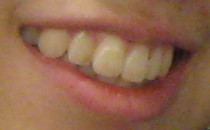
Lips and teeth before makeover

Pict 3: Before the makeover, the lips are pale while the teeth are off-white, as do all of us mortals.

Activate the Paintbrush Tool from the Tool box and set the Mode to Saturation. Click on the Foreground colour swatch in the Toolbox. In the Change Foreground Color dialog box that pops up, click the top right corner of the large square colour palette to choose any bright saturated colour and press OK.
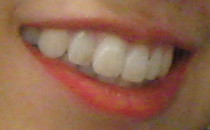
Lips reddened and teeth whitened

Pict 4: The teeth have been whitened and the lips reddened after the makeover.

Set the opacity to 50 and a brush size that is smaller than the thickness of the lips. Paint on the lips to saturate the lip colour. Avoid painting over the white teeth otherwise the brush will add a garish colour to the teeth.
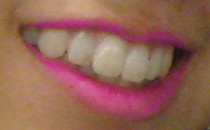
Lipstick colour changed to mauve

Pict 5: Feeling whimsical? Change the lipstick colour to an entirely different colour!

If you’re feeling whimsical, change the colour of the lipstick altogether. Create a new empty layer by choosing Layer > New Layer. Change the Layer Mode of the new layer to “Color”. Activate the Paintbrush Tool from the Toolbox.

Click on the Foreground colour swatch and select a new lipstick colour. Paint over the lips. To reduce the intensity of the new “lipstick”, drag the Opacity slider in the Layers dialog to reduce the opacity of the layer.

Twinkle in the eyes

The eyes are the windows to our soul. To add that twinkle to the pupils, select the Paintbrush Tool from the Toolbox. Set white as the foreground colour by pressing the letter “D” followed by “X” on the keyboard. Click inside the pupils to add the catch-lights.

Apply soft focus

To add to the cream to the cake, apply a soft focus effect to the photo. Refer to the steps described in yesterday’s tutorial (see Pictures 6 and 7).

Portrait snapshot of a young lady

Pict 1: Here's the "Before" shot prior to the makeover.

Glam soft focus effect added to the makeover

Pict 7: Apply a soft focus effect to glam up the final makeover.

Tomorrow, we’ll look at how to make selections to limit adjustments to specific areas of the photos.