Archive for January, 2011

Soft-focus glamourous celebrity portraits using GIMP (Part 11 of 14)

Tuesday, January 11th, 2011
Want to emulate those soft-focus glamourous portraits of Hollywood celebrities? Do it easily with GIMP.
Yesterday, we enhanced digital photos by sharpening them before printout. Today, we do the opposite and introduce a soft-focus effect on portraits to glam up even the most mundane snapshots.

For photos with people in them – especially those with close-up shots – sharpening can emphasize the texture and blemishes on the skin and face. Instead, try simulating a soft focus effect.

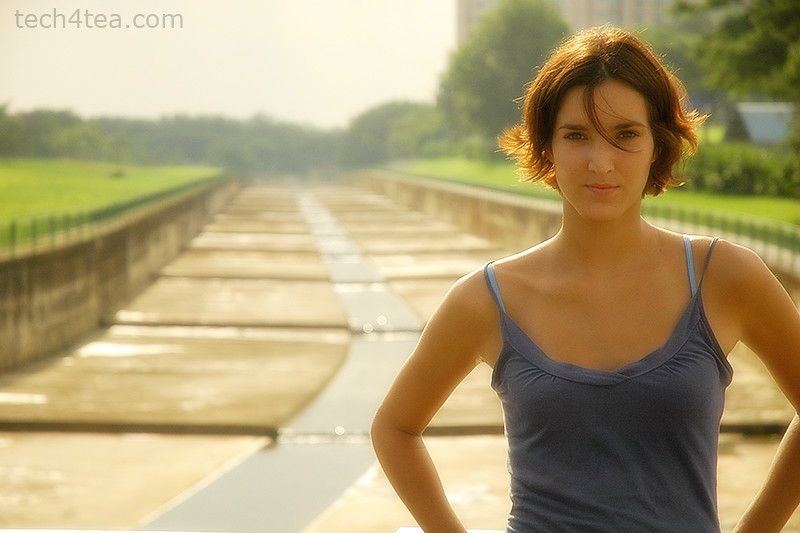
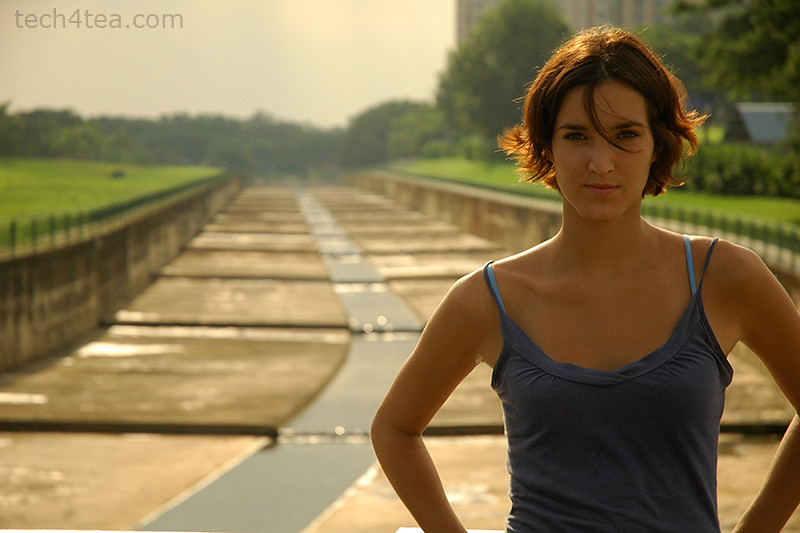
Portrait of young lady

Pict 1: This photo of a beautiful young lady is from morguefile.com.

Soft focus effect for the photo

Pict 2: The soft focus effect was added in less than a minute to glam up the shot.

The hazy effect smoothens out skin complexion and lends a dreamy and glamourous touch to portraits (see Pictures 1 and 2).

To achieve this effect, photographers in the past used to attach special lens filters or even fit stockings over the camera lens. You can, however, emulate this effect easily in GIMP.

Duplicate the background layer

In GIMP, duplicate a copy of the photo by selecting Layer > Duplicate Layer command from the main menu. Change the Layer Mode for the duplicated layer to “Screen”. You can do this by clicking the dropdown box at the top of the Layers dialog and selecting Screen from the list. The photo is brightened up but still in sharp focus.

Layers dialog showing the pertinent settings

Pict 3: Duplicate the photo, blur it and set the Layer Mode to "Screen".

The duplicate copy sits above the original photo (see Picture 3). Apply Filters > Blur > Gaussian Blur command to the duplicate copy. Start with the default setting of five and press OK. Don’t worry if the preview thumbnail shows the image in the duplicated copy to be excessively blurred (see Picture 4). The combination of the two layers via the screen layer mode results in a dreamy glow to the photo.

If the effect is not strong enough, apply the Gaussian Blur filter a second time to the duplicated layer. If the effect is way too strong, press Ctrl-Z to undo and then reapply the filter with a smaller setting.

To finetune and reduce the intensity of the effect, reduce the opacity of the duplicated layer. Simply drag the Opacity slider at the top of the Layers dialog. I usually use an opacity of between 60 and 80.

Gaussian Blur dialog box in GIMP

Pict 4: Apply the Gaussian Blur filter on the duplicate layer.

This effect can also be applied to non-portrait photos to add a dreamy atmosphere to the photo.

Adding a sharpened layer

Layers dialog showing the sharpened duplicate layer

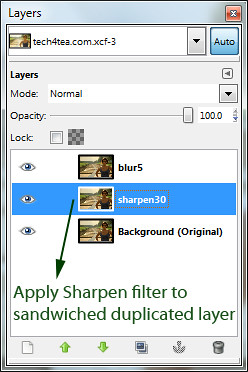
Pict 5: The sharpened duplicate layer should be just above the background layer.

If the features of the portrait (such as the eyes or the lips) becomes too blurred as a result of the effect, duplicate an additional copy of the original photo in the background layer. Select the background layer before activating the Layer > Duplicate Layer command from the main menu

Apply the Filters > Enhance > Sharpen filter to this new duplicate copy. This layer should sit above the background layer but below the other layers created earlier (see Picture 5).

The sharpened layer will add back some sharpness to the edges in the final outcome.

Tomorrow, we’ll use GIMP give portraits a digital makeover.

Sharpening and softening your photos with GIMP (Part 10 of 14)

Monday, January 10th, 2011
Digital photos are inherently not as sharp as their film predecessors because of the physics of the camera sensor. Use GIMP to sharpen your snapshots before sending them for printout.

Yesterday, we removed unwanted objects from photos by cloning neighbouring pixels and painting them over the objects. Today we use GIMP to sharpen digital snapshots.

Digital photos tend to appear not as sharp as their film predecessors because of the way digital cameras interpret the information from the camera sensor. This is made worse when printing out the photos because of the way ink spreads on the printing paper.

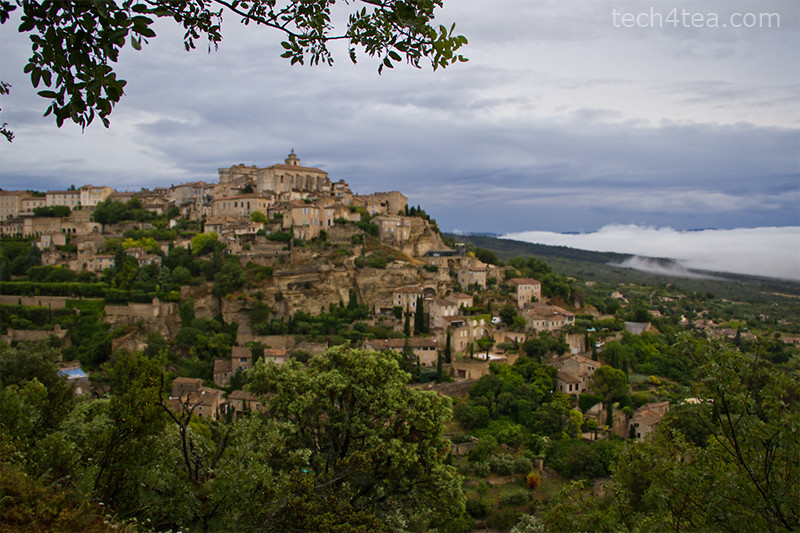
Gourdes - a hillclad village in Provence, France

Pict 1: This precarious hillclad village is slightly out of focus because the camera had focussed on the overhanging branches instead.

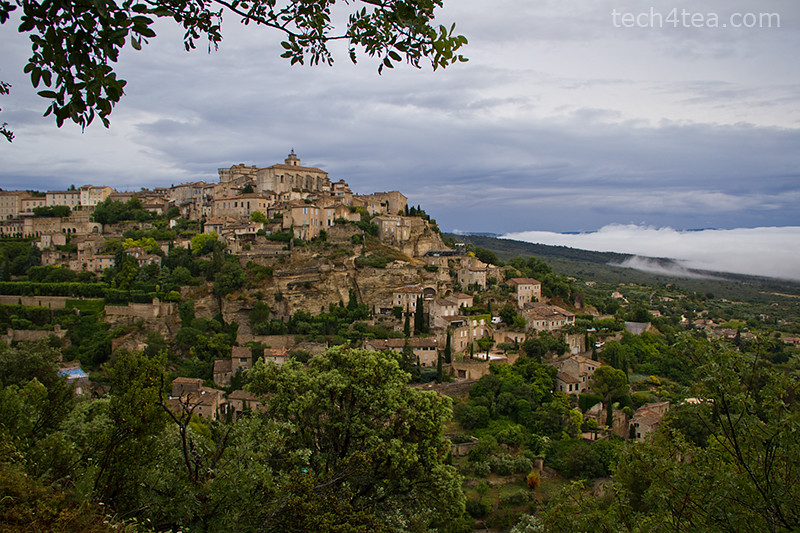
Sharpened photo of Gourdes

Pict 2: A bit of sharpening can make a big difference when the photo is printed out. Gourdes is one of my favourite villages in Provence, France.

Sharpening digital photos using an image editor on a computer is simple but can make a photo appear more crisp and appealing (see Pictures 1 and 2). In fact, I usually keep the sharpening setting in my camera and photo scanners to the minimum because a dedicated photo editor on the computer can usually do a better job at sharpening photos.

Quick and simple sharpening

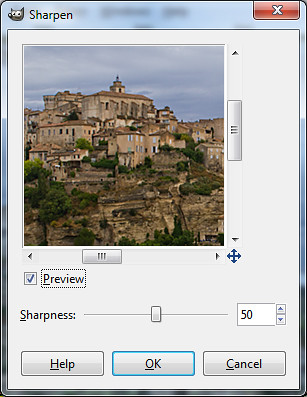
The "Sharpen" dialog box in GIMP

Pict 3: A "Sharpness" setting of between 10 and 50 is usually adequate.

Sharpening a snapshot in GIMP is quick and easy: simply select the Filters > Enhance > Sharpen command from the main menu. A “Sharpen” dialog box pops up (see Picture 3) showing a single “Sharpness” slider to control the amount of sharpening to be applied, and a thumbnail to preview the effect visually. Enlarge the dialog box to make the preview thumbnail bigger.

Colour pencil sketch-like effect of Gourdes

Pict 4: Deliberately pushing the "Sharpness" slider near the maximum can produce a neat colour pencil sketch like effect.

Avoid setting the sharpness amount too high, since this will also sharpen the undesirable noise and grain in the photo and make the photo look garish.

However, for those looking to turn their photos into a colour-pencil-sketch like effect, try pushing the sharpness slider near the maximum value of 99 (see Picture 4).

Exercising more control over the sharpening

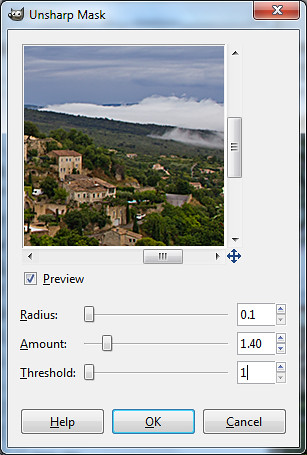
If you have the time and desire more control over how the sharpening effect should look, go straight to the Filters > Enhance > Unsharp Mask command instead (see Pictures 5).

Unsharp Mask dialog box in GIMP

Pict 5: The Unsharp Mask filter provides more control over how the sharpening is accomplished.

The Unsharp Mask filter actually sharpens a photo – contrary to what its name suggests – and is the tool of choice of the pros. The name and method used is based on a traditional darkroom technique for sharpening film photos – in which a photo is made to appear sharper by superimposing a blurred copy of the photo over the original photo.

Similar to the simple Sharpen filter, an “Unsharp Mask” dialog box pops up with a preview thumbnail of the sharpening effect. There are, however, three sliders, providing finer control over how the photo is sharpened.

GIMP first detects the edges in the photo and sharpens the photo by increasing the contrast of these edges. It lightens the lighter pixels on one side of an edge and darkens the darker pixels on the other side, making the photo appear more crisp than it really is.

The Amount slider controls the strength of sharpening to apply while the Radius slider specifies how many pixels on either side of an edge will be modified for sharpening.

The Threshold slider tells GIMP how it should detect edges. Only adjacent pixels where the difference in pixel values exceeds the Threshold value will be detected as part of an edge to be sharpened. A high Threshold value protects areas of smooth tonal transition from being sharpened, and minimises the amplification of blemishes in faces, water surfaces or skies.

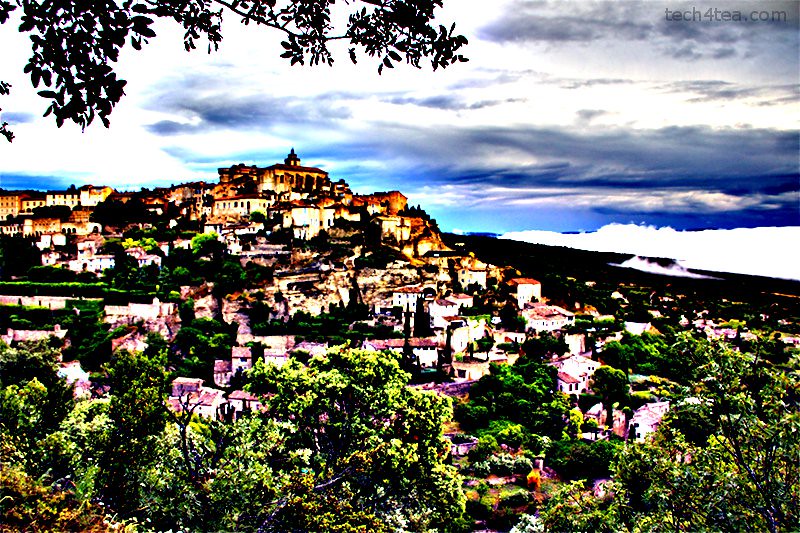
Painterly version of Gourdes

Pict 6: Pushing the "Radius" and "Amount" up can lead to some nice painterly effects.

Although the Unsharp Mask filter avoids accentuating the noise and graininess in the photo, oversharpening will introduce halos around the edges in the photo and make it look unnatural. Details in the photo are also lost because the highlights are blown out into pure white while shadows are muted into black.

Again, don’t oversharpen unless your intent is to deliberately create a painterly special-effects version of the photo (see Picture 6).

Tomorrow, we’ll use GIMP to give portraits a soft focus reminiscent of glamorous celebrity shots.

Cloning out distractions using GIMP (Part 9 of 14)

Sunday, January 9th, 2011

Are lamposts sticking out of your head in a photo – or are tree branches growing out of the ears instead? Remove them using the Clone Tool in GIMP.

Yesterday, we looked at some camera settings that will help get from the camera the best quality photo for GIMP to work on. Today we return to GIMP to remove unwanted objects like overhead cables and background dustbins from a snapshot.

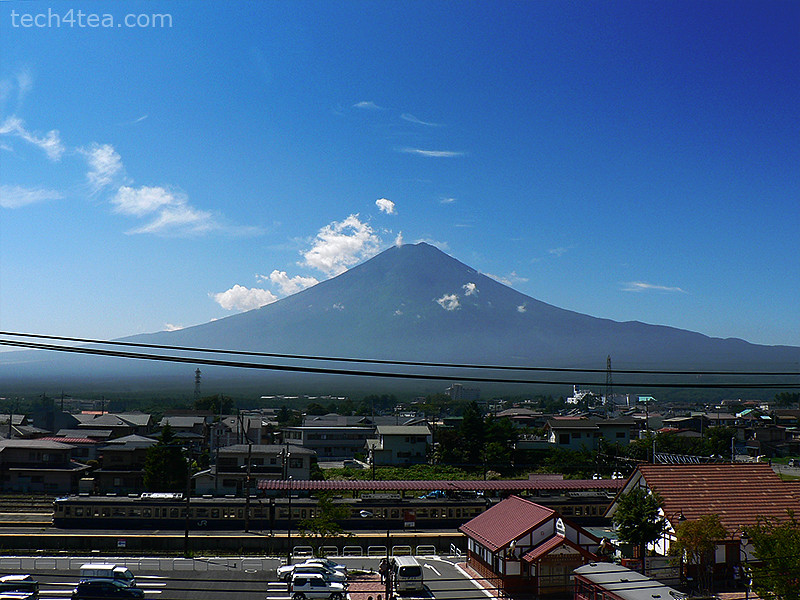
Mt Fuji with cables stretching across it

Pict 1: Clear vista of Mt Fuji (apart from those cables) from across Yamaguchi train station on a bright sunny day.

A common advice for photographers is to look out for objects sticking out from a subject’s head or ears when framing the shot. And then reposition the subject to avoid these shot-spoliers.

However, sometimes the space and angle available might make it impossible to do so. Other times, the photographer is so focused on the main subject that he doesn’t notice the lamp-post or tree branch in the background, or that bright green dirty dustbin to the side.

View of Mt Fuji with cables "removed"

Pict 2: The cables have been "removed" by copying neighbouring pixels over the cables.

I took the photo of Mt Fuji on a sunny day in early autumn. The view of the mountain was perfect apart from those darn electric cables stretching right across the frame. I wanted to include the train rolling into the train station at the small lake-town of Yamaguchi, as well as buildings at the foothills of Fujisan.

Let’s use the Clone Tool in GIMP to remove those cables (see Pictures 1 and 2).

Selecting the Clone Tool

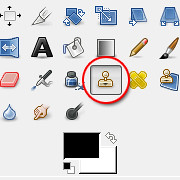
Icon for the Clone Tool in GIMP's Toolbox

Pict 3: Select the Clone Tool by clicking on its icon in GIMP's Toolbox

The Clone Tool allows you to paint over the cables by copying pixels from other parts of the photo. Select the Clone Tool from the Toolbox (see Picture 3).

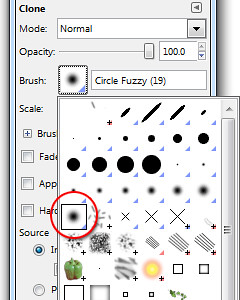
In the tool options in the lower half of the Toolbox, select the “Fuzzy Circle” brush. You can do this by clicking on the square icon beside the Brush label, and selecting, from the drop-down panel of brush shapes, the circular brush with blurred edges (see Picture 4).

Choose the "Fuzzy Circle" brush from the dropdown panel

Pict 4: Choose the "Fuzzy Circle" brush from the dropdown panel in the tool options below the Toolbox

Drag the “Scale” slider in the tool options to control the size of the brush, or simply press the straight bracket keys on the keyboard – “]” to increase the brush size and “[“ to decrease. The cursor shows how big the brush is.

Cloning over the cables

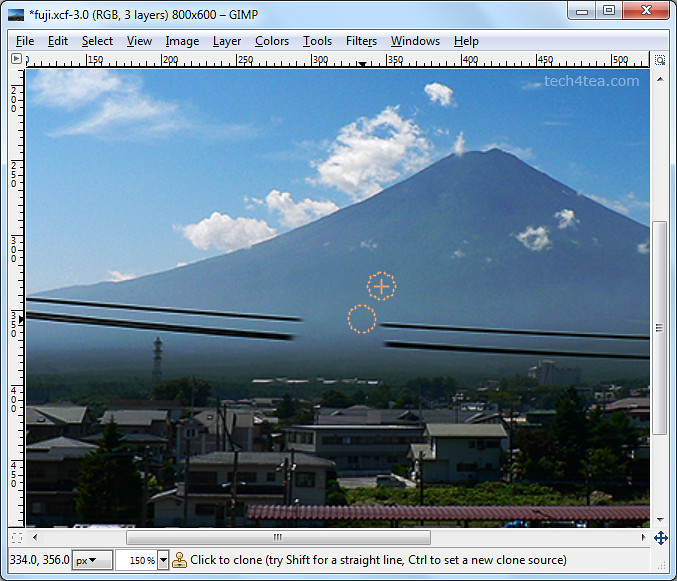
To remove the cables near the centre of the Fuji photo, first designate the area from which to copy pixels from.

Hold down the Ctrl key and click on an area close to where you want to start painting over the cable. A circle with a cross-hair is displayed to indicate where this clone source is.

Cloning out the cables

Pict 5: After designating the clone source, paint over the cables to copy pixels from the clone source.

Drag the cursor over the cable to paint over it (see Picture 5). As you paint over the cable, the clone source will also move such that it maintains its relative position to the cursor. If you make a mistake, press Ctrl-Z to undo and try again.

Change the clone source as you paint on different parts of the cables because the background behind the cable changes over the stretch of the cables.

Using a blurred edge for the brush helps merge the copied pixels seamlessly with the cable’s background. To make the merging even more seamless, reduce the opacity of the brush (drag the slider in the tool options) and paint a few times over each stretch of the cable.

Zoom in for the details

To work on areas where there are intricate details in the background behind the cables, get a bigger and clearer view by pressing the “+” key on the keyboard to zoom into the photo. For example, where the cables cross some pylons in the foothills and where the background of the cables change from sky to mountain.

Because of the clear edges involved, click the checkbox for “Hard edge” in the tool options. This allows parts of the pylon and the edge between the mountain and the sky to be copied crisply over the cables.

Reduce the size of the brush for more precision and use Ctrl-Z to undo mistakes. With some practice, you should get the hang of it quickly enough.

Cropping out the foreground

As you can see, cloning can be time consuming and straining to the eyes. If the unwanted objects or blemishes are around the edges of the photo, it is easier to just crop them out using the crop tool.

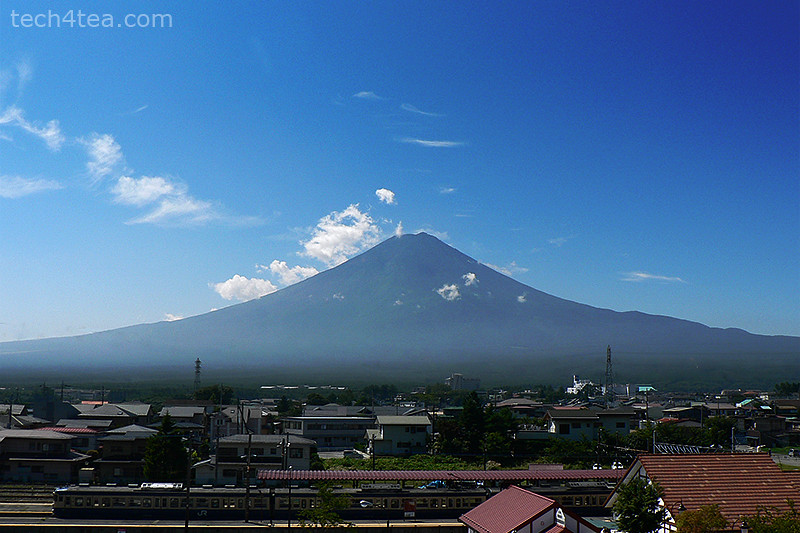
Final cropped photo of Mt Fuji

Pict 6: Cropping out the car park and other wires in the foreground also framed the photo more tightly drawing the focus to the mountain itself.

In the photo of Mt Fuji, I removed the car park and other wires in the foreground simply by cropping them out (see Picture 6).

Apart from unwanted objects in the photo, the Clone Tool can also be used to remove dark blotches in the photo arising dust or dirt spots on the lens or camera sensor.

Tomorrow, we’ll use GIMP to sharpen photos before sending them for printout.

Basic camera settings (Part 8 of 14)

Saturday, January 8th, 2011

Let’s go back to basics and see what settings on the digital camera will produce as good a photo as possible for GIMP to start working with.

Boy pointing a camera upwards

New to digital cameras? Here are some basic settings to get the most out of your camera.

Yesterday, we used GIMP to turn a colour photo into black-and-white, and tinted it with another colour like sepia. Today, we give GIMP a break and go back to basics. I’ll share what camera presets to use in the digital camera to get the best quality photo from the camera – for GIMP to work on.

Having seen what photo-editors like GIMP can do to correct photographic mistakes and enhance snapshots, one may to tempted to become slipshod when taking photos.

After all, GIMP can straighten a crooked photo, crop a poor composition, remove unpleasant colour casts, and darken or brighten an overexposed or underexposed photo.

Later on in the series, we’ll see GIMP sharpening slightly blurred photos and removing lampposts sprouting from the top of people’s heads.

What a photo-editor CANNOT do

However, there IS a limit to what photo-editors can do. As they say, “Garbage in – Garbage out”.

Photo of Shinto temple with areas highlighted

Pict 2: Le'ts examine areas of this photo taken at the Kitano Tenmangu temple in Kyoto.

Even the best photo-editor cannot add in lost details from an overly blurred snapshot, or bring back image quality destroyed by an overly high JPEG compression. The JPEG compression throws image detail away and introduces unsightly colour blobs called image artifacts into the photo.

Neither can GIMP bring back details that were not captured in an overly overexposed or underexposed photo – such as the backlit silhouette of a person against a bright background.

It is also difficult to remove colour noise introduced by a high ISO setting.

Here are some basic camera settings I propound whenever somebody asks me what settings to use for their new digital camera. If you already know these stuff – please bear with me.

Use the maximum camera resolution

Digital cameras allow photos to be taken at lower resolutions. For example, you can set a 12 megapixel camera to capture photos at eight, three or fewer megapixels. This is for photographers who simply want to send the photo via email or share it online and want to upload the photo fast, or who are running out of space on their memory cards.

Enlarged view of signboard at high resolution

Pict 3: Using the maximum resolution means that even if you crop a small portion of the photo or enlarges it, there are enough pixels for a sharp print.

Enlarged view of signboard at high resolution

Pict 4: Taken at smaller sizes, enlarging the photo or cropping a small portion of the photo can lead to poor quality due to pixellation.

Unfortunately, the camera simply throws away image pixels and under-utilises the high resolution camera sensor that you paid your moolah for.If you want a good quality print to hang on the wall, use the maximum resolution of the camera. This gives GIMP more pixels to work with when tweaking the photo later on and a sharper photo if the print size is big.

It also allows you to crop a small portion of the photo and still have enough pixels for a good print. Should you need to email or share a photo online, you can still resize the photo to a lower resolution using GIMP.

Use the best quality setting

Most digital cameras store photos as JPEG files. You can specify how much compression to use. High compression results in smaller files but also means poor quality.

Enlarged view of roof at low JPEG compression and good quality

Pict 5: Using a low JPEG compression takes up more memory space but results in good image quality.

Enlarged view of roof at low JPEG compression and good quality

Pict 6: Using a high JPEG compression takes up less memory space but results in poor image quality.

Always choose the best quality setting so that a low compression level is used. After all, memory cards are cheap nowadays. There is no point forking out so much money for the camera and the vacation only to have the photos spoiled by a high JPEG compression setting.

Turn digital zooming off

Many digital cameras boast the “digital zoom” feature. Disable this feature. During digital zooming, the camera adds image pixels to the photo to make it appear bigger. This reduces the sharpness and quality of the photo.

If the subject really needs to be magnified, use GIMP to upsize the photo. A photo-editor on a computer can do a much better job than the data processor on board the camera.

Low light photography

Low light photography can produce some of the most challenging snapshots to correct. A high ISO introduces colour noise that is difficult to remove even in a photo-editor. A long exposure results in blurring due to camera shake. While the use of flash can result in harsh hotspots from reflections off oily skin.

For still subjects in low light, use a tripod along with a long exposure and low ISO. The low ISO minimises noise and the tripod removes blurring due to camera shake. The long exposure can result in some grainy noise but it’s not as bad as that introduced by a high ISO setting. However, if the subject is moving, the long exposure will result in motion blur.

Tomorrow, we’ll go back to using GIMP to remove overhead cables, branches sprouting from people’s ears and dustbins in the background.

Black-and-white and Sepia (Part 7 of 14)

Friday, January 7th, 2011

Want to turn a colour photo into an artsy black-and-white? Or add a touch of nostalgia by turning it sepia? Or simply add any colour tint if you’re feeling flamboyant.

Yesterday, we removed undesirable colour casts using GIMP. Today let’s drain colour totally from the photo – and then put back some.

Draining out the colour

Using the Colors > Desaturate command

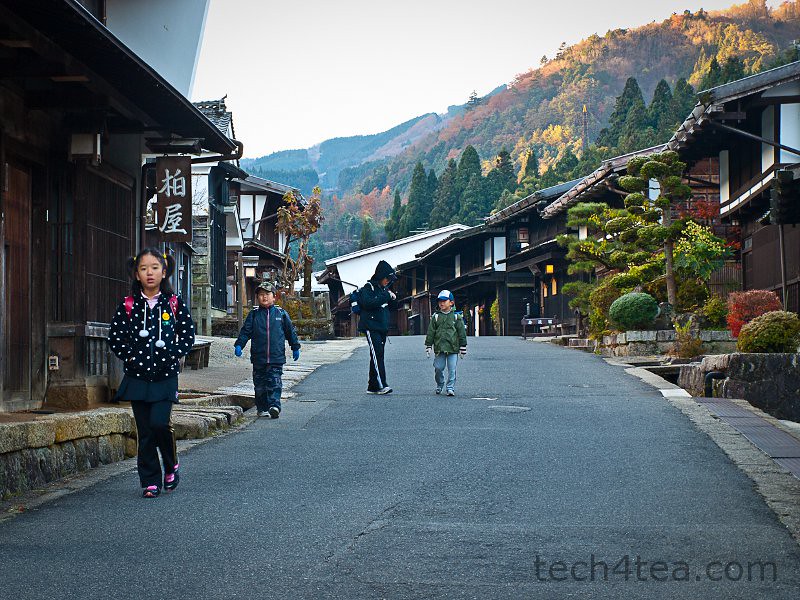
Colour photo of kids going to school in Japan

Pict 1: These kids were on their way to school at seven in the morning, at morbidly cold temperatures.

Black-and-white photos can convey the mood of a scene better than colour, sometimes turning a mundane colour photo into something dramatic.

If the background is colourful and distracting, turning the snapshot to black-and-white can help to mitigate the distraction from say a bright red car, shirt or signboard in the background and make the main subject stand out.

Black-and-white photo of the kids going to school

Pict 2: Converting the photo to black and white was more congruent with the traditional houses in this carefully preserved Edo-era Japanese village called Tsumago.

The simplest way to turn a colour photo into black-and-white is to select the Colors > Desaturate command from the main menu. The result may be a bit flat and dull but it’s quick.

A simple dialog box appears with three different methods of producing black-and-white versions of the photo. The methods are based on the Lightness, Luminosity and Average values of the pixels in the colour original (see Picture 2).

The results are slightly different from each other so click in turn on the radio button for each method to see a preview of the effect on the photo. Click OK to apply the conversion.

Using the Colors > Components > Channel Mixer command.

For more control over how the converted black-and-white photo looks, use the Colors > Components > Channel Mixer command instead.

Channel Mixer dialog box in GIMP

Pict 3: Drag the sliders in the Channel Mixer dialog box to control how the final black and white version will look.

In the Channel Mixer dialog box that pops up, check the “Monochrome” and “Preserve luminosity” checkboxes. Adjust the three sliders to control the resulting black-and-white effect (see Picture 3).

Black-and-white conversion using Channel Mixer

Pict 4: Using Channel Mixer allowed fine control over how the black-and-white conversion is done and can yield punchier results.

Unfortunately, the preview on the black-and-white effect is not available in the photo itself – it is only available in a small thumbnail inside the dialog box. You can enlarge the thumbnail preview by enlarging the dialog box itself, by dragging one of its corners outwards.

Press OK to apply the conversion (see Picture 4).

Tinting the photo with colour

To add a touch of nostalgia to a photo, tint it with a touch of sepia. Apply the Colors > Colorize command from the main menu.

Sepia version of the photo

Pict 5: Add a touch of nostalgia by tinting the photo sepia.

A Colorize dialog box appears with three sliders. Drag the Saturation slider down to 25 to reduce the intensity of the tint. For a sepia tint, drag the Hue slider to 45. Finally, adjust the Lightness slider to taste before pressing the OK button (see Picture 5).

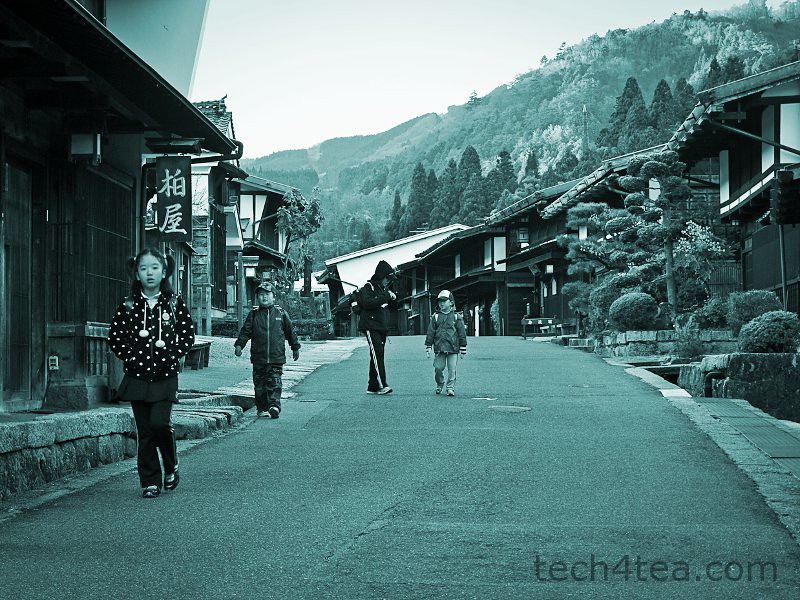
To tint the photo with colours other than sepia, varying the Hue slider in the Colorize dialog box (see Picture 6).

Cyan-tinted version of the photo

Pict 6: Feeling flamboyant? Tint the photo with any colour that strikes your fancy.

When applying the Colorize command directly on a colour photo, GIMP first converts the photo into black-and-white internally using the Desaturate command, before adding the colour tint. The result can be rather flat at times.

I prefer to convert the colour photo into black-and-white first using the Channel Mixer command – so that I can control which tones (skin tones, for instance) to stand out in the final photo.

Tomorrow, I’ll go back to basics and share what camera presets to use in the digital camera to get the best quality photo from the camera – for GIMP to work on.

Removing colour casts with GIMP (Part 6 of 14)

Thursday, January 6th, 2011

Have you ever shot photos where the women look like they’re from Venus or the men look like they’re from Mars? Wrong white balance settings on the camera can lead to colour casts that coat everything in the photo with a hideous tinge. Use GIMP to remove these undesirable colour casts.

Yesterday, we used Layers and Layer Modes to tweak the brightness and contrast of photots. Today, we remove (or add) colour casts using GIMP.

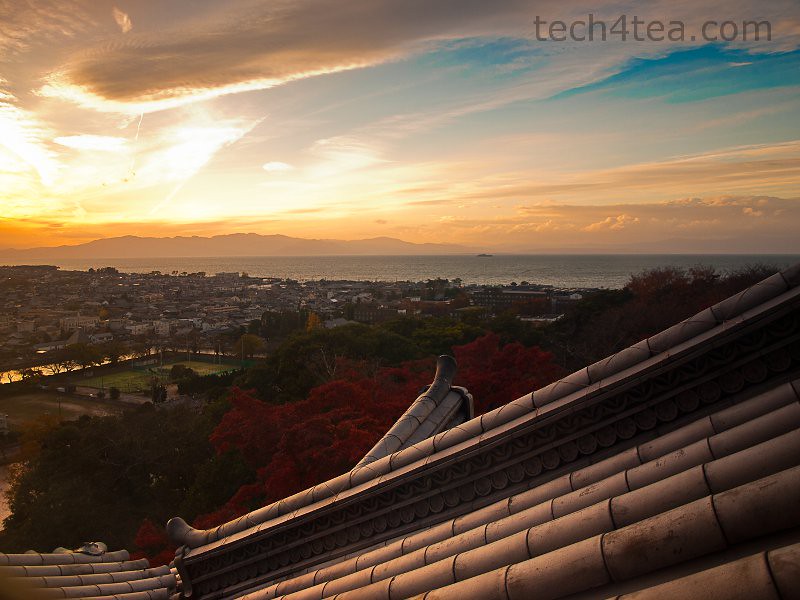
Colour casts in photos are caused by the surrounding light at the time the shot was taken. Some casts makes a photo look nicer while others add ugly tints that make people in those photos look like the Na’vi from Pandora.

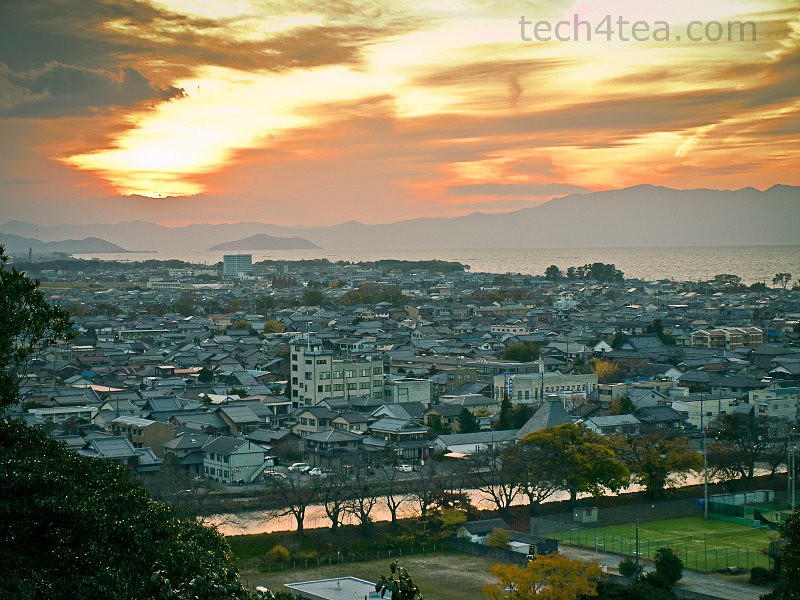
Golden sunset along the coast of Lake Biwa

Pict 1: This stunning golden sunset was taken off the coast of Lake Biwa from the top of Hikone Castle in Japan.

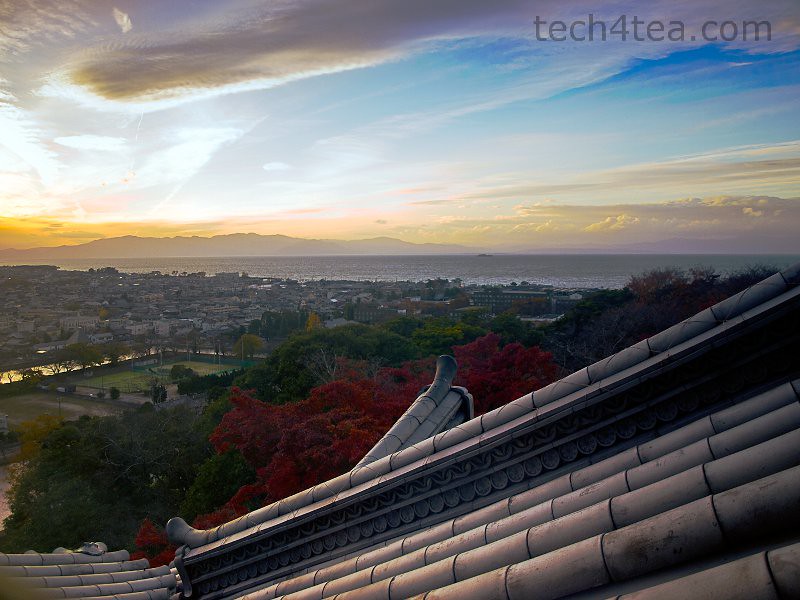
Orange colour cast removed from sunset photo

Pict 2: The orange colour cast has been removed to restore the "original" colours - but the sunset has lost its soul.

The rich, golden colours during sunrise and sunset are examples of colour casts that enhances a photo (see Pictures 1 and 2). Fluorescent lights, however, are notorious for adding hideous blue or green colour casts onto a scene.

White Balance setting on cameras

Before snapping a photo, set the camera’s White Balance setting to Auto (see Picture 3). Under most lighting conditions, the camera will automatically detect and remove colour casts from the photo.

Setting the white balance on the camera

Pict 3: Set the White Balance on the camera to Auto

To help the camera better judge the compensation needed, a photographer can change the camera’s White Balance setting from Auto to Sunlight, Cloudy or Fluorescent, for example, depending on the ambient lighting.

Be careful though – a common reason for unwanted colour casts in photos is when the white balance has been set wrongly. For example, you may have just shot outdoors in the sun using the “Daylight” white balance setting, and then move indoors to shoot under fluorescent lighting. If you forget to switch the white balance setting in the camera from “Daylight” to “Fluorescent”, the indoor shots will turn out with a strong blue or green tint.

Removing colour casts

In GIMP, apply Colors > Auto > White Balance from the main menu. This should automatically remove colour casts from most photos. Usually, the brightness and contrast are enhanced as well. To make the colours look richer, apply Colors > Auto > Color Enhance to make the colours more saturated.

Color Balance dialog box in GIMP

Pict 4: Adjust the three sliders in the Color Balance dialog box until the colour cast has been eliminated.

If the above auto-adjustments do not remove colour casts completely, try doing it manually using Colors > Color Balance instead. The Color Balance dialog box pops up containing three sliders for controlling colour in the photo (see Picture 4).

The three sliders comprises pairs of colours on opposite ends of each slider. Moving a slider towards the colour on one end will increase the intensity of that colour in the photo and reduce the intensity of the colour on the other end of the slider.

For example, if there is a cyan colour cast in the photo, drag the cyan-red slider towards the red end to reduce cyan in the photo and make the photo look redder.

Above the sliders, there is a group of three radio buttons to specify whether the colour adjustments are applied to the Shadows, Midtones or the Highlights. Start with the Highlights before moving on to the other two ranges.

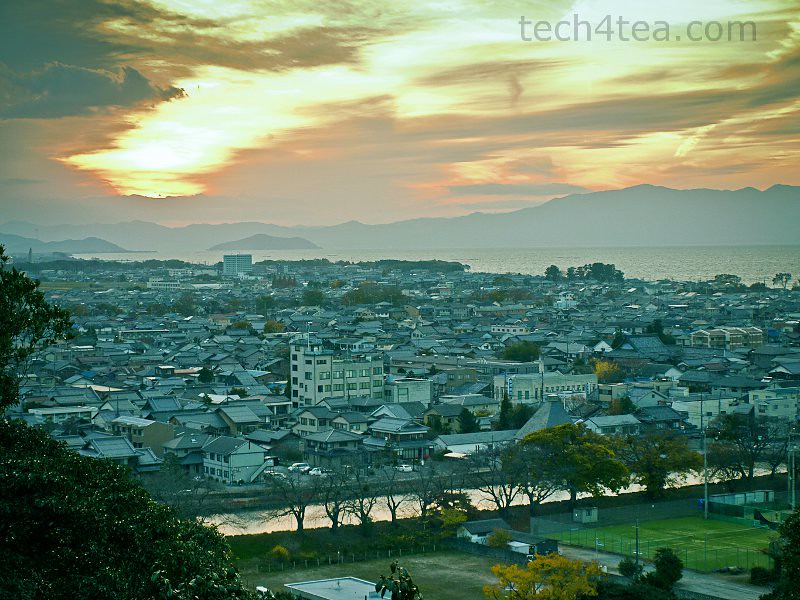
Cyan colour cast in sunset photo

Pict 5: A beautiful sunset off the coast of Lake Biwa is marred by a cyan cast.

Sunset photo with cyan colour cast removed

Pict 6: The cyan colour cast has been removed but the sunset still looks flat.

To preview the effects of the adjustments on the photo, leave the Preview checkbox at the bottom of the dialog box ticked. Adjust the three sliders until you feel the colour cast has been removed (See Pictures 5 and 6).
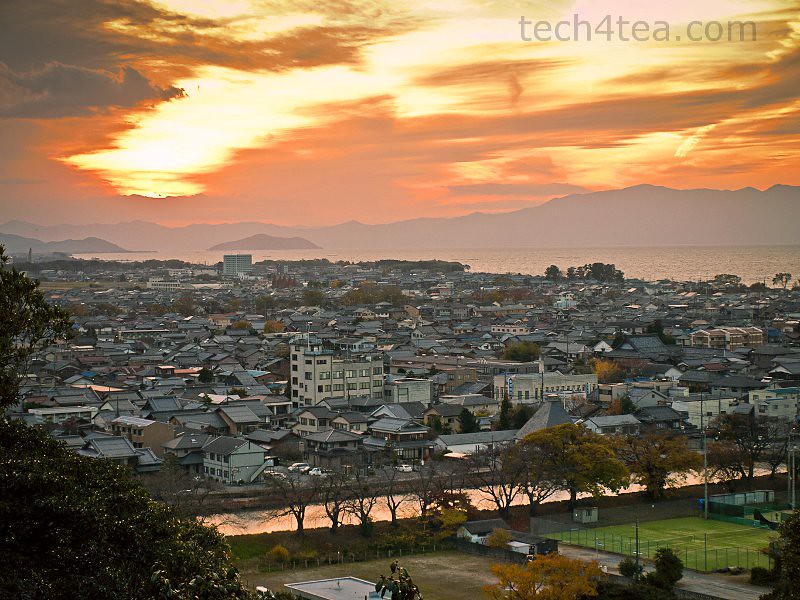
Red and yellow cast deliberately added to photo

Pict 7: A red and yellow colour cast has been deliberately added to better convey the original warmth and glow of the sunset.

You can even add your own colour casts deliberately to add some atmosphere to the photo (see Picture 7).To compare the photo before and after the adjustments, toggle the Preview checkbox on and off.

At the bottom of the dialog box, there are three buttons to either Reset the sliders, Cancel the adjustments, or press OK to apply the adjustments.

Tomorrow, we’ll look at how to remove colour totally to turn photos into black and white, tint them a nostalgic sepia, or any other colour that strikes your fancy.

Correcting exposure using Layers (Part 5 of 14)

Wednesday, January 5th, 2011
An alternative method of adjusting brightness and contrast is to use Layers in GIMP with an appropriate Layer Mode. This can often yield more pleasing results than the automatic adjustments or the Brightness-Contrast command.
Layers dialog in GIMP

Pict 1: The Layers dialog in GIMP displays the layers in the image file and facilitates the manipulation of the layers.

Yesterday, we used GIMP’s automated adjustment tools to tweak the brightness and contrast of digital photos. We also tried out manual exposure adjustment using the Brightness-Contrast command. Today, we take a look at Layers and use Layer Modes as an alternative way of tweaking brightness and contrast.

Quick intro to Layers

When a digital photo file is opened in GIMP, it is placed in the Background layer. You can see the Background layer in the Layers dialog (see Picture 1). If you do any painting or make any brightness or contrast adjustments to the photo, pixels from the photo itself in the Background layer is altered permanently (unless you use the Undo command).

Layers dialog with duplicated layer

Pict 2: Layers dialog with duplicated layer. The Layer Mode and Opacity slider is at the top.

You can create additional image layers above the Background layer. The commands for manipulating layers can be found in the Layers dialog. The six icons at the bottom of the Layers dialog include commands to create a new layer, and to duplicate or delete a selected layer.

Inside the Layers dialog, click on a layer’s name to select the layer, double-click the name to rename it and toggle the eye icon to the left of the layer name to hide or show the layer’s contents. When a layer is selected, any painting or adjustments will be confined to the pixels in the selected layer.

Layer Modes
Layer duplicated twice using Screen Layer Mode

Pict 3: The screen layer mode lightens the pixels below. Duplicate the layer twice for a stronger lightening effect.

The pixels in different layers interact with each other in different ways – depending on the Layer Mode for each layer. There is a total of 21 different Layer Modes. Select one using the “Mode” dropdown box right at the top of the Layers dialog.

The default mode for a layer is “Normal” – the pixels in the upper layer simply obscure the pixels in the layers below. Below the “Mode” dropdown box is the “Opacity” slider which determines how much of pixels in the layer are visible.

Below, we will use the three most commonly used Layer Modes to darken, brighten or increase the contrast of a photo.

Adjusting brightness/contrast using layers
Enhancing contrast using Contrast Layer Mode

Pict 4: Create a new layer from all the earlier layers and apply Contrast layer mode.

First duplicate the Background layer containing the photo by selecting the Layer > Duplicate Layer command from the main menu. You can also click fourth icon from the left at the bottom of the Layers dialog.

A new duplicated layer containing a duplicate copy of the photo is created above the Background layer. In the Layers dialog, click on the name of the duplicated layer to select it. Now click the “Mode” dropdown box at the top of the Layers dialog to change the Layer Mode of the duplicated layer.

Making overexposed photos darker

To darken overexposed photos that are too bright, set the Layer Mode of the duplicated layer to “Multiply”. The photo is now darkened. If the darkening effect is too strong, reduce the opacity of the duplicated layer by dragging the Opacity slider (just below the “Mode” dropdown box) to the left (see Picture 2 above).

Overexposed photo of a potted plant that is too bright

Pict 5: This photo was shot near the asylum in Saint-Rémy-de-Provence, France; where Vincent van Gogh stayed and convalesced for a year

The overexposed photo has been darkene

Pict 6: The original overexposed photo has been darkened by duplicating the layer and setting its layer mode to "Multiply"

If the darkening effect is not strong enough even with the opacity at 100%, duplicate the duplicated layer. Because this new layer will already have its Layer Mode set to Multiply, it will further darken the photo. As before, if the effect is too strong, lower the opacity of the topmost layer.

Making underexposed photos lighter

To lighten underexposed photos that are too dark, duplicate the background layer containing the photo and set the Layer Mode of the duplicated copy on top to “Screen”. As before, control the intensity of the lightening either by reducing the opacity of the duplicated layer, or by further duplicating the duplicated layer – or a combination of both (see Picture 3 above).

Underexposed photo of red roses

Pict 7: These beautiful roses in the courtyard of Monastère St. Paul-de-Mausole are underexposed and too dark.

Roses have been brightened up

Pict 8: The roses have been brightened up by applying the "Screen" layer mode to the two duplicated layers.

Increasing contrast

If the background layer containing the photo is the only layer in the Layers dialog, duplicate the background layer using the Layer > Duplicate Layer command and set the Layer Mode of the duplicated copy on top to “Overlay”. This will increase the contrast of the photo.

Dull and flat photo of a statue

Pict 9: This photo of a forgotten statue at a corner of the asylum appears dull and flat.

The statue now has more "personality"

Pict 10: An "Overlay" layer mode was used to increase the contrast of the statue.

But if you had earlier already duplicated layers to lighten or darken the original photo, there will be at least two layers in the Layers dialog. In this case, use Layer > New from Visible command in the main menu to create a new layer from the combination of all the layers below (instead of the Layer > Duplicate Layer command which duplicates a single layer).

Set the Layer Mode of the new layer on top to “Overlay” to increase the contrast (see Picture 4 above).

Tomorrow, we’ll look at how to remove unwanted colour casts from photos using GIMP.
Olympus launches new flagship compact XZ-1

Wednesday, January 5th, 2011

The Olympus XZ-1 seeks to bridge the gap between a compact point-and-shoot and the digital single lens reflex (DSLR) camera. It will go on sale at an estimated S$699 by end January 2011.

The XZ-1 was first announced in September 2010 during the biennal Photokina 2010, the world’s largest visual equipment exhibition held in Cologne, Germany.

It is a 10-megapixel high-end compact with 4x optical zoom from 28mm to 112mm (35mm equivalent). It records HD movies, has a 610k dots OLED display and features 6 Art Filters that can be applied to movies recorded. The camera comes in black or white.

The Olympus XZ-1 comes in Black or White

The XZ-1 hopes to produce good image quality approaching those of DSLRs whilst sporting a compact body. Olympus hopes this will appeal to compact point-and-shoot users aspiring for greater manual control and image quality without having to lug a bulky camera around. The camera also targets the more seasoned DSLR user as a more compact secondary camera.

Previously, Olympus had filled this niche with the Pen series of Micro Four Thirds mirrorless interchangeable-lens cameras. The XZ-1 aims to augment this niche by providing a lower priced, more compact, fixed lens alternative.

The main selling points of the camera are listed below:

1. i.ZUIKO DIGITAL 4X zoom lens — the first time Olympus has equipped a camera in its compact range with its premium lens. The lens has a large aperture of f1.8 at its widest angle of 28mm (35mm equivalent). Even at its telescopic end at 112mm, the maximum aperture is a large f2.5. This allows low-light photography to be done at faster shutter speeds to reduce camera shake during exposure. It also enables a shallower depth of field.

2. A  large 1/1.63-inch high-sensitivity 10 megapixel (effective) CCD sensor to achieve high picture quality and shallow depth of field close to that available from SLR cameras. Compared to previous sensors which cramms 14 megapixels in a smaller 1/2.33-inch, the new CCD sensor has double the light receiving area per pixel – achieving higher picture quality and sensitivity.

3. TruePic V image processing engine — the same as used in the OLYMPUS PEN series — optimizes picture quality, while 6 pre-canned Art Filters provide in-camera special effects on photos taken without the need to use complicated photo-editing software on a computer. The Art Filters include the new Dramatic Tone filter recently introduced in the E-5, Olympus’ flagship DSLR.

Back view of the XZ-1 showing the 610k dots OLED display4. Live Guide interface guides novice users through various expert photographic techniques to help achieve the desired image, while the interface for advanced users provides direct control over camera functions using the control ring and control dial.

5. The 3-inch OLED (Organic Light Emitting Diode) display can display VGA picture data with 610,000-dot pixels. The display is capable of expressing deeper black than LCD because it can implement zero light emission status for expressing black. The wide angle of view ensures high visibility even during high- or low-angle shooting.

6. Dedicated movie button for instant start of HD movie recording (AVI Motion JPG 1280 x 720, 30 fps)

Listed here are some earlier write-ups on the Olympus XZ-1:
Photo reviewFull review | Detailed specs

Correcting exposure in GIMP (Part 4 of 14)

Tuesday, January 4th, 2011
Use simple adjustments in GIMP to darken or brighten an overexposed or underexposed photo. Beginners with little time to spare can use one-click automated adjustment tools, while those wanting more control can use the Brightness-Contrast command.
Dull underexposed photo of a pot of Oden

Pict 1: This dull underexposed photo of a pot of Oden in Kyoto, Japan is typical of the flat snapshots churned out by many digital cameras.

Brighter and more contrasty photo of the pot of Oden

Pict 2: After applying Colors > Auto > White Balance followed by Color Enhance, the Oden looks almost as delectable as when I ate it.

Yesterday, we used the Perspective and Crop tools in GIMP to correct perspective distortion and to crop a digital photo. Today, we make simple adjustments to darken or brighten a photo.

Modern digital cameras are rather intelligent in working out the right exposure for most snapshots. However, some photos may still end up too dark or bright for your liking. And dialling up the contrast tends to enhance the appearance of most photos.

GIMP has many ways of enhancing the exposure and contrast of a photo. Let’s start with the automated adjustments.

Automatic adjustments
(see Pictures 1 to 3)

Less contrasty photo of the Oden

Pict 3: Using Color Enhance in place of White Balance results in a less aggressive adjustment.

There are six quick one-click automatic adjustments in GIMP. They can be found under Colors > Auto in the main menu. These include: Equalize, White Balance, Color Enhance, Normalize, Stretch Contrast and Stretch HSV.
These commands adjust the brightness and contrast of a photo in different ways. Which command is most suitable depends on the nature of each individual photo.

Since it’s so easy to activate each adjustment, just try them on the photo one at a time to see which command yields the best effect. Press Ctrl-Z or Edit > Undo after each command to undo the previous adjustment before trying out the next adjustment.

From experience, I find White Balance gives the best result. Most of the time, applying White Balance followed immediately by Color Enhance may well be all that’s needed to both remove colour casts in photos and to improve the brightness and contrast at the same time.

If the results of using the White Balance adjustment is too exaggerated and contrasty, use Stretch Contrast as an alternative.

Brightness-Contrast command
(see Pictues 4 to 7)

Brightness-Contrast dialog box in GIMP

Pict 4: Drag the Brightness and Contrast sliders and see the results in the photo.

Sometimes, none of the automatic adjustments work for a photo – or you may prefer more control over how the brightness/contrast is adjusted. In these cases, activate the Colors > Brightness-Contrast command from the main menu.

A dialog box with two sliders appears – the Brightness slider on top and Contrast slider below.

Drag the Brightness slider to the left to darken the photo or drag it to the right to lighten it. Drag the Contrast slider to the left to reduce the contrast and to the right to increase it.

Flat underexposed photo of a car

Pict 5: Retro seems to be fashionable for small cars in Japan now. I snapped this sweet thing in Otsu on an overcast day.

Brighter and more contrasty version of the retro car

Pict 6: Using Brightness:85 and Contrast:75 with the Brightness-Contrast command, the retro car looks more zappy now.

Graphic art special effect on retro car

Pict 7: Using Brightness:100 and maximum Contrast:127 yielded a graphic art effect on the car.

Leave the Preview checkbox checked to see the effect of the adjustments on the photo while dragging the sliders. To compare the photos before and after the adjustments, toggle the checkbox on and off.

Once happy with the adjustments, hit the OK button.

To produce a graphics-art special effect from the photo, push the Contrast slider all the way to the right.

Powerpoint backgrounds
(see Pictures 8 to 10)

Illegible text against a photo background

Pict 8: It is difficult to make out the text against the distracting background.

Many people use photos as backgrounds for their Powerpoint slides. Some end up making the text unreadable. Here’s a tip to avoid that happening.

Darken the photo (by dragging the Brightness slider to the left) when using light-coloured fonts for the text in the slide. Conversely, lighten the photo if the text in the slide uses dark-coloured fonts.

If the photo is still too distracting, use the Brightness-Contrast command with the Contrast setting lowered to beween zero and -50.

Text against a darkened background photo

Pict 9: Light-coloured text is more readable against a darkened photo background.

Text against a lightened background photo

Pict 10: Dark-coloured text is more readable against a lightened photo background.

Tomorrow, we’ll look at some alternative ways of adjusting exposure using Layers and Layer Modes.

Perspective correction and cropping (Part 3 of 14)

Monday, January 3rd, 2011
Paintings on windows suffering from perspective distortion

Pict 1: These beautiful window paintings were on a wall right beside the Papal Palace in Avignon - France. The sides of the paintings taper inwards because of the steep upwards angle from which I snapped the shot.

Correct the distortion in perspective that is common when taking snapshots of tall buildings. Crop a photo to exclude distractions, or to change the composition of the photo.

Yesterday, we got ourselves oriented to the user-interface of GIMP, and tried our hand at straightening a crooked photo. Today we continue with common but simple photo-editing tasks like perspective correction and cropping.

Correcting perspective distortion

When taking photos of a tall building from an oblique angle, or while standing near it, the top of the building tends to taper inwards towards the top (see Picture 1). This distortion is called converging verticals and makes the building look as if it is falling backwards.

Distortion in perspective corrected using GIMP

Pict 2: Distortion in perspective corrected using GIMP

To minimise such distortions, you can either go as far away as possible from the building (unfortunately you usually don’t get such luxury of space) and try to snap the building flat-on, or invest in an expensive camera accessory called a tilt-shift lens.

In GIMP, you can correct such distortions in perspective easily and for free – simply use the Perspective tool (see Picture 2).

Select the Perspective tool from the Toolbox (see Picture 3). In the settings section in the lower half of the Toolbox, select the following options: Corrective (Backward) radio button for Direction, and “Image + Grid” from the dropdown box for Preview.

Pick the Perspective Tool from the Toolbox

Pict 3: Pick the Perspective Tool from the Toolbox

Perspective adjustment grid overlaid on photo

Pict 4: Drag the gridlines until the vertical and horizontal gridlines are aligned with the horizontal and vertical edges in the photo.

Click on the photo. A grid is overlaid onto the photo and a Perspective dialog box appears (ignore it for the moment). Drag the mouse within the grid to distort the gridlines.

Distort the grid until the vertical gridlines are aligned with the sides of the building walls, and the horizontal gridlines are aligned with the horizon and rooflines in the photo (see Picture 4).

Click the Transform button in the dialog box and the distortion is corrected.

Cropping

After using the Rotate or Perspective tool on the photo, empty areas are added around the corners that need to be cropped away. Cropping is also done to remove distractions from the surrounding and fill the frame with the main subject.

Area in photo highlighted for cropping

Pict 5: Highlight the area in the photo to be retained by dragging with the Crop Tool.

It is also done to adjust the aspect ratio say, from 4:3 to 3:2, or to crop a flat landscape-oriented photo into a tall portrait-oriented one. Many times, the photographer may simply want to enhance the composition of the photo by improving on the original framing of the photo.

Select the Crop tool from the Toolbox. Drag a rectangular selection around the area to be retained in the photo (see Picture 5).

A rough selection is good enough because the crop selection can be adjusted easily.

Photo cropped to zero into two of the paintings

Pict 6: The photo was cropped to zero into two of the paintings.

Mouse over the side or corner of the selection and the cursor changes to include arrows that show which direction the selection can be adjusted. Click and drag these adjustment handles to adjust the crop selection inwards or out.

To move the position of the crop selection itself (without altering its size and shape), move the mouse over the centre of the selection and drag it to its new location within the photo.

Once you are happy with the crop selection, press Enter on the keyboard to crop the photo (see Picture 6).

Tomorrow, we’ll look at how to make simple exposure adjustments to darken or brighten an overexposed or underexposed photo.