Archive for the ‘Photography’ Category

LG Optimus 3D launched in Singapore

Thursday, August 11th, 2011

Available at S$938 (incl GST without contract) in Singapore in end August, the latest Android smartphone from LG allows users to create 3D photos and video using the phone and to view 3D content and play 3D games without wearing any 3D glasses.

LG Optimus 3D launched today at Marina Bay Sands

LG Electronics today launched the LG Optimus 3D at its LG Live outlet at Marina Bay Sands.
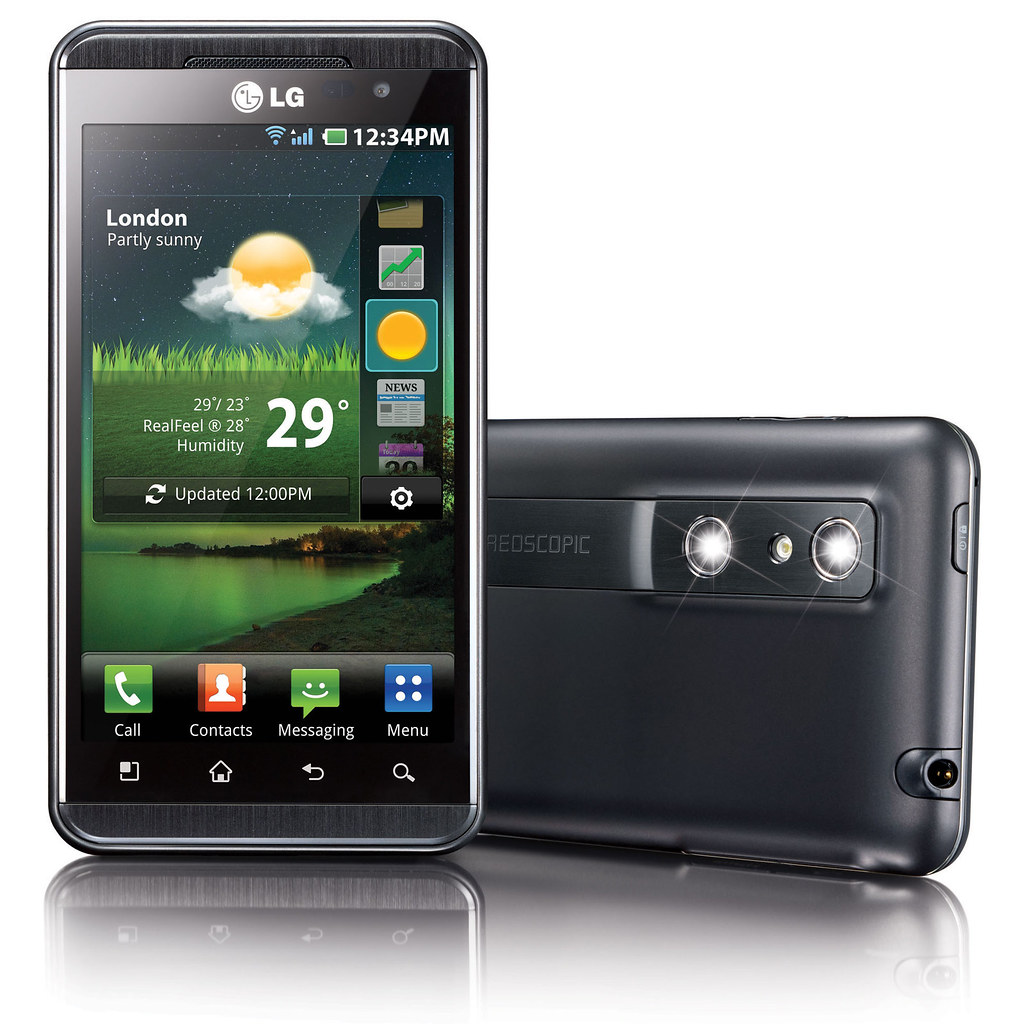
Optimus 3D smartphone from LGThe new Android smartphone boasts a “Tri-Dual” architechure – dual-core, dual-channel and dual-memory – promising improved performance when multi-tasking, viewing graphics-intensive websites, watching a movie or playing graphics-intensive games.

It also brings glasses-free 3D experience into the palms of its users. LG wants to empower its users to immerse themselves in 3D – from creating 3D photos and video, to enjoying them, and beyond that to sharing 3D media with others  – all from a smartphone.

Create, enjoy, share

Optimus 3D smartphone from LGTo create 3D photos and video, the user can use the dual 5 megapixel stereoscopic cameras on board to shoot 3D stills and footage. Alternatively, users can use included software on the smartphone to convert existing 2D photos and videos into 3D. Free software for converting 2D games will be available for download (more details to be announced soon)

Optimus 3D smartphone from LGTo enjoy 3D media  – and this is where LG is all excited about – the user does not need to wear 3D glasses. By using double-layered screen technology, the two images for the left and right eyes are are interlaced with each other and sent separately to both eyes so that the left eye only sees the image meant for the left eye and the right eye only sees the image meant for the right eye.

Optimus 3D smartphone from LGLG boasts that the cross-talk between the two images – the extent to which pixels meant for one eye is seen by the other eye – is extremely low. I tried it myself and found the 3D images gave a strong sense of depth and dimensionality – very realistic without any nausea even after more than 10 minutes of use.

The intensity of the 3D effect can be reduced or turned off – based on user’s preference – similar to the Nintendo 3DS game console. The sweet spot for optimal 3D effect seems to be about 30 cm away from the screen.

The 4.3-inch WVGA display offers bright and flicker-free images in HD, up to 1080p in 2D and up to 720p in 3D.

In case the user drops the smartphone after purchase and the dual stereoscopic cameras get misaligned, the Optimus 3D allows re-calibration of the cameras by correcting the images captured via software to account for any mis-alignment.

LG Optimus 3D smartphoneThe Optimus 3D comes preloaded with 10 free 3D games including titles such as Nova, Asphalt 6 and Let’s Golf 2.

Play 3D games on the LG Optimus 3DCaptured 3D content can be shared with 3D TVs via an HDMI 1.4 connection and the phone can also send content to any DLNA Certified device. In addition, users can upload and stream 3D content on YouTube’s dedicated 3D channel (www.youtube.com/3D).

Smartphone and 3D gizmo

Even without its 3D functionality, the Optimus 3D serves as a highly powered smartphone with top-notch graphic performance, web browsing experience, raw computing speed and high video resolution.

The LG Optimus 3D smartphone was launched in Singapore today.

The LG Optimus 3D smartphone was launched in Singapore today.

For 3D buffs, it offers a chance to own a 3D camera and glasses-free 3D viewing/playing device and a gadget to share and interact with 3D content on the Web.

The LG Optimus 3D offers the best of both worlds and places both functionalities into a single device. This class of gadgets will surely bring 3D into the lives of the average smartphone user.

The main specifications of the Optimus 3D can be found here.

Olympus announces SRP for PEN E-P3 kits at S$1,298 and S$1,548

Monday, July 25th, 2011

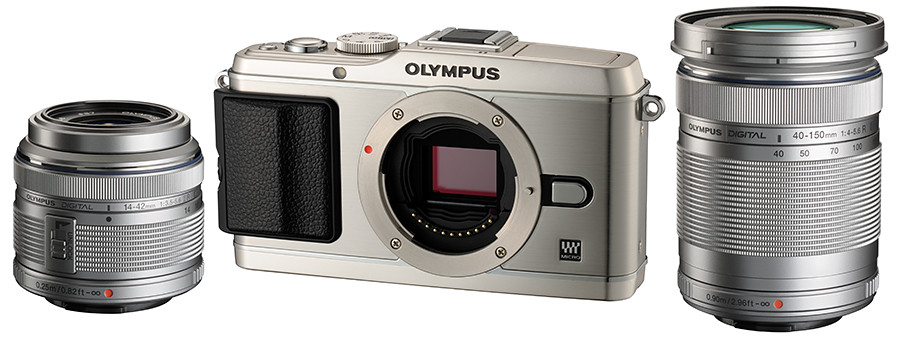
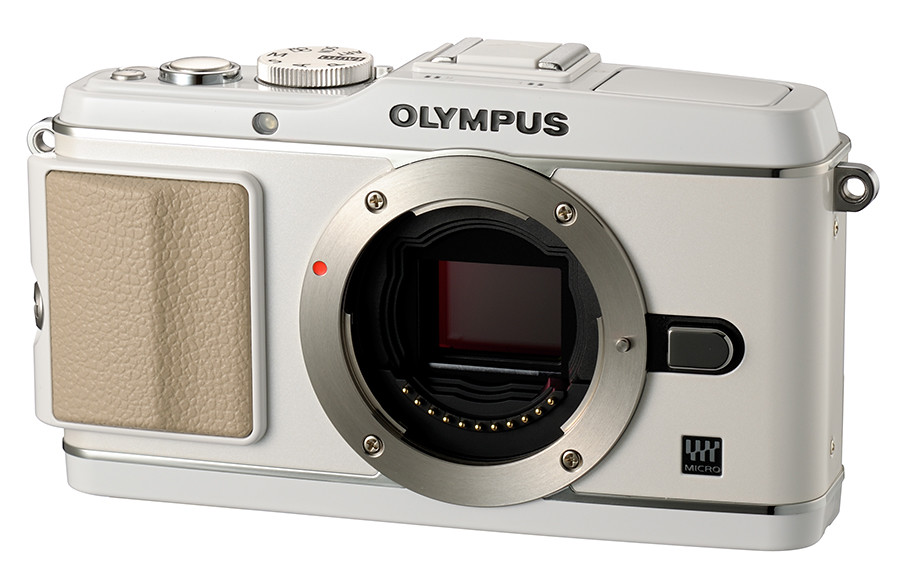
Olympus has announced the Suggested Retail Prices (SRP) of the PEN-E-P3 in Singapore. Available in black, silver and white and bundled with an 8 GB SD card, the 14-42mm Lens Kit is priced at S$1,298 (incl GST), while the Twin Lens Kit will set you back by S$1,548 (incl GST).

Olympus E-P3 14-42mm Lens Kit, priced at S$1,298.00 (incl GST).

Olympus E-P3 14-42mm Lens Kit, priced at S$1,298.00 (incl GST).

The E-P3 14-42mm Lens Kit is priced at S$1,298.00 (incl GST) and includes both the body and the M.ZUIKO DIGITAL 14-42mm f3.5-5.6 II R lens.

Olympus E-P3 Twin Lens Kit, priced at S$1,548.00 (incl GST).

Olympus E-P3 Twin Lens Kit, priced at S$1,548.00 (incl GST).

The E-P3 Twin Lens Kit is priced at S$1,548.00 (incl GST) and includes the body, the M.ZUIKO DIGITAL 14-42mm f3.5-5.6 II R lens and the M.ZUIKO DIGITAL ED 40-150mm f4.0-5.6R lens.

The white and silver camera bodies will come with silver lenses while the black bodies will be matched with black lenses.

Both options come bundled an 8 GB SD card. The body is available in black, silver and white. Black camera bodies will be matched with black lenses. Silver and white camera bodies will come with silver lenses.


The Olympus PEN E-P3 can be purchased from Olympus authorised retailers.

Weinheim to Heilbronn via Mosbach and Bad Wimpfen

Monday, June 13th, 2011

After three nights in Weinheim, we checked out and headed for Heilbronn, stopping by in Mosbach and Bad Wimpfen along the way.

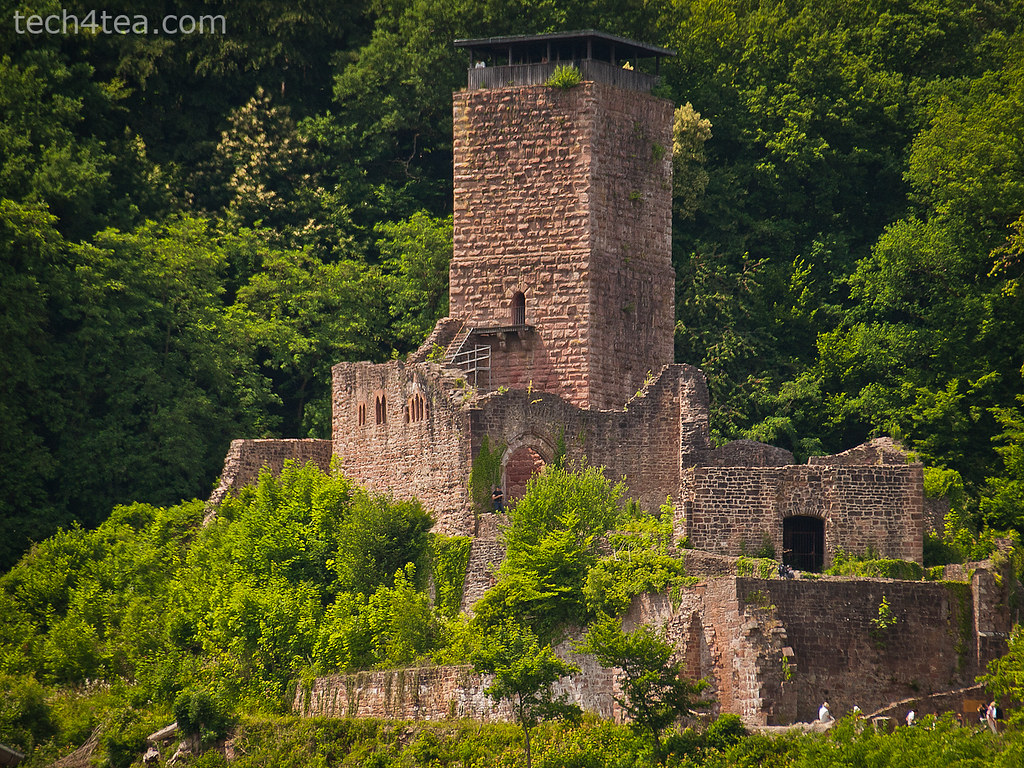
One of four castles in Neckarsteinach, taken with an Olympus E5

One of four castles in Neckarsteinach, taken with an Olympus E5.

Last night, there was some wedding function at the hotel we were staying at. Guests were streaming in over the course of the evening. A few busloads of Japanese tourists also shipped into the hotel. They were still milling around the hotel posing and taking photographs of each other early this morning during breakfast time.

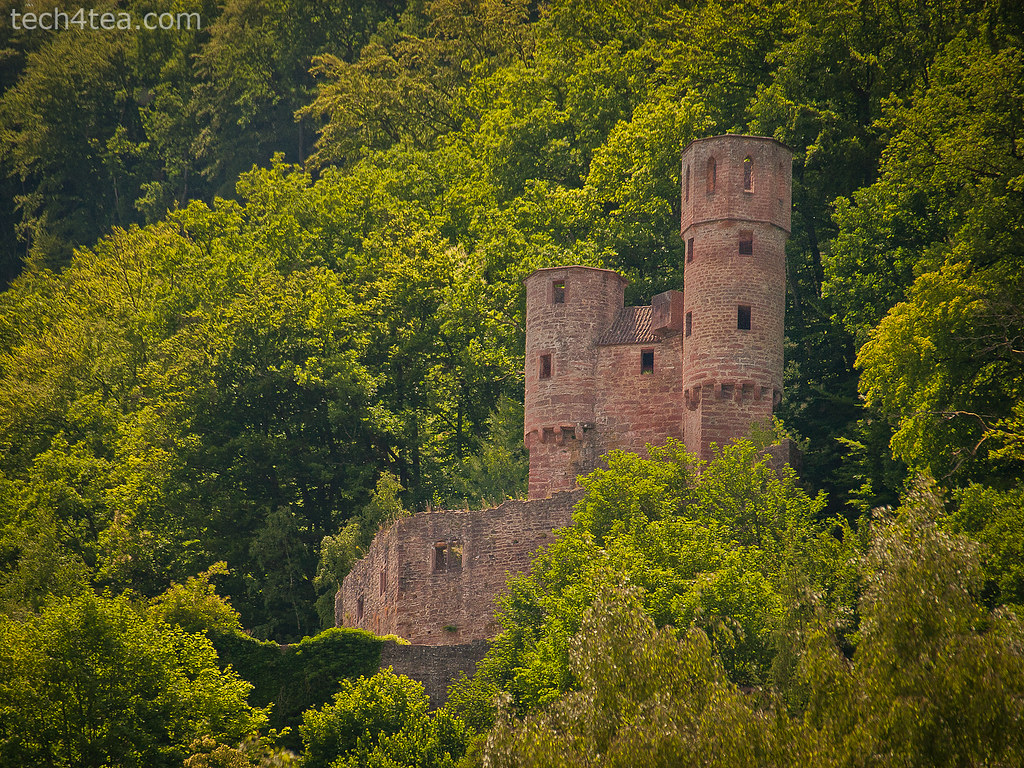
Another of four castles in Neckarsteinach, taken with an Olympus E450

Another of four castles in Neckarsteinach, taken with an Olympus E450.

We checked out around noon, after the kids had completed their daily compo practices. The route recommended by the GPS took us through the hills. We drove through Neckarsteinach – “the town with four castles”, stopping to snap some photos of the castles overlooking the road. We had considered visiting the charming town square and perhaps the castles but Justin was fast asleep in the car and we wanted him to catch up on some sleep so we gave the town a miss.

Yet another of four castles in Neckarsteinach, taken with an Olympus E450

Yet another of four castles in Neckarsteinach, taken with an Olympus E450.

Next stop was a little town named Mosbach. It had a very charming old quarter town square and it was really fun just wandering through the streets, taking in the half-timbered houses lining the streets. We were amazed at how cheap the ice-cream was – 70 Euro cents per scoop in a cone. I vaguely remembered it to be 1.5 to 2 Euros for the same single-scoop cone in France. Naturally, we stuffed ourselves silly – after all, we’d done plenty of walking to justify the extra calories.

Relief on the corner of a building in Mosbach, with half-timbered houses in the background. Taken with an Olympus E5

Relief on the corner of a building in Mosbach, with half-timbered houses in the background. Taken with an Olympus E5

After Mosbach, we stopped by Bad Wimpfen, a town some 15 km to the north of our destination Heilbronn. It was even more charming than Mostback, with a more extensive old town and the castle foundation surrounding it. We went up the Blauer Turm (Blue Tower) which gave us a 360 degrees panoramic view of the surrounding Neckar valley. Justin was really fresh from his nap and made it up and down the steep stairs all on his own.

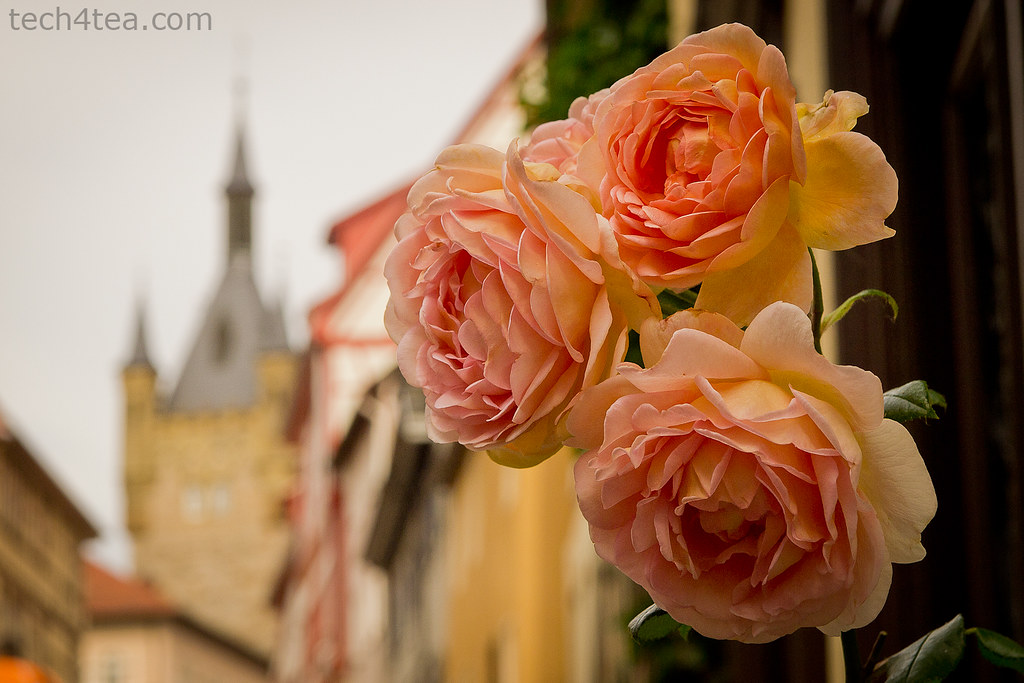
Roses by the road, with the Blauer Turm in the background. Taken with an Olympus E5

Roses by the road, with the Blauer Turm in the background. Taken with an Olympus E5.

Strolling around the castle walls was very pleasant in the evening hour. It seems that with the longer day, the golden hour around sunrise and sunset has been stretched to last longer by another hour or so – it’s actually a boon to photographers.

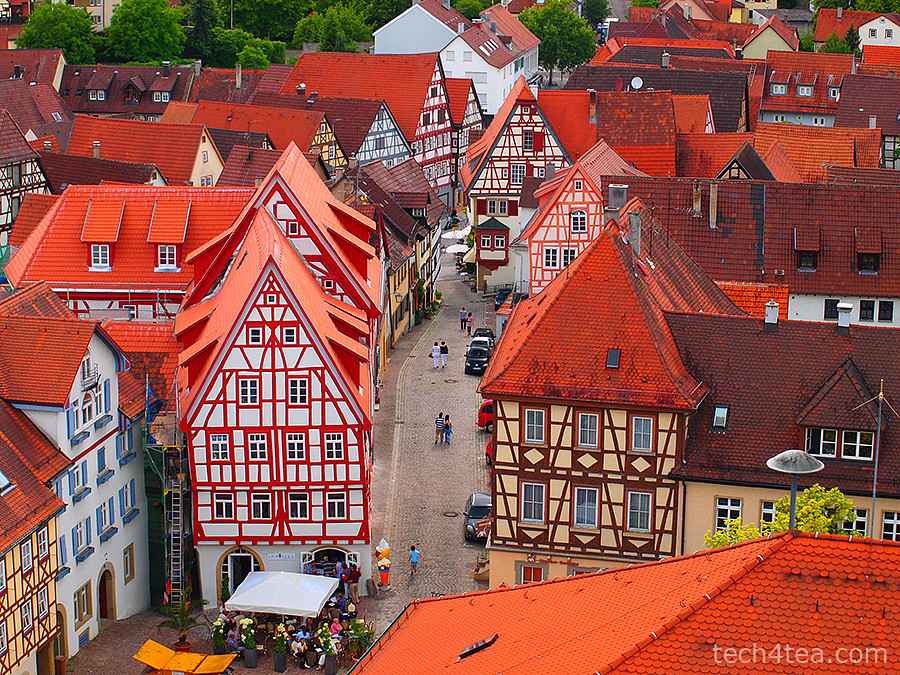
View of Bad Wimpfen old quarters from the Blauer Turm. Taken with an Olympus 450 with Pop-Art effect.

View of Bad Wimpfen old quarters from the Blauer Turm. Taken with an Olympus 450 with Pop-Art effect.

After Bad Wimpfen, it took only 20 minutes to arrive at our next hotel at Heilbronn, where we planned to stay for the next two nights.

Schriesheim and Ladenburg near Weinheim

Sunday, June 12th, 2011

On a more relaxed pace, we drove and visited two beautiful towns near where we were staying in Weinheim.

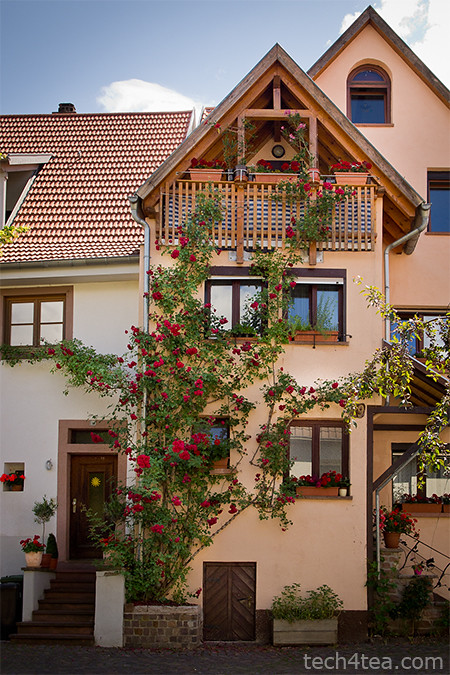
Beautiful rose covered house in Schriesheim

Beautiful rose covered house in Schriesheim. Roses are so plentiful and beautiful in Germany.

After the hectic pace of the first day of sightseeing, we decided to take it easy and adopt a more relaxed pace. We drove to Schriesheim and had pastry and tea for breakfast at Riegler in Schriesheim. It was a small town, and the pace of life was slow on a weekend morning. We strolled through the beautiful streets and stumbled upon a charming house covered in roses. It was absolutely beautiful.

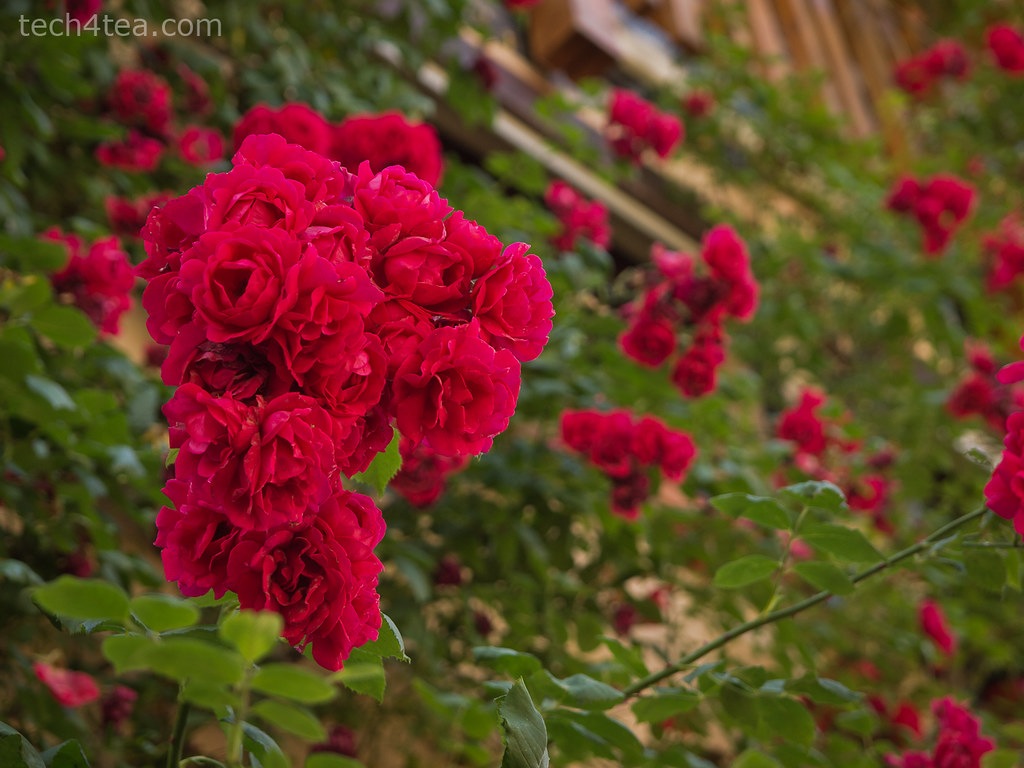
German roses. Olympus E5 at f/4, 108mm (35mm equiv), 14-54 mm lens

German roses. Olympus E5 at f/4, 108mm (35mm equiv), 14-54 mm lens

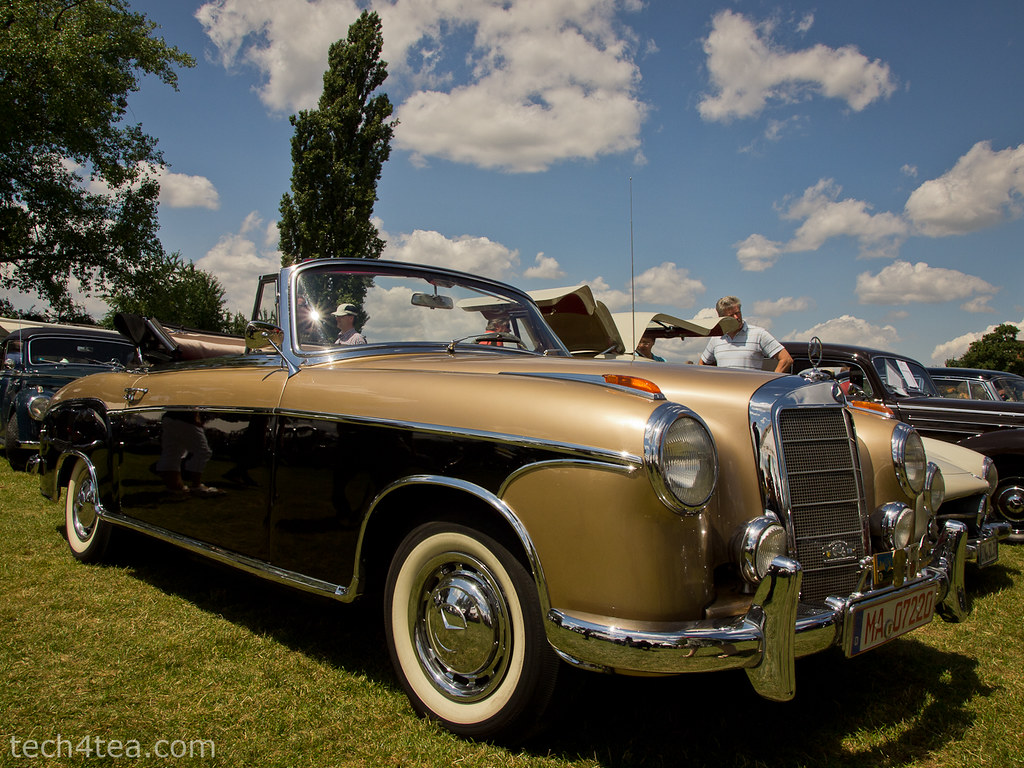
We then drove over to Ladenburg, only some 10 minutes away. This was a bigger town. There was a Mercedes-Benz vintage car festival by the river on and we headed in looking for that elusive bratwurst stand. We’d thought German towns would be sporting bratwurst stands and restaurants around every street corner so imagine our surprise when we didn’t encounter any during the first day in Mannheim, Schwetzingen and Heidelberg. We finally had our beer and Bratwurst lunch at the festival, ogling at the sexy vintage Benzs on display.

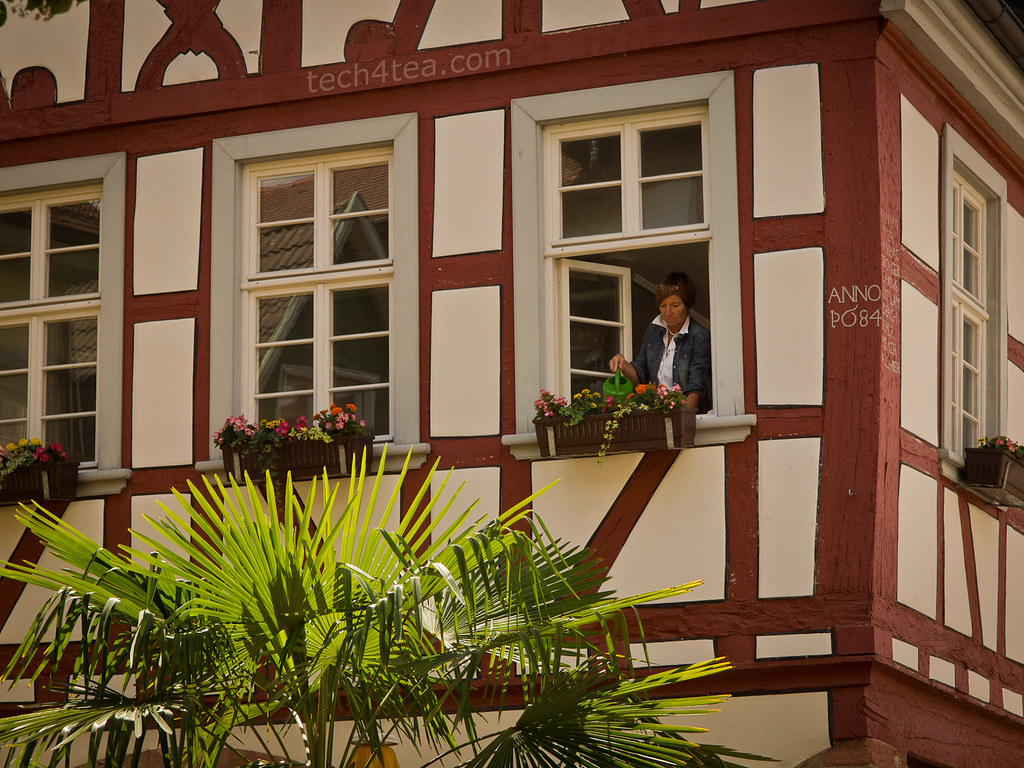
The Germans really love to garden, even on a window sill. There were roses and flowers all along the roadsides and houses along the roads.

The Germans really love to garden, even on a window sill. There were roses and flowers all along the roadsides and houses along the roads.

After lunch, we headed into the old town centre and came across a mini beer festival in a back alley as well as a wedding at the local church.

Sexy Benzs all splayed out at Ladenburg under the fantastic sunny weather.

Sexy Benzs all splayed out at Ladenburg under the fantastic sunny weather.

When we got back to where we had parked the car, we found that the festival organisers had cordoned off the road for the obstacle race for the vintage cars. We tarried to watch the interesting display but realised that it was going to last till evening. Fortunately, the organisers were kind enough to lift the cordon to let us drive our car out since it was parked just inside of the white tape.

Charming timbered houses at Ladenburg under the summer sky.

Charming timbered houses at Ladenburg under the summer sky.

Back at the hotel, we took a nap before heading out to the old town quarters of Weinheim. The good thing about long summer days in Europe is that you get long daylight hours to do the sightseeing. The flip side is you’ve got to get up real early or stay up real late to see a sunrise or sunset. Daylight here in southern Germany is from 4:30 am to 9:30 pm.

Weinheim Rathaus (Town Hall) in twilight. Taken with an Olympus E5 DSLR.

Weinheim Rathaus (Town Hall) in twilight. Taken handheld with an Olympus E5 DSLR.

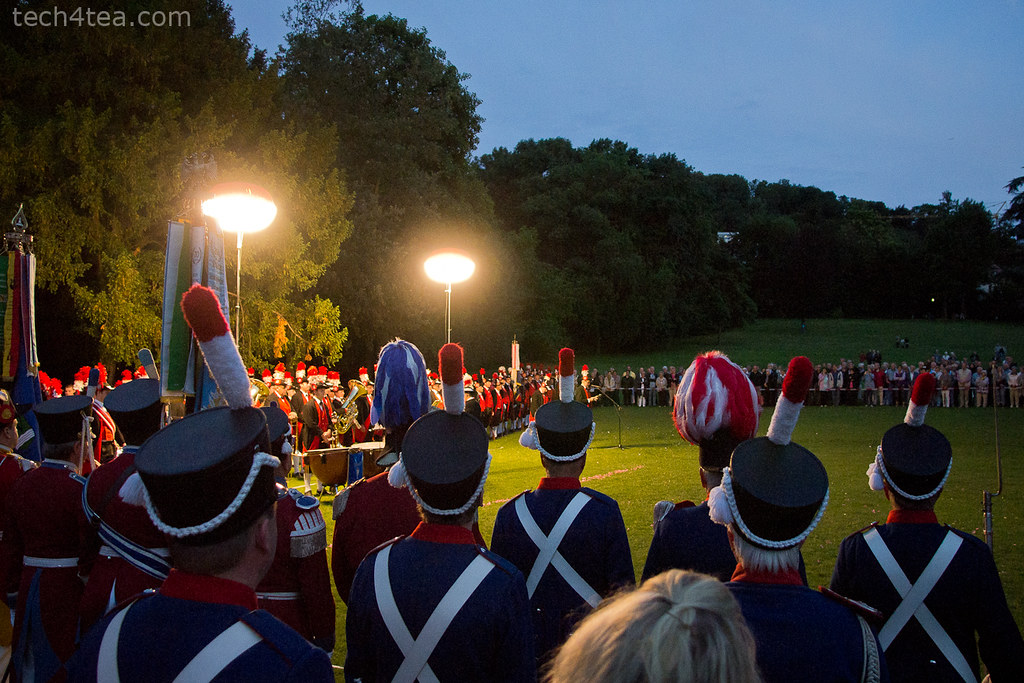
The old quarters of Weinheim sits at the top of the hill. There was some memorial service in the park with people wearing 18th century uniforms and guskets, after which they marched into the charming town square.

It was rather crowded and I had to lift the camera above their heads to get some snapshots. The articulated LCD screen of the Olympus E5 came in really useful here, because it allowed me to frame the shot on the LCD panel which I folded downwards so I could look at it in live-view mode even though the camera was held high up.

Twilight memorial at Weinheim Schlosspark. Taken with an Olympus E5 DSLR.

Twilight memorial at Weinheim Schlosspark. Taken handheld with an Olympus E5 DSLR.

By now, it was getting dark. The night-shot capability of the E5 also excelled. Focus was fast even in live-view and the picture quality, even at ISO 1600 was really good – sharp and with little noise.

ACD Systems releases ACDSee Pro 4

Thursday, May 26th, 2011

Seattle based ACD Systems announced the availability of the latest version of its all-in-one photo editing and management product. The US$239.99 ACDSee Pro 4 promises to reduce time, cost and complexity for the professional photographer.

ACDSee Pro 4 allows photographers to manage, edit and distribute/share their photos within one application. Below are the main features of Pro 4 as described by ACDSee:

Manage

Pro 4 gives photographers the freedom to organize photos and their digital workspace according to their individual needs and preferences. They can customize their application toolbars and layout to reflect the way they naturally work with their images—Manage, View, Process and publish Online.

ACDSee Pro 4 photo editing and catalogueing softwarePhotographers can view and manage a wide range of file types. ACDSee’s catalog-based technology stores key identifying metadata for each image, including date, location, and equipment used. This makes it fast and simple to perform tasks such as search according to keywords, dates and other important information, and to drag and drop images to compare characteristics and tags with other images.

Photographers do not have to import or export images into a vendor-controlled database resulting in a virtual view. Unlike other solutions, Pro 4 allows users to edit photographs in real-time, directly from the source – whether it is a camera memory card, hard drive or computer system — and then save those changes to the original equipment.

Edit

The patent-pending LCE (Lighting and Contrast Enhancement) and single exposure HDR (High Dynamic Range) algorithms are built into Pro 4’s RAW technology. The technology was developed to give users a simple and efficient means of dramatically improving lighting and contrast in photos.

ACDSee Pro 4 photo editing and catalogueing softwarePhotos are fine-tuned to more accurately reflect the subject, and if desired, enhance the representation of the original subject. With LCE, photographers can increase the exposure of dark (underexposed) photos, increase the contrast and vibrancy of dull photos, correct uneven lighting, correct backlit photos, selectively brighten dark areas and darken bright areas (automatic dodge and burn), and create an HDR image from a single exposure.

Original RAW images are rendered in full-size and at high speed. Lighting and exposure problems, including high contrast and backlit scenes, insufficient flash, dull images, and under and overexposure are corrected in seconds. The traditional alternative – multi-exposure HDR – is extremely labor intensive and requires additional, specialized software. It can also result in motion blur, as well as process and capture complexity.

ACDSee Pro 4 photo editing and catalogueing softwareEdits can be seen in real-time and previewed in full screen. Batch processing is intuitive and fast. Photographers can experiment freely, knowing that the originals are always safe with Pro 4’s non-destructive editing capabilities.

Photographers can use his own editing tool together with Pro 4. For example, they can use editing products such as Photoshop and then import their images into Pro 4 for management and distribution.

Distribute and share

ACDSee Pro 4 photo editing and catalogueing softwarePhotographers can quickly and easily share photographs using ACDSeeonline.com, a free, cloud-based photo sharing site. Privacy controls are set by the photographer, to ensure control and security.

Pro 4 allows selected contacts to download password protected full resolution images. Photographers can also share images on the most popular social media sites such as Facebook, Twitter, Flickr, SmugMug and Zenfolio, and/or via their own websites.

LensPen products to be sold in Singapore

Wednesday, May 18th, 2011
Schmidt Marketing, distributor of camera accessories, has secured the distributorship in Singapore for LensPen products, which includes compact cleaners used for camera lenses, laptop screens and gadgets with sensitive glass components.

Invented in Canada, LensPen uses advanced, proprietary carbon‐based technology to ensure that lenses and optical glass remain in pristine condition when cleaned by its products. The brand gained international recognition when it was selected for use on the International Space Station and on US Space Shuttle missions.

“The unique technology ensures effective and totally safe cleaning of what is often a very expensive piece of equipment and we are delighted to add this brand to our growing range of camera equipment and accessories,” said Mr Chris Lim, Regional Director, Schmidt Marketing (Singapore) Pte Ltd.

The LensPen range of products are tabulate below. They are available at the Schmidt Marketing’s flagship store at Ngee Ann City Tower A, #05‐33.

Lenspen LP1 

Lenspen LP1

• Lens cleaning pen for cleaning camera lenses, binocular lenses, spotting scopes, telescopes, eyepieces and other optical lenses. 

• Patented non‐liquid cleaning tip.

• Retractable brush removes dust.

SGD $ 14

Vidimax VM1 

Vidimax VM1

• Combines a handy super‐soft dust brush and optical quality chamois pad. 

• Can be used on LCD, Plasma, and other computer and television screens.

• Effectively gets rid of dust and fingerprint marks.

SGD $ 25

MiniPro II MP2 

MiniPro II MP2

• Retractable brush removes dust. 

• Patented LensPen cleaning tip is flexible and compact.

• Compact design fits easily into digital camera cases.

SGD $ 14

SensorKlear SK1 

SensorKlear SK1

• Unique shaped cleaning tip for those hard to reach CCD sensors. 

• No sprays, liquids, chemicals or residue.

• Convenient, portable, environmentally safe.

SGD $ 28

DigiKlear DK1 

DigiKlear DK1

• Digital display cleaning pen for cleaning digital glass and LCD screens on digital cameras, camcorders etc. 

• Special semi‐triangular shaped tip for cleaning into corners.

• Retractable brush removes dust.

SGD $ 14

Lap Top Pro LTP1 

Lap Top Pro LTP1

• Screen and Keyboard cleaning system. 

• Special LensPen pad cleans screens.

• One brush removes dust from screen, the other cleans between keys.

SGD $ 25

Digitally apply a graduated ND filter to your landscape photos using GIMP (Part 9 of 14)

Sunday, April 3rd, 2011

Instead of paying to buy a graduated neutral density filter and go through the hassle of carrying it around and fitting and unfitting it everytime you use it, simulate the effect using layers and layer masks in GIMP.

When taking photos of sceneries where the bright sky occupies the upper half and the foreground occupies the lower half, it can be difficult to capture the entire range of brightness levels to show the details clearly.

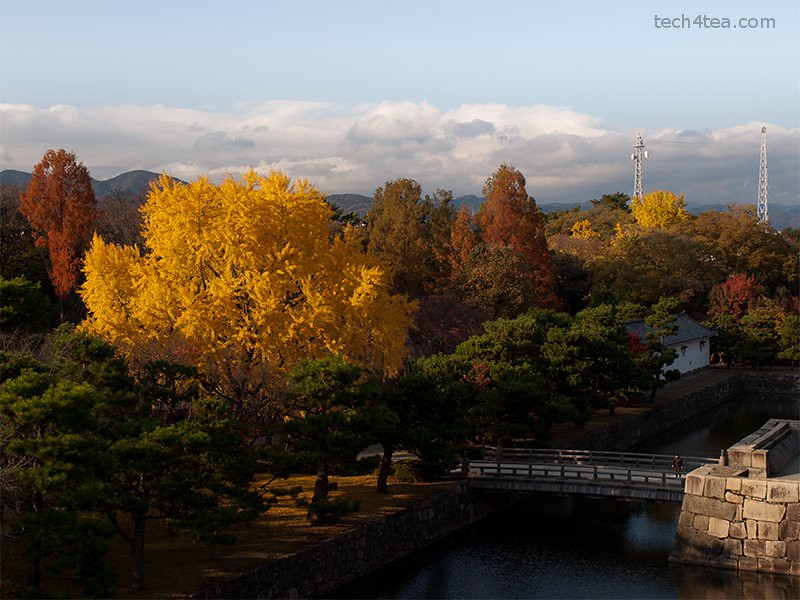
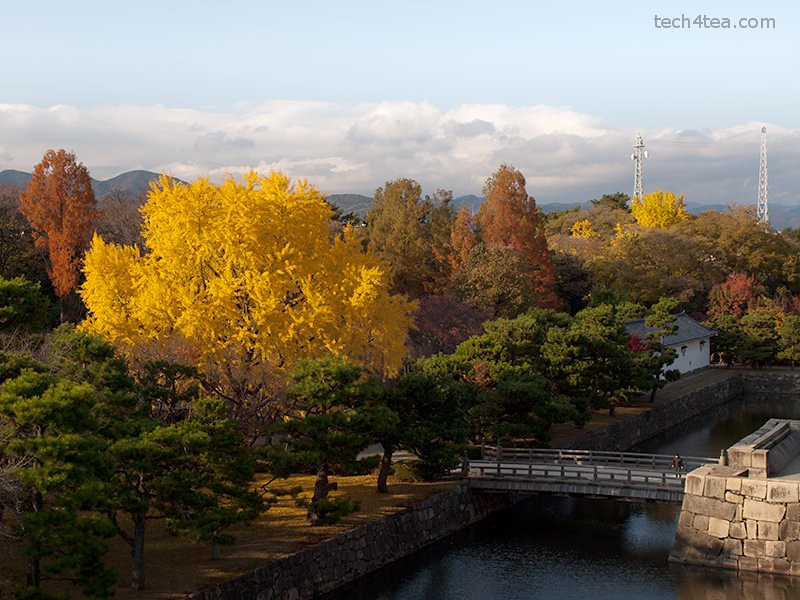
The park within the grounds of Nijojo Castle in Kyoto.

The park within the grounds of Nijojo Castle in Kyoto in autumn.

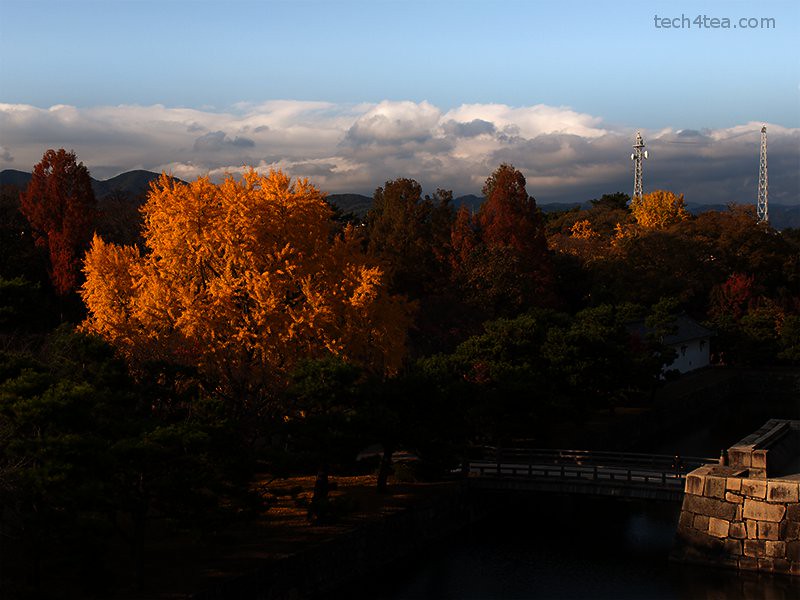
The sky has been darkened and the foreground lightened.

The sky has been darkened and the foreground lightened in GIMP.

The clouds and the sky can be too bright; while the mountains, trees and houses in the foreground may be too dark. This is made worse under the harsh sunlight of the midday sun when contrast in the photo will be at the highest.

The traditional way to get around this, is to avoid the midday sun, or to buy a graduated neutral density (ND) filter – if you own an SLR that allows filters to be attached to the lens.

The graduated ND filter darkens the upper portion of a photo so that the sky will not be overexposed while a brighter exposure can be used for the whole photo such that the foreground will not be too dark.

What if you use a compact camera, on which typically you can’t attach any filters? Or you find it a hassle to attach and unattach filters between snapshots? Or you simply don’t want to pay for another camera accessory that you have to carry around?

Using layers and layer masks in GIMP, you can pretty much simulate the effect of a graduated ND filter on the computer.

Simulate a graduated ND filter digitally using GIMP

I snapped the autumn colours of the park within Nijojo Castle in Kyoto from the top of the castle keep. The clear blue sky was rather bright while trees along the moat in the foreground of the photo were too dark.

Darkening the photo to darken the sky would make the foreground too dark. Brightening the photo to brighten up the foreground would overexpose the sky.

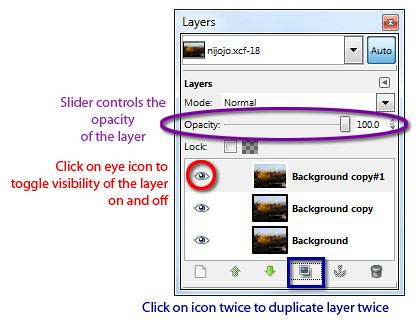
Duplicate two copies of the original photo in the Layers dialog.

Duplicate two copies of the original photo in the Layers dialog.

To control which areas to darken and brighten, first duplicate the original background layer twice by clicking twice on the Duplicate icon at the bottom of the Layers dialog.

Two new layers containing copies of the original photo are now created above the background layer. We will darken the upper copy and lighten the lower copy and then use a layer mask to merge the two layers so that only the darkened sky and the brightened foreground is visible.

Brightening the foreground

First hide the upper copy by clicking the eye icon to the left of its thumbnail in the Layers dialog.

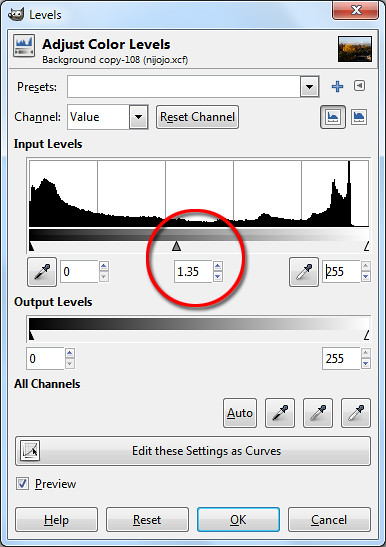
Drag the middle slider directly below the histogram.

Drag the middle slider directly below the histogram.

Now click on the lower copy by clicking on it in the Layers dialog. Brighten the lower copy. You can use Colors > Brightness-Contrast I generally prefer the Colors > Levels command. I will cover this command in more detail later in the series.

In the Levels dialog box that pops up, look below the Input Levels histogram and drag the middle slider to the left until the foreground is suitably lightened. You can see the entire photo lighten as you drag the slider.

Pay attention to the foreground and ignore the sky which will become excessively bright. You can see the numeric value of the middle slider in the centre text box just below the histogram. I used a setting of 1.35

Darkening the sky

Select the upper copy in the Layers dialog by clicking on it. Turn its visibility back on by clicking on the where eye icon previously was.

The lower duplicate copy is lightened with the Levels command.

The lower duplicate copy is lightened with the Levels command.

The upper duplicate copy is darkened to make the sky more dramatic.

The upper duplicate copy is darkened to make the sky more dramatic.

Darken this layer using the Colors > Levels command.

In the Levels dialog box that pops up, drag the middle slider to the right until the sky is suitably darkened. Again, pay attention to the sky and ignore the foreground which will become excessively dark. I used a setting of 0.45.

Blending the two copies using a layer mask

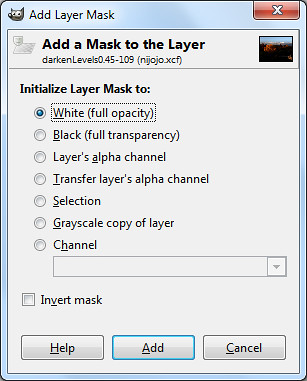
Select the White (full opacity) option.

Select the White (full opacity) option.

Right-click the upper copy and choose Add Layer Mask command from the pop-up menu. Click the radio button for “White (full opacity)” option and click on the Add button.

A layer mask is now added to the upper copy. In the Layers dialog, you can see the thumbnail for the layer mask to the right of the image thumbnail in the layer containing the upper copy.

Activate the Blend Tool from the Toolbox. Reset the colour swatches in the Toolbox by pressing “D” on the keyboard. In the tool options below the Toolbox, make sure the “FG to BG” Gradient is selected.

Activate the Blend Tool from the Toolbox.

Activate the Blend Tool from the Toolbox.

Here’s the magic, click the cursor somewhere near the top of the yellow tree and drag the mouse vertically upwards until the cursor is just above the clouds in the sky before releasing the mouse button.

A black to white gradient is painted into the layer mask for the upper copy. The white parts represents the parts where the upper copy will be visible and the black areas represents the parts where the upper copy will be hidden. Grey areas represents areas where the upper copy is partially visible.

Where the upper copy is hidden or translucent, the lower copy will show through. The result is that the darkened sky of the upper copy will be visible while the lightened foreground of the lower copy will show through.

The layer mask shows the darkened sky and the lightened foreground.

The layer mask shows the darkened sky and the lightened foreground.

By painting in the layer mask with the Paintbrush Tool with black or white, you can further finetune exactly which parts of the darkened upper copy to remain visible and which parts of the lower lightened copy to show through.

You can further tweak the final result by adjusting the opacity of the two copies by dragging the layer opacity sliders for each of the layers. The layer opacity slider is found at the top of the Layers dialog.

You now have a pseudo-HDR (High Dynamic Range) photo which captures both the lightest tones in the sky and the darkest details in the foreground in a single photo.

Adobe launches Photoshop Express 2.0 for iOS

Thursday, March 17th, 2011

Adobe has announced the release of the free Photoshop Express 2.0 for iOS devices, as well as a new $3.99 Adobe Camera Pack that you can purchase from within Photoshop Express.

Photoshop Express 2.0 (free) and Adobe Camera Pack ($3.99) Adobe Photoshop Express has more than 20 million subscribers on iOS and Android devices. It provides easy-to-use features for capturing, organising, editing and sharing of photos on popular social networks like Facebook, giving users on the road the ability to work on their digital photos on smartphones and tablets.

Adobe Photoshop Express 2.0 for iOS devices can be downloaded free on the Apple iTunes Store. From within the app, you can purchase the new Adobe Camera Pack which includes the following features.

Reduce Noise: Removes and smooths out grain and speckling from photos to improve them.

Self Timer: Set a camera timer to three or 10 seconds to control when a photo is to be recorded.

Auto Review: Provides a quick look at photos taken before saving or deleting it.

Photoshop Express 2.0 requires iOS 4.2 or later. To use the Adobe Camera Pack, customers must have an iPhone 3Gs, iPhone 4, iPod Touch (3rd or 4th generation), or an iPad or iPad 2 (note that Photoshop Express does not include support for the iPad 2 camera at this time).

Sony aims for 15% market share for interchangeable lens cameras

Wednesday, February 23rd, 2011
Sony wants to increase its market share from 11% of global SLR camera sales in 2009, to at least 15% market share by March 2011.

Sony aims to increase its market share for Interchangeable Lens Cameras

Sony may control about 15 percent of the global market for single-lens-reflex cameras by the end of March, Masashi Imamura, president of the Personal Imaging & Sound Business Group told Bloomberg in an interview in Tokyo yesterday.

Interchangeable lens cameras is the fastest growing segment of digital imaging devices last year. Sales of SLR cameras increased 30% in the past year, more than twice the 13% growth by compact cameras, according to the Camera & Imaging Products Association, a Tokyo-based industry group.

In a report from research company IDC in April last year, leading the race was Canon which sold 45% of the world’s SLR cameras, followed by Nikon which sold 34%. Sony was in third place, accounting for 11% of the 9.77 million units sold in 2009. In the previous four years that it has been in the segment, Sony has garnered about 10% of the market share.

It bought the high-end camera business of Konica Minolta Holdings in 2006 when Konica ended its 130-year-old camera business to focus on printers.

Sony, which also manufactures the Cyber-shot compact cameras, has been aggressively introducing new models in its pursuit to grab market share from the two leaders.

The maker of alpha-series DSLR cameras introduced its NEX cameras (NEX-3 and NEX-5) in June 2010. These cameras feature the large sensors of traditional DSLRs, do away with the use of the reflex mirror and optical viewfinder, while allowing the camera lens to be changeable.

Like the Micro Four Thirds mirrorless cameras from Olympus and Panasonic, the NEX cameras offer the image quality of traditional DSLRs, the flexibility of using different lens for different shooting situations, yet enjoy a reduced bulk.

Sony also launched a slew of new models in its existing Alpha line in September. These include the SLT A55 and A33, which replace the traditional reflex mirror between the lens and the sensor with a stationary translucent mirror. This also makes the camera smaller and improves the auto-focus performance of the camera.

Print sizes and resolutions for photographs

Monday, February 21st, 2011
One of the most frequent questions I get asked is what resolutions to use when printing out photos. Here are some suggestions that I usually provide as a guide.

First decide what size the photos are to be printed out and crop them based on the corresponding aspect ratio.There are a number of standard sizes that photo shops print in. I have tabulated below some of the traditional sizes together with their physical dimensions in millimetres and inches.

For each of the standard sizes, some shops print variants of the standard dimensions to cater to varying aspect ratios. For example, although traditional 4R has an aspect ratio of 3:2, some shops give the option of printing similarly sized prints at 4:3 aspect ratio.

The resolution of a photo is the number of pixels per inch (ppi). To work out the number of pixels a photo should have, multiply the physical dimension in inches by the desired image resolution.

For example, a 5R print is 5 x 7 inches. Multiply by 300 ppi and your image should, therefore, be 1,500 x 2,100 pixels.

For optimal quality, use an image resolution of 300 ppi. For printing on a personal printer, 150 ppi is usually good enough, although some studios accept resolutions down to 100 ppi. Since all my prints are 4R in size, all my images are at 300ppi. This way, they are optimal for 4R and still good enough if I want to print up to A4 size.

Note that studios usually crop a small margin of up to 3%  around the photo. The cropped margin could be bigger on one side compared to the other. This is usually unnoticeable for most photos. Unless the subject is really tightly framed, in which case part of the anatomy, say a ear or finger-tip could be cut off the edge.

However, if your photo has a decorative frame or border that you’d added using a photo-editor, it will turn out uneven. Choose a studio that can crop the photo evenly all round. I find it easier to show the studio a sketch to illustrate when explaining.

Likewise, when using your own printer, it pays to do a few test prints to determine the right settings for even borders.

Standard print sizes, aspect ratios and optimum/minimum image resolution for printing.
Print Size Size

(inches)

Size

(mm)

Aspect ratio Optimum Resolution

(300 ppi)

Minimum Resolution

(150 ppi)

3R 3.5 x 5 89 x 127 7:10 1050 x 1500 525 x 750
4R 4×6 102 x 152 2:3 1200 x 1800 600 x 900
5R 5×7 127 x 178 5:7 1500 x 2100 750 x 1050
6R 6×8 152 x 203 3:4 1800 x 2400 900 x 1200
8R 8 x 10 203 x 254 4:5 2400 x 3000 1200 x 1500
S8R 8 x 12 203 x 305 2:3 2400 x 3600 1200 x 1800
10R 10 x 12 254 x 305 5:6 3000 x 3600 1500 x 1800
S10R 10 x 15 254 x 381 2:3 3000 x 4500 1500 x 2250
11R 11 x 14 279 x 356 11:14 3300 x 4200 1650 x 2100
S11R 11 x 17 279 x 432 11:17 3300 x 5100 1650 x 2550
12R 12 x 15 305 x 381 4:5 3600 x 4500 1800 x 2250
S12R 12 x 18 305 x 465 2:3 3600 x 5400 1800 x 2700