Posts Tagged ‘Photoshop’

Nikon launches 6 new cameras in Singapore

Thursday, August 23rd, 2012

Nikon spearheaded its Autumn 2012 collection of cameras with 6 new cameras, 1 lens and 1 waterproof casing. Among these cameras are the super compact S01 and the Android-equipped S800c.

All will be available in September. Prices TBA.

Update (4 September, 2012):

The COOLPIX L610 is now available in Singapore at S$339.

Nikon launched 6 new cameras and accessories in Singapore to spearhead its Autumn 2012 collection.

Nikon launched 6 new cameras and accessories in Singapore to spearhead its Autumn 2012 collection.

Most camera launches roll out more of the same, with slight improvements in features or specifications.

The Nikon P7700 is the new flagship of the COOLPIX lineup. 12.2MP, 7.1x Zoom, f/2.0-4.0 lens.

The Nikon P7700 is the new flagship of the COOLPIX lineup. 12.2MP, 7.1x Zoom, f/2.0-4.0 lens.

So its most refreshing to see Nikon trying to innovate by launching cameras that genuinely push the boundaries.

My favourite among the slew of cameras launched in Singapore today is the S01.

You’ve got to see it to believe it and you’ve got to handle it to appreciate it.

The S01 is smaller than a credit card!

It’s thicker than the card of course, but it’s like one of those charms people dangle from their keychains, although I wouldn’t want the camera slamming against the dashboard as I drive.

And people with big hands might not appreciate the compactness as much.

The Nikon COOLPIX S01 is smaller than a credit card. 10.1MP, 3x Zoom, 77 x 51.2 x 17.2mm

The Nikon COOLPIX S01 is smaller than a credit card. 10.1MP, 3x Zoom, 77 x 51.2 x 17.2mm

It’s a bold step for Nikon to take – pushing the limits of camera miniaturisation.

Nikon COOLPIX L610 has 16MP and 14x Zoom.

Nikon COOLPIX L610 has 16MP and 14x Zoom.

I’m sure smartphone makers would be very keen to adopt some of the technologies developed to make their smartphone cameras perform even better.

Already, these camera phones are encroaching into the market share of compact cameras with the only difference being image quality, which is made up for by the convenience of having the smartphone camera being available and handy at all times.

I won’t be surprised if some of Nikon’s sub-contractors are already talking to smartphone makers on possible collaborations.

The Nikon COOLPIX S800c runs Android 2.3 and has Wi-Fi connectivity.

The Nikon COOLPIX S800c runs Android 2.3 and has Wi-Fi connectivity.

On the same front, Nikon is hitting back at the smartphone camera sector with the S800c – a compact camera with an Android OS (2.3) and Wi-Fi connectivity.

So you can use photo-editing apps (such as Photoshop, Instagram and PicsArt) from the Google Play store to edit photos taken with the camera, and share it online on Facebook, Google+ and Twitter.

You can also use any of the other 500,000 apps on the Google Play for gaming or other purposes.

The Nikon COOLPIX S6400 has 16MP and 12x Zoom

The Nikon COOLPIX S6400 has 16MP and 12x Zoom

What the S800c doesn’t have yet is 3G connectivity, to give it 3G data connectivity in case there’s no Wi-Fi connectivity.

Who knows, you might even see a Nikon camera-phone (in that order) in the future!

The other products launched today are more run-of-the-mill cameras and accessories.

These include three new compacts from the COOLPIX family: COOLPIX P7700, L610, and S6400.

The Nikon 1 J1 MIL camera has been upgraded to the J2, with new Creative Modes, a new 1 NIKKOR 11-27.5mm f/3.5/5.6 lens, and an Underwater Case.

The Nikon 1 J1 MIL camera has been upgraded to the J2, with new Creative Modes, a new 1 NIKKOR 11-27.5mm f/3.5/5.6 lens, and an Underwater Case.

For its mirrorless interchangeable lens line, Nikon has launched the Nikon 1 J2, 1 NIKKOR 11-27.5mm F/3.5-5.6 lens, and the Nikon 1 water proof case.

I’ll be posting more details of each camera so you can check the tech specs in those articles.

New Android tablet: Samsung GALAXY Note 10.1

Tuesday, August 21st, 2012

Having created a niche with the 5-inch GALAXY Note that straddled between a 7-inch tablet and a 3.5-inch smartphone, Samsung has introduced the 10.1-inch version of the GALAXY Note.

There will be three configurations: the WiFi/16GB (S$798) and 3G+WiFi/16GB (S$998) versions will be available on 25 August, while the LTE+WiFi version will be released later in the year.

Update (4 January, 2013): 

The Samsung GALAXY Note 10.1 LTE will hit the shelves in Singapore from 5 Jaunary 2013. The tablet will be available at S$998 (without contract), in deep grey.

Samsung GALAXY Note 10.1 was launched in Singapore today.

Samsung GALAXY Note 10.1 was launched in Singapore today.

Hitherto, most people have used tablets as a content consuming tool – checking emails, surfing the Web, viewing photos, reading documents and ebooks, playing back videos and music.

I tried out the GALAXY Note 10.1 during its launch in Singapore today. I found it to be extremely responsive, comparable to a Wacom graphics tablet. The Photoshop Touch was also fast and easy to use, making photo editing pleasant and fun on a tablet.

In terms of content creation, some type short notes and emails using the onscreen keyboard, while those who write longer text documents type them out by connecting an external keyboard.

Samsung GALAXY Note 10.1
OS Android 4.0.4 (ICS)
Screen 10.1″ WXGA LCD +Digitizer
Resolution 1280 x 800
Battery 7,000 mAh
Processor 1.4 GHz Quad-core
Camera Rear: 5mp
Front: 1.9mp
Video Full HD(1080p)
Memory Int: 16 GB,
RAM: 2 GB
Ext: Up to 32 GB microSD
Size /mm 262 x 180 x 600
Weight 597 g

Price

3G/WiFi: S$998,
WiFi: S$798

The GALAXY Note 10.1 tries to make possible serious content creation using a tablet.

From note-taking via typing or handwriting with a stylus, research and clipping from the Web using S Note app, to powerful photo-editing using Photoshop Touch.

What differentiates the GALAXY Note 10.1 from the GALAXY Tab 10.1? It’s the combination of the stylus (S Pen) and the user interface that integrates with the stylus.

The GALAXY Note 10.1 comes with 2i-screen multi-tasking, where two apps are displayed running side-by-side on the screen, and videos can be displayed on a floating window for a picture-in-picture effect.

As for other Samsung products, users will be able to access the edutainment content and apps available on the Samsung Learning Hub.

For more details about the Samsung GALAXY Note 10.1, read the press release below.

(more…)

New iStockphoto plugin for Adobe CS6

Wednesday, May 9th, 2012

The FREE Stockphoto plugin enables designers to search and directly download images within the programs without interrupting their workflow.

The new iStockphoto plug-in works right withing Adobe Photoshop, Illustrator and InDesign.

The new iStockphoto plug-in works right withing Adobe Photoshop, Illustrator and InDesign.

A one-click comp replace feature automatically exchanges complimentary watermarked images with purchased images, perfectly resized and positioned within the working page layout or design.

Search and replace images easily.

Search and replace images easily.

Adobe Photoshop, InDesign and Illustrator users can now search iStock’s millions of files, download multiple comps during the creative process, finalise their designs and then simply replace the desired comp with the purchased image in exactly the right spot and in the right dimensions, saving time and increasing productivity.

The free plugin allows customers to access purchased credits, review past purchases, add to light boxes and almost all of the other standard account management features that can be accessed directly from the iStock site.

It is immediately available for download and is compatible with Mac and Windows versions of CS6, CS5.5 and CS5.

The iStockphoto plug-in is free.

The iStockphoto plug-in is free.

Compatible with CS 5, 5.5 & 6.

Compatible with CS 5, 5.5 & 6.

iStockphoto offers easy, affordable inspiration with millions of vetted, royalty-free photos, illustrations, video, audio and Flash files.

Adobe CS6 is available now

Wednesday, May 9th, 2012

Adobe has announced the immediate availability of Adobe Creative Suite 6.

Adobe CS6 is available now.

Adobe CS6 is available now.

Launched globally two weeks ago, Adobe Creative Suite 6 (CS6) comprises some 14 software for photo and video editing, graphics design and and web development, Flash/HTML and app building tools, as well as desktop publishing.

Suite Price
Master Collection S$3,925
Production Premium S$2,868
Design & Web Premium S$2,868
Design & Web Standard S$1,963

These software include Photoshop, Dreamweaver, Illustrator, Premiere Pro, After Effects, InDesign and Flash.

The component software have been packaged in into four suites, depending on the needs of the customer.

A subscription-based version of CS6 (Creative Cloud: US$600 per year) is also available in the US although it is not available in Singapore and some other parts of the world.

Launch of Adobe CS6

Tuesday, April 24th, 2012

The latest iteration of Adobe’s flagship software suite has been launched. Available in May 2012, there will be 4 suites, comprising different combinations of 14 print, web and video software.

The suites are: Master Collection (S$3,924), Design & Web Premium (S$2,868), Design & Web Standard (S$1,962), and Production Premium (S$2,868).

Adobe has also launched the new subscription-based Creative Cloud (US$600 per year). This is not available in Singapore yet.

Adobe Creative Suite 6

Adobe Creative Suite 6

Singapore was the first venue in the world to launch Adobe Creative Suite 6.

Shantanu Narayen, Adobe CEO, and David Wadhwani, SVP, Digital Media Business, Adobe, will host a launch event and press conference on the release of Adobe Creative Cloud and CS 6 at 10:00 am Pacific Time, 23 April.

CS6 is part of Adobe’s 2-year renewal of its creative suite of software. One year on from each major release is a mid-cycle update, as with Adobe CS5.5.

The Mercury engine that was introduced in Premiere Pro in CS5 has been implemented in other products in CS6, notably Photoshop and Illustrator.

For Photoshop, the impressive Content-Aware Fill feature in Photoshop CS5 has been supplemented with two new enhancements – Content-Aware Patch and Content-Aware Move.

Dreamweaver and other component products in CS5 was based on perpetuating the Flash platform.

Having had the rug pulled from under its feet by the late Steve Jobs, Adobe has shifted the emphasis for Dreamweaver in CS5.5 and CS6 more towards facilitating HTML5, “an open Web standard that’s replacing Adobe’s older Flash tools for many Web designers” (quoted from Bloomberg).

There are also more tools for designing apps for smartphones and tablets.

A big step for Adobe this time round is its foray into a subscription-based model, although it is not available in Singapore yet.

Creative Cloud will charge US$50 a month for a one-year commitment (US$75 without one).

Subscribers can access the 14 programs, which can be installed on an Apple Mac or on a Windows PC.

Users can use the installed software even when they are not connected to the Internet.

A cloud-based service will also enable users to collaborate and share work with colleagues and clients through a Web browser.

The list of software as well as the composition of each suite can be found here.

Understanding histograms (Part 12 of 14)

Saturday, April 23rd, 2011
The histogram of a photograph tells you whether a photo is too bright, too dark or too flat and lacking in contrast.

It forms the basis of more advanced and powerful tools – such as Levels and Curves –  to enhance the brightness and contrast of a photo.
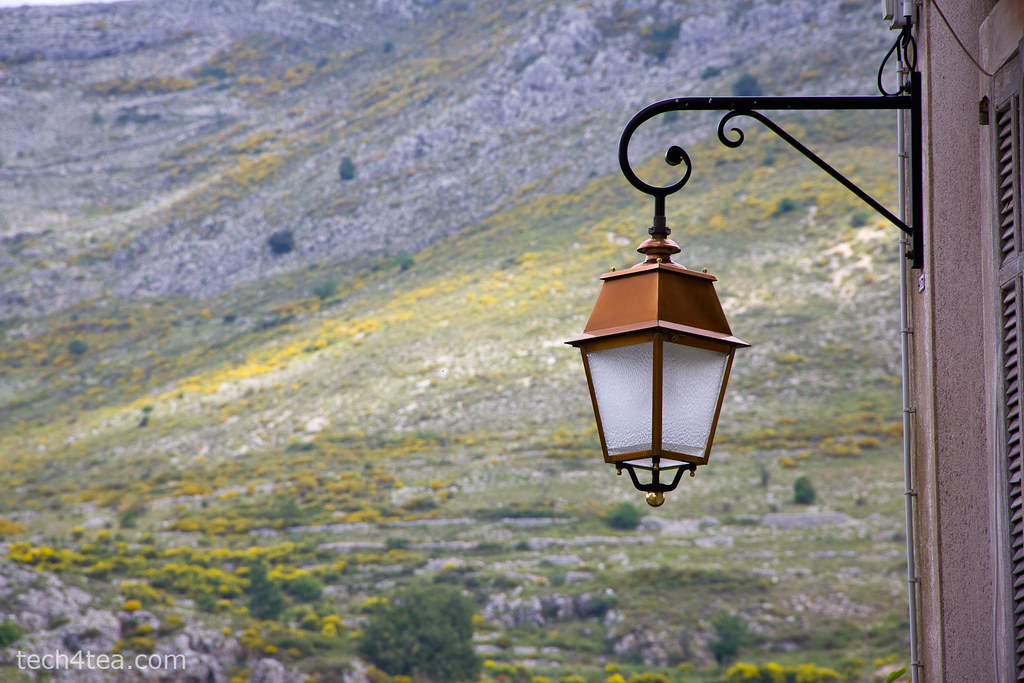
Metalwork lantern in French Provence. The exposure was reasonably well-balanced.

Pict 1: Metalwork lantern in French Provence. Exposure was well-balanced, as indicated by the histogram below.

Many digital cameras today can display histograms on their LCD screens in both the review and preview modes. The histogram helps the photographer to assess whether the exposure settings for an image are optimal. This is most useful when bright sunlight makes it difficult to judge – just by viewing the photo preview/review on the LCD screen – whether a photo is too bright or dark.

If the histogram indicates that the photo is too dark or bright, the photographer can adjust the exposure settings to get a better shot.

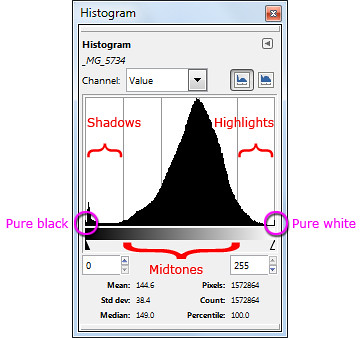
Different parts of a histogram. The photo is well-exposed.

Pict 2: Different parts of a histogram. The photo of the metal work lantern was well-exposed.

What is a histogram?

The histogram is basically a graph of the brightness levels of all the pixels in a photograph – from pure black (brightness value zero) on the left edge to pure white (brightness value 255) on the right edge.

An overexposed photo has its histogram bunched up to the right.

Pict 4: An overexposed photo has its histogram bunched up to the right.

Lavenders in the French Riviera - overexposed.

Pict 3: Lavenders in the French Riviera - overexposed.

The number of pixels in each of the 256 levels of brightness are counted and plotted on the Y axis as a bar chart to provide an idea of the tonal distribution of a photograph and its possible problems.

The region around the left edge of the histogram represents the shadows (dark tones) in the photo while the pixels near the right edge represents the highlights (bright tones). The middle region represents the midtones.

Analysing a histogram

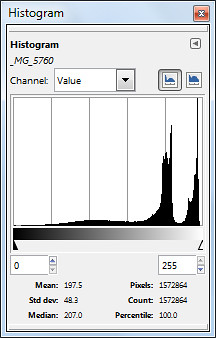
When a photo is opened in GIMP, you can view the photo’s histogram by selecting the Windows > Dockable Dialogs > Histogram command from the main menu. By analysing the histogram, you can better decide how to use the tools in GIMP to enhance a photo’s brightness and contrast.

Flowers at Gourdon - underexposed.

Pict 5: Flowers at Gourdon - underexposed.

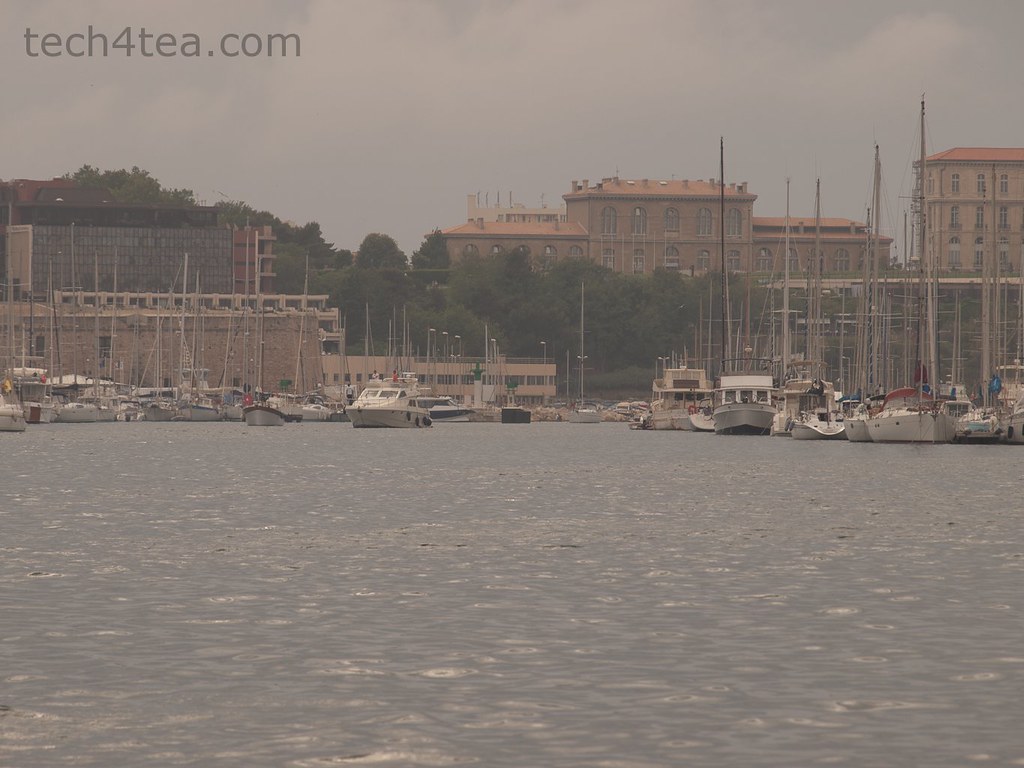
Port of Marseille on a dull and overcast day.

Pict 6: Port of Marseille on a dull and overcast day.

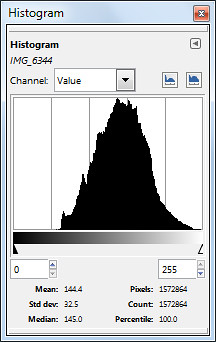
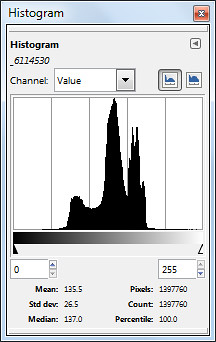
All bunched up in the middle - poor contrast.

Pict 7: All bunched up in the middle - suggesting a photo with poor contrast.

A well-exposed photo usually has a histogram which looks like a bell-shape and which stretches from one end of the histogram to the other (see Pictures 1 & 2).

A photo that is overexposed (too bright) usually has a histogram that is bunched up on the right, while an underexposed photo will have a histogram that’s bunched up to the left (see Pictures 3 to 5).

A photo with poor contrast will usually have a histogram that is squashed up towards the middle. The photo appears dull and flat. The brightest pixels are not bright enough while the darkest pixels are not dark enough (see Pictures 6 & 7).

Exceptions

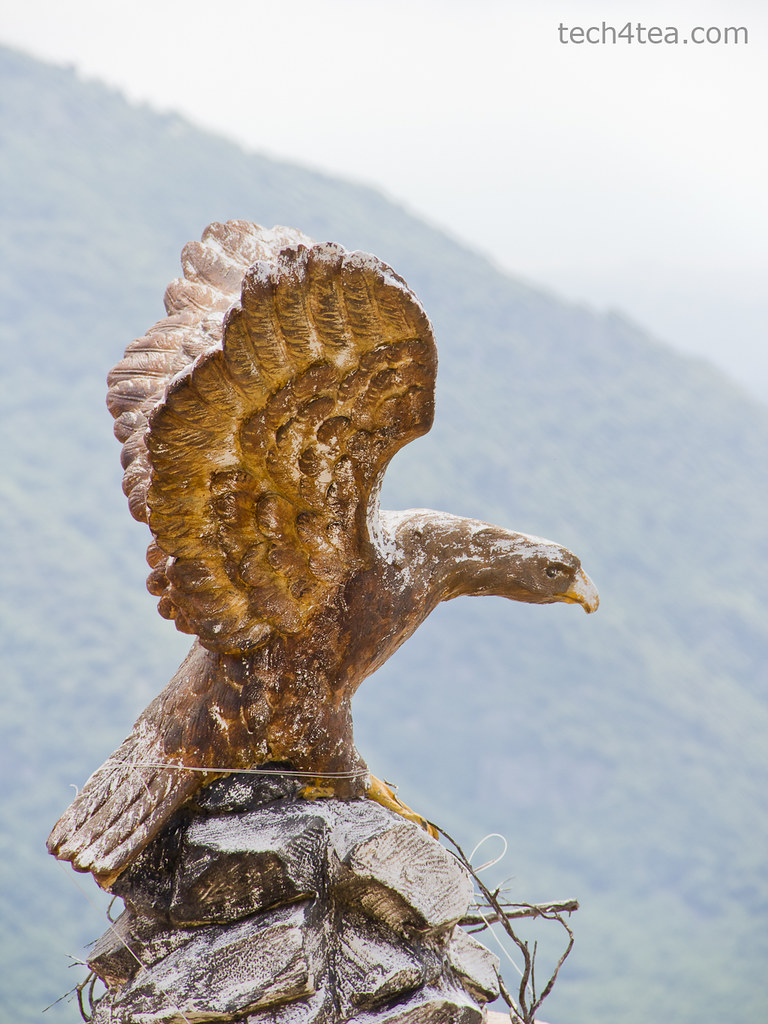
Note that there are exceptions under special photographic situations. For example, a photo that comprises mainly bright tones (such a scene comprising white snow against a light coloured sky) can have a histogram that is bunched up to the right, even though it is properly exposed (see Pictures 8 & 10).

Eagle perched atop Gourdon.

Pict 8: Eagle perched atop Gourdon.

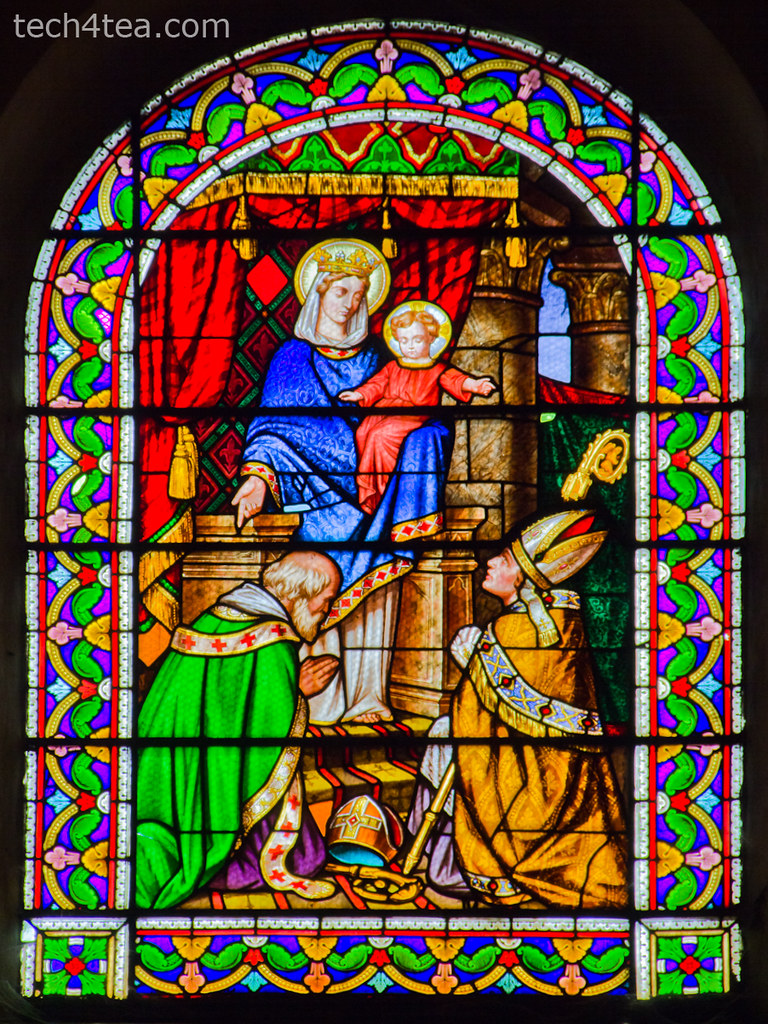
Stained glass window in Provencal church.

Pict 9: Stained glass window in Provencal church.

Similarly, a photo consisting of predominantly dark tones can have a histogram that is bunched up on the left – even when properly exposed (see Pictures 9 & 11).
 Bunching up to the right caused by bright background behind the eagle despite proper exposure.

Pict 10: Bunching up to the right caused by bright background behind the eagle despite proper exposure.

Stained glass window in Provencal church.

Pict 11: Histogram is bunched up because of the predominance of dark tones - despite proper exposure.

In the next  installment, we’ll use the Levels command to enhance a photo’s brightness andcontrast based on the characteristics of its histogram.

New Adobe Software Development Kit for Photoshop CS5

Sunday, April 10th, 2011

The Photoshop Touch SDK and a new scripting engine in Photoshop CS5 open the door for Android, BlackBerry Tablet OS and iOS apps to drive and interact with Photoshop on the desktop.

Adobe has announced the Photoshop Touch Software Development Kit (SDK) inviting developers worldwide to create mobile and tablet applications that interact with Adobe Photoshop CS5 and Photoshop CS5 Extended software, uniting the fun and interactive experience of touch devices with the power and precision of Photoshop.

Using the Touch SDK, Adobe has developed three initial Photoshop CS5 companion apps for Apple iPad: Adobe Color Lava for Photoshop, Adobe Eazel for Photoshop and Adobe Nav for Photoshop. The apps are designed to enable users to create custom color swatches, paint and drive popular Photoshop tools from tablet devices.

Adobe Color Lava will allow creative professionals to use their fingertips to mix colors on the iPad, creating custom color swatches and themes to transfer back into Photoshop.

Adobe Eazel takes advantage of cutting-edge painting technology to let digital artists create rich realistic paintings with their fingertips and introduces a new kind of interaction between “wet” and “dry” paints. These paintings can then be sent directly to Photoshop CS5 for compositing or for taking the artwork further.

Lastly, Adobe Nav increases workflow efficiency by letting users select and control Photoshop tools using the iPad as the input surface, customize the toolbar, browse and zoom in on up to 200 open Photoshop files or easily create new files.

All three applications take advantage of the iPad tablet’s touch screen for a truly immersive, tactile, on-the-go experience.

Although the first applications available are for the Apple iPad and the iOS, the Photoshop Touch SDK makes development possible on other devices, including Android and BlackBerry PlayBook.

Utilizing the Touch SDK, developers will have wide access to Photoshop functionality with the freedom to innovate and create new apps or add capabilities to existing ones. Adobe has already engaged with a number of developers across the industry to incorporate tablets and other devices into creative workflows that empower Photoshop users in new and groundbreaking ways.

For more detailed information about features, OS support, upgrade policies, pricing and international versions, visit: www.adobe.com/go/photoshop.

Adobe CS6 in 2012

Wednesday, March 23rd, 2011

The next major version of Adobe Creative Suite will arrive in 2012, Chief Executive Officer Shantanu Narayen revealed. This is in line with the 18 – 24 month product renewal cycle the suite has followed in the past.

Adobe CS6 in 2012In the meantime, Adobe plans to release an HTML5 update to the current version. The update will make it easier for designers and developers to build websites using the HTML5 Internet standard.
Adobe released the current Creative Suite 5, which includes the Photoshop and Illustrator programs, in April 2010. The version before that, Creative Suite 4, was released in October 2008.

The HTML5 standard is supported by both Apple and Google and competes with Adobe’s Flash Internet video and animation software. Apple bans Flash on the iPad tablet computer and iPhone handset.

Adobe believes that selling HTML5 development tools and working with software developers who create applications for smartphones and tablets can help Adobe assert the importance of its tools.

By embracing HTML5, Adobe gives Web developers more options and positions itself to benefit whether programmers decide to use Flash or HTML5. It is a win-win situation for the company whether developers choose to work with Flash or HTML5.

Do magic with Fuzzy Select in GIMP (Part 3 of 14)

Saturday, February 26th, 2011

Select objects with uniformly coloured backgrounds easily even if the objects have complicated outlines.

Previously, we have made simple rectangular and elliptical selections in photos using GIMP’s Rectangle and Ellipse Select tool. We’ve also used the Free Select Tool to select objects with irregular outlines.

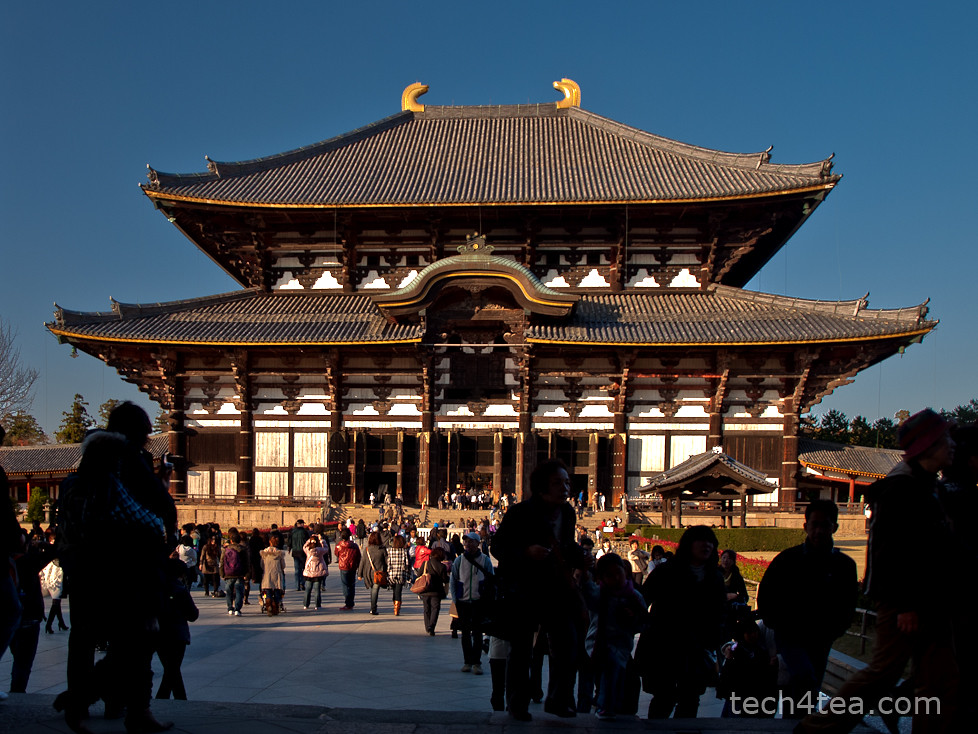
Todaiji Temple in Nara, Japan - a UNESCO World Heritage Site

Pict 1: The Todaiji temple as seen against a clear blue sky.

These selections allow us to do local adjustments – whatever adjustments we make are confined to only the pixels within the selection boundaries.

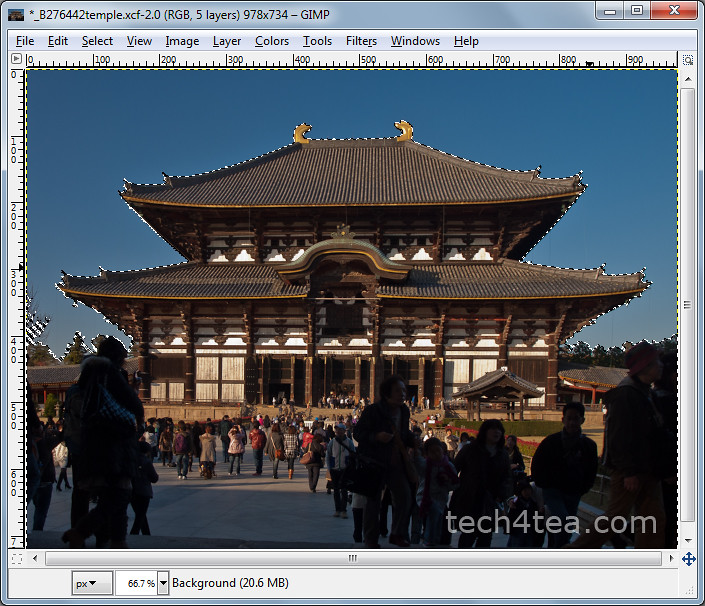
Sometimes, the object we want to select in the photo is against a background with uniform colour, such as the sky, where the colour comprises a narrow range of tones of the same colour (see Picture 1).

In these cases, it is easier to select the uniform background using the Fuzzy Select Tool and then invert the selection rather than try to select the object itself – especially if the object has a complicated outline.

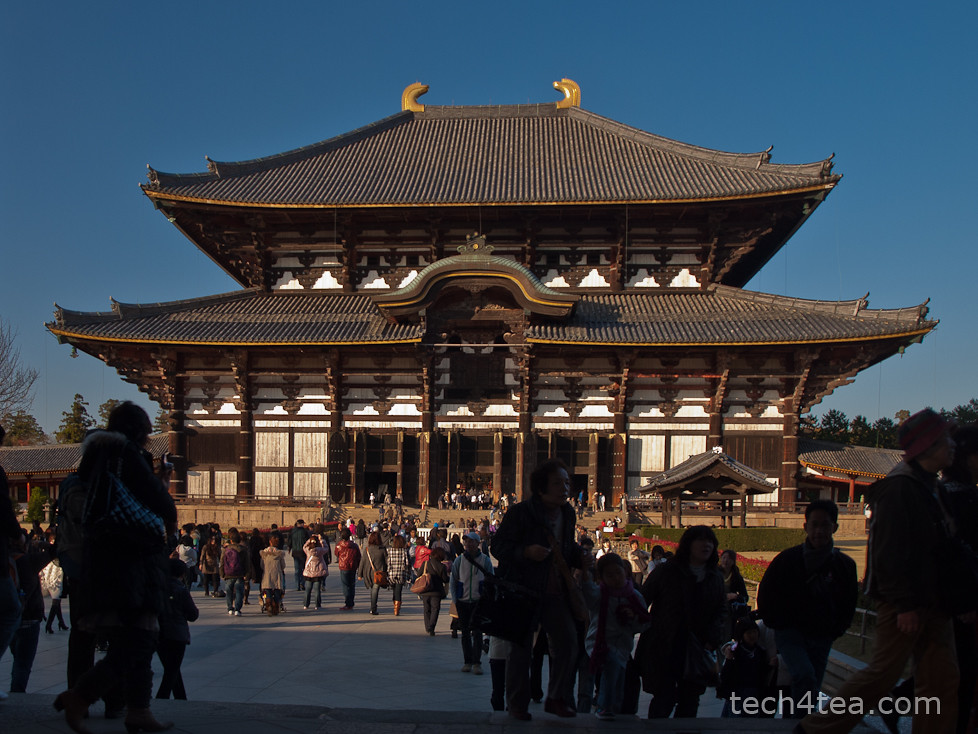
Temple after brightness and contrast increased

Pict 2: The temple has been lightened up and contrast increased.

The tool works best when the background colour is markedly different from the object to be selected.

In the photo of Todaiji in Nara, the temple is slightly underexposed and flat against the bright sky. I want to lighten up the temple without whitening out the nice blue sky. So I need to select the temple and the foreground scene before applying the lightening (see Pict 2).

Fuzzy Select Tool

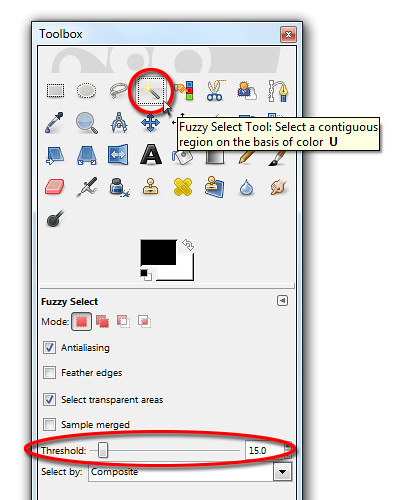
Activate the Fuzzy Select Tool from the Toolbox.

Activating the Fuzzy Select Tool from the Toolbox

It is known more commonly in other photo-editing programs as the Magic Wand tool because of its ability to make a complex selection seem so easy – where large welts of relatively uniform colour are involved. In fact, the symbol and cursor for the tool in GIMP comes in the form of a magic wand.

Click on any part of the blue sky. Large parts of the blue sky are selected as indicated by the marching ants showing the complex boundary of the areas selected. What has happened is that the Fuzzy Select Tool has selected all pixels of similar colour to the pixel that was clicked by the tool.

How similar must a pixel be to the clicked pixel for it to be selected? This is determined by the Threshold slider in the Tool Options.

Changing the default value from 15 to zero means that only pixels whose colour is exactly the same as the clicked pixel is selected. Using the maximum value of 255 means all pixels in the photo will be selected.

The selection process

There is a shortcut to varying the Threshold value while using the Fuzzy Select Tool. When you first click in the area to be selected, don’t release the button just yet.

Drag the mouse to the right or downwards and the Threshold value will be increased. You can see the selected areas grow as you drag the mouse cursor. You can also see the Threshold slider in the Tool Options moving to the right.

Conversely, drag the mouse to the left or upwards to decrease the Threshold value. You will see the selected areas shrink as you drag the mouse cursor. The Threshold slider also moves to the left.

Fuzzy Select Tool in action

Pict 3: The bright blue sky is selected by the Fuzzy Select Tool.

Stop or drag the mouse cursor in the opposite direction when you see the selection spilling into the temple itself. Release the mouse button to confirm the selection (see Picture 3).

If there are areas in the sky, that are not selected, hold down the Shift key on the keyboard and click in those areas to add them to the existing selection.

If the photo includes many isolated areas of the colour to be selected, use the Select by Color Tool instead.

Lighten up the temple

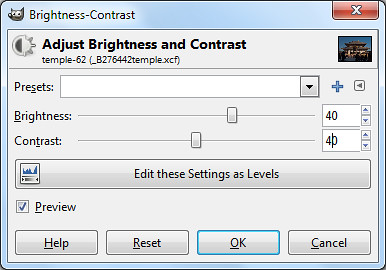
The Brightness and Contrast sliders were increased to 40 to liven up the temple.

For the moment, the blue sky is selected while the temple and the foreground are not.

To invert the selection, press Ctrl-I or Select > Invert from the main menu. The temple and the foreground are now selected while the blue sky is unselected.

The temple and the foreground can now be lightened (for instance, with the Colors > Brightness-Contrast command) without blowing out the sky.

Print sizes and resolutions for photographs

Monday, February 21st, 2011
One of the most frequent questions I get asked is what resolutions to use when printing out photos. Here are some suggestions that I usually provide as a guide.

First decide what size the photos are to be printed out and crop them based on the corresponding aspect ratio.There are a number of standard sizes that photo shops print in. I have tabulated below some of the traditional sizes together with their physical dimensions in millimetres and inches.

For each of the standard sizes, some shops print variants of the standard dimensions to cater to varying aspect ratios. For example, although traditional 4R has an aspect ratio of 3:2, some shops give the option of printing similarly sized prints at 4:3 aspect ratio.

The resolution of a photo is the number of pixels per inch (ppi). To work out the number of pixels a photo should have, multiply the physical dimension in inches by the desired image resolution.

For example, a 5R print is 5 x 7 inches. Multiply by 300 ppi and your image should, therefore, be 1,500 x 2,100 pixels.

For optimal quality, use an image resolution of 300 ppi. For printing on a personal printer, 150 ppi is usually good enough, although some studios accept resolutions down to 100 ppi. Since all my prints are 4R in size, all my images are at 300ppi. This way, they are optimal for 4R and still good enough if I want to print up to A4 size.

Note that studios usually crop a small margin of up to 3%  around the photo. The cropped margin could be bigger on one side compared to the other. This is usually unnoticeable for most photos. Unless the subject is really tightly framed, in which case part of the anatomy, say a ear or finger-tip could be cut off the edge.

However, if your photo has a decorative frame or border that you’d added using a photo-editor, it will turn out uneven. Choose a studio that can crop the photo evenly all round. I find it easier to show the studio a sketch to illustrate when explaining.

Likewise, when using your own printer, it pays to do a few test prints to determine the right settings for even borders.

Standard print sizes, aspect ratios and optimum/minimum image resolution for printing.
Print Size Size

(inches)

Size

(mm)

Aspect ratio Optimum Resolution

(300 ppi)

Minimum Resolution

(150 ppi)

3R 3.5 x 5 89 x 127 7:10 1050 x 1500 525 x 750
4R 4×6 102 x 152 2:3 1200 x 1800 600 x 900
5R 5×7 127 x 178 5:7 1500 x 2100 750 x 1050
6R 6×8 152 x 203 3:4 1800 x 2400 900 x 1200
8R 8 x 10 203 x 254 4:5 2400 x 3000 1200 x 1500
S8R 8 x 12 203 x 305 2:3 2400 x 3600 1200 x 1800
10R 10 x 12 254 x 305 5:6 3000 x 3600 1500 x 1800
S10R 10 x 15 254 x 381 2:3 3000 x 4500 1500 x 2250
11R 11 x 14 279 x 356 11:14 3300 x 4200 1650 x 2100
S11R 11 x 17 279 x 432 11:17 3300 x 5100 1650 x 2550
12R 12 x 15 305 x 381 4:5 3600 x 4500 1800 x 2250
S12R 12 x 18 305 x 465 2:3 3600 x 5400 1800 x 2700