Posts Tagged ‘Photoshop’

Black-and-white and Sepia (Part 7 of 14)

Friday, January 7th, 2011

Want to turn a colour photo into an artsy black-and-white? Or add a touch of nostalgia by turning it sepia? Or simply add any colour tint if you’re feeling flamboyant.

Yesterday, we removed undesirable colour casts using GIMP. Today let’s drain colour totally from the photo – and then put back some.

Draining out the colour

Using the Colors > Desaturate command
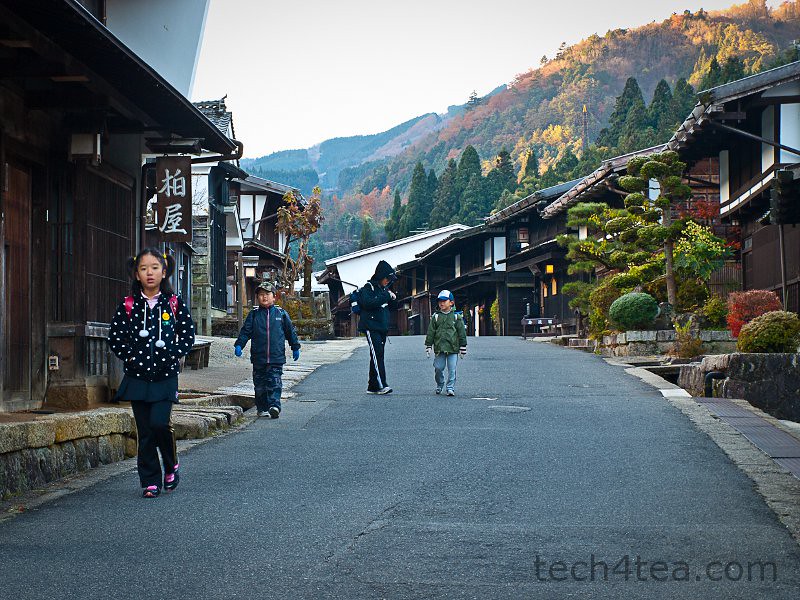
Colour photo of kids going to school in Japan

Pict 1: These kids were on their way to school at seven in the morning, at morbidly cold temperatures.

Black-and-white photos can convey the mood of a scene better than colour, sometimes turning a mundane colour photo into something dramatic.

If the background is colourful and distracting, turning the snapshot to black-and-white can help to mitigate the distraction from say a bright red car, shirt or signboard in the background and make the main subject stand out.

Black-and-white photo of the kids going to school

Pict 2: Converting the photo to black and white was more congruent with the traditional houses in this carefully preserved Edo-era Japanese village called Tsumago.

The simplest way to turn a colour photo into black-and-white is to select the Colors > Desaturate command from the main menu. The result may be a bit flat and dull but it’s quick.

A simple dialog box appears with three different methods of producing black-and-white versions of the photo. The methods are based on the Lightness, Luminosity and Average values of the pixels in the colour original (see Picture 2).

The results are slightly different from each other so click in turn on the radio button for each method to see a preview of the effect on the photo. Click OK to apply the conversion.

Using the Colors > Components > Channel Mixer command.

For more control over how the converted black-and-white photo looks, use the Colors > Components > Channel Mixer command instead.

Channel Mixer dialog box in GIMP

Pict 3: Drag the sliders in the Channel Mixer dialog box to control how the final black and white version will look.

In the Channel Mixer dialog box that pops up, check the “Monochrome” and “Preserve luminosity” checkboxes. Adjust the three sliders to control the resulting black-and-white effect (see Picture 3).

Black-and-white conversion using Channel Mixer

Pict 4: Using Channel Mixer allowed fine control over how the black-and-white conversion is done and can yield punchier results.

Unfortunately, the preview on the black-and-white effect is not available in the photo itself – it is only available in a small thumbnail inside the dialog box. You can enlarge the thumbnail preview by enlarging the dialog box itself, by dragging one of its corners outwards.

Press OK to apply the conversion (see Picture 4).

Tinting the photo with colour

To add a touch of nostalgia to a photo, tint it with a touch of sepia. Apply the Colors > Colorize command from the main menu.

Sepia version of the photo

Pict 5: Add a touch of nostalgia by tinting the photo sepia.

A Colorize dialog box appears with three sliders. Drag the Saturation slider down to 25 to reduce the intensity of the tint. For a sepia tint, drag the Hue slider to 45. Finally, adjust the Lightness slider to taste before pressing the OK button (see Picture 5).

To tint the photo with colours other than sepia, varying the Hue slider in the Colorize dialog box (see Picture 6).
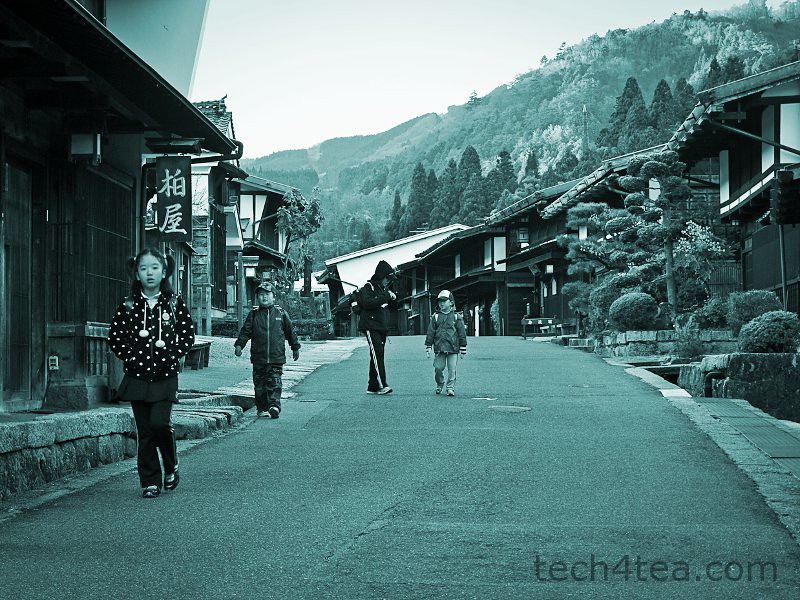
Cyan-tinted version of the photo

Pict 6: Feeling flamboyant? Tint the photo with any colour that strikes your fancy.

When applying the Colorize command directly on a colour photo, GIMP first converts the photo into black-and-white internally using the Desaturate command, before adding the colour tint. The result can be rather flat at times.

I prefer to convert the colour photo into black-and-white first using the Channel Mixer command – so that I can control which tones (skin tones, for instance) to stand out in the final photo.

Tomorrow, I’ll go back to basics and share what camera presets to use in the digital camera to get the best quality photo from the camera – for GIMP to work on.

Correcting exposure in GIMP (Part 4 of 14)

Tuesday, January 4th, 2011
Use simple adjustments in GIMP to darken or brighten an overexposed or underexposed photo. Beginners with little time to spare can use one-click automated adjustment tools, while those wanting more control can use the Brightness-Contrast command.
Dull underexposed photo of a pot of Oden

Pict 1: This dull underexposed photo of a pot of Oden in Kyoto, Japan is typical of the flat snapshots churned out by many digital cameras.

Brighter and more contrasty photo of the pot of Oden

Pict 2: After applying Colors > Auto > White Balance followed by Color Enhance, the Oden looks almost as delectable as when I ate it.

Yesterday, we used the Perspective and Crop tools in GIMP to correct perspective distortion and to crop a digital photo. Today, we make simple adjustments to darken or brighten a photo.

Modern digital cameras are rather intelligent in working out the right exposure for most snapshots. However, some photos may still end up too dark or bright for your liking. And dialling up the contrast tends to enhance the appearance of most photos.

GIMP has many ways of enhancing the exposure and contrast of a photo. Let’s start with the automated adjustments.

Automatic adjustments
(see Pictures 1 to 3)

Less contrasty photo of the Oden

Pict 3: Using Color Enhance in place of White Balance results in a less aggressive adjustment.

There are six quick one-click automatic adjustments in GIMP. They can be found under Colors > Auto in the main menu. These include: Equalize, White Balance, Color Enhance, Normalize, Stretch Contrast and Stretch HSV.

These commands adjust the brightness and contrast of a photo in different ways. Which command is most suitable depends on the nature of each individual photo.

Since it’s so easy to activate each adjustment, just try them on the photo one at a time to see which command yields the best effect. Press Ctrl-Z or Edit > Undo after each command to undo the previous adjustment before trying out the next adjustment.

From experience, I find White Balance gives the best result. Most of the time, applying White Balance followed immediately by Color Enhance may well be all that’s needed to both remove colour casts in photos and to improve the brightness and contrast at the same time.

If the results of using the White Balance adjustment is too exaggerated and contrasty, use Stretch Contrast as an alternative.

Brightness-Contrast command
(see Pictues 4 to 7)

Brightness-Contrast dialog box in GIMP

Pict 4: Drag the Brightness and Contrast sliders and see the results in the photo.

Sometimes, none of the automatic adjustments work for a photo – or you may prefer more control over how the brightness/contrast is adjusted. In these cases, activate the Colors > Brightness-Contrast command from the main menu.

A dialog box with two sliders appears – the Brightness slider on top and Contrast slider below.

Drag the Brightness slider to the left to darken the photo or drag it to the right to lighten it. Drag the Contrast slider to the left to reduce the contrast and to the right to increase it.

Flat underexposed photo of a car

Pict 5: Retro seems to be fashionable for small cars in Japan now. I snapped this sweet thing in Otsu on an overcast day.

Brighter and more contrasty version of the retro car

Pict 6: Using Brightness:85 and Contrast:75 with the Brightness-Contrast command, the retro car looks more zappy now.

Graphic art special effect on retro car

Pict 7: Using Brightness:100 and maximum Contrast:127 yielded a graphic art effect on the car.

Leave the Preview checkbox checked to see the effect of the adjustments on the photo while dragging the sliders. To compare the photos before and after the adjustments, toggle the checkbox on and off.

Once happy with the adjustments, hit the OK button.

To produce a graphics-art special effect from the photo, push the Contrast slider all the way to the right.

Powerpoint backgrounds
(see Pictures 8 to 10)

Illegible text against a photo background

Pict 8: It is difficult to make out the text against the distracting background.

Many people use photos as backgrounds for their Powerpoint slides. Some end up making the text unreadable. Here’s a tip to avoid that happening.

Darken the photo (by dragging the Brightness slider to the left) when using light-coloured fonts for the text in the slide. Conversely, lighten the photo if the text in the slide uses dark-coloured fonts.

If the photo is still too distracting, use the Brightness-Contrast command with the Contrast setting lowered to beween zero and -50.

Text against a darkened background photo

Pict 9: Light-coloured text is more readable against a darkened photo background.

Text against a lightened background photo

Pict 10: Dark-coloured text is more readable against a lightened photo background.

Tomorrow, we’ll look at some alternative ways of adjusting exposure using Layers and Layer Modes.

Photoshop CS5: Complex and hairy selections made easier

Sunday, July 4th, 2010
Deer staring into headlights

Sharp edges along the horns and hairy edges elsewhere.

Photoshop CS5 has made it easier to make image selections and masks, speeding up the extraction of subjects from backgrounds and the creation of realistic composites.

Enhanced intelligent selection technology offers better edge detection and faster, more accurate masking results of complex subjects such as hair. Automatic color decontamination helps eliminate background color around the edges of a selection, resulting in more seamless compositions when placing extracted subjects on new backgrounds.

Dialog box with controls for Refine Edge

New controls can be found in the Refine Edge dialog

The enhanced controls are found in the Refine Edge dialog box when a selection is made.

The Smart Radius setting uses adaptive selection-edge modification approach to produce different types of selection edges on different parts of the subject’s outline, depending on the type of edges — whether the portion of the edge is fuzzy or sharp. This is based on the traditional best practice of using different techniques for different types of edges along the outline of the subject — one method for fuzzy hair and another for the clear edge of a building.

Selection outline in black and white

Selection outline in black and white

Additional view modes provide new ways of previewing the quality of the selections.

The Refine Radius and Erase Refinements tools allows the initial selection to be refined — be it to add more of the subject or to remove more of the background along the selection edge.

My article in Digital Life on 2 June 2010 (Not a hair out of place) illustrated the use of the enhanced selection controls to make a hairy selection round a starry-eyed deer in Miyajima, Japan.

Photoshop: Selecting objects with irregular outlines

Sunday, May 30th, 2010

My article in Digital Life on 26 May 2010 (Choice selections) illustrated the use of the Lasso Tool, the Polygonal Lasso Tool and the Magic Wand Tool for making selections of objects or areas of the image with an irregular outline.

Red telephone booth amidst drab surroundings

Red telephone booth to be selected and preserved

Red telephone preserved while surroundings toned down to Black and White

Surroundings toned down to Black and White

Where there is a fair amount of contrast in colour between the object to be selected – such as the red telephone booth – and the surrounding pixels, you can also use the Magnetic Lasso Tool.

Just click anywhere on the edge of the object move the mouse along the edge of the object, in this case the booth. As the mouse moves along the edge, Photoshop will detect where the edge is by examining the contrast between the pixels on either side of the mouse cursor.

Photoshop will place anchor points along the edge as you go along. You don’t have to click the mouse button.

(more…)

HDR Toning in Photoshop CS5 (Part 2)

Monday, May 24th, 2010
Monochromatic High Contrast Preset - a few black and white HDR Toning effects are included in the Presets

Monochromatic High Contrast Preset - a few black and white HDR Toning effects are included in the Presets

Photorealistic High Contrast - I like the few high contrast HDR toning effects.

Photorealistic High Contrast Preset - I like the few high contrast HDR toning effects available.

Photorealistic Preset

Photorealistic Preset

Surrealistic High Contrast effect - I like the few high contrast presets available.

Surrealistic High Contrast effect

Using the “Local Adaptation” Method, there are 14 Presets available that gives a whole spectrum of different HDR Toning effects. I have included above the results of a few of my favourite presets.

(more…)

New HDR Toning feature in Photoshop CS5 (Part 1)

Sunday, May 23rd, 2010
HDR-like effect applied to a single snapshot

HDR-like effect applied to a single snapshot

Ever saw those surrealistic digital photographs of landscapes that are so rich in colours? These High Dynamic Range (HDR) photos are getting more popular due to the ease in producing them – with the proliferation of powerful software that combine bracketed shots of a scene at different exposures into a single photo.

Original dull photo with overexposed skies and underexposed foreground

Original dull photo with overexposed skies and underexposed foreground

The process allows much more detail to be displayed in a single photo than is normally possible, through the clever tone mapping of the colours in the photo. As a result, what little details are left from blown-out highlights and murky shadows are rescued and made more discernible.

HDR Toning using Equalize Method - no controls are available

HDR Toning using Equalize Method

What if you weren’t able to bracket the shot, or you have an old jpeg that wasn’t bracketed but still wants the same eerie and otherworldly effect? Photoshop CS5 has a new HDR Toning feature that can fake simulate the look, even if you only have a single exposure.

I tried it out and found the result rather impressive.

(more…)

Tips for making selections in Photoshop

Saturday, May 22nd, 2010

Here are 4 quick tips for making selections in Photoshop: how to move a selection marquee after making it, how to reshape the selection marquee to better fit the object you want to select, how to combine two selection marquees, and selecting the unwanted area first before inverting the selection.

Backlit statue against a clear blue sky

Sometimes, it may be easier to select the UNWANTED portion of the photo first.

The dark backlit statue is lightened up without blowing up the background sky

The dark backlit statue is lightened up without blowing up the background sky

After making global adjustments (such as overall contrast/brightness and colour balance) that apply to the entire photo, we usually want to apply corrections/enhancements/special-effects only to certain parts of the photo. To do that, we need to select the relevant portions of the photo first.

My article in Digital Life on 19 May (Making the right selection) illustrated the use of Photoshop’s simplest selection tools – the Rectangular and Elliptical Marquee tools. Below are 4 handy tips when using any of Photoshop’s selection tools to make selections:

(more…)

Parody on the video on Content-Aware Fill

Tuesday, May 18th, 2010

And this is the parody on Adobe’s sneak peek video on Content-Aware Fill. I thought it was rather humorous.

The original Sneak Peek video for Content-Aware Fill

Monday, May 17th, 2010

This was the original sneak peek video that Adobe uploaded onto YouTube just 3weeks before the official launch. It gave a good idea of what the feature would be capable of.

Now you see it … now you don’t

Sunday, May 16th, 2010
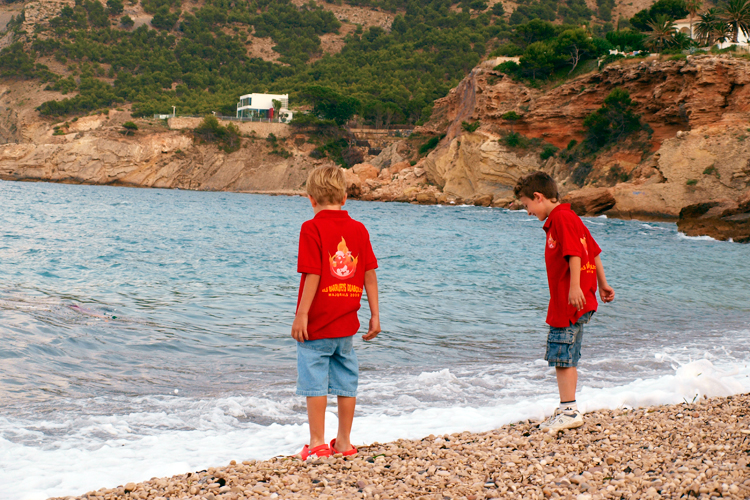
Before: Two Spanish boys frolicking on a beach in Altea

Before: Two Spanish boys frolicking on a beach in Altea

After: The two boys removed in seconds using Content-Aware Fill

After: The two boys removed using Content-Aware Fill

Yesterday, I showed how Photoshop CS5’s new Content-Aware Fill can be applied using the Spot Healing brush. The second way of using the powerful feature is to use the Content-Aware option when applying the Fill command.

I took the photo of two local boys at the Spanish beach at Altea, just 10 km to the north of the famous beach haven of Benidorm on the Costa Blanca. I like the way these two boys added life to the beach scene. But just to test out the Content-Aware Fill, I decided to “remove” them from the photo.

(more…)