Archive for the ‘Software’ Category

Apple Announces New iMac line of desktop computers

Tuesday, May 3rd, 2011
Starting at S$1,648, the iMac has been updated with next generation quad-core processors, powerful graphics, Thunderbolt I/O Technology and a new FaceTime HD camera.
New iMacs from AppleApple claims that, compared to the previous generation, the new iMac is 70 percent faster and new graphics deliver up to three times the performance of the previous generation.
Apple’s desktop line of computers features quad-core Intel Core i5 processors with an option for customers to choose Core i7 processors up to 3.4 GHz. These next generation processors feature an integrated memory controller for a responsive experience and a powerful new media engine for high-performance video encoding and decoding. The new AMD Radeon HD graphics processors give the new iMac an extremely powerful graphics capability.

Thunderbolt

21.5 or 27 inch brilliant IPS LED-backlit high resolution display

iMac is the first desktop computer on the market to include groundbreaking Thunderbolt I/O technology. Apple had launched its updated MacBook Pro line of notebooks on February 25 earlier this year with the new Thunderbolt I/O technology. It was the  first computer on the market to implement the new technology Apple had developed in collaboration with Intel.

The 21.5-inch iMac has a single Thunderbolt port while the 27-inch model features two ports for even greater expansion. Featuring two bi-directional channels with transfer speeds up to an amazing 10Gbps each, Thunderbolt delivers PCI Express directly to external high performance peripherals such as RAID arrays, and can support FireWire and USB consumer devices, and Gigabit Ethernet networks via adapters.

Thunderbolt also supports DisplayPort for high resolution displays and works with existing adapters for HDMI, DVI and VGA displays. Freely available for implementation on systems, cables and devices, Thunderbolt technology is expected to be widely adopted as a new standard for high performance I/O.

FaceTime

21.5 or 27 inch brilliant IPS LED-backlit high resolution display

The iMac includes a built-in FaceTime HD camera and Apple’s innovative FaceTime software for crisp, widescreen video calling the whole family can enjoy. The new camera supports high definition video calls between all FaceTime HD-enabled Macs and standard resolution calls with iPad 2, iPhone 4, the current generation iPod touch and other Intel-based Macs.

Software

The iMac comes with Mac OS X Snow Leopard and iLife – Apple’s innovative suite of applications for creating and sharing photos, movies and music.

Snow Leopard includes the Mac App Store for finding new apps for the iMac.

iLife ’11 features iPhoto with full screen views for browsing, editing and sharing photos; iMovie with powerful easy-to-use tools to transform home videos into fun theatrical trailers; and GarageBand with new ways to improve your playing and create great sounding songs.

Aluminium enclosure, gorgeous display and all-in-one design.The iMac continues to feature its signature aluminium and glass design, brilliant IPS LED-backlit high resolution display, SD card slot and comes with Apple’s innovative Magic Mouse or Magic Trackpad.

On the Green front, the iMac meets stringent Energy Star 5.2 requirements and achieves EPEAT Gold rating. iMac features LED-backlit displays that are mercury-free and made with arsenic-free glass. iMac uses PVC-free components and cables, contains no brominated flame retardants, uses highly recyclable materials and features material-efficient system and packaging designs.

Pricing & Availability

The new iMac is available through the online Apple Store and Apple Authorised Resellers.

21.5-inch iMac
S$1,648 2.5 GHz quad-core Intel Core i5

AMD Radeon HD 6750M

500GB hard drive

S$2,048 2.7 GHz quad-core Intel Core i5

AMD Radeon HD 6770M

1TB hard drive

27-inch iMac
S$2,348 2.7 GHz quad-core Intel Core i5

AMD Radeon HD 6770M

1TB hard drive

S$2,748 3.1 GHz quad-core Intel Core i5

AMD Radeon HD 6970M

1TB hard drive

Configure-to-order options include faster Intel Core i7 processors up to 3.4 GHz, additional hard drive capacity up to 2TB, a 256GB solid state drive, additional DDR3 memory and AppleCare Protection Plan. Additional technical specifications and configure-to-order options and accessories are available online.
Using Levels to enhance brightness and contrast in GIMP (Part 13 of 14)

Sunday, May 1st, 2011
The Levels command is the tool of choice for more advanced users of photo editors for enhancing the tonal balance of a photo and for correcting colour balance.

That’s because it offers better control than the rudimentary Brightness-Contrast command and produces much better results.
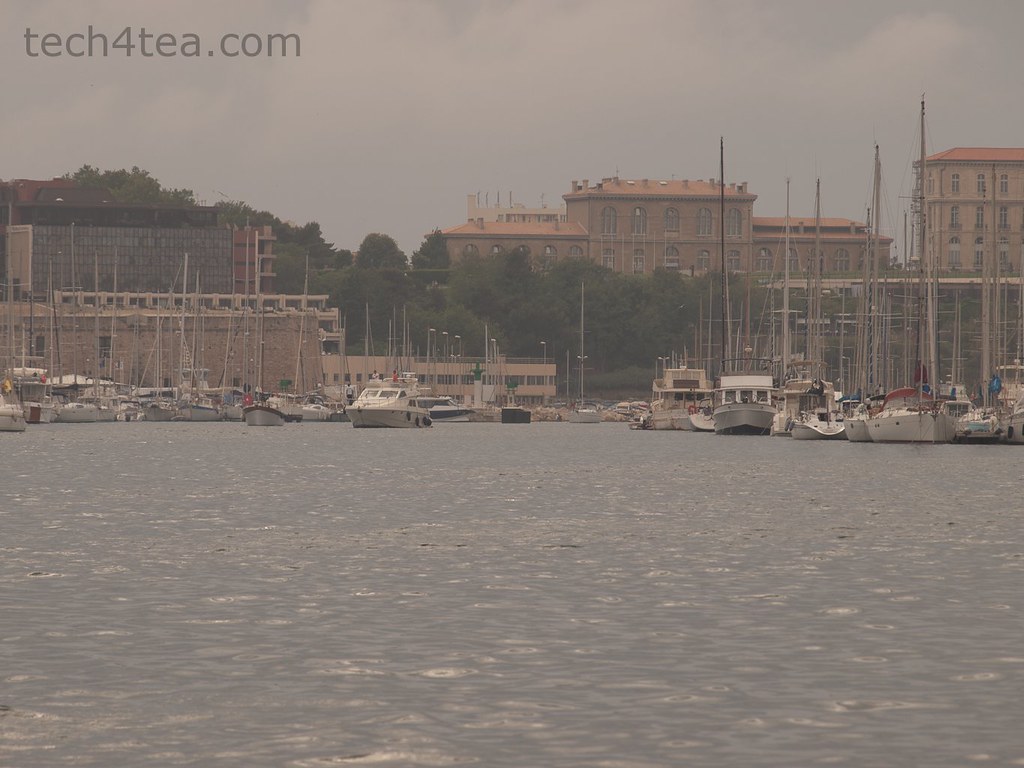
The port of Marseilles in Southern France on an overcast evening.

Pict 1: The port of Marseilles in Southern France on an overcast evening.

The overall contrast and brightness has been increased with the Levels command.

Pict 2: The overall contrast and brightness has been increased with the Levels command.

Most free and basic photo editors offer a basic Brightness/Contrast command that allows the user to easily adjust the brightness and contrast of a photo. GIMP tool also has the equivalent in the Colors > Brightness-Contrast command from the main menu.

This basic adjustment command uses a rudimentary algorithm that treats all pixels equally and adjusts them to the same extent. It’s useful if all you need is a quick and dirty adjustment to the photo.

For almost the same effort, the Levels command provides better control and the algorithm yields better results adjusting pixels to different extents depending on the settings you make.

That is why for many free photo editors, more advanced tools like the Levels and Curves command are not available or are only available when you upgrade to a paid version. In GIMP, these tools available for free.

Using the Levels command

This photo of a hanging potted plant is slightly underexposed because the camera has been fooled by the bright background.

Pict 3: This photo of a hanging potted plant is slightly underexposed because the camera has been fooled by the bright background.

The red petals are now more vibrant and discernible after the photo has been enhanced with the Levels command in GIMP.

Pict 4: The red petals are now more vibrant and discernible after the photo has been enhanced with the Levels command in GIMP.

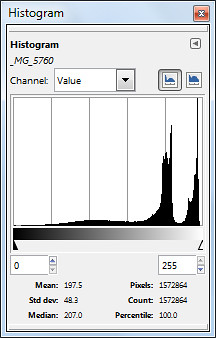
Last week, we looked at how to analyse a photo’s characteristics and problems by examining its histogram in GIMP.

Using the histogram as a basis, we’ll learn to use the Levels command to improve the tonal distribution of a photo such that the overall brightness and contrast of the photo is just right and the entire range of brightness values (from 0 to 255) available is fully utilised.

With the photo open in GIMP, choose the Colors > Levels command from the main menu. A complicated looking Levels dialog box pops up showing a histogram of the photo as well as many controls and input fields to control the histogram is to be adjusted.

The reason why many beginners hesitate to use the Levels command is the seeming complexity of the dialog box. But in most cases, all you need is to drag one to three of the triangular sliders directly below the histogram. Here’s how.

Darkening a photo

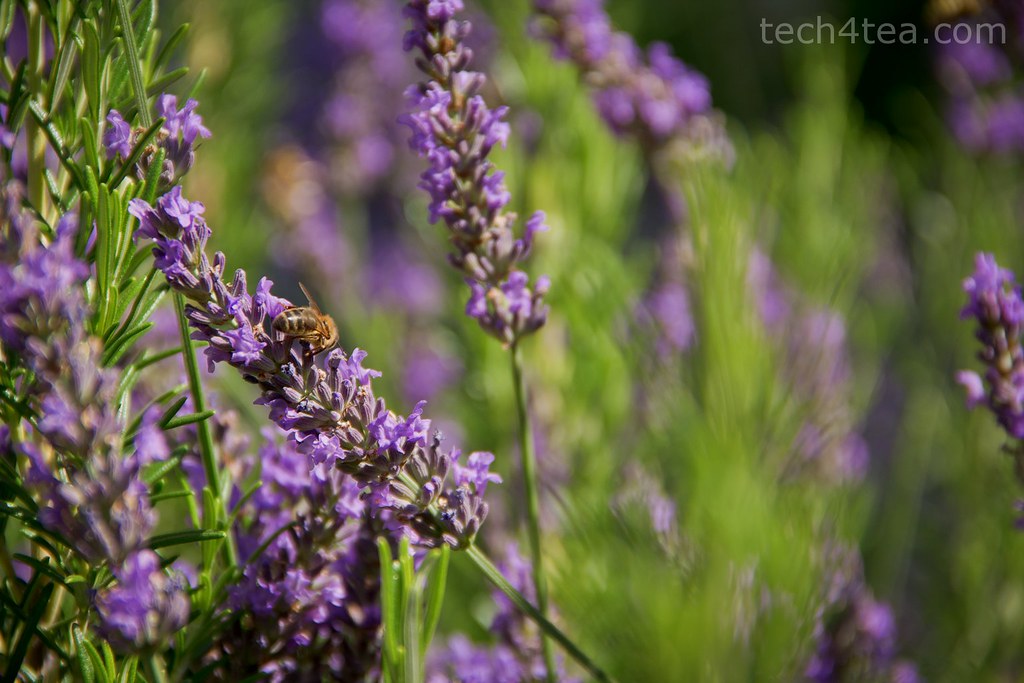
Busy bee working on Lavender flowers in Provence, France.

Pict 5: Busy bee working on Lavender flowers in Provence, south of France.

Photo darkened using the Levels command in GIMP.

Pict 6: The photo after darkening using the Levels command in GIMP.

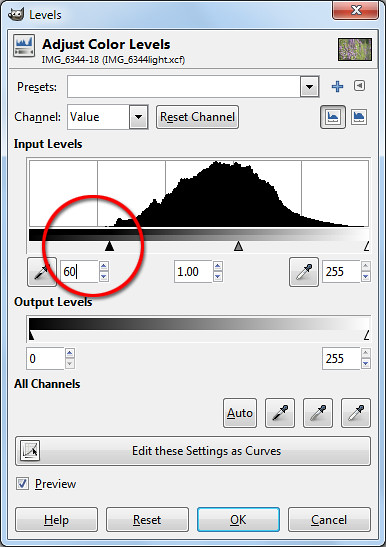
For the slightly overexposed photo of the lavender flowers, the histogram shows that none of the brightness values below 60 is utilised. Drag the blackpoint triangular slider from the left edge inwards towards the right until it is at the point where the main bulk of the histogram starts to form (see Pictures 5 to 7).
Drag the triangular blackpoint slider from the left edge inwards towards the right.

Pict 7: Drag the triangular slider from the left edge inwards towards the right.

The three boxes below the histogram shows the numeric brightness values of where the sliders are. It serves as a reference or when you need to key in specific numeric values to use. Most of the time, you should simply drag the slider inwards based on where the bulk of the histogram begins.

Dragging the blackpoint slider to 60 tells GIMP to darken pixels of brightness 60 and below down to zero. The other pixels in the histogram are correspondingly darkened as well. This also increases the overall contrast of the photo because a wider range of brightness value is now used in the photo.

To further finetune the brightness of the photo, drag the centre slider to the left or right to lighten or darken the mid-tones.

Lightening a photo

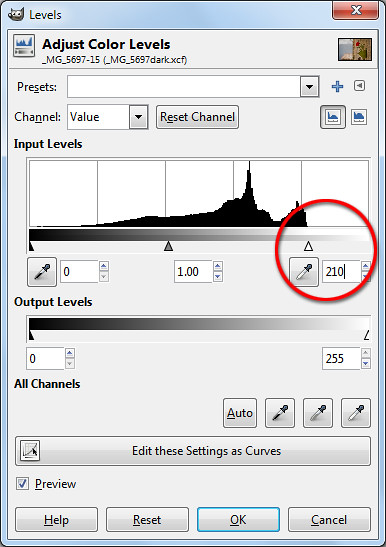
Drag the triangular blackpoint slider from the right edge inwards towards the left.

Pict 8: Drag the triangular slider from the right edge inwards towards the left.

For the slightly underexposed photo of the potted flower on the wall, the histogram stops short at around the brightness level 210. Drag the whitepoint triangular slider from the right edge inwards towards the left until it is at the point where the main bulk of the histogram ends (see Pictures 3, 4 and 8 ).

Dragging the whitepoint slider to 210 tells GIMP to set 210 as the white point – all pixels that are of brightness 210 and greater are increased to the maximum of 255. The other pixels are correspondingly lightened as well.

As before, the overall contrast of the photo is increased because the entire range of brightness values is now used in the photo.

Again, drag the centre slider to the left or right to lighten or darken the mid-tones further.

Adjusting all three sliders

The snapshot of the port of Marseilles was taken on an overcast evening and is not only too dark but sorely lacking in contrast, resulting in a dull and flat photo (See Pictures 1 & 2).

The histogram is now spread across the entire range of brightness.

Pict 10: The histogram is now spread across the entire range of brightness.

The histogram in the Levels dialog box shows that all the pixels are bunched up in the mid-tones – there are now extreme white or black pixels – so the highlights are not bright enough while the shadows are not dark enough.

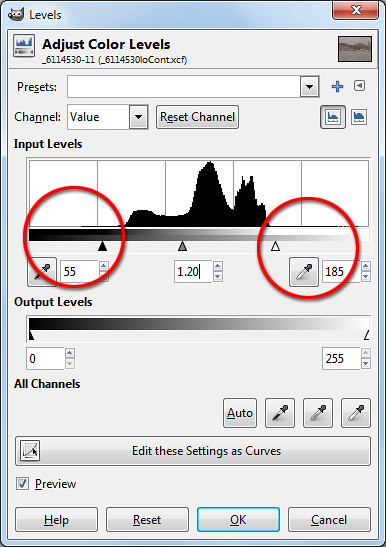
Drag the blackpoint and whitepoint triangular sliders from both edges inwards.

Pict 9: Drag the blackpoint and whitepoint triangular sliders from both edges inwards.

In this case, drag the blackpoint and whitepoint sliders inwards to where the bulk of the histogram begins and ends (see Picture 9). This darkens the shadows and lightens the highlights forcing the bunched up histogram to spread out across the entire range of brightness – thereby increasing the overall contrast of the photo.

As the photo is still too dark, drag the centre slider to the left to further brighten the photo.

The resulting histogram after the adjustment is now spread out across the entire brightness range (see Picture 10).

Asus Eee Pad Transformer TF101 arrives in Singapore

Friday, April 29th, 2011
The latest 10.1 inch Android 3.0 tablet from Asus arrived in Singapore today at the launch event at Zirca in Clarke Quay. The 16GB Wi-Fi only version (Eee Pad + Docking keyboard) is priced at S$898.

But as part of its launch promotion, you can get a S$99 discount at S$799. If you choose to purchase only the pad and not the docking station, you can get the 16GB Wi-Fi only version at the launch promotion price of S$699.
The Asus Eee Pad Transformer TF101 arrived in Singapore on April 29, 2011

The Asus Eee Pad Transformer TF101 arrived in Singapore on April 29, 2011

What are the biggest grouses of tablet users today? No Flash, short battery life, no keyboard, no USB ports and card readers. Asus tries to address all these shortcomings in the Asus Eee Pad Transformer TF101.

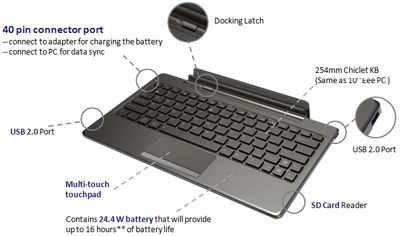
The optional docking station provides a full QWERTY keyboard for work involving intensive typing. It costs S$199 if you purchase it separately, but purchased together with the pad, you need only top up S$100 for it. The docking station makes available an additional 24.4 Wh battery that extends the pad’s 9.5 hours battery life to 16 hours instead.

A card reader (MMC/SD/SDHC) and two USB 2.0 ports are also available on the keyboard. The keyboard also props up the docked pad as a stand.

And finally, Adobe Flash 10.2 is supported, so you can visit all those glitzy sites running Flash animations and video.

The docking station is a full QWERTY keyboard that doubles up as a stand and contains an extra battery to extend the 9.5 hours battery life of the pad to 16 hours. It also contains USB ports and a card reader.

The docking station is a full QWERTY keyboard that doubles up as a stand and contains an extra battery to extend the 9.5 hours battery life of the pad to 16 hours. It also contains USB ports and a card reader.

I played with the Eee Pad on display and found the IPS (In-plane switching) LED backlight screen brilliant and sharp at with 1280×800 pixels packed into the 10.1 inch panel, offering a wide viewing angle of 178 degrees – I could still view the screen display from the side.

The touch screen senses up to 10 fingers for multi-touch - seen here with the Piano app from Android Market.

The touch screen senses up to 10 fingers for multi-touch - seen here with the Piano app from Android Market.

The pad feels slightly heavier than the iPad 2 but comfortable to hold. The book reader app included with the pad was standard fare – offering animated page turning, highlighting and bookmarking etc.

Photos and videos taken with the camera was clear even though the ambient lighting was dark.

Prices and configurations

The 16GB Wi-Fi only tablet is the only configuration available at the moment. Together with the docking station (keyboard), it sells for S$898 at the major retailers in Singapore – Challenger, Best Denki, Harvey Norman etc.

During this launch period, the promotional price for the 16GB Wi-Fi only Transformer sells for S$799 (Eee Pad + Docking station) and S$699 (Eee Pad only). Currently, the docking stations are out of stock and will only be available from the week of May 9 onwards.

The 32GB Wi-Fi only version will also only be available later in May.

“The 3G version is being tested now and will likely be launched in the second or third week of June,” Bernard Wen, Business Operation Manager of Asus Technology told me. “In the meantime, we’ve tested the Pad with USB dongles from SingTel, Starhub and M1 and found that they are all compatible,” he added.

New update to the TomTom App for iPhone

Friday, April 29th, 2011

The update to the TomTom App for iPhone offers TomTom’s latest release of the maps of Malaysia and Singapore. Current owners of the TomTom App can update to the new version for no additional charge.

TomTom App (Version 1.7) for iPhone and iOS devices available nowFor new users, the updated TomTom App (Version 1.7)  for iPhone is now available in the App Store for USD $59.99. The app is available on iPhone 4, iPhone 3GS & iPod touch 3rd Gen running iOS4.
Asus Eee Pad Transformer TF101 launch in Singapore tomorrow

Thursday, April 28th, 2011
Another tablet arrives in Singapore tomorrow – this time from Asus, the Taiwanese company that created the netbook niche. This Android-based tablet tries to redefine the tablet experience by packaging it with a docking keyboard cum extra battery.

Will update on the actual use and feel after the launch event tomorrow.

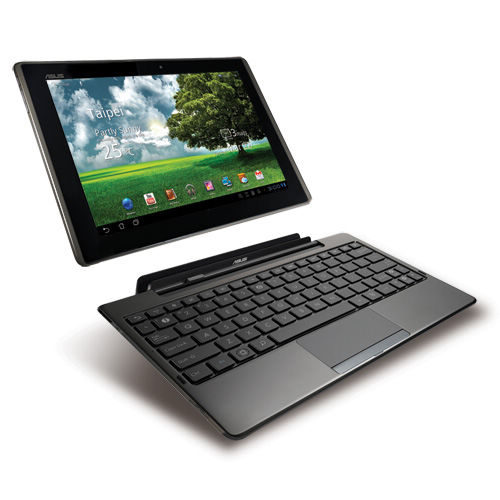
The Asus Eee Pad Transformer has a 10.1″ LED backlight WXGA (1280×800) screen and a docking QWERTY keyboard which also serves as a tablet stand, provides USB ports  and contains an extra 24.4 Wh battery that extends the 9.5 hours battery life of the tablet to 16 hours.

Asus Eee Pad Transformer TF101 launch in Singapore

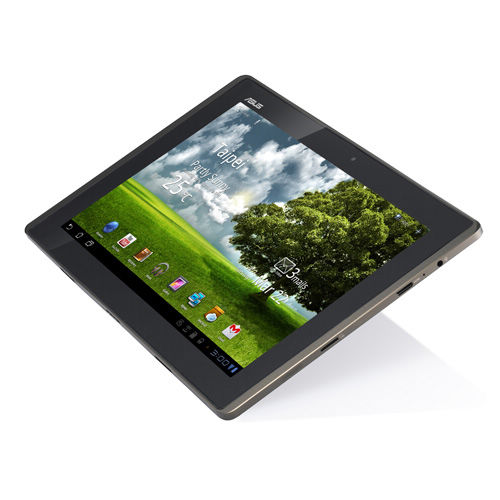
The screen is IPS (In-plane switching) Panel which typically has a wider view angle than a traditional LCD screen – Asus boast a wide view angle of 178° for this screen. Apple’s iPad also uses an IPS panel.

The 10.1 inch screen screen is an IPS that provides a wide viewing angle of of 178 degreesThere is a 1.2M pixel front Camera and a 5M pixel rear Camera. The standard range of sensors are included: G-Sensor, Light Sensor, Gyroscope, E-Compass, GPS.
The Transformer is based on the Android 3.0 Honeycomb OS and supports Adobe Flash 10.2. It has an NVIDIA Tegra 2 1.0GHz dual-core CPU which provides multitasking and 1080p video playback.

Memory-wise, it has 1 GB RAM and comes in either 16 or 32 GB versions for permanent storage. Unlimited ASUS Webstorage is included free for a year.

Network-wise, it is fairly standard with WLAN 802.11 b/g/n at 2.4GHz and Bluetooth V2.1+EDR. What is conspicuously missing is a 3G version so you’ll probably need a mobile broadband USB dongle or a Wi-Fi network to access the Internet.

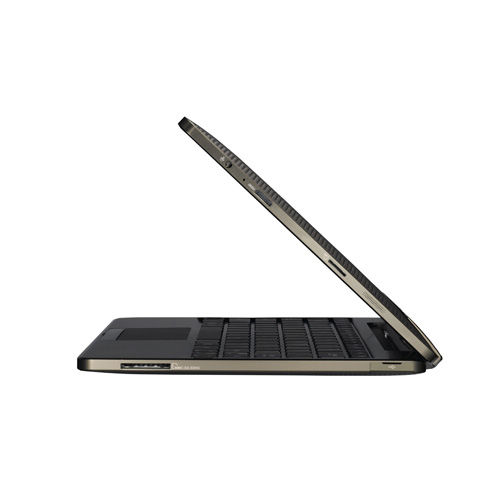
The docking QWERTY keyboard extends battery life to 16 hoursThe docking keyboard comes with two USB 2.0 ports, one card reader (MMC/SD/SDHC) and a touch pad. It can be purchased in the UK for an additional £50 and in the US for an additional US$149 over the base price of the tablet alone.
The tablet itself contains one 2-in-1 Audio Jack (Headphone/Mic-in), one Micro SD Card Reader, and one mini HDMI 1.3a for outputting the display onto an external HD screen. Stereo speakers are built in.

Physically, the tablet measures 271 x 171 x 12.98 mm and weighs 680 g.

The Transformer was first launched in Taiwan on March 25, then in the UK on March 30, and two days ago in the US on April 26. Prices in the US are $100 less than the “equivalent” iPad model.

US Prices

  • 16 GB: US$399
  • 32 GB: US$499
  • Keyboard: US$149

Understanding histograms (Part 12 of 14)

Saturday, April 23rd, 2011
The histogram of a photograph tells you whether a photo is too bright, too dark or too flat and lacking in contrast.

It forms the basis of more advanced and powerful tools – such as Levels and Curves –  to enhance the brightness and contrast of a photo.
Metalwork lantern in French Provence. The exposure was reasonably well-balanced.

Pict 1: Metalwork lantern in French Provence. Exposure was well-balanced, as indicated by the histogram below.

Many digital cameras today can display histograms on their LCD screens in both the review and preview modes. The histogram helps the photographer to assess whether the exposure settings for an image are optimal. This is most useful when bright sunlight makes it difficult to judge – just by viewing the photo preview/review on the LCD screen – whether a photo is too bright or dark.

If the histogram indicates that the photo is too dark or bright, the photographer can adjust the exposure settings to get a better shot.

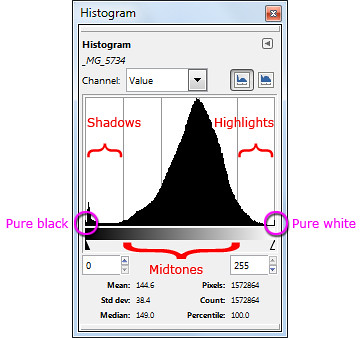
Different parts of a histogram. The photo is well-exposed.

Pict 2: Different parts of a histogram. The photo of the metal work lantern was well-exposed.

What is a histogram?

The histogram is basically a graph of the brightness levels of all the pixels in a photograph – from pure black (brightness value zero) on the left edge to pure white (brightness value 255) on the right edge.

An overexposed photo has its histogram bunched up to the right.

Pict 4: An overexposed photo has its histogram bunched up to the right.

Lavenders in the French Riviera - overexposed.

Pict 3: Lavenders in the French Riviera - overexposed.

The number of pixels in each of the 256 levels of brightness are counted and plotted on the Y axis as a bar chart to provide an idea of the tonal distribution of a photograph and its possible problems.

The region around the left edge of the histogram represents the shadows (dark tones) in the photo while the pixels near the right edge represents the highlights (bright tones). The middle region represents the midtones.

Analysing a histogram

When a photo is opened in GIMP, you can view the photo’s histogram by selecting the Windows > Dockable Dialogs > Histogram command from the main menu. By analysing the histogram, you can better decide how to use the tools in GIMP to enhance a photo’s brightness and contrast.

Flowers at Gourdon - underexposed.

Pict 5: Flowers at Gourdon - underexposed.

Port of Marseille on a dull and overcast day.

Pict 6: Port of Marseille on a dull and overcast day.

All bunched up in the middle - poor contrast.

Pict 7: All bunched up in the middle - suggesting a photo with poor contrast.

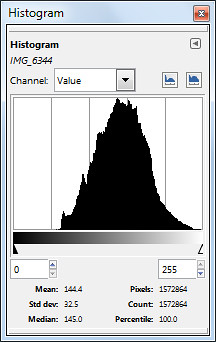
A well-exposed photo usually has a histogram which looks like a bell-shape and which stretches from one end of the histogram to the other (see Pictures 1 & 2).

A photo that is overexposed (too bright) usually has a histogram that is bunched up on the right, while an underexposed photo will have a histogram that’s bunched up to the left (see Pictures 3 to 5).

A photo with poor contrast will usually have a histogram that is squashed up towards the middle. The photo appears dull and flat. The brightest pixels are not bright enough while the darkest pixels are not dark enough (see Pictures 6 & 7).

Exceptions

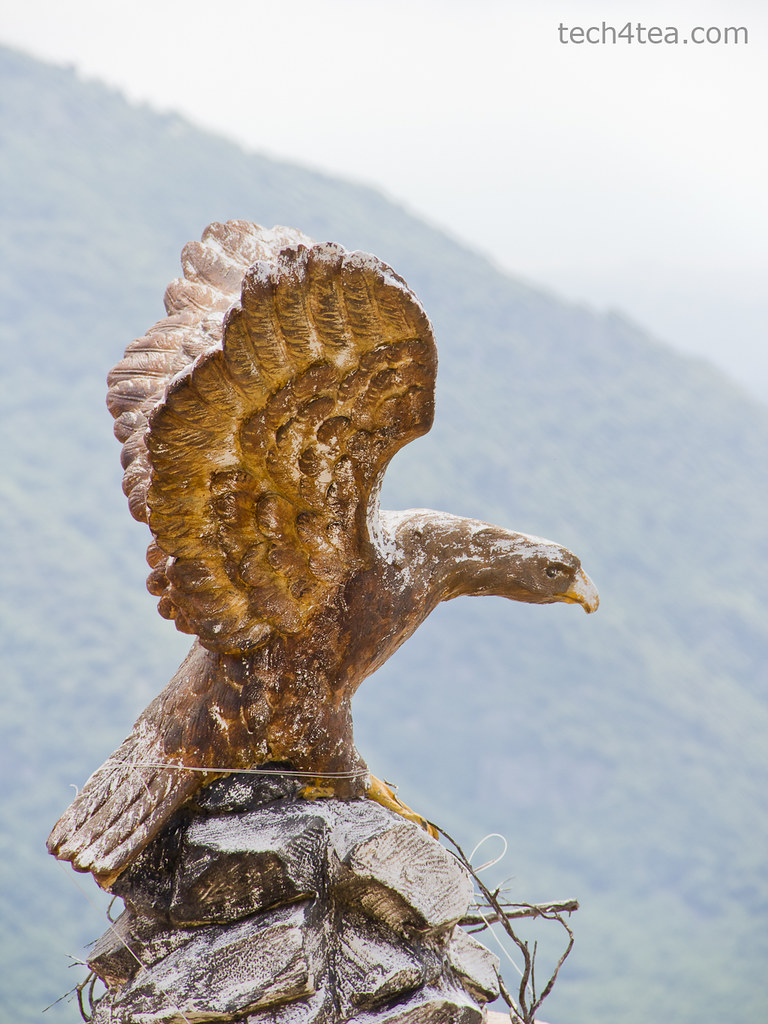
Note that there are exceptions under special photographic situations. For example, a photo that comprises mainly bright tones (such a scene comprising white snow against a light coloured sky) can have a histogram that is bunched up to the right, even though it is properly exposed (see Pictures 8 & 10).

Eagle perched atop Gourdon.

Pict 8: Eagle perched atop Gourdon.

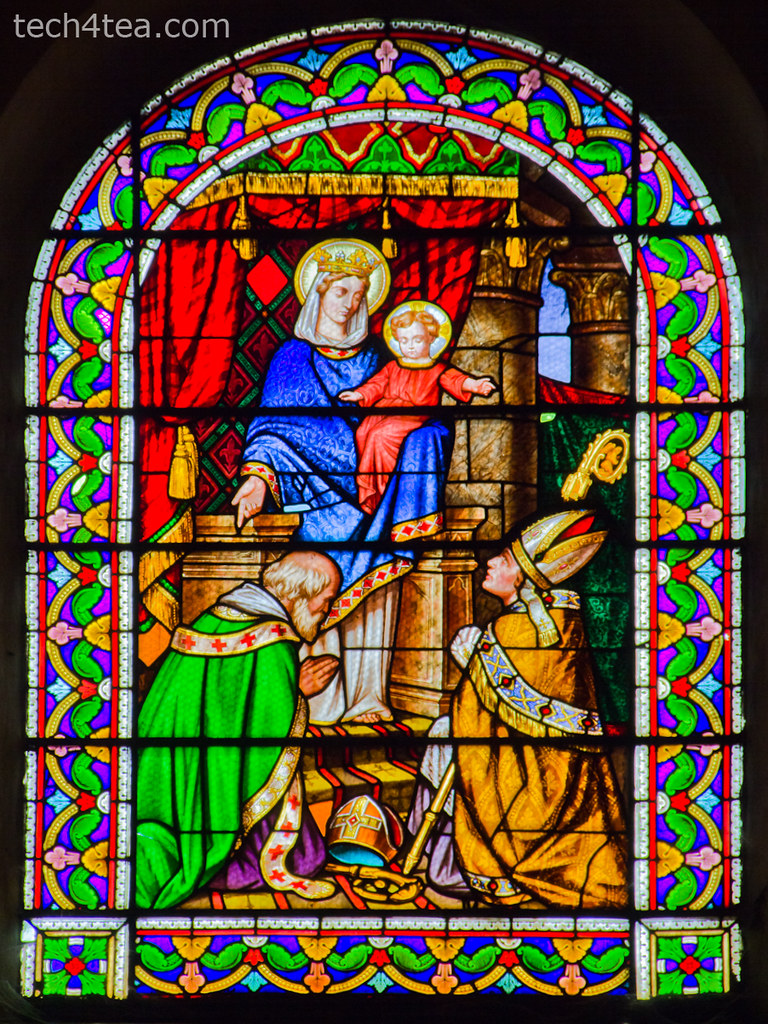
Stained glass window in Provencal church.

Pict 9: Stained glass window in Provencal church.

Similarly, a photo consisting of predominantly dark tones can have a histogram that is bunched up on the left – even when properly exposed (see Pictures 9 & 11).
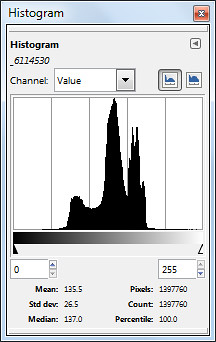
 Bunching up to the right caused by bright background behind the eagle despite proper exposure.

Pict 10: Bunching up to the right caused by bright background behind the eagle despite proper exposure.

Stained glass window in Provencal church.

Pict 11: Histogram is bunched up because of the predominance of dark tones - despite proper exposure.

In the next  installment, we’ll use the Levels command to enhance a photo’s brightness andcontrast based on the characteristics of its histogram.

BlackBerry PlayBook Launch

Tuesday, April 19th, 2011

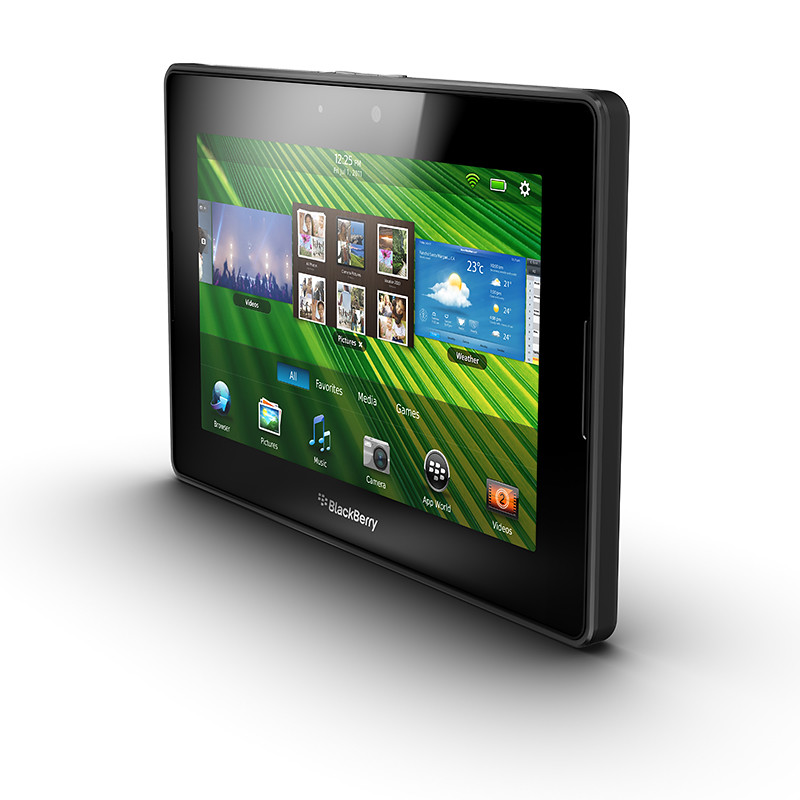
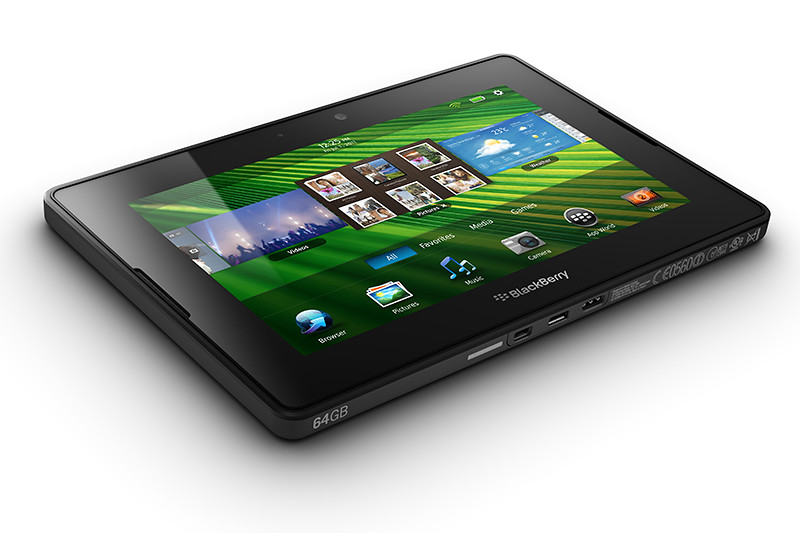
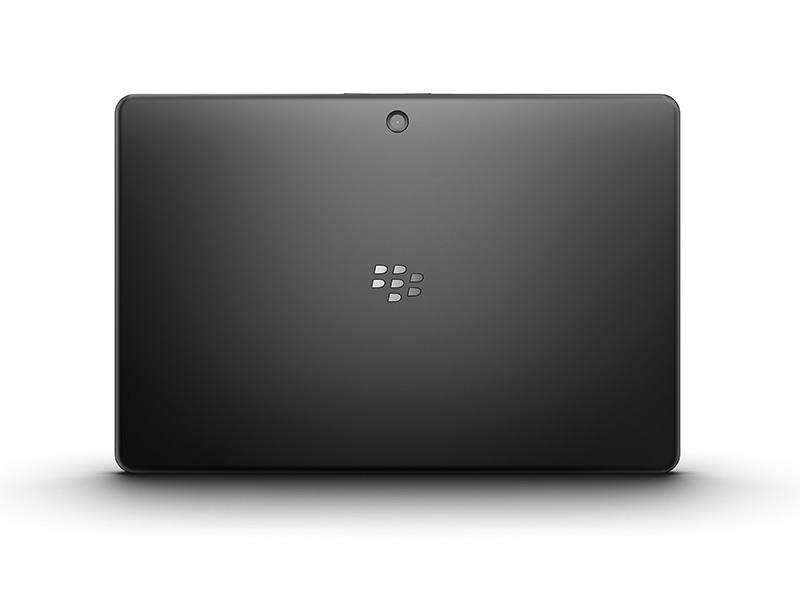
The 7-inch tablet from Research In Motion (RIM) hits the shelves in the US today. Here’s a quick roundup of the likes and dislikes from those who have tried out the shipping version of the BlackBerry PlayBook.

RIM PlayBookThere’s a lot to like about the PlayBook, but there’re also plenty of frustrations out there from those who’ve had the privilege of playing with the PlayBook. The general feel seems to be that the PlayBook has the potential to be something great – just that it’s not quite complete at the moment.

Already behind the iPad 2 and other Android tablets in terms of launch date, my feel is that RIM wants to get the hardware out as soon as possible before the specs get old – even though the software isn’t quite as ready yet.

RIM PlayBookDare I compare that with an evolutionary release of the iPad 2 with bigger steps only to be expected for the upcoming iPad 3?

With such stiff competition in the tablet market, it is no wonder these slate-makers are rolling off their products as soon as possible. In all honesty, I do believe RIM will sort out the grouses that reviewers have complained about, but the question is whether consumers are willing to fork out the dough to buy what’s beginning to be perceived as an unfinished product, that is only going to be made complete after a few more months – if ever.

RIM PlayBookPerhaps, RIM should have launched it at a discounted price – you know, an early bird discount – to entice consumers and grab market share. Given that the hardware is fabulous, the discount may have worked to convince consumers to buy first and wait out for the software to catch up.

At any rate, below is a quick round-up of the likes and dislikes from people who has played with the PlayBook so far. Prices for the 16, 32 and 64-gigabyte models in the US are $500, $600, and $700 respectively.

Likes Dislikes Mitigation
Fabulous display, and user interface Tiny recessed power button difficult to find and press Nothin’ much can be done about this – but do I care?
Sleek:
10mm / 0.4 inch thick 

Light:
0.9 lbs / 425 g

No native email, messenger, contacts and calendar Need to be Bluetooth tethered via a BlackBerry smartphone to access these. 

Native support could be added later on

Lightning fast processor No 3G connection 3G version in summer 

4G version end 2011

Impressive multi-tasking Small repository of Apps (~3,000) Compatibility with selected Android apps to be introduced later, plus build-up of PlayBook specific apps.
Supports Flash and HTML5 No video chat Video chat app to be released later.

BlackBerry Torch 9800 Review

Monday, April 18th, 2011
RIM touts the Torch as the best BlackBerry ever. I’ve been using one over the last two weeks. Indeed, it’s the best BlackBerry smartphone I’ve played with so far and I certainly prefer it over my wife’s BlackBerry Bold.

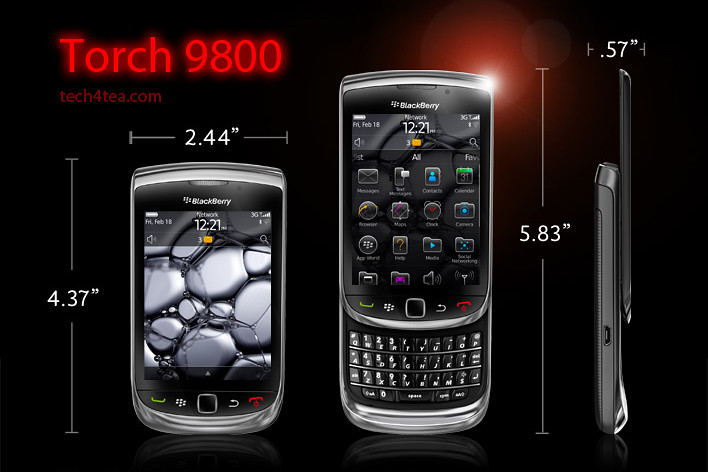
The BlackBerry Torch was the first smartphone from Research In Motion (RIM) that shipped with the new BlackBerry OS 6. It has a completely new keyboard implementation – instead of having the physical keyboard and the screen share the face of the device, the Torch allowed the 3.2 inch screen to hog the entire front.


BlackBerry Torch 9800 with 6.0 Operating System.

BlackBerry Torch 9800 with 6.0 Operating System.

An on-screen keyboard – which I found rather responsive – can be easily called up in case you need to type something. Need the traditional QWERTY keyboard to do some intensive typing? Slide it out from below the screen and you’re good to go.

It’s a trade-off, whether you have the hard keyboard readily available all the time or hide-in below the screen to make for a bigger screen.

For my usage profile, at least, I liked the balance – I do a fair bit of messaging and typing but I don’t mind having to slide out the keyboard when I need it – since I get a bigger screen real estate – 480×360 pixels on a 3.2 inch capacitive touch screen.

I did find the Bold keyboard slightly easier to type than on the Torch, but both are far more tactile and better than typing on a touch screen.

I suppose those who really have a lot of typing to do would rather have the keyboard available at all times – it depends on your usage profile. The Torch tries to give you both the large screen of the Storm and the popular hard keyboard in a compact body.

The hardware

The form factor is almost identical to many other BlackBerry devices like the Bold. The usual five buttons line the bottom of the screen: BlackBerry call, menu, back, and end buttons and optical trackpad.

The Marvell CPU runs at 624MHz (though the company claims this is a newer generation chip), with 512 MB RAM and 4 GB of storage. You can add up to 32 GB though the microSD slot. The device also comes with 802.11b/g/n WiFi, Bluetooth 2.1 and an AGPS chip.

Photos were rather impressive for a phone camera

Photos were rather impressive for a phone camera

The Torch has a 5 megapixel camera, with an LED flash. Photo quality was rather remarkable for a smartphone camera.  I like the preset scene modes – Party mode for lowlight indoor shooting and Sports mode both yielded impressive results. Video wise, you can shoot clips at 640×480 resolution.

New OS and interface

With the new OS 6, web browsing on the Torch is now quite a pleasant experience using the new Webkit-based browser. Unfortunately, neither Flash nor HTML5 video are supported.

I really love the persistent notification alert bar at the top of the home screen: the small row of icons allows you to see social networking, email, SMS, call, and calendar alerts all in one place. The bar drops down a separate window to show the list of notifications, each of which can be clicked on to bring you to the app.

11 scene modes are available for taking photos under different situations

11 scene modes are available for taking photos under different situations

Another new feature I like is the universal search. Ever wanted to look for something you know is on your phone but can’t recall exactly where it is located and how to get at it? Simply begin typing the relevant search term into the search box and the Torch throws the icon for it right at you – almost instantaneously. It really beats having to wade through the menus and interface looking for contacts, messages, calendar, music or pictures.

has included a powerful universal search alongside a social networking tool which allows you to aggregate RSS feeds and services like Twitter or Facebook into a single view. There are a lot of changes, so we’re going to go step-by-step through what we consider the biggest changes for the BlackBerry platform.

Battery life

As with other BlackBerry devices I’ve tested before, battery seems to last forever. Alright, that’s exaggerating. There were days when I ran Youtube videos and videos from the media folder for extended periods of time and the battery held out. Under normal usage, I only had to recharge the battery every few days.

BlackBerry Torch 2

There’s been numerous leaks about what the upcoming BlackBerry smartphones lined up for 2011. One of them is the Torch 2. Expected to be announced during the BlackBerry World in May and released in the US in July, it looks physically like the Torch, but features a 1.2 GHz processor and a 640×480 resolution on a similarly-sized 3.2 inch screen.

Going by previous BlackBerry release schedules, we’ll probably only see the Torch 2 in Singapore towards the end of the year.

In the meantime, if you’re looking at replacing your current BlackBerry phone, do give the Torch a spin and see if it impresses you enough for you to pick one up as replacement.

Designing a poster in GIMP (Part 11 of 14)

Saturday, April 16th, 2011
Layers and layer masks are what differentiates a powerful image editor like GIMP from a basic photo editor. Design a poster for your living room from your favourite photo.
Make a poster or postcard from your favourite photo.

Make a poster or postcard from your favourite photo.

Ever wanted to make a postcard or a poster from your favourite photo? Here are some techniques using layers and layer masks in GIMP.

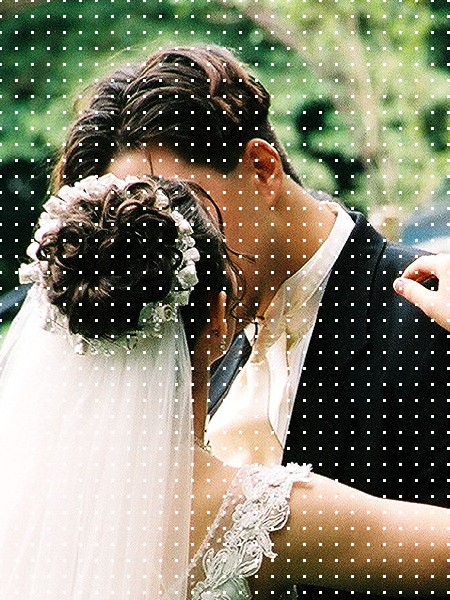
Add a grid of white dots

Open the photo in GIMP. From the Layers dialog, you can see it resides in the Background layer which is the only layer for the moment.

The original photo from morguefile.com.

The original photo from morguefile.com.

A grid of white dots is overlaid onto the photo.

A grid of white dots is overlaid onto the photo.

Add a new layer by clicking the icon at the bottom left corner of the Layers dialog. In the “New Layer” dialog box that pops up, select the radio button for “White” option under Layer Fill Type and press the OK button.

A new empty layer filled with white is added above the original photo in the Background layer.

Right-click on its thumbnail in the Layers dialog and select “Add Layer Mask” command from the pop-up menu. In the “Add Layer Mask” dialog box that pops up, select the “White (full opacity)” option and press the OK button. A layer mask filled with white is added to the layer – you can see its thumbnail beside the original thumbnail in the Layers dialog.

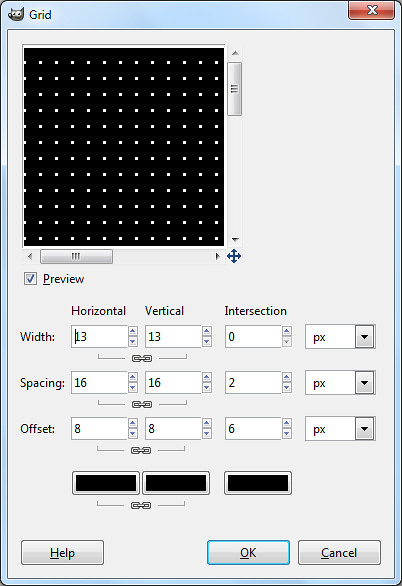
Use the Grid filter to create the grid of white dots.

Use the Grid filter to create the grid of white dots.

From the main menu, select the “Filters > Render > Pattern > Grid” command. In the Grid dialog box that pops up, increase the horizontal width setting until the preview in the dialog box shows a grid of white dots of the desired size. Here I used a setting of 13.

The white layer now appears as a grid of white dots overlaid on the original photo.

Right-click on the upper layer in the Layers dialog and select “Apply Layer Mask” to merge the layer mask into the original solid white layer. The layer mask is removed and the layer becomes a transparent layer with a grid of white dots overlaid on the photo below.

Hiding the white dots from the heads and faces

Use a layer mask to hide the white dots from the heads and faces.

Use a layer mask to hide the white dots from the heads.

Add a new layer mask on this layer, again selecting the “White (full opacity)” option in the  “Add Layer Mask” pop-up dialog box.

Press “D” on the keyboard to reset the Foreground colour to black. Activate the Paintbrush Tool from the Toolbox and paint on the layer mask in the image window. Paint around the heads and faces of the wedding couple to hide the white dots in that area.

From the main menu, select the “Layer > New from Visible” command to create a new layer that combines all the visible layers in one layer.

Adding the green arc

In the Layers dialog, click to select the layer below the new combined layer. This is so that any new layers created will be added BELOW the combined layer.

Zoom out until the photo is smaller than the image window.

Zoom out until the photo is smaller than the image window.

Set the Foreground colour to green (or your preferred colour). Add a new layer by clicking the icon at the bottom left corner of the Layers dialog. In the “New Layer” dialog box that pops up, select the radio button for “Foreground color” option under Layer Fill Type and press the OK button.

A new layer filled with green is added just below the combined layer.

Right-click the combined layer in the Layers dialog to add a layer mask to the layer, using the “White (full opacity)” option. Press the minus key (“-”) on the keyboard to zoom out the view in the image window.

As the photo becomes smaller than the image window, you will see white space between the edges of the photo and the edges of the image window.

Adding a green arc at the bottom of the poster.

Adding a green arc at the bottom of the poster.

Activate the Ellipse Select Tool from the Toolbox and drag an elliptical selection around the couple’s heads. You can begin dragging in the white space between the photo and the edge of the image window so that the elliptical selection covers most of the photo except for a small arc at the bottom of the photo.

Remember you can adjust the size and position of the elliptical selection by dragging the side or corner control handles of the selection outline. Once happy with the selection, use the “Select > Invert” command from the main menu to invert the selection.

Press “D” on the keyboard to reset the Foreground colour to black. Select the “Edit > Fill with FG Color” command to fill the arc with black (in the layer mask).

An arc of green is revealed below the photo.

Adding the white highlight

Click on the green layer in the Layers dialog to select it.

Add a white highlight band in the green arc.

Add a white highlight band in the green arc.

Add another new layer, this time selecting the radio button for “White” option under Layer Fill Type. The new white layer is added above the green layer but below the combined layer.

Add a layer mask to the white layer, selecting the “Black (full transparency)” option in the pop-up dialog box. A layer mask filled with black is added to the layer.

Press “D” to reset the Background colour to white. Using the Rectangle Select Tool from the Toolbox, select a vertical band and use the “Edit > Fill with BG Color” command from the main menu. A white band is added to the layer mask such that a white band runs through the green arc.

Adding the text captions

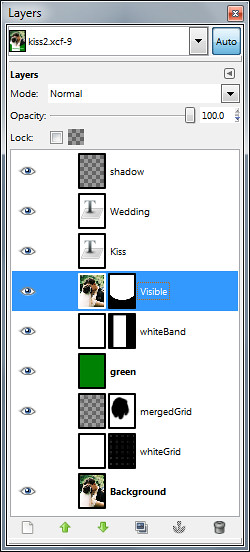
GIMP's Layers dialog.

GIMP's Layers dialog.

Click the combined layer (the topmost layer) in the Layers dialog to select it, so that any text captions added will be added above it.

Activate the Text Tool from the Toolbox. In the Tool Options below the Toolbox, set the font, size and colour settings for the Text Tool. Click in the white band in the arc with the cursor and type the word “Wedding”. Click in the green portion to add the word “Kiss”.

After adding the captions, you can still change the font, size and colour setting for these captions by selecting them first with the Text Tool and then modifying them in the Tool Options.

Add edge shadow

Add a new empty layer right at the top of all other layers. Activate the Blend Tool from the Toolbox. Press “D” to reset the Foreground colour to black and the gradient to “FG to Transparent”.

Again, zoom out the photo (by pressing the minus key on the keyboard) until the photo is smaller than the image window. Drag a black-to-transparent gradient from outside the right edge of the photo (but inside the right edge of the image window) to slightly inside the right edge of the photo.

Save the file in .xcf format so that you can come back to tweak the design in the future. Save as .jpg to send the file for print at the studio.

BlackBerry PlayBook preview in Singapore

Friday, April 15th, 2011
The BlackBerry PlayBook Bus will tour Singapore tonight, showing off a preview of RIM’s 7-inch tablet computer, that is due to be launched in the US on 19 April next Tuesday.
Preview of the BlackBerry PlayBook in Singapore

Preview of the tablet on the BlackBerry PlayBook Bus in Singapore

Keep a lookout for the limo bus driving around town tonight. Sources tell me it will launch from the Tanjong Pagar area. The first time that the BlackBerry PlayBook debuted in Singapore was back in March. But the two devices I played with were still beta release versions.

Tonight, the preview will provide some hands-on for the real McCoy. Perhaps RIM (Research In Motion) will also provide some hints as to when the aspiring challenger to the iPad will be launched in Singapore and at what pricing.

For now, here’re some of the main specs of the BlackBerry PlayBook:

Looks
7″ LCD display, 1024 x 600 WSVGA Multi-touch capacitive screen

Physical feel
0.9 lbs (425g) and 5.1″ x 7.6″ x 0.4″ (130mm x 194mm x 10mm)

Performance
1 GHz dual-core processor
1 GB RAM
Symmetric multi-processing
Full Adobe Flash 10.1 enabled
Built-in support for HTML 5

Configuration
Internal storage of 16, 32 or 64 GB
GPS, Orientation Sensor (Accelerometer), 6-Axis Motion Sensor (Gyroscope), Digital Compass (Magnetometer)
Stereo speakers and stereo microphones
Wi-Fi (802.11 a/b/g/n) connectivity, Wirelessly connect to your BlackBerry smartphone for real time access to: Email, calendar, address book, task list and BBM

Cameras
3 MP high-definition forward-facing camera
5 MP high-definition rear-facing camera
Codec support for superior media playback, creation and video calling
1080p HD video; H.264, MPEG4, WMV HDMI video output
Micro USB and Micro HDMI ports
Video calling with dual video cameras

BlackBerry Tablet OS
Powered by QNX technology, supports POSIX OS, SMP, Open GL, BlackBerry 6, WebKit, Adobe Flash, Java and Adobe Mobile AIR