Archive for the ‘Software’ Category
Sunday, May 30th, 2010
My article in Digital Life on 26 May 2010 (Choice selections) illustrated the use of the Lasso Tool, the Polygonal Lasso Tool and the Magic Wand Tool for making selections of objects or areas of the image with an irregular outline.

Red telephone booth to be selected and preserved

Surroundings toned down to Black and White
Where there is a fair amount of contrast in colour between the object to be selected – such as the red telephone booth – and the surrounding pixels, you can also use the Magnetic Lasso Tool.
Just click anywhere on the edge of the object move the mouse along the edge of the object, in this case the booth. As the mouse moves along the edge, Photoshop will detect where the edge is by examining the contrast between the pixels on either side of the mouse cursor.
Photoshop will place anchor points along the edge as you go along. You don’t have to click the mouse button.
(more…)
Tags:CS5, image editor, photo editor, Photoshop, tips
Posted in Howtos, Photoshop | No Comments »
Monday, May 24th, 2010

Monochromatic High Contrast Preset - a few black and white HDR Toning effects are included in the Presets

Photorealistic High Contrast Preset - I like the few high contrast HDR toning effects available.

Photorealistic Preset

Surrealistic High Contrast effect
Using the “Local Adaptation” Method, there are 14 Presets available that gives a whole spectrum of different HDR Toning effects. I have included above the results of a few of my favourite presets.
(more…)
Tags:CS5, image editor, photo editor, Photoshop, tips
Posted in Howtos, Photoshop, Software, Tech news | No Comments »
Sunday, May 23rd, 2010

HDR-like effect applied to a single snapshot
Ever saw those surrealistic digital photographs of landscapes that are so rich in colours? These High Dynamic Range (HDR) photos are getting more popular due to the ease in producing them – with the proliferation of powerful software that combine bracketed shots of a scene at different exposures into a single photo.

Original dull photo with overexposed skies and underexposed foreground
The process allows much more detail to be displayed in a single photo than is normally possible, through the clever tone mapping of the colours in the photo. As a result, what little details are left from blown-out highlights and murky shadows are rescued and made more discernible.

HDR Toning using Equalize Method
What if you weren’t able to bracket the shot, or you have an old jpeg that wasn’t bracketed but still wants the same eerie and otherworldly effect? Photoshop CS5 has a new HDR Toning feature that can fake simulate the look, even if you only have a single exposure.
I tried it out and found the result rather impressive.
(more…)
Tags:CS5, image editor, photo editor, Photoshop, tips
Posted in Howtos, Photoshop, Software, Tech news | 1 Comment »
Saturday, May 22nd, 2010
Here are 4 quick tips for making selections in Photoshop: how to move a selection marquee after making it, how to reshape the selection marquee to better fit the object you want to select, how to combine two selection marquees, and selecting the unwanted area first before inverting the selection.

Sometimes, it may be easier to select the UNWANTED portion of the photo first.

The dark backlit statue is lightened up without blowing up the background sky
After making global adjustments (such as overall contrast/brightness and colour balance) that apply to the entire photo, we usually want to apply corrections/enhancements/special-effects only to certain parts of the photo. To do that, we need to select the relevant portions of the photo first.
My article in Digital Life on 19 May (Making the right selection) illustrated the use of Photoshop’s simplest selection tools – the Rectangular and Elliptical Marquee tools. Below are 4 handy tips when using any of Photoshop’s selection tools to make selections:
Tags:image editor, photo editor, Photoshop, tips
Posted in Howtos, Photoshop, Software | No Comments »
Friday, May 21st, 2010
Ben Worthen reports in the Wall Street Journal that:
The punches that Apple Inc. is throwing in its fight against Adobe Systems Inc. are beginning to land, prompting some companies to shift away from Adobe’s video and animation technology and forcing Web designers to work with competing standards.
A US$226 billion behemoth versus US$17.3 billion Adobe – no surprises on who’s going to prevail.
For the moment, the immediate tactical fight is over Flash on iPhones/iPads. For the longer term, the strategic posturing sees Apple defending its sealed garden, while Flash fears the migration away from Flash will spill over outside of Apple’s ecosystem into the general world wide web.

Flash - Some believe it was one big reason why Adobe acquired Macromedia in 2005
We are beginning to see a repeat of the tedium facing web developers and visitors that arose from the browser wars. Different browsers had varying compliance to web standards. Web developers had to develop different versions of their websites optimised for different browsers. For websites that don’t, users will have to use the appropriate browser to enjoy the full intended experience.
Now you’d need one version of your website for Apple iPads/iPhones, and another for the rest of the world who still uses Flash.
Who will prevail?
(more…)
Tags:Adobe, Apple, Flash
Posted in Internet, Software, Tech news | No Comments »
Sunday, May 16th, 2010

Before: Two Spanish boys frolicking on a beach in Altea

After: The two boys removed using Content-Aware Fill
Yesterday, I showed how Photoshop CS5’s new Content-Aware Fill can be applied using the Spot Healing brush. The second way of using the powerful feature is to use the Content-Aware option when applying the Fill command.
I took the photo of two local boys at the Spanish beach at Altea, just 10 km to the north of the famous beach haven of Benidorm on the Costa Blanca. I like the way these two boys added life to the beach scene. But just to test out the Content-Aware Fill, I decided to “remove” them from the photo.
(more…)
Tags:Adobe, CS5, image editor, photo editor, Photoshop
Posted in Howtos, Photoshop, Software | 2 Comments »
Saturday, May 15th, 2010

Before: Ugly clothes-line in front of charming traditional Japanese shophouse

After: Clothes-line removed with Spot Healing brush using Content-Aware
The most hyped feature in Photoshop CS5 is the Content-Aware Fill. The feature enables you to remove an object in your photo and see it automatically replaced with pixels that match the lighting, tone, and noise of the surrounding area so that it looks like the removed object never existed. Previously, you would have to painstakingly use the Clone Stamp tool to manually copy pixels from surrounding areas to replace the unwanted object.
There are two ways to use Content-Aware Fill. The first is to paint with the Spot Healing Brush (which I will demo today) while the other is as an option of the Fill command to replace content in an active selection.
(more…)
Tags:Adobe, CS5, image editor, photo editor, Photoshop
Posted in Howtos, Photoshop, Software | 3 Comments »
Thursday, May 13th, 2010

Before: Nice sunset over Siloso beach marred by the flying fox cables overhead.

After: Cables removed with Spot Healing Brush and straightened
Use the Spot Healing brush to remove overhead cables and wires from your snapshots. I took the sunset photo at Siloso Beach, on the resort island of Sentosa – to the south of Singapore. Overhead are some flying fox cables on which people slide down from a high tower further inland.
I chose a brush size slightly wider than each of the flying fox cables. Dragging over the cables got Photoshop to replace them seamlessly with pixels from the sky around. To straighten the photo, just select the Ruler Tool (nested below the Eyedropper Tool), drag along the horizon and click the Straighten button (new in CS5) on the options bar at the top of the screen.
Photoshop provides many ways of removing unwanted people or objects from your photos. In this article that I wrote for Digital Life on 12 May 2010, I illustrate the use of some of the tools in Photoshop CS5 in different situations. The article is the first of a new 12-part series that will run in Digital Life every Wednesday.
Tags:Adobe, CS5, image editor, photo editor, Photoshop, tips
Posted in Howtos, Photoshop, Software | No Comments »
Wednesday, May 12th, 2010
Get Adobe CS5 at S$3925 or Photoshop CS5 at S$1057 instead of the street prices of S$5036 and S$1354 respectively. JK Technology is offering the roadshow promotional prices until end of May 2010. I have listed the prices for the other components of CS5 at the end of this post.

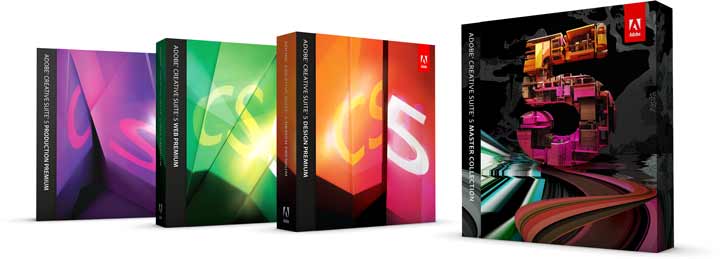
Adobe CS5 launched on 12 Apr 2010
The Singapore leg of the 5 nation promotion took place from 0900 to 1720 hrs at Suntec City Ballroom. Judging by the agenda and the selection of presenters and keynote speakers, it is clear that Adobe sees Singapore as the most significant market in South East Asia, followed by Thailand, Malaysia and the Philippines, and Indonesia. The Thailand stopover, supposed to be the first stop, was postponed indefinitely in view of the political situation there.
(more…)
Tags:Adobe, CS5, discounts, prices, promotions
Posted in Events, Software | No Comments »