Archive for the ‘Software’ Category

Black-and-white and Sepia (Part 7 of 14)

Friday, January 7th, 2011

Want to turn a colour photo into an artsy black-and-white? Or add a touch of nostalgia by turning it sepia? Or simply add any colour tint if you’re feeling flamboyant.

Yesterday, we removed undesirable colour casts using GIMP. Today let’s drain colour totally from the photo – and then put back some.

Draining out the colour

Using the Colors > Desaturate command
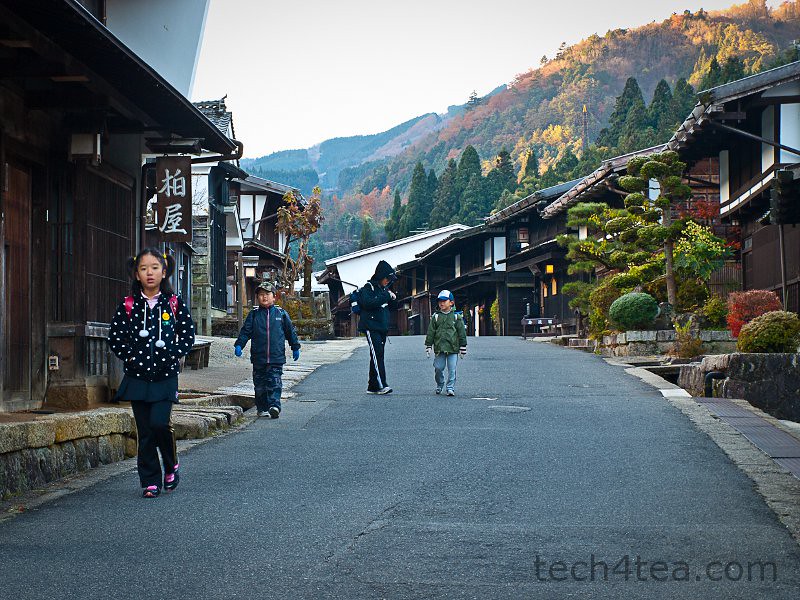
Colour photo of kids going to school in Japan

Pict 1: These kids were on their way to school at seven in the morning, at morbidly cold temperatures.

Black-and-white photos can convey the mood of a scene better than colour, sometimes turning a mundane colour photo into something dramatic.

If the background is colourful and distracting, turning the snapshot to black-and-white can help to mitigate the distraction from say a bright red car, shirt or signboard in the background and make the main subject stand out.

Black-and-white photo of the kids going to school

Pict 2: Converting the photo to black and white was more congruent with the traditional houses in this carefully preserved Edo-era Japanese village called Tsumago.

The simplest way to turn a colour photo into black-and-white is to select the Colors > Desaturate command from the main menu. The result may be a bit flat and dull but it’s quick.

A simple dialog box appears with three different methods of producing black-and-white versions of the photo. The methods are based on the Lightness, Luminosity and Average values of the pixels in the colour original (see Picture 2).

The results are slightly different from each other so click in turn on the radio button for each method to see a preview of the effect on the photo. Click OK to apply the conversion.

Using the Colors > Components > Channel Mixer command.

For more control over how the converted black-and-white photo looks, use the Colors > Components > Channel Mixer command instead.

Channel Mixer dialog box in GIMP

Pict 3: Drag the sliders in the Channel Mixer dialog box to control how the final black and white version will look.

In the Channel Mixer dialog box that pops up, check the “Monochrome” and “Preserve luminosity” checkboxes. Adjust the three sliders to control the resulting black-and-white effect (see Picture 3).

Black-and-white conversion using Channel Mixer

Pict 4: Using Channel Mixer allowed fine control over how the black-and-white conversion is done and can yield punchier results.

Unfortunately, the preview on the black-and-white effect is not available in the photo itself – it is only available in a small thumbnail inside the dialog box. You can enlarge the thumbnail preview by enlarging the dialog box itself, by dragging one of its corners outwards.

Press OK to apply the conversion (see Picture 4).

Tinting the photo with colour

To add a touch of nostalgia to a photo, tint it with a touch of sepia. Apply the Colors > Colorize command from the main menu.

Sepia version of the photo

Pict 5: Add a touch of nostalgia by tinting the photo sepia.

A Colorize dialog box appears with three sliders. Drag the Saturation slider down to 25 to reduce the intensity of the tint. For a sepia tint, drag the Hue slider to 45. Finally, adjust the Lightness slider to taste before pressing the OK button (see Picture 5).

To tint the photo with colours other than sepia, varying the Hue slider in the Colorize dialog box (see Picture 6).
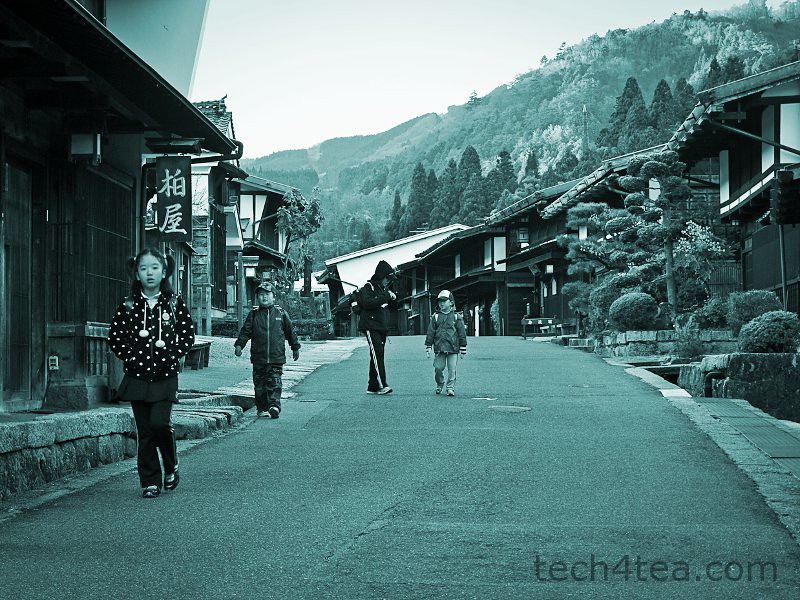
Cyan-tinted version of the photo

Pict 6: Feeling flamboyant? Tint the photo with any colour that strikes your fancy.

When applying the Colorize command directly on a colour photo, GIMP first converts the photo into black-and-white internally using the Desaturate command, before adding the colour tint. The result can be rather flat at times.

I prefer to convert the colour photo into black-and-white first using the Channel Mixer command – so that I can control which tones (skin tones, for instance) to stand out in the final photo.

Tomorrow, I’ll go back to basics and share what camera presets to use in the digital camera to get the best quality photo from the camera – for GIMP to work on.
Removing colour casts with GIMP (Part 6 of 14)

Thursday, January 6th, 2011

Have you ever shot photos where the women look like they’re from Venus or the men look like they’re from Mars? Wrong white balance settings on the camera can lead to colour casts that coat everything in the photo with a hideous tinge. Use GIMP to remove these undesirable colour casts.

Yesterday, we used Layers and Layer Modes to tweak the brightness and contrast of photots. Today, we remove (or add) colour casts using GIMP.

Colour casts in photos are caused by the surrounding light at the time the shot was taken. Some casts makes a photo look nicer while others add ugly tints that make people in those photos look like the Na’vi from Pandora.

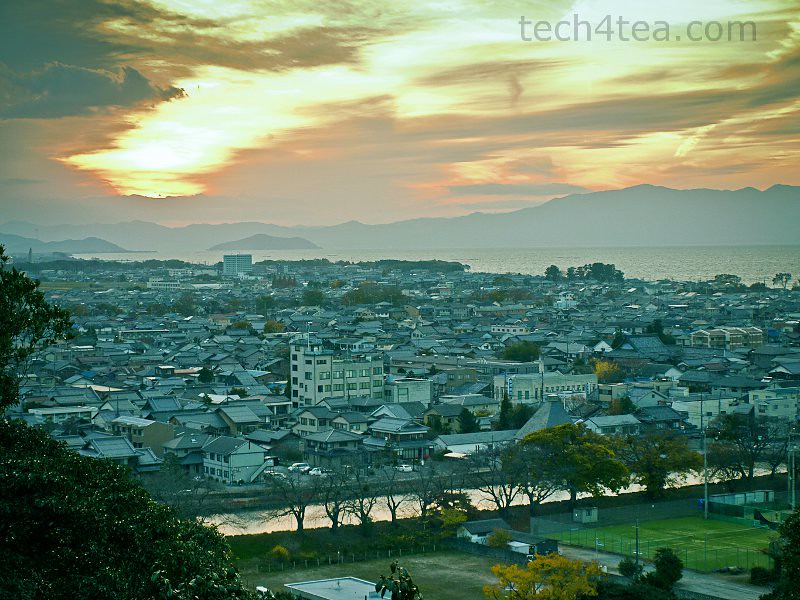
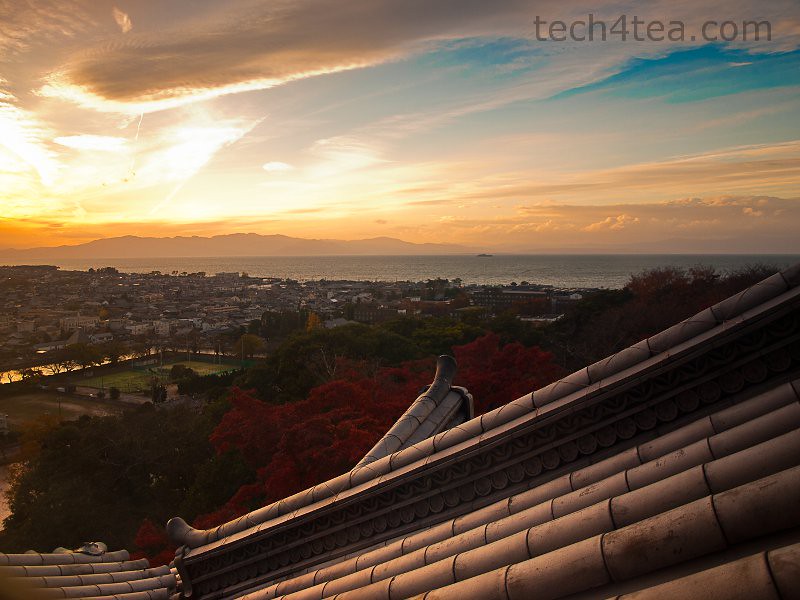
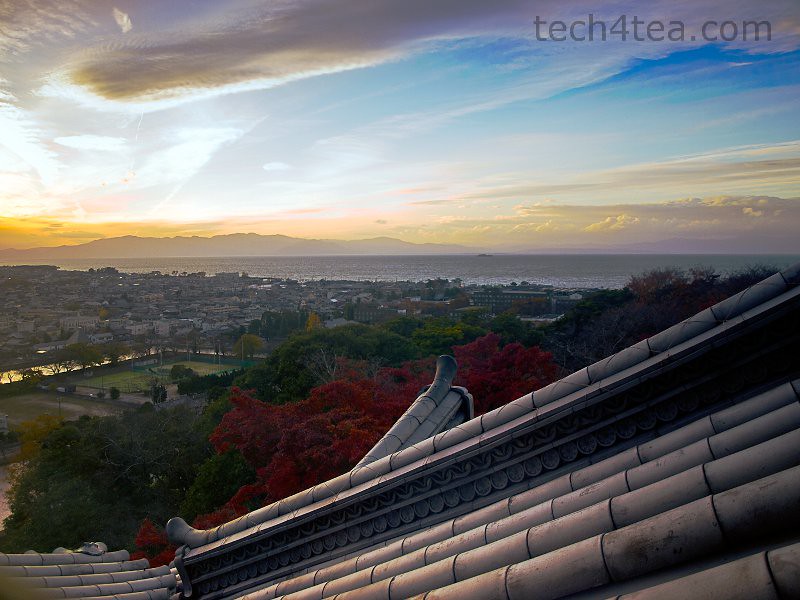
Golden sunset along the coast of Lake Biwa

Pict 1: This stunning golden sunset was taken off the coast of Lake Biwa from the top of Hikone Castle in Japan.

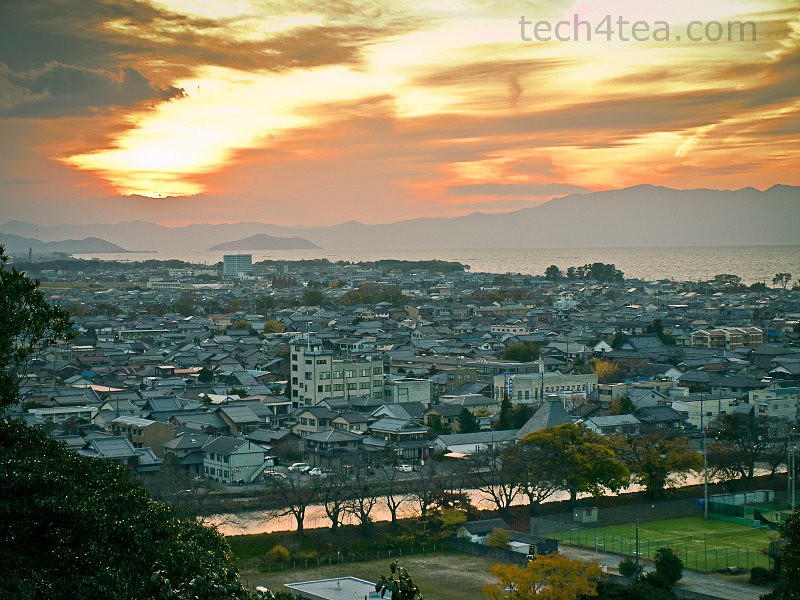
Orange colour cast removed from sunset photo

Pict 2: The orange colour cast has been removed to restore the "original" colours - but the sunset has lost its soul.

The rich, golden colours during sunrise and sunset are examples of colour casts that enhances a photo (see Pictures 1 and 2). Fluorescent lights, however, are notorious for adding hideous blue or green colour casts onto a scene.

White Balance setting on cameras

Before snapping a photo, set the camera’s White Balance setting to Auto (see Picture 3). Under most lighting conditions, the camera will automatically detect and remove colour casts from the photo.

Setting the white balance on the camera

Pict 3: Set the White Balance on the camera to Auto

To help the camera better judge the compensation needed, a photographer can change the camera’s White Balance setting from Auto to Sunlight, Cloudy or Fluorescent, for example, depending on the ambient lighting.

Be careful though – a common reason for unwanted colour casts in photos is when the white balance has been set wrongly. For example, you may have just shot outdoors in the sun using the “Daylight” white balance setting, and then move indoors to shoot under fluorescent lighting. If you forget to switch the white balance setting in the camera from “Daylight” to “Fluorescent”, the indoor shots will turn out with a strong blue or green tint.

Removing colour casts

In GIMP, apply Colors > Auto > White Balance from the main menu. This should automatically remove colour casts from most photos. Usually, the brightness and contrast are enhanced as well. To make the colours look richer, apply Colors > Auto > Color Enhance to make the colours more saturated.

Color Balance dialog box in GIMP

Pict 4: Adjust the three sliders in the Color Balance dialog box until the colour cast has been eliminated.

If the above auto-adjustments do not remove colour casts completely, try doing it manually using Colors > Color Balance instead. The Color Balance dialog box pops up containing three sliders for controlling colour in the photo (see Picture 4).

The three sliders comprises pairs of colours on opposite ends of each slider. Moving a slider towards the colour on one end will increase the intensity of that colour in the photo and reduce the intensity of the colour on the other end of the slider.

For example, if there is a cyan colour cast in the photo, drag the cyan-red slider towards the red end to reduce cyan in the photo and make the photo look redder.

Above the sliders, there is a group of three radio buttons to specify whether the colour adjustments are applied to the Shadows, Midtones or the Highlights. Start with the Highlights before moving on to the other two ranges.

Cyan colour cast in sunset photo

Pict 5: A beautiful sunset off the coast of Lake Biwa is marred by a cyan cast.

Sunset photo with cyan colour cast removed

Pict 6: The cyan colour cast has been removed but the sunset still looks flat.

To preview the effects of the adjustments on the photo, leave the Preview checkbox at the bottom of the dialog box ticked. Adjust the three sliders until you feel the colour cast has been removed (See Pictures 5 and 6).
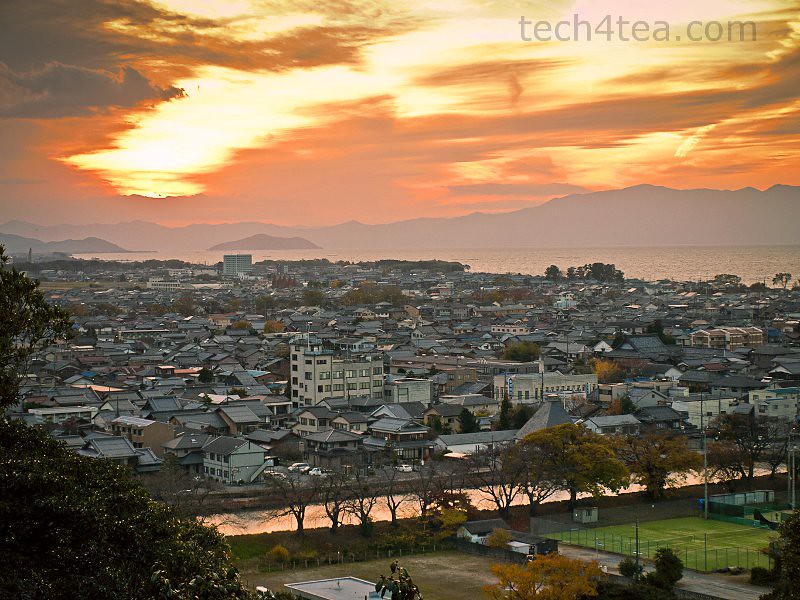
Red and yellow cast deliberately added to photo

Pict 7: A red and yellow colour cast has been deliberately added to better convey the original warmth and glow of the sunset.

You can even add your own colour casts deliberately to add some atmosphere to the photo (see Picture 7).To compare the photo before and after the adjustments, toggle the Preview checkbox on and off.

At the bottom of the dialog box, there are three buttons to either Reset the sliders, Cancel the adjustments, or press OK to apply the adjustments.

Tomorrow, we’ll look at how to remove colour totally to turn photos into black and white, tint them a nostalgic sepia, or any other colour that strikes your fancy.

Correcting exposure using Layers (Part 5 of 14)

Wednesday, January 5th, 2011
An alternative method of adjusting brightness and contrast is to use Layers in GIMP with an appropriate Layer Mode. This can often yield more pleasing results than the automatic adjustments or the Brightness-Contrast command.
Layers dialog in GIMP

Pict 1: The Layers dialog in GIMP displays the layers in the image file and facilitates the manipulation of the layers.

Yesterday, we used GIMP’s automated adjustment tools to tweak the brightness and contrast of digital photos. We also tried out manual exposure adjustment using the Brightness-Contrast command. Today, we take a look at Layers and use Layer Modes as an alternative way of tweaking brightness and contrast.

Quick intro to Layers

When a digital photo file is opened in GIMP, it is placed in the Background layer. You can see the Background layer in the Layers dialog (see Picture 1). If you do any painting or make any brightness or contrast adjustments to the photo, pixels from the photo itself in the Background layer is altered permanently (unless you use the Undo command).

Layers dialog with duplicated layer

Pict 2: Layers dialog with duplicated layer. The Layer Mode and Opacity slider is at the top.

You can create additional image layers above the Background layer. The commands for manipulating layers can be found in the Layers dialog. The six icons at the bottom of the Layers dialog include commands to create a new layer, and to duplicate or delete a selected layer.

Inside the Layers dialog, click on a layer’s name to select the layer, double-click the name to rename it and toggle the eye icon to the left of the layer name to hide or show the layer’s contents. When a layer is selected, any painting or adjustments will be confined to the pixels in the selected layer.

Layer Modes
Layer duplicated twice using Screen Layer Mode

Pict 3: The screen layer mode lightens the pixels below. Duplicate the layer twice for a stronger lightening effect.

The pixels in different layers interact with each other in different ways – depending on the Layer Mode for each layer. There is a total of 21 different Layer Modes. Select one using the “Mode” dropdown box right at the top of the Layers dialog.

The default mode for a layer is “Normal” – the pixels in the upper layer simply obscure the pixels in the layers below. Below the “Mode” dropdown box is the “Opacity” slider which determines how much of pixels in the layer are visible.

Below, we will use the three most commonly used Layer Modes to darken, brighten or increase the contrast of a photo.

Adjusting brightness/contrast using layers
Enhancing contrast using Contrast Layer Mode

Pict 4: Create a new layer from all the earlier layers and apply Contrast layer mode.

First duplicate the Background layer containing the photo by selecting the Layer > Duplicate Layer command from the main menu. You can also click fourth icon from the left at the bottom of the Layers dialog.

A new duplicated layer containing a duplicate copy of the photo is created above the Background layer. In the Layers dialog, click on the name of the duplicated layer to select it. Now click the “Mode” dropdown box at the top of the Layers dialog to change the Layer Mode of the duplicated layer.

Making overexposed photos darker

To darken overexposed photos that are too bright, set the Layer Mode of the duplicated layer to “Multiply”. The photo is now darkened. If the darkening effect is too strong, reduce the opacity of the duplicated layer by dragging the Opacity slider (just below the “Mode” dropdown box) to the left (see Picture 2 above).

Overexposed photo of a potted plant that is too bright

Pict 5: This photo was shot near the asylum in Saint-Rémy-de-Provence, France; where Vincent van Gogh stayed and convalesced for a year

The overexposed photo has been darkene

Pict 6: The original overexposed photo has been darkened by duplicating the layer and setting its layer mode to "Multiply"

If the darkening effect is not strong enough even with the opacity at 100%, duplicate the duplicated layer. Because this new layer will already have its Layer Mode set to Multiply, it will further darken the photo. As before, if the effect is too strong, lower the opacity of the topmost layer.

Making underexposed photos lighter

To lighten underexposed photos that are too dark, duplicate the background layer containing the photo and set the Layer Mode of the duplicated copy on top to “Screen”. As before, control the intensity of the lightening either by reducing the opacity of the duplicated layer, or by further duplicating the duplicated layer – or a combination of both (see Picture 3 above).

Underexposed photo of red roses

Pict 7: These beautiful roses in the courtyard of Monastère St. Paul-de-Mausole are underexposed and too dark.

Roses have been brightened up

Pict 8: The roses have been brightened up by applying the "Screen" layer mode to the two duplicated layers.

Increasing contrast

If the background layer containing the photo is the only layer in the Layers dialog, duplicate the background layer using the Layer > Duplicate Layer command and set the Layer Mode of the duplicated copy on top to “Overlay”. This will increase the contrast of the photo.

Dull and flat photo of a statue

Pict 9: This photo of a forgotten statue at a corner of the asylum appears dull and flat.

The statue now has more "personality"

Pict 10: An "Overlay" layer mode was used to increase the contrast of the statue.

But if you had earlier already duplicated layers to lighten or darken the original photo, there will be at least two layers in the Layers dialog. In this case, use Layer > New from Visible command in the main menu to create a new layer from the combination of all the layers below (instead of the Layer > Duplicate Layer command which duplicates a single layer).

Set the Layer Mode of the new layer on top to “Overlay” to increase the contrast (see Picture 4 above).

Tomorrow, we’ll look at how to remove unwanted colour casts from photos using GIMP.

Correcting exposure in GIMP (Part 4 of 14)

Tuesday, January 4th, 2011
Use simple adjustments in GIMP to darken or brighten an overexposed or underexposed photo. Beginners with little time to spare can use one-click automated adjustment tools, while those wanting more control can use the Brightness-Contrast command.
Dull underexposed photo of a pot of Oden

Pict 1: This dull underexposed photo of a pot of Oden in Kyoto, Japan is typical of the flat snapshots churned out by many digital cameras.

Brighter and more contrasty photo of the pot of Oden

Pict 2: After applying Colors > Auto > White Balance followed by Color Enhance, the Oden looks almost as delectable as when I ate it.

Yesterday, we used the Perspective and Crop tools in GIMP to correct perspective distortion and to crop a digital photo. Today, we make simple adjustments to darken or brighten a photo.

Modern digital cameras are rather intelligent in working out the right exposure for most snapshots. However, some photos may still end up too dark or bright for your liking. And dialling up the contrast tends to enhance the appearance of most photos.

GIMP has many ways of enhancing the exposure and contrast of a photo. Let’s start with the automated adjustments.

Automatic adjustments
(see Pictures 1 to 3)

Less contrasty photo of the Oden

Pict 3: Using Color Enhance in place of White Balance results in a less aggressive adjustment.

There are six quick one-click automatic adjustments in GIMP. They can be found under Colors > Auto in the main menu. These include: Equalize, White Balance, Color Enhance, Normalize, Stretch Contrast and Stretch HSV.

These commands adjust the brightness and contrast of a photo in different ways. Which command is most suitable depends on the nature of each individual photo.

Since it’s so easy to activate each adjustment, just try them on the photo one at a time to see which command yields the best effect. Press Ctrl-Z or Edit > Undo after each command to undo the previous adjustment before trying out the next adjustment.

From experience, I find White Balance gives the best result. Most of the time, applying White Balance followed immediately by Color Enhance may well be all that’s needed to both remove colour casts in photos and to improve the brightness and contrast at the same time.

If the results of using the White Balance adjustment is too exaggerated and contrasty, use Stretch Contrast as an alternative.

Brightness-Contrast command
(see Pictues 4 to 7)

Brightness-Contrast dialog box in GIMP

Pict 4: Drag the Brightness and Contrast sliders and see the results in the photo.

Sometimes, none of the automatic adjustments work for a photo – or you may prefer more control over how the brightness/contrast is adjusted. In these cases, activate the Colors > Brightness-Contrast command from the main menu.

A dialog box with two sliders appears – the Brightness slider on top and Contrast slider below.

Drag the Brightness slider to the left to darken the photo or drag it to the right to lighten it. Drag the Contrast slider to the left to reduce the contrast and to the right to increase it.

Flat underexposed photo of a car

Pict 5: Retro seems to be fashionable for small cars in Japan now. I snapped this sweet thing in Otsu on an overcast day.

Brighter and more contrasty version of the retro car

Pict 6: Using Brightness:85 and Contrast:75 with the Brightness-Contrast command, the retro car looks more zappy now.

Graphic art special effect on retro car

Pict 7: Using Brightness:100 and maximum Contrast:127 yielded a graphic art effect on the car.

Leave the Preview checkbox checked to see the effect of the adjustments on the photo while dragging the sliders. To compare the photos before and after the adjustments, toggle the checkbox on and off.

Once happy with the adjustments, hit the OK button.

To produce a graphics-art special effect from the photo, push the Contrast slider all the way to the right.

Powerpoint backgrounds
(see Pictures 8 to 10)

Illegible text against a photo background

Pict 8: It is difficult to make out the text against the distracting background.

Many people use photos as backgrounds for their Powerpoint slides. Some end up making the text unreadable. Here’s a tip to avoid that happening.

Darken the photo (by dragging the Brightness slider to the left) when using light-coloured fonts for the text in the slide. Conversely, lighten the photo if the text in the slide uses dark-coloured fonts.

If the photo is still too distracting, use the Brightness-Contrast command with the Contrast setting lowered to beween zero and -50.

Text against a darkened background photo

Pict 9: Light-coloured text is more readable against a darkened photo background.

Text against a lightened background photo

Pict 10: Dark-coloured text is more readable against a lightened photo background.

Tomorrow, we’ll look at some alternative ways of adjusting exposure using Layers and Layer Modes.

Perspective correction and cropping (Part 3 of 14)

Monday, January 3rd, 2011
Paintings on windows suffering from perspective distortion

Pict 1: These beautiful window paintings were on a wall right beside the Papal Palace in Avignon - France. The sides of the paintings taper inwards because of the steep upwards angle from which I snapped the shot.

Correct the distortion in perspective that is common when taking snapshots of tall buildings. Crop a photo to exclude distractions, or to change the composition of the photo.

Yesterday, we got ourselves oriented to the user-interface of GIMP, and tried our hand at straightening a crooked photo. Today we continue with common but simple photo-editing tasks like perspective correction and cropping.

Correcting perspective distortion

When taking photos of a tall building from an oblique angle, or while standing near it, the top of the building tends to taper inwards towards the top (see Picture 1). This distortion is called converging verticals and makes the building look as if it is falling backwards.

Distortion in perspective corrected using GIMP

Pict 2: Distortion in perspective corrected using GIMP

To minimise such distortions, you can either go as far away as possible from the building (unfortunately you usually don’t get such luxury of space) and try to snap the building flat-on, or invest in an expensive camera accessory called a tilt-shift lens.

In GIMP, you can correct such distortions in perspective easily and for free – simply use the Perspective tool (see Picture 2).

Select the Perspective tool from the Toolbox (see Picture 3). In the settings section in the lower half of the Toolbox, select the following options: Corrective (Backward) radio button for Direction, and “Image + Grid” from the dropdown box for Preview.

Pick the Perspective Tool from the Toolbox

Pict 3: Pick the Perspective Tool from the Toolbox

Perspective adjustment grid overlaid on photo

Pict 4: Drag the gridlines until the vertical and horizontal gridlines are aligned with the horizontal and vertical edges in the photo.

Click on the photo. A grid is overlaid onto the photo and a Perspective dialog box appears (ignore it for the moment). Drag the mouse within the grid to distort the gridlines.

Distort the grid until the vertical gridlines are aligned with the sides of the building walls, and the horizontal gridlines are aligned with the horizon and rooflines in the photo (see Picture 4).

Click the Transform button in the dialog box and the distortion is corrected.

Cropping

After using the Rotate or Perspective tool on the photo, empty areas are added around the corners that need to be cropped away. Cropping is also done to remove distractions from the surrounding and fill the frame with the main subject.

Area in photo highlighted for cropping

Pict 5: Highlight the area in the photo to be retained by dragging with the Crop Tool.

It is also done to adjust the aspect ratio say, from 4:3 to 3:2, or to crop a flat landscape-oriented photo into a tall portrait-oriented one. Many times, the photographer may simply want to enhance the composition of the photo by improving on the original framing of the photo.

Select the Crop tool from the Toolbox. Drag a rectangular selection around the area to be retained in the photo (see Picture 5).

A rough selection is good enough because the crop selection can be adjusted easily.

Photo cropped to zero into two of the paintings

Pict 6: The photo was cropped to zero into two of the paintings.

Mouse over the side or corner of the selection and the cursor changes to include arrows that show which direction the selection can be adjusted. Click and drag these adjustment handles to adjust the crop selection inwards or out.

To move the position of the crop selection itself (without altering its size and shape), move the mouse over the centre of the selection and drag it to its new location within the photo.

Once you are happy with the crop selection, press Enter on the keyboard to crop the photo (see Picture 6).

Tomorrow, we’ll look at how to make simple exposure adjustments to darken or brighten an overexposed or underexposed photo.

Straightening a crooked photo using GIMP (Part 2 of 14)

Sunday, January 2nd, 2011
Get oriented to the user interface of GIMP, and get your feet wet with a basic correction like straightening a crooked photo.

Yesterday, we took a peek at some of the things that GIMP can be used to correct or enhance a digital photograph. Today we get our toes wet putting GIMP to work actually doing something simple.

Getting oriented to the interface (see Picture 1)

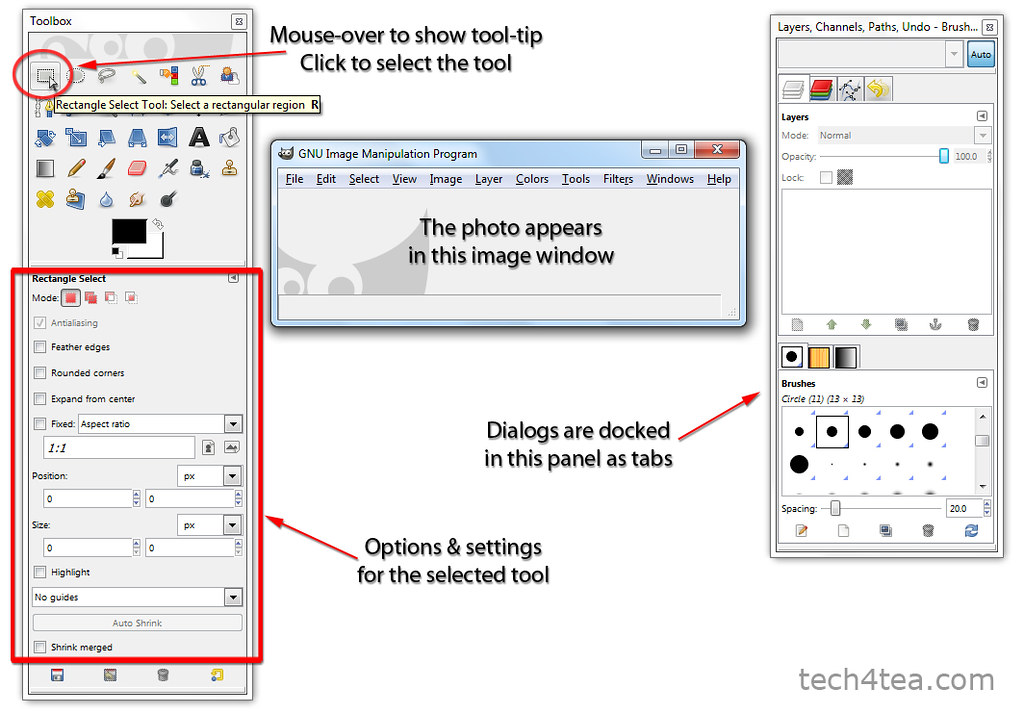
User interface of GIMP

User interface of GIMP

When you first fire up GIMP, you will see three separate windows on the screen. The centre empty window is the image window where the photo appears when you open a digital photo file.

To the left is the Toolbox which contains icons representing the tools available in GIMP. These tools include those for painting, selecting or moving parts of the photo. Mouse over an icon to display tooltips about which tool is associated with the icon, a brief description of what the tool does, and its keyboard shortcut.

Clicking an icon selects the tool. The relevant settings and options for controlling the selected tool are displayed in the lower half of the Toolbox.

To the right of the image window, there is another panel containing “dialogs” for manipulating image layers, colour channels and Undo History. Each of these dialogs is organised as a tab in the panel and can be displayed by clicking on the tab heading of the dialog.

Opening a photo

Open Image dialog box in GIMP

Open Image dialog box in GIMP

The main menu for GIMP can be found along the top of the image window. To open a photo file, choose the File > Open command from the main menu.

Inside the “Open Image” dialog box (see Picture 2) that pops up, a list of folders is displayed in the “Places” column to the left. Click the relevant folder and the files and subfolders in it are displayed in the centre “Name” column. Double-click a subfolder to further dive into its contents until you get to the photo you want to open.

Clicking a photo file will generate a thumbnail preview to the right. Click the “Okay” button at the bottom to open the photo.

You can have more than one photo open in GIMP at a time. Each photo will appear in its own separate image window.

Straightening a crooked photo

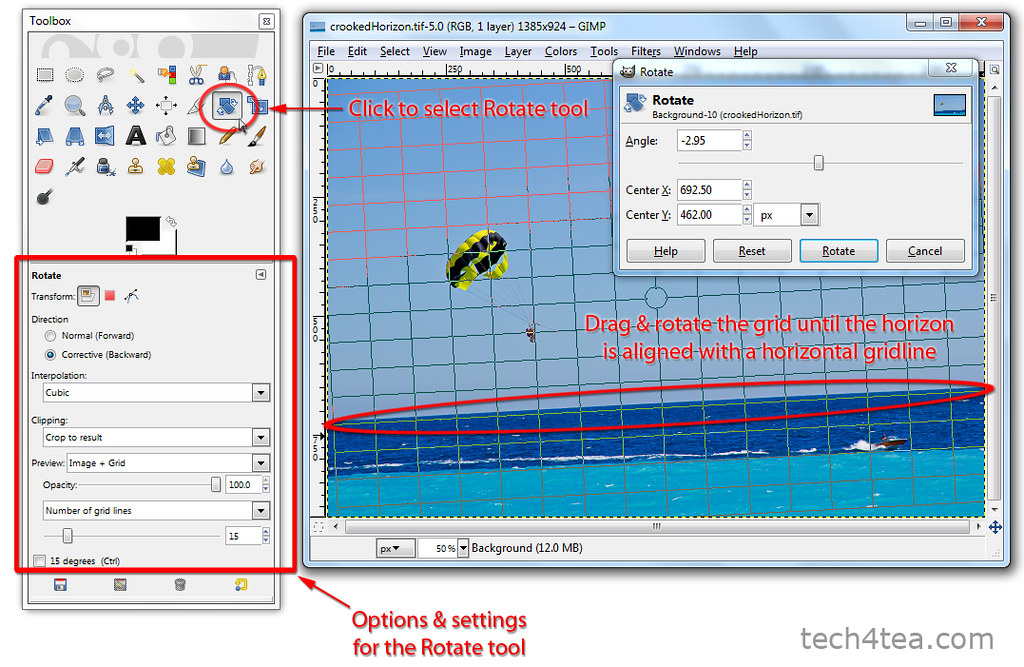
Select the Rotate Tool and adjust the grid overlay

Select the Rotate Tool and adjust the grid overlay

A common reason for discarding photos is when they are crooked because the camera was not held level when the snapshots were taken – the horizons are not horizontal or the buildings are tilted. Here is how to straighten a photo by rotating it in GIMP.

First, click on the Rotate tool icon in the Toolbox (see Picture 3) to select it.

In the lower half of the Toolbox, select the “Corrective (Backward)” radio button for Direction, and select “Image + Grid” from the dropdown box for Preview. These are the settings that I find most intuitive for straightening crooked photos. Set the Clipping to “Crop to result” for GIMP to crop off the corners after the photo has been rotated.

Click on the photo in the image window. A Rotate dialog box appears (ignore it for the moment) while a grid is overlaid onto the photo in the image window. Drag the mouse within the grid to rotate the grid. Rotate the grid until the horizon in the photo is aligned with a horizontal line in the grid. You can also align lampposts or sides of buildings that are supposed to be vertical to the vertical lines of the grid.

Photo of sea with slanted horizon

I took this photo off the beach in Nice, France. The camera was not level and resulted in a slanted horizon.

Straightened photo with horizontal horizon

The photo was straightened using the Rotate Tool in GIMP so that the horizon has become - but of course - horizontal.

Once you are happy with the alignment of the photo to the grid, click the Rotate button in the dialog box and the photo is straightened (see Pictures 4 and 5). Select the Image > Autocrop Image command from the main menu to crop away the empty spaces around the photo.

Tomorrow, we’ll try out the Perspective Tool to correct distortion when snapping photos of tall buildings and the Crop tool for recomposing snapshots.

Free photo editing with GIMP (Part 1 of 14)

Saturday, January 1st, 2011

Touch up and enhance your digital photographs using GIMP – the free photo editor. This is the first of a 14-part series on the basics of using GIMP for the absolute beginner.

Photo of dog ornament with strong blue cast

Picture 1: This photo of a dog ornament in a flower pot was taken in Tsumago in Japan. A wrong white balance setting in the camera resulted in a strong blue cast

Today is the first day of 2011. What better way to start a New Year than to pick up a new skill – like using a free photo-editor to edit your digital photographs?

Wow your friends when you next show them your vacation photos by enhancing your snapshots with a photo editor on the computer.

Digital cameras nowadays produce pretty decent photos even for a novice photographer. But a few fast and easy tweaks in a photo editor on a computer can make them look as if they were taken by a pro.

Photo of dog ornament with dull colours

Picture 2: GIMP can be used to remove the blue cast in the original photo. However, the colours remain dull and uninspiring.

Does your spouse look like a visitor from Pluto in those snapshots? Use the photo editor to remove that awful blue colour cast in the photo (see Pictures 1 and 2).

Do those vacation photos look dull and flat because they were taken on an overcast day? Make those snapshots pop by intensifying the colours and increasing contrast with a few clicks of the mouse (see Picture 3).

Free photo editors

Beautifying or correcting your digital photos does not need to cost you an arm and a leg. There is a plethora of free but capable photo editors available on the Internet.

Photo of dog ornament with enhanced colour and contrast

Picture 3: The colour and contrast of the photo has been enhanced to make it "pop".

www.picnik.com is an online photo editor while Google’s Picasa is a desktop based editor that comes with an image browser. Both of these enable simple tweaks and addition of special effects to digital photos through easy-to-use interfaces.

GIMP is my favourite recommendation to those who want more powerful photo editing features but is reluctant to dish out the moolah for the industry standard Photoshop CS5 (S$1091).

Over the next two weeks, I will be posting a short how-to each day on the basics of using GIMP – a free photo editing software that you can download from the Web.

What is GIMP?

The name GIMP is an acronym for “GNU Image Manipulation Program”. It is a free desktop-based photo-editor with features and interfaces similar (but not identical) to Photoshop. It runs on Windows XP SP2 or newer, Mac OS X and Linux. Go to www.gimp.org/downloads and follow the links to the relevant installers for different operating systems.

Tightly cropped final photo of dog ornament

Picture 4: The photo was tightly cropped around the dog ornament to make it fill the frame.

Using GIMP, you can do simple tasks like straightening a crooked photo, or cropping out distractions in the background to fill the frame with the main subject (see Pictures 4).

Powerful tools, like Levels and Curves, enable fine control of exactly which part of a photo to tweak for colour and contrast adjustments.

For advanced adjustments and compositing, a few photos or different parts of the a single photo can be put on separate layers and manipulated independently of each other.

Tomorrow, we’ll get ourselves orientated to GIMP’s interface, and set it to work straightening a crooked photo.

Launch of Adobe Acrobat X

Tuesday, October 19th, 2010

Acrobat X aspires to be the Swiss knife of multi-media communications – facilitating the sharing and collaboration of digital documents amongst co-workers.

Box shots of Pro and Suite versions of Adobe Acrobat X

Adobe Acrobat X

The newly launched Version 10 sees its continued evolution – from its original inception as a standardised document viewer – into a vehicle for sharing compilations (Adobe calls them Portfolios) of text and graphics-embellished documents, voice and video presentations, as well as Flash animations.

Together with the free Acrobat Reader X, tighter collaboration among co-workers is enhanced with features like the ability to leave and consolidate comments amongst multiple recipients of a PDF document, as well as integration with Microsoft SharePoint and Office suite 2010.

Other features include the ability to automate routine, multi-step tasks with scripted Actions that do stuff like removing private meta data prior to publication and sharing of documents. User interface has also been made more ergonomical with the ability to display the most commonly used tools into one pane. Enterprise-wide deployment of the software is also made easier for IT administrators.

The software ships 30 days from today. Between now and the shipping date, buyers of the previous version Acrobat 9 will get a free upgrade to Acrobat X when the latter ships. There are three versions of Acrobat X available:

The detailed feature list of the three versions can be found here. The main difference between the Standard and Pro versions is in the inclusion of Adobe LiveCycle® Designer Enterprise Suite 2 in the latter. The Suite version sees the inclusion of image-editor Photoshop CS5, presentation converter Presenter 7, user-interface capture and presenter Captivate 5, and video converter Media Encoder CS5.

Adobe Acrobat X works in conjunction with the free Acrobat Reader X and online service Acrobat.com.

Reader X expands PDF access to mobile devices for Android, Windows Phone 7 and Blackberry Tablet OS. Apple iOS platforms as well as Windows Phone 7 phones – which do not support Flash – will not be able to access Portfolios since Portfolios requires Flash support.

Acrobat.com sees the introduction of Adobe SendNow, a new document exchange service that enables users to send and receive large files and track them with proof of receipt, avoid problems arising from email gateway, complicated FTP servers, and costs of expensive overnight mail. Adobe CreatePDF enables easy conversion of files to professional PDF documents from within Adobe Reader X or any Web browser.

Adobe Flash CS5 Professional

Monday, July 5th, 2010

Flash CS5 Professional was launched on 12 April 2010 as part of the Adobe CS5 Suite. It is the industry standard for adding animation, interactive content, videos and games to webpages.

New text engine in Flash CS5 Professional

New text engine in Flash CS5 Professional

Its top feature would have been its Packager for iPhone, which enables developers to write applications within Flash and then convert them into iPhone apps.

However, four days before its launch, and as part of Apple’s beta release of iPhone OS 4 Software Development Kit (SDK), Apple amended its developer licence agreement for iPhone developers to prohibit the use of third-party cross-platform development tools, like Flash, to produce iPhone apps.

Adobe has since announced that while it will ship the Packager as part of Flash CS5, it has stopped all new investments in this area.

Even without the Packager for iPhone, there are enough goodies within Flash CS5 Professional to entice code writers and designers. I will be delving into some of the main features below in more detail over the next few weeks. I also did a review of Adobe Flash CS5 Professional  in Digital Life on 2 Jun 2010.

For the Designer:

  • New text engine – Print-quality typographic control like in desktop publication software, Global language support, Advanced inline text editing, Advanced rendering support.
  • Spring for Bones – The Inverse kinematics feature is enhanced with a dynamic physics engine that simulates realistically the springy vibrational oscillations of a spring.
  • New Deco drawing tools – Dynamic Deco brush tools are extended with new brushes with additional shapes and animation effects.

For the Coder:

  • Code Snippets panel – Prebuilt codes that can be injected into projects for things like timeline navigation, actions, animation, audio and video, and event handlers. The snippets contain helpful comments and clear instructions for easy customisation for the inexperienced programmer.
  • Enhanced ActionScript editor – Custom class code hinting and code completion, and reference your own code or external code libraries more efficiently.
  • Flash Builder – Formerly Adobe Flex Builder, this coding tool is bundled with Flash CS5 Professional and both are tightly integrated with each other.

For all users:

  • Distribute content virtually anywhere – Deliver consistently across screens of virtually any size and use Adobe Device Central for enhanced device testing.
  • XML-based FLA source files – XFL offers improved cross-product integration and workflow productivity.
  • Improved Creative Suite integration – Tight integration with Photoshop, Illustrator, Flash Catalyst, Flash Builder, InDesign, Fireworks, and After Effects.
  • Video improvements – Streamline embedding and encoding processes with on-stage video scrubbing and the ability to define cue points directly in the Properties panel. Playback FLV video directly on the stage instead of testing the movie.

Photoshop CS5: Complex and hairy selections made easier

Sunday, July 4th, 2010
Deer staring into headlights

Sharp edges along the horns and hairy edges elsewhere.

Photoshop CS5 has made it easier to make image selections and masks, speeding up the extraction of subjects from backgrounds and the creation of realistic composites.

Enhanced intelligent selection technology offers better edge detection and faster, more accurate masking results of complex subjects such as hair. Automatic color decontamination helps eliminate background color around the edges of a selection, resulting in more seamless compositions when placing extracted subjects on new backgrounds.

Dialog box with controls for Refine Edge

New controls can be found in the Refine Edge dialog

The enhanced controls are found in the Refine Edge dialog box when a selection is made.

The Smart Radius setting uses adaptive selection-edge modification approach to produce different types of selection edges on different parts of the subject’s outline, depending on the type of edges — whether the portion of the edge is fuzzy or sharp. This is based on the traditional best practice of using different techniques for different types of edges along the outline of the subject — one method for fuzzy hair and another for the clear edge of a building.

Selection outline in black and white

Selection outline in black and white

Additional view modes provide new ways of previewing the quality of the selections.

The Refine Radius and Erase Refinements tools allows the initial selection to be refined — be it to add more of the subject or to remove more of the background along the selection edge.

My article in Digital Life on 2 June 2010 (Not a hair out of place) illustrated the use of the enhanced selection controls to make a hairy selection round a starry-eyed deer in Miyajima, Japan.