Archive for February, 2011

Size matters – resizing and reshaping a photo in GIMP (Intermediate series: Part 1 of 14)

Saturday, February 19th, 2011

Starting off the 14-part Intermediate Photo Editing series for GIMP this weekend, this warm-up tutorial looks at resizing and reshaping a photo.

Ambush

Pict 1: This gruesome troll was laying in ambush amidst a bamboo grove by the roadside in Kyoto as I walked past towards the train station.

With cameras offering more and more megapixels, we frequently need to reduce the size of photos for emailing to friends or sharing online – to reduce upload and download time. Sometimes, we need to change the aspect ratio (between the width and height of the photo) of the photo, perhaps to use it as part of a web page design.
Scaling a photo
Scale Image dialog box in GIMP

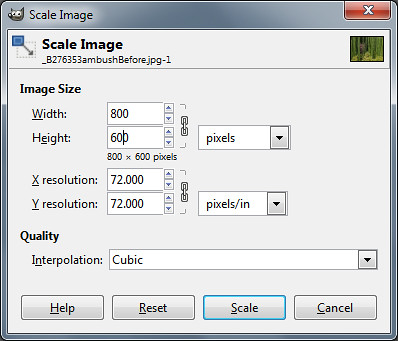
Pict 2: Change the Width and Height pixel settings to resize the photo.

To reduce the size of a photo in GIMP, use the Image > Scale Image command from the main menu. A “Scale Image” dialog box pops up.

Change the Width and Height fields to the desired dimensions. Make sure the unit of measure for the Width and Height is in pixels (the default).

The chain link between the two fields locks the aspect ratio of the photo. Hence, you only need to adjust the pixel dimension of either the Width or the Height field and GIMP will calculate the corresponding pixel dimension for the other field so that the aspect ratio is kept constant.

Caution: Clicking on the chain icon will change it into a broken chain. The width and height can then be changed independently without preserving the original aspect ratio. Doing this for photos will cause distortions – people, trees and things in the photo become either tall and thin, or short and squat.

Leave the interpolation method to the default setting of “Cubic”. There is no need to adjust to adjust the resolution fields.

Press the “Resize” button and the pixels in the photo will be resampled.

Caution: Scale Image can be used to increase the size of photos but avoid that because the up-sampling will reduce the quality of the photos and make it appear blurry.

Reshaping a photo

To change the aspect ratio of a photo without causing any distortions, use either of the two following methods.

Portrait version of Japanese troll

Pict 3: The photo was cropped to a portrait orientation to zoom into the Japanese troll.

Use the Crop tool in the Toolbox to select the area in the photo to be retained. Use the Tool Options below the Toolbox to help select the area better. Check the “Fixed” checkbox to set a specific aspect ratio, width, height or size. Even after dragging out the selection, you can move the selection boundary or resize/reshape it before pressing “Enter” key to execute the crop.

Now that the photo is of the right aspect ration, use “Image Scale” to resize it if necessary.

What if the photo is so tightly framed that you don’t want to crop the forehead or an ear of the subject out of the photo? You’ll have to add pixels to the sides to make the photo fatter, or to the top and/or bottom to make the photo taller.
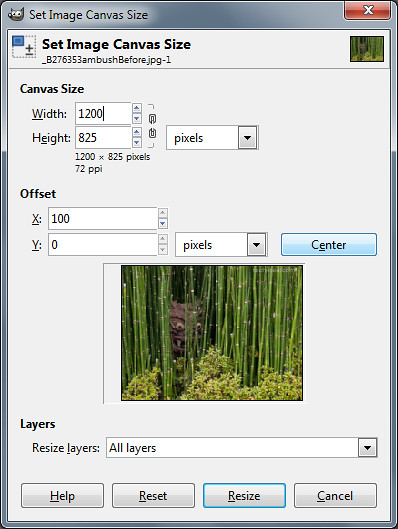
Dialog box for Canvas Size command in GIMP

Pict 4: Click the Center button to centre add new pixels equally between opposite sides.

Use the Image > Canvas Size to do this. A “Set Image Canvas Size” dialog box pops up.

Type the desired dimensions in pixels in the Width and Height fields under Canvas Size. Click the chain icon joining the two fields to de-couple them so as to specify a canvas with a different aspect ratio from the original photo.

Set the “Resize layers” dropdown box to “All layers”. Press the “Center” button to centre the photo.

A fatter image

Pict 5: New pixels have been added to the sides of the photo.

When you press the Resize button, additional pixels will be added either to both sides or to the top/bottom of the photo. Unlike the Scale Image command, the original pixels remain untouched.

Use “Image Scale” to resize the photo if necessary.

Caution: If the Width or Height dimensions are reduced, the photo will be cropped instead.

Fine-tuning and trouble-shooting

A taller image

Pict 6: New pixels have been added to the top and bottom.

If the photo was the Background layer before activating the Canvas Size command, the new pixels will take on the colour of the Background Color swatch in the Toolbox.

So in order to specify the colour of the new pixels, click on the Background Color swatch to select the desired colour – BEFORE activating the Canvas Size command.

If the photo was not the Background layer, activate the Image > Flatten Image command from the main menu before the Canvas Size command as well.

Adding a coloured border/frame

Sometimes, even though the photo is of the desired aspect ratio, we may want to add a coloured margin around it, either a white border to make it look like a traditional photo print, or a coloured frame for decoration.

A coloured photo frame or border

Pict 7: A solid-coloured photo frame/border has been added.

In this case, use the Canvas Size, and in the “Set Image Canvas Size” dialog box, increase the Width or Height setting while leaving the chain icon connected. Click the Center button to center the photo and set “Resize layers” dropdown box to “All layers” as before.

You can look at the preview thumbnail in the dialog box to see how thick the margin is with respect to the photo before pressing the “Resize” button.

Apple Subscriptions versus Google One Pass

Friday, February 18th, 2011

Here’s a quick view of how the two newly announced subscription platforms from Apple and Google stack up against each other. Either way, it’s a good thing for consumers in terms of both choice and convenience.

Platform Apple Subscriptions Google One Pass
Viewable on Web browsers: smartphones, tablets, computers.

iOS: iPad, iPhone, iPod Touch

Commission Apple keeps 30% Google keeps 10%
Billing system Apple App Store Google Checkout
Link to website subscription outside App Not allowed Yes
Share customer info with publishers Opt-in by subscribers Opt-out by subscribers
Subscribe from Almost global US, UK, Canada, Germany, France, Spain for customers,
Publish from Almost global Wherever Google Checkout is available
Content Magazines, newspapers, video, music etc. Magazines, newspapers.

Intermediate GIMP Series on photo or image-editing

Friday, February 18th, 2011

I will commence the Intermediate GIMP Series this weekend. It will run every weekend on Saturday and Sunday. That way, readers have more time to try out the tutorials and play with their vacation photos outside of work.

Due to positive comments and feedback from readers and friends on the 14-part Basic GIMP series in January, I’ve decided to run a follow-up series on GIMP, this time at intermediate level.
GIMP's splash logo for v2.2

v2.2 logo by Bill Luhtala

There will be 14 parts and should take us through March to the beginning of April.

Don’t expect anything too complex as I’ll try to keep explanations simple for the layman. The topics are based on suggestions from readers and I’ve arranged them to be useful and applicable in daily life and work.

There’ll still be some fairly basic stuff but we’ll also look at some more powerful controls for adjusting images, such as Levels and Curves.

If you have any comments, feel free to email me at johntan@tech4tea.com or simply comment in the pertinent posting.

Unveiled Google One Pass to rival and undercut Apple Subscriptions

Thursday, February 17th, 2011
A day after Apple unveiled its new Subscriptions billing system for content-based apps, Google announced its One Pass service for publishers to sell their content.

Google One passGoogle takes 10% off the bill and lets publishers keep 90% of the subscription. This undercuts the 30% that Apple demands from publishers participating in Apple’s subscription platform.

Payment will use Google Checkout which will cover publishers’ e-commerce and payment processing requirements, removing any need to build a third-party payment system into publishers sites.

Google One Pass is currently intended for periodicals, such as news and magazines, but can be used for other types of content, according to its FAQ on the One Pass website.

Publishers decide the price and terms of the content they choose to sell through Google One Pass. They determine the duration and extent of access to their content. For instance, this may include setting a one-week or 30-day limit on the accessibility of a given article. Partners control what content is accessed through Google One Pass and what content is free to users.

Google One Pass will enable users to access content on connected, browser-enabled devices and from mobile apps where the mobile OS terms permit publishers to access the web via the app for Google One Pass transaction or authentication services.

Content purchased through One Pass will be accessible on smartphones, tablets and computers that are browser-enabled and connected to the Internet. Syncing between devices, will be via Google One Pass transaction or authentication services.

Publishers who have committed to One Pass include Axel Springer AG, Focus Online (Tomorrow Focus), Stern.de, Media General, NouvelObs, Bonnier’s Popular Science, Prisa and Rust Communications.

Google CheckoutOne Pass is currently available in Canada, France, Germany, Spain, the U.K. and the United States.

However, publishers in any country where Google Checkout is available can implement Google One Pass.

Apple’s new subscription service for content-based apps.

Wednesday, February 16th, 2011

Subscriptions for content-based apps – magazines, newspapers, video, music etc – can be purchased from within Apple’s App Store using the same billing system that has thus far been used for normal apps and In-app purchases.

Apple will get 30% of the subscription for purchases through its App Store – the same share that it charges today for other In-App Purchases.

Apple launches subscriptions in App StoreThe billing model is the same as the digital subscription billing service that Apple recently launched with News Corp.’s “The Daily” app.

Publishers set the price and length of subscription (weekly, monthly, bi-monthly, quarterly, bi-yearly or yearly). Customers pick the length of subscription and are automatically charged based on their chosen length of commitment.

Customers can review and manage all of their subscriptions from their personal account page, including canceling the automatic renewal of a subscription.

“Our philosophy is simple—when Apple brings a new subscriber to the app, Apple earns a 30 percent share; when the publisher brings an existing or new subscriber to the app, the publisher keeps 100 percent and Apple earns nothing,” said Steve Jobs, Apple’s CEO.

“All we require is that, if a publisher is making a subscription offer outside of the app, the same (or better) offer be made inside the app, so that customers can easily subscribe with one-click right in the app.”

Publishers who use Apple’s subscription service in their app can also leverage other methods for acquiring digital subscribers outside of the app.

For example, publishers can sell digital subscriptions on their web sites, or can choose to provide free access to existing subscribers. Since Apple is not involved in these transactions, there is no revenue sharing or exchange of customer information with Apple. Publishers must provide their own authentication process inside the app for subscribers that have signed up outside of the app.

However, Apple does require that if a publisher chooses to sell a digital subscription separately outside of the app, that same subscription offer must be made available, at the same price or less, to customers who wish to subscribe from within the app.

In addition, publishers may no longer provide links in their apps (to a web site, for example) which allow the customer to purchase content or subscriptions outside of the app.

Apple’s Cook visited Foxconn in 2010 suicide response

Tuesday, February 15th, 2011

It’s good to know that Apple took the situation seriously enough to act by sending its Chief Operating Officer to China. By the look of things, the problem seems to have been largely resolved.

Logo of Foxconn Technology Group Tim Cook personally visited supplier Foxconn’s Shenzhen facility in June 2010 as part of efforts to stop worker suicides, Apple revealed in its yearly report.

Tim Cook met Foxconn Technology Group’s CEO Terry Gou after 11 Foxconn workers committed suicide, mostly by jumping from high-rise dormitories provided by the company.

Foxconn briefed Cook on measures taken to prevent further deaths. Cook’s entourage included suicide-prevention specialists who made recommendations that Foxconn implemented. These included hiring psychological counselors, opening a 24-hour care center and installing nets in factories, Apple divulged.

Cook is now running Apple’s day-to-day operations while CEO Steve Jobs is on medical leave since January. Apple’s shares gained $2.33 to $259.18 in Nasdaq trading yesterday. Its shares have gained 11% this year.

Using FlipYourProfile to show a video clip as your Facebook profile

Monday, February 14th, 2011

Feeling bored with your Facebook profile photo? A new Facebook app cum browser plugin – FlipYourProfile – lets you replace your profile photo with a looping video clip.

Follow the steps below to replace your Facebook profile photo with a video:

  1. Go to facebook.com/FlipSG – download and install the browser plugin for Chrome, Safari, Firefox or IE.
  2. Restart the browser.
  3. Still at facebook.com/FlipSG, connect your profile with the app.
  4. Shoot and send video by e-mailing a video from a Flip Video cam to me@flipyourprofile.com.

If you don’t own a Flip, click on the Profile Maker tab to shoot a video using the webcam. You can also upload an existing video that is less than 10MB. Only videos in .flv, .mp4, or h.264 formats are accepted. If your video is not in any of these formats, use a free video converter like Miro Video Converter to convert your video file to one of the required formats.

Remember to shoot your video in landscape mode or it will appear sideways on your profile.

Initial reactions to this new Facebook app is mixed. Many are excited while others are dampened by the need to download a browser plugin to upload the video profile. Your friends will have to install the plugin as well in order to view the video profile.

Note that a message saying “Amazing! You can post videos on your Facebook profile. Get the app to view my profile vid,” will be posted to your wall when you upload a video.

Olympus VR-330 main specs

Saturday, February 12th, 2011
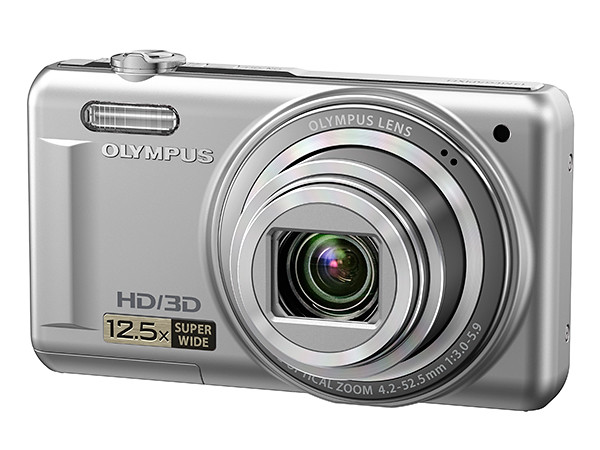
This 14-megapixels compact digital camera packs a 12.5x superzoom and a large 3” 460k dots LCD monitor to watch the 720p HD movies it shoots.

Olympus VG-110 (Blue)
Olympus VG-110 (Red)
Olympus VG-110 (Black)
Olympus VG-110 (Silver)

Olympus VR-330

At an estimated street retail price of S$330, the VR-330 will be available from April in black, silver, red or blue.

The 12.5x zoom lens extends from a wide angle of 24mm to 300mm (35mm equivalent) and uses a 14 megapixels CCD sensor.

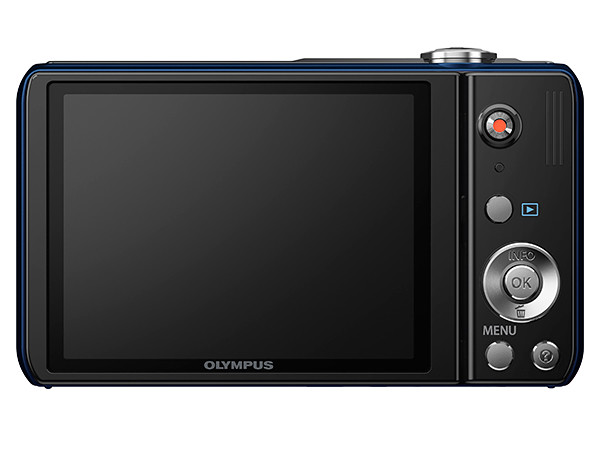
A dedicated “Rec” button initiates recording of 1280 x 720 HD movies in MPEG-4 AVC/H.264 format and provides HDMI output for viewing on a high definition TV.

Seven Magic Filters, including the new Sparkle filter, add special effects (Pop, Pin Hole, Fisheye, Sketch, Soft Focus, Punk and Sparkle) to photos.

Lens aperture ranges from 3 to 5.9.

Dual IS (image stabilisation)  allows the use of a fast shutter speed even in low-light conditions to freeze action and to minimise camera shake – so as to reduce blurring. A sensor shift image stabilisation mechanism is used in conjunction with the use of a high ISO sensitivity.

The VR-330 features a 3” 460 thousand dot LCD monitor.

3D capture shoots 3D photos that can be viewed on compatible TVs and computers.

14 scene modes contain pre-programmed camera settings for taking pictures in various photographic situations, including a Pet mode that automatically detects, tracks and focuses on dogs and cats. An Intelligent Auto mode picks the most suitable scene mode to use under the prevalent lighting conditions.

Olympus VR-330

AF tracking locks on to a moving subject and follows it, continuously adjusting focus and brightness. Face detection focuses on the faces in the photo and can work with AF tracking to follow the main subject if it is moving.

Olympus VR-330

The included Olympus [ib] software allows organising, browsing and editing of photos.

The shadow adjustment technology to increase dynamic range of photos taken under high contrast situations by lightening the shadow tones and darkening the highlights.

Olympus VR-310 main specs

Friday, February 11th, 2011
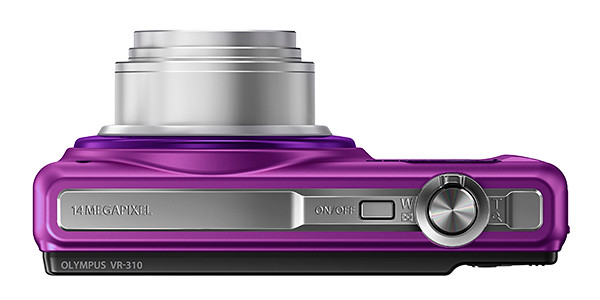
This 14-megapixels compact digital camera has a 10x zoom starting from a wide angle of 24mm and shoots 720p HD movies.

Olympus VG-110 (Purple)
Olympus VG-110 (Red)
Olympus VG-110 (Black)
Olympus VG-110 (Silver)

Olympus VR-310

At an estimated street retail price of S$285, the VR-310 will be available from April in black, silver, red or purple.

The 10x zoom lens extends from a wide angle of 24mm to 240mm (35mm equivalent) and uses a 14 megapixels CCD sensor.

A dedicated “Rec” button initiates recording of 1280 x 720 HD movies in MPEG-4 AVC/H.264 format.

Seven Magic Filters, including the new Sparkle filter, add special effects (Pop, Pin Hole, Fisheye, Sketch, Soft Focus, Punk and Sparkle) to photos.

Lens aperture ranges from 3 to 5.7.

Dual IS (image stabilisation)  allows the use of a fast shutter speed even in low-light conditions to freeze action and to minimise camera shake – so as to reduce blurring. A sensor shift image stabilisation mechanism is used in conjunction with the use of a high ISO sensitivity.

The VR-330 features a 3” 230 thousand dot LCD monitor.

Pre-programmed scene modes contain camera settings for taking pictures in various photographic situations, while an Intelligent Auto mode picks the most suitable camera settings to use under the prevalent lighting conditions.

Olympus VR-310AF tracking locks on to a moving subject and follows it, continuously adjusting focus and brightness. Face detection focuses on the faces in the photo and can work with AF tracking to follow the main subject if it is moving.

Olympus VR-310The included Olympus [ib] software allows organising, browsing and editing of photos.

The shadow adjustment technology to increase dynamic range of photos taken under high contrast situations by lightening the shadow tones and darkening the highlights.

Olympus VG-110 main specs

Thursday, February 10th, 2011

This budget compact digital camera provides ease of use and value for money.

At an estimated street retail price of S$115, the VG-110 will be available from this month in black, silver or red.

The Olympus VG-110 comes in Silver, Red and Black
Olympus VG-110 (Silver) Olympus VG-110 (Red) Olympus VG-110 (Black)

This affordable 4x budget compact covers from 27mm to 108mm (35mm equivalent) and uses a 12 megapixels CCD sensor.

It records VGA movie clips of 640×480 at up to 30fps, in AVI Motion JPEGformat.

Top view of Olympus VG-110Lens aperture ranges from 2.9 to 6.5.

DIS (Digital Image Stabilisation) reduces motion blur in photos by increasing the ISO sensitivity and to allow faster shutter speeds.

Seven Magic Filters add special effects  (Pop, Pin Hole, Fisheye, Sketch, Soft Focus, Punk and Sparkle), including the new Sparkle filter.

The VG-110 features a 2.7” 230 thousand dot LCD monitor.

Various features on the camera makes it easy to use even for novices.

Note the "?" button on the VG-110A “?” button provides explanations of various camera settings and menu functions for the beginner or new user. Exposure compensation allows the photographer to preview on the LCD the effects of the different exposure settings before taking the photo.

14 scene modes contain pre-programmed camera settings for taking pictures in various photographic situations.  These include portrait mode to capture loved ones, landscape mode to show off the scenery, a fun fireworks mode and a specially designed “Pet Mode” to help animal lovers capture their pet dogs and cats.

An Intelligent Auto mode picks the most suitable scene mode to use under the prevalent lighting conditions.

AF tracking locks on to a moving subject and follows it, continuously adjusting focus and brightness. Face detection focuses on the faces in the photo and can work with AF tracking to follow the main subject if it is moving.

The included Olympus [ib] software allows organising, browsing and editing of photos.

The shadow adjustment technology to increase dynamic range of photos taken under high contrast situations by lightening the shadow tones and darkening the highlights.