Let’s go back to basics and see what settings on the digital camera will produce as good a photo as possible for GIMP to start working with.

New to digital cameras? Here are some basic settings to get the most out of your camera.
Yesterday, we used GIMP to turn a colour photo into black-and-white, and tinted it with another colour like sepia. Today, we give GIMP a break and go back to basics. I’ll share what camera presets to use in the digital camera to get the best quality photo from the camera – for GIMP to work on.
Having seen what photo-editors like GIMP can do to correct photographic mistakes and enhance snapshots, one may to tempted to become slipshod when taking photos.
After all, GIMP can straighten a crooked photo, crop a poor composition, remove unpleasant colour casts, and darken or brighten an overexposed or underexposed photo.
Later on in the series, we’ll see GIMP sharpening slightly blurred photos and removing lampposts sprouting from the top of people’s heads.
What a photo-editor CANNOT do
However, there IS a limit to what photo-editors can do. As they say, “Garbage in – Garbage out”.

Pict 2: Le'ts examine areas of this photo taken at the Kitano Tenmangu temple in Kyoto.
Even the best photo-editor cannot add in lost details from an overly blurred snapshot, or bring back image quality destroyed by an overly high JPEG compression. The JPEG compression throws image detail away and introduces unsightly colour blobs called image artifacts into the photo.
Neither can GIMP bring back details that were not captured in an overly overexposed or underexposed photo – such as the backlit silhouette of a person against a bright background.
It is also difficult to remove colour noise introduced by a high ISO setting.
Here are some basic camera settings I propound whenever somebody asks me what settings to use for their new digital camera. If you already know these stuff – please bear with me.
Use the maximum camera resolution
Digital cameras allow photos to be taken at lower resolutions. For example, you can set a 12 megapixel camera to capture photos at eight, three or fewer megapixels. This is for photographers who simply want to send the photo via email or share it online and want to upload the photo fast, or who are running out of space on their memory cards.
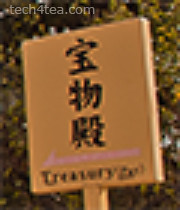
Pict 3: Using the maximum resolution means that even if you crop a small portion of the photo or enlarges it, there are enough pixels for a sharp print.
Pict 4: Taken at smaller sizes, enlarging the photo or cropping a small portion of the photo can lead to poor quality due to pixellation.
It also allows you to crop a small portion of the photo and still have enough pixels for a good print. Should you need to email or share a photo online, you can still resize the photo to a lower resolution using GIMP.
Use the best quality setting
Most digital cameras store photos as JPEG files. You can specify how much compression to use. High compression results in smaller files but also means poor quality.

Pict 5: Using a low JPEG compression takes up more memory space but results in good image quality.
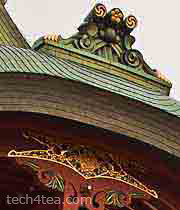
Pict 6: Using a high JPEG compression takes up less memory space but results in poor image quality.
Turn digital zooming off
Many digital cameras boast the “digital zoom” feature. Disable this feature. During digital zooming, the camera adds image pixels to the photo to make it appear bigger. This reduces the sharpness and quality of the photo.
If the subject really needs to be magnified, use GIMP to upsize the photo. A photo-editor on a computer can do a much better job than the data processor on board the camera.
Low light photography
Low light photography can produce some of the most challenging snapshots to correct. A high ISO introduces colour noise that is difficult to remove even in a photo-editor. A long exposure results in blurring due to camera shake. While the use of flash can result in harsh hotspots from reflections off oily skin.
For still subjects in low light, use a tripod along with a long exposure and low ISO. The low ISO minimises noise and the tripod removes blurring due to camera shake. The long exposure can result in some grainy noise but it’s not as bad as that introduced by a high ISO setting. However, if the subject is moving, the long exposure will result in motion blur.
Tomorrow, we’ll go back to using GIMP to remove overhead cables, branches sprouting from people’s ears and dustbins in the background.
Tags: GIMP, image editor, photo editor, tips