Archive for the ‘Software’ Category

Photo scrapbook using GIMP Layers (Part 5a of 14)

Saturday, March 5th, 2011
Make a photo scrapbook design by combining several photos and text captions on the same page.

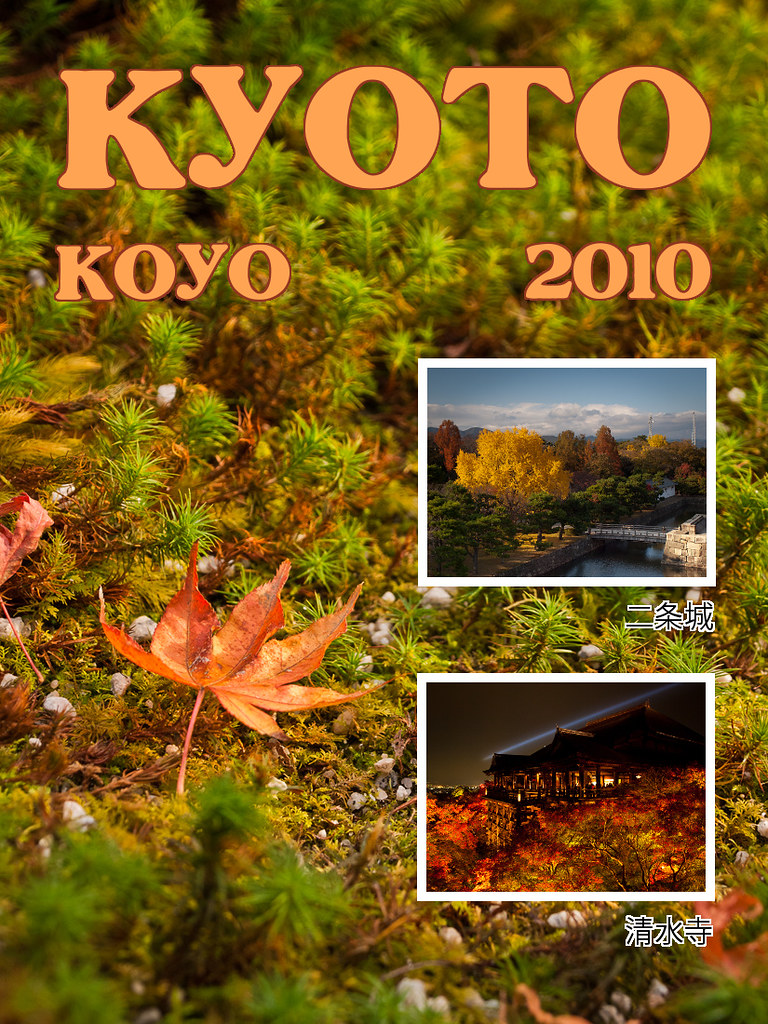
Scrapbook design using layers in GIMP

Pict 1: Scrapbook cover/page

There seems to be renewed interest amongst my friends to use their holiday photos to make photo scrapbooks.

They share their photos online even while they’re still overseas on holiday, but nothing beats a physical coffee-table scrapbook for family and close friends to thumb through and pore over.

In the first half of this tutorial today, we’ll use a photo as a background for a scrapbook cover/page and bring in additional photos. We’ll resize them as thumbnails and position them on the page.

In the second half tomorrow, we’ll add text titles and captions, and add outlines to them, as well as the thumbnails.

Including additional photos as layers
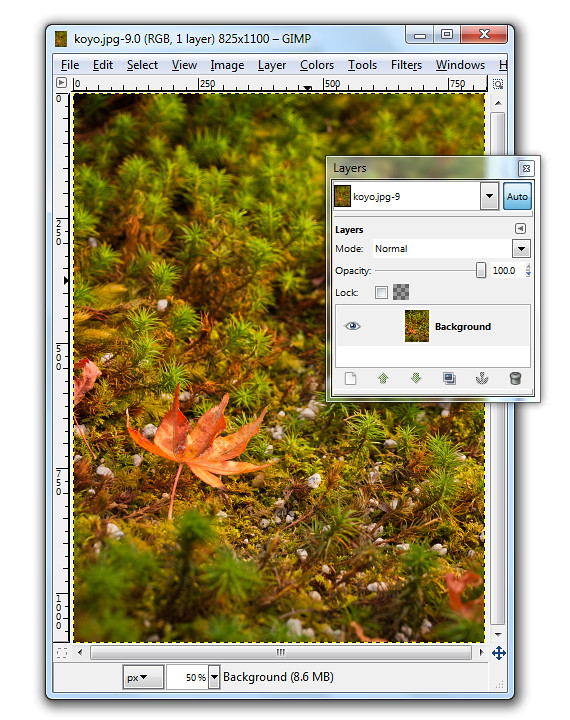
Pict 2: Single Background layer when photo is first opened.

Pict 2: Single Background layer when photo is first opened. This lonesome koyo was languishing on the grounds of the Ginkakuji in Kyoto.

When a photo file is first opened in GIMP, it resides on the single Background layer.

In our example, the photo file comprises the macro shot of the lone koyo (red maple leaf in Japanese) in the Background layer. We want to bring in two additional photos of koyo scenes as thumbnails.
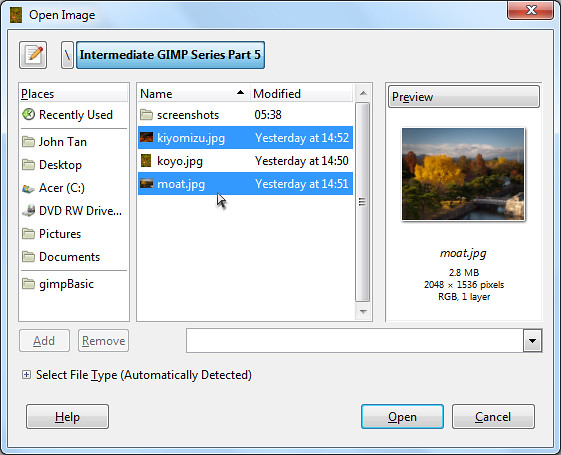
Pict 3: Bring in additional photos

Pict 3: Additional photos

To bring in additional photos into the file, use the File > Open as Layers command from the main menu. You can bring in multiple photos all at once by selecting more than one photo in the Open Image dialog box that pops up.
Pict 4: Additional photos as layers

Pict 4: Additional photos as layers

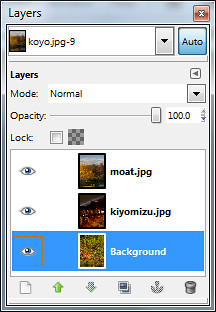
The two photos will be brought in as additional layers – one photo on each layer. For a quick introduction into layers and various ways of manipulating them, read Part 5 of the Basic GIMP series on “Correcting exposure using layers”.

You can see the different layers in the file inside the Layers dialog.

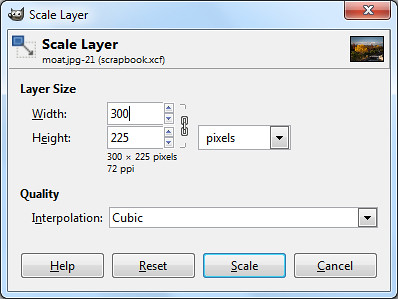
To reduce the size of the moat photo to a thumbnail, click on its name in the Layers dialog to select it and then use the Layer > Scale Layer command from the main menu. As a shortcut, simply right-click on the moat layer in the Layers dialog and select the Scale Layer command from the pop-up menu.
Pict 5: Scale layer down to thumbnail size

Pict 5: Scale layer down to thumbnail size

In the Scale Layer dialog box that pops up, I typed in 300 in the Width field. The Height field was automatically updated to 225 to keep the aspect ratio of the layer unchanged to avoid distortions. Both the default Interpolation setting of Cubic or Sinc (Lanczos3) will do the resizing with good quality.

Press the Scale button to complete the resizing.

Repeat the same process to resize the other photo into thumbnail size.
Pict 6: Move, Alignment and Text tools in the Toolbox

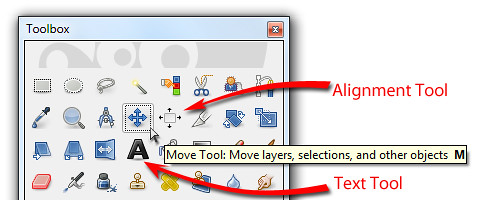
Pict 6: Move, Alignment and Text tools in the Toolbox

Positioning the thumbnails

To move and position the thumbnails, activate the Move Tool from the Toolbox. Now you can just click and drag any layer you see in the image window.
Pict 7: Options for the Alignment Tool

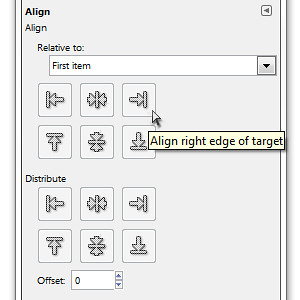
Pict 7: Options for the Alignment Tool

To align the two thumbnails, activate the Alignment Tool in the Toolbox. Click the first thumbnail and shift-click the second thumbnail to select both. You can also drag a rectangle that encloses both thumbnails to select both at the same time.

In the Tool Options, click one of the icons to align either the left or right edges of the thumbnails.

Tomorrow, we’ll add text captions and outlines to the elements in the scrapbook cover/page.
Select by Color or Foreground Select Tools in GIMP (Part 4 of 14)

Sunday, February 27th, 2011

These less frequently used selection tools can be real time-savers if you know when they are the most suitable tools for the job.

The Fuzzy Select Tool works wonders for selecting large contiguous areas of a photo with relatively uniform colour even if the outline is complicated.

In yesterday’s case, clicking on the blue sky around the temple in the photo selected all the blue pixels “connected” to the clicked pixel by other selected pixels.

Select by Color Tool

If, say there is a window in the temple showing a bit of blue sky through it, those blue pixels won’t be selected when the Fuzzy Select Tool is clicked outside the outline of the temple.

Similarly, if the cursor is clicked inside the window showing the blue, the blue sky around the temple won’t be selected.

To add such segregated areas to the main selection, hold down the Shift key on the keyboard and click on those areas with the Fuzzy Select Tool.

For more control, I tend to prefer using the Fuzzy Select Tool together with the Shift key.

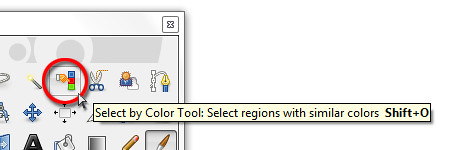
Select by Color Tool in the GIMP Toolbox

But if there are many isolated areas to be selected, a more suitable tool is the Select by Color Tool.

The Select by Color Tool works exactly like the Fuzzy Select Tool except that pixels from the ENTIRE photo that are similar in colour to the clicked pixel are selected – whether contiguous or segregated.

Foreground Select Tool in the GIMP Toolbox

Foreground Select Tool in the GIMP Toolbox

Again, the Threshold value determines how similar a pixel should be in order to be selected.

So if the temple had many windows showing blue skies, clicking a blue pixel in any one of the windows would select all the blues pixels in the sky.

Unfortunately, any of the tourists wearing blue will also have their blue clothes selected. That’s why I tend to prefer the Fuzzy Select Tool because it allows me to control exactly what I want to select.

Foreground Select Tool

Another selection tool that can occasionally work wonders is the Foreground Select Tool. It is used to select an object in a photo against a background, preferably with contrasting colours (see above Picture).

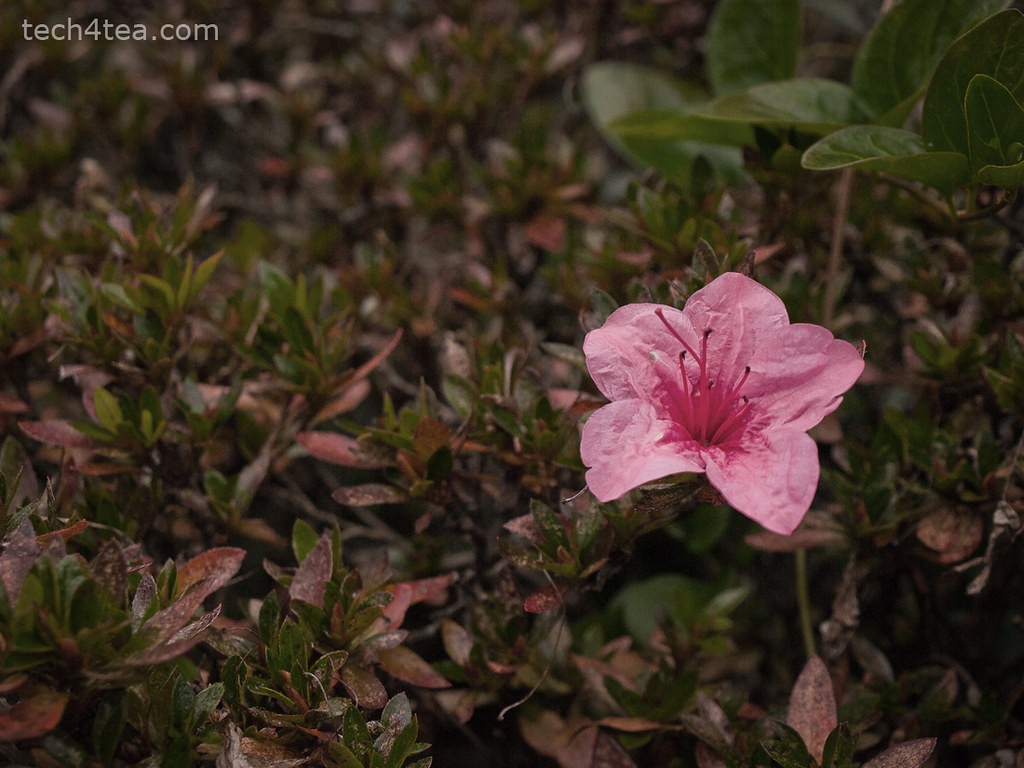
Wild pink flower in Magome, Japan

This wild flower looks a tad pale and dull on an overcast day.

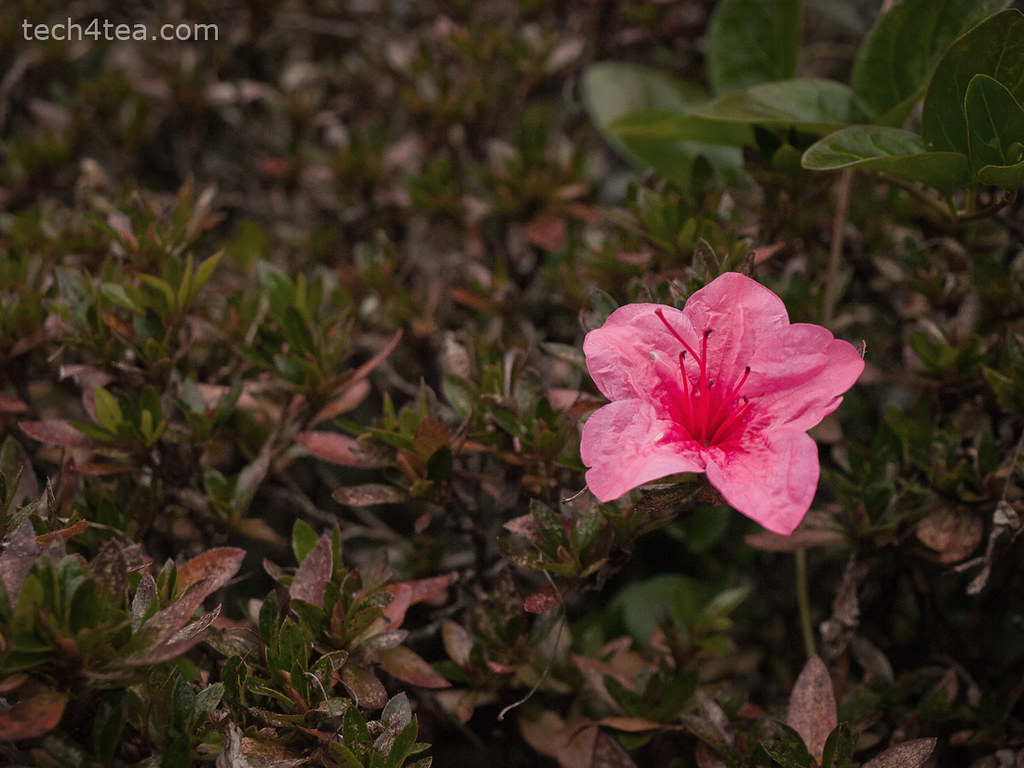
Pink flower made more vivid

The pink flower now stands out against the pale background.

In the photo of a wild flower I snapped in Magome, Japan, Iet’s select the flower in order to make the pink more vivid against the surrounding grass. Download the Before photo to follow along.

Activate the Foreground Select Tool from the Toolbox.

The cursor turns into a lasso. Use the cursor to drag an outline outside but around the flower. For selecting the outline, the tool behaves like the Free Select Tool. Select close to the outline of the flower but do not stray inside the flower.

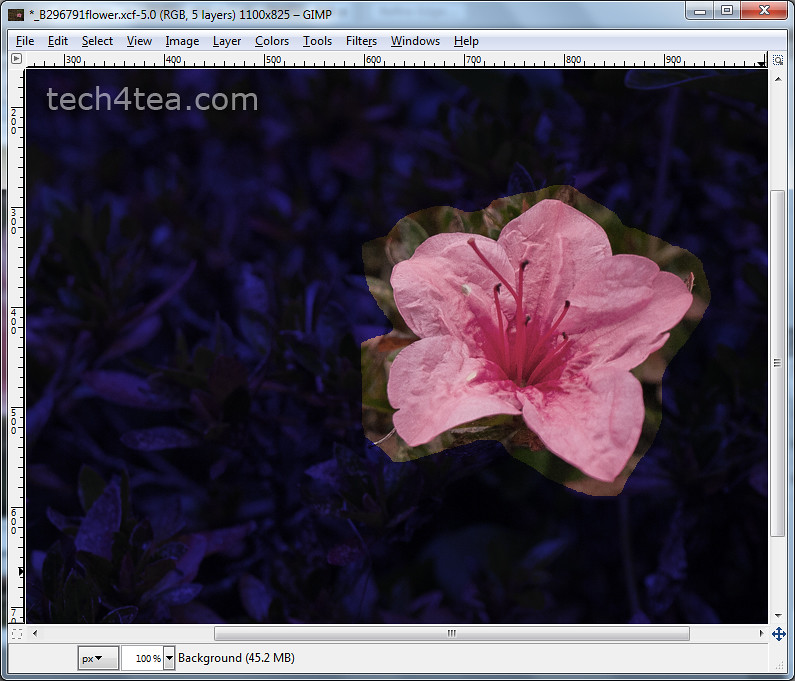
The initial mask when the flower is first outlined

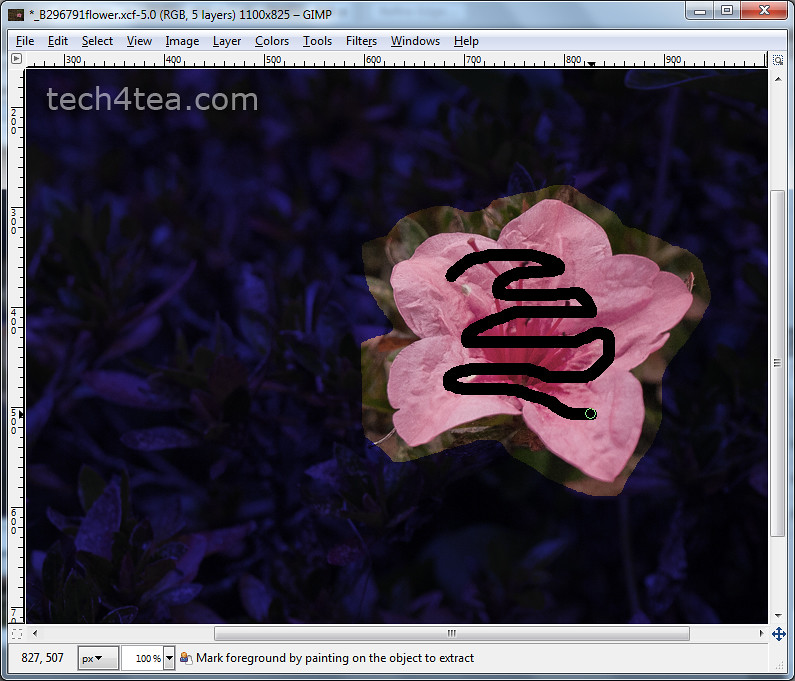
Paint inside the flower to define what colours to keep

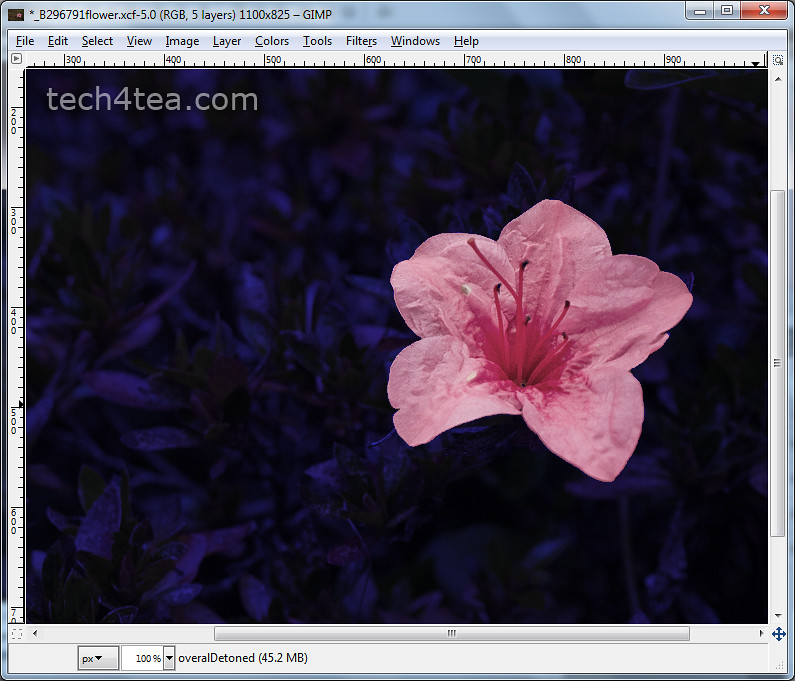
GIMP adjusts the mask to the flower's borders

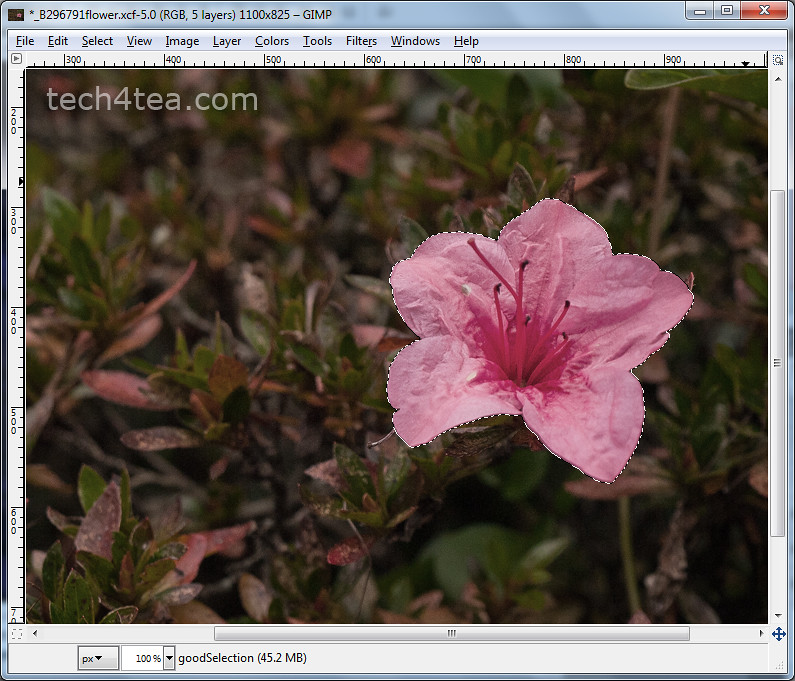
Pressing Enter converts the mask into a selectionVarious stages of using the Foreground Select Tool. Click each thumbnail to open enlarged photo.

Once the outline is complete, GIMP overlays the area outside the outline with a dark blue translucent mask, while the appearance of the flower and its immediate surrounding inside the outline remains unchanged.

The cursor now changes into a paintbrush. Paint inside the flower.

There is no need to paint the entire flower. If the flower contains different colours, try to paint over the different colours to tell GIMP they are part of the flower. Avoid painting outside the flower.

After the initial painting, the dark blue mask closes in so that only the flower remains visible. The clearly visible areas indicate the areas that will be selected. In this case, GIMP did a perfect job.

You can still modify the mask if the flower had not been perfectly masked.

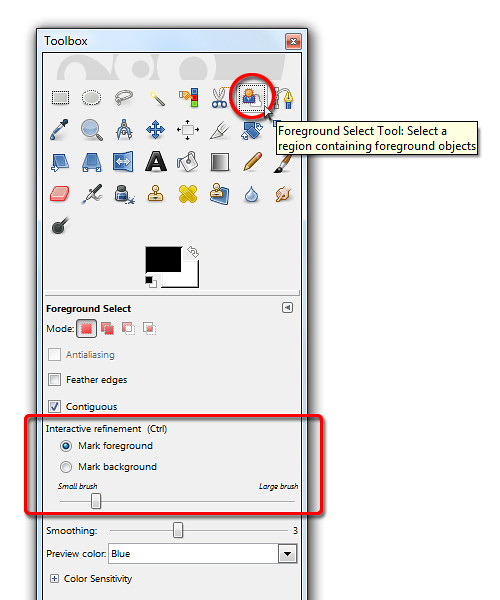
In the Tool Options are two radio buttons that determines the effect of painting on the photo.

By default, the “Mark foreground” option is selected. If there are parts of the flower that are covered by the blue mask, paint on those areas to unmask them.

If there are areas outside the flower that are not masked in dark blue, select the “Mark background” option in the Tool Options and paint on those areas to mask them.

To work the details, zoom in and vary the brush size by dragging the slider in the Tool Options.

Once the mask has been finetuned so that only the flower is clear and the surroundings are masked by the translucent dark blue, press Enter on the keyboard to convert the mask into a selection.

You can now make the flower stand out by dialing up the vividness using Colors > Hue/Saturation command from the main menu.

Caution: While outlining the flower or painting to define the area to be included or excluded, Ctrl-Z or the Edit > Undo command does not work. To restart the selection process, select some other tool in the Toolbox and then select the Foreground Select Tool again.

Do magic with Fuzzy Select in GIMP (Part 3 of 14)

Saturday, February 26th, 2011

Select objects with uniformly coloured backgrounds easily even if the objects have complicated outlines.

Previously, we have made simple rectangular and elliptical selections in photos using GIMP’s Rectangle and Ellipse Select tool. We’ve also used the Free Select Tool to select objects with irregular outlines.

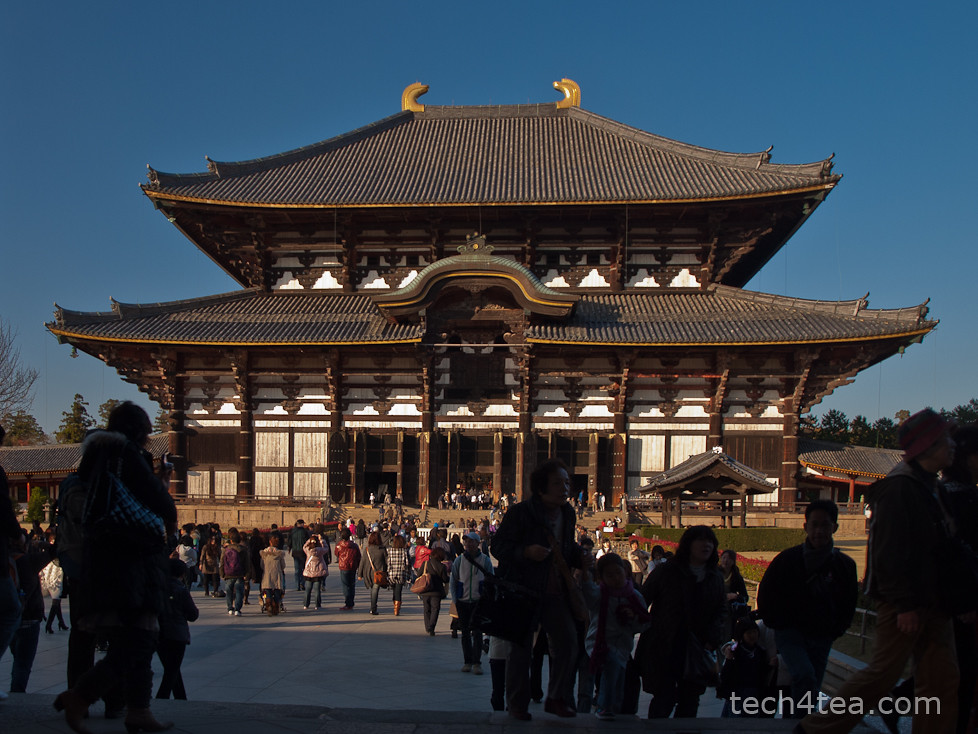
Todaiji Temple in Nara, Japan - a UNESCO World Heritage Site

Pict 1: The Todaiji temple as seen against a clear blue sky.

These selections allow us to do local adjustments – whatever adjustments we make are confined to only the pixels within the selection boundaries.

Sometimes, the object we want to select in the photo is against a background with uniform colour, such as the sky, where the colour comprises a narrow range of tones of the same colour (see Picture 1).

In these cases, it is easier to select the uniform background using the Fuzzy Select Tool and then invert the selection rather than try to select the object itself – especially if the object has a complicated outline.

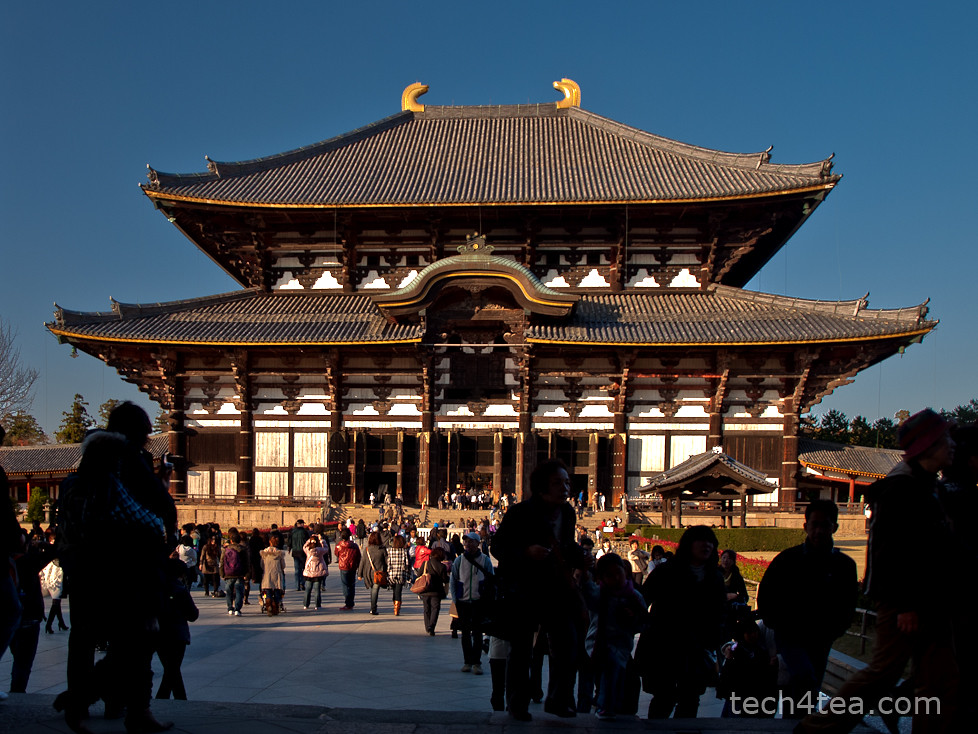
Temple after brightness and contrast increased

Pict 2: The temple has been lightened up and contrast increased.

The tool works best when the background colour is markedly different from the object to be selected.

In the photo of Todaiji in Nara, the temple is slightly underexposed and flat against the bright sky. I want to lighten up the temple without whitening out the nice blue sky. So I need to select the temple and the foreground scene before applying the lightening (see Pict 2).

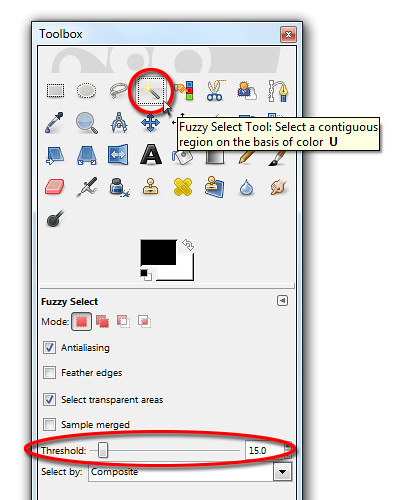
Fuzzy Select Tool

Activate the Fuzzy Select Tool from the Toolbox.

Activating the Fuzzy Select Tool from the Toolbox

It is known more commonly in other photo-editing programs as the Magic Wand tool because of its ability to make a complex selection seem so easy – where large welts of relatively uniform colour are involved. In fact, the symbol and cursor for the tool in GIMP comes in the form of a magic wand.

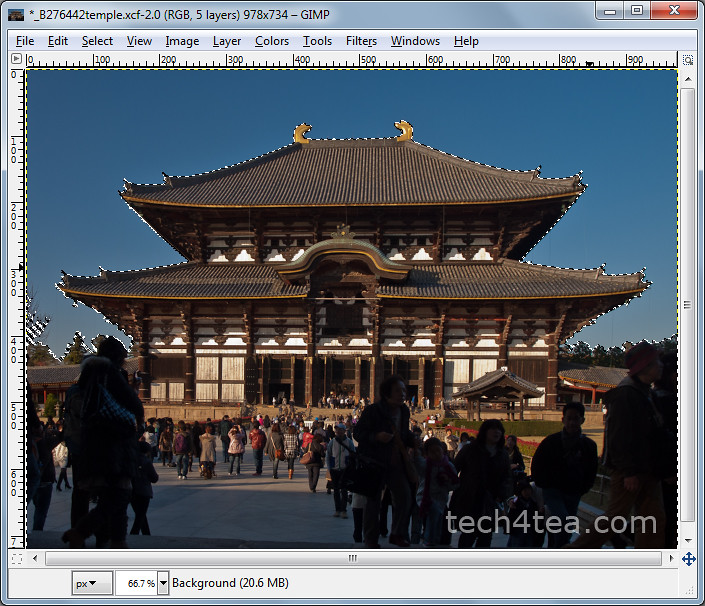
Click on any part of the blue sky. Large parts of the blue sky are selected as indicated by the marching ants showing the complex boundary of the areas selected. What has happened is that the Fuzzy Select Tool has selected all pixels of similar colour to the pixel that was clicked by the tool.

How similar must a pixel be to the clicked pixel for it to be selected? This is determined by the Threshold slider in the Tool Options.

Changing the default value from 15 to zero means that only pixels whose colour is exactly the same as the clicked pixel is selected. Using the maximum value of 255 means all pixels in the photo will be selected.

The selection process

There is a shortcut to varying the Threshold value while using the Fuzzy Select Tool. When you first click in the area to be selected, don’t release the button just yet.

Drag the mouse to the right or downwards and the Threshold value will be increased. You can see the selected areas grow as you drag the mouse cursor. You can also see the Threshold slider in the Tool Options moving to the right.

Conversely, drag the mouse to the left or upwards to decrease the Threshold value. You will see the selected areas shrink as you drag the mouse cursor. The Threshold slider also moves to the left.

Fuzzy Select Tool in action

Pict 3: The bright blue sky is selected by the Fuzzy Select Tool.

Stop or drag the mouse cursor in the opposite direction when you see the selection spilling into the temple itself. Release the mouse button to confirm the selection (see Picture 3).

If there are areas in the sky, that are not selected, hold down the Shift key on the keyboard and click in those areas to add them to the existing selection.

If the photo includes many isolated areas of the colour to be selected, use the Select by Color Tool instead.

Lighten up the temple

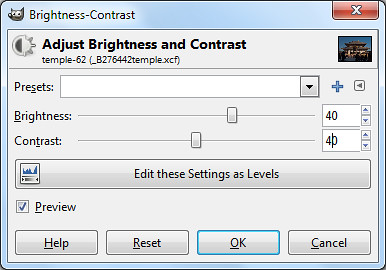
The Brightness and Contrast sliders were increased to 40 to liven up the temple.

For the moment, the blue sky is selected while the temple and the foreground are not.

To invert the selection, press Ctrl-I or Select > Invert from the main menu. The temple and the foreground are now selected while the blue sky is unselected.

The temple and the foreground can now be lightened (for instance, with the Colors > Brightness-Contrast command) without blowing out the sky.

Freehand selection in GIMP (Part 2 of 14)

Sunday, February 20th, 2011
Select irregularly shaped objects in photos using the Free Select Tool in GIMP.

In the Basic GIMP series, we used the rudimentary Rectangle and Ellipse Select tools to create simple selections in a photo.

What if we want to select an object in a photo that has an irregular outline? Check out the Free Select Tool.

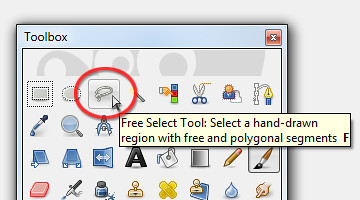
As with the other selection tools in GIMP, the Free Select Tool can be found at the top of the Toolbox.

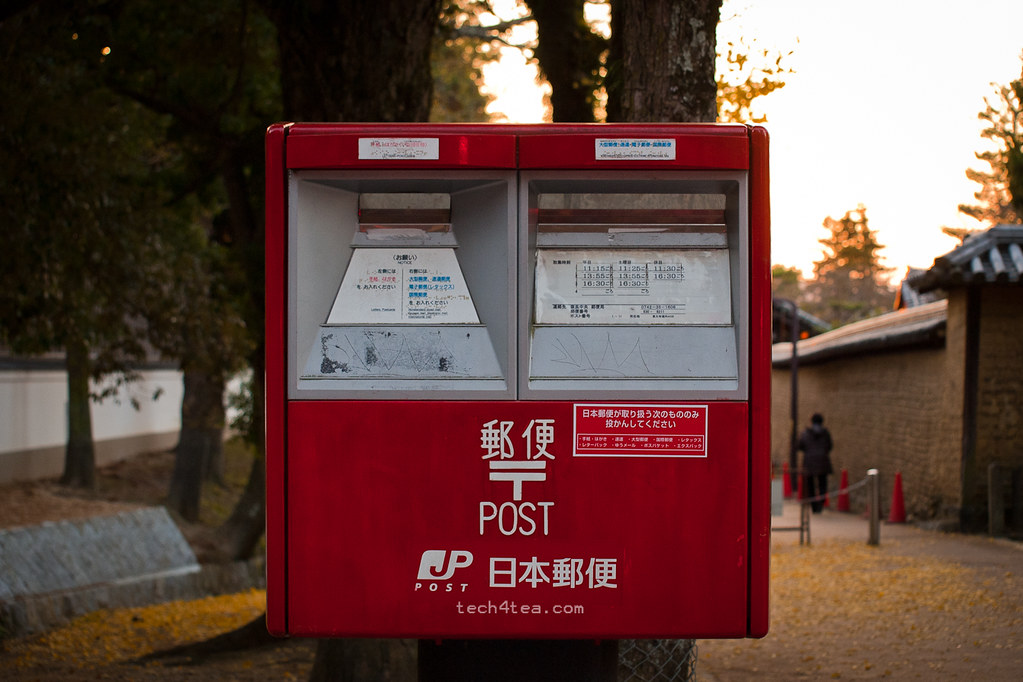
Little red Japanese postbox

The red traffic cones and receding pedestrian are a tad distracting behind the postbox.

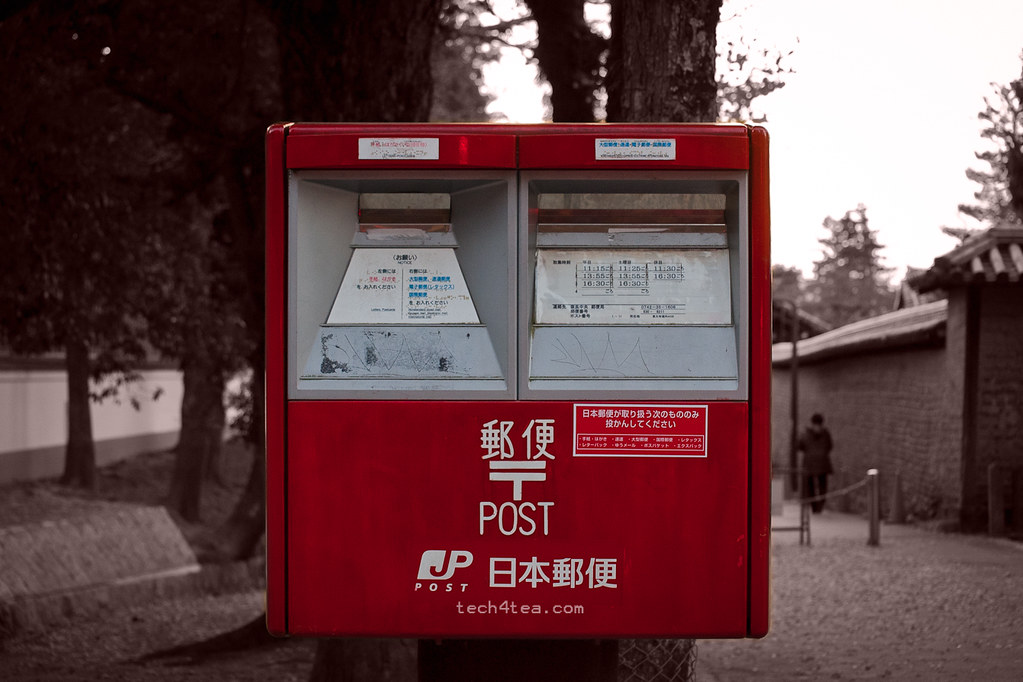
Arty interpretation of a postbox in Japan

Toning down the background focuses the viewer's attention on the main subject.

In the photo I snapped in Nara – Japan on a cool evening last autumn, I made the red postbox stand out by removing colour from its distracting surroundings and tinted the surroundings with a light reddish shade.

This is usually done to bring put the emphasis on a main subject by toning down the background, especially if the background is brightly coloured or distracting.

It is also a popular technique to turn a mundane snapshot into something arty.

Download the Before photo and follow along.

GIMP's Toolbox

Activate the Free Select Tool at the top of the Toolbox

Using the Free Select Tool

In the Toolbox, activate the Free Select Tool. Click (and let go of the mouse button) anywhere on the edge of the postbox. Move the cursor to the next point on the edge of the postbox and click again.

GIMP joins the two mouse clicks with a straight line to indicate the edge of the selection you are making. An anchor point is also created at each end of the edge to indicate where the mouse was clicked.

Around the corners of the postbox, the edges are rounded. Zoom in (press “+” on the keyboard) to get a better view to make a more precise selection.

Where the curved edge begins, click but hold down the mouse button and drag the cursor along the curved edge. You can see selection boundary trace around the curved edge.

At the end of of the curved edge, release the mouse button. To continue selecting straight edges, simply click at the next point.

Repeat the above techniques around the edge of the postbox until you are back to the starting point. This completes the selection process.

Along the way, if you click at the wrong place or make a botched tracing around a curved edge, press the Backspace key on the keyboard. GIMP will remove the previous anchor point and line segment. Press the Backspace key once to remove each previous anchor point and segment.

Decolourizing and adding the tint

Once the postbox has been selected, press Ctrl-I to invert the selection. Drain the colour from the selected surroundings and tint it a pale red by using the Colors > Colorize command from the main menu.

In the Colorize dialog box, set Hue to zero and Saturation to 15 by dragging the corresponding sliders.

Size matters – resizing and reshaping a photo in GIMP (Intermediate series: Part 1 of 14)

Saturday, February 19th, 2011

Starting off the 14-part Intermediate Photo Editing series for GIMP this weekend, this warm-up tutorial looks at resizing and reshaping a photo.

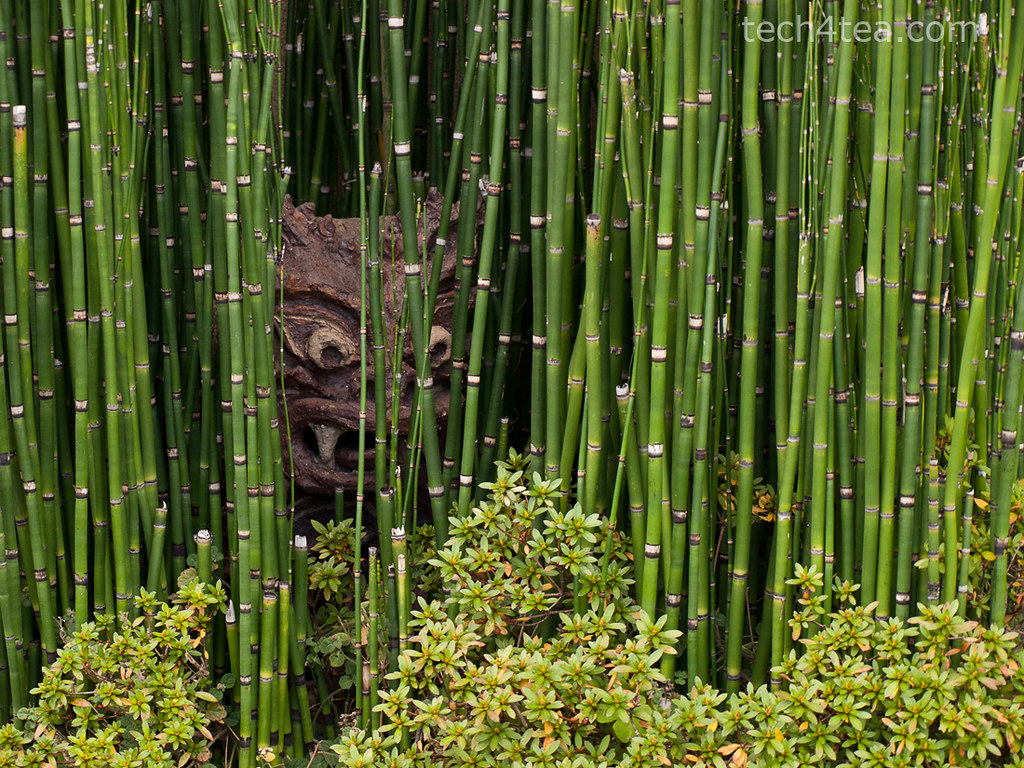
Ambush

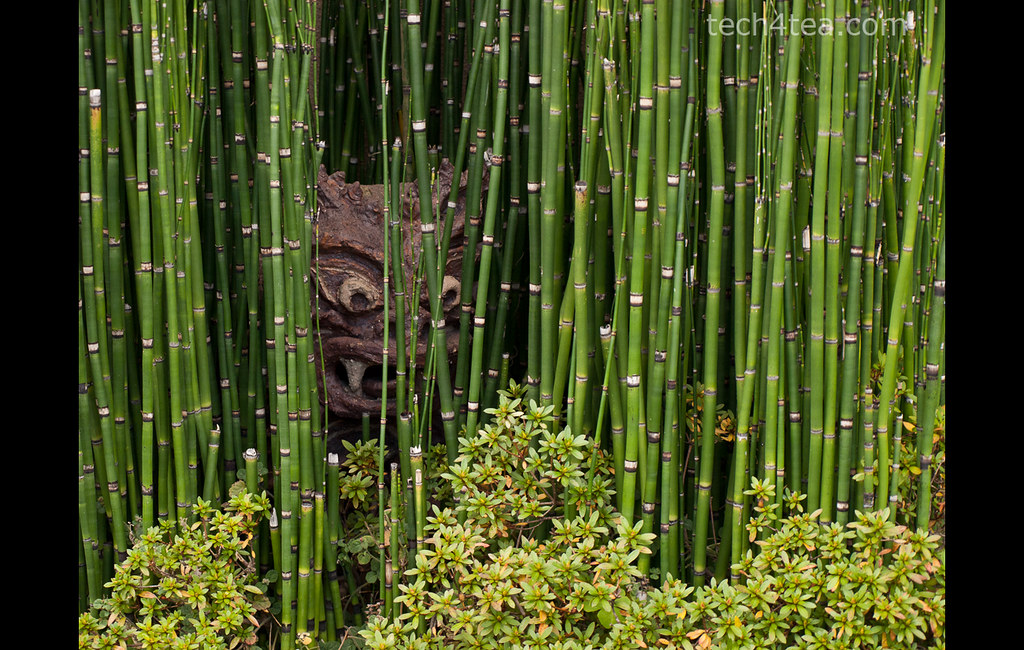
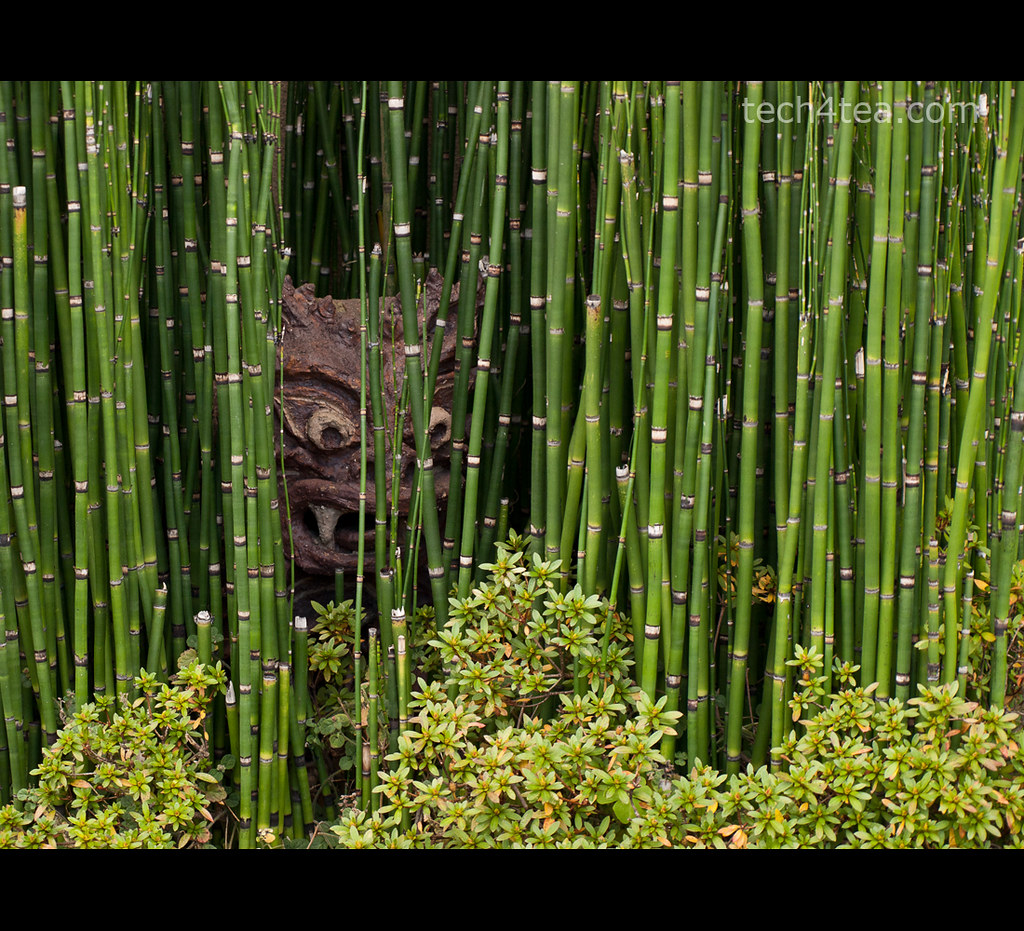
Pict 1: This gruesome troll was laying in ambush amidst a bamboo grove by the roadside in Kyoto as I walked past towards the train station.

With cameras offering more and more megapixels, we frequently need to reduce the size of photos for emailing to friends or sharing online – to reduce upload and download time. Sometimes, we need to change the aspect ratio (between the width and height of the photo) of the photo, perhaps to use it as part of a web page design.

Scaling a photo
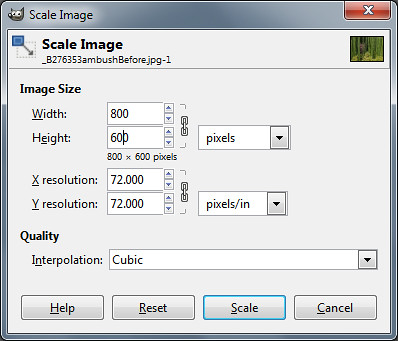
Scale Image dialog box in GIMP

Pict 2: Change the Width and Height pixel settings to resize the photo.

To reduce the size of a photo in GIMP, use the Image > Scale Image command from the main menu. A “Scale Image” dialog box pops up.

Change the Width and Height fields to the desired dimensions. Make sure the unit of measure for the Width and Height is in pixels (the default).

The chain link between the two fields locks the aspect ratio of the photo. Hence, you only need to adjust the pixel dimension of either the Width or the Height field and GIMP will calculate the corresponding pixel dimension for the other field so that the aspect ratio is kept constant.

Caution: Clicking on the chain icon will change it into a broken chain. The width and height can then be changed independently without preserving the original aspect ratio. Doing this for photos will cause distortions – people, trees and things in the photo become either tall and thin, or short and squat.

Leave the interpolation method to the default setting of “Cubic”. There is no need to adjust to adjust the resolution fields.

Press the “Resize” button and the pixels in the photo will be resampled.

Caution: Scale Image can be used to increase the size of photos but avoid that because the up-sampling will reduce the quality of the photos and make it appear blurry.

Reshaping a photo

To change the aspect ratio of a photo without causing any distortions, use either of the two following methods.

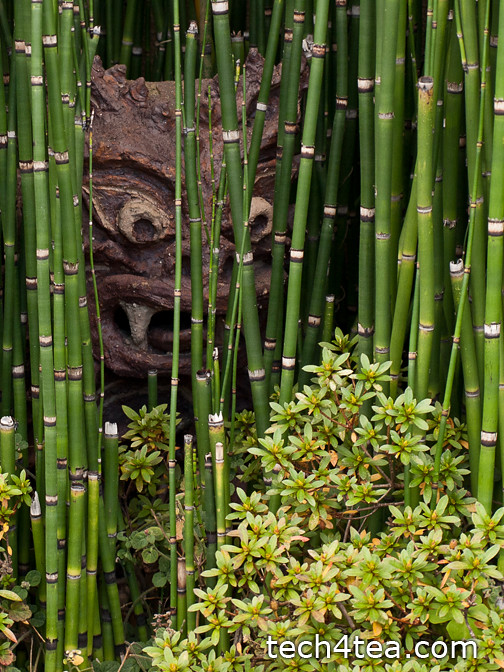
Portrait version of Japanese troll

Pict 3: The photo was cropped to a portrait orientation to zoom into the Japanese troll.

Use the Crop tool in the Toolbox to select the area in the photo to be retained. Use the Tool Options below the Toolbox to help select the area better. Check the “Fixed” checkbox to set a specific aspect ratio, width, height or size. Even after dragging out the selection, you can move the selection boundary or resize/reshape it before pressing “Enter” key to execute the crop.

Now that the photo is of the right aspect ration, use “Image Scale” to resize it if necessary.

What if the photo is so tightly framed that you don’t want to crop the forehead or an ear of the subject out of the photo? You’ll have to add pixels to the sides to make the photo fatter, or to the top and/or bottom to make the photo taller.

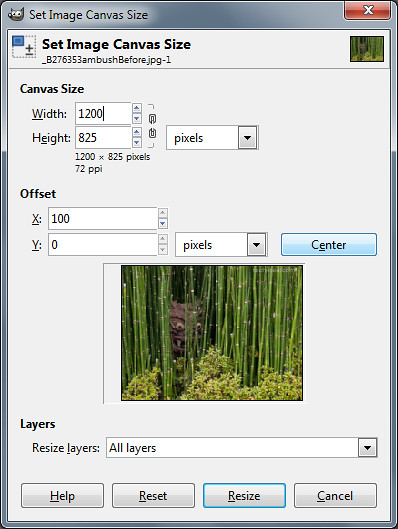
Dialog box for Canvas Size command in GIMP

Pict 4: Click the Center button to centre add new pixels equally between opposite sides.

Use the Image > Canvas Size to do this. A “Set Image Canvas Size” dialog box pops up.

Type the desired dimensions in pixels in the Width and Height fields under Canvas Size. Click the chain icon joining the two fields to de-couple them so as to specify a canvas with a different aspect ratio from the original photo.

Set the “Resize layers” dropdown box to “All layers”. Press the “Center” button to centre the photo.

A fatter image

Pict 5: New pixels have been added to the sides of the photo.

When you press the Resize button, additional pixels will be added either to both sides or to the top/bottom of the photo. Unlike the Scale Image command, the original pixels remain untouched.

Use “Image Scale” to resize the photo if necessary.

Caution: If the Width or Height dimensions are reduced, the photo will be cropped instead.

Fine-tuning and trouble-shooting

A taller image

Pict 6: New pixels have been added to the top and bottom.

If the photo was the Background layer before activating the Canvas Size command, the new pixels will take on the colour of the Background Color swatch in the Toolbox.

So in order to specify the colour of the new pixels, click on the Background Color swatch to select the desired colour – BEFORE activating the Canvas Size command.

If the photo was not the Background layer, activate the Image > Flatten Image command from the main menu before the Canvas Size command as well.

Adding a coloured border/frame

Sometimes, even though the photo is of the desired aspect ratio, we may want to add a coloured margin around it, either a white border to make it look like a traditional photo print, or a coloured frame for decoration.

A coloured photo frame or border

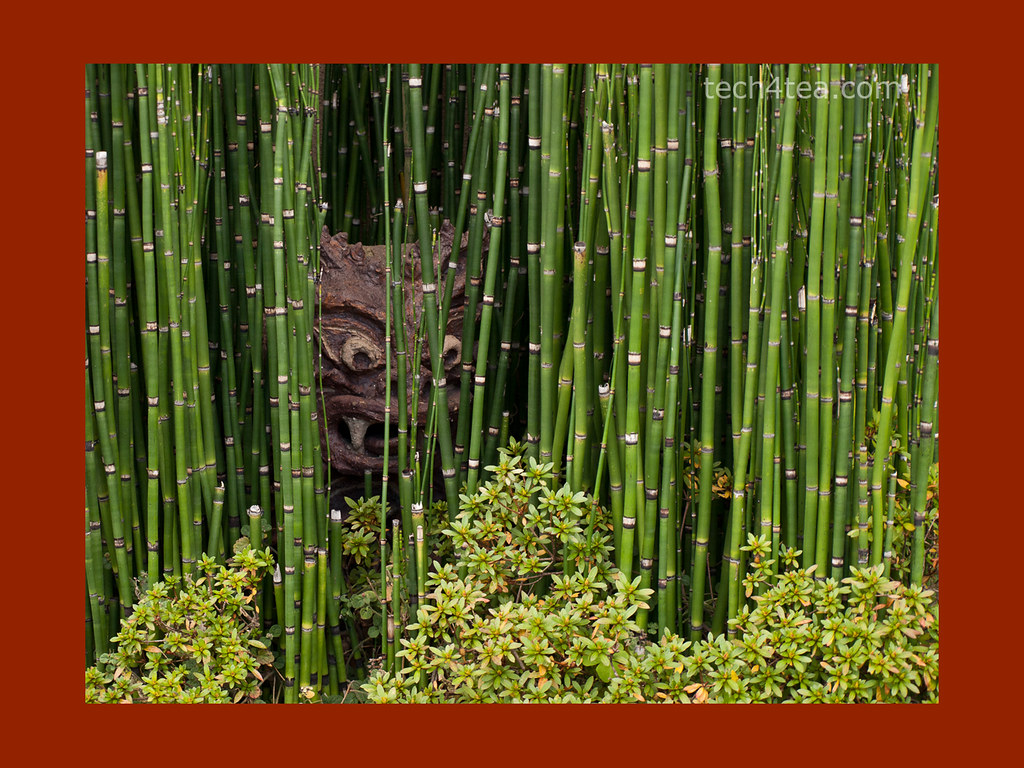
Pict 7: A solid-coloured photo frame/border has been added.

In this case, use the Canvas Size, and in the “Set Image Canvas Size” dialog box, increase the Width or Height setting while leaving the chain icon connected. Click the Center button to center the photo and set “Resize layers” dropdown box to “All layers” as before.

You can look at the preview thumbnail in the dialog box to see how thick the margin is with respect to the photo before pressing the “Resize” button.

Intermediate GIMP Series on photo or image-editing

Friday, February 18th, 2011

I will commence the Intermediate GIMP Series this weekend. It will run every weekend on Saturday and Sunday. That way, readers have more time to try out the tutorials and play with their vacation photos outside of work.

Due to positive comments and feedback from readers and friends on the 14-part Basic GIMP series in January, I’ve decided to run a follow-up series on GIMP, this time at intermediate level.
GIMP's splash logo for v2.2

v2.2 logo by Bill Luhtala

There will be 14 parts and should take us through March to the beginning of April.

Don’t expect anything too complex as I’ll try to keep explanations simple for the layman. The topics are based on suggestions from readers and I’ve arranged them to be useful and applicable in daily life and work.

There’ll still be some fairly basic stuff but we’ll also look at some more powerful controls for adjusting images, such as Levels and Curves.

If you have any comments, feel free to email me at johntan@tech4tea.com or simply comment in the pertinent posting.

Launch of LibreOffice 3.3 – successor to OpenOffice

Thursday, January 27th, 2011
Wondering what happened to OpenOffice after Oracle took over the Sun? It’s now called LibreOffice but preserves the free open-source promise and vendor-independent principle that its predecessor maintained.

Almost a full year after Oracle Corporation announced that it had completed its acquisition of Sun Microsystems on 27 Jan 2010, LibreOffice 3.3 has been released by a breakaway group of developers previously from the OpenOffice.org Project, which had been sponsored by Sun.

LibreOffice 3.3 from The Document FoundationLibreOffice 3.3 is an office productivity suite that includes software for wordprocessing (Writer), spreadsheets (Calc), presentations (Impress), databases (Base), equation editing (Maths) and drawing (Draw). It is available on Windows, Mac OS and Linux.

The developers in the breakaway group comprised about a third of the original OpenOffice.org team and formed The Document Foundation in September 2010.

OpenOffice 3.3 from OracleThey were concerned that Oracle would discontinue OpenOffice as they did OpenSolaris since these open-source projects did not contribute a significant part to the bottom line.

In the space of four months, they have created a stable release of the office suite, which was unveiled on 25 Mar 2011. Based on a fork of the OpenOffice code, much of the development focus was on adding new features as well as extensively cleaning up portions of the legacy code, said Italo Vignoli, a founding member of The Document Foundation.

The version 3.3 continues from the versioning under OpenOffice. LibreOffice means “Free Office” and is free for users to download, modify, use and distribute. The name was original intended to be temporary, in the hope that Oracle would accept their invitation to become a member of The Document Foundation and donate the OpenOffice.org brand to the project.

Oracle has rejected the project.

Canonical, Novell and Red Hat intend to include LibreOffice in upcoming versions of their operating systems. The office suite for the Ubuntu 11.04 daily builds was changed to LibreOffice for alpha testing purposes on 20 January 2011.

LibreOffice 3.3 features improved usability and interoperability with other formats, such as improved support for importing documents from Lotus Word Pro and Microsoft Works. It can now import SVG content and edit SVG images in LibreOffice Draw.

Apple app (Free): Send Chinese New Year greetings in SMS and email

Wednesday, January 26th, 2011
Choose from a long list of pre-canned Chinese New Year greetings and well-wishes and send them as an SMS or email.

As an alternative or complement to traditional paper Chinese New Year cards, many have been sending well-wishes on SMS on the morning of the actual day, and throughout the day as well. You know – those long wordy festive greetings in Chinese characters that advertise the sender’s fingertip dexterity in churning out those characters on a tiny handphone.

Send SMS/email CNY greetings in Chinese

Look for this icon in the Apps store or its publisher's name "YYH Creative" in English.

This 春节短信 (兔年特别版)free app for Apple devices provides a long list of pre-canned Chinese New Year greetings and well-wishes that you can send as an SMS or email. There’s no english name, do a search for free Chinese New Year apps and look for the icon. The name of its publisher “YYH Creative” is in English though.

The well-wishes are organised into different categories based on recipients (mother, father, teachers, lover, boss) or theme (humour, sincere, classic). Many are customised for the Rabbit year since this will be the Year of the Rabbit in the Chinese horoscope.

There is also a small section for the upcoming Valentine’s Day although I have never sent a pre-canned Valentine’s Day message before.

Apart from sending a selected greeting through SMS or email, it can also be copied onto the clipboard or stored in a shortlist folder. Sent greetings are archived for future reference.

Although this app might be convenient for those who find it too tiresome to type their own New Year well-wishes, I would suggest amending the pre-canned greetings to personalise them.

A little knowledge of Chinese is needed to use this app, since the menus and categories are all in Chinese.

A word of caution to those who know only a little Chinese but want to impress by sending a bombastic greeting in Chinese, get someone to toss a quick glance at the message. A casual browse under the category for greetings to teachers contained one addressing the recipient as a lover, although the rest of the message was indeed written with teachers as the recipient. A typo perhaps?

Overall, a useful app for those trying to minimise RSI on their fingers from pressing out those long Chinese New Year SMS in Chinese characters.

Apple app (Free): Dress up as the God of Wealth

Tuesday, January 25th, 2011

Bring a smile to friends and relatives this Chinese New Year by sending them a festive greeting dressed up as the traditional God of Wealth.

“A FREE single-trick app that does one thing, it ran pretty smoothly on my iPhone without hanging or major complains, and provided much amusement to my kids putting all manner of chimpanzee/orang utan faces onto the digital placard.”

The Lunar New Year is just round the corner. This year it falls on 3 Feb – that’s next Thursday.

Part of the Chinese New Year tradition is to send greeting cards carrying festive greetings. Many carry well wishes for good health, happiness, and success in career or studies.

The Chinese God of Wealth with your own face

Bring Chinese New Year greetings dressed up as the traditional God of Wealth.

By far, the favourite festive greeting is to for prosperity, such that “Gong Xi Fa Cai” has become a set phrase even in the English language. It means “Congratulations on hitting it rich!” And that usually happens when the Chinese God of Wealth (财神 – cai shen) pays you a visit.

Combine the two and you get an Apple app that allows you to make a simple greeting card on your iPhone, iPad or iPod Touch, dressed up as the ubiquitous god bearing a well-wishing banner and smiling favourably on the recipient.

Remember those cardboard placards of cartoon characters with the face cut-out so that you can scramble up behind the placard and stick your face through the hole and pose as the cartoon character? Well, “God of Wealth camera” simulates that.

Using the app

The app is simple and comprises four simple steps with a few options to choose from. You can jump to any step by pressing the four buttons at the bottom of the screen. Look here for screenshots.

Step 1: Take a photo with the camera on your Apple device or choose one from the photo album. A front facing portrait works best here.

Step 2: Identify the face. A translucent Cai Shen face is initially placed where the app thinks the face is. You can move the face, rotate it and resize it to superimpose it on the face in the photo ( if there is more than one face) that you want to use.

Step 3: The face is put in the hole in the placard. There are five designs available, and for each of these, you can change the default text greetings on the banner that Cai Shen holds in his hands. You can also choose to remove the long beard (actually it’s the moustache) from the face.

Step 4: Export the picture to your album as a jpeg file, or post it to your Facebook account from inside the app. All done in a few minutes.

Wish-list

Potentially, the most time-consuming step is the second step. If you’re lucky, the face is properly positioned when you first go into Step 3. Otherwise, you have to go back and forth between Steps 2 and 3 until you get it right: adjust face position, size and rotation in Step 2, see its result in Step 3 and go back to Step 2 to re-adjust.

Some might find it tiresome, but take it as a challenge or game of sorts and it can actually begin to become a little fun, especially when you finally position it right. If only you can adjust the face directly in Step 3, it would be more intuitive and less iterative.

It also gets difficult to activate the side and corner handles to adjust the size and rotation of the face when it is very small. If only you could zoom in to make the face bigger just for making adjustments. But then again this is a free app. So just snap or choose a photo where the face is large.

Why the option to to remove the moustache? I found that out soon enough. It makes it so much more tricky (fun?!) to position the face with the moustache in the right place! So if you don’t have the gumption, just turn off the “beard” option.

I tend to leave the greetings alone. Typing in English is no go, only the first four letters appear on the banner. You have to type in Chinese characters in typical four-worded wishes. Even then, I find the Chinese characters stiff and blocky. The default calligraphy based greeting on those banners look much nicer unless you have a compelling reason to change the greetings – like putting a funny or naughty greeting instead.

Overall, a pleasant app that doesn’t hang, does one thing pretty well, kills time and keeps the kids entertained.

Disclaimer: I am not associated with the developer in any way. Just thought I’ll post a digital-imaging related app for the festive season.

New features for upcoming GIMP 2.8

Tuesday, January 18th, 2011
Numerous enhancements … but my most longed for feature – non-destructive editing – will only be in the version after that. Still I’m looking forward to v2.8.

The recent announcement on GIMP’s official website gave a teaser on some of the new features and future thrusts for the next stable release of GIMP and beyond. 

First off, the GIMP development team are now in the final stages of developing the next stable release of GIMP – version 2.8. Enhancements include “layer groups, improved brush dynamics, a new unique transformation tool, optional single-window mode and more”.

According to the notice, the focus of development after the release of v2.8 will shift to deep integration of GEGL – the new non-destructive image processing core. Non-destructive image editing is one of the areas where GIMP lags behind Photoshop. This thrust will “enable many features considered critical for use of GIMP in (a) professional environment.

GIMP's splash logo for v1

v1 Logo by Jens Lautenbacher

GIMP started life as a semester project at University of California, Berkeley in 1995 and was first released to the public in 1996. The current stable release is v2.6 which was released in 2008. The latest bugfix is v2.6.11 dated Oct 2010.