Archive for 2011

DSLR winners at the XXI TIPA 2011 awards.

Sunday, April 24th, 2011

The four categories for DSLRs were won by Canon, Nikon, Olympus and Pentax at this year’s TIPA awards.

Founded in 1991, the Technical Image Press Association (TIPA) comprises 29 independent photo & imaging magazines from nine European countries plus Australia, Canada, China, USA and South Africa.

This is the 21st installment of the annual awards.

Out of 40 categories of photo and imaging products for this year’s TIPA awards, four were for DSLRs. The winners for the four DSLR categories are tabulated below.

Category / Winner TIPA citation
Best DSLR
Entry LevelBest DSLR Entry: Canon EOS 600D / Rebel T3i / Kiss X5 

Canon
EOS 600D

The EOS 600D continues the legacy of easy operation and high functionality. TIPA members were very impressed with the features such as the 18.0 Megapixel CMOS image sensor, full HD video recording, Live View shooting, Wireless flash photography and a Vari-angle 3-inch LCD monitor. Offering 3.7 frames-per-second shooting rate, a top 1/4000 second shutter speed and up to 6400 ISO sensitivity (plus 12,800 H), the camera allows for the full DSLR experience with ease of operation that makes for a great first camera for those seeking to ‘step up’ from compact cameras.
Best DSLR
AdvancedBest DSLR Advanced: Nikon D7000 

Nikon
D7000

The Nikon D7000 impressed us as the definition of a state-of-the-art DX-format DSLR (APS-C size) with a 16.2 MP CMOS sensor, six frames-per-second framing rate for up to 100 shots and full 1080p HD movies with full-time AF. With twin SD card slots, a 100% viewfinder and bright 3-inch LCD for Live View operation, the camera is extremely versatile in the field. The magnesium alloy top and rear covers, special weather and dust seals plus 150,000 cycle-rated shutter system give it a pro feel.
Best DSLR
ExpertBest DSLR Expert: Olympus E-5 

Olympus
E-5

For a very reasonable price, the Olympus E-5 provides benefits that rival those found in some professional SLRs: complete weather-sealing, comprehensive functions, excellent responsiveness, 100% viewfinder, good noise control, dual CF/SD slots, built-in image stabilisation, all in a rugged magnesium-alloy body. Add to this Olympus’ Dust Reduction System, which has proven to be among the most effective solutions in the market. The 12.3 Megapixel Live MOS sensor, combined with the ‘TruePic V+’ image engine produces images that rival competitors with substantially higher pixel counts.
Best DSLR
ProfessionalBest DSLR Professional: Pentax 645D 

PENTAX
645D

TIPA members appreciated the design, build and feature specs of this 40 Megapixel medium format digital camera. The magnesium alloy body is fully weather-sealed, making it a great choice for outdoor and location photographers, plus the all-glass trapezoid pentaprism finder makes for a dazzling capture experience. Perhaps most impressive is lens compatibility, which encompasses both the new D FA autofocus lenses as well as older 645 lenses.

Understanding histograms (Part 12 of 14)

Saturday, April 23rd, 2011
The histogram of a photograph tells you whether a photo is too bright, too dark or too flat and lacking in contrast.

It forms the basis of more advanced and powerful tools – such as Levels and Curves –  to enhance the brightness and contrast of a photo.
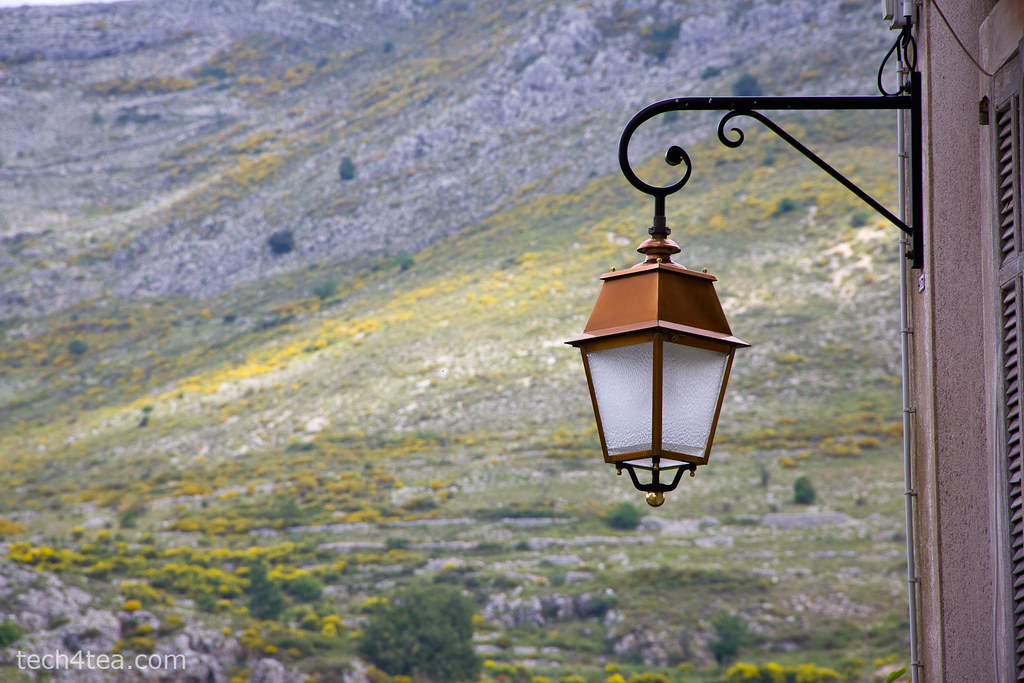
Metalwork lantern in French Provence. The exposure was reasonably well-balanced.

Pict 1: Metalwork lantern in French Provence. Exposure was well-balanced, as indicated by the histogram below.

Many digital cameras today can display histograms on their LCD screens in both the review and preview modes. The histogram helps the photographer to assess whether the exposure settings for an image are optimal. This is most useful when bright sunlight makes it difficult to judge – just by viewing the photo preview/review on the LCD screen – whether a photo is too bright or dark.

If the histogram indicates that the photo is too dark or bright, the photographer can adjust the exposure settings to get a better shot.

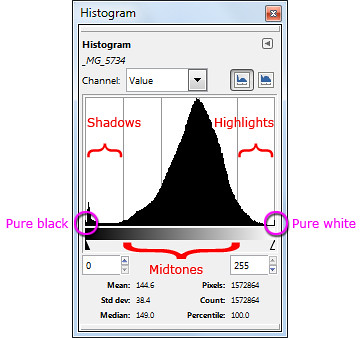
Different parts of a histogram. The photo is well-exposed.

Pict 2: Different parts of a histogram. The photo of the metal work lantern was well-exposed.

What is a histogram?

The histogram is basically a graph of the brightness levels of all the pixels in a photograph – from pure black (brightness value zero) on the left edge to pure white (brightness value 255) on the right edge.

An overexposed photo has its histogram bunched up to the right.

Pict 4: An overexposed photo has its histogram bunched up to the right.

Lavenders in the French Riviera - overexposed.

Pict 3: Lavenders in the French Riviera - overexposed.

The number of pixels in each of the 256 levels of brightness are counted and plotted on the Y axis as a bar chart to provide an idea of the tonal distribution of a photograph and its possible problems.

The region around the left edge of the histogram represents the shadows (dark tones) in the photo while the pixels near the right edge represents the highlights (bright tones). The middle region represents the midtones.

Analysing a histogram

When a photo is opened in GIMP, you can view the photo’s histogram by selecting the Windows > Dockable Dialogs > Histogram command from the main menu. By analysing the histogram, you can better decide how to use the tools in GIMP to enhance a photo’s brightness and contrast.

Flowers at Gourdon - underexposed.

Pict 5: Flowers at Gourdon - underexposed.

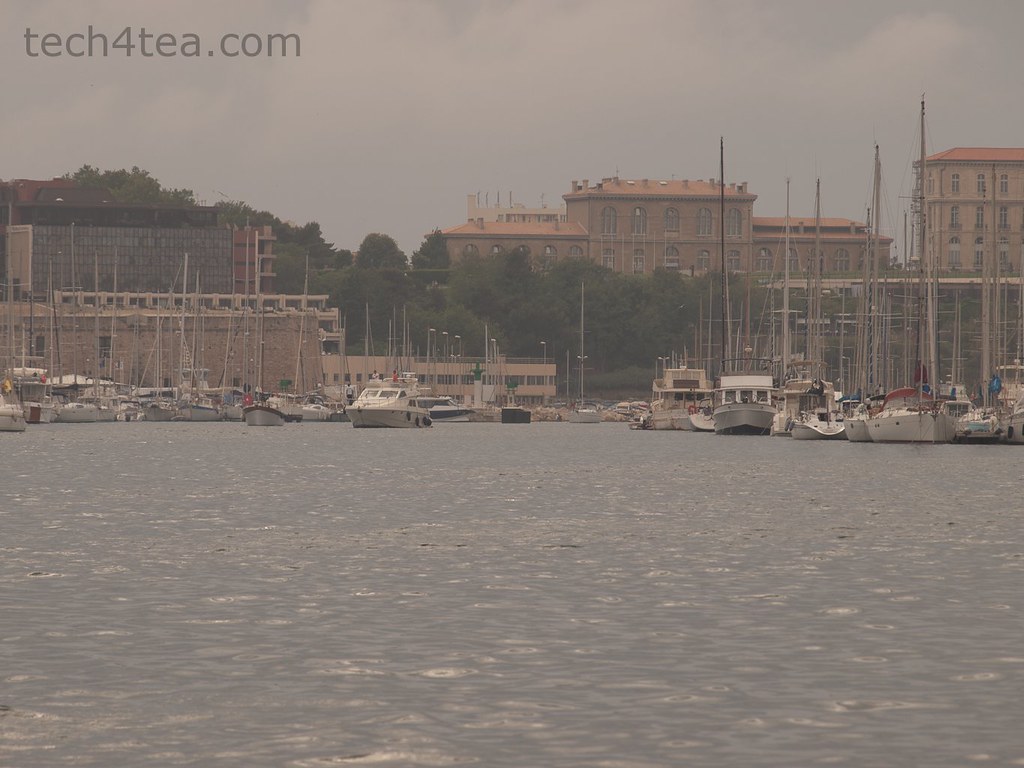
Port of Marseille on a dull and overcast day.

Pict 6: Port of Marseille on a dull and overcast day.

All bunched up in the middle - poor contrast.

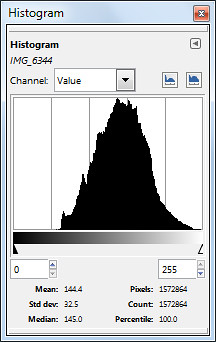
Pict 7: All bunched up in the middle - suggesting a photo with poor contrast.

A well-exposed photo usually has a histogram which looks like a bell-shape and which stretches from one end of the histogram to the other (see Pictures 1 & 2).

A photo that is overexposed (too bright) usually has a histogram that is bunched up on the right, while an underexposed photo will have a histogram that’s bunched up to the left (see Pictures 3 to 5).

A photo with poor contrast will usually have a histogram that is squashed up towards the middle. The photo appears dull and flat. The brightest pixels are not bright enough while the darkest pixels are not dark enough (see Pictures 6 & 7).

Exceptions

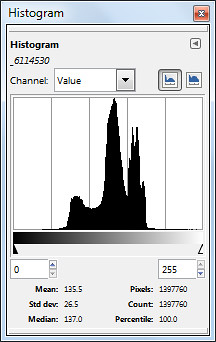
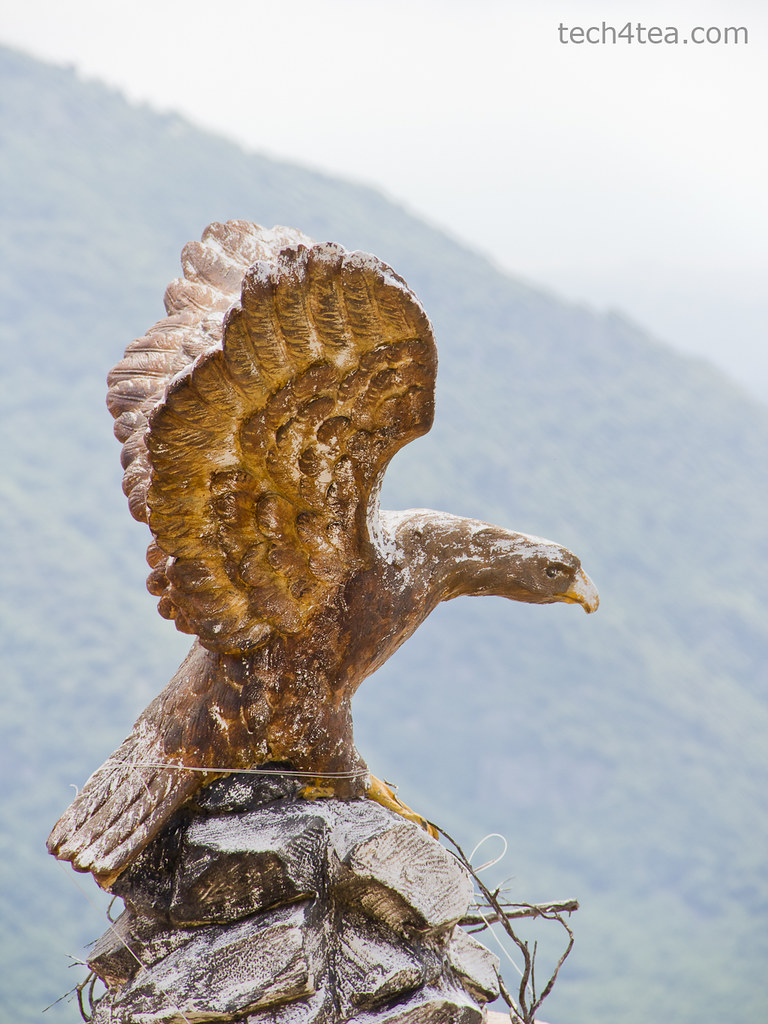
Note that there are exceptions under special photographic situations. For example, a photo that comprises mainly bright tones (such a scene comprising white snow against a light coloured sky) can have a histogram that is bunched up to the right, even though it is properly exposed (see Pictures 8 & 10).

Eagle perched atop Gourdon.

Pict 8: Eagle perched atop Gourdon.

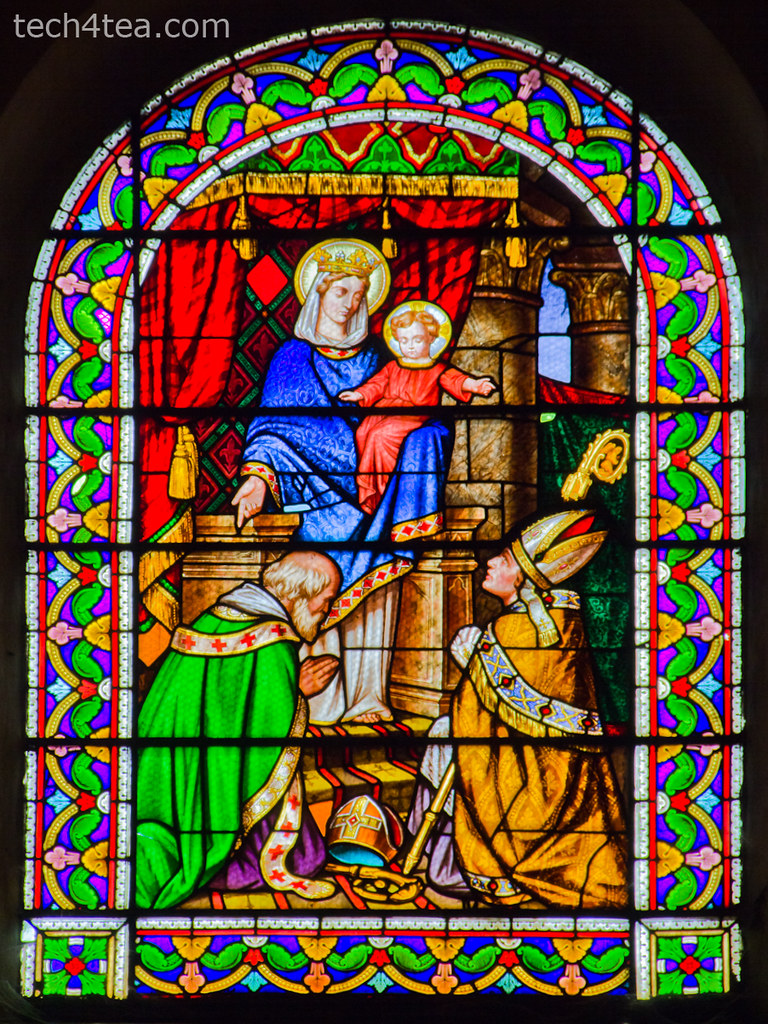
Stained glass window in Provencal church.

Pict 9: Stained glass window in Provencal church.

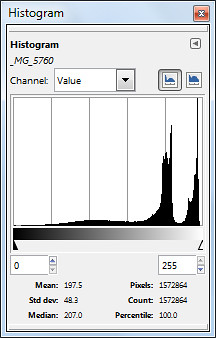
Similarly, a photo consisting of predominantly dark tones can have a histogram that is bunched up on the left – even when properly exposed (see Pictures 9 & 11).
 Bunching up to the right caused by bright background behind the eagle despite proper exposure.

Pict 10: Bunching up to the right caused by bright background behind the eagle despite proper exposure.

Stained glass window in Provencal church.

Pict 11: Histogram is bunched up because of the predominance of dark tones - despite proper exposure.

In the next  installment, we’ll use the Levels command to enhance a photo’s brightness andcontrast based on the characteristics of its histogram.

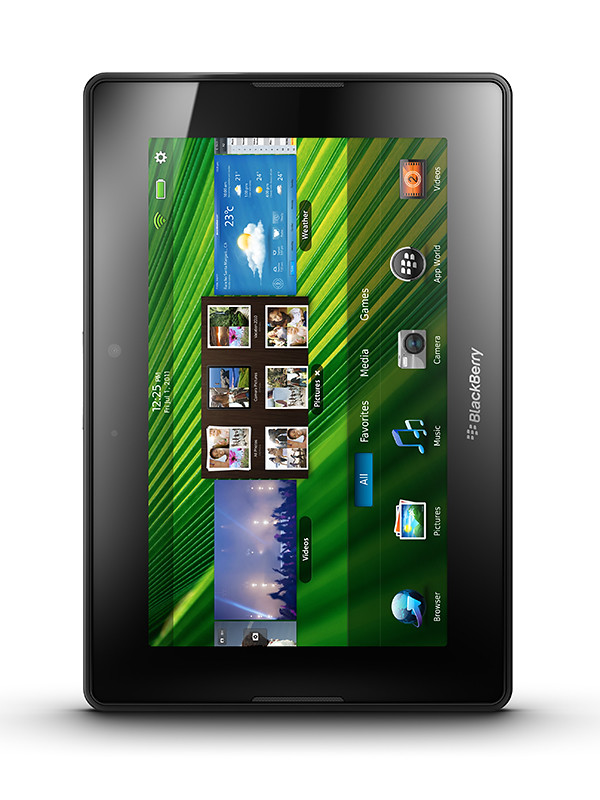
BlackBerry PlayBook’s first day sales beats Motorola’s Xoom and the Samsung Galaxy Tab.

Friday, April 22nd, 2011
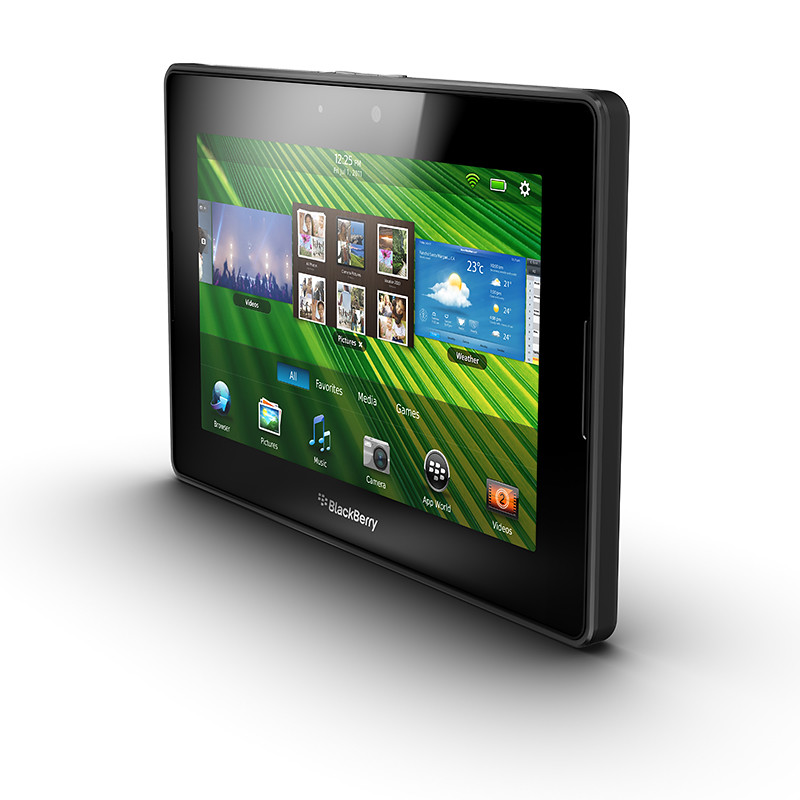
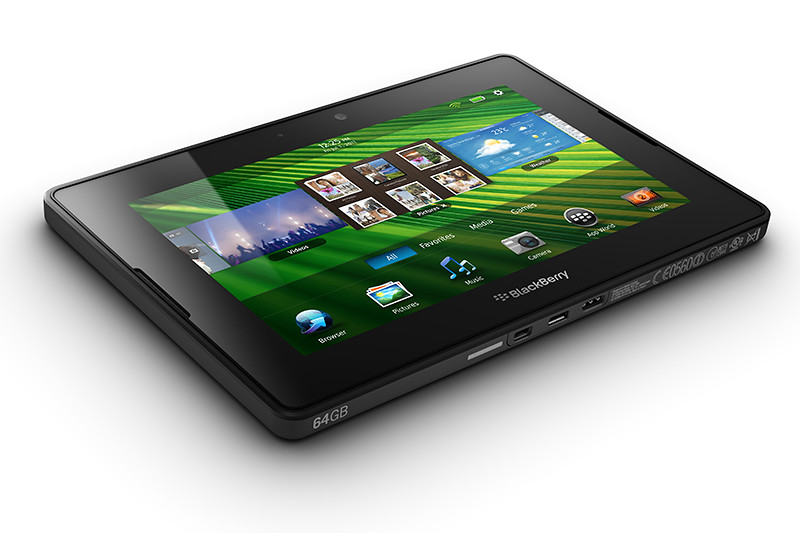
First day sales of the newly launched BlackBerry PlayBook from RIM was said to reach 50,000 on April 19. RIM is expected to sell 500,000 of the 7 inch tablets in its first quarter ending in May.

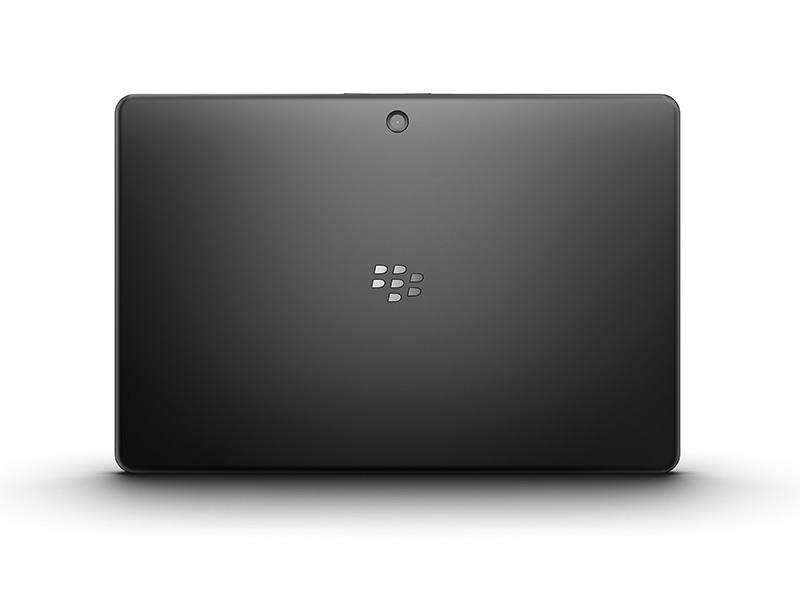
BlackBerry PlayBook from RIMThe first day sales number of 50,000 includes pre-sales and was estimated by an analyst at RBC Capital Markets. This appears to surpass the equivalent first day sales for Motorola’s Xoom and the Samsung Galaxy Tab.

Analyst Mike Abramsky’s staff checked 70 retails stores and found 11% of the locations that stocked the device had sold out, according to Matt Hamblen from Computerworld.

This may come as a surprise to many observers in view of the negative reviews that have bombarded Research In Motion (RIM) over the launch of the tablet computer.

Punters feel the software for the PlayBook was not ready yet because native support for email, contact and calendar apps were not available. Such support may only be provided as an over the air update in summer.

In the meantime, only those who own a BlackBerry smartphone can enable the PlayBook to access these basic apps via a Bluetooth connection. The tablet is only available in WiFi configuration with 3G available only in summer.

It is still too early to tell whether the PlayBook will be able to grab any market share from a tablet market seeing an influx of competitors to Apple’s iPad.

Apple profit almost double after iPhone’s Verizon debut

Thursday, April 21st, 2011
Profit for the second quarter almost doubled due to iPhone sales via Verizon, even though sales for newly launched iPad 2 were below estimates because of supply shortage.

Fears of growth being affected by supply disruptions from Japan’s earthquake and tsunami were also allayed.

2nd Quarter A year earlier Bloomberg survey
Net income
(almost doubled)
$5.99 billion,
$6.40 a share
$3.07 billion,
$3.33 a share
$5.04 billion,
$5.39 a share
Sales
(up 83%)
$24.7 billion $13.5 billion $23.4 billion

Apple began selling the iPhone through Verizon Wireless in February, and launched the iPad 2 on March 11.

Demand for the iPad has been so strong that Apple has not been able to make enough, leading to sales that were lower than what most analysts predicted.

2nd Qtr Analysts predictions
iPhones sold through Verizon 18.7 million 16.3 million
iPads sold 4.69 million 6.1 million
Mac computers 3.76 million 3.6 million
iPod media players 9.02 million 9.8 million

“Apple is ramping up production as it prepares to start selling the tablet computer in 13 additional countries this month”, Chief Operating Officer Tim Cook told Bloomberg.

Still, sales of products in the country may be $200 million lower as consumers coping with the temblor and tsunami buy fewer gadgets, he said.

Innards of the BlackBerry PlayBook

Wednesday, April 20th, 2011
Have you ever wondered what the insides of a tablet computer looks like? Teardown specialists iFixit has opened up the latest RIM BlackBerry PlayBook – launched only yesterday in the US.

Innards of the BlackBerry PlayBook

Innards of the BlackBerry PlayBook

The PlayBook was easier to tear down compared to an iPad, and has a smaller battery which is not straightforward to replace. The motherboard has to be removed in order to get to the battery, which is glued to the mid-plane assembly.

BlackBerry PlayBook from RIMMany of the chips are from Texas Industries. The main chips include:  1GHz TI OMAP 4430 dual core processor, SanDisk 1GB NAND Flash, Elpida B8064B2PB-8D-F 1GB DRAM, Bosch Sensortec BMA150 Digital 3-axis accelerometer, and an Invensense MPU-3050 3-axis gyroscope.

For those into chips, other components include: Texas Instruments TWL6030 Power Management, STMicroelectronics XTV0987 5 MP mobile imaging processor, Wolfson WM8994E audio codec, Texas Instruments WL1283 WLAN/Bluetooth/FM, TriQuint Semiconductor TQP6M9002 802.11a/b/g/n + BT front-end module.

Motherboard of the BlackBerry PlayBook

Motherboard of the BlackBerry PlayBook

Not detailed enough? There’s also the Texas Instruments LMV339 Quad General Purpose Low-Voltage Comparators, Texas Instruments SN74AVCH4T245 4-Bit Dual-Supply Bus Transceiver with Configurable Voltage Translation and 3-State Outputs, and a Texas Instruments PS63020 High Efficiency Single Inductor Buck-Boost Converter with 4A Switch 

For the gory details, visit iFixit’s report.

BlackBerry PlayBook Launch

Tuesday, April 19th, 2011

The 7-inch tablet from Research In Motion (RIM) hits the shelves in the US today. Here’s a quick roundup of the likes and dislikes from those who have tried out the shipping version of the BlackBerry PlayBook.

RIM PlayBookThere’s a lot to like about the PlayBook, but there’re also plenty of frustrations out there from those who’ve had the privilege of playing with the PlayBook. The general feel seems to be that the PlayBook has the potential to be something great – just that it’s not quite complete at the moment.

Already behind the iPad 2 and other Android tablets in terms of launch date, my feel is that RIM wants to get the hardware out as soon as possible before the specs get old – even though the software isn’t quite as ready yet.

RIM PlayBookDare I compare that with an evolutionary release of the iPad 2 with bigger steps only to be expected for the upcoming iPad 3?

With such stiff competition in the tablet market, it is no wonder these slate-makers are rolling off their products as soon as possible. In all honesty, I do believe RIM will sort out the grouses that reviewers have complained about, but the question is whether consumers are willing to fork out the dough to buy what’s beginning to be perceived as an unfinished product, that is only going to be made complete after a few more months – if ever.

RIM PlayBookPerhaps, RIM should have launched it at a discounted price – you know, an early bird discount – to entice consumers and grab market share. Given that the hardware is fabulous, the discount may have worked to convince consumers to buy first and wait out for the software to catch up.

At any rate, below is a quick round-up of the likes and dislikes from people who has played with the PlayBook so far. Prices for the 16, 32 and 64-gigabyte models in the US are $500, $600, and $700 respectively.

Likes Dislikes Mitigation
Fabulous display, and user interface Tiny recessed power button difficult to find and press Nothin’ much can be done about this – but do I care?
Sleek:
10mm / 0.4 inch thick 

Light:
0.9 lbs / 425 g

No native email, messenger, contacts and calendar Need to be Bluetooth tethered via a BlackBerry smartphone to access these. 

Native support could be added later on

Lightning fast processor No 3G connection 3G version in summer 

4G version end 2011

Impressive multi-tasking Small repository of Apps (~3,000) Compatibility with selected Android apps to be introduced later, plus build-up of PlayBook specific apps.
Supports Flash and HTML5 No video chat Video chat app to be released later.

BlackBerry Torch 9800 Review

Monday, April 18th, 2011
RIM touts the Torch as the best BlackBerry ever. I’ve been using one over the last two weeks. Indeed, it’s the best BlackBerry smartphone I’ve played with so far and I certainly prefer it over my wife’s BlackBerry Bold.

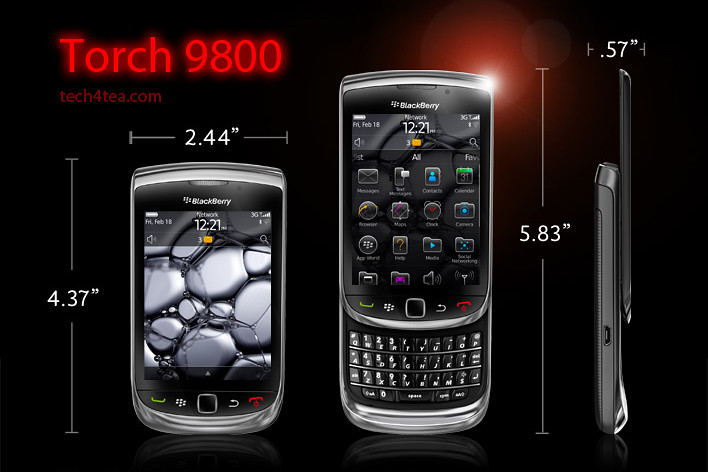
The BlackBerry Torch was the first smartphone from Research In Motion (RIM) that shipped with the new BlackBerry OS 6. It has a completely new keyboard implementation – instead of having the physical keyboard and the screen share the face of the device, the Torch allowed the 3.2 inch screen to hog the entire front.


BlackBerry Torch 9800 with 6.0 Operating System.

BlackBerry Torch 9800 with 6.0 Operating System.

An on-screen keyboard – which I found rather responsive – can be easily called up in case you need to type something. Need the traditional QWERTY keyboard to do some intensive typing? Slide it out from below the screen and you’re good to go.

It’s a trade-off, whether you have the hard keyboard readily available all the time or hide-in below the screen to make for a bigger screen.

For my usage profile, at least, I liked the balance – I do a fair bit of messaging and typing but I don’t mind having to slide out the keyboard when I need it – since I get a bigger screen real estate – 480×360 pixels on a 3.2 inch capacitive touch screen.

I did find the Bold keyboard slightly easier to type than on the Torch, but both are far more tactile and better than typing on a touch screen.

I suppose those who really have a lot of typing to do would rather have the keyboard available at all times – it depends on your usage profile. The Torch tries to give you both the large screen of the Storm and the popular hard keyboard in a compact body.

The hardware

The form factor is almost identical to many other BlackBerry devices like the Bold. The usual five buttons line the bottom of the screen: BlackBerry call, menu, back, and end buttons and optical trackpad.

The Marvell CPU runs at 624MHz (though the company claims this is a newer generation chip), with 512 MB RAM and 4 GB of storage. You can add up to 32 GB though the microSD slot. The device also comes with 802.11b/g/n WiFi, Bluetooth 2.1 and an AGPS chip.

Photos were rather impressive for a phone camera

Photos were rather impressive for a phone camera

The Torch has a 5 megapixel camera, with an LED flash. Photo quality was rather remarkable for a smartphone camera.  I like the preset scene modes – Party mode for lowlight indoor shooting and Sports mode both yielded impressive results. Video wise, you can shoot clips at 640×480 resolution.

New OS and interface

With the new OS 6, web browsing on the Torch is now quite a pleasant experience using the new Webkit-based browser. Unfortunately, neither Flash nor HTML5 video are supported.

I really love the persistent notification alert bar at the top of the home screen: the small row of icons allows you to see social networking, email, SMS, call, and calendar alerts all in one place. The bar drops down a separate window to show the list of notifications, each of which can be clicked on to bring you to the app.

11 scene modes are available for taking photos under different situations

11 scene modes are available for taking photos under different situations

Another new feature I like is the universal search. Ever wanted to look for something you know is on your phone but can’t recall exactly where it is located and how to get at it? Simply begin typing the relevant search term into the search box and the Torch throws the icon for it right at you – almost instantaneously. It really beats having to wade through the menus and interface looking for contacts, messages, calendar, music or pictures.

has included a powerful universal search alongside a social networking tool which allows you to aggregate RSS feeds and services like Twitter or Facebook into a single view. There are a lot of changes, so we’re going to go step-by-step through what we consider the biggest changes for the BlackBerry platform.

Battery life

As with other BlackBerry devices I’ve tested before, battery seems to last forever. Alright, that’s exaggerating. There were days when I ran Youtube videos and videos from the media folder for extended periods of time and the battery held out. Under normal usage, I only had to recharge the battery every few days.

BlackBerry Torch 2

There’s been numerous leaks about what the upcoming BlackBerry smartphones lined up for 2011. One of them is the Torch 2. Expected to be announced during the BlackBerry World in May and released in the US in July, it looks physically like the Torch, but features a 1.2 GHz processor and a 640×480 resolution on a similarly-sized 3.2 inch screen.

Going by previous BlackBerry release schedules, we’ll probably only see the Torch 2 in Singapore towards the end of the year.

In the meantime, if you’re looking at replacing your current BlackBerry phone, do give the Torch a spin and see if it impresses you enough for you to pick one up as replacement.

BlackBerry Torch 2 sneak peek

Sunday, April 17th, 2011
The BlackBerry Torch 2 is rumoured to be announced during the BlackBerry World in May and then go on sale in the US in July later this year. With the release of the PlayBook tablet next Tuesday in the US, RIM has a few more models in line to keep its fanbase riveted for the rest of the year.

Photo of BlackBerry Torch 2There has been plenty of leaks from RIM (Research In Motion) about upcoming BlackBerry models for 2011. These include the BlackBerry Touch (Monaco/Monza), Bold Touch, Storm 3, Bold (Dakota), Curve (Apollo), and the Torch 2.

Having gotten hold of a Torch 2, BGR reports that the new device looks almost identical to its predecessor but features a significantly more powerful 1.2 GHz processor. Coupled with the BlackBerry OS 6.1 and a 3.2 inch 640×480 VGA display, it will be an exciting gadget to own.

Processor power has been doubled from the current 624 MHz, and the 3.2 inch screen runs at a higher pixel resolution than the 480×360 pixels on the current BlackBerry Torch.

Going by previous BlackBerry release schedules, we’ll probably only see the Torch 2 in Singapore towards the end of the year.

The main specifications of the Torch 2 are listed below:

  • CPU – 1.2 GHz processor
  • Display – 3.2″ VGA (480 x 640) capacitive touchscreen display
  • Radio – Quad-band GSM/GPRS/EDGE ; Tri-band HSPA 14.4Mbps
  • Memory – 8GB storage + 512MB RAM + up to 32GB MicroSD
  • Connectivity – WiFi, Bluetooth, NFC
  • Camera – 5 megapixels
  • Battery – 1300MAh battery
  • Thickness – 14.6mm thick
  • Sensors – magnetometer, digital compass

Designing a poster in GIMP (Part 11 of 14)

Saturday, April 16th, 2011
Layers and layer masks are what differentiates a powerful image editor like GIMP from a basic photo editor. Design a poster for your living room from your favourite photo.
Make a poster or postcard from your favourite photo.

Make a poster or postcard from your favourite photo.

Ever wanted to make a postcard or a poster from your favourite photo? Here are some techniques using layers and layer masks in GIMP.

Add a grid of white dots

Open the photo in GIMP. From the Layers dialog, you can see it resides in the Background layer which is the only layer for the moment.
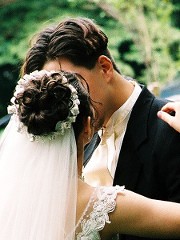
The original photo from morguefile.com.
The original photo from morguefile.com.

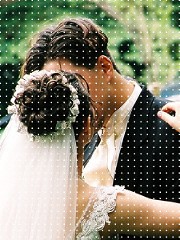
A grid of white dots is overlaid onto the photo.

A grid of white dots is overlaid onto the photo.

Add a new layer by clicking the icon at the bottom left corner of the Layers dialog. In the “New Layer” dialog box that pops up, select the radio button for “White” option under Layer Fill Type and press the OK button.

A new empty layer filled with white is added above the original photo in the Background layer.

Right-click on its thumbnail in the Layers dialog and select “Add Layer Mask” command from the pop-up menu. In the “Add Layer Mask” dialog box that pops up, select the “White (full opacity)” option and press the OK button. A layer mask filled with white is added to the layer – you can see its thumbnail beside the original thumbnail in the Layers dialog.
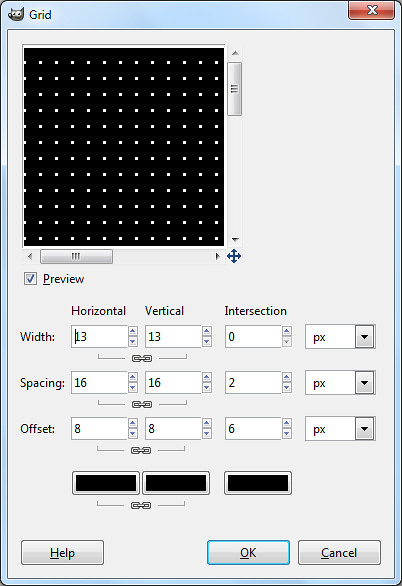
Use the Grid filter to create the grid of white dots.

Use the Grid filter to create the grid of white dots.

From the main menu, select the “Filters > Render > Pattern > Grid” command. In the Grid dialog box that pops up, increase the horizontal width setting until the preview in the dialog box shows a grid of white dots of the desired size. Here I used a setting of 13.

The white layer now appears as a grid of white dots overlaid on the original photo.

Right-click on the upper layer in the Layers dialog and select “Apply Layer Mask” to merge the layer mask into the original solid white layer. The layer mask is removed and the layer becomes a transparent layer with a grid of white dots overlaid on the photo below.

Hiding the white dots from the heads and faces

Use a layer mask to hide the white dots from the heads and faces.

Use a layer mask to hide the white dots from the heads.

Add a new layer mask on this layer, again selecting the “White (full opacity)” option in the  “Add Layer Mask” pop-up dialog box.

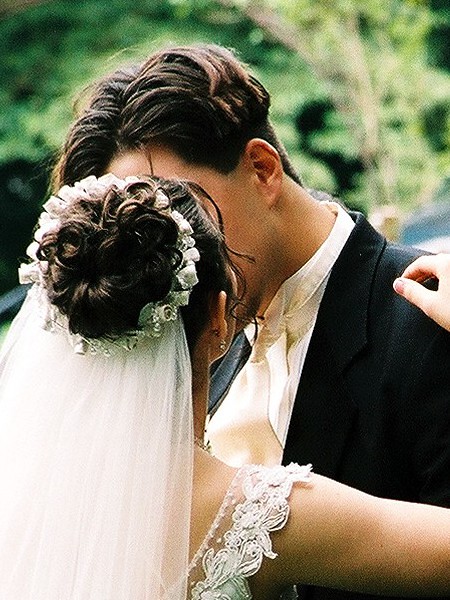
Press “D” on the keyboard to reset the Foreground colour to black. Activate the Paintbrush Tool from the Toolbox and paint on the layer mask in the image window. Paint around the heads and faces of the wedding couple to hide the white dots in that area.

From the main menu, select the “Layer > New from Visible” command to create a new layer that combines all the visible layers in one layer.

Adding the green arc

In the Layers dialog, click to select the layer below the new combined layer. This is so that any new layers created will be added BELOW the combined layer.
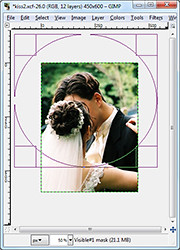
Zoom out until the photo is smaller than the image window.

Zoom out until the photo is smaller than the image window.

Set the Foreground colour to green (or your preferred colour). Add a new layer by clicking the icon at the bottom left corner of the Layers dialog. In the “New Layer” dialog box that pops up, select the radio button for “Foreground color” option under Layer Fill Type and press the OK button.

A new layer filled with green is added just below the combined layer.

Right-click the combined layer in the Layers dialog to add a layer mask to the layer, using the “White (full opacity)” option. Press the minus key (“-”) on the keyboard to zoom out the view in the image window.

As the photo becomes smaller than the image window, you will see white space between the edges of the photo and the edges of the image window.

Adding a green arc at the bottom of the poster.

Adding a green arc at the bottom of the poster.

Activate the Ellipse Select Tool from the Toolbox and drag an elliptical selection around the couple’s heads. You can begin dragging in the white space between the photo and the edge of the image window so that the elliptical selection covers most of the photo except for a small arc at the bottom of the photo.

Remember you can adjust the size and position of the elliptical selection by dragging the side or corner control handles of the selection outline. Once happy with the selection, use the “Select > Invert” command from the main menu to invert the selection.

Press “D” on the keyboard to reset the Foreground colour to black. Select the “Edit > Fill with FG Color” command to fill the arc with black (in the layer mask).

An arc of green is revealed below the photo.

Adding the white highlight

Click on the green layer in the Layers dialog to select it.

Add a white highlight band in the green arc.

Add a white highlight band in the green arc.

Add another new layer, this time selecting the radio button for “White” option under Layer Fill Type. The new white layer is added above the green layer but below the combined layer.

Add a layer mask to the white layer, selecting the “Black (full transparency)” option in the pop-up dialog box. A layer mask filled with black is added to the layer.

Press “D” to reset the Background colour to white. Using the Rectangle Select Tool from the Toolbox, select a vertical band and use the “Edit > Fill with BG Color” command from the main menu. A white band is added to the layer mask such that a white band runs through the green arc.

Adding the text captions
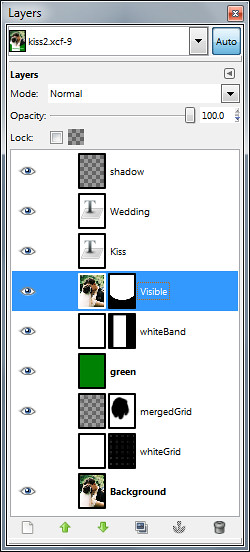
GIMP's Layers dialog.

GIMP's Layers dialog.

Click the combined layer (the topmost layer) in the Layers dialog to select it, so that any text captions added will be added above it.

Activate the Text Tool from the Toolbox. In the Tool Options below the Toolbox, set the font, size and colour settings for the Text Tool. Click in the white band in the arc with the cursor and type the word “Wedding”. Click in the green portion to add the word “Kiss”.

After adding the captions, you can still change the font, size and colour setting for these captions by selecting them first with the Text Tool and then modifying them in the Tool Options.

Add edge shadow

Add a new empty layer right at the top of all other layers. Activate the Blend Tool from the Toolbox. Press “D” to reset the Foreground colour to black and the gradient to “FG to Transparent”.

Again, zoom out the photo (by pressing the minus key on the keyboard) until the photo is smaller than the image window. Drag a black-to-transparent gradient from outside the right edge of the photo (but inside the right edge of the image window) to slightly inside the right edge of the photo.

Save the file in .xcf format so that you can come back to tweak the design in the future. Save as .jpg to send the file for print at the studio.

BlackBerry PlayBook preview in Singapore

Friday, April 15th, 2011
The BlackBerry PlayBook Bus will tour Singapore tonight, showing off a preview of RIM’s 7-inch tablet computer, that is due to be launched in the US on 19 April next Tuesday.
Preview of the BlackBerry PlayBook in Singapore

Preview of the tablet on the BlackBerry PlayBook Bus in Singapore

Keep a lookout for the limo bus driving around town tonight. Sources tell me it will launch from the Tanjong Pagar area. The first time that the BlackBerry PlayBook debuted in Singapore was back in March. But the two devices I played with were still beta release versions.

Tonight, the preview will provide some hands-on for the real McCoy. Perhaps RIM (Research In Motion) will also provide some hints as to when the aspiring challenger to the iPad will be launched in Singapore and at what pricing.

For now, here’re some of the main specs of the BlackBerry PlayBook:

Looks
7″ LCD display, 1024 x 600 WSVGA Multi-touch capacitive screen

Physical feel
0.9 lbs (425g) and 5.1″ x 7.6″ x 0.4″ (130mm x 194mm x 10mm)

Performance
1 GHz dual-core processor
1 GB RAM
Symmetric multi-processing
Full Adobe Flash 10.1 enabled
Built-in support for HTML 5

Configuration
Internal storage of 16, 32 or 64 GB
GPS, Orientation Sensor (Accelerometer), 6-Axis Motion Sensor (Gyroscope), Digital Compass (Magnetometer)
Stereo speakers and stereo microphones
Wi-Fi (802.11 a/b/g/n) connectivity, Wirelessly connect to your BlackBerry smartphone for real time access to: Email, calendar, address book, task list and BBM

Cameras
3 MP high-definition forward-facing camera
5 MP high-definition rear-facing camera
Codec support for superior media playback, creation and video calling
1080p HD video; H.264, MPEG4, WMV HDMI video output
Micro USB and Micro HDMI ports
Video calling with dual video cameras

BlackBerry Tablet OS
Powered by QNX technology, supports POSIX OS, SMP, Open GL, BlackBerry 6, WebKit, Adobe Flash, Java and Adobe Mobile AIR