Most free and basic photo editors offer a basic Brightness/Contrast command that allows the user to easily adjust the brightness and contrast of a photo. GIMP tool also has the equivalent in the Colors > Brightness-Contrast command from the main menu.
This basic adjustment command uses a rudimentary algorithm that treats all pixels equally and adjusts them to the same extent. It’s useful if all you need is a quick and dirty adjustment to the photo.
For almost the same effort, the Levels command provides better control and the algorithm yields better results adjusting pixels to different extents depending on the settings you make.
That is why for many free photo editors, more advanced tools like the Levels and Curves command are not available or are only available when you upgrade to a paid version. In GIMP, these tools available for free.
Using the Levels command
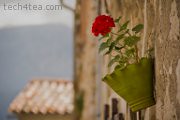
Pict 3: This photo of a hanging potted plant is slightly underexposed because the camera has been fooled by the bright background.
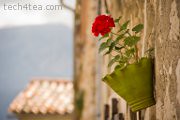
Pict 4: The red petals are now more vibrant and discernible after the photo has been enhanced with the Levels command in GIMP.
Last week, we looked at how to analyse a photo’s characteristics and problems by examining its histogram in GIMP.
Using the histogram as a basis, we’ll learn to use the Levels command to improve the tonal distribution of a photo such that the overall brightness and contrast of the photo is just right and the entire range of brightness values (from 0 to 255) available is fully utilised.
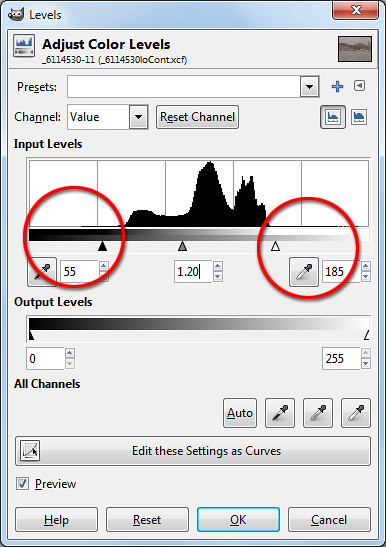
With the photo open in GIMP, choose the Colors > Levels command from the main menu. A complicated looking Levels dialog box pops up showing a histogram of the photo as well as many controls and input fields to control the histogram is to be adjusted.
The reason why many beginners hesitate to use the Levels command is the seeming complexity of the dialog box. But in most cases, all you need is to drag one to three of the triangular sliders directly below the histogram. Here’s how.
Darkening a photo
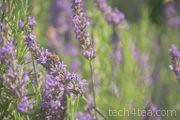
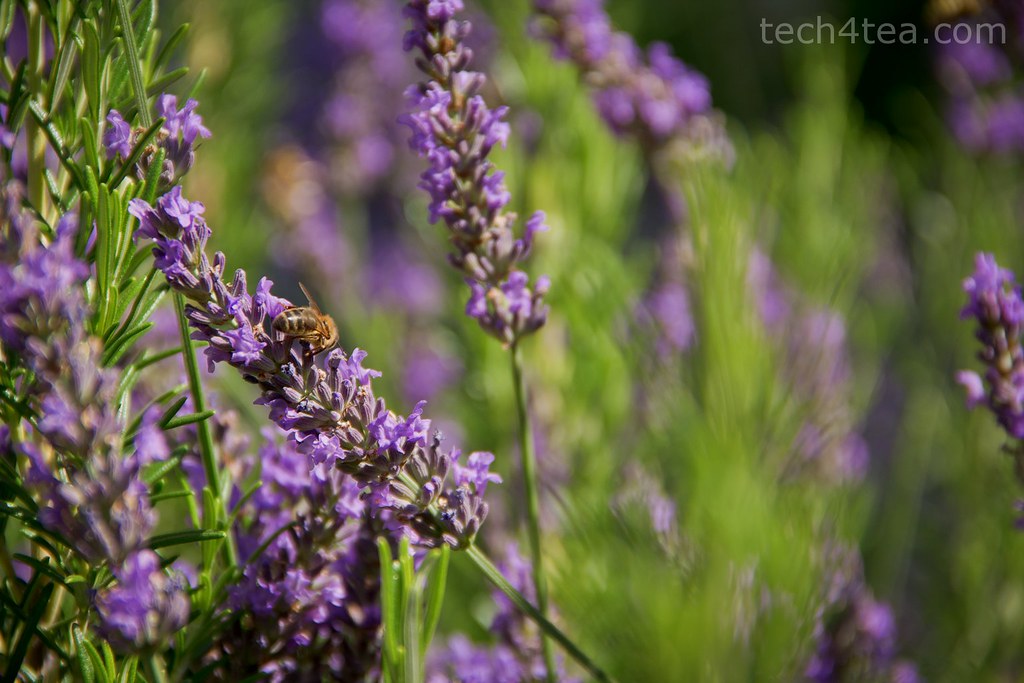
Pict 5: Busy bee working on Lavender flowers in Provence, south of France.
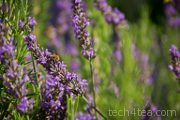
Pict 6: The photo after darkening using the Levels command in GIMP.
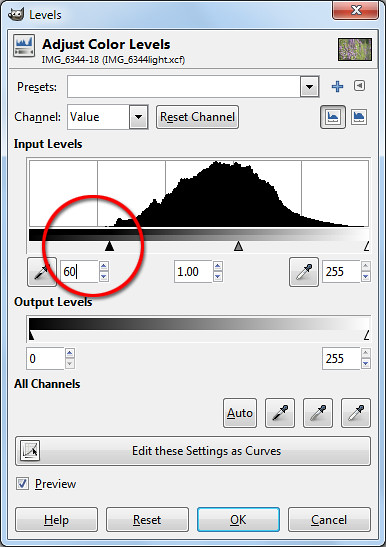
For the slightly overexposed photo of the lavender flowers, the histogram shows that none of the brightness values below 60 is utilised. Drag the blackpoint triangular slider from the left edge inwards towards the right until it is at the point where the main bulk of the histogram starts to form (see Pictures 5 to 7).
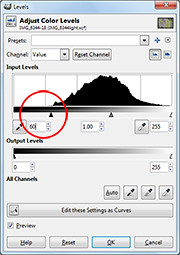
Pict 7: Drag the triangular slider from the left edge inwards towards the right.
The three boxes below the histogram shows the numeric brightness values of where the sliders are. It serves as a reference or when you need to key in specific numeric values to use. Most of the time, you should simply drag the slider inwards based on where the bulk of the histogram begins.
Dragging the blackpoint slider to 60 tells GIMP to darken pixels of brightness 60 and below down to zero. The other pixels in the histogram are correspondingly darkened as well. This also increases the overall contrast of the photo because a wider range of brightness value is now used in the photo.
To further finetune the brightness of the photo, drag the centre slider to the left or right to lighten or darken the mid-tones.
Lightening a photo
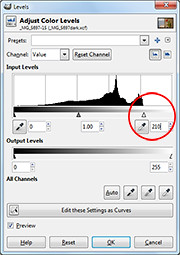
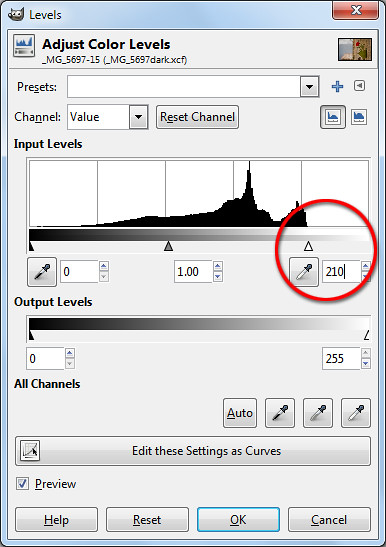
Pict 8: Drag the triangular slider from the right edge inwards towards the left.
For the slightly underexposed photo of the potted flower on the wall, the histogram stops short at around the brightness level 210. Drag the whitepoint triangular slider from the right edge inwards towards the left until it is at the point where the main bulk of the histogram ends (see Pictures 3, 4 and 8 ).
Dragging the whitepoint slider to 210 tells GIMP to set 210 as the white point – all pixels that are of brightness 210 and greater are increased to the maximum of 255. The other pixels are correspondingly lightened as well.
As before, the overall contrast of the photo is increased because the entire range of brightness values is now used in the photo.
Again, drag the centre slider to the left or right to lighten or darken the mid-tones further.
Adjusting all three sliders
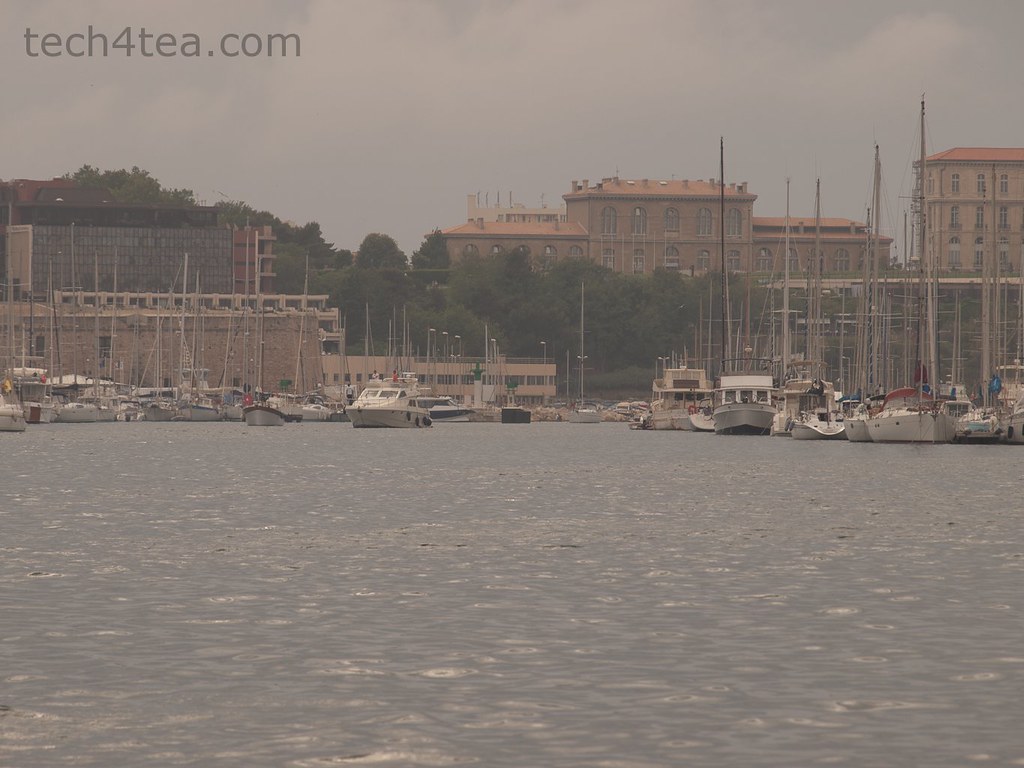
The snapshot of the port of Marseilles was taken on an overcast evening and is not only too dark but sorely lacking in contrast, resulting in a dull and flat photo (See Pictures 1 & 2).

Pict 10: The histogram is now spread across the entire range of brightness.
The histogram in the Levels dialog box shows that all the pixels are bunched up in the mid-tones – there are now extreme white or black pixels – so the highlights are not bright enough while the shadows are not dark enough.
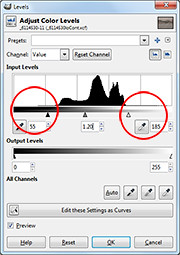
Pict 9: Drag the blackpoint and whitepoint triangular sliders from both edges inwards.
In this case, drag the blackpoint and whitepoint sliders inwards to where the bulk of the histogram begins and ends (see Picture 9). This darkens the shadows and lightens the highlights forcing the bunched up histogram to spread out across the entire range of brightness – thereby increasing the overall contrast of the photo.
As the photo is still too dark, drag the centre slider to the left to further brighten the photo.
The resulting histogram after the adjustment is now spread out across the entire brightness range (see Picture 10).