Archive for 2011

Perspective correction and cropping (Part 3 of 14)

Monday, January 3rd, 2011
Paintings on windows suffering from perspective distortion

Pict 1: These beautiful window paintings were on a wall right beside the Papal Palace in Avignon - France. The sides of the paintings taper inwards because of the steep upwards angle from which I snapped the shot.

Correct the distortion in perspective that is common when taking snapshots of tall buildings. Crop a photo to exclude distractions, or to change the composition of the photo.

Yesterday, we got ourselves oriented to the user-interface of GIMP, and tried our hand at straightening a crooked photo. Today we continue with common but simple photo-editing tasks like perspective correction and cropping.

Correcting perspective distortion

When taking photos of a tall building from an oblique angle, or while standing near it, the top of the building tends to taper inwards towards the top (see Picture 1). This distortion is called converging verticals and makes the building look as if it is falling backwards.

Distortion in perspective corrected using GIMP

Pict 2: Distortion in perspective corrected using GIMP

To minimise such distortions, you can either go as far away as possible from the building (unfortunately you usually don’t get such luxury of space) and try to snap the building flat-on, or invest in an expensive camera accessory called a tilt-shift lens.

In GIMP, you can correct such distortions in perspective easily and for free – simply use the Perspective tool (see Picture 2).

Select the Perspective tool from the Toolbox (see Picture 3). In the settings section in the lower half of the Toolbox, select the following options: Corrective (Backward) radio button for Direction, and “Image + Grid” from the dropdown box for Preview.

Pick the Perspective Tool from the Toolbox

Pict 3: Pick the Perspective Tool from the Toolbox

Perspective adjustment grid overlaid on photo

Pict 4: Drag the gridlines until the vertical and horizontal gridlines are aligned with the horizontal and vertical edges in the photo.

Click on the photo. A grid is overlaid onto the photo and a Perspective dialog box appears (ignore it for the moment). Drag the mouse within the grid to distort the gridlines.

Distort the grid until the vertical gridlines are aligned with the sides of the building walls, and the horizontal gridlines are aligned with the horizon and rooflines in the photo (see Picture 4).

Click the Transform button in the dialog box and the distortion is corrected.

Cropping

After using the Rotate or Perspective tool on the photo, empty areas are added around the corners that need to be cropped away. Cropping is also done to remove distractions from the surrounding and fill the frame with the main subject.

Area in photo highlighted for cropping

Pict 5: Highlight the area in the photo to be retained by dragging with the Crop Tool.

It is also done to adjust the aspect ratio say, from 4:3 to 3:2, or to crop a flat landscape-oriented photo into a tall portrait-oriented one. Many times, the photographer may simply want to enhance the composition of the photo by improving on the original framing of the photo.

Select the Crop tool from the Toolbox. Drag a rectangular selection around the area to be retained in the photo (see Picture 5).

A rough selection is good enough because the crop selection can be adjusted easily.

Photo cropped to zero into two of the paintings

Pict 6: The photo was cropped to zero into two of the paintings.

Mouse over the side or corner of the selection and the cursor changes to include arrows that show which direction the selection can be adjusted. Click and drag these adjustment handles to adjust the crop selection inwards or out.

To move the position of the crop selection itself (without altering its size and shape), move the mouse over the centre of the selection and drag it to its new location within the photo.

Once you are happy with the crop selection, press Enter on the keyboard to crop the photo (see Picture 6).

Tomorrow, we’ll look at how to make simple exposure adjustments to darken or brighten an overexposed or underexposed photo.
Straightening a crooked photo using GIMP (Part 2 of 14)

Sunday, January 2nd, 2011
Get oriented to the user interface of GIMP, and get your feet wet with a basic correction like straightening a crooked photo.

Yesterday, we took a peek at some of the things that GIMP can be used to correct or enhance a digital photograph. Today we get our toes wet putting GIMP to work actually doing something simple.

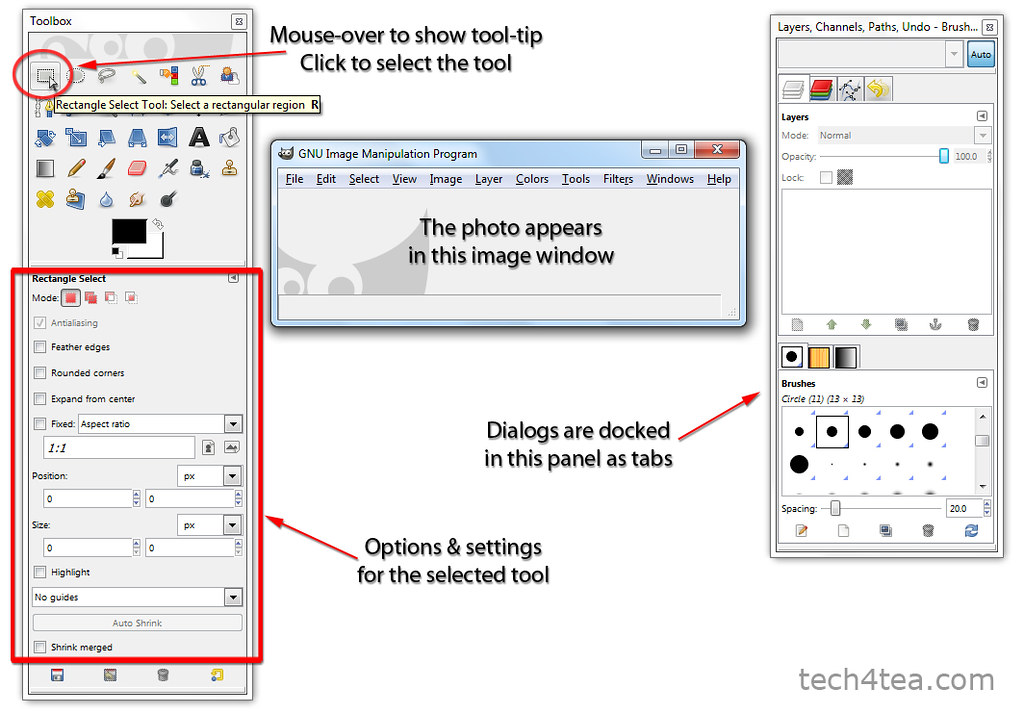
Getting oriented to the interface (see Picture 1)

User interface of GIMP

User interface of GIMP

When you first fire up GIMP, you will see three separate windows on the screen. The centre empty window is the image window where the photo appears when you open a digital photo file.

To the left is the Toolbox which contains icons representing the tools available in GIMP. These tools include those for painting, selecting or moving parts of the photo. Mouse over an icon to display tooltips about which tool is associated with the icon, a brief description of what the tool does, and its keyboard shortcut.

Clicking an icon selects the tool. The relevant settings and options for controlling the selected tool are displayed in the lower half of the Toolbox.

To the right of the image window, there is another panel containing “dialogs” for manipulating image layers, colour channels and Undo History. Each of these dialogs is organised as a tab in the panel and can be displayed by clicking on the tab heading of the dialog.

Opening a photo

Open Image dialog box in GIMP

Open Image dialog box in GIMP

The main menu for GIMP can be found along the top of the image window. To open a photo file, choose the File > Open command from the main menu.

Inside the “Open Image” dialog box (see Picture 2) that pops up, a list of folders is displayed in the “Places” column to the left. Click the relevant folder and the files and subfolders in it are displayed in the centre “Name” column. Double-click a subfolder to further dive into its contents until you get to the photo you want to open.

Clicking a photo file will generate a thumbnail preview to the right. Click the “Okay” button at the bottom to open the photo.

You can have more than one photo open in GIMP at a time. Each photo will appear in its own separate image window.

Straightening a crooked photo

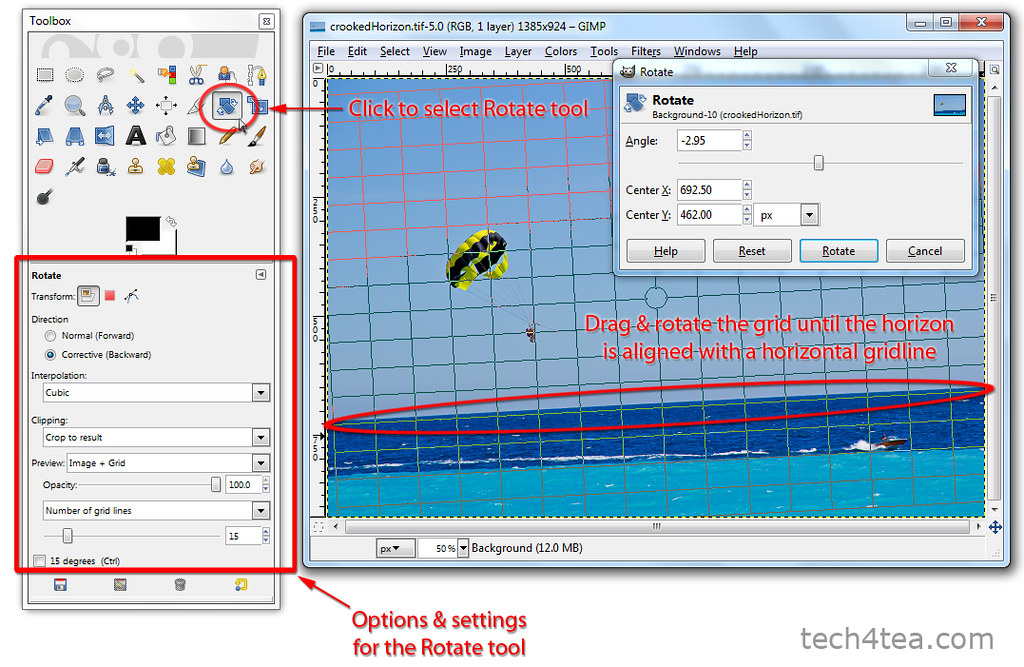
Select the Rotate Tool and adjust the grid overlay

Select the Rotate Tool and adjust the grid overlay

A common reason for discarding photos is when they are crooked because the camera was not held level when the snapshots were taken – the horizons are not horizontal or the buildings are tilted. Here is how to straighten a photo by rotating it in GIMP.

First, click on the Rotate tool icon in the Toolbox (see Picture 3) to select it.

In the lower half of the Toolbox, select the “Corrective (Backward)” radio button for Direction, and select “Image + Grid” from the dropdown box for Preview. These are the settings that I find most intuitive for straightening crooked photos. Set the Clipping to “Crop to result” for GIMP to crop off the corners after the photo has been rotated.

Click on the photo in the image window. A Rotate dialog box appears (ignore it for the moment) while a grid is overlaid onto the photo in the image window. Drag the mouse within the grid to rotate the grid. Rotate the grid until the horizon in the photo is aligned with a horizontal line in the grid. You can also align lampposts or sides of buildings that are supposed to be vertical to the vertical lines of the grid.

Photo of sea with slanted horizon

I took this photo off the beach in Nice, France. The camera was not level and resulted in a slanted horizon.

Straightened photo with horizontal horizon

The photo was straightened using the Rotate Tool in GIMP so that the horizon has become - but of course - horizontal.

Once you are happy with the alignment of the photo to the grid, click the Rotate button in the dialog box and the photo is straightened (see Pictures 4 and 5). Select the Image > Autocrop Image command from the main menu to crop away the empty spaces around the photo.

Tomorrow, we’ll try out the Perspective Tool to correct distortion when snapping photos of tall buildings and the Crop tool for recomposing snapshots.

Free photo editing with GIMP (Part 1 of 14)

Saturday, January 1st, 2011

Touch up and enhance your digital photographs using GIMP – the free photo editor. This is the first of a 14-part series on the basics of using GIMP for the absolute beginner.

Photo of dog ornament with strong blue cast

Picture 1: This photo of a dog ornament in a flower pot was taken in Tsumago in Japan. A wrong white balance setting in the camera resulted in a strong blue cast

Today is the first day of 2011. What better way to start a New Year than to pick up a new skill – like using a free photo-editor to edit your digital photographs?

Wow your friends when you next show them your vacation photos by enhancing your snapshots with a photo editor on the computer.

Digital cameras nowadays produce pretty decent photos even for a novice photographer. But a few fast and easy tweaks in a photo editor on a computer can make them look as if they were taken by a pro.

Photo of dog ornament with dull colours

Picture 2: GIMP can be used to remove the blue cast in the original photo. However, the colours remain dull and uninspiring.

Does your spouse look like a visitor from Pluto in those snapshots? Use the photo editor to remove that awful blue colour cast in the photo (see Pictures 1 and 2).

Do those vacation photos look dull and flat because they were taken on an overcast day? Make those snapshots pop by intensifying the colours and increasing contrast with a few clicks of the mouse (see Picture 3).

Free photo editors

Beautifying or correcting your digital photos does not need to cost you an arm and a leg. There is a plethora of free but capable photo editors available on the Internet.

Photo of dog ornament with enhanced colour and contrast

Picture 3: The colour and contrast of the photo has been enhanced to make it "pop".

www.picnik.com is an online photo editor while Google’s Picasa is a desktop based editor that comes with an image browser. Both of these enable simple tweaks and addition of special effects to digital photos through easy-to-use interfaces.

GIMP is my favourite recommendation to those who want more powerful photo editing features but is reluctant to dish out the moolah for the industry standard Photoshop CS5 (S$1091).

Over the next two weeks, I will be posting a short how-to each day on the basics of using GIMP – a free photo editing software that you can download from the Web.

What is GIMP?

The name GIMP is an acronym for “GNU Image Manipulation Program”. It is a free desktop-based photo-editor with features and interfaces similar (but not identical) to Photoshop. It runs on Windows XP SP2 or newer, Mac OS X and Linux. Go to www.gimp.org/downloads and follow the links to the relevant installers for different operating systems.

Tightly cropped final photo of dog ornament

Picture 4: The photo was tightly cropped around the dog ornament to make it fill the frame.

Using GIMP, you can do simple tasks like straightening a crooked photo, or cropping out distractions in the background to fill the frame with the main subject (see Pictures 4).

Powerful tools, like Levels and Curves, enable fine control of exactly which part of a photo to tweak for colour and contrast adjustments.

For advanced adjustments and compositing, a few photos or different parts of the a single photo can be put on separate layers and manipulated independently of each other.

Tomorrow, we’ll get ourselves orientated to GIMP’s interface, and set it to work straightening a crooked photo.