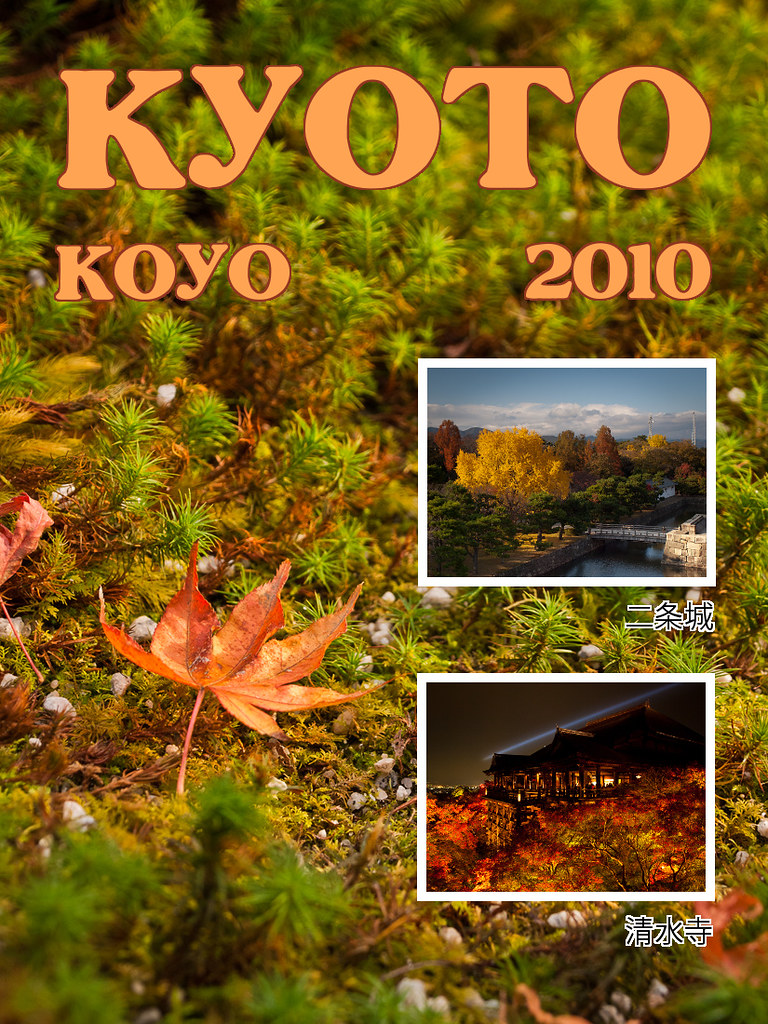
Pict 1: Scrapbook cover/page
They share their photos online even while they’re still overseas on holiday, but nothing beats a physical coffee-table scrapbook for family and close friends to thumb through and pore over.
In the first half of this tutorial today, we’ll use a photo as a background for a scrapbook cover/page and bring in additional photos. We’ll resize them as thumbnails and position them on the page.
In the second half tomorrow, we’ll add text titles and captions, and add outlines to them, as well as the thumbnails.
Including additional photos as layers
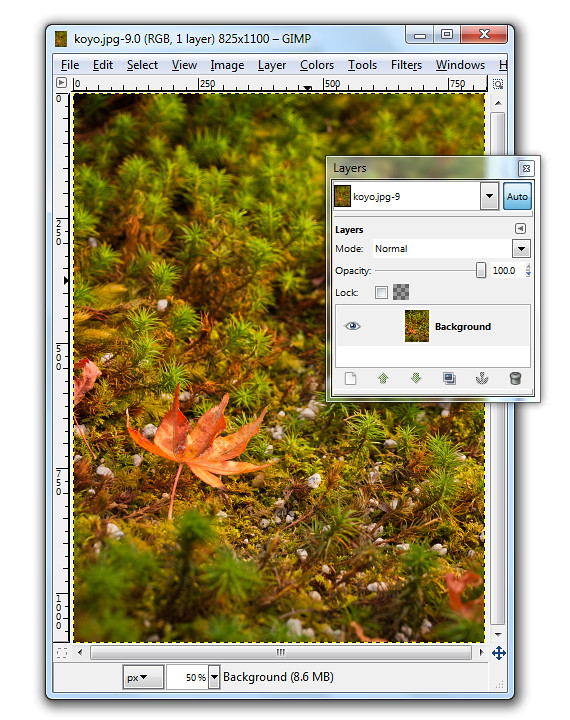
Pict 2: Single Background layer when photo is first opened. This lonesome koyo was languishing on the grounds of the Ginkakuji in Kyoto.
When a photo file is first opened in GIMP, it resides on the single Background layer.
In our example, the photo file comprises the macro shot of the lone koyo (red maple leaf in Japanese) in the Background layer. We want to bring in two additional photos of koyo scenes as thumbnails.
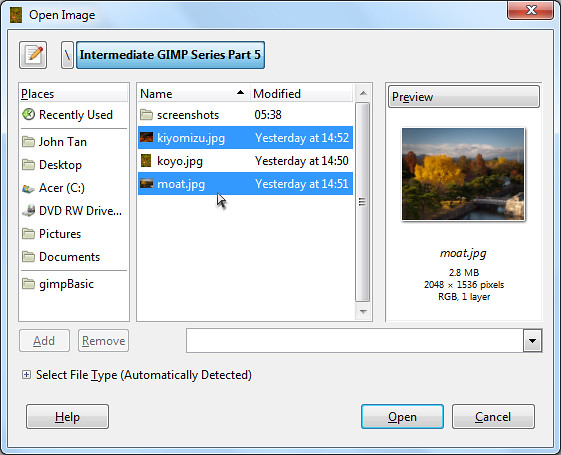
Pict 3: Additional photos
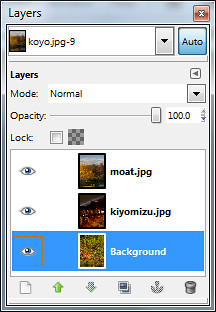
Pict 4: Additional photos as layers
The two photos will be brought in as additional layers – one photo on each layer. For a quick introduction into layers and various ways of manipulating them, read Part 5 of the Basic GIMP series on “Correcting exposure using layers”.
You can see the different layers in the file inside the Layers dialog.
To reduce the size of the moat photo to a thumbnail, click on its name in the Layers dialog to select it and then use the Layer > Scale Layer command from the main menu. As a shortcut, simply right-click on the moat layer in the Layers dialog and select the Scale Layer command from the pop-up menu.
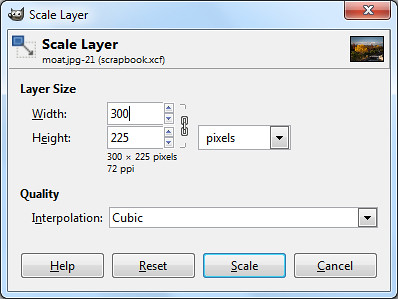
Pict 5: Scale layer down to thumbnail size
In the Scale Layer dialog box that pops up, I typed in 300 in the Width field. The Height field was automatically updated to 225 to keep the aspect ratio of the layer unchanged to avoid distortions. Both the default Interpolation setting of Cubic or Sinc (Lanczos3) will do the resizing with good quality.
Press the Scale button to complete the resizing.
Repeat the same process to resize the other photo into thumbnail size.
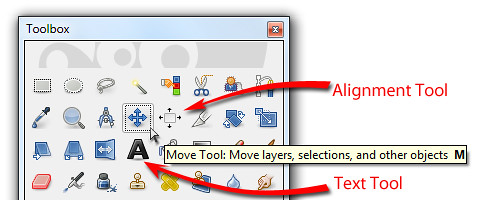
Pict 6: Move, Alignment and Text tools in the Toolbox
Positioning the thumbnails
To move and position the thumbnails, activate the Move Tool from the Toolbox. Now you can just click and drag any layer you see in the image window.
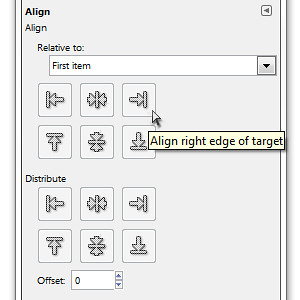
Pict 7: Options for the Alignment Tool
To align the two thumbnails, activate the Alignment Tool in the Toolbox. Click the first thumbnail and shift-click the second thumbnail to select both. You can also drag a rectangle that encloses both thumbnails to select both at the same time.
In the Tool Options, click one of the icons to align either the left or right edges of the thumbnails.
Tomorrow, we’ll add text captions and outlines to the elements in the scrapbook cover/page.
Tags: GIMP, image editor, photo editor, tips