Yesterday, we took a peek at some of the things that GIMP can be used to correct or enhance a digital photograph. Today we get our toes wet putting GIMP to work actually doing something simple.
Getting oriented to the interface (see Picture 1)
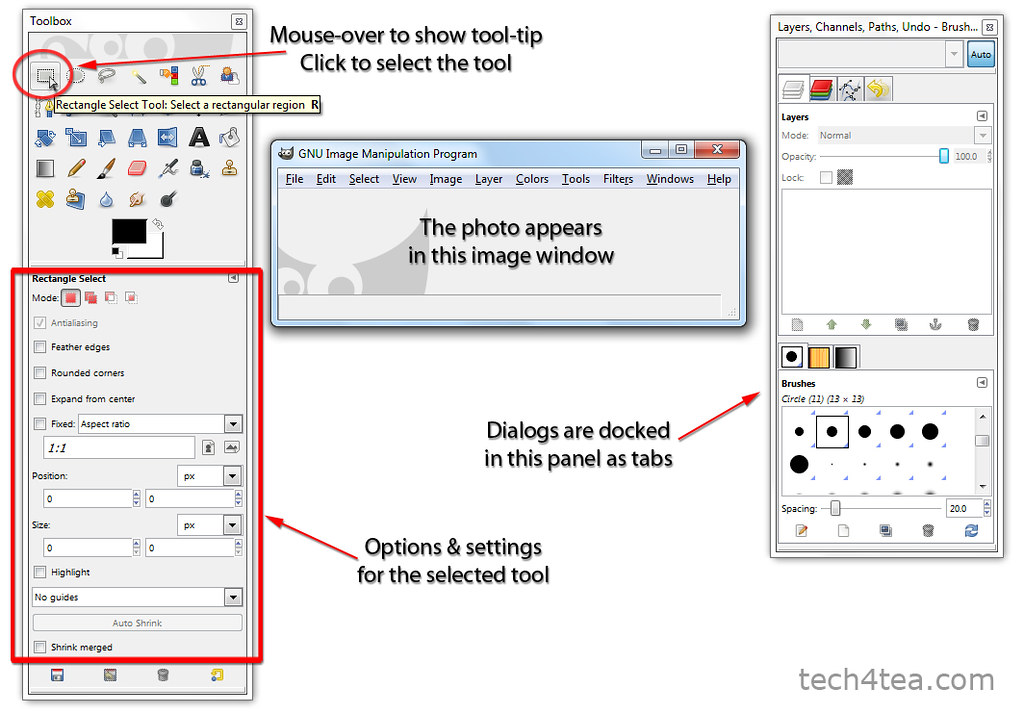
User interface of GIMP
When you first fire up GIMP, you will see three separate windows on the screen. The centre empty window is the image window where the photo appears when you open a digital photo file.
To the left is the Toolbox which contains icons representing the tools available in GIMP. These tools include those for painting, selecting or moving parts of the photo. Mouse over an icon to display tooltips about which tool is associated with the icon, a brief description of what the tool does, and its keyboard shortcut.
Clicking an icon selects the tool. The relevant settings and options for controlling the selected tool are displayed in the lower half of the Toolbox.
To the right of the image window, there is another panel containing “dialogs” for manipulating image layers, colour channels and Undo History. Each of these dialogs is organised as a tab in the panel and can be displayed by clicking on the tab heading of the dialog.
Opening a photo

Open Image dialog box in GIMP
The main menu for GIMP can be found along the top of the image window. To open a photo file, choose the File > Open command from the main menu.
Inside the “Open Image” dialog box (see Picture 2) that pops up, a list of folders is displayed in the “Places” column to the left. Click the relevant folder and the files and subfolders in it are displayed in the centre “Name” column. Double-click a subfolder to further dive into its contents until you get to the photo you want to open.
Clicking a photo file will generate a thumbnail preview to the right. Click the “Okay” button at the bottom to open the photo.
You can have more than one photo open in GIMP at a time. Each photo will appear in its own separate image window.
Straightening a crooked photo
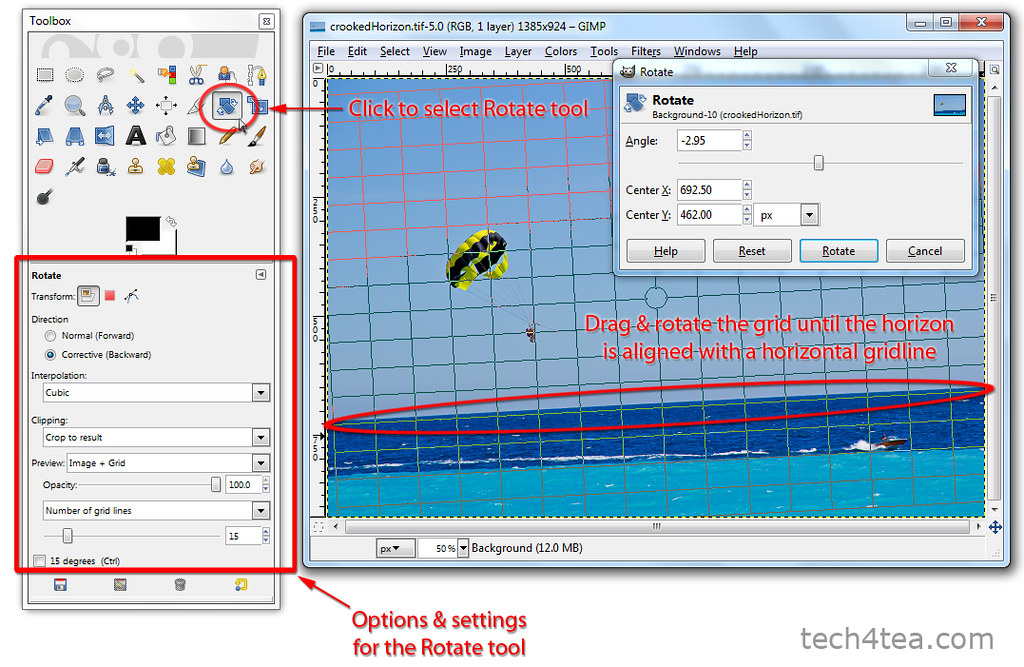
Select the Rotate Tool and adjust the grid overlay
A common reason for discarding photos is when they are crooked because the camera was not held level when the snapshots were taken – the horizons are not horizontal or the buildings are tilted. Here is how to straighten a photo by rotating it in GIMP.
First, click on the Rotate tool icon in the Toolbox (see Picture 3) to select it.
In the lower half of the Toolbox, select the “Corrective (Backward)” radio button for Direction, and select “Image + Grid” from the dropdown box for Preview. These are the settings that I find most intuitive for straightening crooked photos. Set the Clipping to “Crop to result” for GIMP to crop off the corners after the photo has been rotated.
Click on the photo in the image window. A Rotate dialog box appears (ignore it for the moment) while a grid is overlaid onto the photo in the image window. Drag the mouse within the grid to rotate the grid. Rotate the grid until the horizon in the photo is aligned with a horizontal line in the grid. You can also align lampposts or sides of buildings that are supposed to be vertical to the vertical lines of the grid.

I took this photo off the beach in Nice, France. The camera was not level and resulted in a slanted horizon.

The photo was straightened using the Rotate Tool in GIMP so that the horizon has become - but of course - horizontal.
Once you are happy with the alignment of the photo to the grid, click the Rotate button in the dialog box and the photo is straightened (see Pictures 4 and 5). Select the Image > Autocrop Image command from the main menu to crop away the empty spaces around the photo.
Tomorrow, we’ll try out the Perspective Tool to correct distortion when snapping photos of tall buildings and the Crop tool for recomposing snapshots.
Tags: GIMP, image editor, photo editor, tips