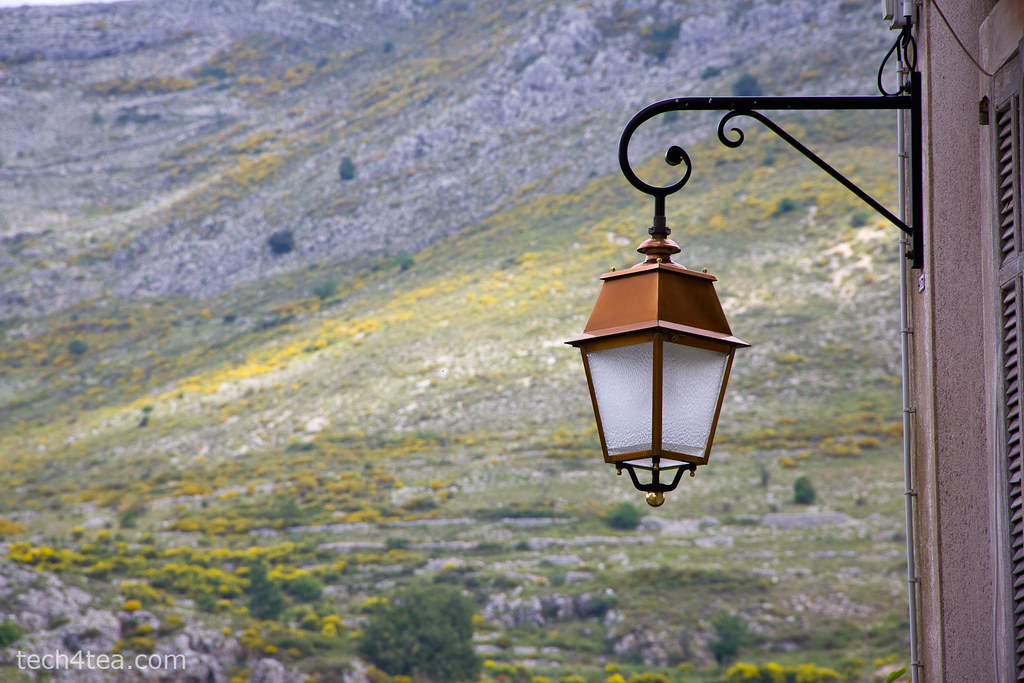
Pict 1: Metalwork lantern in French Provence. Exposure was well-balanced, as indicated by the histogram below.
Many digital cameras today can display histograms on their LCD screens in both the review and preview modes. The histogram helps the photographer to assess whether the exposure settings for an image are optimal. This is most useful when bright sunlight makes it difficult to judge – just by viewing the photo preview/review on the LCD screen – whether a photo is too bright or dark.
If the histogram indicates that the photo is too dark or bright, the photographer can adjust the exposure settings to get a better shot.
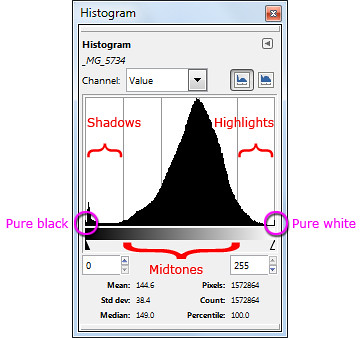
Pict 2: Different parts of a histogram. The photo of the metal work lantern was well-exposed.
What is a histogram?
The histogram is basically a graph of the brightness levels of all the pixels in a photograph – from pure black (brightness value zero) on the left edge to pure white (brightness value 255) on the right edge.
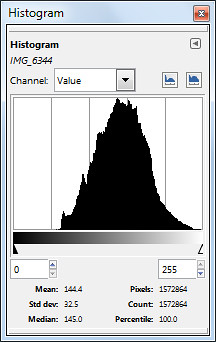
Pict 4: An overexposed photo has its histogram bunched up to the right.

Pict 3: Lavenders in the French Riviera - overexposed.
The number of pixels in each of the 256 levels of brightness are counted and plotted on the Y axis as a bar chart to provide an idea of the tonal distribution of a photograph and its possible problems.
The region around the left edge of the histogram represents the shadows (dark tones) in the photo while the pixels near the right edge represents the highlights (bright tones). The middle region represents the midtones.
Analysing a histogram
When a photo is opened in GIMP, you can view the photo’s histogram by selecting the Windows > Dockable Dialogs > Histogram command from the main menu. By analysing the histogram, you can better decide how to use the tools in GIMP to enhance a photo’s brightness and contrast.

Pict 5: Flowers at Gourdon - underexposed.
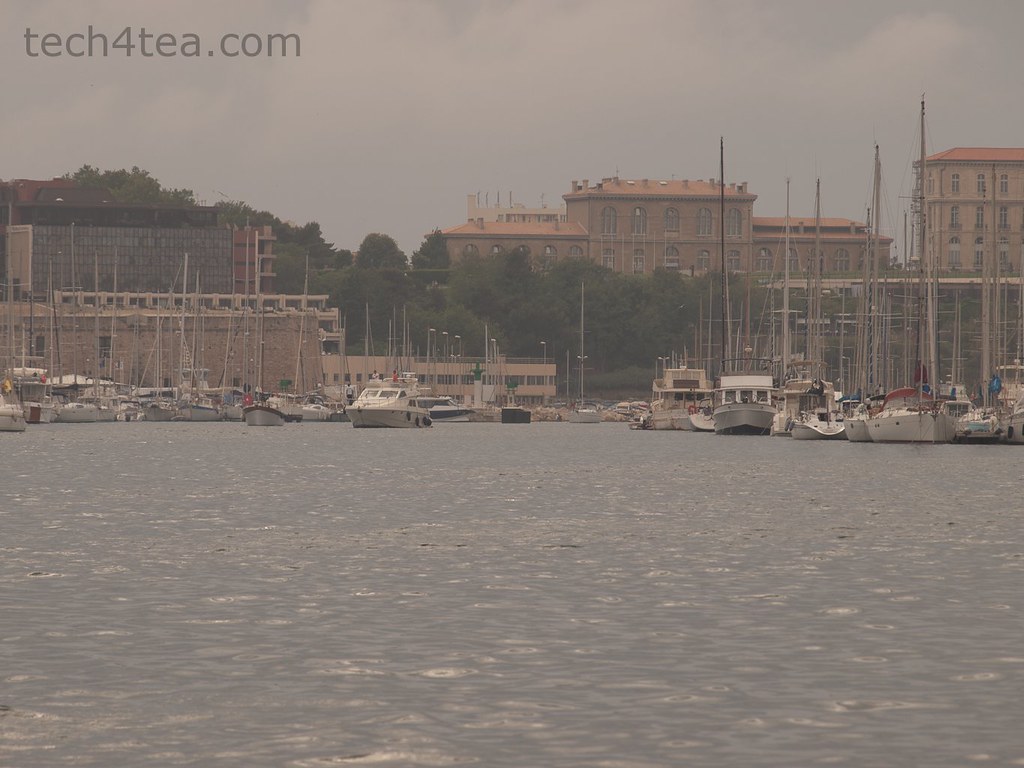
Pict 6: Port of Marseille on a dull and overcast day.
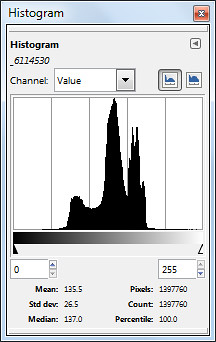
Pict 7: All bunched up in the middle - suggesting a photo with poor contrast.
A well-exposed photo usually has a histogram which looks like a bell-shape and which stretches from one end of the histogram to the other (see Pictures 1 & 2).
A photo that is overexposed (too bright) usually has a histogram that is bunched up on the right, while an underexposed photo will have a histogram that’s bunched up to the left (see Pictures 3 to 5).
A photo with poor contrast will usually have a histogram that is squashed up towards the middle. The photo appears dull and flat. The brightest pixels are not bright enough while the darkest pixels are not dark enough (see Pictures 6 & 7).
Exceptions
Note that there are exceptions under special photographic situations. For example, a photo that comprises mainly bright tones (such a scene comprising white snow against a light coloured sky) can have a histogram that is bunched up to the right, even though it is properly exposed (see Pictures 8 & 10).
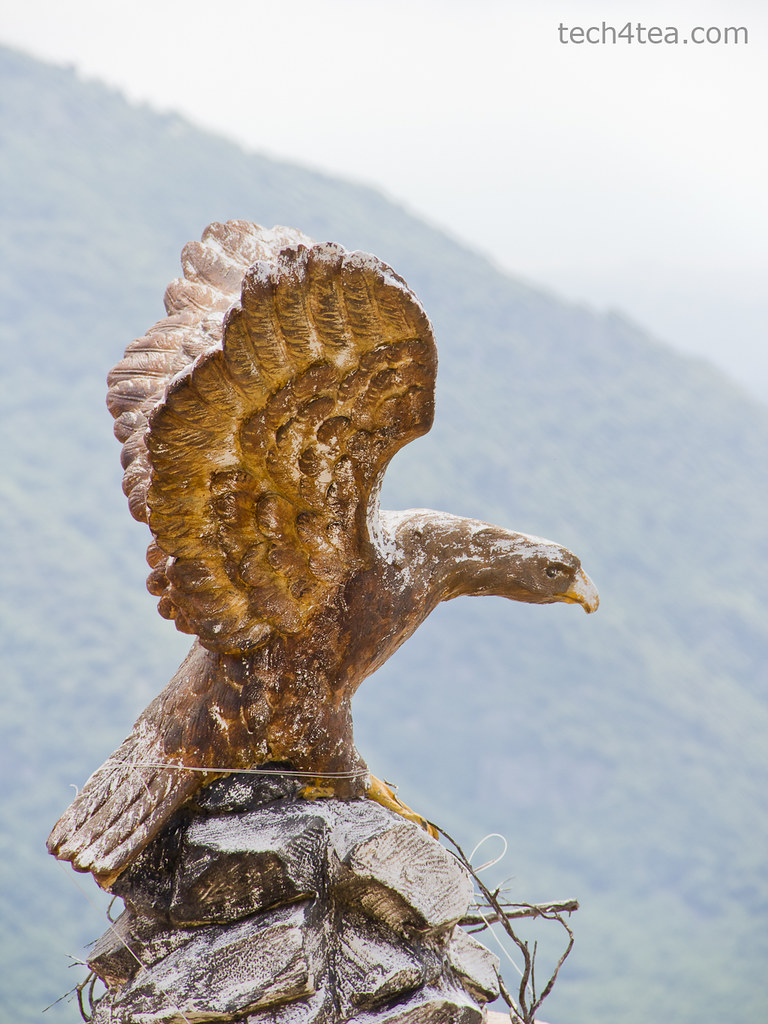
Pict 8: Eagle perched atop Gourdon.
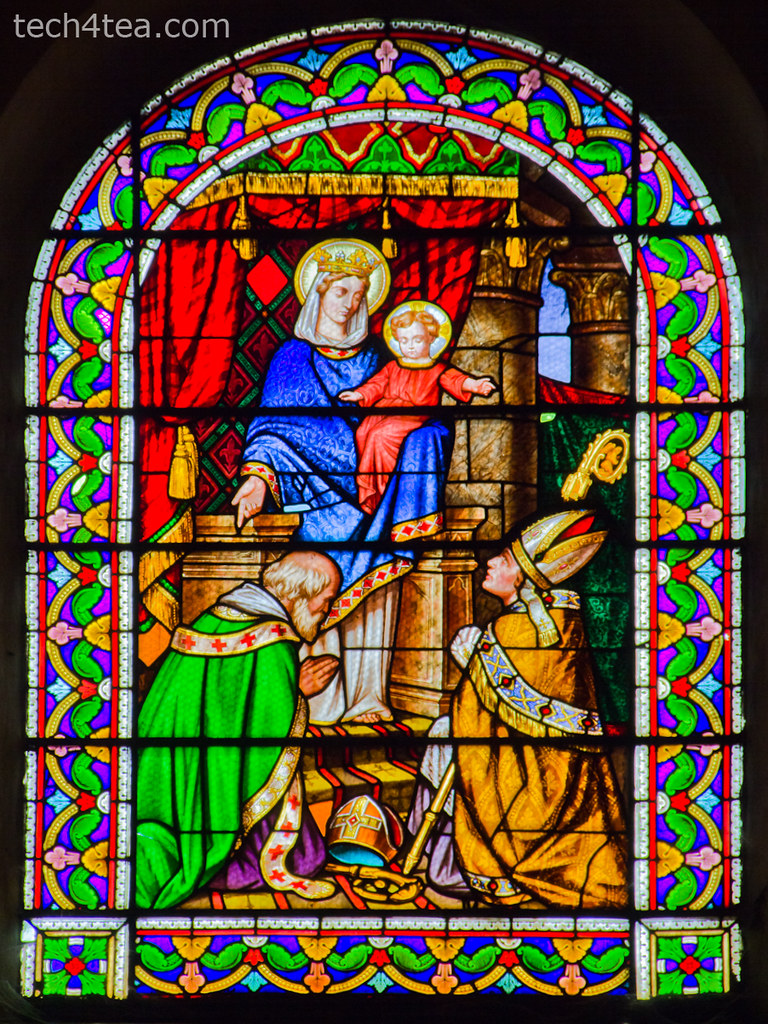
Pict 9: Stained glass window in Provencal church.
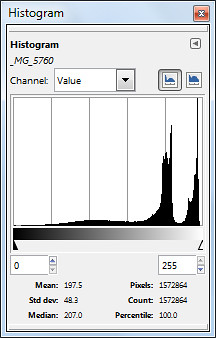
Pict 10: Bunching up to the right caused by bright background behind the eagle despite proper exposure.

Pict 11: Histogram is bunched up because of the predominance of dark tones - despite proper exposure.
Tags: GIMP, image editor, Photoshop, tips
[…] for the Levels command, an understanding and analysis of the histogram of the photo is the basis for using the Curves […]