Yesterday, we removed unwanted objects from photos by cloning neighbouring pixels and painting them over the objects. Today we use GIMP to sharpen digital snapshots.
Digital photos tend to appear not as sharp as their film predecessors because of the way digital cameras interpret the information from the camera sensor. This is made worse when printing out the photos because of the way ink spreads on the printing paper.
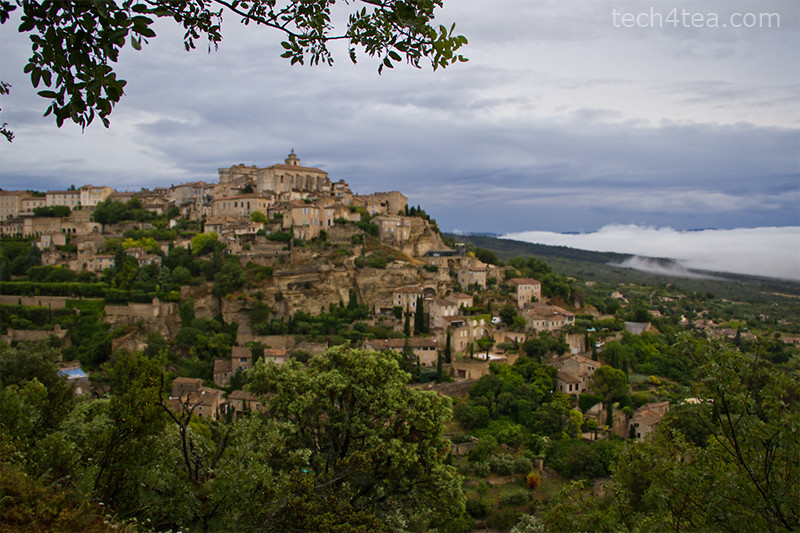
Pict 1: This precarious hillclad village is slightly out of focus because the camera had focussed on the overhanging branches instead.
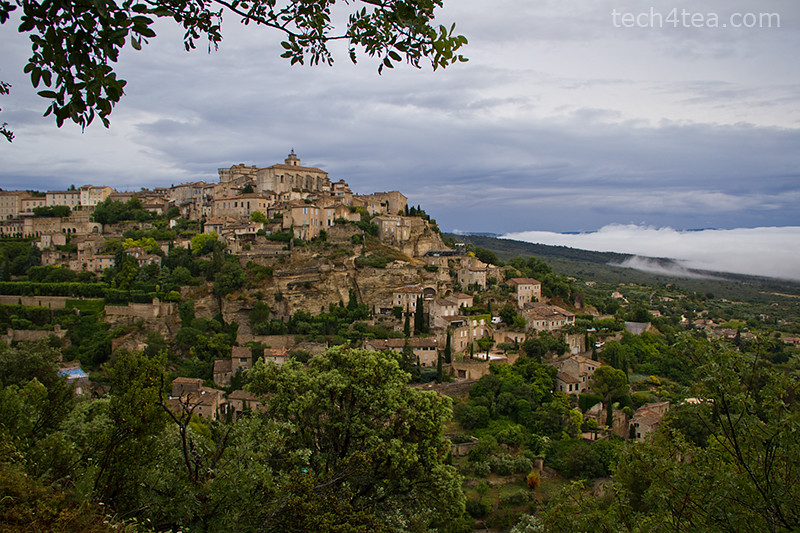
Pict 2: A bit of sharpening can make a big difference when the photo is printed out. Gourdes is one of my favourite villages in Provence, France.
Sharpening digital photos using an image editor on a computer is simple but can make a photo appear more crisp and appealing (see Pictures 1 and 2). In fact, I usually keep the sharpening setting in my camera and photo scanners to the minimum because a dedicated photo editor on the computer can usually do a better job at sharpening photos.
Quick and simple sharpening
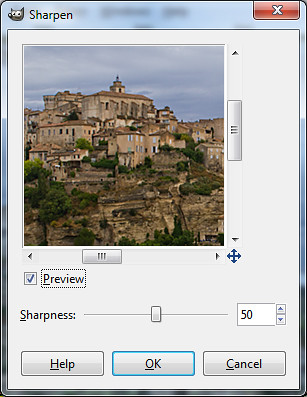
Pict 3: A "Sharpness" setting of between 10 and 50 is usually adequate.
Sharpening a snapshot in GIMP is quick and easy: simply select the Filters > Enhance > Sharpen command from the main menu. A “Sharpen” dialog box pops up (see Picture 3) showing a single “Sharpness” slider to control the amount of sharpening to be applied, and a thumbnail to preview the effect visually. Enlarge the dialog box to make the preview thumbnail bigger.

Pict 4: Deliberately pushing the "Sharpness" slider near the maximum can produce a neat colour pencil sketch like effect.
Avoid setting the sharpness amount too high, since this will also sharpen the undesirable noise and grain in the photo and make the photo look garish.
However, for those looking to turn their photos into a colour-pencil-sketch like effect, try pushing the sharpness slider near the maximum value of 99 (see Picture 4).
If you have the time and desire more control over how the sharpening effect should look, go straight to the Filters > Enhance > Unsharp Mask command instead (see Pictures 5).
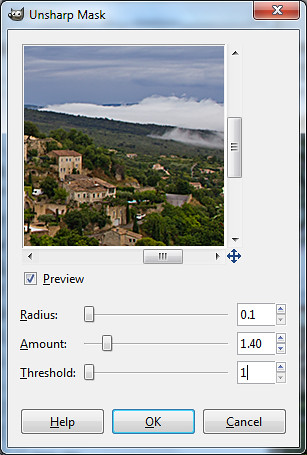
Pict 5: The Unsharp Mask filter provides more control over how the sharpening is accomplished.
The Unsharp Mask filter actually sharpens a photo – contrary to what its name suggests – and is the tool of choice of the pros. The name and method used is based on a traditional darkroom technique for sharpening film photos – in which a photo is made to appear sharper by superimposing a blurred copy of the photo over the original photo.
Similar to the simple Sharpen filter, an “Unsharp Mask” dialog box pops up with a preview thumbnail of the sharpening effect. There are, however, three sliders, providing finer control over how the photo is sharpened.
GIMP first detects the edges in the photo and sharpens the photo by increasing the contrast of these edges. It lightens the lighter pixels on one side of an edge and darkens the darker pixels on the other side, making the photo appear more crisp than it really is.
The Amount slider controls the strength of sharpening to apply while the Radius slider specifies how many pixels on either side of an edge will be modified for sharpening.
The Threshold slider tells GIMP how it should detect edges. Only adjacent pixels where the difference in pixel values exceeds the Threshold value will be detected as part of an edge to be sharpened. A high Threshold value protects areas of smooth tonal transition from being sharpened, and minimises the amplification of blemishes in faces, water surfaces or skies.
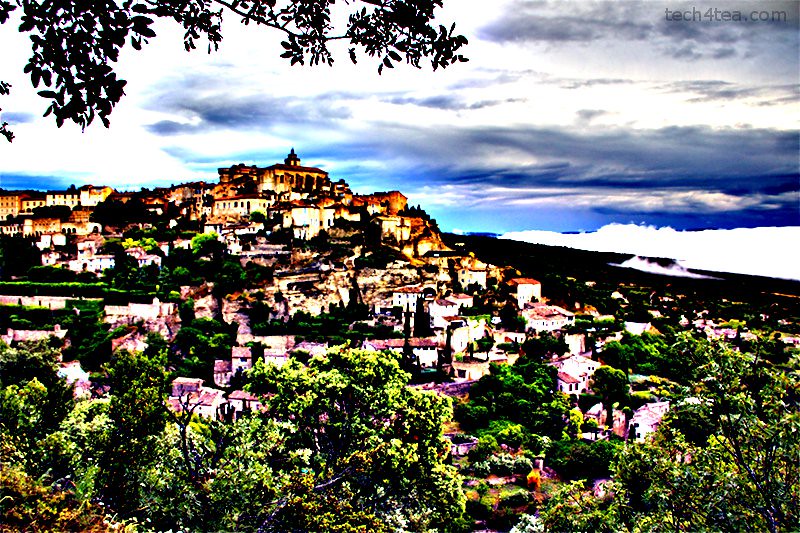
Pict 6: Pushing the "Radius" and "Amount" up can lead to some nice painterly effects.
Although the Unsharp Mask filter avoids accentuating the noise and graininess in the photo, oversharpening will introduce halos around the edges in the photo and make it look unnatural. Details in the photo are also lost because the highlights are blown out into pure white while shadows are muted into black.
Again, don’t oversharpen unless your intent is to deliberately create a painterly special-effects version of the photo (see Picture 6).
Tomorrow, we’ll use GIMP to give portraits a soft focus reminiscent of glamorous celebrity shots.
Tags: GIMP, image editor, photo editor, tips
Like these pics a lot, great post.
Thanks for the kind comment, Lenard 🙂