Have you ever shot photos where the women look like they’re from Venus or the men look like they’re from Mars? Wrong white balance settings on the camera can lead to colour casts that coat everything in the photo with a hideous tinge. Use GIMP to remove these undesirable colour casts.
Yesterday, we used Layers and Layer Modes to tweak the brightness and contrast of photots. Today, we remove (or add) colour casts using GIMP.
Colour casts in photos are caused by the surrounding light at the time the shot was taken. Some casts makes a photo look nicer while others add ugly tints that make people in those photos look like the Na’vi from Pandora.
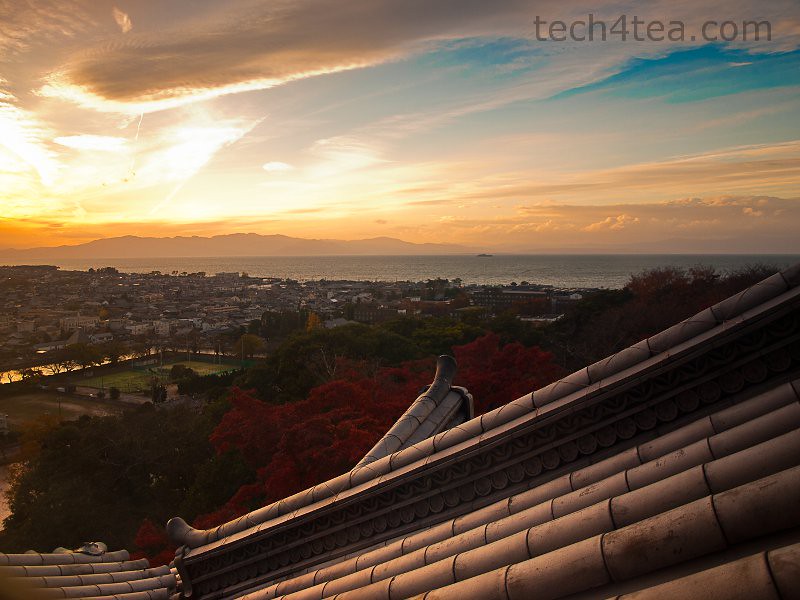
Pict 1: This stunning golden sunset was taken off the coast of Lake Biwa from the top of Hikone Castle in Japan.
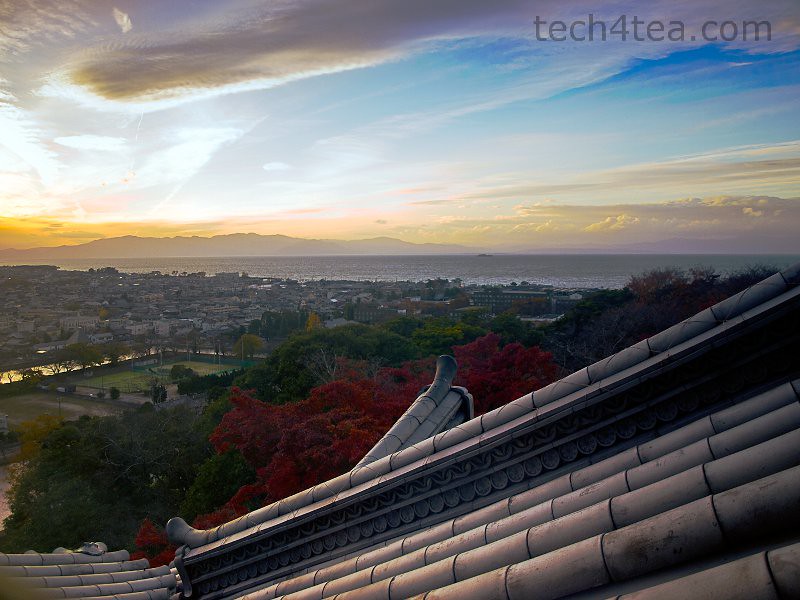
Pict 2: The orange colour cast has been removed to restore the "original" colours - but the sunset has lost its soul.
White Balance setting on cameras
Before snapping a photo, set the camera’s White Balance setting to Auto (see Picture 3). Under most lighting conditions, the camera will automatically detect and remove colour casts from the photo.

Pict 3: Set the White Balance on the camera to Auto
To help the camera better judge the compensation needed, a photographer can change the camera’s White Balance setting from Auto to Sunlight, Cloudy or Fluorescent, for example, depending on the ambient lighting.
Be careful though – a common reason for unwanted colour casts in photos is when the white balance has been set wrongly. For example, you may have just shot outdoors in the sun using the “Daylight” white balance setting, and then move indoors to shoot under fluorescent lighting. If you forget to switch the white balance setting in the camera from “Daylight” to “Fluorescent”, the indoor shots will turn out with a strong blue or green tint.
Removing colour casts
In GIMP, apply Colors > Auto > White Balance from the main menu. This should automatically remove colour casts from most photos. Usually, the brightness and contrast are enhanced as well. To make the colours look richer, apply Colors > Auto > Color Enhance to make the colours more saturated.

Pict 4: Adjust the three sliders in the Color Balance dialog box until the colour cast has been eliminated.
If the above auto-adjustments do not remove colour casts completely, try doing it manually using Colors > Color Balance instead. The Color Balance dialog box pops up containing three sliders for controlling colour in the photo (see Picture 4).
The three sliders comprises pairs of colours on opposite ends of each slider. Moving a slider towards the colour on one end will increase the intensity of that colour in the photo and reduce the intensity of the colour on the other end of the slider.
For example, if there is a cyan colour cast in the photo, drag the cyan-red slider towards the red end to reduce cyan in the photo and make the photo look redder.
Above the sliders, there is a group of three radio buttons to specify whether the colour adjustments are applied to the Shadows, Midtones or the Highlights. Start with the Highlights before moving on to the other two ranges.
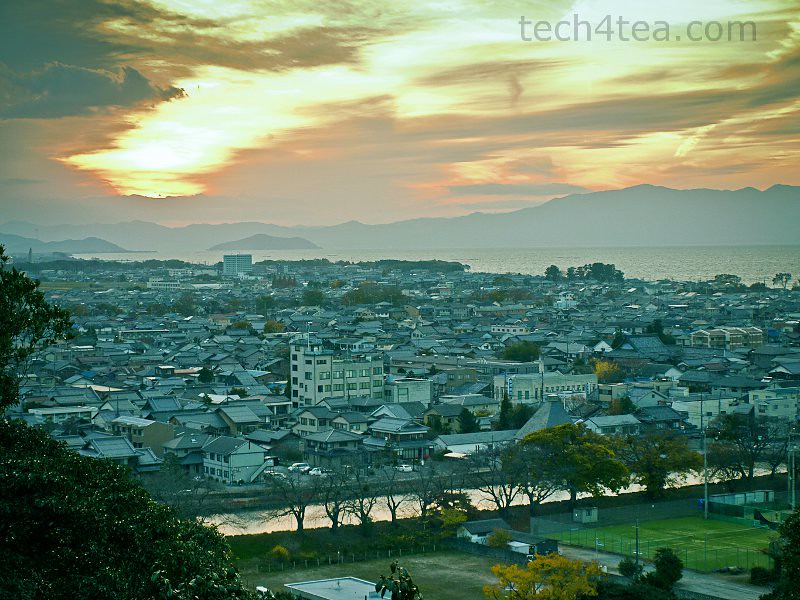
Pict 5: A beautiful sunset off the coast of Lake Biwa is marred by a cyan cast.
Pict 6: The cyan colour cast has been removed but the sunset still looks flat.
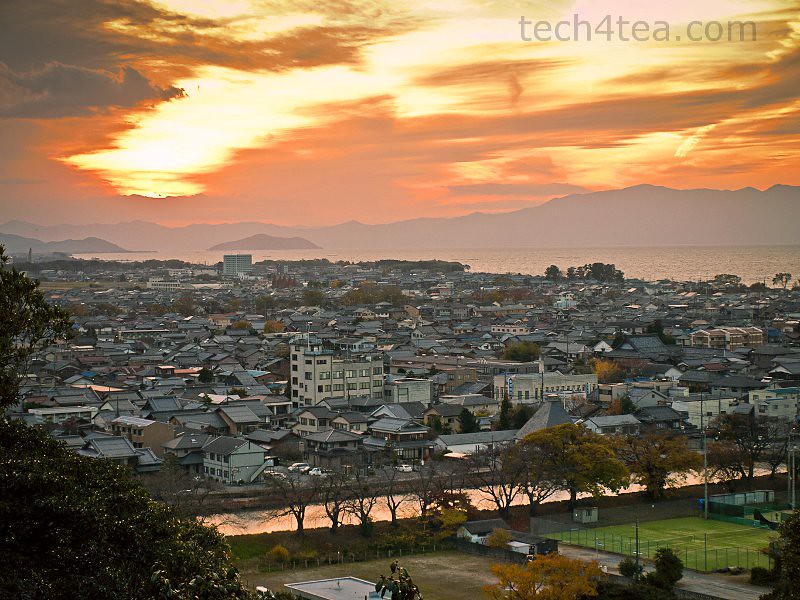
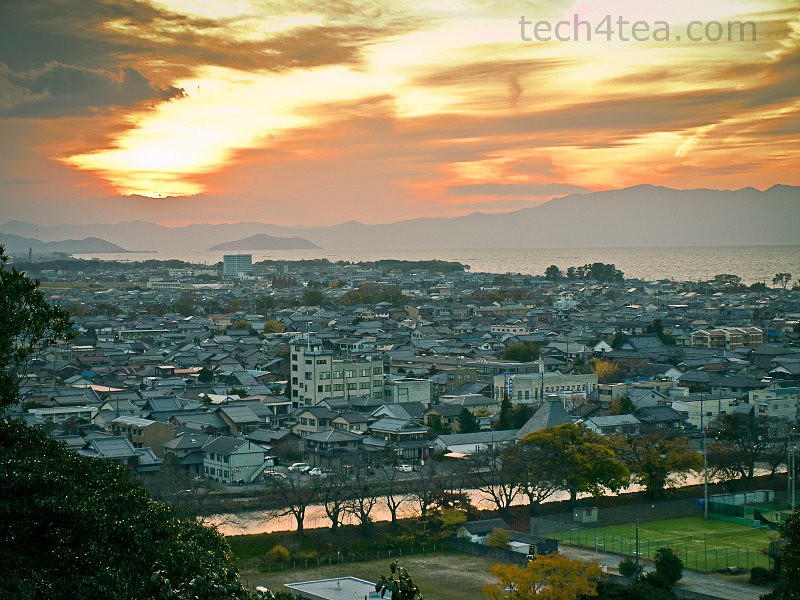
Pict 7: A red and yellow colour cast has been deliberately added to better convey the original warmth and glow of the sunset.
You can even add your own colour casts deliberately to add some atmosphere to the photo (see Picture 7).To compare the photo before and after the adjustments, toggle the Preview checkbox on and off.
At the bottom of the dialog box, there are three buttons to either Reset the sliders, Cancel the adjustments, or press OK to apply the adjustments.
Tomorrow, we’ll look at how to remove colour totally to turn photos into black and white, tint them a nostalgic sepia, or any other colour that strikes your fancy.
Tags: GIMP, image editor, photo editor, tips
I stumbled across these tips while trying to figure out how to remove the sepia tones from some old photos from the 70s and your explanation above worked pretty well !
Thanks for writing this up !
I’m glad you found the article useful, Will.
I’ve always shared tips on how to ADD a sepia tone for an aging effect.
But you’ve managed to apply the tips for removing colour casts to remove unwanted (genuine) sepia tones.
That’s wonderful!